
Key Takeaways
- You can remove Windows Autopilot device registrations directly from the Intune admin center.
- If the device is enrolled in Intune, delete it from Windows devices > All devices before removing its Autopilot registration.
- Devices that are registered with Autopilot but not enrolled in Intune can be deleted directly from Windows Autopilot devices.
- Deleting a device removes its management record from Intune and can affect its access to organizational resources.
In this post, you will learn Delete Windows Autopilot Devices from Intune to Clean Up Unused Device Records. Windows Autopilot simplifies the deployment and management of Windows devices by allowing organizations to pre-configure, provision, reset, and repurpose devices without traditional re-imaging. Microsoft Intune provides administrators with the tools needed to manage Windows Autopilot device registrations and remove devices when they are no longer required.
Table of Contents
Table of Contents
Delete Windows Autopilot Devices from Intune to Clean Up Unused Device Records
Windows Autopilot is a collection of technologies used to set up and pre-configure new devices, getting them ready for productive use. Windows Autopilot can be used to deploy Windows PCs or HoloLens 2 devices. With the help of Intune and Autopilot, you can pre-configure, reset, re-purpose, and recover your devices. You can do the customization, and deploy the setting without re-imaging, which saves you a lot of time.
There is no day’s limit, and the re-registration is needed to complete a successful deployment if the device is registered and not enrolled. If you are looking for a simple way to export and import your Windows Autopilot devices, there are multiple methods available, and Intune has a built-in option.
- Windows Autopilot Device Export Guide for Microsoft Intune Admins
- Windows AutoPilot Process End To End Guide
- PS Script To Add Or Modify Group Tag Of Autopilot Devices In Intune
Points to Consider
Removing a device from your tenant requires you to delete the Intune device, the Azure Active Directory device, and the Windows Autopilot device records. This can all be done from Intune portal.

- If the devices are enrolled in Intune, you must first delete them from the Intune All devices blade.
- Delete the devices in Azure Active Directory devices at Devices > Azure AD devices.
Delete Windows Device from Intune
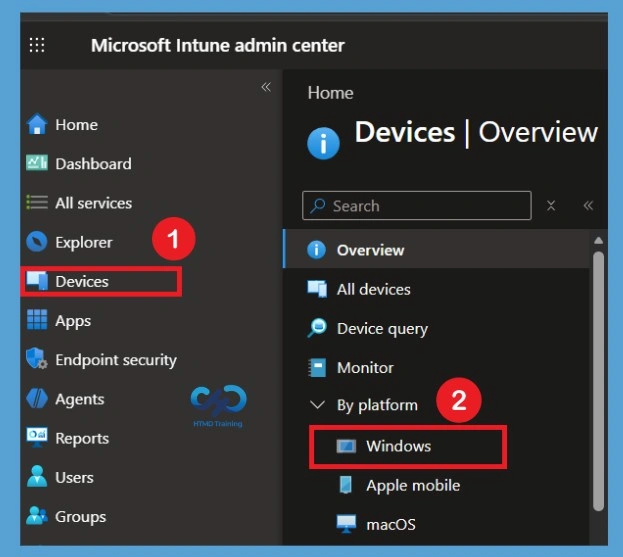
Sign in to the Microsoft Intune admin center and select Devices from the left-hand navigation pane. Under Devices, select Windows to open the Windows device management section. This section provides access to Windows devices managed through Intune and includes options for viewing, managing, and removing Windows devices.
- Sign in to the Microsoft Intune admin center
- Navigate to Devices > Windows.
Searching for the Target Windows Device
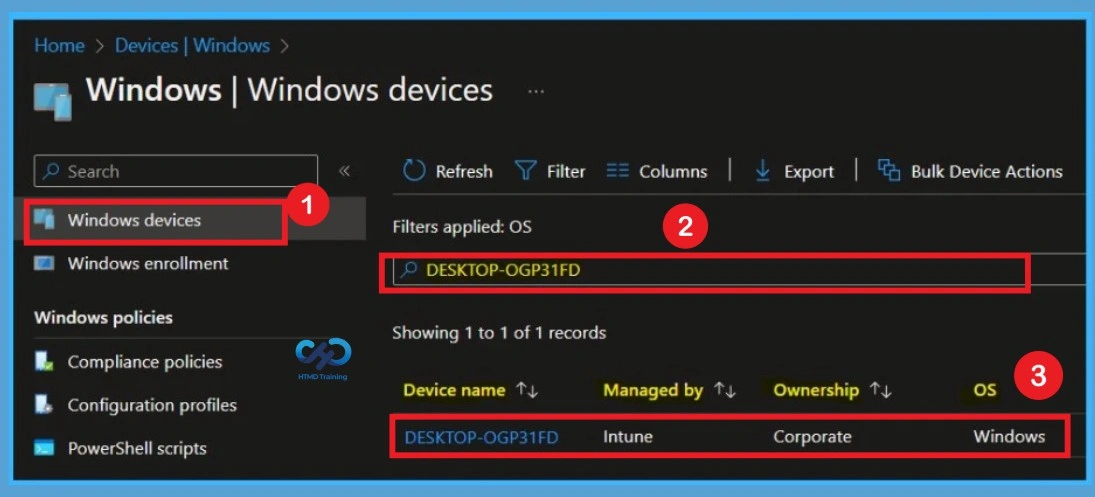
Once inside the Windows portal, click on Windows devices from the left menu panel. This displays a list of all currently enrolled Windows devices managed by Intune across your environment. Locate the search bar in the main view and type in the exact name or device name of the target platform. Once the search results filter down, click directly on the matching device name record to load its Overview tab.
- Under Windows devices, Search for the device from the list you want to delete.
- Click on the device to get inside the overview tab.
Deleting the Device from Intune
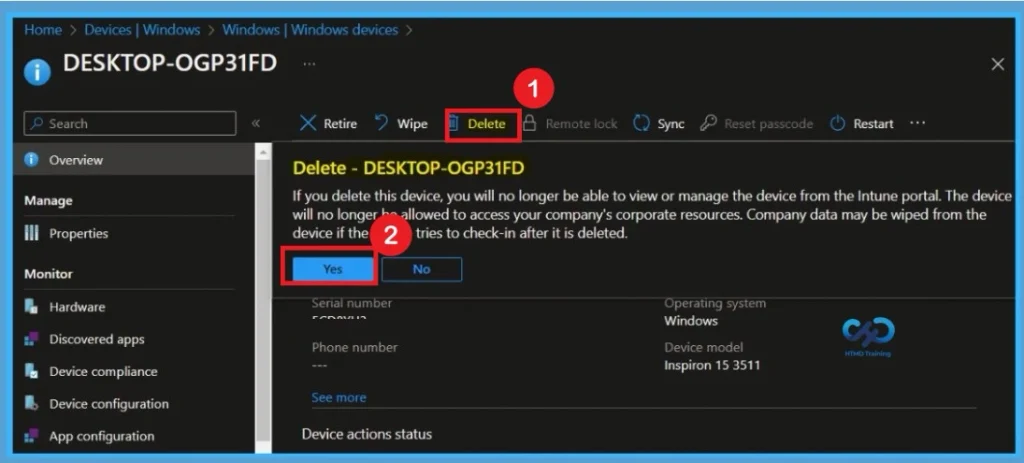
Once you click on Delete, you will see the message appears as shown below. You can read the impact of deleting the device and Click on Yes to proceed. If you delete this device, you will no longer be able to view or manage the device from the Intune portal. The device will no longer be allowed to access your company’s corporate resources. Company data may be wiped from the device if the device tried to check-in after it is deleted.
Confirming Deletion Request Status
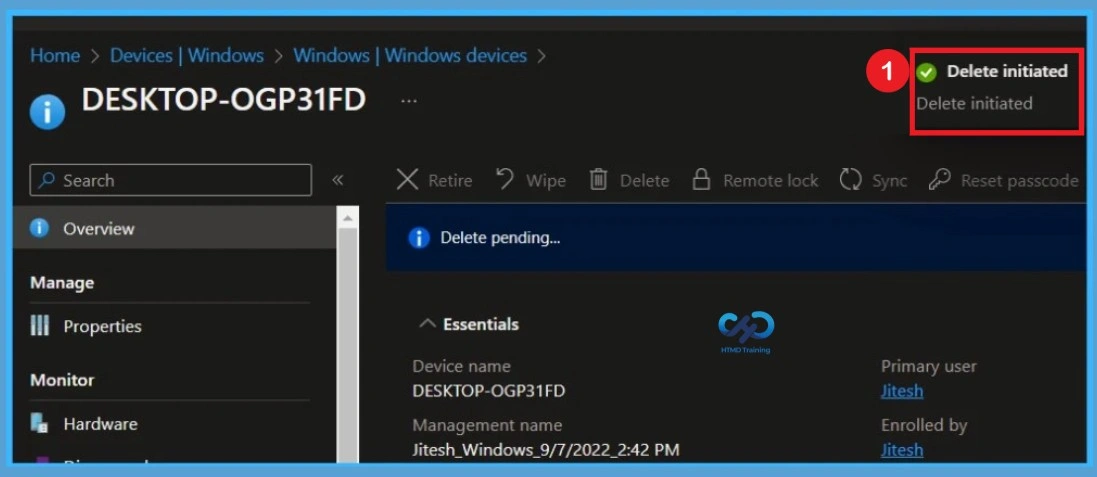
Immediately after confirming, a pop-up banner stating Delete initiated will appear near the top-right corner of the console. It will take a few minutes to complete the process, you can back and hit refresh. You will find, the device is no longer available on Windows devices.
Delete Windows Autopilot Device From Intune
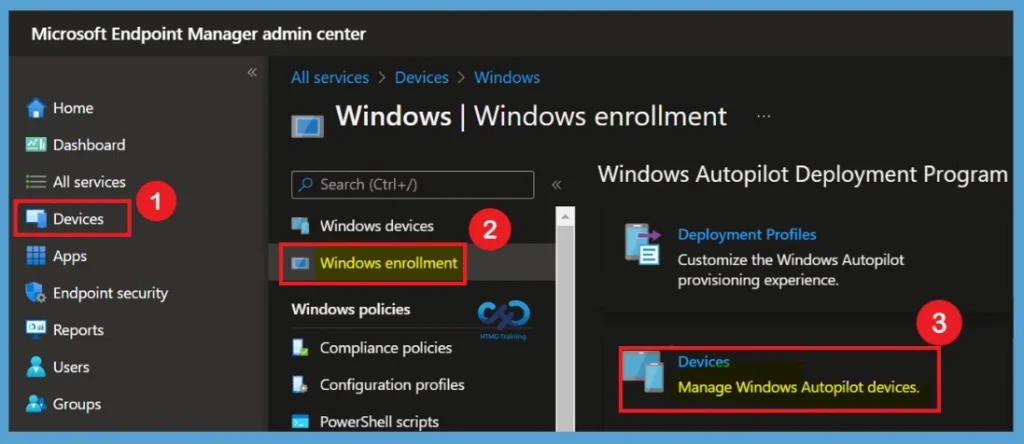
To delete the Windows Autopilot device registration, go to Devices > Windows > Windows enrollment in the Intune admin center. This section contains the settings and devices related to Windows Autopilot. On the Windows enrollment page, find Windows Autopilot Deployment Program and select Devices. This opens the list of Windows Autopilot devices registered in your Intune tenant.
- To delete the Windows Autopilot devices, Navigate to Devices > Windows > Windows enrollment. Click on Devices to see managed windows autopilot devices.
Note – You can delete Windows Autopilot devices that aren’t enrolled in Intune directly from here.
Selecting the Autopilot Device Record
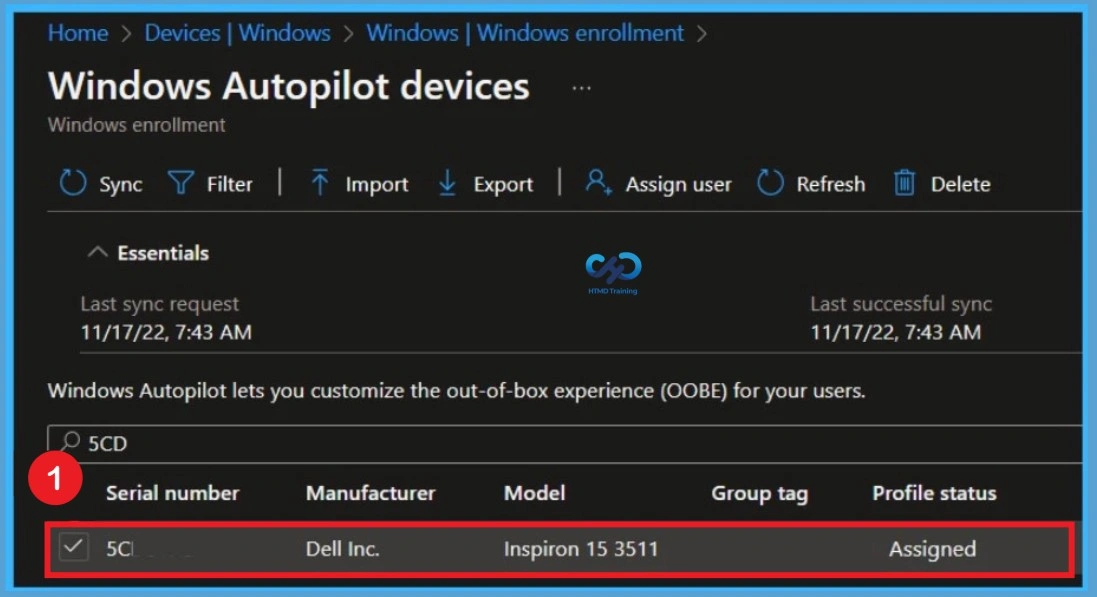
Within the Windows Autopilot devices blade, use the search bar to locate the specific machine you want to unregister. You can search using details such as the device’s hardware serial number to locate the target entry.
Once the device appears in the filtered results grid, click the selection checkbox on the far left of its row. This highlights the device record and enables the action buttons along the top command bar.
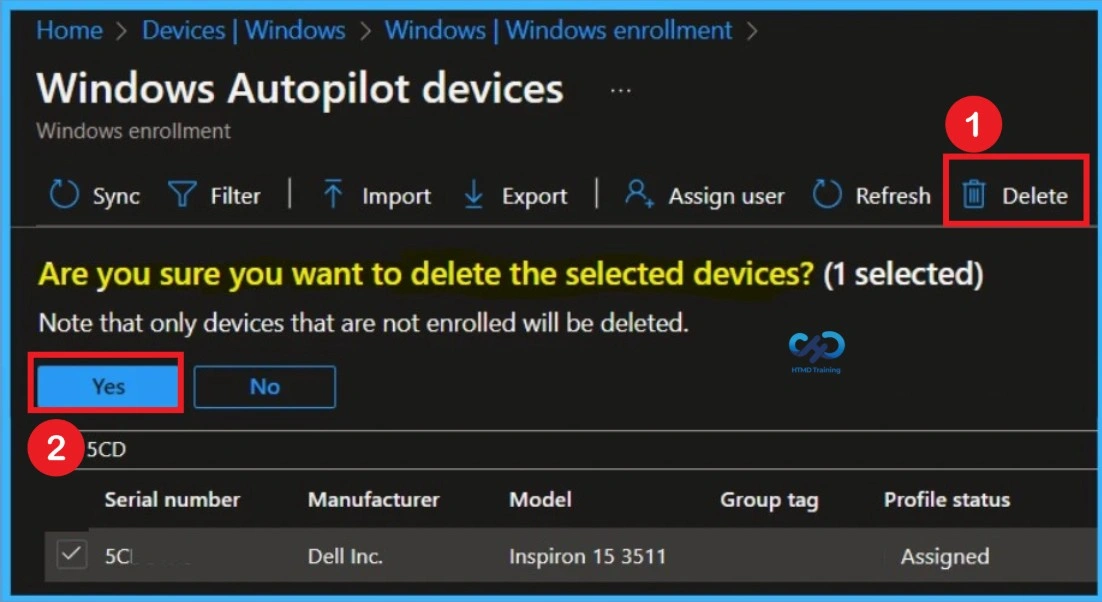
On the device Overview page, select Delete from the top menu. If the device is currently enrolled in Intune, you must delete the Intune device record before removing its Windows Autopilot registration. A confirmation message will appear explaining what happens after deletion. Review the message and select Yes to continue.
Windows Autopilot device deletion can take a few minutes to complete. You can wait to get the successful deletion message. Note – You might need to delete Windows Autopilot devices from Azure AD due to communication issues or missing devices.
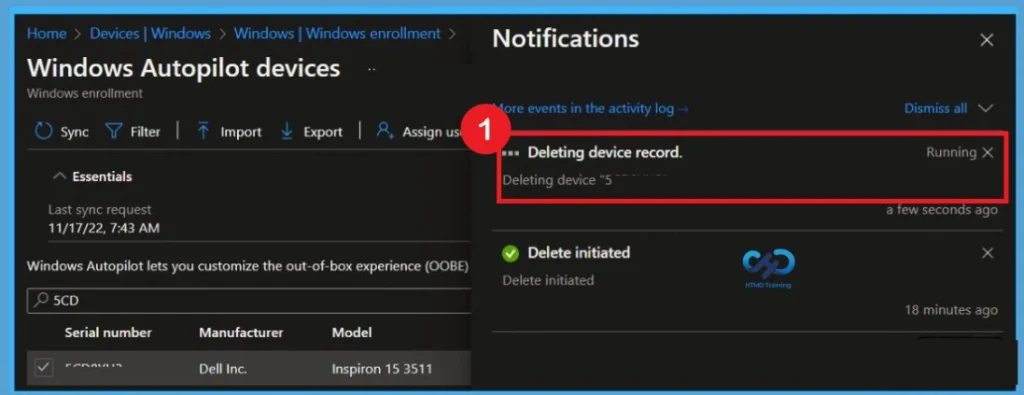
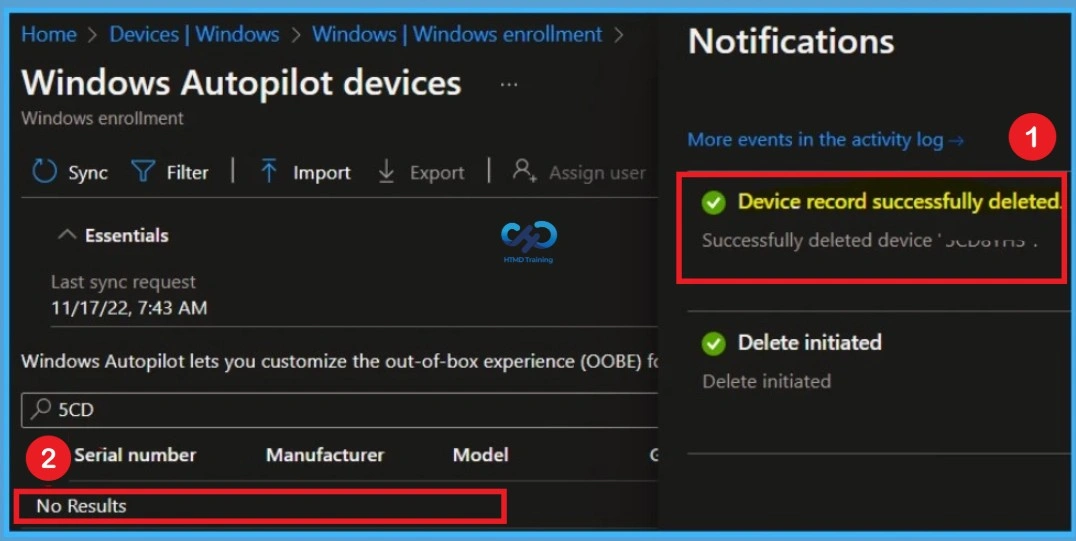
Click on the Notifications icon to get the status. Once the successfully deleted the selected device, you will receive a message Device record successfully deleted. You see the selected device has been successfully deleted from Windows Autopilot devices.
Note – You may experience the notification message sometimes resulting in Deletion took longer than normal. Try refreshing the devices list in a little while. In this scenario, please refresh and wait for a moment. You will find the device has been deleted.
Need Further Assistance or Have Technical Questions?
Join the LinkedIn Page and Telegram group to get the latest step-by-step guides and news updates. Join our Meetup Page to participate in User group meetings. Also, join the WhatsApp Community and the Whatsapp channel to get the latest news on Microsoft Technologies. We are there on Reddit as well.
Author
About Author – Jitesh, Microsoft MVP, has over six years of working experience in the IT Industry. He writes and shares his experiences related to Microsoft device management technologies and IT Infrastructure management. His primary focus is Windows 10/11 Deployment solution with Configuration Manager, Microsoft Deployment Toolkit (MDT), and Microsoft Intune.
thank you, however no-one follows up by sayinbg what happens to the device and its user experience after deletion, what if someone leaves the org but is given the laptop? what do they have to do to have a working laptop that previously only had a azure AD login?
Complete a Windows reset on the laptop and then it will be available for any normal login.
How do you identify the device if it has been deleted from devices within Intune but Appears in Azure AD.
We have many devices showin in Azure AD with old device names that no longer correspond with any device name in Intune.
And because there is no identifying object such as a serial number you cannot identify the device in the Windows Autopilot Deployment Program.
Garry — I had this question for months and I think I finally got an answer to it in another forum. People kept answering it incorrectly (by giving me Intune queries).
Copy the Device ID from Azure Portal.Open Microsoft Graph Explorer – https://developer.microsoft.com/en-us/graph/graph-explorer.
Authenticate to your tenant if not automatically logged in.In the query window select Get and enter the following query: https://graph.microsoft.com/v1.0/deviceManagement/windowsAutopilotDeviceIdentities?$filter=azureActiveDirectoryDeviceId eq ‘Azure Device ID’.
Where ‘Azure Device ID’ is the one you copied from the Azure Portal. This will return the Autopilot id, group tag, serial number and a bunch of other information to locate the device in Autopilot.
Note that an admin with proper permissions will have to CONSENT for this query and may need to assign it to your user.
I’m looking for a solution to exactly what Charlie mentioned above. The device in question is 3 hours away from me. I can walk the end user through a manual reset after it’s removed from our tenant but this really doesn’t feel like the right answer
Hi,
Actually I’m literally tried to find what is correct solution for below 2 scenerio.
Below is my problem
In the first scenario, the entry of hybrid AP devices in Intune displays the join type as Azure AD Joined or Azure AD Registered, and their Azure ID doesn’t matches with the Hybrid entry in AZURE, and the devices are locally hybrid Joined. However, when I perform a local sync, the correct information is retrieved, and the join type changes to Hybrid Azure AD Joined from Azure AD Joined or Azure AD Registered.
In the second scenario, the hybrid devices’ entries in Intune show the join type as Azure AD Joined or Azure AD Registered, but their Azure ID matches with the hybrid entry in Azure, and the devices are locally hybrid. However, performing a local sync does not provide a resolution in this case.
I also have a concern regarding the conditional access MFA of Azure, specifically “Microsoft Intune Enrollment.” Could you please provide a document related to this topic to help me understand its role in more detail? About this I want to know beacuse after enrolled hybrid autopolit when user reached at home screen of device window ask and pop message appears to verify the account and after verifying for some devices ( of case 1)which have HAAD entry in azure initially some columns are missing like owner, upn ,MDM scope is none but when i hit sync button and verify my account credentials then all the information appears in Azure and intune join type change from Azure AD joined or azureadjoined registered to hybrid azure Ad joined (this for 1st scenario)that is why I am doubting on it and if it’s root cause so i can exclude it from azure ad conditional access MFA.
For 2nd second scenario MS team suggested like we can delete 1st record their my join type in Intune will replicate as hybrid azure Ad joined.
But in internet I’m confusing so much no authenticating documents what their impact on devices
@Dinesh, In Hybrid Azure AD scenario, you will always find 2 entries of same device name – one is of Azure AD joined which is created when autopilot starts and other one is created when device object is created in on prem AD and then sync back to Azure AD on Azure AD connect sync cycle (usually within 30 mins) post on prem AD authentication. I would suggest you remove “Microsoft Intune” app from MFA policy as it holds back device sync to Intune unless user has authenticated (you will get error like failed to get AAD token). So dont exclude “Microsoft Intune Enrollment” app but instead exclude “microsoft Intune” app and you should be good.
@Suraj, You might be Lil incorrect here, we don’t need to exclude Microsoft intune MFA rather than we need to exclude Microsoft intune enrollment MFA.
Microsoft intune MFA is must for security reason if you want 2nd layer of authentication for the out the organisation environment.
Well I get all the answer of my queries what are reason behind of it and how i can delete 1st record and reason of cause of incorrect join type of hybrid records in intune.
Is there a way to delete multiple devices from Windows Autopilot Devices?