
Key Takeaways
- Windows 365 Link is Microsoft’s first Cloud PC–purpose-built device, designed to provide a secure and easy connection to Windows 365.
- Device filters in Intune help narrow the assignment scope of policies, apps, and profiles by targeting devices based on specific attributes instead of relying only on groups.
- Using Intune filters, admins can precisely target Windows 365 Link devices for configuration, compliance, and app deployment.
- Windows 365 Link prioritises security with Secure Boot, TPM, BitLocker encryption, and Microsoft Defender for Endpoint integration.
Let’s discuss how to create a Device Filter for Windows 365 Link Device using Intune. With Microsoft Intune, you can easily create a filter for the Windows 365 Link Device. Windows 365 Link is the first Cloud PC device purpose-built to connect you to Windows 365. As you know, the device filter feature in Intune allows you to narrow the assignment scope of policies, apps, and profiles based on specific criteria. At the Microsoft Technical Takeoff Event, valuable insights are introduced. Device Filter for the Windows 365 Link was also discussed at the Event.
Table of Content
Table of Contents
Create a Device Filter for Windows 365 Link Device using Intune
At the Ignite Event, Microsoft introduced the Windows 365 Link. It is secure by Design, Simple to manage with cloud-powered performance and aligned with sustainability goals. Now, at the Microsoft Technical Takeoff Event, new enhancements have been added to Windows 365 Link. Windows 365 Link prioritises security with features like Secure Boot, Trusted Platform Module (TPM), BitLocker encryption, and Microsoft Defender for Endpoint. In this blog post, I will guide you through creating a Device Filter for the Windows 365 Link Device using Intune.
- Create Filter Rule for Windows 11 23H2 Devices in Intune
- Latest RDP Connectivity Requirements for Windows 365 and AVD
- Most Asked 54 Windows 365 Cloud PC Interview Questions and Answers
Device Filter for the Windows 365 Link
As mentioned above, a device filter for Windows 365 Link can be created with Intune. If an organisation uses Windows 365 Link devices exclusively for certain roles or teams, a device filter can make sure that only these devices receive the policies they need, like security settings or application installations.
At the Microsoft Technical Takeoff Event, Mr David Wells, Principal Technical Program Manager with the Windows Cloud Endpoint team. He clearly described the security and management aspects of Windows 365 Links. In this post, I am going to show the Device Filter for the Windows 365 Link, which is demonstrated on the Microsoft Technical Takeoff Event.

Steps to Create Device Filter
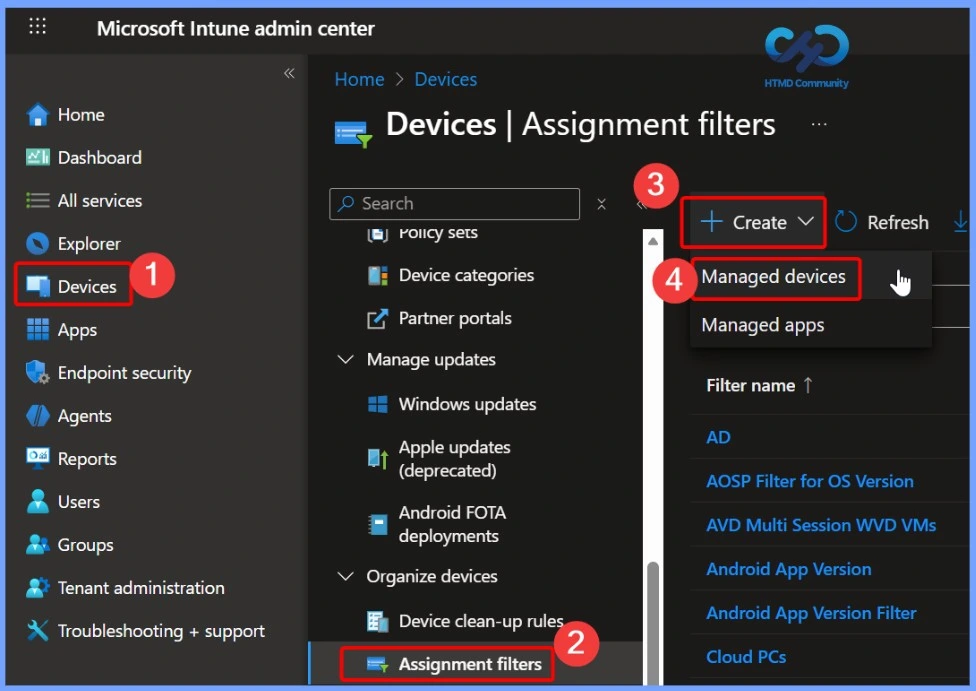
To start the creation of the Device Filter for the Windows 365 Link, you have to launch the Microsoft Intune Portal. From the portal, you can complete the device filter creation with a few steps. Follow the steps to create a filter.
- Sign in to the Microsoft Intune admin center
- Go to Devices > Assignment Filters >+ Create
- Select Managed Device from + Create
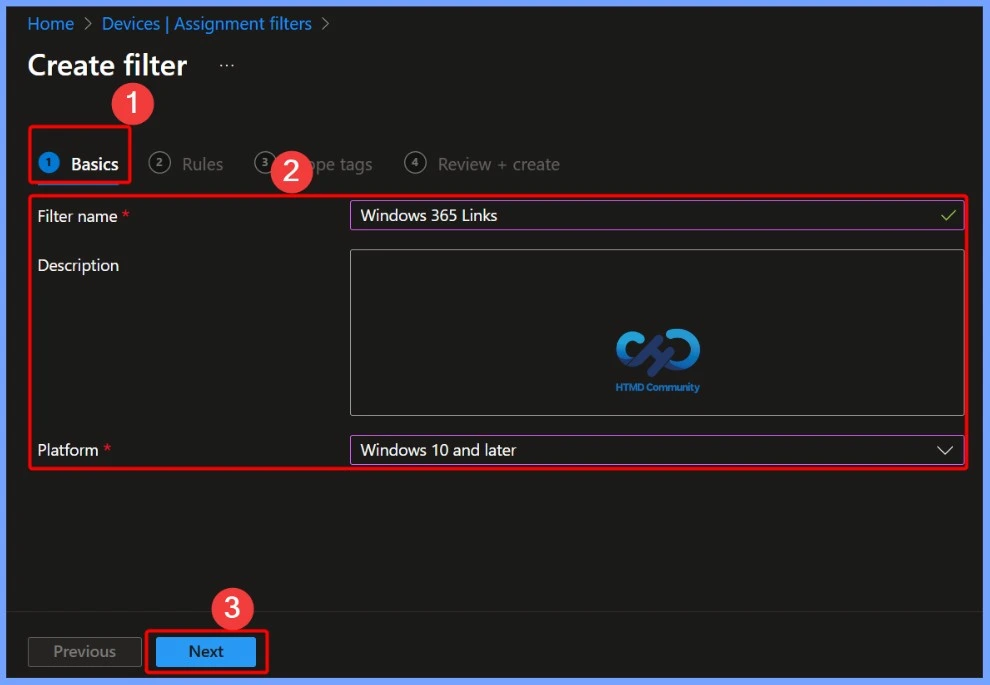
Basic Tab
On the Basic Tab, you can easily enter the filter name and description for Windows 365 Link. Filtername is a mandatory field, and description is not compulsory. Here, the filter name is Windows 365 Link,s and the platform is Windows 10 and later. Click on the Next button.
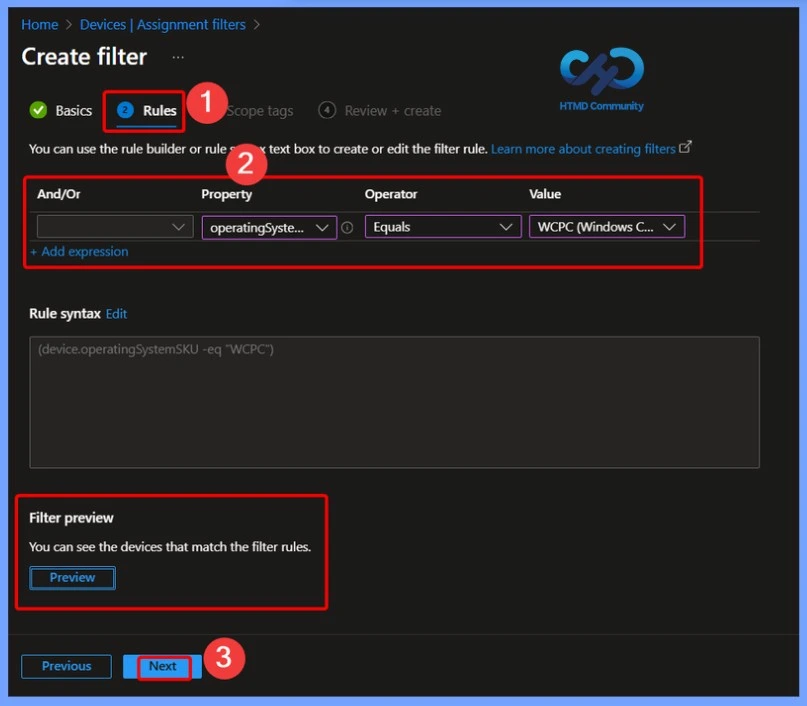
Rules Tab
On the Rules tab, you can use the rule builder orthe rule syntax text box to create or edit the filter rule. Here you can select the Property, Operator and value fields. If you have any Windows 365 links, you can add them by using the Preview Filter option. Click on the Next button.
| Rules in Intune Filter for Windows 365 Link | Choose option |
|---|---|
| Property | OperatingSystemSKU (Operating System SKU) |
| Operator | Equals |
| Value | WCPC(Windows(210)) |
Scope Tags
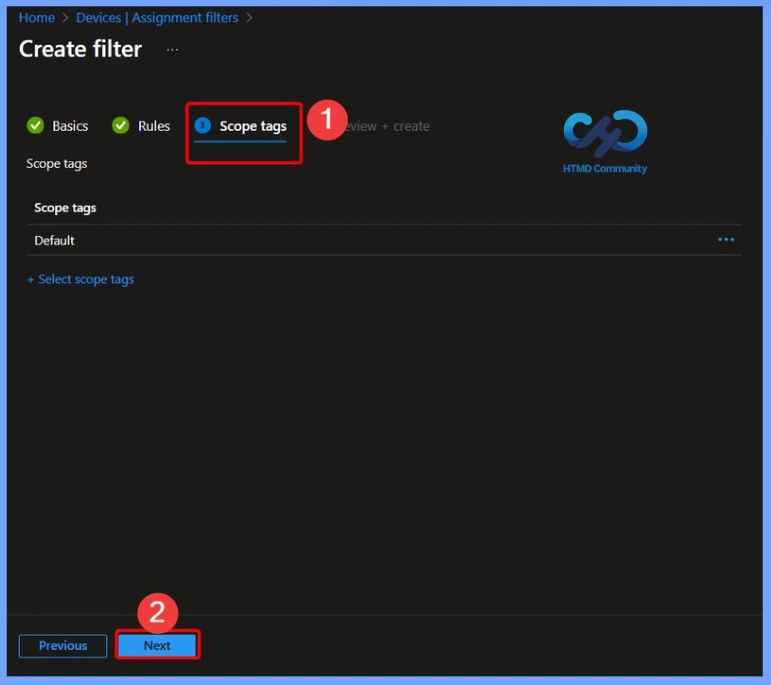
Scope tags in Microsoft Intune help control administrative access to objects such as devices, policies, apps, and filters. While device filters determine which devices receive a policy, scope tags define which admins can see and manage those objects.
Review + Create
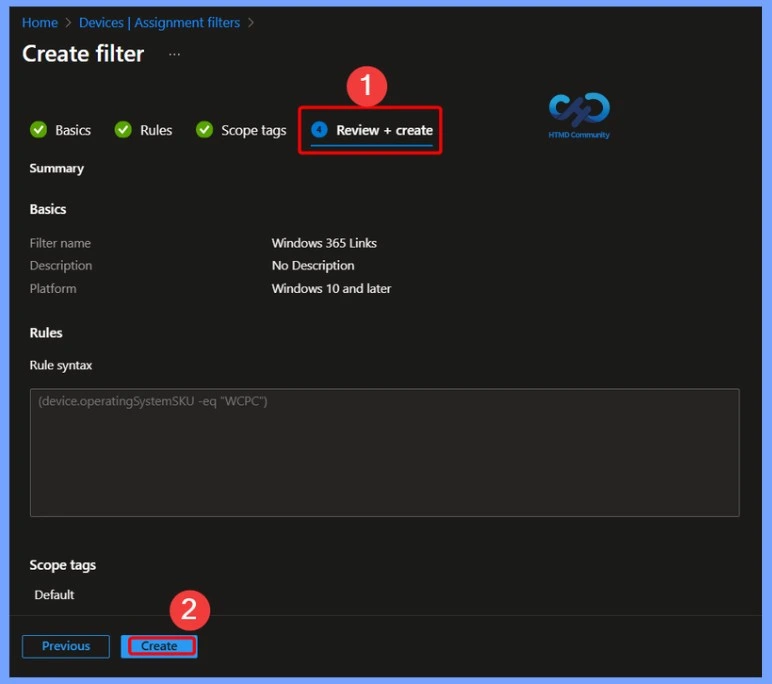
On the Review + Create, you can see all the details added on the preview tab. You can review the details on this tab. After that, click on the Create button.
Resource
Understanding security and management on Windows 365 Link – Microsoft Technical Takeoff
Need Further Assistance or Have Technical Questions?
Join the LinkedIn Page and Telegram group to get the latest step-by-step guides and news updates. Join our Meetup Page to participate in User group meetings. Also, join the WhatsApp Community and the Whatsapp channel to get the latest news on Microsoft Technologies. We are there on Reddit as well.
Author
Anoop C Nair is Workplace Technology solution architect with 25+ years of experience in global enterprise organizations such as JP Morgan, Capgemini, etc. He is Microsoft Certified Trainer. Microsoft MVP from 2015 onwards for consecutive 11 years! He also conducts Intune and modern workplace tech training for enterprise organizations. He is Blogger, Speaker, and Founder of HTMD Community and HTMD Conference. His focus is on Device Management technologies such as Intune, Windows, Cloud PC. He writes about technologies like Intune, SCCM, Windows, Cloud PC, Windows, Entra, Microsoft Security.