
Key Takeaways
- The Duplicate option creates a new and independent Settings Catalog configuration profile from an existing profile.
- The duplicated profile retains the source policy’s configured settings and values.
- Assignments from the original profile are not copied to the duplicated profile.
- Administrators can modify the duplicated settings before assigning the policy to users or devices.
In the post, we discuss, Duplicate Existing Settings Catalog Configurations to Simplify Policy Creation using Intune. The addition of a duplicate profile feature for the settings catalog will be helpful for in Intune admin in terms of time savior and effort to create a profile from scratch. Duplicating a policy creates a new and distinct policy containing the same settings and values as the original policy. The copy contains the same setting configurations and scope tags as the original profile, but assignments will not be copied.
Table of Contents
Table of Contents
Duplicate Existing Settings Catalog Configurations to Simplify Policy Creation using Intune
After you give the new profile a name, you can edit it to adjust the settings and add assignments. It is useful when you need a profile that’s similar yet distinct from the original one. The Intune Settings Catalog is the best place to go for all the policy settings in Intune. Microsoft recommends using setting catalog profiles to create and manage security policies for all Intune managed Windows devices.
- Step by Step Guide to Create Intune Settings Catalog Policy
- List of Intune Settings Catalog Policies
- Intune Logs Event IDs IME Logs Details for Windows Client Side Troubleshooting
Duplicate Settings Catalog Policy
Microsoft Intune Settings Catalog provides a centralized experience for configuring a wide range of Windows device settings through configuration profiles. Instead of creating every policy from the beginning, administrators can reuse an existing Settings Catalog profile when they need another policy with a similar configuration. The Duplicate capability makes this process easier by creating a new policy based on an existing Settings Catalog profile while keeping the original profile unchanged.
- Login to MS Intune Admin Center
- Navigate to Devices > Configuration profiles.
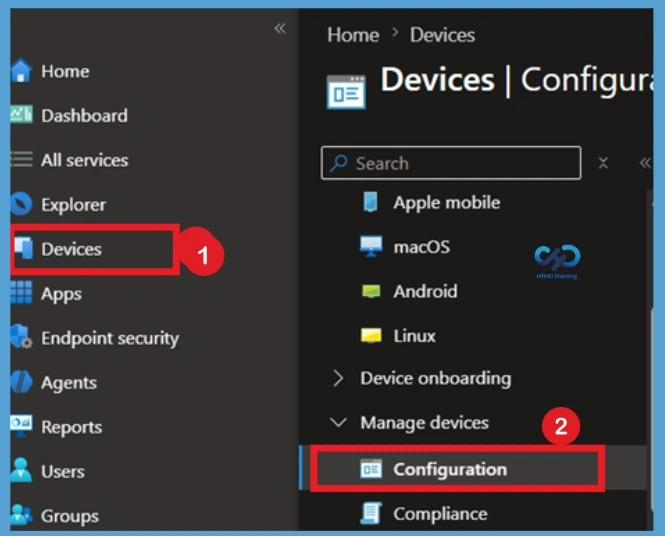
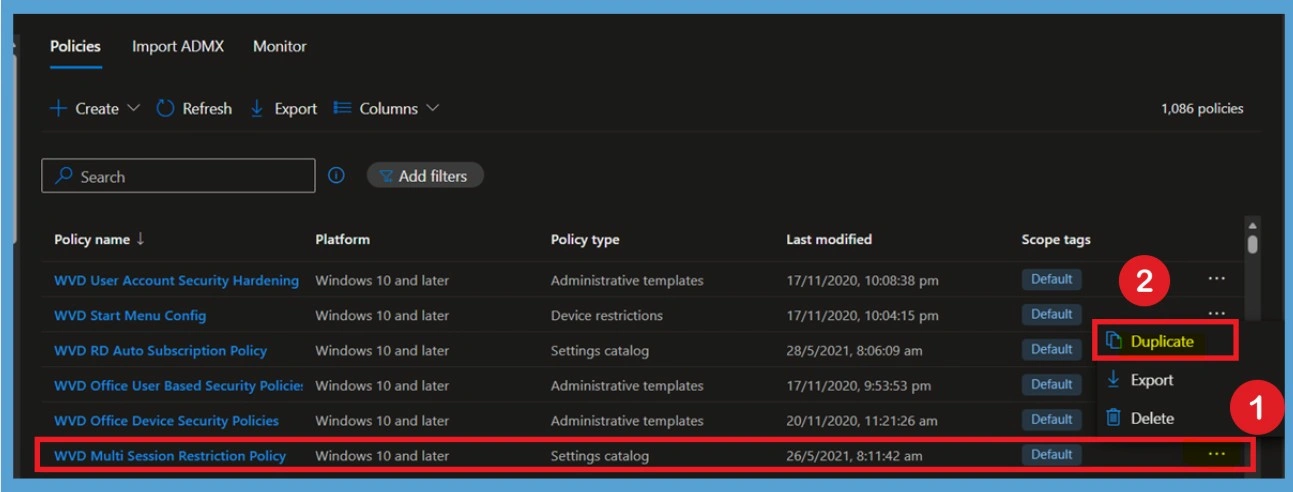
After locating the required Settings Catalog profile, select the ellipsis (…) menu associated with the profile and choose Duplicate. Intune opens the duplication workflow, allowing you to provide a new name and description for the copied profile. The duplicate operation does not modify the original policy; instead, Intune creates a separate policy based on the existing configuration.

- Here I selected WVD Multi Session Restriction Policy
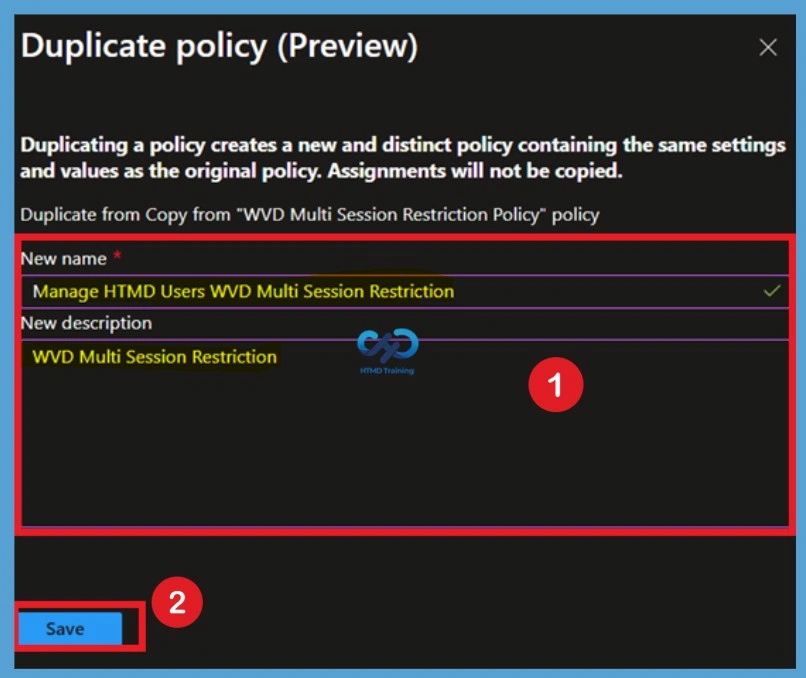
It’s best practice to enter the policy description as well, else once the profile duplication is completed you will notice it will copy the existing profile description and add value at the start Cloned policy from <Existing Profile Description> However you can edit it later.
Duplicating a policy creates a new and distinct policy containing the same settings and values as the original policy. Assignments will not be copied. Enter a New name that clearly identifies the purpose of the new profile. It is also recommended to update the description so that administrators can understand why the duplicate was created and how it differs from the source policy. A clear naming and description convention becomes particularly useful when an organization manages a large number of Settings Catalog profiles.
- New name- Manage HTMD Users WVD Multi Session Restriction
- New description – WVD Multi Session Restriction
- After entering the new policy name and description, select the option to Save.
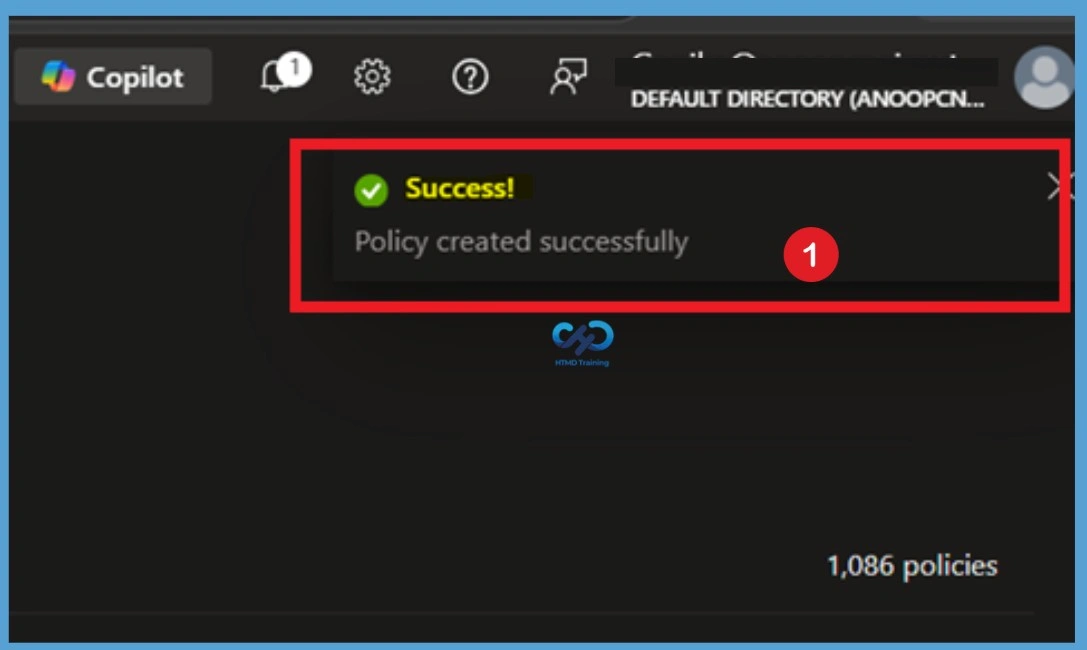
After clicking a notification should appear in the Intune admin center confirming that the policy was created successfully. The source policy remains available and unchanged, while the newly created policy becomes an independent configuration profile that you can modify separately.
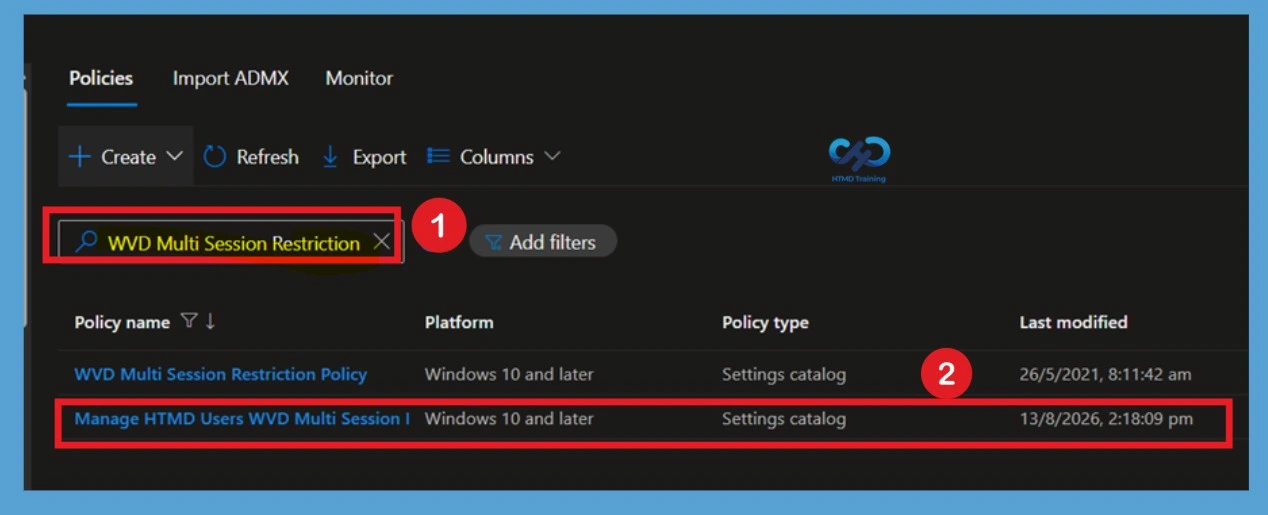
Click the Refresh button at the top to quickly see the policy. You will be able to see policy duplicated in the Configuration profiles list. To make it easier to find specific settings, you can search for a keyword, such as WVD Multi Session Restriction, and search for specific settings. Now you see the duplicated policy which confirms assignments then click on that to add the assignment group because I already said Assignments will not be copied.
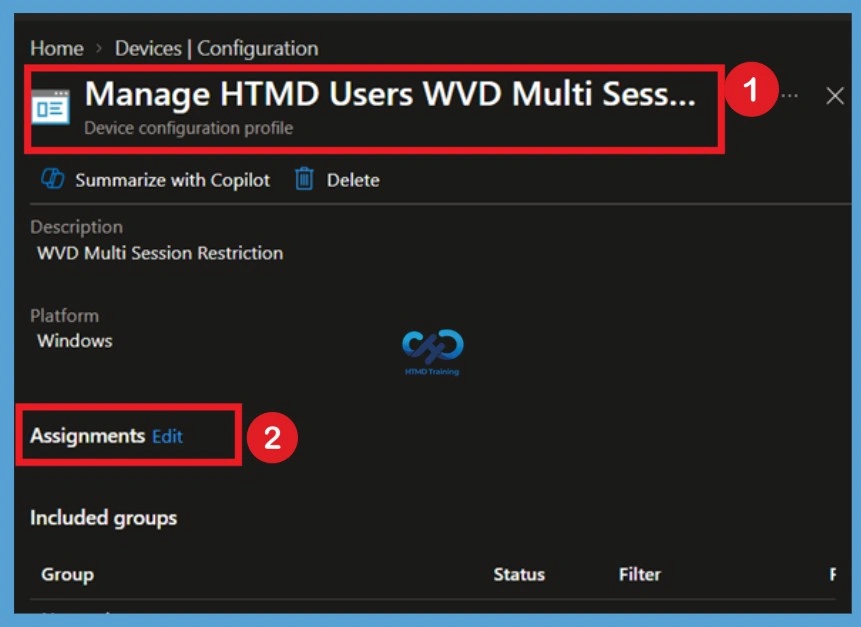
Because of the original policy’s assignments are not automatically copied, the next step is to configure assignments for the new profile. Open the duplicated policy then you can review all settings, Since the policy assignment is not automatically copied, the Next step is to click Edit under Assignments.
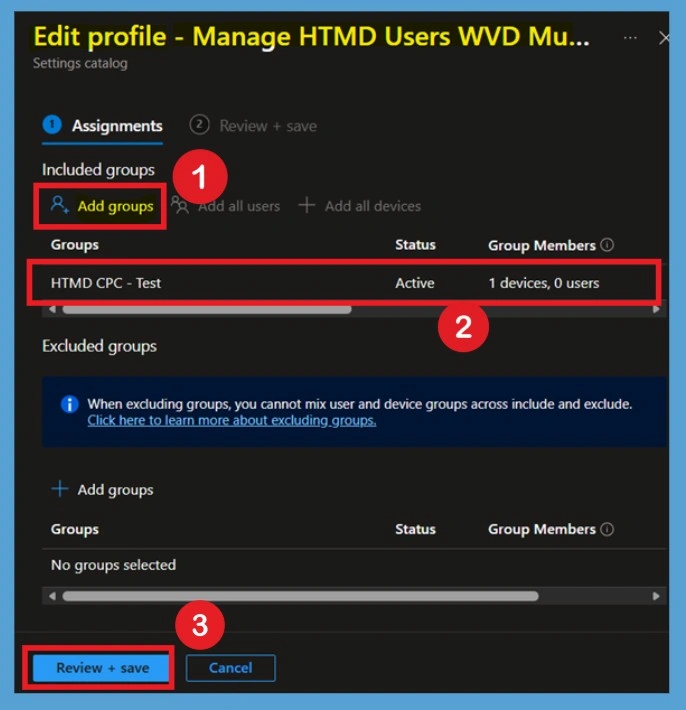
On the Assignment edit profile, click on the Add groups and then choose Select groups to include one or more groups. Click Review + create to review the group you added for the profile. After adding the required groups, select Review + create or the equivalent review option presented by the current Intune admin center experience.
Monitor the Duplicated Policy Deployment Status
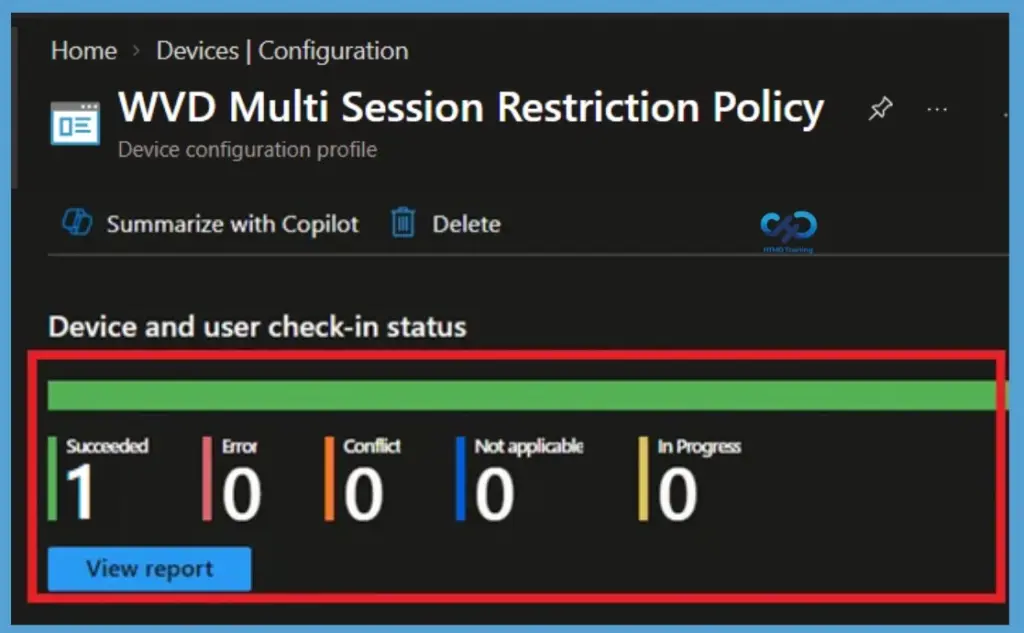
After assigning the duplicated Settings Catalog policy, open the policy and select Monitor to review its deployment status. These reports help identify whether the targeted devices and users have successfully received the configuration or whether additional troubleshooting is required. If the policy is not applying as expected, review the policy configuration, assignment, device enrollment state, and possible conflicts with other policies. Here you can see that the policy deployed on the groups.
Delete the Duplicate Settings Catalog Policy Permanently
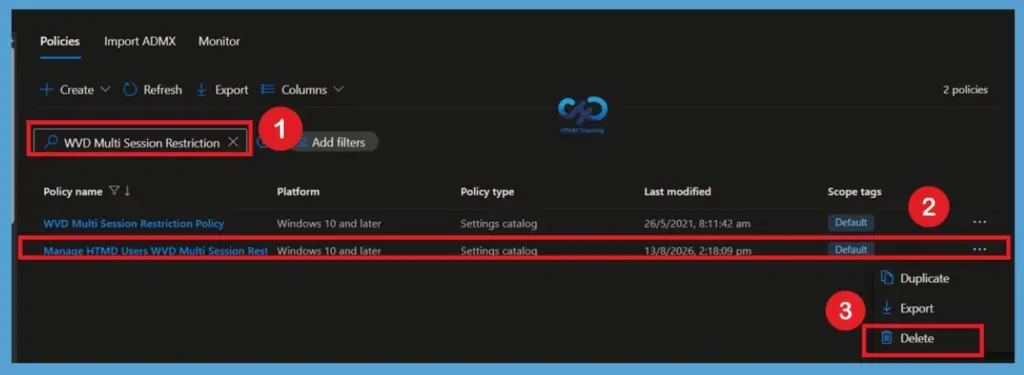
Once the assignments have been removed and you have confirmed that the policy is no longer required, open the configuration profiles list and locate the duplicated Settings Catalog profile. Select the ellipsis (…) menu or open the policy and use the available Delete action. Intune will display a confirmation prompt because deleting the profile removes the policy from the tenant.
Author
Need Further Assistance or Have Technical Questions?
Join the LinkedIn Page and Telegram group to get the latest step-by-step guides and news updates. Join our Meetup Page to participate in User group meetings. Also, join the WhatsApp Community and the Whatsapp channel to get the latest news on Microsoft Technologies. We are there on Reddit as well.
Author
Jitesh has over 5 years of working experience in the IT Industry. He writes and shares his experiences related to Microsoft device management technologies and IT Infrastructure management. His primary focus area is Windows 10, Windows 11 Deployment solution with Configuration Manager, Microsoft Deployment Toolkit (MDT), and Microsoft Intune.
I don’t have the Duplicate option when I right click on a profile. Service release 2202.
Same here. Version 2203.
OK. I know what is the reason. Duplicate option is available only for “Settings Catalog” which is in Preview mode.