
Key Takeaways
- Configure the Microsoft Edge default search engine centrally using Microsoft Intune.
- Support Google or any OpenSearch-compatible search provider.
- Ensure all managed Windows devices receive the same browser configuration
- Eliminate the need for users to manually change Microsoft Edge search settings, reducing configuration inconsistencies.
- Improve the end-user browsing experience by providing a standardized and organization-approved search provider.
Let’s learn how you can set Microsoft Edge Default Search Engine Using Intune, aka Endpoint Manager. Microsoft Edge comes with Bing as the default search engine if you keep Bing as your default search engine provides an enhanced search experience. Every browser has its default search engine to make online search easy for users. For instance, Chrome and iOS use Google, while Edge uses Bing. However, you can change the default search engine in Microsoft Edge to any site that uses OpenSearch technology.
Table of Contents
Table of Contents
Deploy Microsoft Edge Default Search Engine Policy to Manage Browser Search Settings using Intune
Microsoft Search in Bing helps the users in your organization quickly find work-related information, including people, files, internal sites, and more. Searching for this information is as easy as searching the web. If you don’t like the browser’s default search engine? Every standard browser, Edge, Google Chrome, Firefox allows you to change which search engine it uses.
Managing the default search engine through Microsoft Intune helps organizations deliver a consistent browsing experience across all managed Windows devices. Instead of relying on users to configure Microsoft Edge individually, administrators can deploy a single Settings Catalog policy that automatically configures the preferred search provider during device policy synchronization.
- Remove Search Link from Start Menu to Restrict Search UI Elements in Windows using Intune Policy
- Set Microsoft Edge Default Search Engine Using Intune
- Easily Manage Microsoft Edge Extensions using Intune
- How to Start Troubleshooting Intune Issues | Fix Intune Issues with Easy Steps MEM
- Manage Microsoft Cloud Authentication Settings for Google Chrome using Intune
Set Microsoft Edge Default Search Engine Using Intune – Create Profile
To begin, create a new Settings Catalog profile in Microsoft Intune. This profile will be used to configure Remote Desktop Clipboard and Drive Redirection Policies using Intune for targeted users or devices. To get started, sign in to the Intune admin portal and navigate to Devices > Windows devices > Configuration > Create profile > New policy. Let’s follow the step below to change the default search engine in Edge as “Google” instead of “Bing” using Intune –

- Log in to Microsoft Intune
- Navigate to Devices > Windows > Configuration profiles.
- Click on +Create Profile.
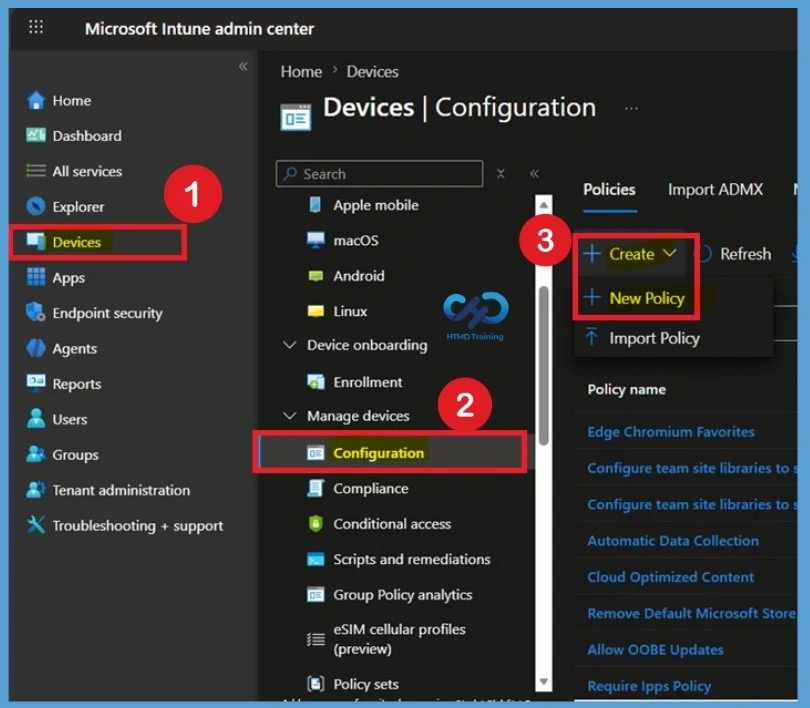
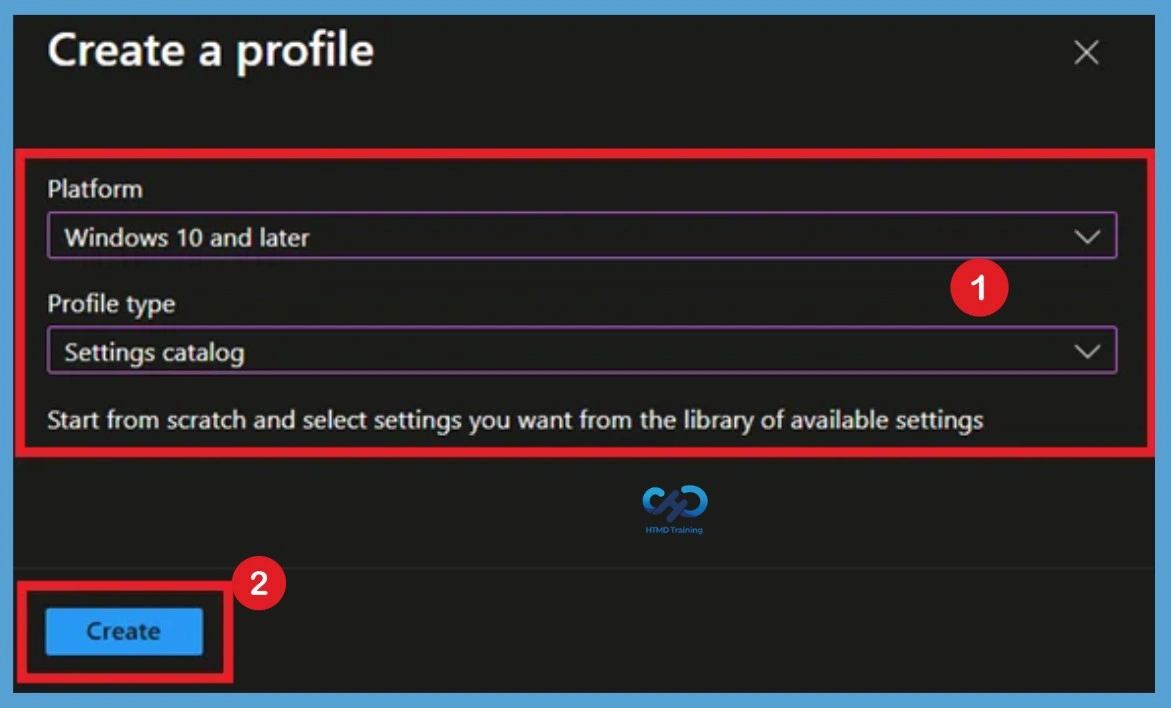
In the Create Profile blade, you can select Platform: Windows 10 and later, and Profile: Settings catalogue (preview). Click on the Create button. For Example, you have to select the Windows 10 platform or later. You can enter the details of the policy and settings in the next screens.
The Deploy Microsoft Edge Default Search Engine Policy profile allows administrators to centrally configure the organization’s preferred search provider for Microsoft Edge. After selecting the platform and profile type, click Create to begin configuring the policy.
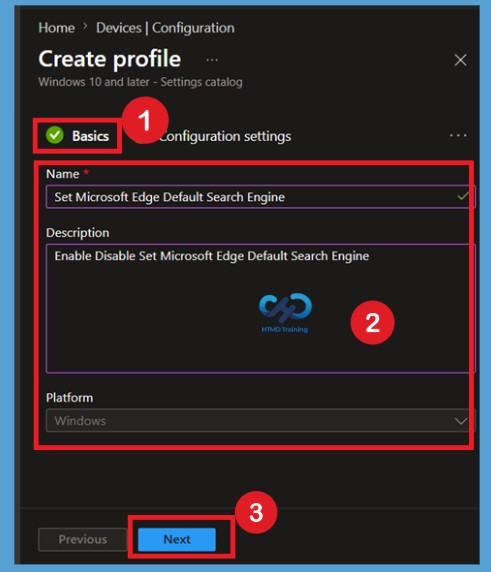
Basics Tab for Microsoft Edge Default Search Engine Policy
Enter a policy name such as Set Microsoft Edge Default Search Engine. A clear naming makes it easier to identify the purpose of the profile when multiple Edge policies exist in the tenant. Optionally, add a description explaining that the policy configures the organization’s preferred default search engine for Microsoft Edge. Once completed, select Next to continue to the configuration settings.
- Here I add the name as Set Microsoft Edge Default Search Engine
- Description as Enable Disable Set Microsoft Edge Default Search Engine
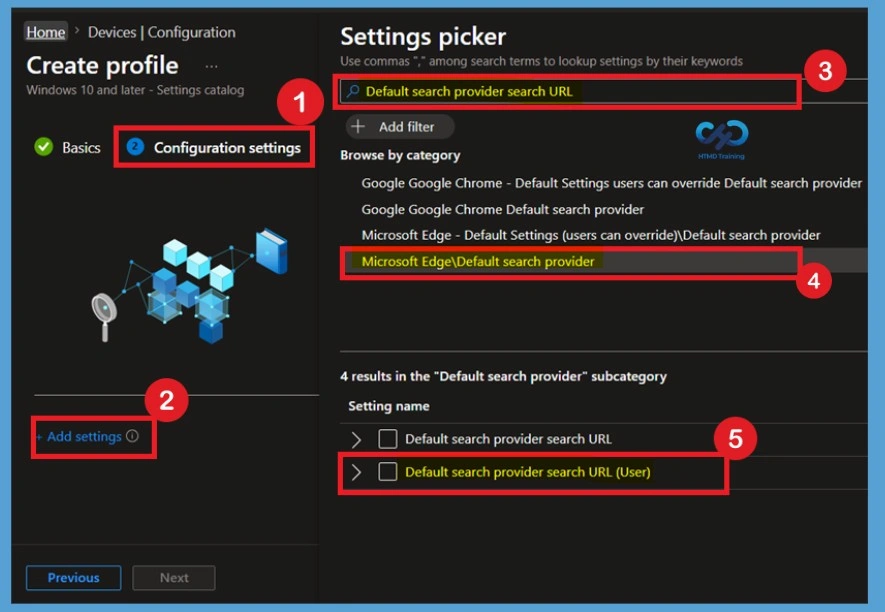
On the Configuration settings page, click Add settings and search for Default Search Provider in the setting catalog. Expand Microsoft Edge > Default Search Provider to display all available settings related to configuring the browser’s default search engine.
- Here I selected the Policy for Default Search Provider URL
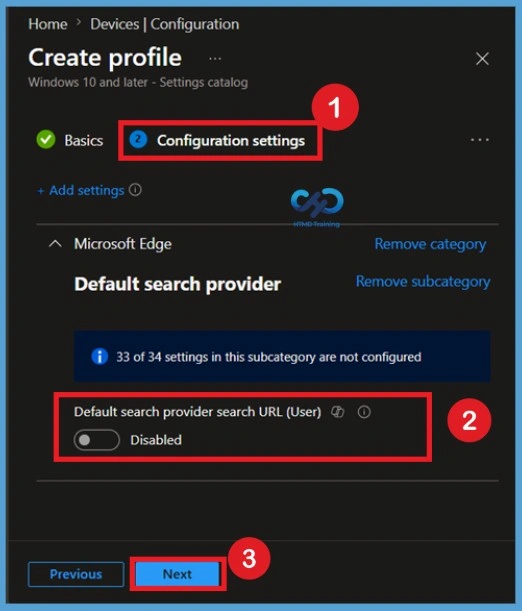
Disabled State of the Policy
By default, each Default Search Provider setting is configured as Disabled or Not Configured. In this state, Microsoft Intune does not apply any search provider configuration, allowing Microsoft Edge to continue using its default behavior.
If the policy remains disabled, the browser ignores any search provider values and users continue using the existing search engine configured in Microsoft Edge. Administrators must enable the required settings before entering the search provider information. If you want to continue as disabled, you can click on the Next.
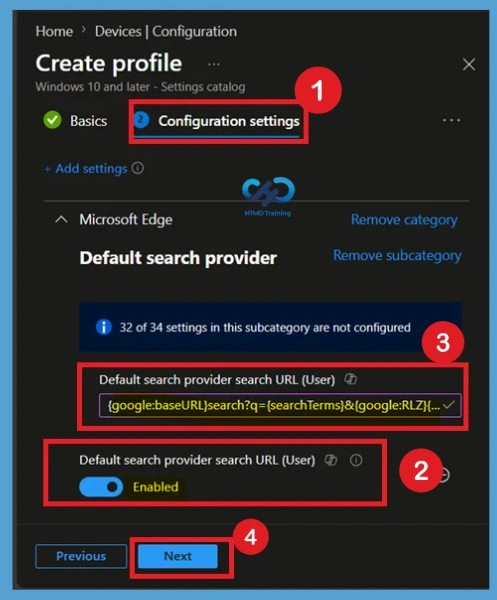
Enable the Policy Settings
Enable the default search provider to activate the configuration (by toggling the bar left to right). Without enabling this setting, Microsoft Edge ignores the configured search provider values. Enable the required policy settings and specify the preferred search provider details. For example, enable Default search provider name, enter Google, enable Default search provider search URL, and specify the appropriate search URL such as https://www.google.com/search?q={searchTerms}.
- Set Default search provider name – Enabled
- Set Default search provider search URL – Enabled
- Default search provider search URL (Device) – https://www.google.com/search?q={searchTerms} or {google:baseURL}search?q={searchTerms}
- After configuring all required settings, click Next to continue.
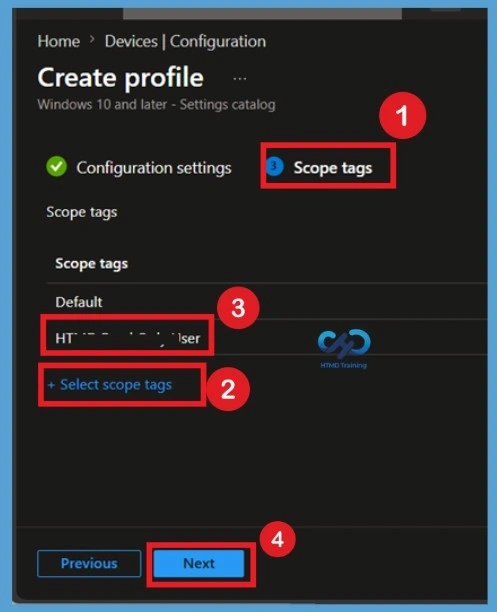
Scope Tags for Deploy Microsoft Edge Default Search Engine
The Scope tags page allows organizations to control administrative visibility of the Deploy Microsoft Edge Default Search Engine Policy. If your organization uses delegated administration, assign the appropriate scope tags before proceeding. Otherwise, leave the default scope tag and click Next.
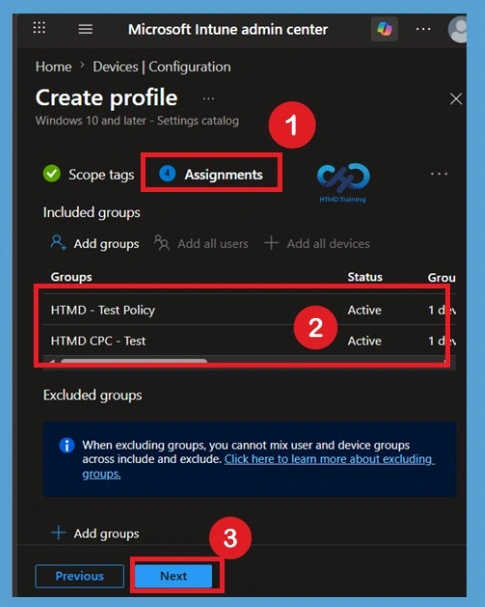
Assignments for Microsoft Edge Default Search Engine
On the Assignments page, select Add groups and choose the Microsoft Entra user or device groups that should receive the Deploy Microsoft Edge Default Search Engine Policy. Assigning the correct groups ensures only the intended devices receive the browser configuration. Before deploying organization, consider assigning the policy to a group for testing. After confirming the selected groups, click Next to continue.
- Under Assignments, In Included groups, click Add groups and then choose Select groups to include one or more groups.
- Here I selected 2 groups
- Click Next to continue.
Review + Create
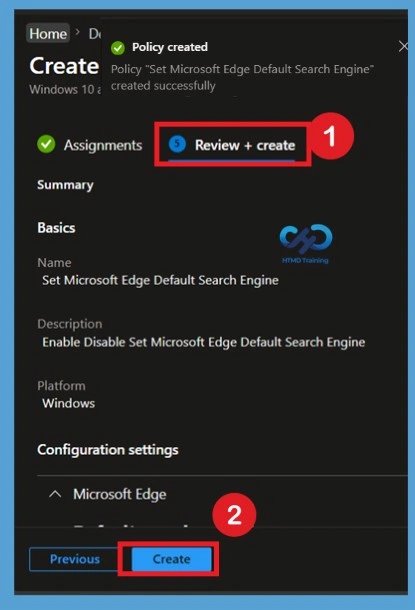
Review every configured setting before creating the Microsoft Edge Default Search Engine Policy. Verify the search provider name, search URL, assignments, and any scope tags to ensure the configuration matches your organization’s requirements. When everything is confirmed, click Create. Microsoft Intune saves the configuration profile and deploys it to all assigned devices during the next device check-in.
A notification will appear automatically in the top right-hand corner with a message. Here you can see that Policy “Set Microsoft Edge Default Search Engine” created successfully. The policy is also shown in the Configuration profiles list.
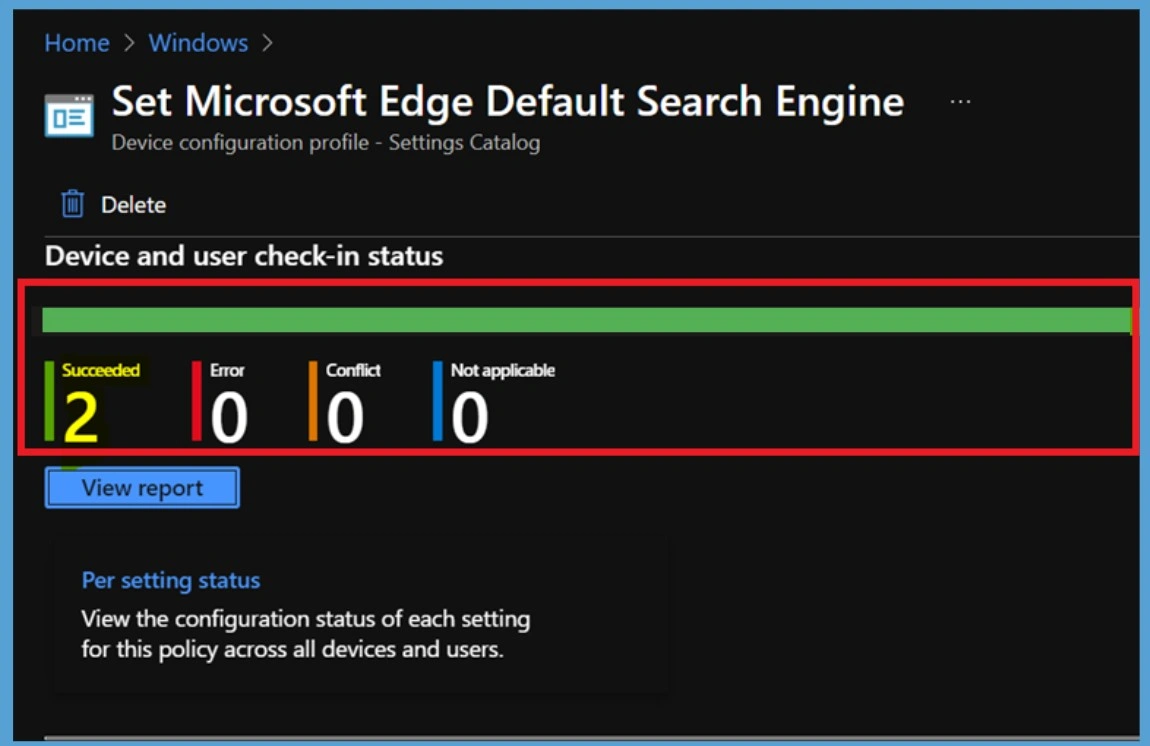
Intune Report – Set Microsoft Edge Default Search Engine
You can check the policy report from Intune Portal, which provides an overall view of device configuration policies deployment status. After deployment, open Devices > Windows > Configuration and select the Deploy Microsoft Edge Default Search Engine Policy profile. The Overview page displays deployment information, including Succeeded, Pending, Error, and Conflict status.
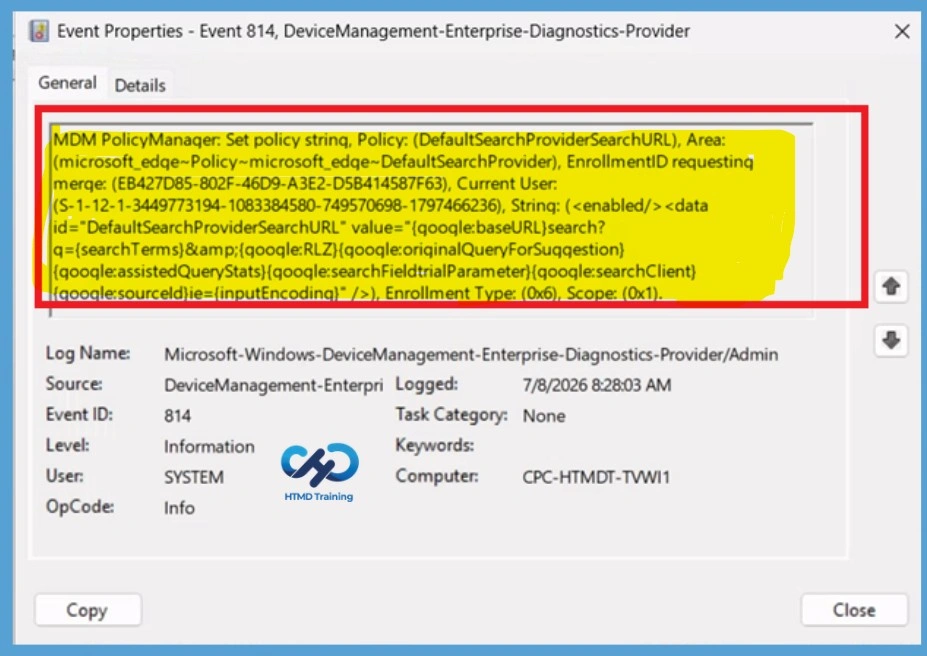
Intune MDM Event Log 814
The Intune event ID 814 or 813 indicates a string policy is applied on the Windows 11 or Windows 10 devices. You can also see the exact value of the policy being applied on those devices. You can check the Event log path to confirm this – Applications and Services Logs > Microsoft > Windows > Devicemanagement-Enterprise-Diagnostics-Provider > Admin.
| Policy Details |
|---|
| MDM PolicyManaqer: Set policy strinq, Policy: (DefaultSearchProviderSearchURL), Area: (microsoft_edqe~Policy~microsoft_edqe~DefaultSearchProvider), EnrollmentID requestinq merqe: (EB427D85-802F-46D9-A3E2-D5B414587F63), Current User: (S-1-12-1-3449773194-1083384580-749570698-1797466236), Strinq: (), Enrollment Type: (0x6), Scope: (0x1). |
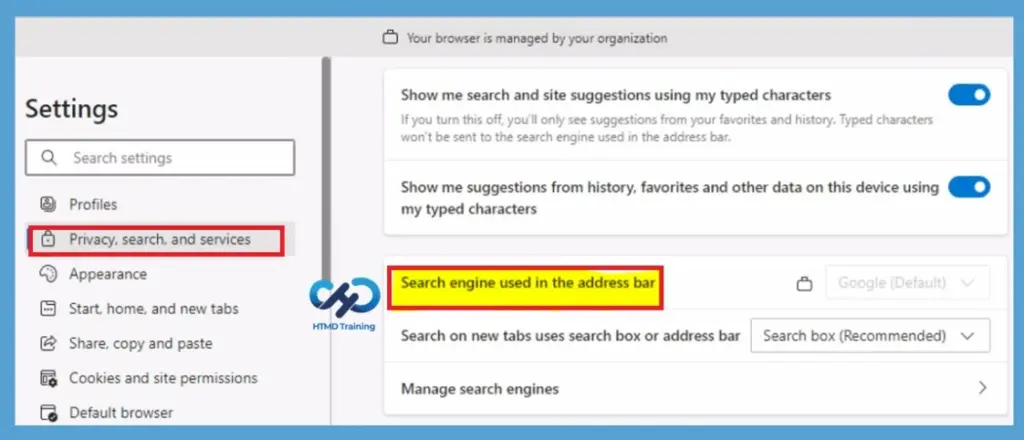
End Users Experience – Set Google as Default Search Engine
In Microsoft Edge, Go to Settings and more > Settings > Privacy, search and services. Scroll down under Services, Click on the Address bar and search. The engine or website you set to default search will now appear in the list of options.
Remove Assigned Groups
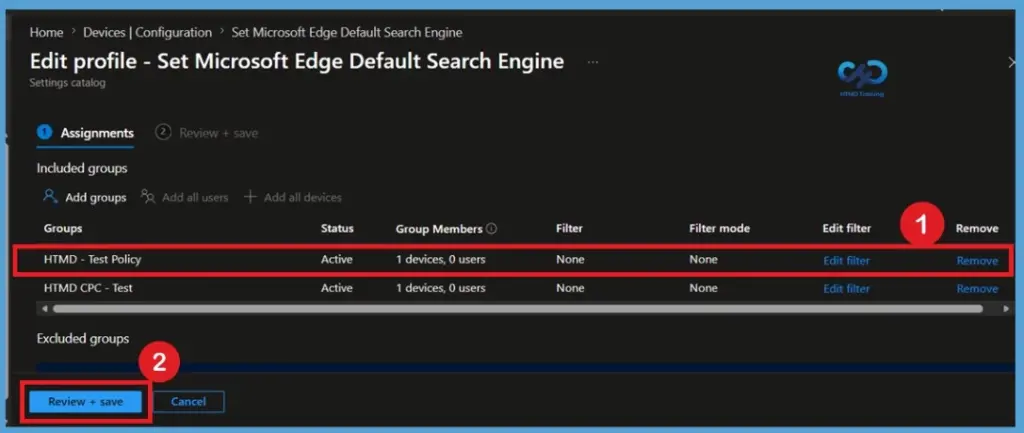
If the Deploy Microsoft Edge Default Search Engine Policy is no longer required for specific users or devices, open the policy and navigate to the Assignments page. Remove the Microsoft Entra groups from the Included Groups section and save the changes. After the policy assignment is removed, Intune stops targeting those devices. During the next policy synchronization.
For detailed information, you can refer to our previous post – Learn How to Delete or Remove App Assignment from Intune using by Step-by-Step Guide.
Delete Policy Permanently
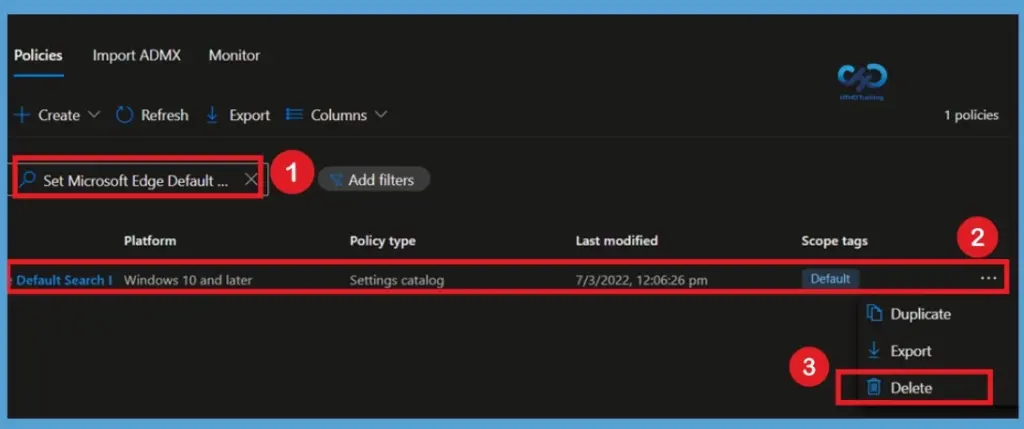
When the policy is no longer required, first verify that all assignments have been removed to prevent deployments. This ensures the policy is no longer applied to managed devices before deletion. Select the Microsoft Edge Default Search Engine from the configuration profile, in the policy see more option (3 dot menu) click Delete, and confirm the action. The policy is permanently removed from Microsoft Intune and can only be used again by creating a new configuration profile.
For more information, you can refer to our previous post – How to Delete Allow Clipboard History Policy in Intune Step by Step Guide.
Need Further Assistance or Have Technical Questions?
Join the LinkedIn Page and Telegram group to get the latest step-by-step guides and news updates. Join our Meetup Page to participate in User group meetings. Also, join the WhatsApp Community and the WhatsApp channel to get the latest news on Microsoft Technologies. We are there on Reddit as well
Author
About Author – Jitesh, Microsoft MVP, has over six years of working experience in the IT Industry. He writes and shares his experiences related to Microsoft device management technologies and IT Infrastructure management. His primary focus is Windows 10/11 Deployment solution with Configuration Manager, Microsoft Deployment Toolkit (MDT), and Microsoft Intune.
Hi. How can make it e.g. google as default but still allow the user the ability to change? Based on your screenshot above, the search engine drop down is greyed out.