
Key Takeaways:
- Helps prevent malicious attachments or scripts from being executed directly from email
- Intune is leveraged to centrally enforce Defender Exploit Guard rules across managed devices.
- Ensures safer email usage in corporate environments
- IT admins and security teams who manage enterprise devices and want to strengthen endpoint protection
Let’s discuss Block Executable Content from Email Client and Webmail in Microsoft Defender using Intune. This rule blocks email opened within the Microsoft Outlook application, or Outlook.com and other popular webmail providers from propagating Executable files (such as .exe, .dll, or .scr) and Script files (such as a PowerShell .ps1, Visual Basic .vbs, or JavaScript .js file)
Table of Contents
Table of Contents
Block Executable Content from Email Client and Webmail in Microsoft Defender using Intune
Block executable content from email client and webmail policy is a part of the Microsoft Defender Exploit Guard suite, specifically under Attack Surface Reduction (ASR) rules. The primary goal of this setting is to break the initial infection vector of most cyberattacks. Email remains the #1 delivery method for malware.
Even if a user is tricked into clicking a “bill.exe” attachment, the ASR rule intercepts the execution at the OS level. It blocks not just .exe files, but scripts and other executable content that webmail clients might try to launch. It provides a safety net for users who may not have high security literacy.
- Managing Suspicious File Blocking in Microsoft Defender using Intune
- Enable Notify Unsafe App Policy for Enhanced Phishing Protection in Defender Smart Screen using Intune
- Maintaining Enterprise Control Over Defender MAPS Reporting using Intune Policy
Example Scenario
An IT admin in a remote branch downloads a “handy” network scanner tool from a webmail link sent by a peer. Even if the tool is “helpful,” it hasn’t been vetted by the central security team. This policy enforces Application Control by ensuring that software is installed via approved channels (like Company Portal) rather than being run directly from an email source.

How to Start Policy Creation
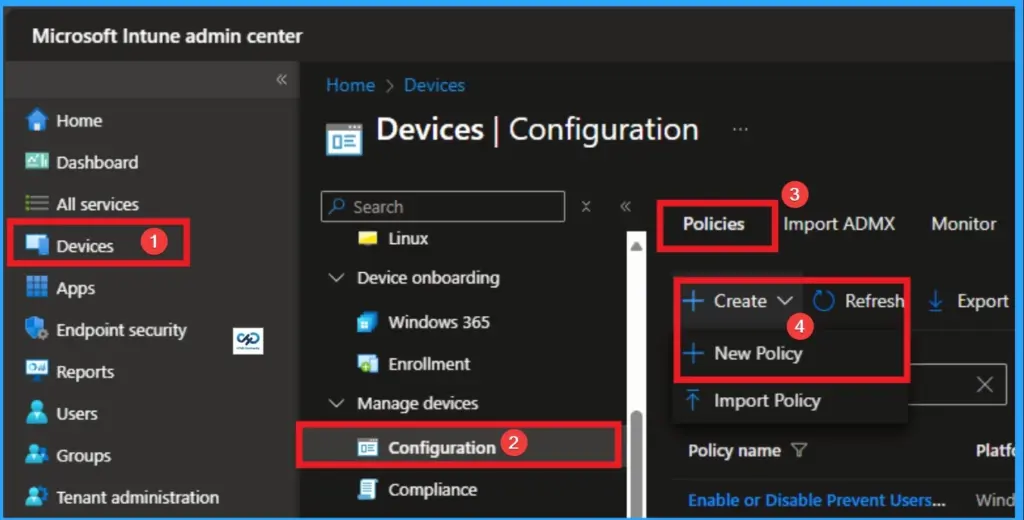
You can quickly configure this policy on your organisation. To start the Policy Creation, open the Microsoft Intune Admin center. Then go to Devices > Configuration >+ Create > +New Policy.
Profile Creation
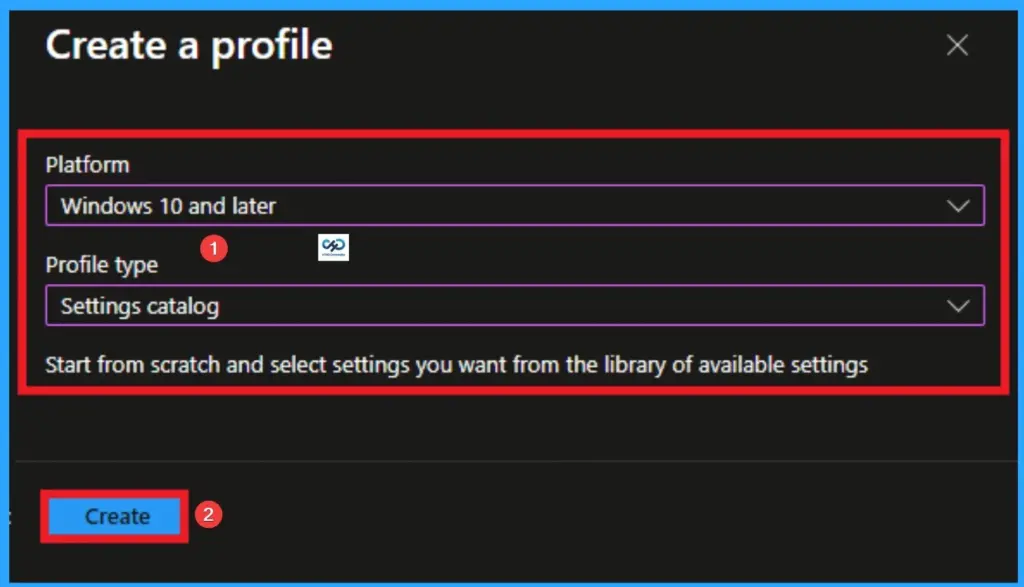
Profile creation is the necessary step that helps you to assign the policy to appropriate platform and Profile. Here I would like to configure the policy to Windows 10 and later platform and settings catalog profile. Then click on the Create button.
Basic Tab for Name and Description
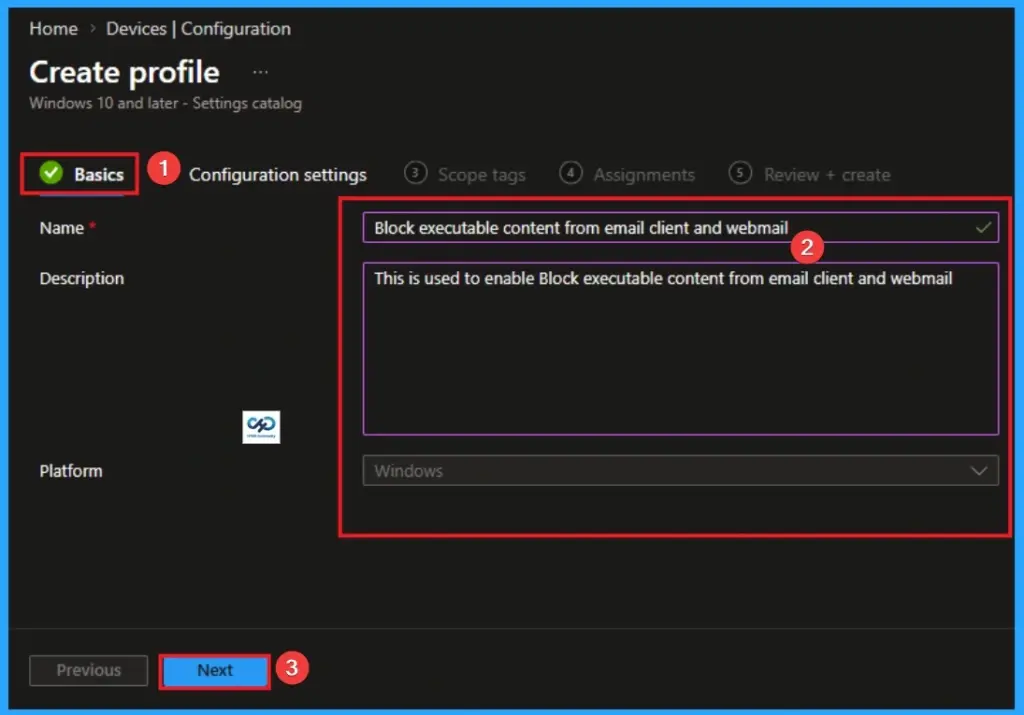
Naming the policy is the primary step that help admins to identify the policy later. This is important and necessary step that allows you to know the purpose of the policy. Here is Name is mandatory and description is optional. After adding this click on the Next button.
Configure Block Executable Content from Email Client and Webmail
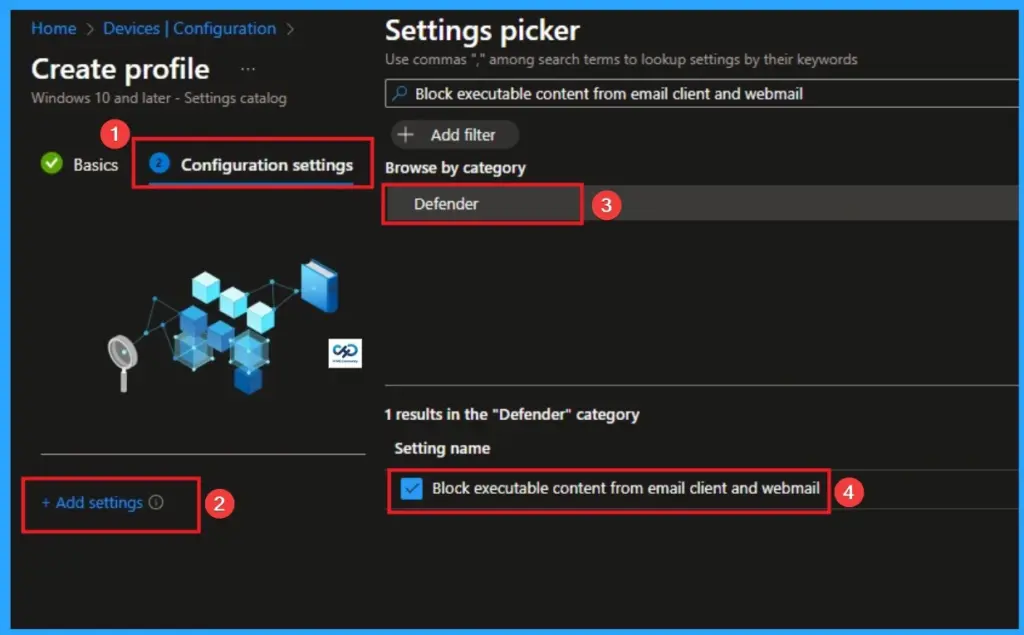
With Settings Picker, you can use the Configuration Settings Tab. On this tab, you can click on the +Add Settings hyperlink to get the Settings Picker. The settings picker shows huge number of settings. Here, I would like to select the settings by browsing by Category. I choose Defender\Block Executable Content from Email Client and Webmail.
Choose Value for Block Executable Content from Email Client and Webmail
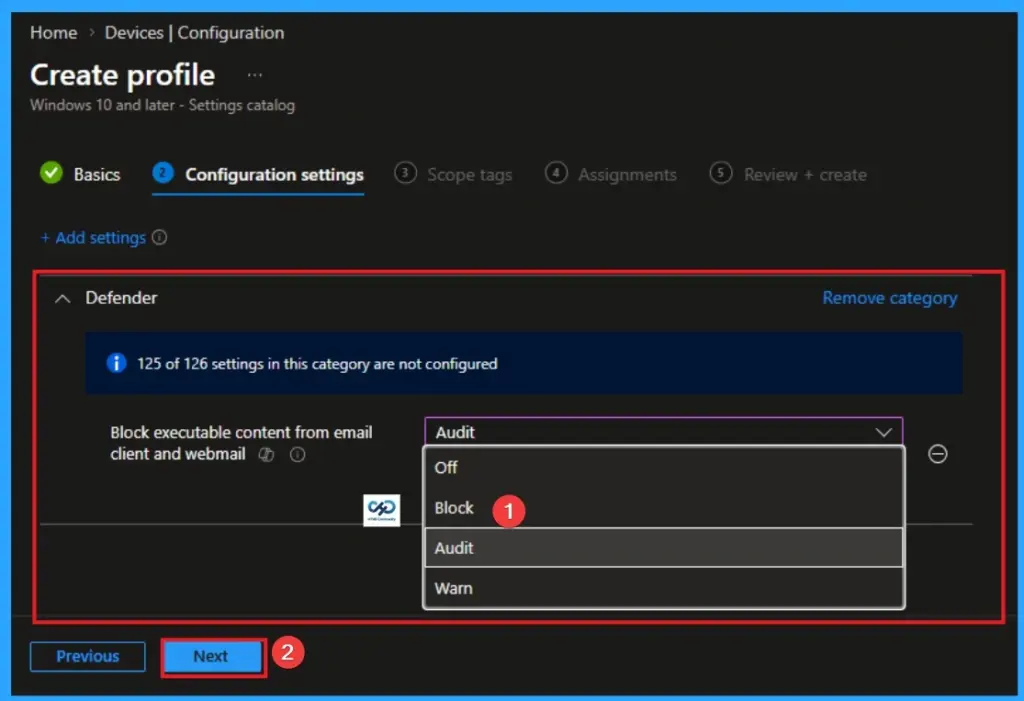
There are 3 values are available for this policy. Not configured(off) is the default value of this policy. Other values of this policy is Block, Audit, Warn. The usage of each policy is shown on the below table.
| Values | Technical Action | Event Logging | Strategic Usage |
|---|---|---|---|
| Not Configured | Ignored: The OS ignores this specific ASR rule. | No events are recorded for this rule. | Default state. Use only if another security layer is handling mail execution. |
| Audit | Allow: The executable runs, but the attempt is flagged. | High: Logs every instance in Event Viewer and Defender Portal. | Critical for Testing. Use this to identify if legitimate apps will break before enforcement. |
| Block | Prevent: The execution is terminated instantly by Defender. | High: Logs the block and triggers a user notification. | Production Standard. This is the “Zero Trust” state used to stop phishing and ransomware. |
| Warn | User Choice: Blocks the file but offers a “Bypass” option. | High: Logs the attempt and whether the user chose to bypass. | Selective Use. Good for IT staff or developers who may need to run vetted tools from mail. |
Scope Tags
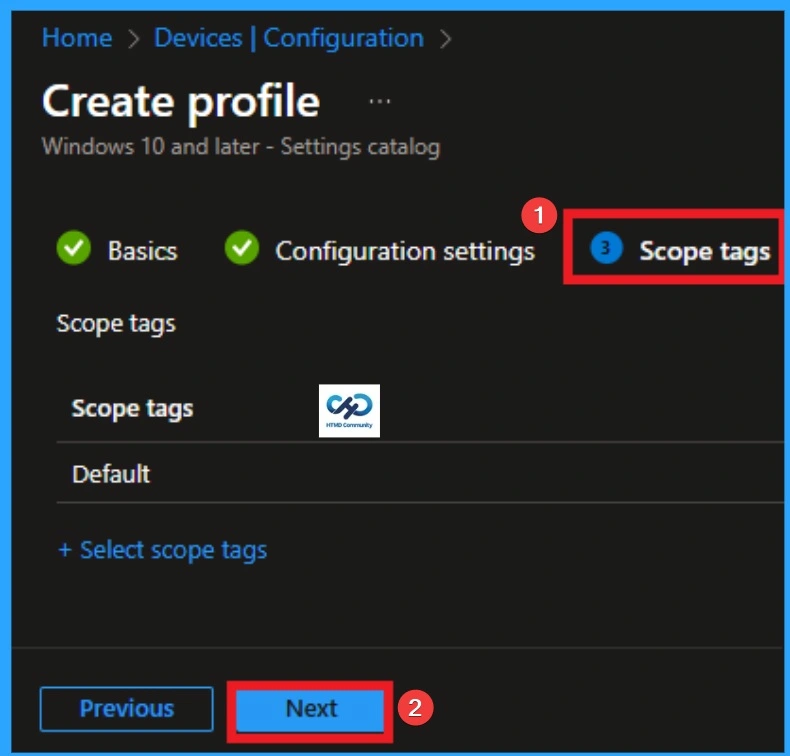
With scope tags, you create a restriction to the visibility of the Executable Content from Email Client and Webmail. It helps to organise resources as well. Here, I would like to skip this section, because it is not mandatory. Click on the Next button.
Assignments Tab for Selecting Group
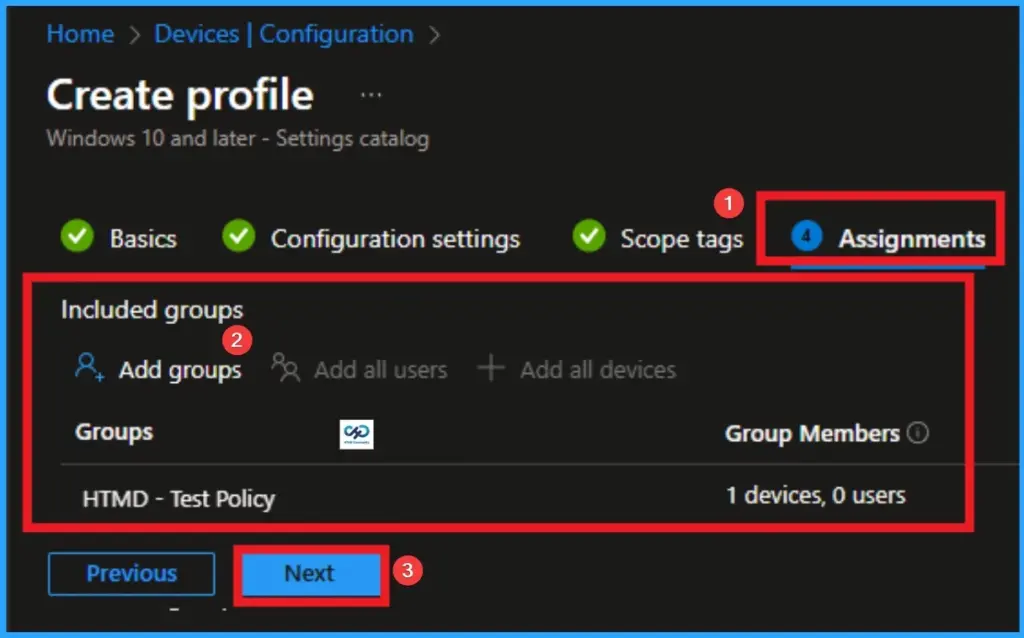
To assign the policy to specific groups, you can use the Assignment Tab. Here I click, +Add groups option under Included groups. I choose a group from the list of groups and click on the Select button. Again, I click on the Select button to continue.
Review + Create Tab
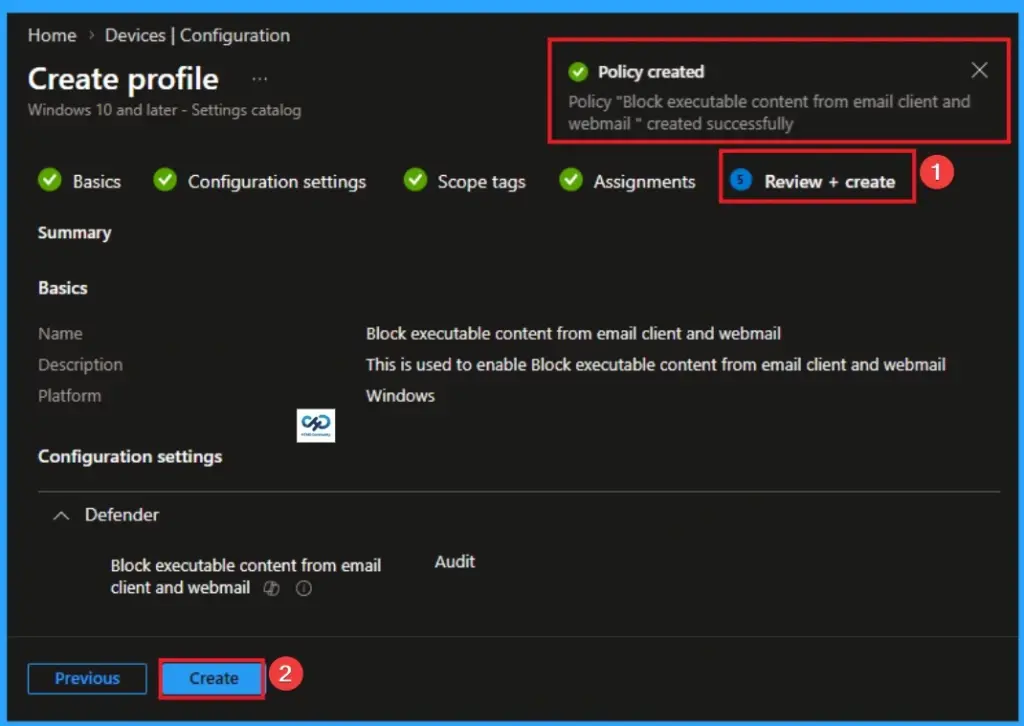
Before completing the policy creation, you can review each tab to avoid misconfiguration or policy failure. After verifying all the details, click on the Create Button. After creating the policy, you will get a success message.
Monitoring Status
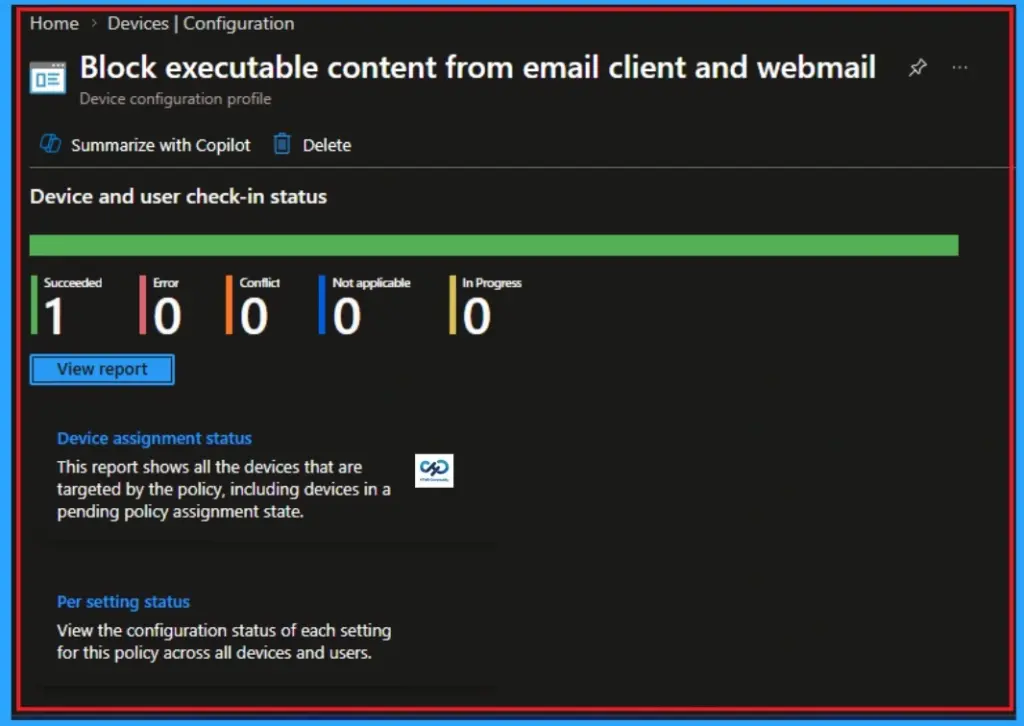
The Monitoring Status page shows whether the policy has succeeded or not. To quickly configure the policy and take advantage of the policy sync the assigned device on Company Portal. Open the Intune Portal. Go to Devices > Configuration > Search for the Policy. Here, the policy shows as successful.
Client Side Verification
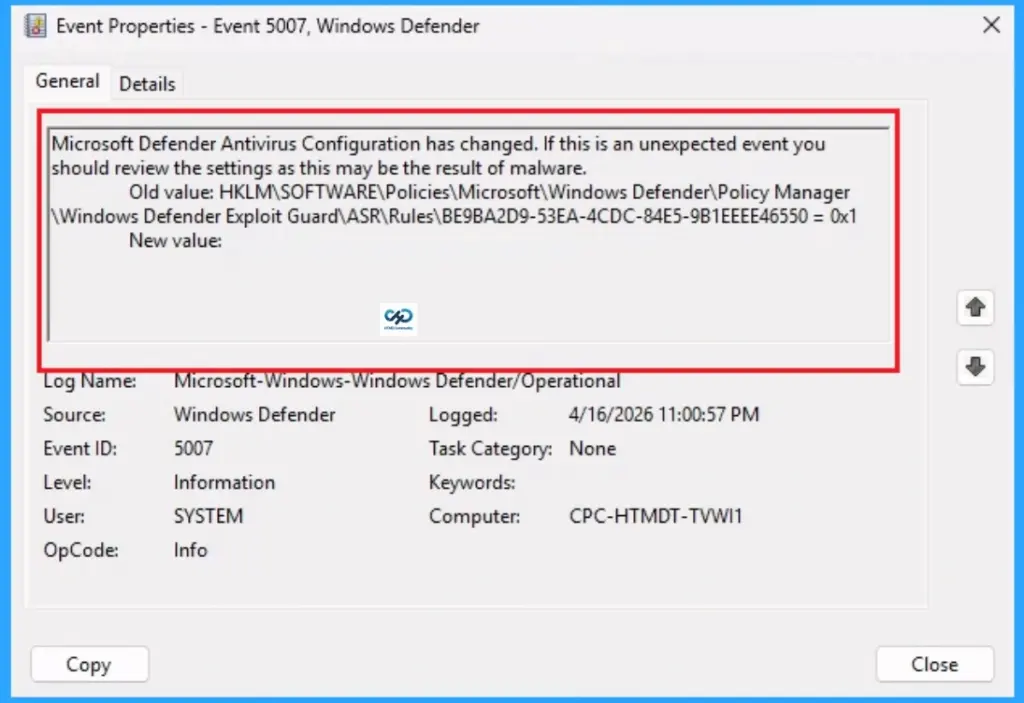
Client Side vewrification can be easily check with Event Viewer. Open the Client device and open the Event Viewer. Go to Start > Event Viewer. Navigate to Logs: In the left pane, go to Application and Services Logs > Microsoft > Windows > Windows Defender > Admin.
Removing the Assigned Group from Executable Content from Email Client and Webmail Settings
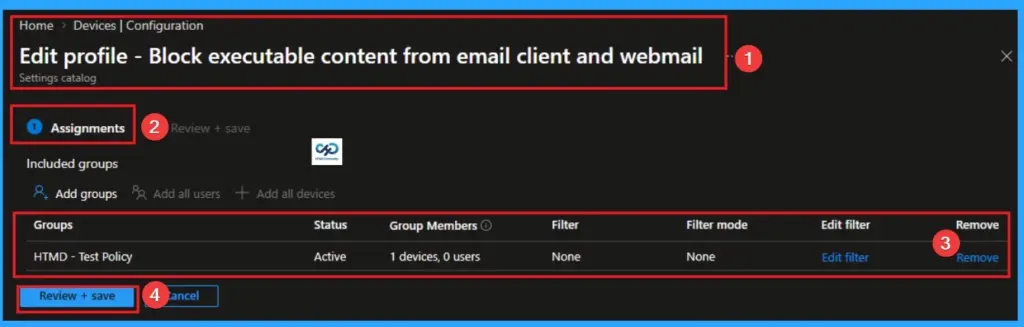
If you want to remove the Assigned group from the policy, it is possible from the Intune Portal. To do this, open the Policy on Intune Portal and edit the Assignments tab and the Remove Policy.
To get more detailed information, you can refer to our previous post – Learn How to Delete or Remove App Assignment from Intune using by Step-by-Step Guide.
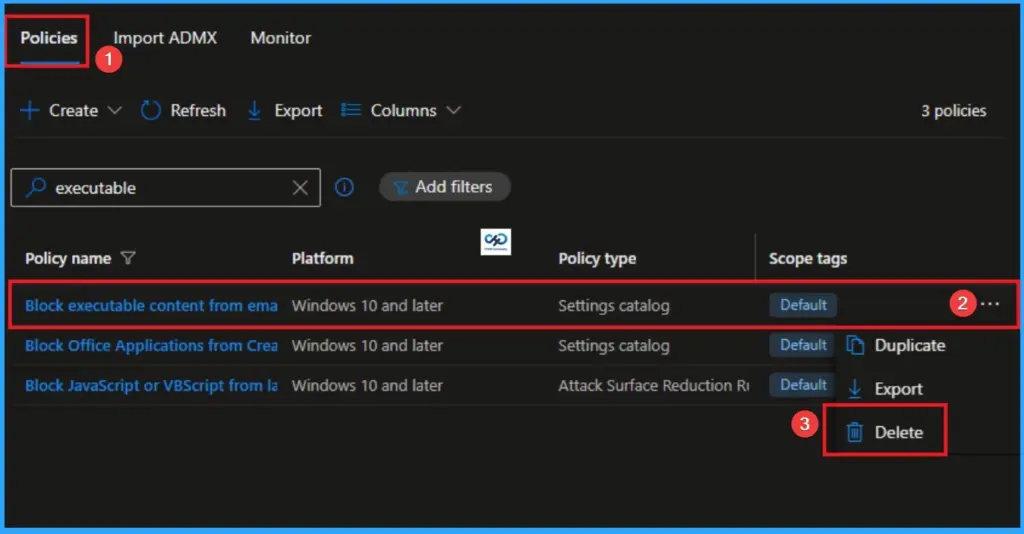
How to Delete Executable Content from Email Client and Webmail
You can easily delete the Policy from the Intune Portal. From the Configuration section, you can delete the policy. It will completely remove it from the client devices.
For detailed information, you can refer to our previous post – How to Delete Allow Clipboard History Policy in Intune Step by Step Guide.
Need Further Assistance or Have Technical Questions?
Join the LinkedIn Page and Telegram group to get the step-by-step guides and news updates. Join our Meetup Page to participate in User group meetings. Also, Join the WhatsApp Community and WhatsApp Channel to get the latest news on Microsoft Technologies. We are there on Reddit as well.
Author
Anoop C Nair has been Microsoft MVP for 10 consecutive years from 2015 onwards. He is a Workplace Solution Architect with more than 22+ years of experience in Workplace technologies. He is a Blogger, Speaker, and Local User Group Community leader. His primary focus is on Device Management technologies like SCCM and Intune. He writes about technologies like Intune, SCCM, Windows, Cloud PC, Windows, Entra, Microsoft Security, Career, etc.