
Key Takeaways
- Detailed Hardware Information – Intune provides device details such as Device ID, OS version, storage, manufacturer, model, and other hardware properties.
- 7-Day Inventory Refresh – Hardware inventory data is refreshed every 7 days, starting from the device enrollment date.
- Hardware Node – Administrators can view collected hardware information from Intune admin center > Devices > All devices > Hardware.
- Product Name Attribute – For iOS, iPadOS, and macOS, Intune collects the Product Name attribute to help identify the exact device model and support replacement or OS compatibility planning.
- Platform Support – Hardware inventory details are available for supported enrolled platforms, but Linux devices currently don’t support hardware device details in Intune.
Microsoft Intune provides detailed device hardware inventory to help administrators review essential information such as device ID, operating system and version, storage capacity, manufacturer, model, and other hardware properties.
Table Content
Table of Contents
Get Device Hardware Details from Intune Admin Center
The hardware inventory is refreshed in the Intune service every 7 days, starting from the device’s enrollment date. Administrators can view this information from the device’s Hardware node in the Intune admin center to better understand device configuration, identify hardware differences, and support device management and troubleshooting.
Starting with Intune Service Release 2207, Microsoft Intune now collects the Product Name attribute for iOS, iPadOS, and macOS so you can see your exact device model. This information can be used for understanding device replacement or OS version support.
You can view the hardware inventory data that Intune collects, Use the device hardware node to view detailed information about the hardware inventory that’s collected from client devices enrolled in Intune. Hardware device details are currently not supported for Linux devices.

- How to Get Application Version Details From Intune
- Maximum Number of Apps Supported by Intune | Hard Limit Error Details
Device Hardware Details from Intune
Microsoft has also expanded hardware inventory capabilities by collecting additional device attributes. For iOS, iPadOS, and macOS, Intune collects the Product Name attribute, helping administrators identify the exact device model and use this information for activities such as device replacement planning and OS-version support. Hardware details are available for supported enrolled platforms, while Linux devices currently don’t support hardware inventory details in Intune.
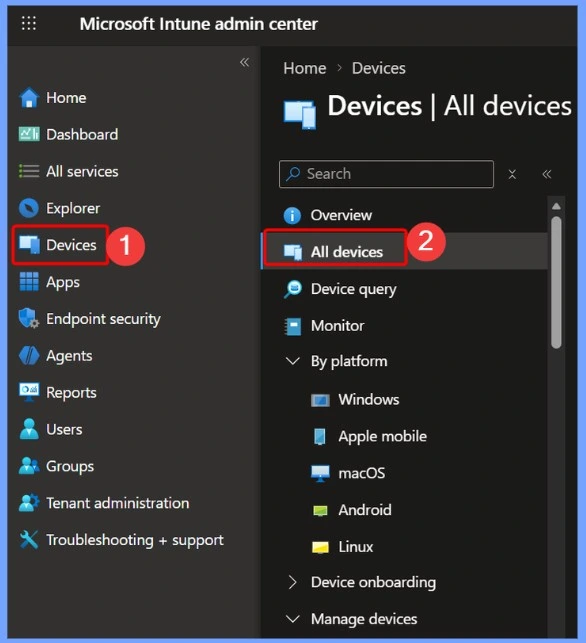
- Sign in to the Microsoft Intune admin center
- Choose Devices > All devices
Note: You can also select the Devices by choosing the By platform.
All Devices List
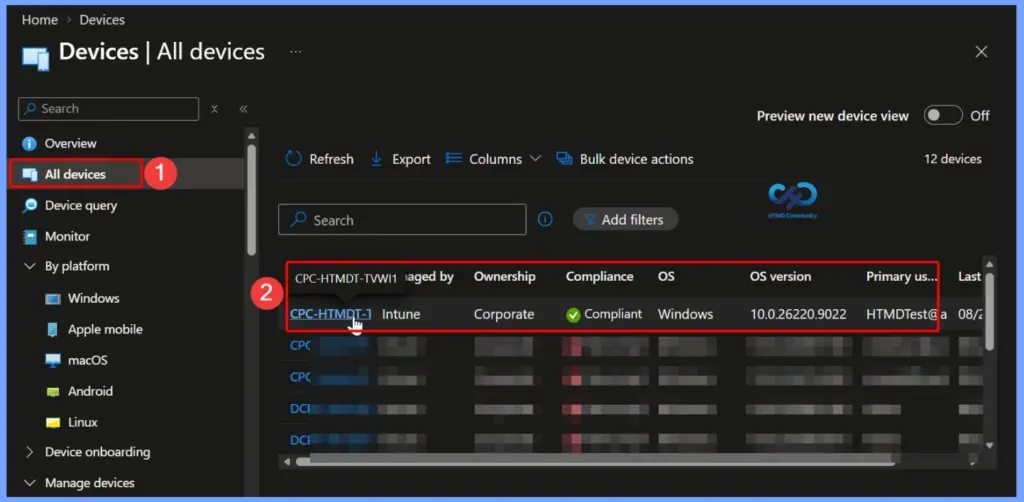
From the All devices list, select the device for which you want to view the hardware details. For example, in this case, I selected the device CPC-HTMDT-TVWI1 to view its available device information and hardware inventory details.
Open the Hardware Section
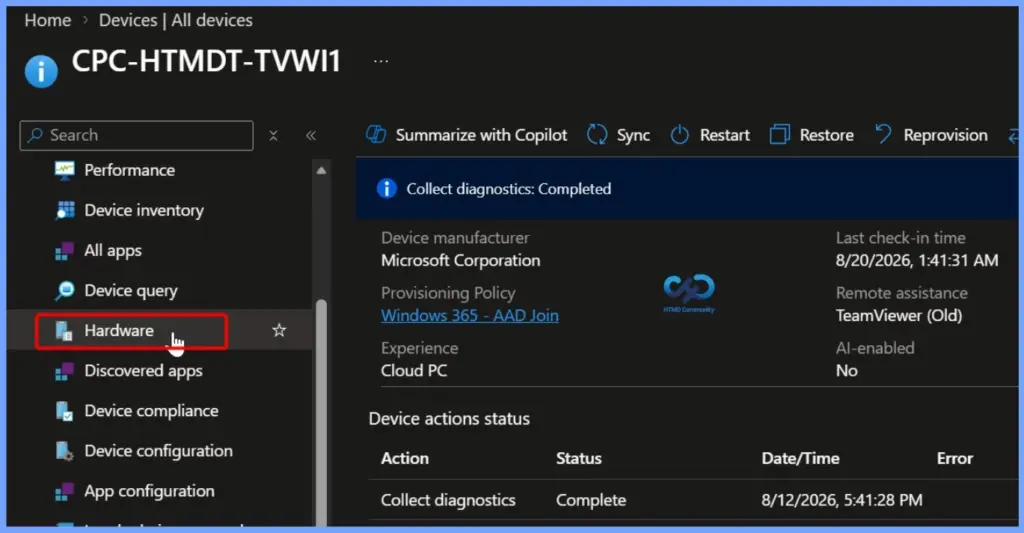
After selecting the device CPC-HTMDT-TVWI1, navigate to the Hardware option from the device management menu. The Hardware section provides detailed information about the device, including its hardware configuration and other available device properties. In the Intune admin center, select Hardware to view the collected hardware inventory details for the selected device.
To view hardware details for the device, select Hardware in the Monitor section. Hardware includes more information about the enrolled device in Intune. You may see the option varies based on the platform, whether it’s Windows, iOS/iPadOS, Android, or macOS.
System Details
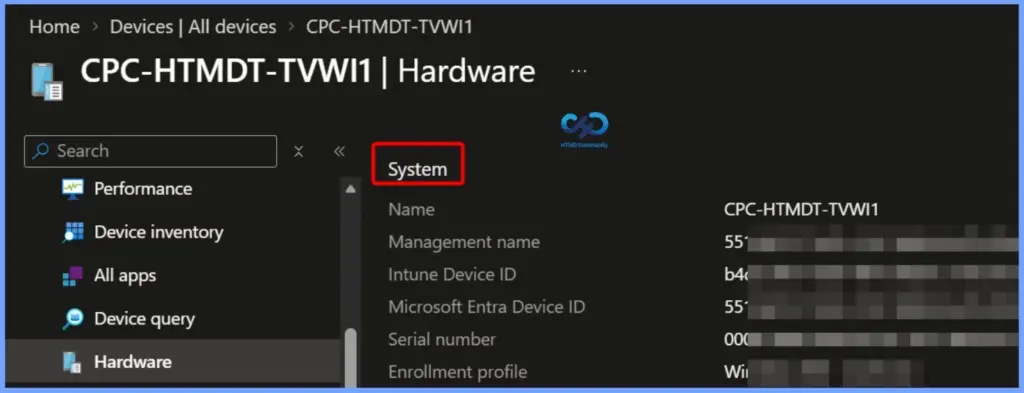
After selecting Hardware, Intune displays the System section with important identification and enrollment information for the selected device. This section helps administrators verify the device identity and review key management details.
- The System section includes details such as:
- Name – Displays the device name.
- Management name – Shows the management name assigned to the device.
- Intune Device ID – Identifies the device within Microsoft Intune.
- Microsoft Entra Device ID – Displays the device identifier associated with Microsoft Entra ID.
- Serial number – Shows the device’s serial number.
- Enrollment profile – Displays the enrollment profile associated with the device.
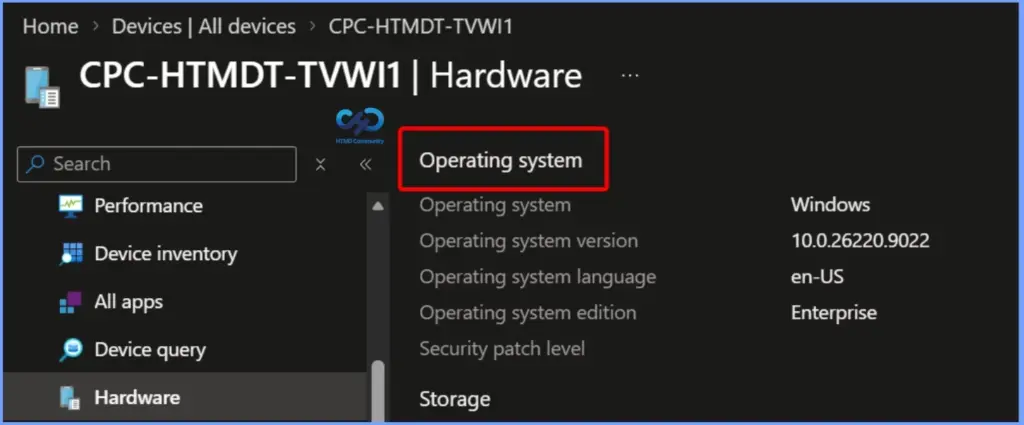
View Operating System Details in Intune Hardware Information
The Operating System section in the Intune Hardware details provides key information about the device’s operating system. It displays details such as the operating system type, version, language, edition, and security patch level, helping administrators quickly identify the device’s current Windows configuration and security status.
- Operating system – The operating system used on the device.
- Operating system version – The version of the operating system on the device.
- Operating system language – The language set for the operating system on the device.
- Operating system edition – The operating system edition.
- Operating system SKU – Indicates the operating system Stock Keeping Unit (SKU).
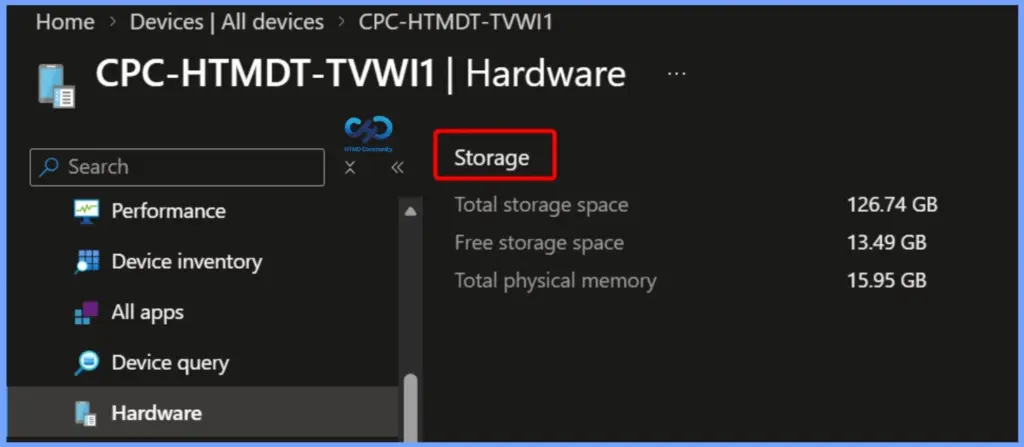
Checking Device Hardware and Storage Specifications
To view the detailed memory and disk allocation for a specific device, navigate to the Hardware section within the device management portal. Under the Storage tab, you can review key system metrics including the Total storage space (126.74 GB), Free storage space (13.49 GB), and installed Total physical memory (15.95 GB).
- Total storage space – The total storage space on the device (in gigabytes).
- Free storage space – The unused storage space on the device (in gigabytes).
- Total physical memory – How much RAM you have installed on your device.
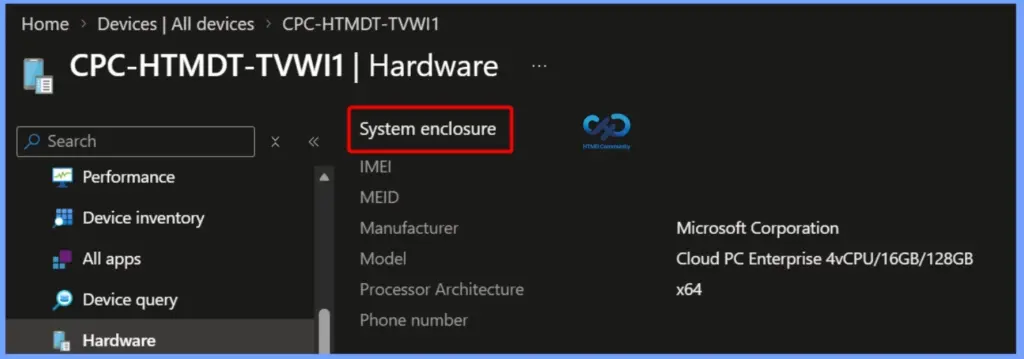
Viewing System Enclosure Specifications
Navigate to the Hardware tab within the device management portal to access the System enclosure details for a full overview of the device’s build profile and architecture. This section displays essential manufacturer properties, including the Manufacturer (Microsoft Corporation), Model (Cloud PC Enterprise 4vCPU/16GB/128GB), and Processor Architecture (x64), alongside optional identifier fields such as IMEI, MEID, and Phone number.
- IMEI – The device’s International Mobile Equipment Identity.
- MEID – The device’s mobile equipment identifier.
- Manufacturer – The manufacturer of the device.
- Model – The model of the device.
- Process Architecture – X64 or X32 Bit.
- Phone number – The phone number assigned to the device.
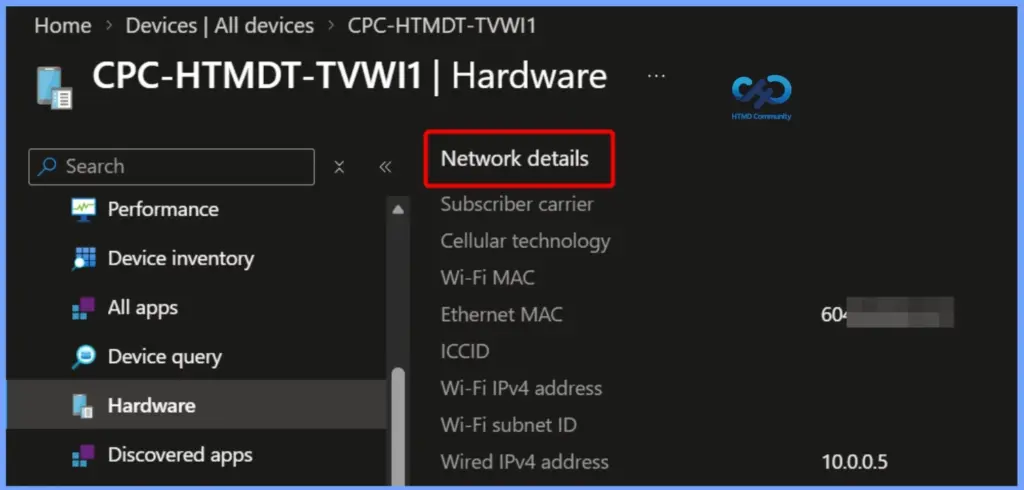
Reviewing Device Network Details
Navigate to the Hardware section within the Intune portal to access the Network details overview. This section displays critical connectivity parameters, including cellular subscription info, physical hardware identifiers like the Ethernet MAC and Wi-Fi MAC addresses, and active network configurations such as the Wired IPv4 address (10.0.0.5).
- Subscriber carrier – The device’s wireless carrier.
- Cellular technology – The radio system used by the device.
- WiFi MAC – The device’s MAC.
- Ethernet MAC – The primary Ethernet MAC address for the device. For macOS devices with no ethernet, the device will report the Wi-Fi MAC address.
- ICCID – The Integrated Circuit Card Identifier, a SIM card’s unique identification number.
- Wi-Fi IPv4 address – The device’s IPv4 address.
- Wi-Fi Subnet ID – The device’s subnet ID.
- Wired IPv4 address – The device’s IPv4 address is connected to Ethernet.
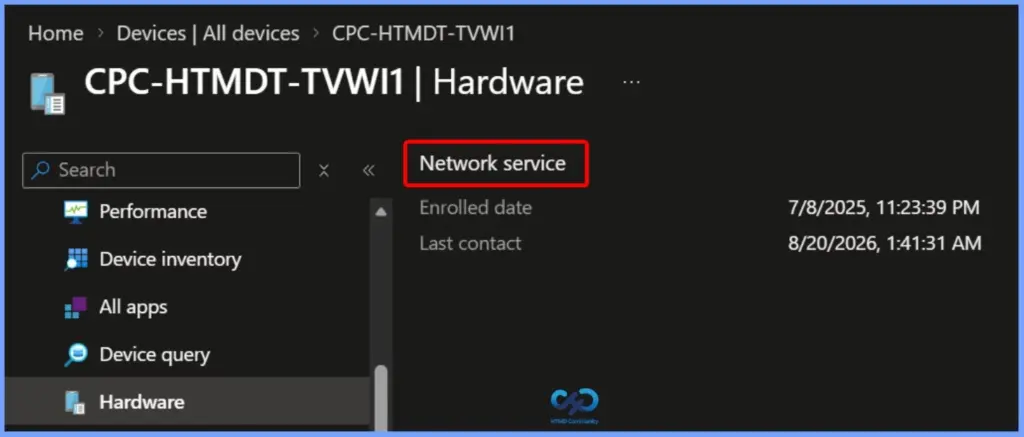
Network Service Information
The Network service properties displays management timestamps for the endpoint, including the Enrolled date (7/8/2025, 11:23:39 PM) and the Last contact time (8/20/2026, 1:41:31 AM), allowing administrators to verify device registration history and active connectivity state.
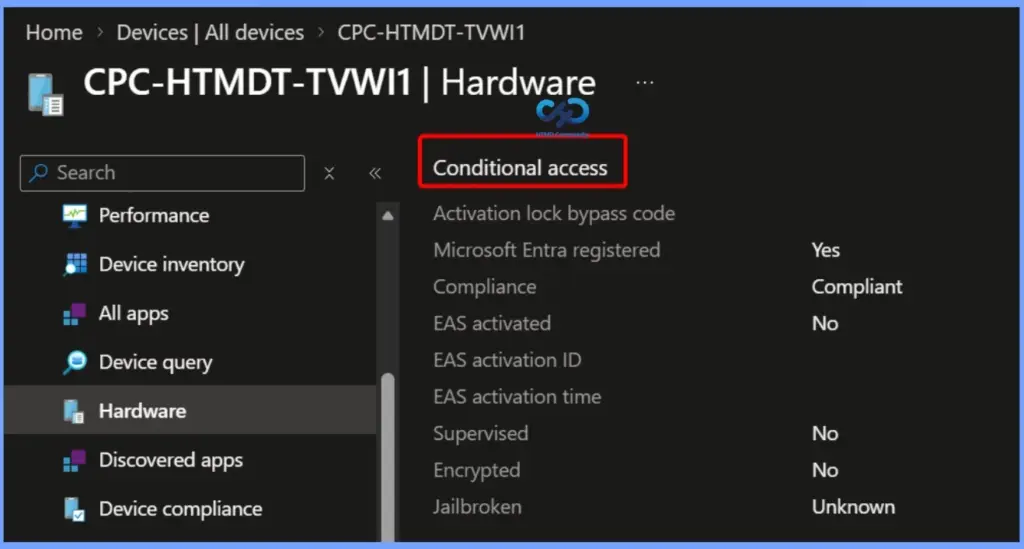
Checking Conditional Access Status
Navigate to the Hardware page in the device management portal to view the Conditional access properties. This section displays the security, registration, and compliance states evaluated for the device before granting access to corporate resources.
- Activation lock bypass code – The activation lock.
- Entra registered –If Yes, the device is registered with Azure Directory.
- Compliance – The device’s compliance state.
- EAS activated – If Yes, then the device is synchronized with an Exchange mailbox.
- EAS activation ID – The device’s Exchange ActiveSync identifier.
- EAS activation time –
- Supervised – If Yes, administrators have enhanced control over the device.
- Encrypted – If Yes, the data stored on the device is encrypted.
- Jailbroken – Intune can’t guarantee that each significant location change results in a jailbreak detection check, as the check depends on a device’s network connection at the time.
Need Further Assistance or Have Technical Questions?
Join the LinkedIn Page and Telegram group to get the latest step-by-step guides and news updates. Join our Meetup Page to participate in User group meetings. Also, join the WhatsApp Community and the Whatsapp channel to get the latest news on Microsoft Technologies. We are there on Reddit as well.
Author
Jitesh, Microsoft MVP, has over six years of working experience in the IT Industry. He writes and shares his experiences related to Microsoft device management technologies and IT Infrastructure management. His primary focus is Windows 10/11 Deployment solution with Configuration Manager, Microsoft Deployment Toolkit (MDT), and Microsoft Intune.
Is there any way to export the Product Name information so we can review device version without manually inspecting each individual record?
Use KQL log analytics query – https://www.anoopcnair.com/intune-diagnostics-settings-log-analytics-kql/
Could you provide the KQL query for this field? I’ve been unable to locate the “Product Name” in the log analytics table.
Is there any report we can fetch to identify the architecture (32 bit or 64 bit) for all devices from intune
I echo this. I also have not been able to find “Product Name” in the Log analytics table. Would greatly appreciate a query to provide this.
Hi Anoop,
Is it possible to configure metrics report if cpu memory /storage utilization is high ? thanks
Hi Anoop,
Is it possible to Auto-generate metrics report for cpu memory & storage utilization is high. Thanks
how exempt Apple Wallet from app protection so users can get tickets, etc via email and add them to their wallet. currently data sharing is block as per MAM policy
Hi Anoop, Is there any way to get the processor details in Intune so we can identify what generations the device is?
For devices that have more than one network adapter, how does it determine which MAC address to pull into the Ethernet MAC address.
Is there anyway i can export the Device details with custom details. Can you please help
Example: I need to export the devices detail with (HOstname, Serial number, Operating system, Ethernet Mac Address, )
No real hardware info like network card type or video card type ?