
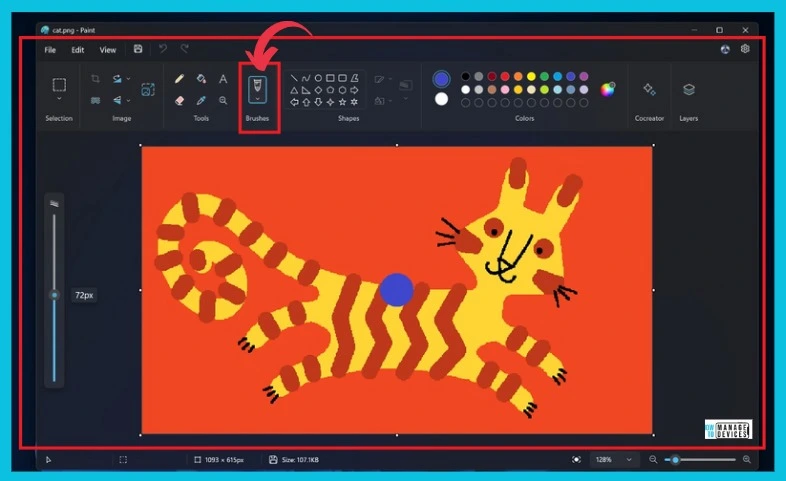
Exciting News! Improved Brush Size Selection in Paint. With the latest update to Paint, Microsoft made it easier to pick the right brush size. Now, when you use the pencil, brushes, or eraser tools, you will see a new size slider.
This slider lets you choose from a wider range of sizes, and you can see how big your brush will be right on the canvas as you move the slider. It makes painting and drawing in Paint even simpler and more precise.
Windows has released several new features to help users, which are most effective and attractive. Microsoft provides continuous improvements in paint Background Removal and Dark Mode, for example.
These features allow you to improve the brush size. The new size slider also allows you to choose from a wide range of sizes. Recently, MS Paint has introduced several new features, such as layers and the integration of AI-driven features like Cocreator.

This feature is straightforward to learn and understand. All these features give the paint a modern look, but it remains simple. This blog post will help you use the new improvements and determine how it functions.
What are the Features of Microsoft Paint?

Microsoft Paint is a simple graphic editing program. It allows you to crop, resize, and add basic shapes and text to images. Some features are given below.
1. It includes a Pencil, brush and airbrush tool
2. Paint has Wide availability
3. It allows a simple Interface
Improving the Brush Size Selection with New Size Slider
This essential feature window helps you improve the brush size selection experience with a new size slider for pencils, brushes, and eraser tools. You can choose from a wider range of size options and preview the selected size on the canvas as you drag the slider with the New Size Slider.
| Feature | Used to |
|---|---|
| With a New Size Slider | It helps to improve the brush size and wide range preview. |
With a New Size Slider
First, click any of the pencils, brushes, or eraser tools to do this. A size slider will appear on the left side of the canvas. Click and drag the slider to view different sizes, and select the desired size to start drawing.
Other News Related to Paint
- Complete Review of Microsoft Paint Modern Application
- MS Paint Cocreator Feature Now Rolling Out
- MS Paint Background Removal Feature
- Dark Mode MS Paint App for Windows 11
We are on WhatsApp now. To get the latest step-by-step guides, news, and updates, Join our Channel. Click here. HTMD WhatsApp.
Author
Anoop C Nair is Workplace Technology solution architect with 25+ years of experience in global enterprise organizations such as JP Morgan, Capgemini, etc. He is Microsoft Certified Trainer. Microsoft MVP from 2015 onwards for consecutive 11 years! He also conducts Intune and modern workplace tech training for enterprise organizations. He is Blogger, Speaker, and Founder of HTMD Community and HTMD Conference. His focus is on Device Management technologies such as Intune, Windows, Cloud PC, He writes about technologies like Intune, SCCM, Windows, Cloud PC, Windows, Entra, Microsoft Security.