

Key Takeaways
- The Device Configuration Report in Intune provides a single, unified view of both device configuration and endpoint security profiles.
- The report includes details for multiple profile types, such as Settings Catalog, Custom profiles, Device Restrictions, Windows Health Monitoring, and Endpoint Security policies.
- Selecting a specific policy displays detailed settings, deployment status, and device compliance information.
- Microsoft has significantly improved Intune reporting, providing both default and advanced reporting options.
Intune Device Configuration Report for Policy Status and Device Compliance Overview. The Device configuration report provides both device configuration and endpoint security profiles in one report. The Intune device configuration report shows the details of the different types of profiles you deployed, including the settings catalog, Custom, device restriction policy, Windows Health Monitoring, and Device Restrictions.
You can view all the policies applied to your device in the new single report containing improved data. For instance, you can see the distinction of profile types in the new Policy type field. Also, selecting a policy will provide additional details about settings applied to the device and the status of the device.
Microsoft improved Intune reporting significantly. Here you can see the Intune reporting options in the List of Intune Default Reports Reporting Strategies Advanced Reporting Options. You can also directly check for Intune Settings Catalog Profile Report from Intune Portal, Intune settings catalog profile report provides an overall view of device configuration policies.
The Intune Device Configuration Report empowers IT admins to manage configurations more effectively, maintain compliance, and ensure a consistent end-user experience across the organisation.

Table of Contents
Device Configuration Report – Intune Portal
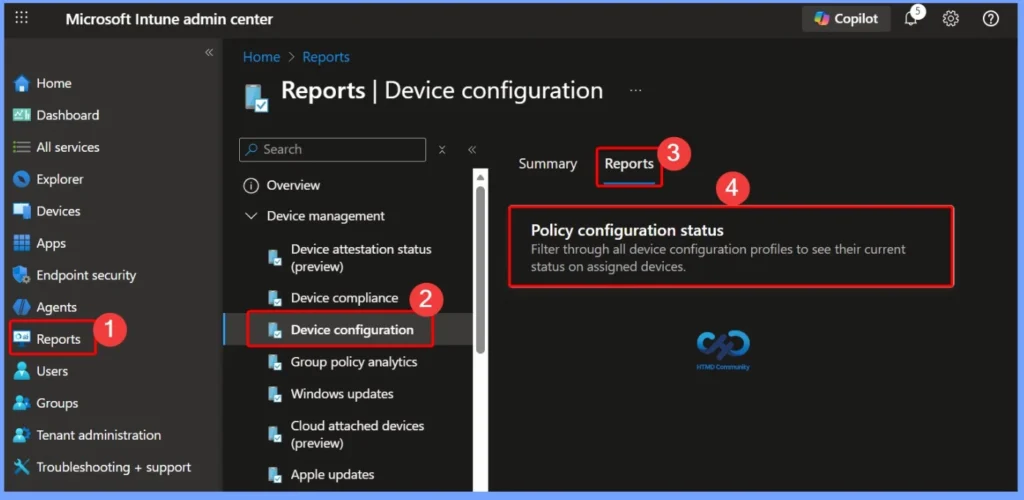
You can use the following steps to generate the Device Configuration report in Intune –
- Log in to the Microsoft Intune admin center https://endpoint.microsoft.com
- Select Reports > Device Configuration > Reports tab > Policy Configuration Status
You can directly access to Device configuration report URL– https://endpoint.microsoft.com/#blade/Microsoft_Intune_Enrollment/ReportingMenu/deviceConfiguration.
- Sign-in Activity Reports in Intune portal | Endpoint Manager
- How to Use Group Policy Analytics in Intune Portal | Endpoint Manager
- Intune Reporting Issue: Expedite Windows Security Patch Deployment
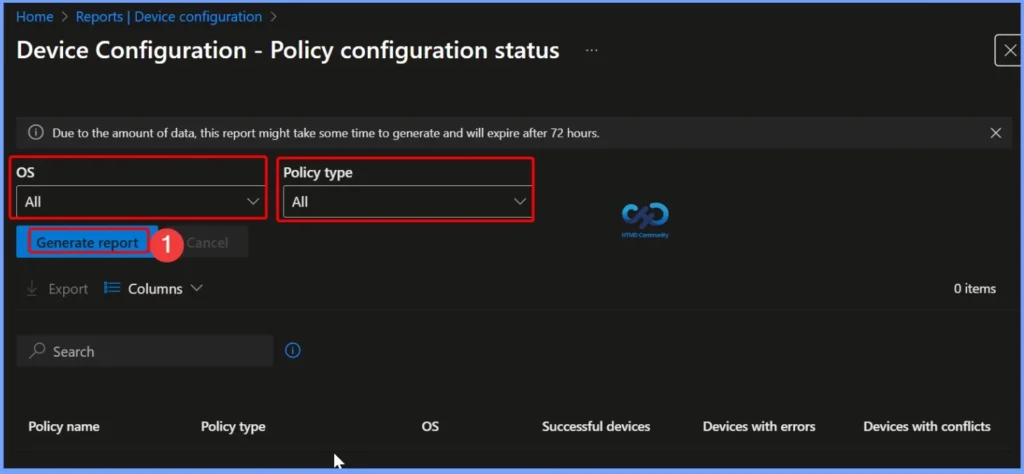
Generate Intune Device Configuration Report Using OS and Profile Type Filters
The Intune device configuration report can be generated by applying filters such as OS and Profile Type to narrow down and refine the data you want to analyze. These filters help you focus on specific platforms and policy types, making the report more relevant and easier to review.
After selecting the required filters, click Generate report (or Generate again) to fetch the most up-to-date information from the Intune service. This ensures you are always working with current deployment and configuration data for your managed devices.
Profile Configuration Status Report Generation Notification
When you initiate the report, a notification automatically appears in the top right-hand corner of the Intune admin center with the message “Generating Profile configuration status report.” This notification confirms that Intune has started processing your request and is collecting the latest configuration data.
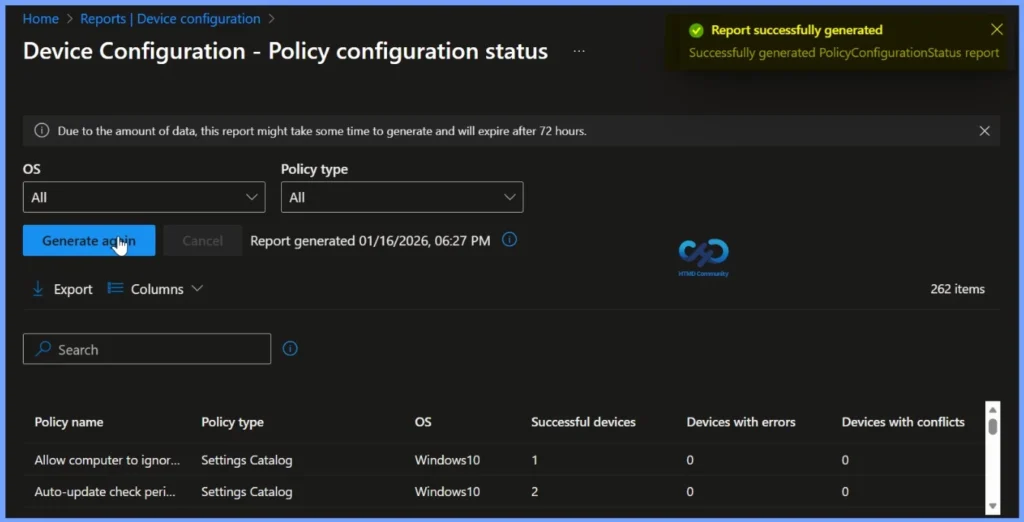
Viewing Generated Intune Device Configuration Report and Timestamp Details
After the report is successfully generated, Intune retrieves and displays data for the selected platform, as shown in the report results. The Device configuration report also includes a clear timestamp indicating when the report was last generated.
Intune Device Configuration Report Columns and Customisation Options
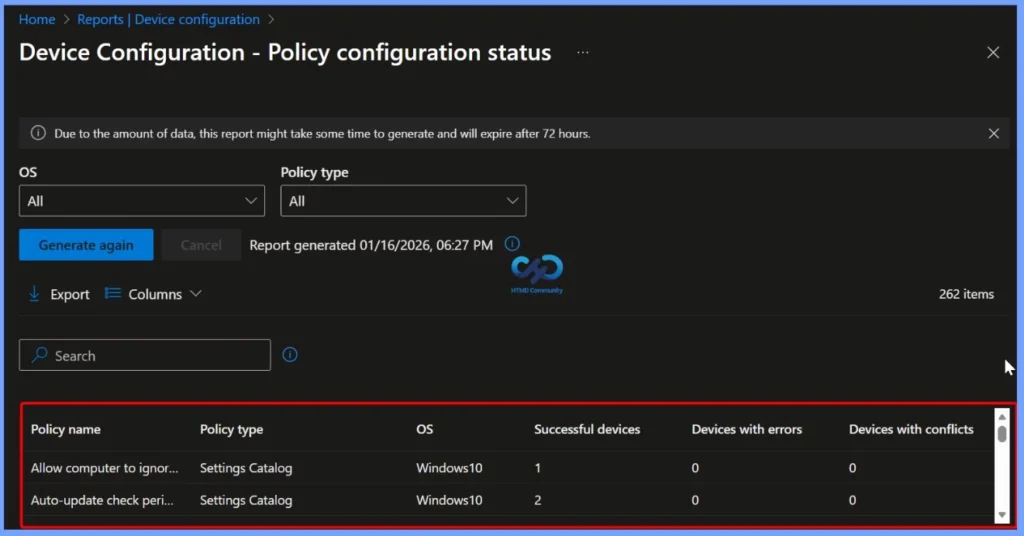
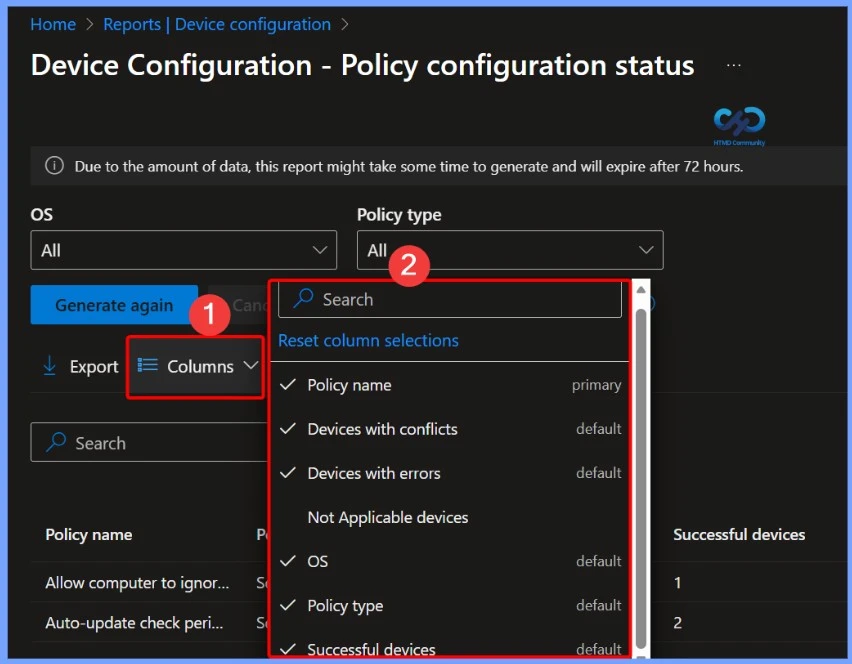
Once the report is generated, it displays multiple columns that provide clear insight into policy deployment and device status across your environment. These columns help IT admins quickly assess success rates, errors, and conflicts for each profile.
- Policy name
- Devices with conflicts
- Devices with errors
- Not Applicable devices
- Os
- Policy type
- Successful devices
- To customise the report view, click on Columns. A flyout pane opens where you can check or uncheck the columns you want to display. After making your selection, click Apply to update the report layout.
How to View the Intune Device Configuration Summary Report
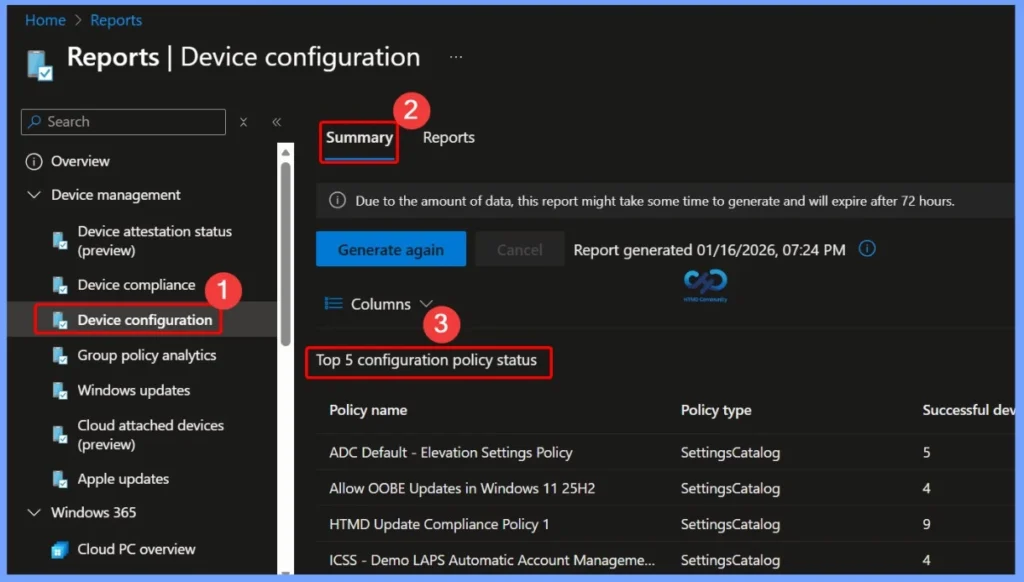
To view the Device Configuration summary report, sign in to the Microsoft Intune admin center and navigate to Reports > Device configuration > Summary tab. If the report does not load or display immediately, click Refresh to reload the data.
In the Summary tab, you can quickly view the Top 5 configuration profile status, providing a high-level snapshot of policy deployment health. This overview helps IT admins identify the most impactful configuration profiles, quickly spot errors or conflicts, and prioritize troubleshooting efforts.
Steps to Export Intune Device Configuration Report
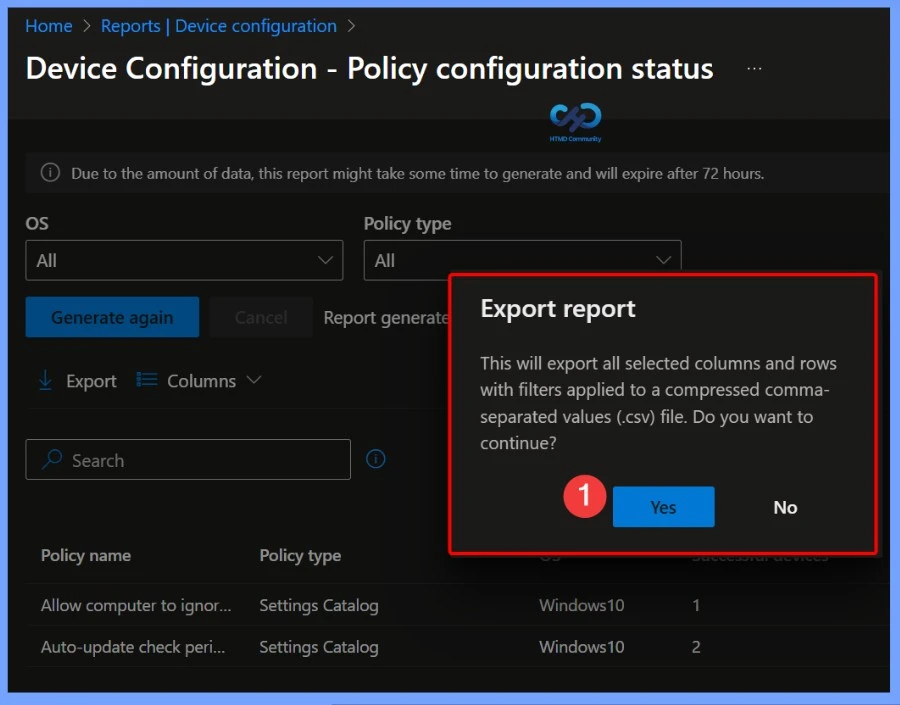
Let’s follow the steps to export the device configuration report in Intune. If you’re inside Reports > Device configuration > Reports tab > Device configuration. You can quickly export the reporting data generated. Click on the Export.
The pop-up will appear with the following message “This will export all selected columns and rows with filters applied to a compressed comma- separated values (.csv) file. Do you want to continue?”. Click Yes to export.
Exporting Intune Device Configuration Report
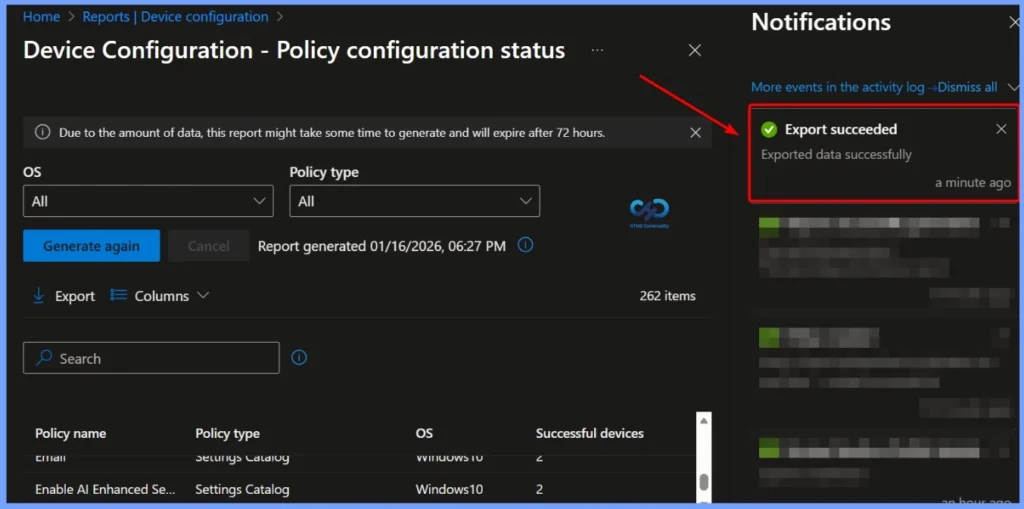
When you start the export process, a notification automatically appears in the top right-hand corner with the message “Export is in progress.” This confirms that Intune is preparing the profile configuration status report for download.
Once the export is completed, the report is automatically downloaded to your browser in a .zip file format, and a confirmation notification appears stating “Export Data successfully.” To access the report data, you must extract the downloaded ZIP file and then open the included report files for review and analysis.
Need Further Assistance or Have Technical Questions?
Join the LinkedIn Page and Telegram group to get the latest step-by-step guides and news updates. Join our Meetup Page to participate in User group meetings. Also, join the WhatsApp Community to get the latest news on Microsoft Technologies. We are there on Reddit as well.
Author
About Author – Jitesh, Microsoft MVP, has over six years of working experience in the IT Industry. He writes and shares his experiences related to Microsoft device management technologies and IT Infrastructure management. His primary focus is Windows 10/11 Deployment solution with Configuration Manager, Microsoft Deployment Toolkit (MDT), and Microsoft Intune.