
Key Takeaways
- The Locate device remote action in Microsoft Intune helps IT admins quickly find lost, stolen, or misplaced managed devices.
- Admins can use the action in the Intune admin centre to view a device’s location on a map, helping reduce downtime and improve device recovery.
- Depending on the platform, Intune can show the last known location, play a sound, or display a custom message on the device.
- The feature is supported on Android Enterprise corporate-owned devices, supervised iOS/iPadOS devices, and Windows devices.
- Devices must be properly configured to allow location access, especially on Windows where a Settings catalog policy is required.
How to Locate and Recover Managed Devices with Microsoft Intune! The Locate device remote action in Microsoft Intune helps IT administrators find the physical location of a managed device. This is especially useful in organisations where employees work remotely, travel frequently, or use devices across different office locations. Instead of guessing where the device might be, admins can quickly check its location directly from the Intune admin center.
Table of Contents
Prerequisites for Locate Device in Microsoft Intune
Let’s discuss the prerequisites for using the Locate Device feature in Microsoft Intune. Before this remote action can be used, certain requirements must be met on supported platforms, device configuration, and user roles.
- Supported device platforms
- The Locate device remote action is supported on the following platforms:
- Android Enterprise corporate-owned dedicated devices (COSU)
- Android Enterprise corporate-owned fully managed devices (COBO)
- Android Enterprise corporate-owned work profile devices (COPE)
- iOS and iPadOS devices in Supervised mode
- Windows devices
- The Locate device remote action is supported on the following platforms:
- Device configuration requirements
- Devices must be configured to allow location access before using the Locate device feature.
- For Windows devices, create a Settings catalog policy
- Configure the location setting under the Privacy category
- Set Let apps access location to Force allow
- Assign the policy to a device group containing the required Windows devices
- Devices must be configured to allow location access before using the Locate device feature.
- Role and permission requirements
- The account used to run the Locate device action must have the correct permissions.
- Built-in roles that support this action:
- Help Desk Operator
- School Administrator
- Custom roles must include:
- Remote tasks – Locate deviceRemote tasks – Play sound to locate lost devices
- The account used to run the Locate device action must have the correct permissions.
How to Locate and Recover Managed Devices with Microsoft Intune
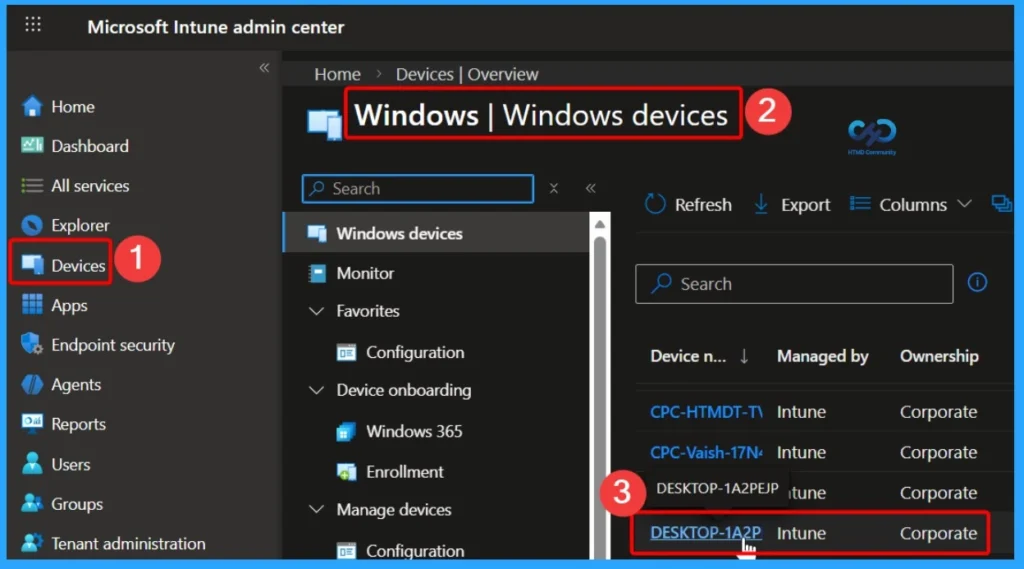
In the Microsoft Intune admin center, go to Devices and then select All devices or Windows devices. This page shows a list of all devices managed by Intune. From the list, click on the device you want to manage or locate.
- Device > Windows > Windows Devices
- How to Block App Location Access in Windows using Intune Policy
- Enable Removable Drive Locations Policy in Windows for Indexing Control using Intune
- How to Specify the OneDrive Location in a Hybrid Environment using Intune
Locate Device using Intune
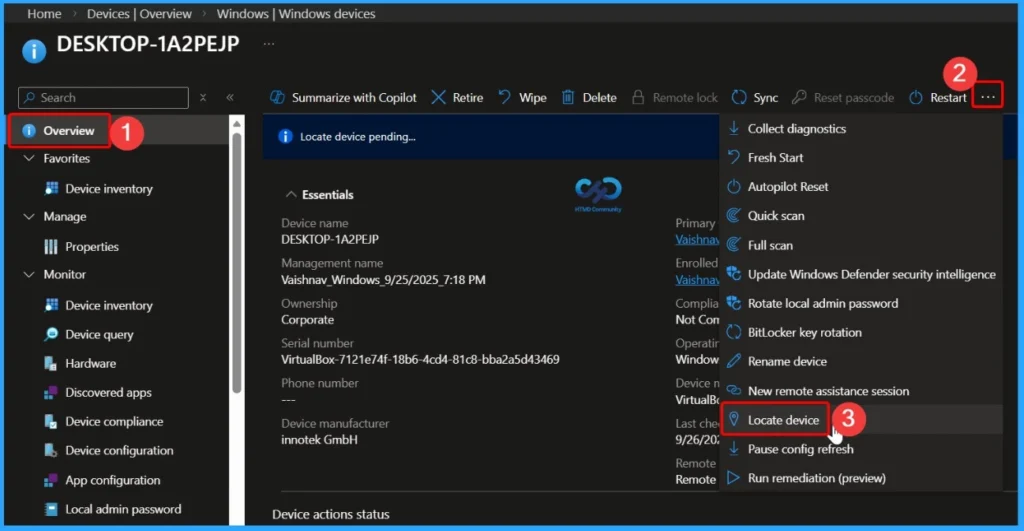
After selecting the device, you can view all the details related to that device, as shown in the screenshot below. On the device page, look for the three dots (More options) menu. Click on it to open additional actions, and then select Locate device from the list.

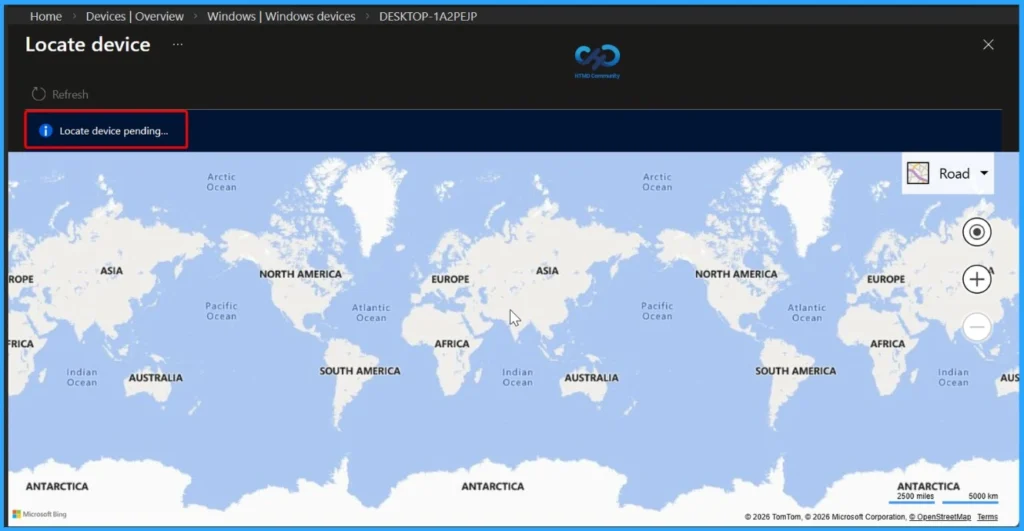
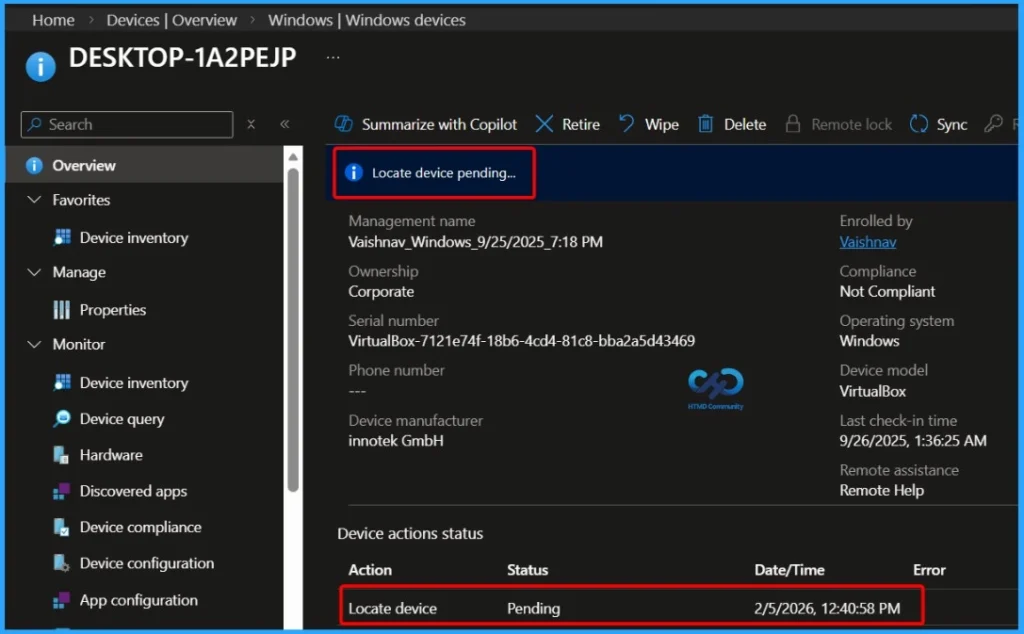
Locating Device is Pending
In the map shown below, you can see that the Locate device status is currently Pending, which means Intune is still trying to fetch the device’s location. For this remote action to work properly, location services must be enabled on the device. If Intune is unable to retrieve the actual location and the user has configured a default location in the device settings, Intune will display that default location instead.
Check Locate Device Action Status in Intune
In the Device actions status section, you can see the current status of actions performed on the device. Here, the Locate device action is listed with the status shown as Pending, along with the date and time (2/5/2026 12:40:58 PM) when the action was initiated. No error message is displayed, which indicates that the request was successfully sent and Intune is still processing the location update.
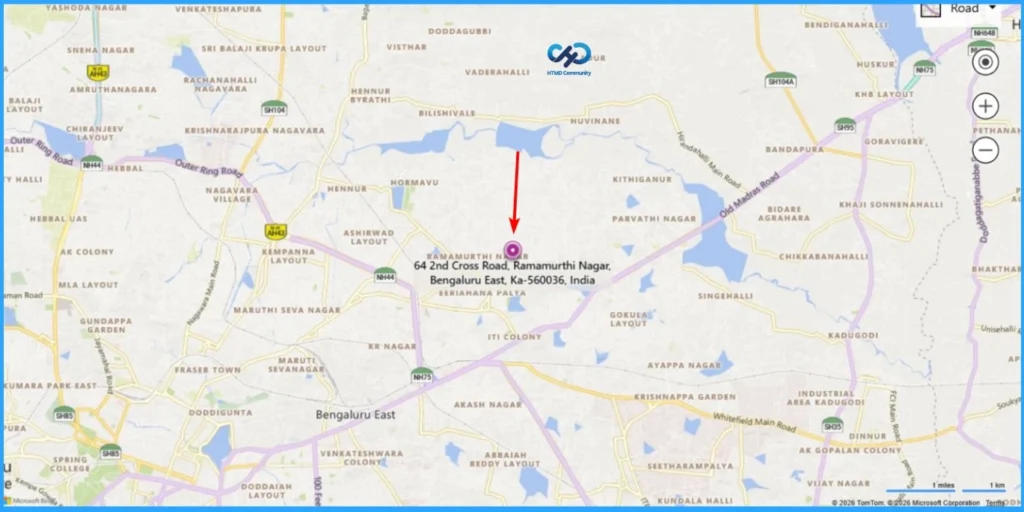
Locate Device Result Shown on Map
Once the Locate device action is processed successfully, Intune displays the device’s location on a map view, as shown above. The map highlights the detected location with a marker, helping admins quickly identify where the device is currently located or was last seen. This visual view makes it easier to verify the device’s location, assist with recovery, and take further actions if needed.
- Windows 10 Version Numbers Build Numbers Major Minor Build Rev
- Collect Intune Logs From MEM Portal Diagnostic Data
- Intune Advanced App And Vulnerability Management For 3rd Party Patch Management From Microsoft
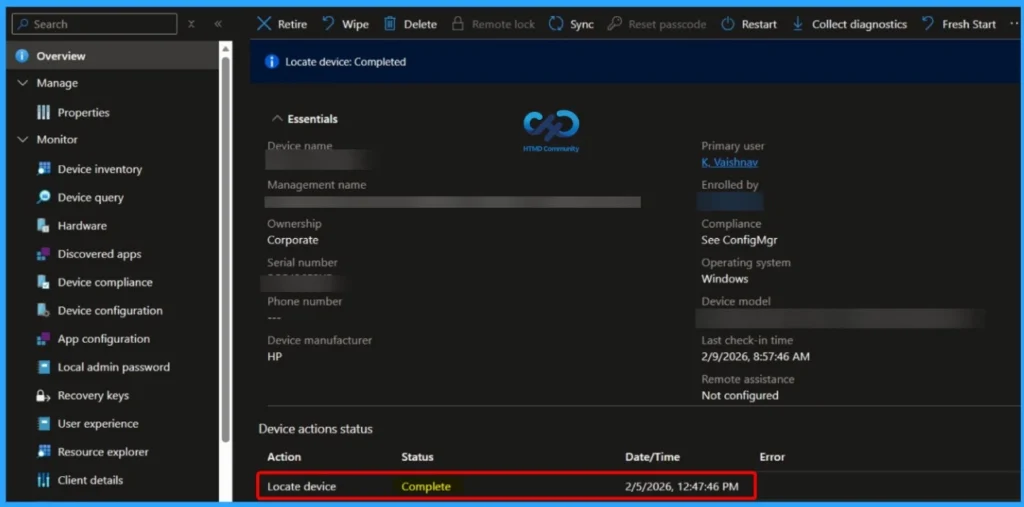
Locate Device Action Completed Successfully
In the Device actions status section, the Locate device action now shows the status as Complete, along with the date and time (2/5/2026, 12:47:46 PM). This confirms that Intune has successfully processed the request and retrieved the device’s location. Since no error is displayed, the action was completed without any issues, and the location details are available for review.
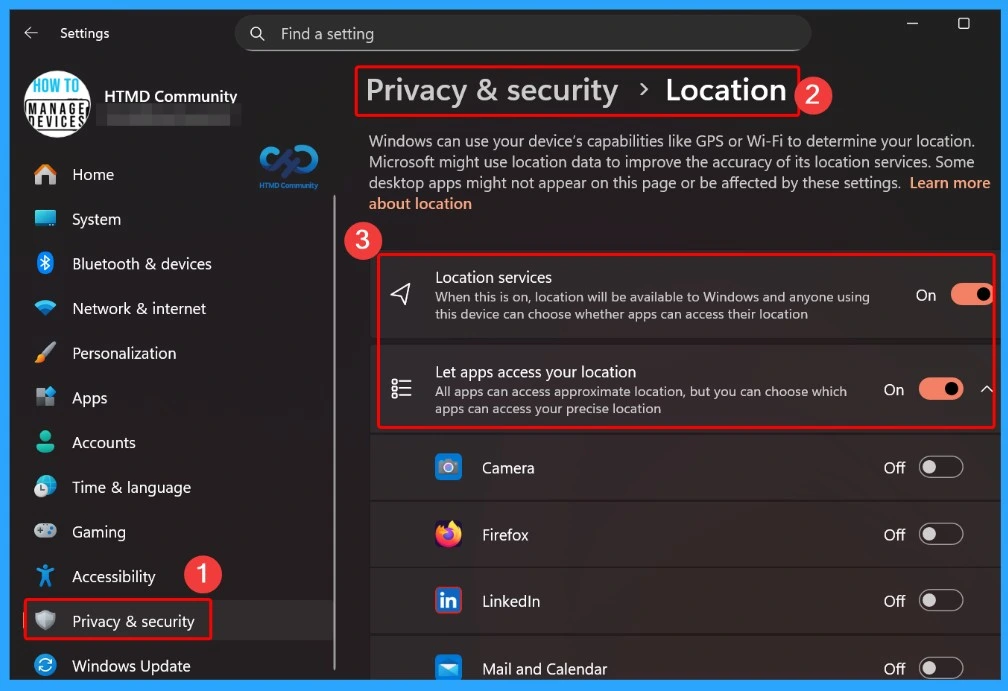
How to Get Location Details from Windows 11 Devices Using the Settings App
On a Windows 11 device, open the Settings app and go to Privacy & security. Select Location to view and manage location-related settings. Make sure that Location services are turned on, as this allows the device to share its location when required.
Need Further Assistance or Have Technical Questions?
Join the LinkedIn Page and Telegram group to get the latest step-by-step guides and news updates. Join our Meetup Page to participate in User group meetings. Also, join the WhatsApp Community and the Whatsapp channel to get the latest news on Microsoft Technologies. We are there on Reddit as well.
Author
About Author – Jitesh, Microsoft MVP, has over six years of working experience in the IT Industry. He writes and shares his experiences related to Microsoft device management technologies and IT Infrastructure management. His primary focus is Windows 10/11 Deployment solution with Configuration Manager, Microsoft Deployment Toolkit (MDT), and Microsoft Intune.
Hello
Do you know HOW the device is located, e.g. via a WAP or … ?
Thank you.
updated the post with the answer 🙂 https://support.microsoft.com/en-us/windows/windows-location-service-and-privacy-3a8eee0a-5b0b-dc07-eede-2a5ca1c49088#WindowsVersion=Windows_11
Is there a way to globally enable location services as well as desktop app access to it?
Hi Jason, Are you referring here on a device basis?
Do you know how intune can access the location service? Is it via intune.exe or other Windows built-in apps? I’m trying to only allow intune to access the location service. Thanks.
what feature have to enable to locate iOS device in intune?
I mean Do i need to enable feature in configuration profile in intune admin portal?