
Key Takeaways
- Prevents applications from displaying toast notifications on the Windows lock screen.
- Helps protect sensitive information from unauthorised viewing.
- No reboot or service restart is required after deployment.
- Can be configured and managed centrally using Microsoft Intune.
Let’s discuss disabling Toast Notifications from the Lock Screen using Intune Policy. Lock screen notifications provide quick access to alerts and updates without unlocking a device. While convenient, these notifications can sometimes expose sensitive information to anyone viewing the screen, creating potential privacy and security concerns in enterprise environments. The toast notifications feature helps users see your notifications when the screen is locked, making it handy for quick viewing.
Table of Contents
Table of Contents
How to Turn Off Lock Screen Toast Notifications with Microsoft Intune Policy
Most of the applications that provide toast notifications might display sensitive personal or business data while the device is left unattended. It is recommended not to display the notification for end-users. Microsoft Intune allows administrators to control how notifications appear on managed Windows devices. By configuring the Turn off toast notifications on the lock screen policy, organisations can prevent applications from displaying notification pop-ups while the device is locked.
- How to Create Intune Settings Catalog Policy
- List of Intune Settings Catalog Policies
- Guide to Enable Efficiency Mode in Microsoft Edge using Intune
- How to Configure Microsoft Edge Favorites using Intune Configuration Profile Step-by-Step Guide
Disable Toast Notifications from Lock Screen using Intune
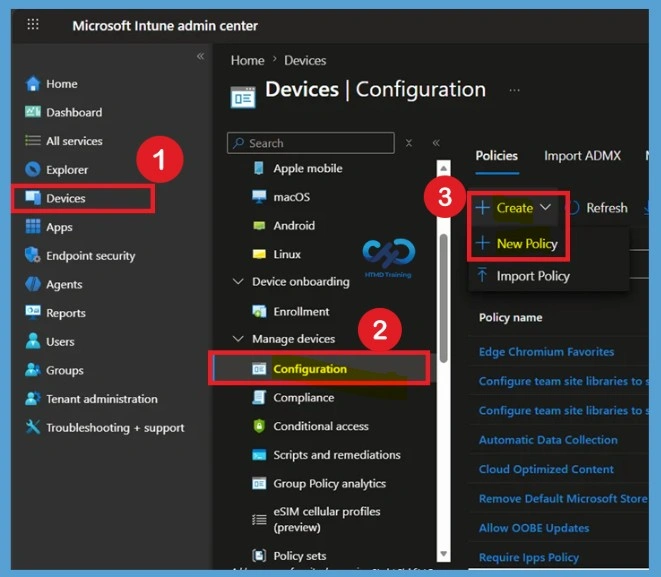
Let’s walk through the process of configuring Microsoft Edge Managed Favorites using Microsoft Intune. Begin by signing in to the Microsoft Intune admin center with an account that has the required administrative permissions. Once signed in, navigate to Devices > Windows > Configuration and select Create > New Policy. For clear view steps are given below.
- Sign in to the Microsoft Intune admin center
- Select Devices > Windows > Configuration profiles > Create profile
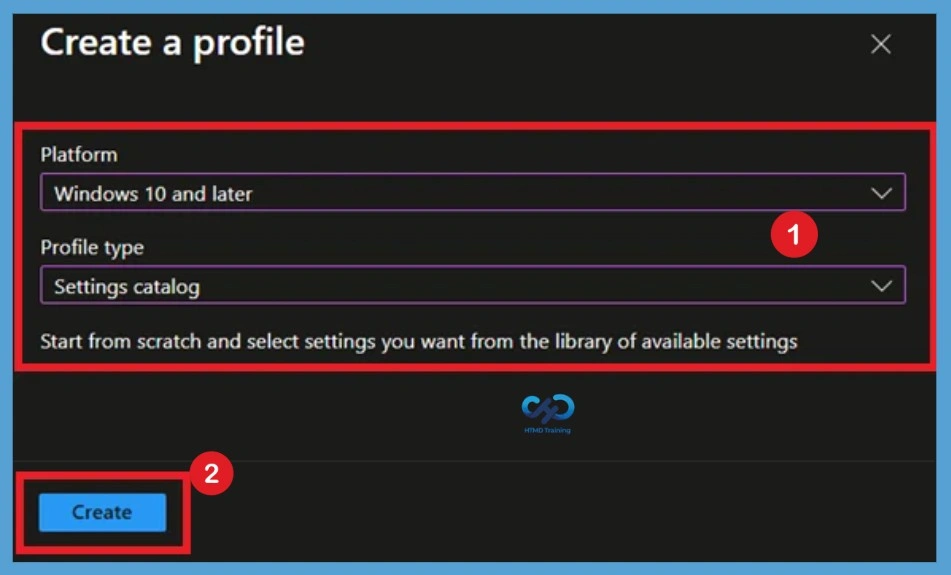
In Create Profile, Select Platform as, Windows 10, and later and Profile type, Select Profile Type as Settings catalog. Click on Create button.

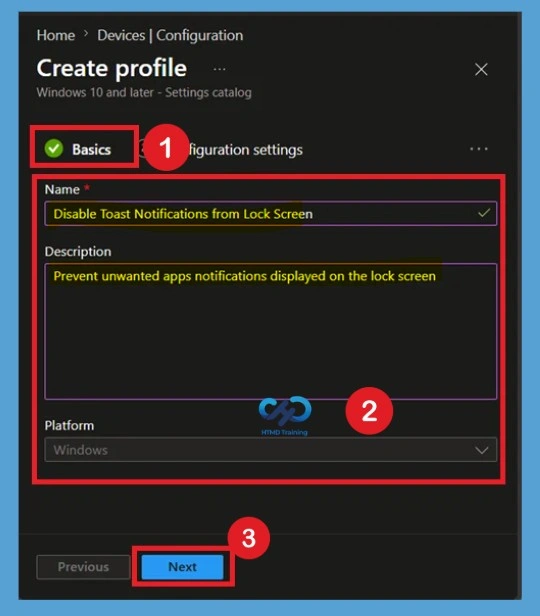
Basic Tab
In the Basics tab, provide a meaningful Name and Description for the policy. Using a clear and descriptive name helps administrators quickly identify the purpose of the configuration profile in the Intune admin center.
The description should briefly explain that the policy is used to disable toast notifications on the Windows lock screen, helping to improve privacy and prevent sensitive information from being displayed when a device is locked. Once the required details are entered, click Next to continue with the configuration.
Configuration Settings
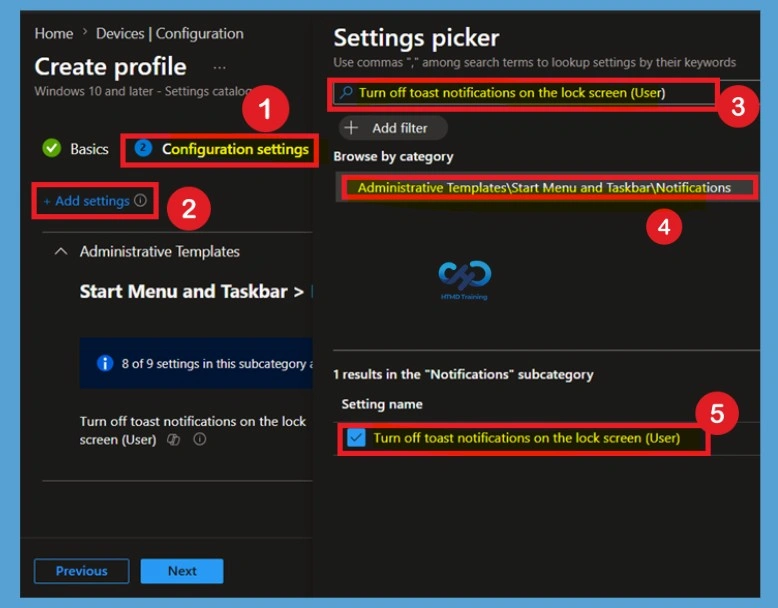
From the Settings picker, search for Turn off toast notifications on the lock screen (User). The setting is located under Administrative Templates > Start Menu and Taskbar > Notifications. Select the setting by checking the available option and add it to the profile. Once selected, the setting will appear in the configuration pane, ready for further configuration.
Note – In policy, use the search box to find specific settings. You can search by category or a keyword, such as Toast Notifications. It will display all the related settings available.
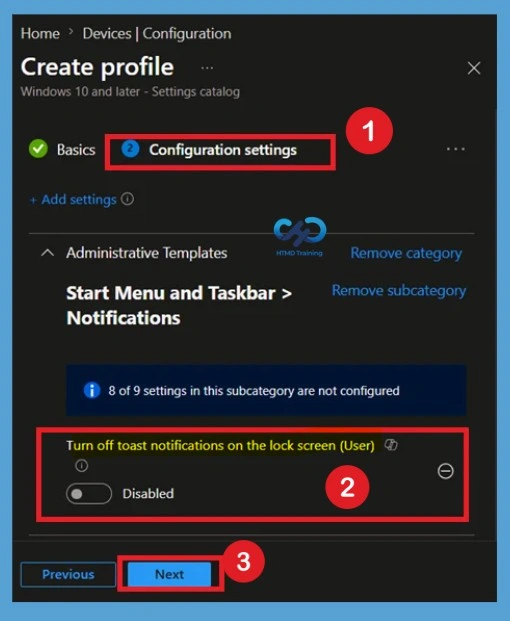
Disabled State of Policy
After closing the Settings picker window, you will return to the Configuration settings page. Here, you can see that the selected policy is added and set to Disabled by default. If you disable or do not configure this policy setting, toast notifications on the lock screen are enabled and can be turned off by the administrator or user.
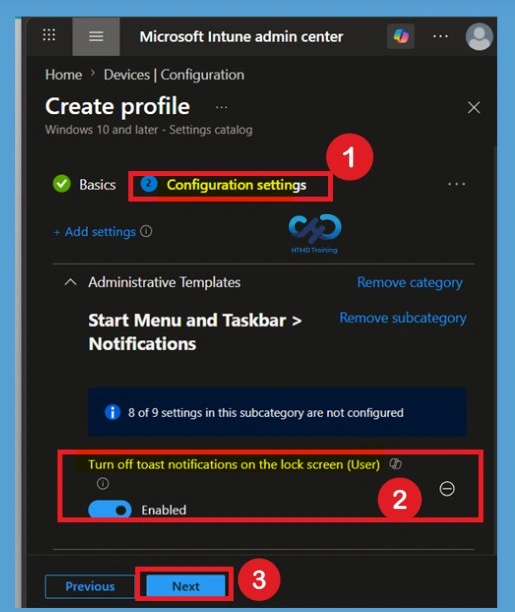
Enable Toast Notifications
After adding the setting, configure Turn off toast notifications on the lock screen (User) to Enabled. When enabled, applications will no longer be able to display toast notifications while the device is locked. This helps improve privacy by ensuring that notification content is not visible on the lock screen. The change takes effect without requiring a reboot or service restart.
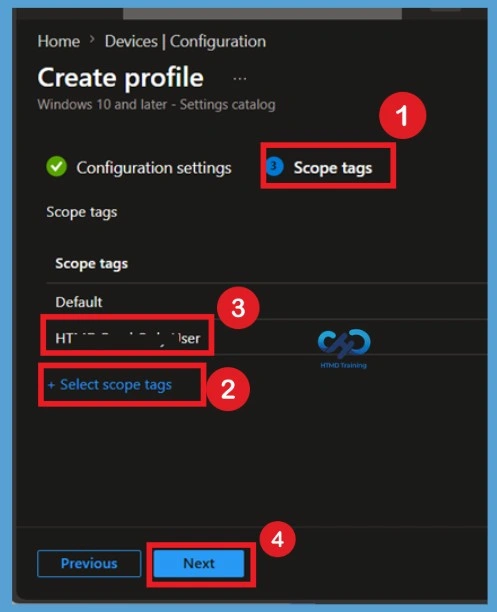
Scope Tags
Scope tags allow administrators to control which Intune objects are visible to specific admin groups. Select the appropriate scope tags based on your organization’s administrative requirements. Assigning scope tags helps ensure that only authorized administrators can view and manage the policy within the Intune admin center.
Assign the Policy
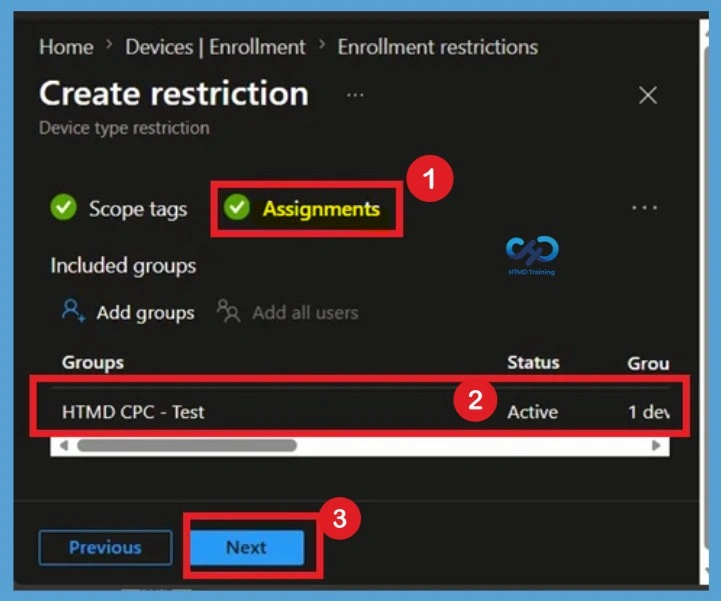
Now we move on to the Assignments section. Select the user groups that should receive the policy and review the targeting configuration before proceeding. Carefully verify the assigned groups to ensure the policy is deployed only to the intended users. Once confirmed, continue to the review page.
Review and Create Tab
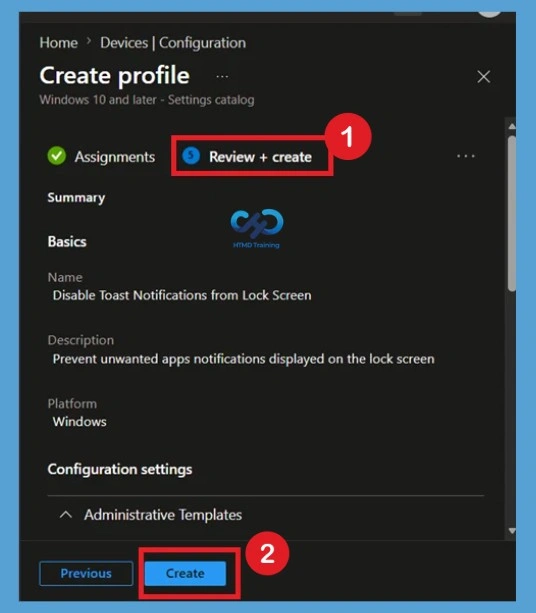
Review all configured settings, assignments, and profile details to ensure they match your organization’s requirements. Verify that the Turn off toast notifications on the lock screen setting is configured correctly. Click Create to deploy the policy. Intune will distribute the configuration to targeted devices during the next policy synchronization cycle.
Monitoring Status
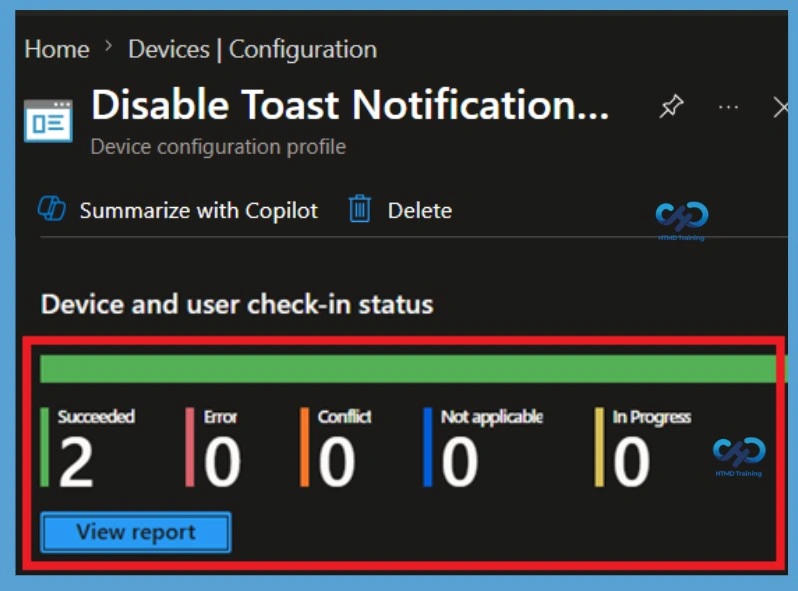
After the policy is deployed, navigate to Devices > Configuration Profiles and select the created profile. Open the Device status or User status report to monitor deployment results. The monitoring page provides detailed information about successful, failed, pending, and not applicable deployments, helping administrators verify whether the policy has been applied correctly.
End-User Experience – Verify Policy Deployment Using Event Viewer
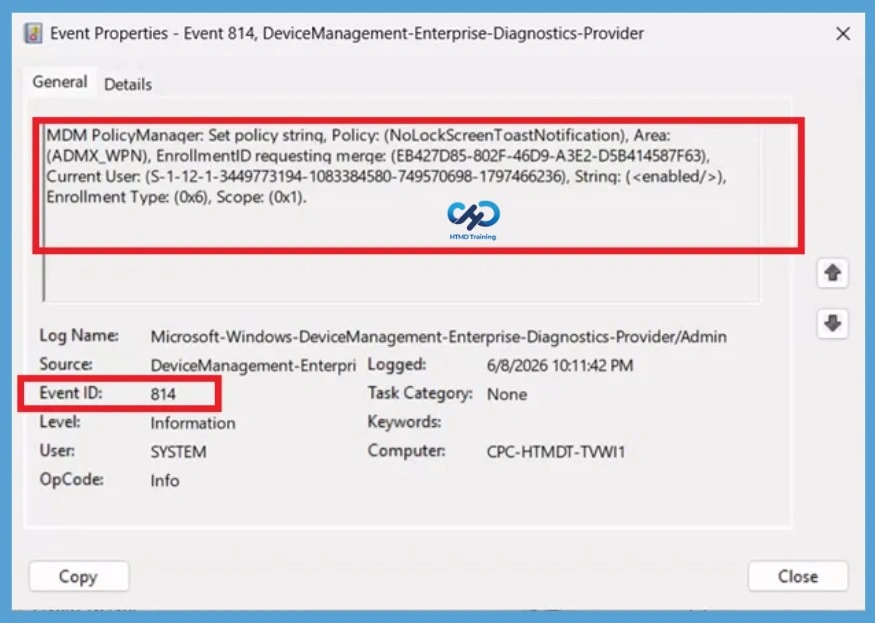
To verify that the Microsoft Edge Managed Favorites policy has been successfully applied on a client device, open Event Viewer and navigate to Applications and Services Logs > Microsoft > Windows > DeviceManagement-Enterprise-Diagnostics-Provider > Admin.
| Policy Info |
|---|
| MDM PolicyManager: Set policy strinq, Policy: (NoLockScreenToastNotification), Area: (ADMX_WPN), EnrollmentID requesting merge: (EB427D85-802F-46D9-A3E2-D5B414587F63), Current User: (S-1-12-1-3449773194-1083384580-749570698-1797466236), Strinq: (), Enrollment Type: (0x6), Scope: (0x1). |
Remove an Assignment Group from the Policy
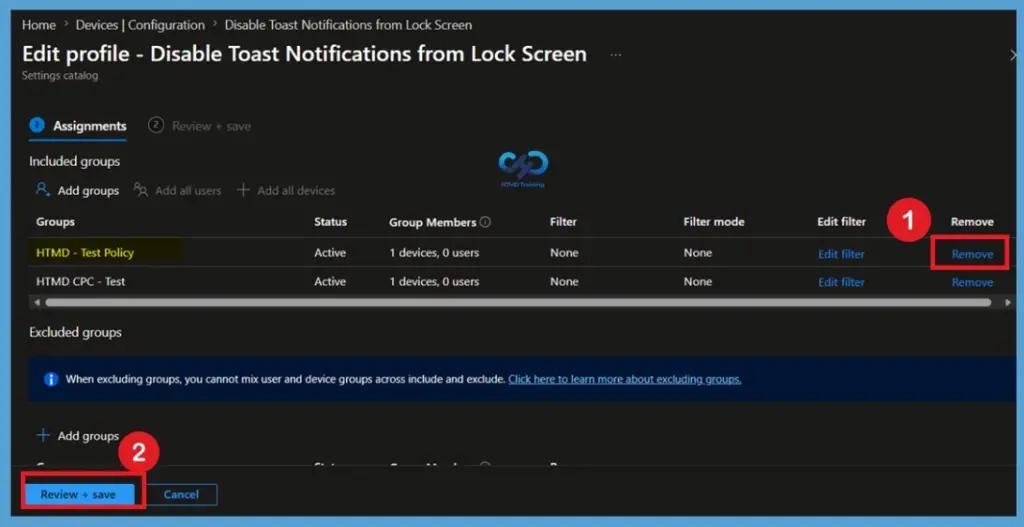
If the policy is no longer required for a specific set of users, open the policy and navigate to the Assignments section. Remove the assigned user groups from the Included Groups list. After saving the changes, Intune will stop targeting those users with the policy during the next synchronization cycle.
Delete the Policy Permenantly
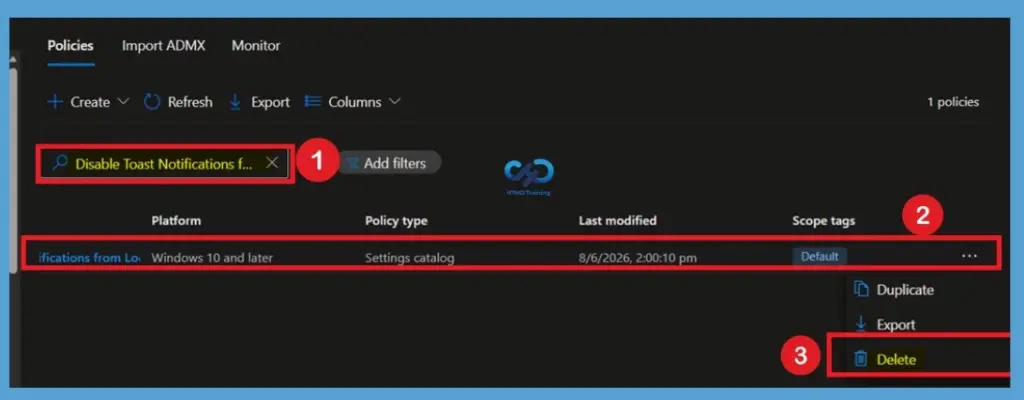
When the policy is no longer needed, open the configuration profile from the Intune admin center. Review the policy details and ensure it is no longer assigned to any required users or devices. Select Delete and confirm the action. Once deleted, the policy is permanently removed from Intune and will no longer be available for management or deployment.
Need Further Assistance or Have Technical Questions?
Join the LinkedIn Page and Telegram group to get the latest step-by-step guides and news updates. Join our Meetup Page to participate in User group meetings. Also, join the WhatsApp Community and the WhatsApp channel to get the latest news on Microsoft Technologies. We are there on Reddit as well
Author
About Author – Jitesh, Microsoft MVP, has over six years of working experience in the IT Industry. He writes and shares his experiences related to Microsoft device management technologies and IT Infrastructure management. His primary focus is Windows 10/11 Deployment solution with Configuration Manager, Microsoft Deployment Toolkit (MDT), and Microsoft Intune.