
Key Takeaways
- Enables administrators to define the inactivity timeout before background tabs are put to sleep.
- Helps reduce CPU, memory, and battery usage by managing inactive tabs efficiently.
- Requires the Configure Sleeping Tabs policy to be enabled, or users must have Sleeping Tabs enabled manually.
- Supports multiple timeout options, ranging from 5 minutes to 12 hours.
In this post, you will learn How to Set Microsoft Edge Background Tab Inactivity Timeout for Sleeping Tabs using Intune Policy. Microsoft Edge includes the Sleeping Tabs feature to help improve browser performance and reduce system resource consumption. When enabled, inactive background tabs are automatically put to sleep after a specified period of inactivity, helping to reduce CPU usage, memory consumption, and battery drain.
Table of Contents
Table of Contents
How to Set Background Tab Inactivity Timeout for Sleeping Tabs using Intune Policy
Sleeping tabs are built on the core of Chromium’s “freezing” technology (which pauses a tab’s script timers to minimise resource usage) to create sleeping tabs. Sleeping tabs allow inactive background tabs to “go to sleep”, releasing system resources (memory and CPU) after a set amount of time for other tabs or applications running on your device.
Microsoft introduced sleeping tabs in Microsoft Edge Chromium to improve the memory and CPU usage of the browser. It typically increases battery life as a sleeping tab uses 26% less CPU on average compared to a non-sleeping tab. It also reduces memory usage by 16% on average. Your overall savings with sleeping tabs will vary based on your browser usage and the total number of tabs you use.
- Expanding Windows 365 Frontline with Cloud Apps and User Experience Sync
- Expanding Windows 365 Frontline with Cloud Apps and User Experience Sync
- How to Completely Lockdown OneDrive File Sync with Intune Policy
Profile Creation for Policy Deploying
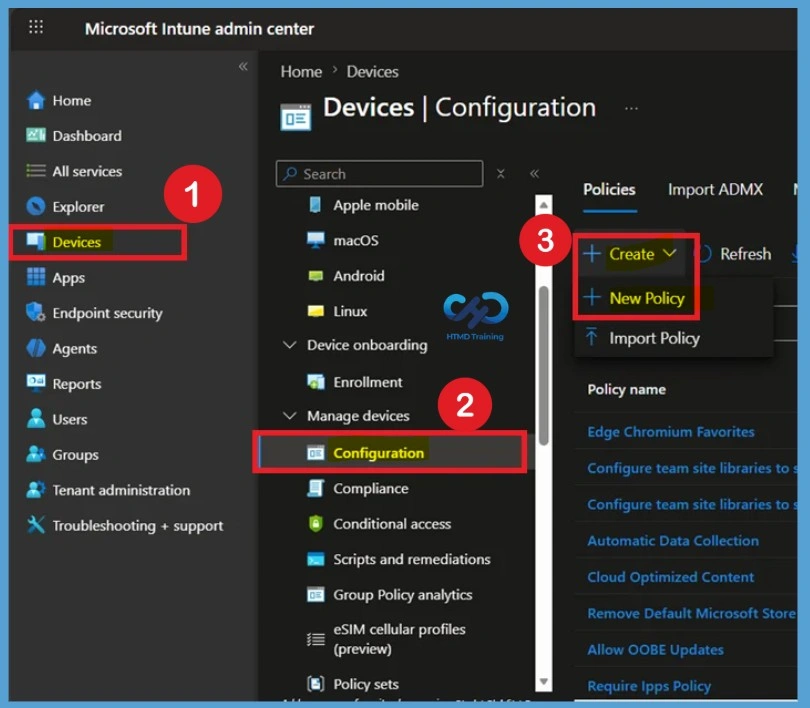
Begin by signing in to the Microsoft Intune Admin Center using an account with administrative privileges. From the left navigation pane, select Devices and then choose Configuration. Click + Create and select New Policy to start creating a new configuration profile.

- Sign in to the Microsoft Intune Admin Center
- Select Devices > Windows > Configuration profiles > Create profile.
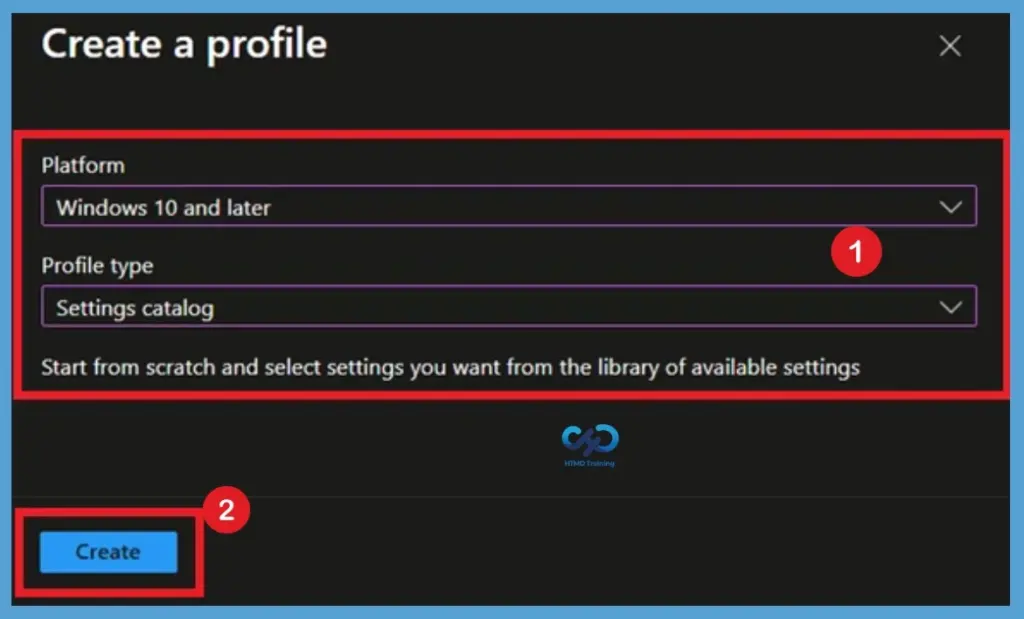
In the Create a Profile page, choose Windows 10 and later as the Platform and Settings Catalog as the Profile Type, then click Next to continue.
Configure Basic Information
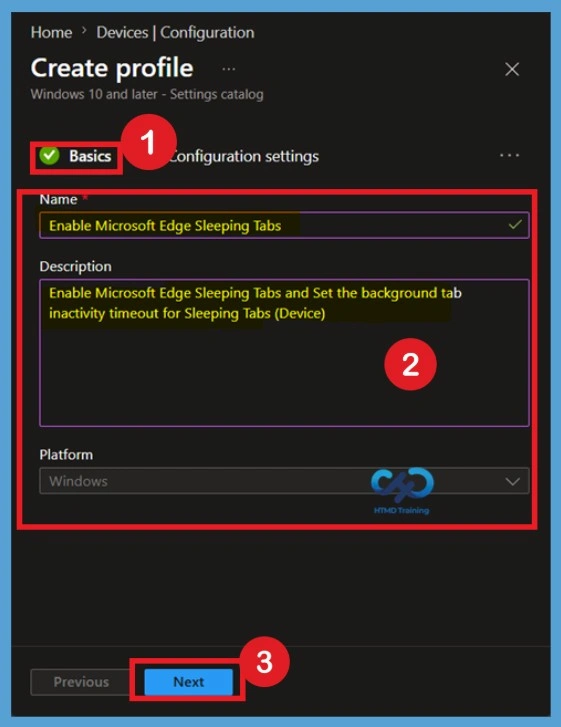
In the Basics section, provide a name for the policy, such as Enable Microsoft Edge Sleeping Tabs. Using a descriptive name makes it easier for administrators to identify the policy’s purpose when managing multiple configuration profiles in the Intune admin center.
You can also add a detailed description explaining how the policy enables Microsoft Edge Sleeping Tabs and defines the inactivity period before background tabs are automatically put to sleep. After entering the required information, select Next to proceed to the configuration settings page.
Add Microsoft Edge Sleeping Tabs Settings
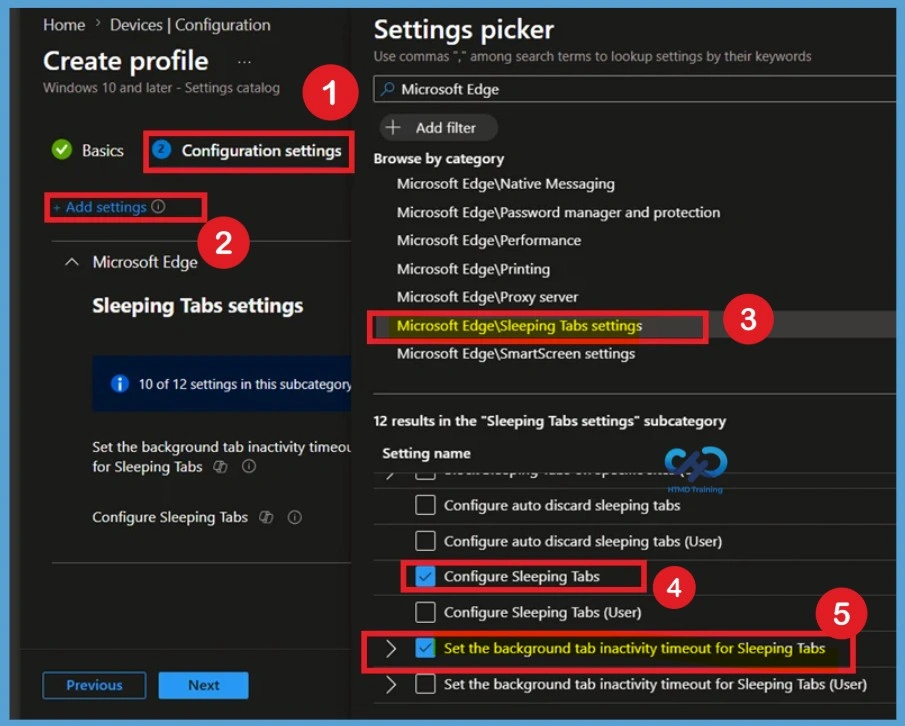
On the Configuration Settings page, click Add Settings to open the Settings Picker. In the search box, type Microsoft Edge to filter the available settings. From the search results, expand Microsoft Edge > Sleeping Tabs settings to view all available Sleeping Tabs-related policies.
Select Configure Sleeping Tabs, then set the background tab inactivity timeout for Sleeping Tabs by checking the corresponding boxes. Once the required settings have been selected, close the Settings Picker. The selected policies will now appear under the Microsoft Edge category, ready for configuration.
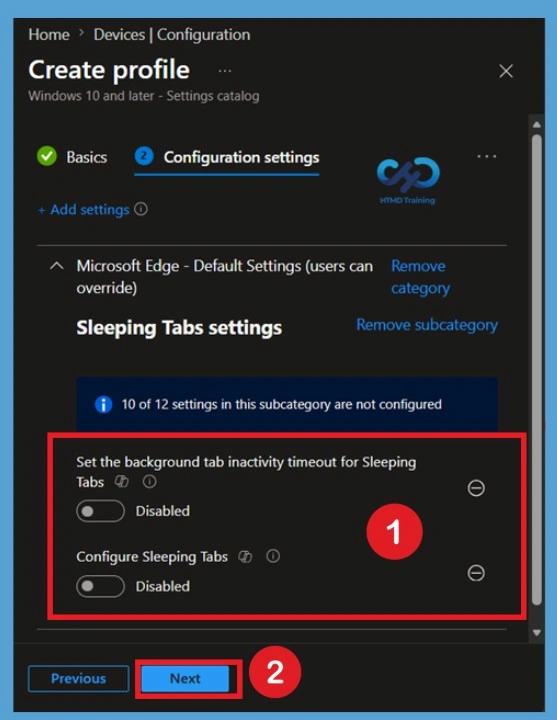
Default State of the Microsoft Edge Sleeping Tabs Settings
When you close the settings picker, you can see that the Policy appears on the Configuration tab and it’s disabled by default. If you disable the Configure Sleeping Tabs setting, Sleeping Tabs is turned off. If you don’t configure this setting, users can choose whether to use Sleeping Tabs. For the background tab, the inactivity timeout for the Sleeping Tabs Policy. If you don’t configure this policy, users can choose the timeout value.
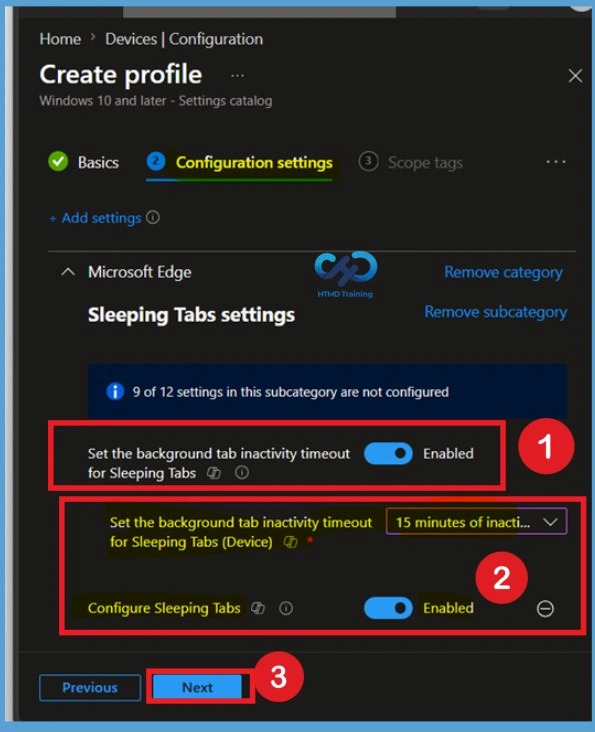
Enable Sleeping Tabs and Configure Timeout Value
After adding the settings, locate Configure Sleeping Tabs and switch the setting to Enabled. This ensures that Microsoft Edge can automatically place inactive background tabs into a sleeping state to help reduce CPU, memory, and battery usage.
Next, enable the ” Set the background tab inactivity timeout for Sleeping Tabs and choose the desired inactivity period from the drop-down menu. For this example, 15 minutes of inactivity is selected, which means background tabs will be automatically put to sleep after remaining inactive for 15 minutes. After completing the configuration, click Next to continue with the policy creation process.
- Set Configure Sleeping Tabs to Enabled
- Set the background tab inactivity timeout for Sleeping Tab to Enabled
- Set the background tab inactivity timeout for Sleeping Tab (Device) – By default, this option will select 5 minutes of inactivity. Here, I have configured it to 15 minutes of inactivity.
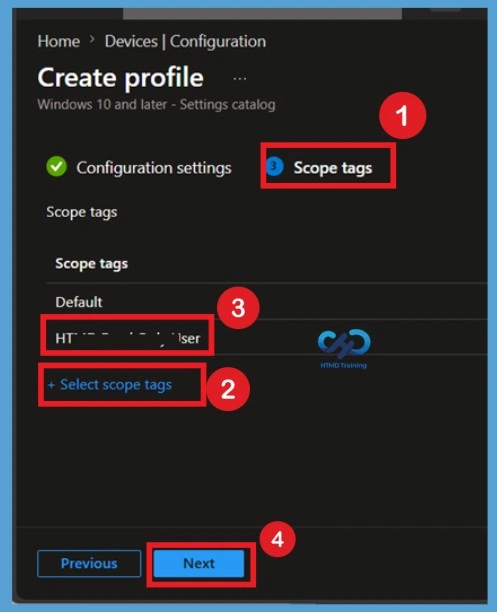
What are Scope Tags
The Scope Tags page allows organisations to control administrative access to the policy. Scope tags are particularly useful in environments that use Role-Based Access Control, where different administrators manage different groups of devices or users. Assign the appropriate scope tags based on your organisation’s administrative structure. If scope tags are not required, leave the configuration unchanged and click Next to continue with the deployment process.
Assignment Section
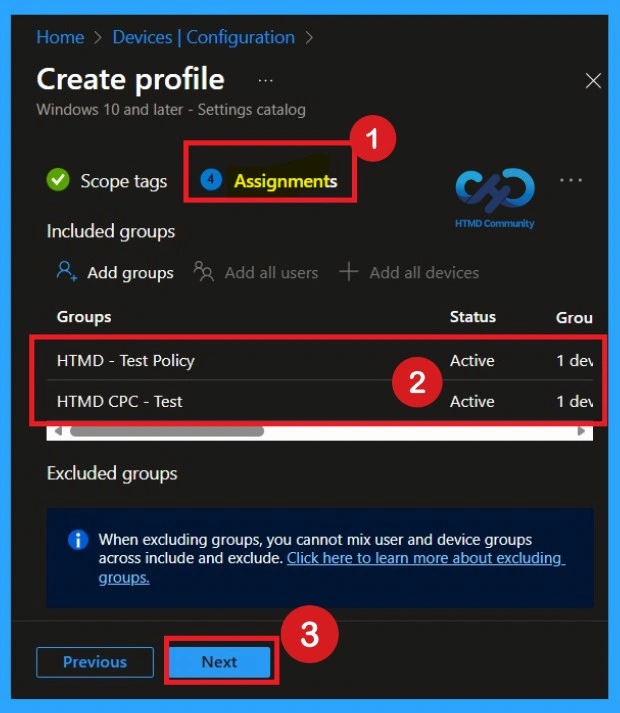
The Assignments page determines which users or devices receive the policy. Select Add Groups under Included Groups and choose the Microsoft Entra ID groups that should receive the Microsoft Edge Sleeping Tabs configuration.
Before moving forward, review the selected groups carefully to ensure the policy targets the correct groups. Proper assignment helps prevent unwanted configurations from being applied to devices outside the scope of the deployment.
Final Step – Review + Create
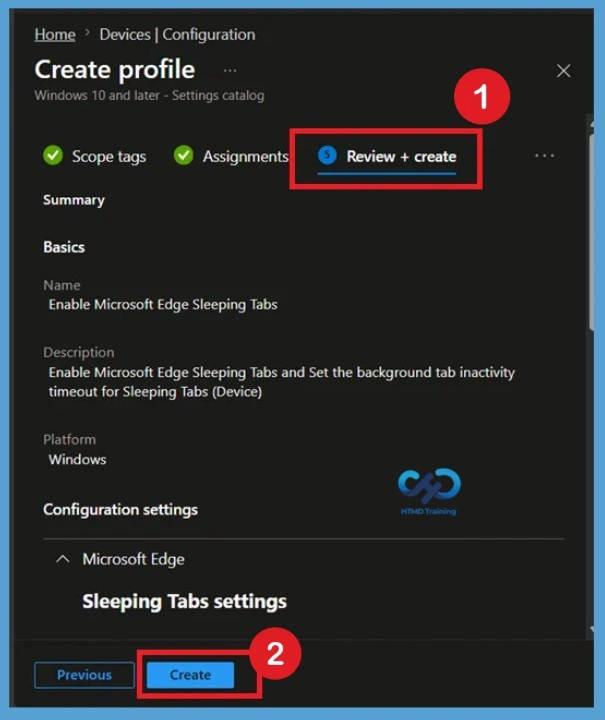
The Review + Create page provides a complete summary of the policy configuration. This includes the policy name, platform, selected Microsoft Edge settings, timeout value, assignments, and scope tags. Carefully verify all settings before deployment. If modifications are required, use the Previous button to return to the appropriate section. Once everything has been validated, click Create to save and deploy the policy.
- A notification will appear automatically in the top right-hand corner with a message.
- Here you can see, Policy “Enable Microsoft Edge Sleeping Tabs” was created successfully. The policy is also shown in the Configuration profiles list.
Monitoring the Status of Microsoft Edge Sleeping Tabs Settings
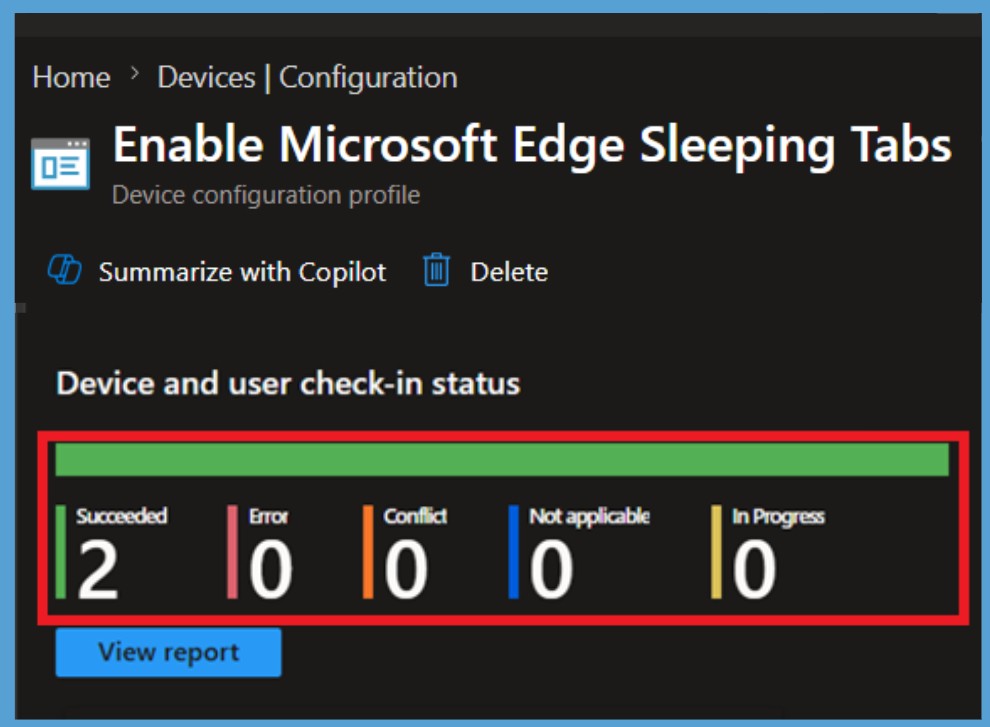
After the policy is created, Intune begins distributing the configuration to the assigned devices or users. You can monitor the deployment by navigating to Devices > Configuration Profiles and opening the newly created policy.
The monitoring dashboard displays deployment results, including Succeeded, Pending, Error, and Not Applicable statuses. Regularly reviewing these results helps administrators identify and resolve deployment issues quickly.
Client-Side Verification of Microsoft Edge Sleeping Tabs Settings
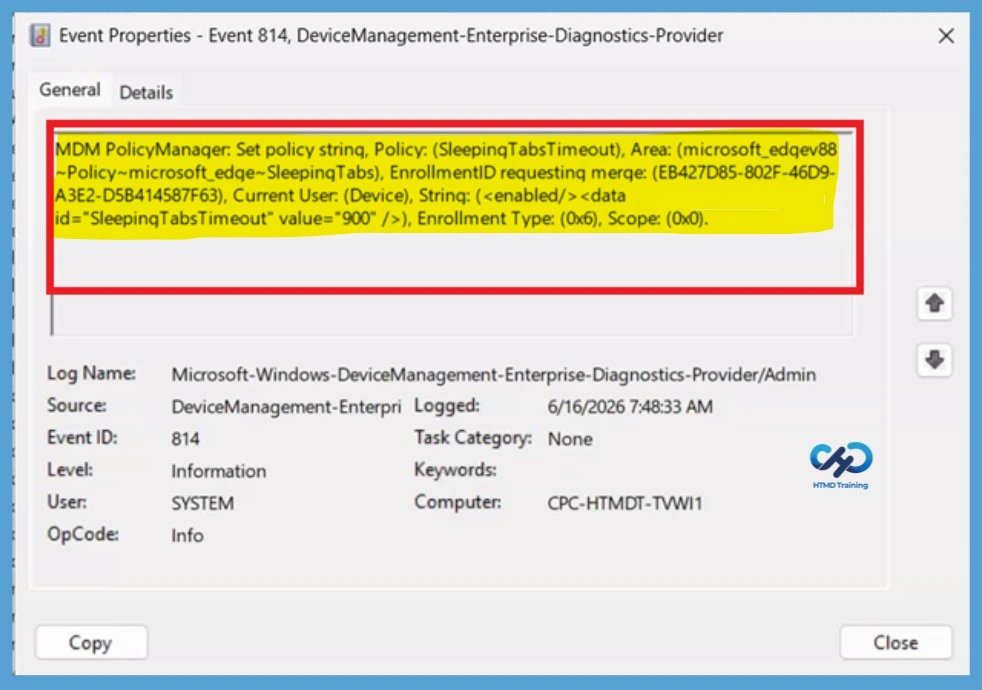
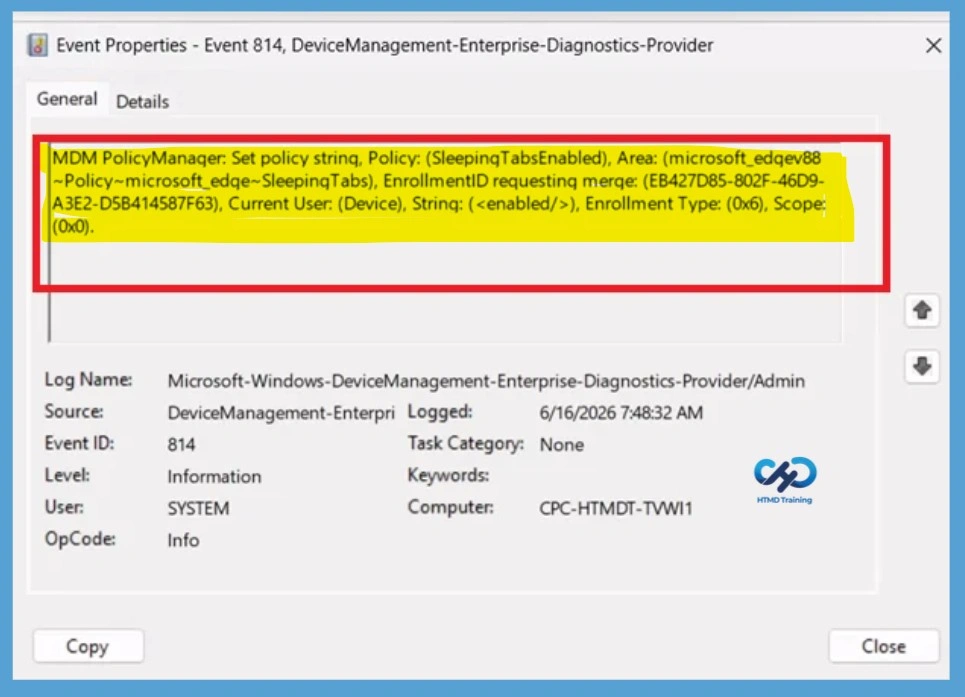
Client-side verification helps confirm that the policy has been successfully applied on the target device. For checking this, go to the Event viewer, go to Applications and Services Logs > Microsoft > Windows > Device Management > Enterprise Diagnostic Provider > Admin. From the list of policies, use the Filter Current Log option and search for Intune event 814.
The below showing the Set the background tab inactivity timeout for Sleep Tabs:
| Policy Details |
|---|
| MDM PolicyManaqer: Set policy strinq, Policy: (SleepinqTabsTimeout), Area: (microsoft_edqev88 ~Policy~microsoft_edqe~SleepinqTabs), EnrollmentID requestinq merqe: (EB427D85-802F-46D9- A3E2-D5B414587F63), Current User: (Device), Strinq: (), Enrollment Type: (0x6), Scope: (0x0). |
Configure Sleeping Tabs – Client Side Verification
In the image below, you can see the client-side verification of the policy, Configure Sleeping Tabs. The policy showing the informations: MDM PolicyManager: Set policy string, Policy: (SleepinqTabsEnabled), Area: (microsoft_edqev88~Policy~microsoft_edqe~SleepinqTabs), EnrollmentID requestinq merqe: (EB427D85-802F-46D9-A3E2-D5B414587F63), Current User: (Device), Strinq: (), Enrollment Type: (0x6), Scope: (0x0).
Removal of Assigned Groups from Microsoft Edge Sleeping Tabs Settings
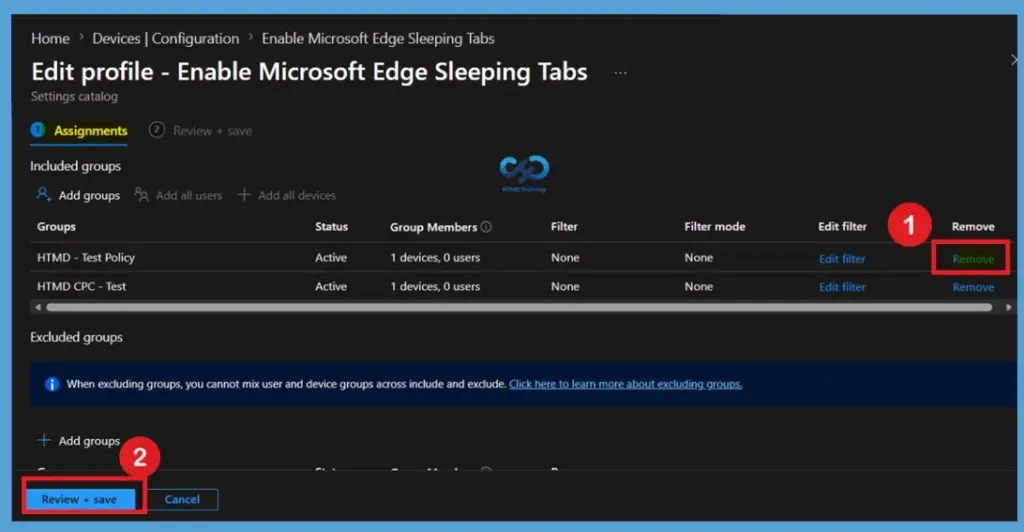
If the policy is no longer required for a specific group, open the policy profile and navigate to the Assignments section. Locate the assigned group under Included Groups and remove it from the policy scope. After saving the changes, Intune stops targeting the removed group. During the next policy synchronisation cycle, the configuration settings are withdrawn from devices or users that are no longer assigned to the policy.
For detailed information, you can refer to our previous post – Learn How to Delete or Remove App Assignment from Intune using by Step-by-Step Guide.
Delete Policy from Microsoft Edge Sleeping Tabs Settings
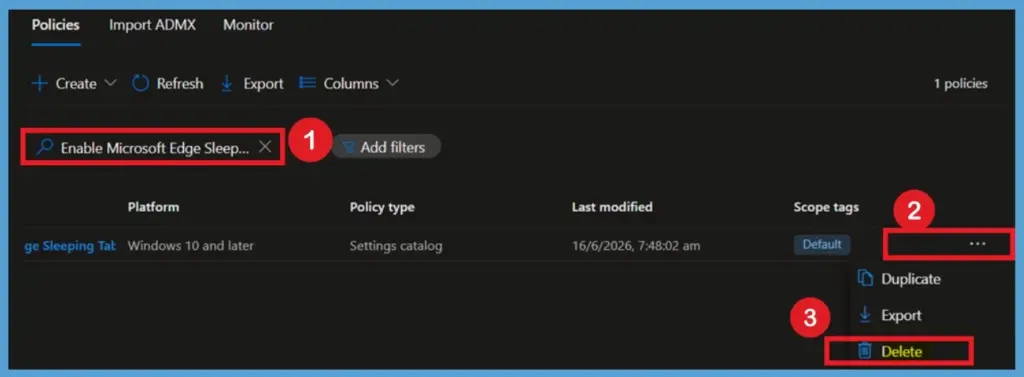
When the policy is no longer needed, it can be permanently removed from Microsoft Intune. Before deleting the policy, ensure that it is not required by any users or devices within the organisation. To delete the policy, navigate to Devices > Configuration Profiles, select the policy, and choose the Delete option from the menu. Confirm the action when prompted. Once deleted, the policy is permanently removed from Intune and can no longer be managed.
For more information, you can refer to our previous post – How to Delete Allow Clipboard History Policy in Intune Step by Step Guide.
Need Further Assistance or Have Technical Questions?
Join the LinkedIn Page and Telegram group to get the latest step-by-step guides and news updates. Join our Meetup Page to participate in User group meetings. Also, join the WhatsApp Community and the WhatsApp channel to get the latest news on Microsoft Technologies. We are there on Reddit as well
Author
About Author – Jitesh, Microsoft MVP, has over six years of working experience in the IT Industry. He writes and shares his experiences related to Microsoft device management technologies and IT Infrastructure management. His primary focus is Windows 10/11 Deployment solution with Configuration Manager, Microsoft Deployment Toolkit (MDT), and Microsoft Intune.