
Key Takeaways
- Prevent the OneDrive sync app from uploading specific files to OneDrive and SharePoint.
- Block uploads using exact filenames (for example, setup.exe) or wildcard patterns (for example, .iso or temp).
- Matching files remain in the local OneDrive folder and are not deleted.
- Users are not shown any error messages for skipped files.
Let’s understand how to prevent OneDrive from Uploading Specific Files using Intune. This setting helps you to exclude files and extensions from syncing to OneDrive by lets you enter keywords to prevent the OneDrive sync app from uploading certain files to OneDrive or SharePoint. It will only block files that match your specification.
Table of Contents
Table of Contents
How to Prevent OneDrive from Uploading Specific Files using Intune
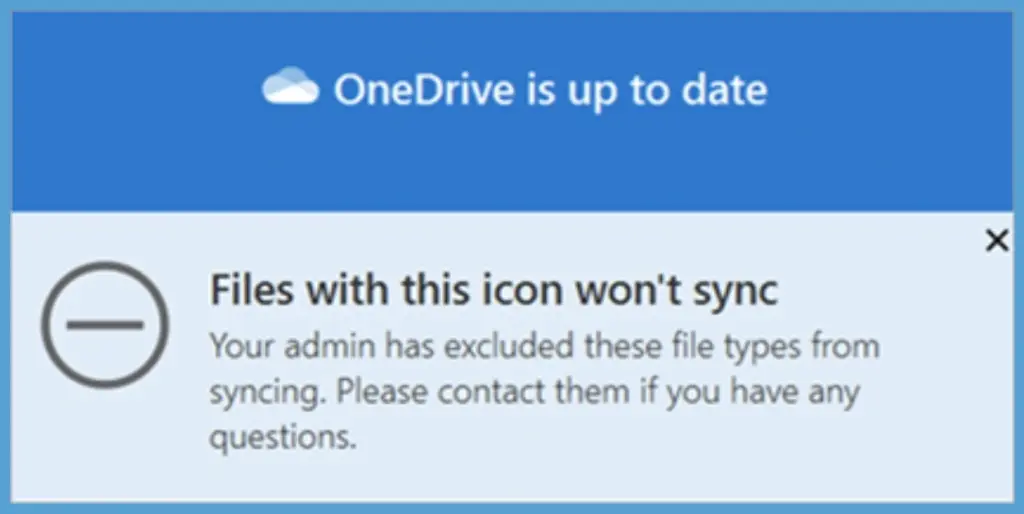
Once you configured settings, OneDrive is excluding all the new files from your local repository from syncing that aligns with the keywords. The message “Files with this icon won’t sync” Please contact your admin if you have any questions pops up, You will see in the client machine. It will not apply to existing files that are renamed to match the specified keywords. Additionally, new files created inside the synced folder and named to match the specified keywords will also not be blocked.
Here you can learn more details about the process to create a policy with Intune Settings Catalog. Let’s see a list of Intune Settings Catalog Policies.
- Internal linking missing
Policy Creation
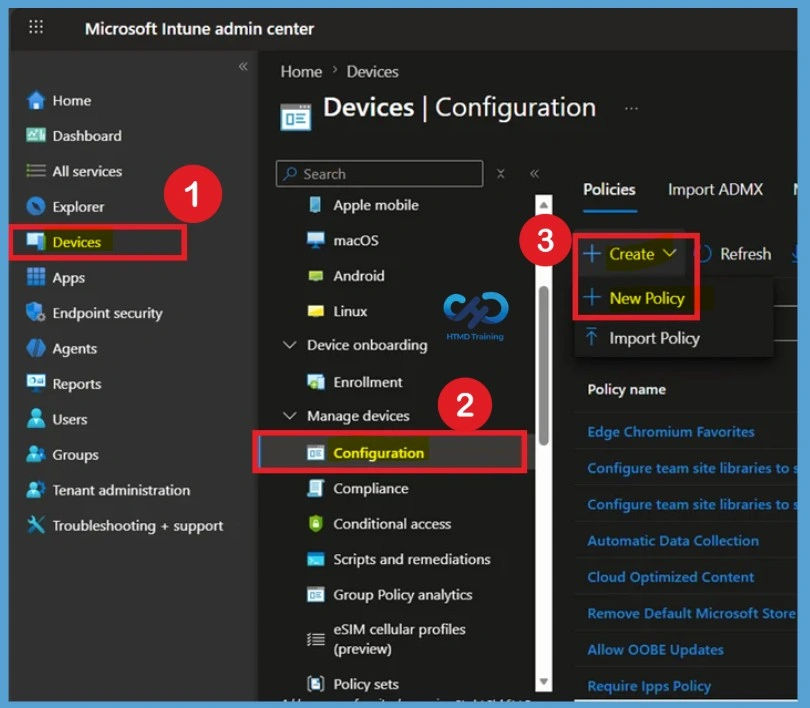
Sign in to the Microsoft Intune admin center using an account with the appropriate administrative permissions. Navigate to Devices > Configuration, click + Create, and then select New Policy.

- Sign in to the Microsoft Intune admin center
- Select Devices > Windows > Configuration profiles > Create profile.
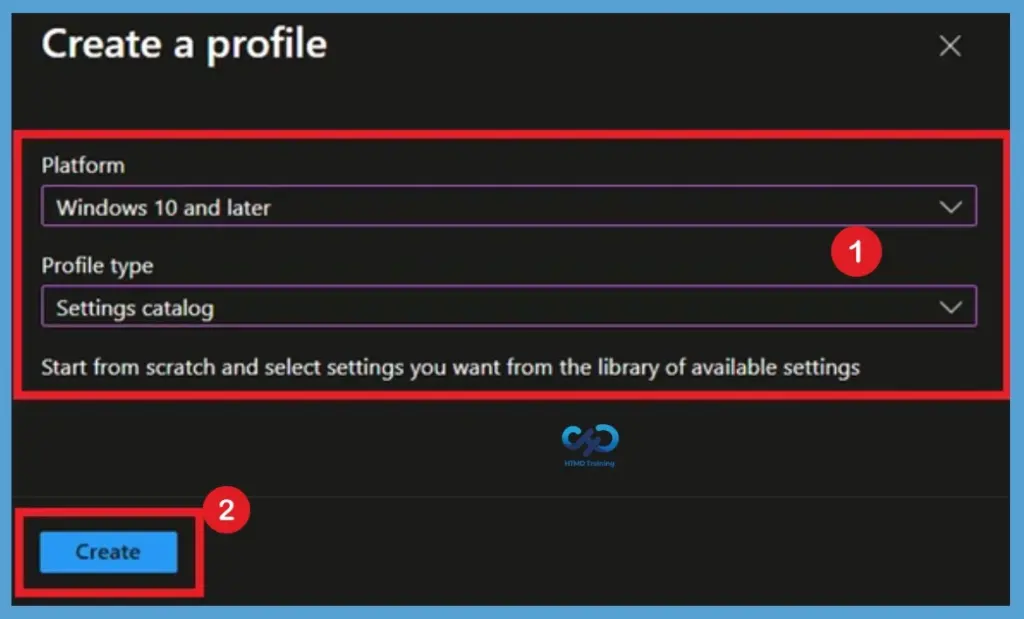
Choose Windows 10 and later as the platform and Settings catalog as the profile type. The Settings Catalog provides Microsoft’s latest policy settings and is updated regularly with new Windows and OneDrive configuration options.
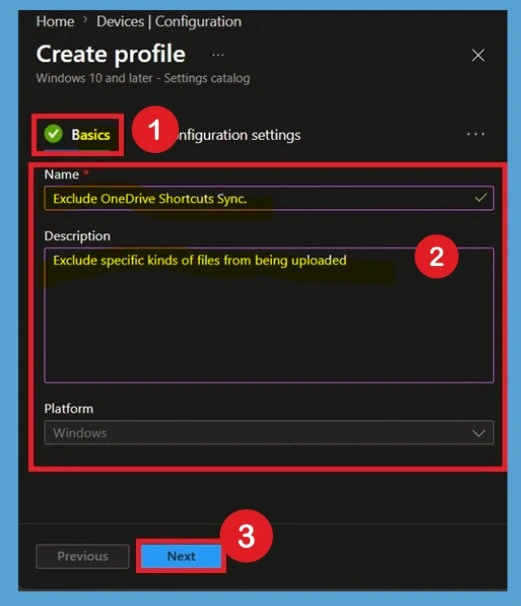
Know Basic Step
The Basics page is used to provide identifying information for the configuration profile. Giving your policy a clear and matching name makes it easier for administrators to locate and manage the profile in environments containing multiple Intune policies. Enter a meaningful Name that clearly describes the purpose of the configuration. You can also provide a detailed Description explaining what the policy does, who it targets, or any deployment notes for future reference.
Configuration Settings
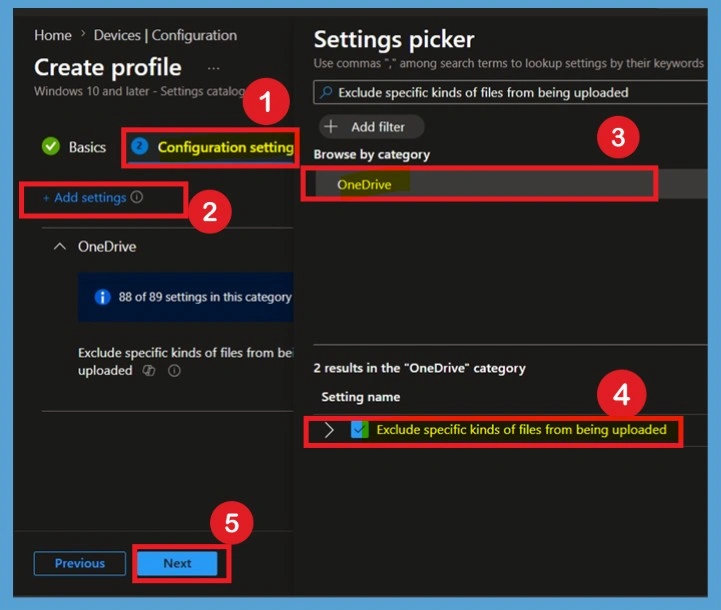
On the Configuration settings page, click + Add settings to launch the Settings picker. This window allows administrators to search and select individual policy settings from thousands of available Windows configuration options.
In the search box, type Exclude specific kinds of files from being uploaded. Intune filters the available settings and displays the matching policy under the OneDrive category. This makes locating the required policy much faster than browsing through the complete list.
- Select the checkbox next to Exclude specific kinds of files from being uploaded and close the Settings picker.
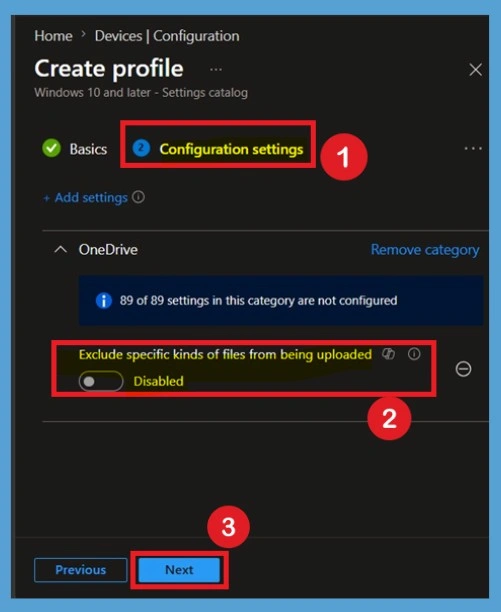
Disable the State of Policy
After adding the policy, you’ll notice that Exclude specific kinds of files from being uploaded is initially set to Disabled. This is the default behavior for newly added settings in the Settings Catalog. When the policy remains Disabled, the OneDrive sync app uploads all supported files from synchronized folders without checking filenames or wildcard keywords. No upload restrictions are applied, and users experience the standard OneDrive synchronization behavior.
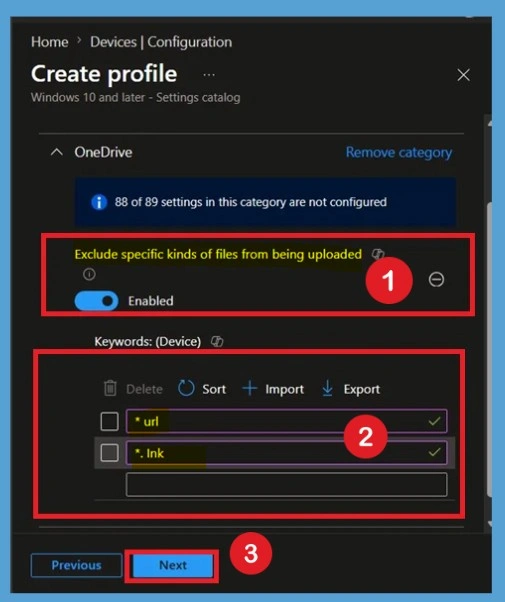
Enable State of Policy
Set the Exclude specific kinds of files from being uploaded to Enabled and add “*.url” and “*.lnk” in the text boxes to remove shortcuts from OneDrive being synced. Click + Add to provide more file extensions for exclusion. You can enter complete names, such as “setup.exe” or use the asterisk (*) as a wildcard character to represent a series of characters.
If you enable this setting, the sync app doesn’t upload new files that match your specified keywords. No errors appear for the skipped files, and the files remain in the local OneDrive folder.
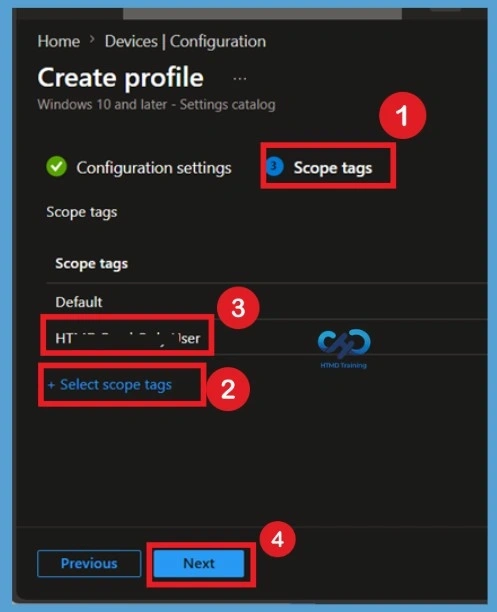
Scope Tags
The Scope tags page allows organizations using Role-Based Access Control (RBAC) to control which administrators can view and manage the configuration profile. Scope tags improve administrative delegation without affecting how the policy is applied to devices. Organizations that don’t use scope tags can safely leave the default configuration unchanged. Click Next to continue.
Assignments Importantce
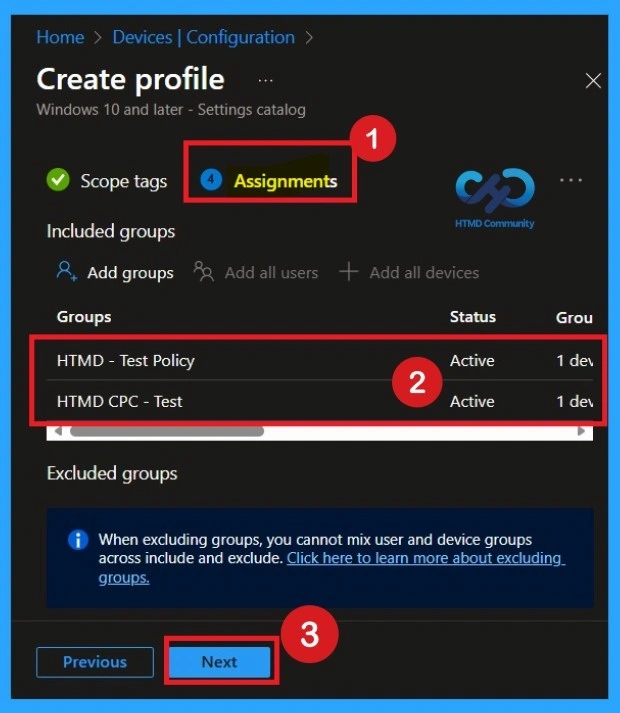
In the Assignments section, click Add groups under Included groups and select the required user or device groups. Assigning the policy ensures it is applied only to the intended users or devices, such as test groups or production environments. Then click on the Next.
Review + Create Option
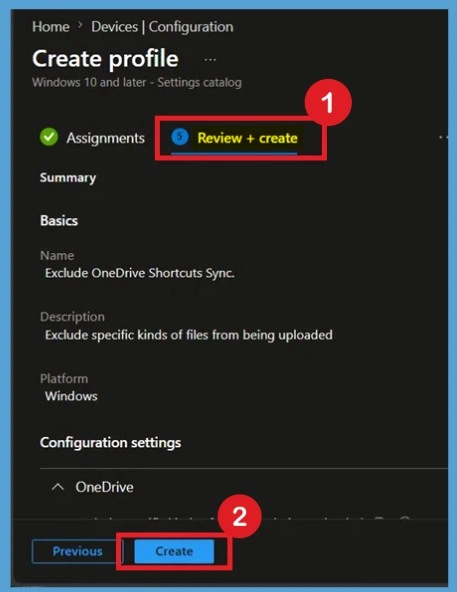
The Review + create page summarizes every configuration selected during the policy creation process. This provides an opportunity to verify all settings before deployment. Review the policy name, platform, profile type, selected OneDrive settings, configured keywords, scope tags, and group assignments. Confirm that the correct upload exclusion keywords have been entered. If changes are required, use the Previous button to return to the relevant page. Otherwise, click Create to deploy the policy.
- After creation, Intune immediately begins deployment the policy to targeted devices during their next synchronization cycle.
- A notification will appear automatically in the top right-hand corner with a message. Here you can see, Policy “Exclude OneDrive Shortcuts Sync” created successfully. The policy is also shown in the Configuration profiles list.
Monitoring Status
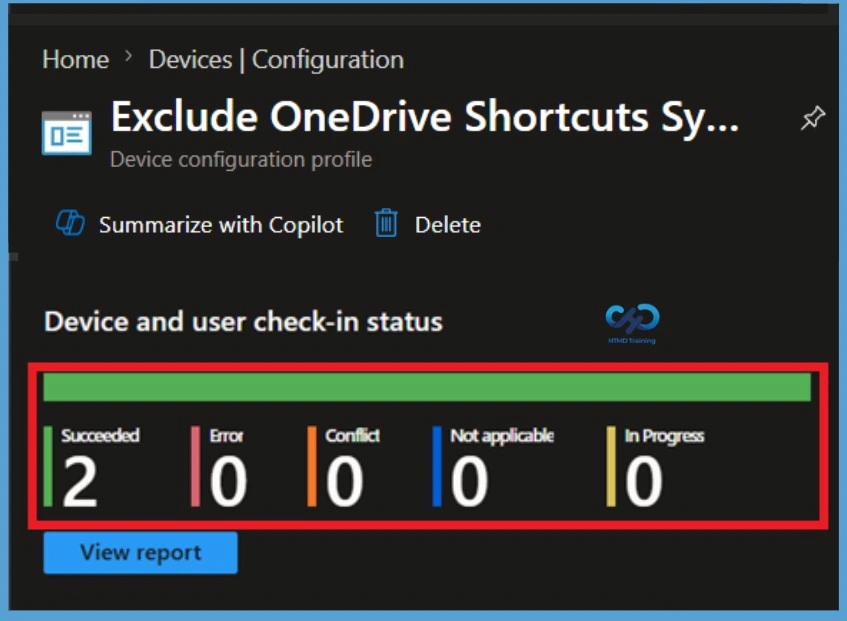
After the policy is created, administrators can monitor its deployment status directly from the Microsoft Intune admin center. Monitoring the deployment helps verify whether the Exclude Specific Kinds of Files from Being Uploaded policy has been successfully applied to the targeted devices and identifies any devices reporting deployment errors.
Navigate to Devices > Configuration > Policies and open the policy. Review the Overview, Device status, User status, to confirm successful deployment. If any devices show a failed or pending state, review the error details and ensure the device is online and has synchronized with Intune.
- Your groups will receive your profile settings when the devices check-in with the Intune service.
Client-Side verification
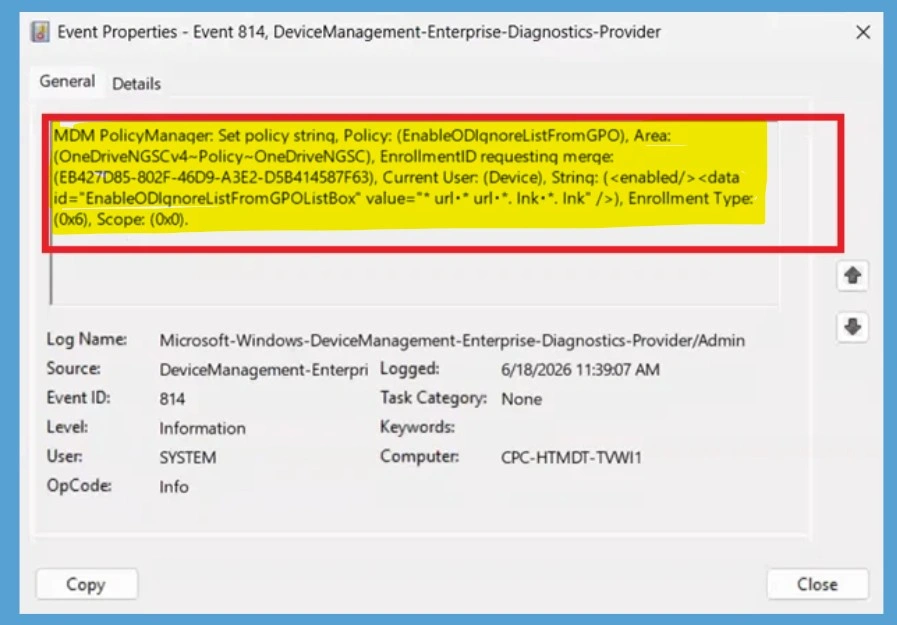
To verify policy application, open Event Viewer and navigate to Applications and Services Logs > Microsoft > Windows > DeviceManagement-Enterprise-Diagnostics-Provider > Admin. Select Filter Current Log from the Actions pane and search for Event ID 814, which indicates that the Intune policy has been processed successfully.
Excluded from OneDrive Sync
Once the policy applies to the devices, in File Explorer, the files appear with an “Excluded from sync” icon in the Status column. The OneDrive sync app must be restarted after this setting is enabled for the setting to take effect. Files that are not synced will have the following icon instead of the blue or green OneDrive icon that you normally would have.
- Users will also see a message in the OneDrive activity center that explains why the files aren’t syncing.

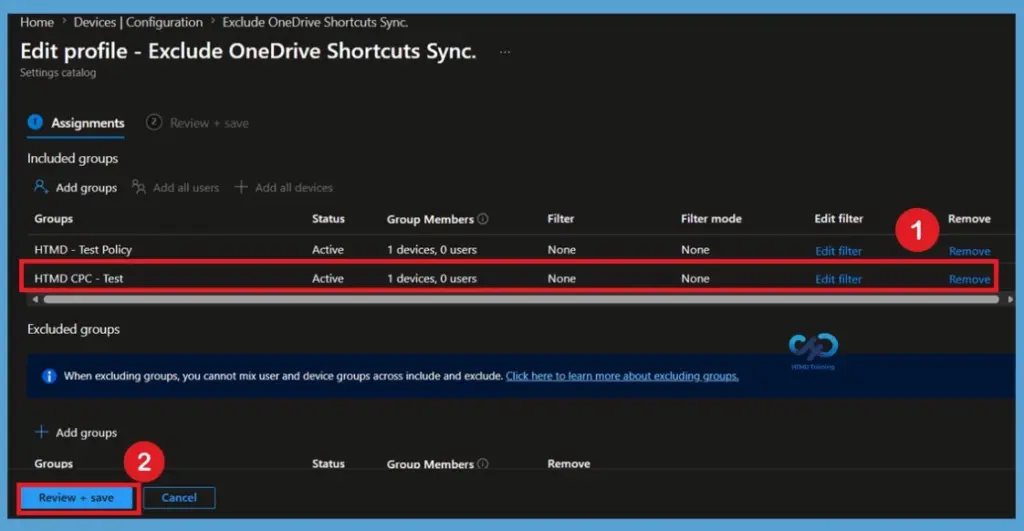
How to Remove Assigned Group from this Policy
If the policy is no longer required for a specific group of users or devices, open the policy and navigate to the Assignments page through Devices > Configuration profiles, select the policy, and open Assignments. Under Included groups or Excluded groups, select the group you want to remove and delete it from the assignment list. Once the group is removed, the policy will no longer apply to those users or devices after the next Intune sync.
For detailed information, you can refer to our previous post – Learn How to Delete or Remove App Assignment from Intune using by Step-by-Step Guide.
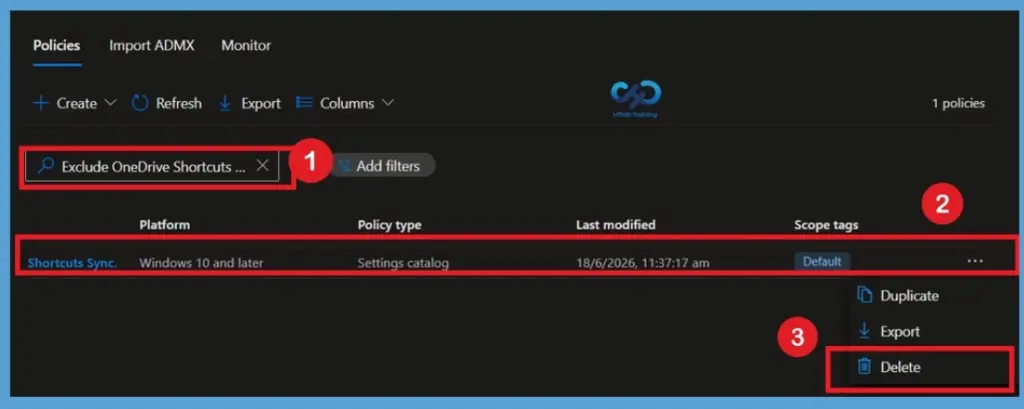
How to Delete this Policy from Intune
When the configuration profile is no longer required, it can be permanently removed from Microsoft Intune. Navigate to Devices > Configuration > Policies, select the policy, click the three-dot menu, and choose Delete. Confirm the deletion when prompted.
For detailed information, you can refer to our previous post – How to Delete Allow Clipboard History Policy in Intune Step by Step Guide.
Need Further Assistance or Have Technical Questions?
Join the LinkedIn Page and Telegram group to get the latest step-by-step guides and news updates. Join our Meetup Page to participate in User group meetings. Also, join the WhatsApp Community and the WhatsApp channel to get the latest news on Microsoft Technologies. We are there on Reddit as well
Author
About Author – Jitesh, Microsoft MVP, has over six years of working experience in the IT Industry. He writes and shares his experiences related to Microsoft device management technologies and IT Infrastructure management. His primary focus is Windows 10/11 Deployment solution with Configuration Manager, Microsoft Deployment Toolkit (MDT), and Microsoft Intune.
Is it possible to exclude *.lnk files from a specific folder? For example, exclude *.lnk files from users\user\desktop, but sync *.lnk elsewhere.
Thank you