
Key Takeaways
- Secure Boot certificates used by Windows are expiring in June 2026, requiring organizations to deploy the newer 2023 certificates.
- Microsoft provides a built-in Intune policy (Enable Secure Boot Certificate Updates) to automate this process.
- When deployed, many devices report Intune Error 65000.
- On the device, the Enterprise Device Management event log reveals the real cause:
- Policy is rejected by licensing (0x82B00006).
Secure Boot is a Windows security feature that ensures your device starts using only trusted software. It works with UEFI firmware and uses digital certificates (called certificate authorities or CAs) to verify that boot components are legitimate and not tampered with by malware. These certificates have expiration dates, and the older Secure Boot certificates issued in 2011 are set to expire in June 2026.
Table of Contents
Table of Contents
Secure Boot Status Report in Windows Autopatch
The Secure Boot status report in Windows Autopatch helps administrators quickly understand the Secure Boot health of their managed devices. This report gives a device-level overview of Secure Boot for all devices managed by Windows Autopatch. The Boot Status Report Helps You Understand the following.
Note – Devices with Secure Boot disabled do not require any action from a certificate update perspective. Devices with Secure Boot enabled but not updated may require administrative review to ensure certificate updates are applied and the device remains secure and compliant.
- Which devices have Secure Boot enabled
- Which Secure Boot-enabled devices are fully up to date
- Which Secure Boot-enabled devices require certificate updates
| Path to Access the Report |
|---|
| Go to Reports |
| Select Windows Autopatch |
| Click Windows quality updates |
| Click the Report tab |
| Select Secure Boot status |
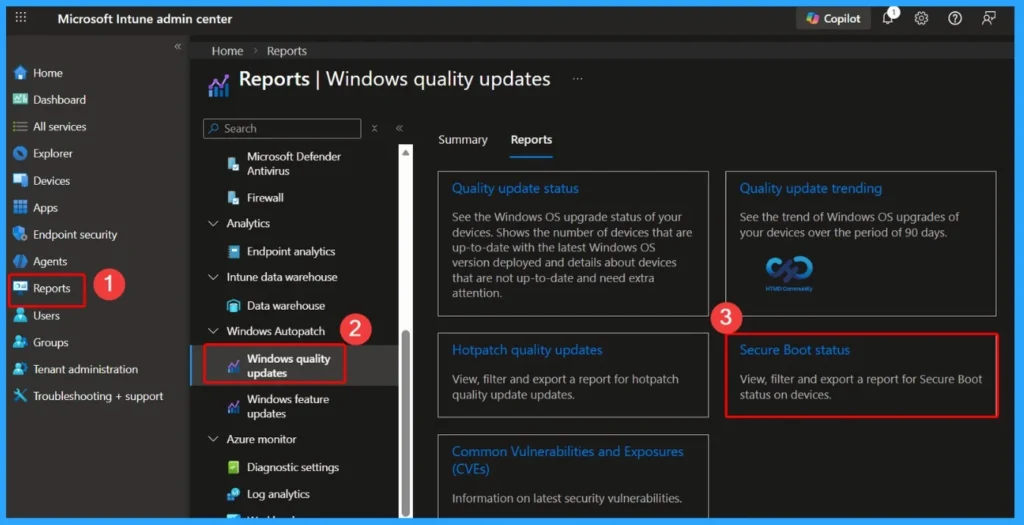
Secure Boot Status Report
The Secure Boot status report in Windows Autopatch provides visibility into devices that have Secure Boot enabled and identifies whether they are using Microsoft Secure Boot certificates that are set to expire in 2026.

To remain secure and compliant, affected devices must be updated with the latest UEFI Secure Boot DB and KEK certificates. This report helps administrators quickly determine which devices are up to date, not applicable, or require attention.
- The dashboard displays:
- Total device count
- Devices that are up to date
- Devices are not up to date
- Devices marked as not applicable
- Secure Boot enabled status per device
- Certificate update status
- OS version and device model details
Why Use Microsoft Intune Remediations to Monitor Secure Boot 2011 Certificate Expiry
With Microsoft Secure Boot 2011 CAs expiring from June 2026, organizations must ensure all Secure Boot-enabled Windows devices are updated to the 2023 certificates before the deadline. Instead of immediately pushing changes to production devices, using Microsoft Intune Remediations in monitoring-only mode provides a safer and more controlled approach.
- This method allows administrators to assess the current certificate status across all Intune-enrolled Windows devices without making any modifications.
- The detection script gathers Secure Boot and certificate details and reports them centrally in the Intune portal.
- This helps teams identify impacted devices, measure update readiness, export reports for compliance tracking, and plan phased remediation in alignment with change management processes, reducing risk while maintaining visibility and control.
| Benefit | Description |
|---|---|
| Device-wide visibility | See every Intune-enrolled Windows device’s certificate status in one place |
| Exportable | Export results to CSV directly from the Intune portal |
| Raw registry values | See actual registry data, not just pass/fail |
| Device context | Includes manufacturer, model, BIOS version, and firmware type |
| Event log telemetry | Captures Secure Boot event IDs (1801/1808), bucket IDs, and confidence levels |
| Zero touch | See every Intune-enrolled Windows device’s certificate status in one place |
Secure Boot Certificate Monitoring
This detection script is designed to collect Secure Boot and certificate update information from Windows devices using Microsoft Intune Remediations. It works in monitoring mode only, meaning it checks and reports the status without making any changes to the device.
The script gathers detailed inventory data and sends the results back to the Intune portal in JSON format. Administrators can review the output under Remediations > Monitor > Device status > Pre-remediation detection output and export the results to CSV for reporting and analysis.
- What the Script Collects
- Registry Data
- Secure Boot certificate update status
- Servicing keys
- Device attributes
- Opt-in / opt-out configuration
- Path: HKLM:\SYSTEM\CurrentControlSet\Control\SecureBoot
- WMI / CIM Information
- Windows OS version
- Last boot time
- Baseboard (hardware) details
- Event Log Entries
- System Event ID 1801
- System Event ID 1808
- Related to Secure Boot update events
- Registry Data
| Important Notes |
|---|
| No certificate updates are performed No device configuration is modified No remediation script is required Script is for monitoring and reporting only |
Create the Secure Boot Detection Script File for Intune Remediations
You can easily check which devices still have the old Secure Boot certificates. For this, you need a small PowerShell script. Microsoft provides a sample script in KB5072718 that can inspect each device, check the Secure Boot certificate status, and report the results back to Intune.
This script does not make any changes; it only detects and reports (detection-only). By deploying it through Intune Remediations, administrators gain a centralised view of which devices are ready and which will need updates before the 2026 certificate expires.
<#
.SYNOPSIS
Detects Secure Boot certificate update status for fleet-wide monitoring.
.DESCRIPTION
This detection script collects Secure Boot status, certificate update registry values,
and device information. It outputs a JSON string for monitoring and reporting.
Compatible with Intune Remediations, GPO-based collection, and other management tools.
No remediation script is needed — this is monitoring only.
Exit 0 = “Without issue” (certificates updated)
Exit 1 = “With issue” (certificates not updated — informational only)
Source: https://support.microsoft.com/en-us/topic/sample-secure-boot-inventory-data-collection-script-d02971d2-d4b5-42c9-b58a-8527f0ffa30b
KB ID: 5072718
.NOTES
Registry paths per https://aka.ms/securebootplaybook:
HKLM:\SYSTEM\CurrentControlSet\Control\SecureBoot
HKLM:\SYSTEM\CurrentControlSet\Control\SecureBoot\Servicing
THE SOFTWARE IS PROVIDED “AS IS”, WITHOUT WARRANTY OF ANY KIND, EXPRESS OR
IMPLIED, INCLUDING BUT NOT LIMITED TO THE WARRANTIES OF MERCHANTABILITY,
FITNESS FOR A PARTICULAR PURPOSE AND NONINFRINGEMENT. IN NO EVENT SHALL THE
AUTHORS OR COPYRIGHT HOLDERS BE LIABLE FOR ANY CLAIM, DAMAGES OR OTHER
LIABILITY, WHETHER IN AN ACTION OF CONTRACT, TORT OR OTHERWISE, ARISING FROM,
OUT OF OR IN CONNECTION WITH THE SOFTWARE OR THE USE OR OTHER DEALINGS IN THE
SOFTWARE.
#>
# 1. HostName
# PS Version: All | Admin: No | System Requirements: None
try {
$hostname = $env:COMPUTERNAME
if ([string]::IsNullOrEmpty($hostname)) {
Write-Warning “Hostname could not be determined”
$hostname = “Unknown”
}
Write-Host “Hostname: $hostname”
} catch {
Write-Warning “Error retrieving hostname: $_”
$hostname = “Error”
Write-Host “Hostname: $hostname”
}
# 2. CollectionTime
# PS Version: All | Admin: No | System Requirements: None
try {
$collectionTime = Get-Date
if ($null -eq $collectionTime) {
Write-Warning “Could not retrieve current date/time”
$collectionTime = “Unknown”
}
Write-Host “Collection Time: $collectionTime”
} catch {
Write-Warning “Error retrieving date/time: $_”
$collectionTime = “Error”
Write-Host “Collection Time: $collectionTime”
}
# Registry: Secure Boot Main Key (3 values)
# 3. SecureBootEnabled
# PS Version: 3.0+ | Admin: May be required | System Requirements: UEFI/Secure Boot capable system
try {
$secureBootEnabled = Confirm-SecureBootUEFI -ErrorAction Stop
Write-Host “Secure Boot Enabled: $secureBootEnabled”
} catch {
Write-Warning “Unable to determine Secure Boot status via cmdlet: $_”
# Try registry fallback
try {
$regValue = Get-ItemProperty -Path “HKLM:\SYSTEM\CurrentControlSet\Control\SecureBoot\State” -Name UEFISecureBootEnabled -ErrorAction Stop
$secureBootEnabled = [bool]$regValue.UEFISecureBootEnabled
Write-Host “Secure Boot Enabled: $secureBootEnabled”
} catch {
Write-Warning “Unable to determine Secure Boot status via registry. System may not support UEFI/Secure Boot.”
$secureBootEnabled = $null
Write-Host “Secure Boot Enabled: Not Available”
}
}
# 4. HighConfidenceOptOut
# PS Version: All | Admin: May be required | System Requirements: None
try {
$regValue = Get-ItemProperty -Path “HKLM:\SYSTEM\CurrentControlSet\Control\SecureBoot” -Name HighConfidenceOptOut -ErrorAction Stop
$highConfidenceOptOut = $regValue.HighConfidenceOptOut
Write-Host “High Confidence Opt Out: $highConfidenceOptOut”
} catch {
Write-Warning “HighConfidenceOptOut registry key not found or inaccessible”
$highConfidenceOptOut = $null
Write-Host “High Confidence Opt Out: Not Available”
}
# 5. AvailableUpdates
# PS Version: All | Admin: May be required | System Requirements: None
try {
$regValue = Get-ItemProperty -Path “HKLM:\SYSTEM\CurrentControlSet\Control\SecureBoot” -Name AvailableUpdates -ErrorAction Stop
$availableUpdates = $regValue.AvailableUpdates
if ($null -ne $availableUpdates) {
# Convert to hexadecimal format
$availableUpdatesHex = “0x{0:X}” -f $availableUpdates
Write-Host “Available Updates: $availableUpdatesHex”
} else {
Write-Host “Available Updates: Not Available”
}
} catch {
Write-Warning “AvailableUpdates registry key not found or inaccessible”
$availableUpdates = $null
Write-Host “Available Updates: Not Available”
}
# Registry: Servicing Key (3 values)
# 6. UEFICA2023Status
# PS Version: All | Admin: May be required | System Requirements: None
try {
$regValue = Get-ItemProperty -Path “HKLM:\SYSTEM\CurrentControlSet\Control\SecureBoot\Servicing” -Name UEFICA2023Status -ErrorAction Stop
$uefica2023Status = $regValue.UEFICA2023Status
Write-Host “Windows UEFI CA 2023 Status: $uefica2023Status”
} catch {
Write-Warning “Windows UEFI CA 2023 Status registry key not found or inaccessible”
$uefica2023Status = $null
Write-Host “Windows UEFI CA 2023 Status: Not Available”
}
# 7. UEFICA2023Error
# PS Version: All | Admin: May be required | System Requirements: None
try {
$regValue = Get-ItemProperty -Path “HKLM:\SYSTEM\CurrentControlSet\Control\SecureBoot\Servicing” -Name UEFICA2023Error -ErrorAction Stop
$uefica2023Error = $regValue.UEFICA2023Error
Write-Host “UEFI CA 2023 Error: $uefica2023Error”
} catch {
Write-Warning “UEFICA2023Error registry key not found or inaccessible”
$uefica2023Error = $null
Write-Host “UEFI CA 2023 Error: Not Available”
}
# 9. UEFICA2023ErrorEvent
# PS Version: All | Admin: May be required | System Requirements: None
try {
$regValue = Get-ItemProperty -Path “HKLM:\SYSTEM\CurrentControlSet\Control\SecureBoot\Servicing” -Name UEFICA2023ErrorEvent -ErrorAction Stop
$uefica2023ErrorEvent = $regValue.UEFICA2023ErrorEvent
Write-Host “UEFI CA 2023 Error Event: $uefica2023ErrorEvent”
} catch {
$uefica2023ErrorEvent = $null
Write-Host “UEFI CA 2023 Error Event: Not Available”
}
# Registry: Device Attributes (7 values)
# 10. OEMManufacturerName
# PS Version: All | Admin: May be required | System Requirements: None
try {
$regValue = Get-ItemProperty -Path “HKLM:\SYSTEM\CurrentControlSet\Control\SecureBoot\Servicing\DeviceAttributes” -Name OEMManufacturerName -ErrorAction Stop
$oemManufacturerName = $regValue.OEMManufacturerName
if ([string]::IsNullOrEmpty($oemManufacturerName)) {
Write-Warning “OEMManufacturerName is empty”
$oemManufacturerName = “Unknown”
}
Write-Host “OEM Manufacturer Name: $oemManufacturerName”
} catch {
Write-Warning “OEMManufacturerName registry key not found or inaccessible”
$oemManufacturerName = $null
Write-Host “OEM Manufacturer Name: Not Available”
}
# 10. OEMModelSystemFamily
# PS Version: All | Admin: May be required | System Requirements: None
try {
$regValue = Get-ItemProperty -Path “HKLM:\SYSTEM\CurrentControlSet\Control\SecureBoot\Servicing\DeviceAttributes” -Name OEMModelSystemFamily -ErrorAction Stop
$oemModelSystemFamily = $regValue.OEMModelSystemFamily
if ([string]::IsNullOrEmpty($oemModelSystemFamily)) {
Write-Warning “OEMModelSystemFamily is empty”
$oemModelSystemFamily = “Unknown”
}
Write-Host “OEM Model System Family: $oemModelSystemFamily”
} catch {
Write-Warning “OEMModelSystemFamily registry key not found or inaccessible”
$oemModelSystemFamily = $null
Write-Host “OEM Model System Family: Not Available”
}
# 11. OEMModelNumber
# PS Version: All | Admin: May be required | System Requirements: None
try {
$regValue = Get-ItemProperty -Path “HKLM:\SYSTEM\CurrentControlSet\Control\SecureBoot\Servicing\DeviceAttributes” -Name OEMModelNumber -ErrorAction Stop
$oemModelNumber = $regValue.OEMModelNumber
if ([string]::IsNullOrEmpty($oemModelNumber)) {
Write-Warning “OEMModelNumber is empty”
$oemModelNumber = “Unknown”
}
Write-Host “OEM Model Number: $oemModelNumber”
} catch {
Write-Warning “OEMModelNumber registry key not found or inaccessible”
$oemModelNumber = $null
Write-Host “OEM Model Number: Not Available”
}
# 12. FirmwareVersion
# PS Version: All | Admin: May be required | System Requirements: None
try {
$regValue = Get-ItemProperty -Path “HKLM:\SYSTEM\CurrentControlSet\Control\SecureBoot\Servicing\DeviceAttributes” -Name FirmwareVersion -ErrorAction Stop
$firmwareVersion = $regValue.FirmwareVersion
if ([string]::IsNullOrEmpty($firmwareVersion)) {
Write-Warning “FirmwareVersion is empty”
$firmwareVersion = “Unknown”
}
Write-Host “Firmware Version: $firmwareVersion”
} catch {
Write-Warning “FirmwareVersion registry key not found or inaccessible”
$firmwareVersion = $null
Write-Host “Firmware Version: Not Available”
}
# 13. FirmwareReleaseDate
# PS Version: All | Admin: May be required | System Requirements: None
try {
$regValue = Get-ItemProperty -Path “HKLM:\SYSTEM\CurrentControlSet\Control\SecureBoot\Servicing\DeviceAttributes” -Name FirmwareReleaseDate -ErrorAction Stop
$firmwareReleaseDate = $regValue.FirmwareReleaseDate
if ([string]::IsNullOrEmpty($firmwareReleaseDate)) {
Write-Warning “FirmwareReleaseDate is empty”
$firmwareReleaseDate = “Unknown”
}
Write-Host “Firmware Release Date: $firmwareReleaseDate”
} catch {
Write-Warning “FirmwareReleaseDate registry key not found or inaccessible”
$firmwareReleaseDate = $null
Write-Host “Firmware Release Date: Not Available”
}
# 14. OSArchitecture
# PS Version: All | Admin: No | System Requirements: None
try {
$osArchitecture = $env:PROCESSOR_ARCHITECTURE
if ([string]::IsNullOrEmpty($osArchitecture)) {
# Try registry fallback
$regValue = Get-ItemProperty -Path “HKLM:\SYSTEM\CurrentControlSet\Control\SecureBoot\Servicing\DeviceAttributes” -Name OSArchitecture -ErrorAction Stop
$osArchitecture = $regValue.OSArchitecture
}
if ([string]::IsNullOrEmpty($osArchitecture)) {
Write-Warning “OSArchitecture could not be determined”
$osArchitecture = “Unknown”
}
Write-Host “OS Architecture: $osArchitecture”
} catch {
Write-Warning “Error retrieving OSArchitecture: $_”
$osArchitecture = “Unknown”
Write-Host “OS Architecture: $osArchitecture”
}
# 15. CanAttemptUpdateAfter (FILETIME)
# PS Version: All | Admin: May be required | System Requirements: None
try {
$regValue = Get-ItemProperty -Path “HKLM:\SYSTEM\CurrentControlSet\Control\SecureBoot\Servicing\DeviceAttributes” -Name CanAttemptUpdateAfter -ErrorAction Stop
$canAttemptUpdateAfter = $regValue.CanAttemptUpdateAfter
# Convert FILETIME to UTC DateTime — registry stores as REG_BINARY (byte[]) or REG_QWORD (long)
if ($null -ne $canAttemptUpdateAfter) {
try {
if ($canAttemptUpdateAfter -is [byte[]]) {
$fileTime = [BitConverter]::ToInt64($canAttemptUpdateAfter, 0)
$canAttemptUpdateAfter = [DateTime]::FromFileTime($fileTime).ToUniversalTime()
} elseif ($canAttemptUpdateAfter -is [long]) {
$canAttemptUpdateAfter = [DateTime]::FromFileTime($canAttemptUpdateAfter).ToUniversalTime()
}
} catch {
Write-Warning “Could not convert CanAttemptUpdateAfter FILETIME to DateTime”
}
}
Write-Host “Can Attempt Update After: $canAttemptUpdateAfter”
} catch {
Write-Warning “CanAttemptUpdateAfter registry key not found or inaccessible”
$canAttemptUpdateAfter = $null
Write-Host “Can Attempt Update After: Not Available”
}
# Event Logs: System Log (5 values)
# 16-20. Event Log queries
# PS Version: 3.0+ | Admin: May be required for System log | System Requirements: None
try {
$allEventIds = @(1801, 1808)
$events = @(Get-WinEvent -FilterHashtable @{LogName=’System’; ID=$allEventIds} -MaxEvents 20 -ErrorAction Stop)
if ($events.Count -eq 0) {
Write-Warning “No Secure Boot events (1801/1808) found in System log”
$latestEventId = $null
$bucketId = $null
$confidence = $null
$event1801Count = 0
$event1808Count = 0
Write-Host “Latest Event ID: Not Available”
Write-Host “Bucket ID: Not Available”
Write-Host “Confidence: Not Available”
Write-Host “Event 1801 Count: 0”
Write-Host “Event 1808 Count: 0”
} else {
# 16. LatestEventId
$latestEvent = $events | Sort-Object TimeCreated -Descending | Select-Object -First 1
if ($null -eq $latestEvent) {
Write-Warning “Could not determine latest event”
$latestEventId = $null
Write-Host “Latest Event ID: Not Available”
} else {
$latestEventId = $latestEvent.Id
Write-Host “Latest Event ID: $latestEventId”
}
# 17. BucketID – Extracted from Event 1801/1808
if ($null -ne $latestEvent -and $null -ne $latestEvent.Message) {
if ($latestEvent.Message -match ‘BucketId:\s*(.+)’) {
$bucketId = $matches[1].Trim()
Write-Host “Bucket ID: $bucketId”
} else {
Write-Warning “BucketId not found in event message”
$bucketId = $null
Write-Host “Bucket ID: Not Found in Event”
}
} else {
Write-Warning “Latest event or message is null, cannot extract BucketId”
$bucketId = $null
Write-Host “Bucket ID: Not Available”
}
# 18. Confidence – Extracted from Event 1801/1808
if ($null -ne $latestEvent -and $null -ne $latestEvent.Message) {
if ($latestEvent.Message -match ‘BucketConfidenceLevel:\s*(.+)’) {
$confidence = $matches[1].Trim()
Write-Host “Confidence: $confidence”
} else {
Write-Warning “Confidence level not found in event message”
$confidence = $null
Write-Host “Confidence: Not Found in Event”
}
} else {
Write-Warning “Latest event or message is null, cannot extract Confidence”
$confidence = $null
Write-Host “Confidence: Not Available”
}
# 19. Event1801Count
$event1801Array = @($events | Where-Object {$_.Id -eq 1801})
$event1801Count = $event1801Array.Count
Write-Host “Event 1801 Count: $event1801Count”
# 20. Event1808Count
$event1808Array = @($events | Where-Object {$_.Id -eq 1808})
$event1808Count = $event1808Array.Count
Write-Host “Event 1808 Count: $event1808Count”
}
} catch {
Write-Warning “Error retrieving event logs. May require administrator privileges: $_”
$latestEventId = $null
$bucketId = $null
$confidence = $null
$event1801Count = 0
$event1808Count = 0
Write-Host “Latest Event ID: Error”
Write-Host “Bucket ID: Error”
Write-Host “Confidence: Error”
Write-Host “Event 1801 Count: 0”
Write-Host “Event 1808 Count: 0”
}
# WMI/CIM Queries (4 values)
# 21. OSVersion
# PS Version: 3.0+ (use Get-WmiObject for 2.0) | Admin: No | System Requirements: None
try {
$osInfo = Get-CimInstance Win32_OperatingSystem -ErrorAction Stop
if ($null -eq $osInfo -or [string]::IsNullOrEmpty($osInfo.Version)) {
Write-Warning “Could not retrieve OS version”
$osVersion = “Unknown”
} else {
$osVersion = $osInfo.Version
}
Write-Host “OS Version: $osVersion”
} catch {
Write-Warning “Error retrieving OS version: $_”
$osVersion = “Unknown”
Write-Host “OS Version: $osVersion”
}
# 22. LastBootTime
# PS Version: 3.0+ (use Get-WmiObject for 2.0) | Admin: No | System Requirements: None
try {
$osInfo = Get-CimInstance Win32_OperatingSystem -ErrorAction Stop
if ($null -eq $osInfo -or $null -eq $osInfo.LastBootUpTime) {
Write-Warning “Could not retrieve last boot time”
$lastBootTime = $null
Write-Host “Last Boot Time: Not Available”
} else {
$lastBootTime = $osInfo.LastBootUpTime
Write-Host “Last Boot Time: $lastBootTime”
}
} catch {
Write-Warning “Error retrieving last boot time: $_”
$lastBootTime = $null
Write-Host “Last Boot Time: Not Available”
}
# 23. BaseBoardManufacturer
# PS Version: 3.0+ (use Get-WmiObject for 2.0) | Admin: No | System Requirements: None
try {
$baseBoard = Get-CimInstance Win32_BaseBoard -ErrorAction Stop
if ($null -eq $baseBoard -or [string]::IsNullOrEmpty($baseBoard.Manufacturer)) {
Write-Warning “Could not retrieve baseboard manufacturer”
$baseBoardManufacturer = “Unknown”
} else {
$baseBoardManufacturer = $baseBoard.Manufacturer
}
Write-Host “Baseboard Manufacturer: $baseBoardManufacturer”
} catch {
Write-Warning “Error retrieving baseboard manufacturer: $_”
$baseBoardManufacturer = “Unknown”
Write-Host “Baseboard Manufacturer: $baseBoardManufacturer”
}
# 24. BaseBoardProduct
# PS Version: 3.0+ (use Get-WmiObject for 2.0) | Admin: No | System Requirements: None
try {
$baseBoard = Get-CimInstance Win32_BaseBoard -ErrorAction Stop
if ($null -eq $baseBoard -or [string]::IsNullOrEmpty($baseBoard.Product)) {
Write-Warning “Could not retrieve baseboard product”
$baseBoardProduct = “Unknown”
} else {
$baseBoardProduct = $baseBoard.Product
}
Write-Host “Baseboard Product: $baseBoardProduct”
} catch {
Write-Warning “Error retrieving baseboard product: $_”
$baseBoardProduct = “Unknown”
Write-Host “Baseboard Product: $baseBoardProduct”
}
# =============================================================================
# Remediation Detection – Status Output & Exit Code
# =============================================================================
# Build status object from all collected inventory data
$status = [ordered]@{
UEFICA2023Status = $uefica2023Status
UEFICA2023Error = $uefica2023Error
UEFICA2023ErrorEvent = $uefica2023ErrorEvent
AvailableUpdates = if ($null -ne $availableUpdates) { $availableUpdatesHex } else { $null }
Hostname = $hostname
CollectionTime = if ($collectionTime -is [datetime]) { $collectionTime.ToString(“o”) } else { “$collectionTime” }
SecureBootEnabled = $secureBootEnabled
HighConfidenceOptOut = $highConfidenceOptOut
OEMManufacturerName = $oemManufacturerName
OEMModelSystemFamily = $oemModelSystemFamily
OEMModelNumber = $oemModelNumber
FirmwareVersion = $firmwareVersion
FirmwareReleaseDate = $firmwareReleaseDate
OSArchitecture = $osArchitecture
CanAttemptUpdateAfter = if ($canAttemptUpdateAfter -is [datetime]) { $canAttemptUpdateAfter.ToString(“o”) } else { “$canAttemptUpdateAfter” }
LatestEventId = $latestEventId
BucketId = $bucketId
Confidence = $confidence
Event1801Count = $event1801Count
Event1808Count = $event1808Count
OSVersion = $osVersion
LastBootTime = if ($lastBootTime -is [datetime]) { $lastBootTime.ToString(“o”) } else { “$lastBootTime” }
BaseBoardManufacturer = $baseBoardManufacturer
BaseBoardProduct = $baseBoardProduct
}
# Output the status – For data aggregation
Write-Output ($status | ConvertTo-Json -Compress)
# Exit code: “Updated” is the success value per the playbook
if ($secureBootEnabled -and $uefica2023Status -eq “Updated”) {
exit 0 # Without issue
} else {
exit 1 # With issue
}
Deploying the Secure Boot Detection Script as a Remediation in Intune
Once the detection script is ready, you can deploy it in Microsoft Intune as a Remediation script package. This allows Intune to collect Secure Boot certificate status from all assigned devices in a centralised, monitoring-only approach. Follow these steps to create and configure the Remediation. Follow these steps to create and configure the Remediation in Intune.
- Sign in to the Microsoft Intune admin center
- Navigate to Devices > Remediations
- Click + Create script package
- Set the following on the Basics tab: Name, Description
- Publisher: (your organisation name)
- Click Next
- Set the following on the Settings tab:
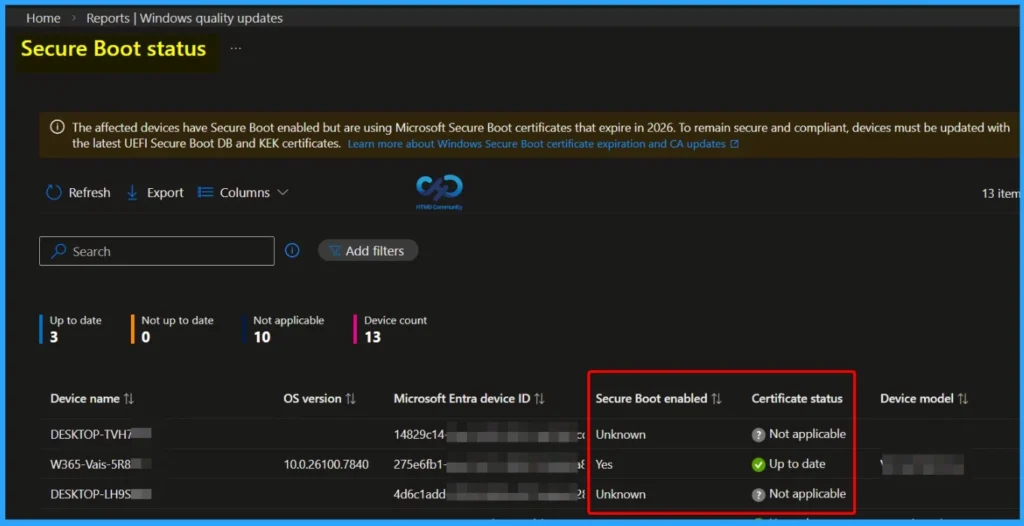
- Detection script file: Upload Detect-SecureBootCertificateStatus.ps1
- Remediation script file: Leave empty (no remediation needed)
- Run script using logged-on credentials: No (runs as SYSTEM for registry and UEFI access)
- Enforce script signature check: No (set Yes only if your organization requires signed scripts)
- Run script in 64-bit PowerShell: Yes (required for Confirm-SecureBootUEFI and registry reads)
- Click Next
- Add any scope tags required by your organization, or leave the default
- Click Next
- Assignments: Select device groups to monitor
- Review all configured settings
- Click Create to deploy the detection script for remediation in Intune
Note: The detection script runs on each device according to its Intune check-in schedule. After you assign the script, it may take up to 24 hours for the first run to complete
Viewing and Exporting Secure Boot Detection Results in Intune
After the detection script runs, you can view the collected Secure Boot certificate data directly in the Intune portal. This allows administrators to track which devices are ready and which may need updates.
- Navigate to Devices > Remediations
- Click on Secure Boot Certificate Status Monitor (or the name you assigned)
- Go to the Monitor tab
- Click Device status to see the detailed output for each device
| Column | Description |
|---|---|
| Device name | The name of the device |
| Username | The primary user of the device |
| Detection status | Without issue (certs updated) or with issue (certs not updated) |
| Pre-remediation detection output | The full JSON output from the script |
| Last modified | When the script last ran on the device |
Exporting Secure Boot Detection Results to CSV
You can easily export the device detection data from Intune to analyse it more easily in Excel or other tools. This helps you filter, sort, and review the Secure Boot certificate status across all devices.
- On the Device status page, click the Export button at the top of the table
- The CSV file will include all columns, including the full JSON detection output for each device
- Open the CSV in Excel to filter, sort, and analyse the data
How to Fix Secure Boot Certificate Expiry and Renewal Error 65000 in Microsoft Intune
To prepare for this, Microsoft introduced new Secure Boot certificates in 2023. Many newer PCs already include these updated certificates, and for older devices, Microsoft is delivering them through regular Windows monthly updates along with firmware updates from device manufacturers. Installing these updates in advance ensures that Secure Boot continues to function correctly and that devices remain protected and able to boot normally after the older certificates expire.
- Even though a device shows Windows Enterprise in Intune, Windows may still think it is Windows Pro if it was originally installed as Pro and later upgraded using subscription activation.
- Subscription activation does not change the licensing decision
- Because of this, Windows blocks the Secure Boot certificate update policy and shows Error 65000 – Policy is rejected by licensing. This does not mean you configured the policy wrong.
- It is a known Microsoft issue where Windows internal licensing check stops the policy from applying.
- Microsoft is working on a fix, and until then, many admins use PowerShell scripts from the community as a temporary workaround.
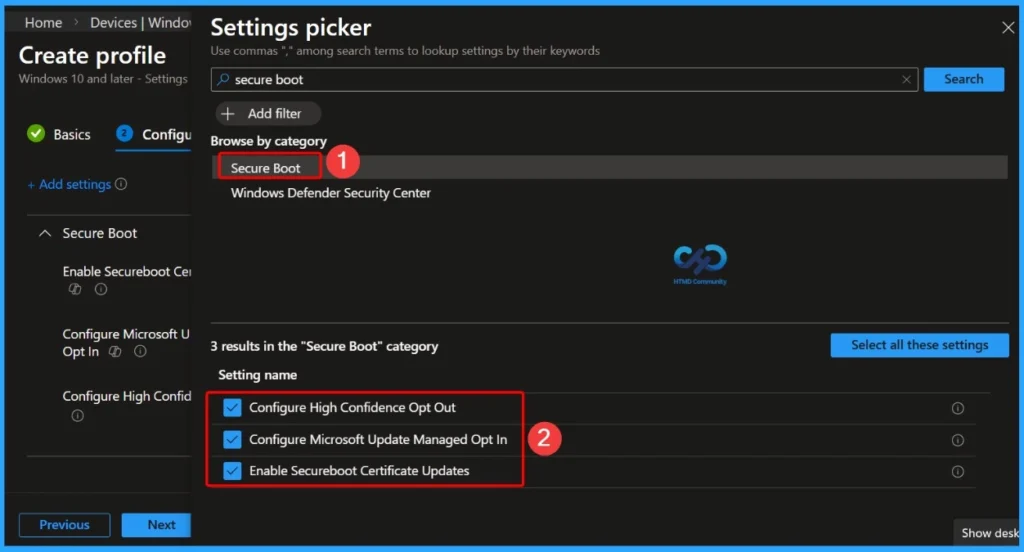
| Here in the Secure Boot, you can see 3 Settings |
|---|
| Configure High Confidence Opt Out |
| Configure Microsoft Update Managed Opt In |
| Enable Secureboot Certificate Updates |
- Understanding Windows 10 UEFI Secure Boot – How it helps to secure Pre-Boot Phase
- Windows Measured Boot – How it helps to secure Windows OS Platform
- What is Windows 365 Boot
Secure Boot Certificate Updates – Keeping Devices Protected
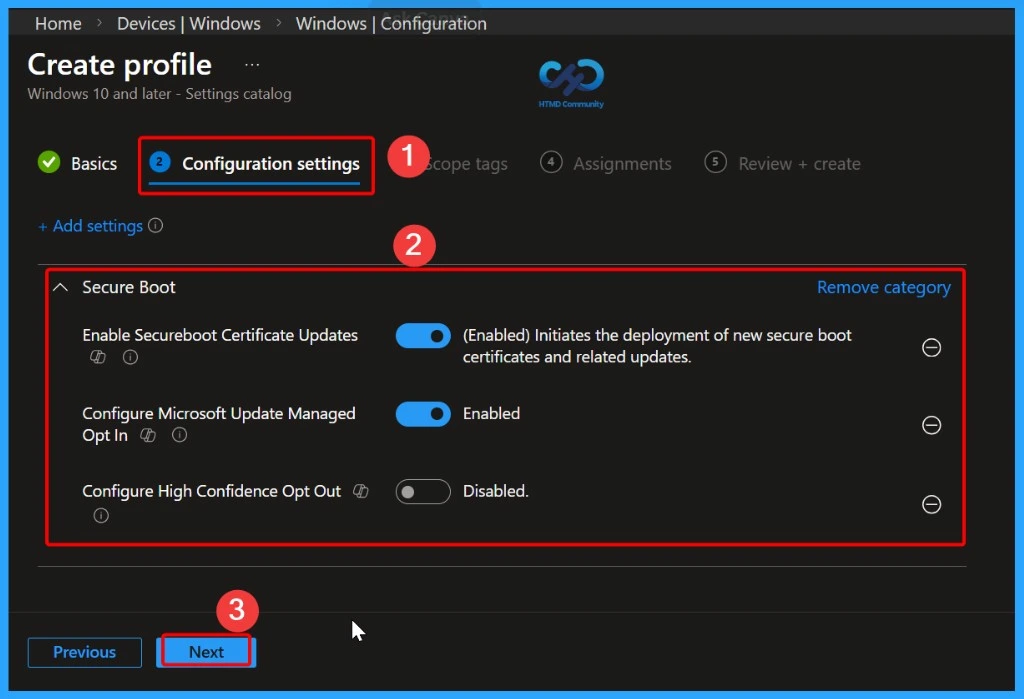
Secure Boot helps protect your devices from malware during startup, but its security depends on certificates that can expire over time. To keep devices secure, these certificates need to be updated or “rotated.” Microsoft has provided steps to do this, and Intune makes it easier by offering a built-in policy that automatically handles the Secure Boot certificate updates for your managed devices.
- Configure High Confidence Opt Out – Disabled
- Configure Microsoft Update Managed Opt In – Enabled
- Enable Secureboot Certificate Updates – (Enabled) Initiates the deployment of new secure boot certificates and related updates.
Verifying Secure Boot Status Across Your Devices
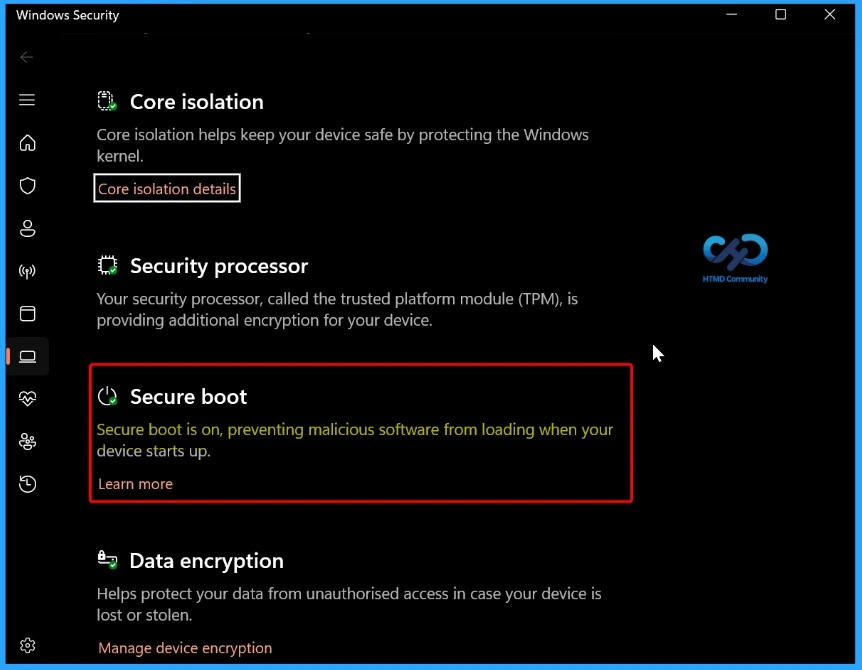
Most devices made after 2012 support Secure Boot and usually have it enabled by default. There are different methods for verifying Secure Boot Status Across Your Devices.
- GUI Method
- Go to Start > Settings > Privacy & Security > Windows Security > Device Security.
- Under Device Security, the Secure Boot section should indicate “On” if Secure Boot is enabled.
Confirm Secure Boot Using PowerShell
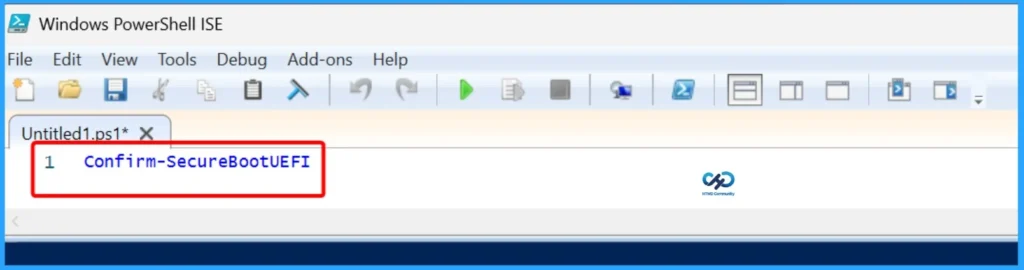
Open PowerShell as an administrator, type Confirm-SecureBootUEFI, and press Enter. If the command returns True, it confirms that Secure Boot is enabled on the device. The screenshots below give more details.
Confirm-SecureBootUEFI
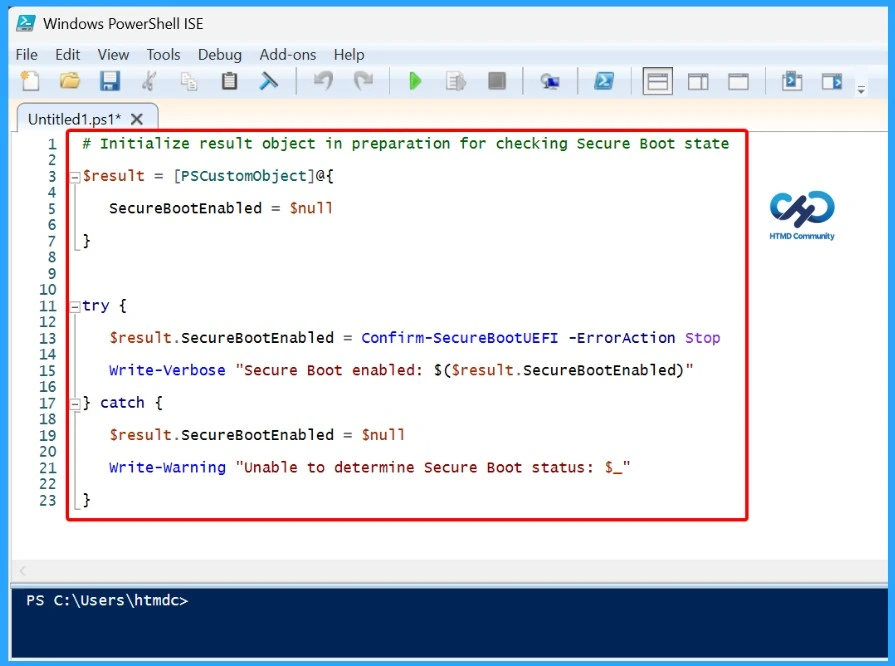
Checking Secure Boot in Large-Scale Deployments
When managing a large number of devices, IT teams need a way to verify whether Secure Boot is enabled across all systems. This ensures that any Secure Boot updates or policies are applied only to devices that support the feature.
# Initialize result object in preparation for checking Secure Boot state
$result = [PSCustomObject]@{
SecureBootEnabled = $null
}
try {
$result.SecureBootEnabled = Confirm-SecureBootUEFI -ErrorAction Stop
Write-Verbose “Secure Boot enabled: $($result.SecureBootEnabled)”
} catch {
$result.SecureBootEnabled = $null
Write-Warning “Unable to determine Secure Boot status: $_”
}
Policy Rejected by Licensing (0x82B00006)
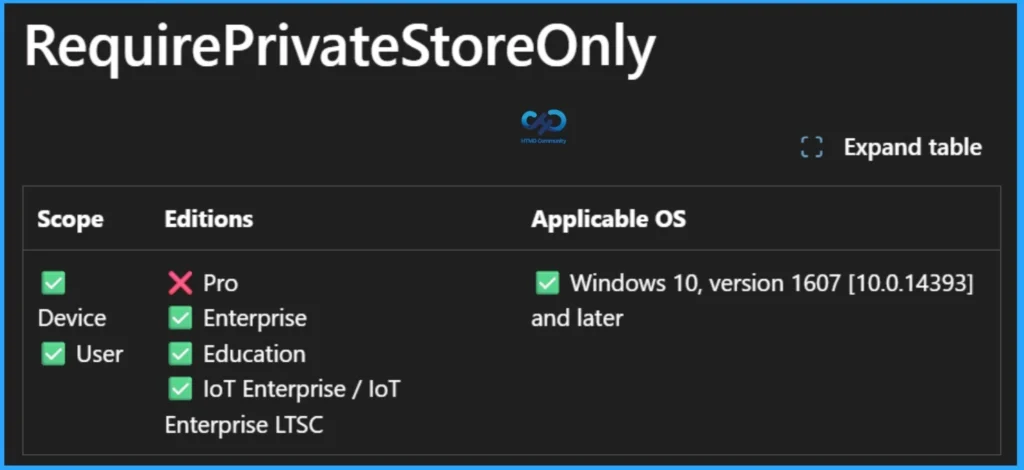
The 0x82B00006 error occurs when an Enterprise-only policy is assigned to a device running Windows Pro. This behaviour is well-known and has long existed. Settings such as RequirePrivateStoreOnly are supported only on Windows Enterprise, Education, or IoT Enterprise editions and are not licensed for Windows Pro.
When Intune attempts to apply these policies to a Pro device, the policy is automatically rejected because the Windows edition license does not support the feature, resulting in the error message “Policy is rejected by licensing (0x82B00006)”.
Need Further Assistance or Have Technical Questions?
Join the LinkedIn Page and Telegram group to get the latest step-by-step guides and news updates. Join our Meetup Page to participate in User group meetings. Also, Join the WhatsApp Community and WhatsApp Channel to get the latest news on Microsoft Technologies. We are there on Reddit as well.
Author
Anoop C Nair has been Microsoft MVP from 2015 onwards for 10 consecutive years! He is a Workplace Solution Architect with more than 22+ years of experience in Workplace technologies. He is also a Blogger, Speaker, and Local User Group Community leader. His primary focus is on Device Management technologies like SCCM and Intune. He writes about technologies like Intune, SCCM, Windows, Cloud PC, Windows, Entra, Microsoft Security, Career, etc.