
Key Takeaways
- This policy helps to controls whether suspicious file samples are automatically shared with Microsoft.
- Helps protect sensitive and organisational data.
- Suitable for organisations with strict privacy.
- ‘None‘ setting prevents automatic sample submission.
- Balances endpoint security with organisational data privacy policies.
Hey, let’s learn about how to improve threat detection with Microsoft Defender sample sharing using Intune. Microsoft Defender for Endpoint is an enterprise-grade, cloud-native platform designed to prevent, detect, investigate, and respond to advanced cyber threats. This policy controls whether Microsoft Defender for Endpoint can automatically send suspicious files (samples) from a device to Microsoft to check if they contain harmfull softwares.
Table of Contents
Table of Contents
What are the Advantages of this Policy?
This policy manages whether Microsoft Defender for Endpoint can automatically share suspicious file samples with Microsoft.
1. This policy helps improve privacy.
2. Informations is shared securely.
3. Reduces the risk of malware threats.
Improve Threat Detection with Microsoft Defender Sample Sharing using Intune
This policy configures sample sharing behavior in Microsoft Defender for Endpoint. This policy helps to increase better privacy and security.

- Stop Windows from Downloading Third-Party Wizard Providers for Maximum Privacy using Intune
- Enable Windows Apps Access Tasks to Prioritizing Security and Privacy using Intune
- How to Configure Let Apps Access Microphone Policy in Privacy using Intune
Creating the Policy
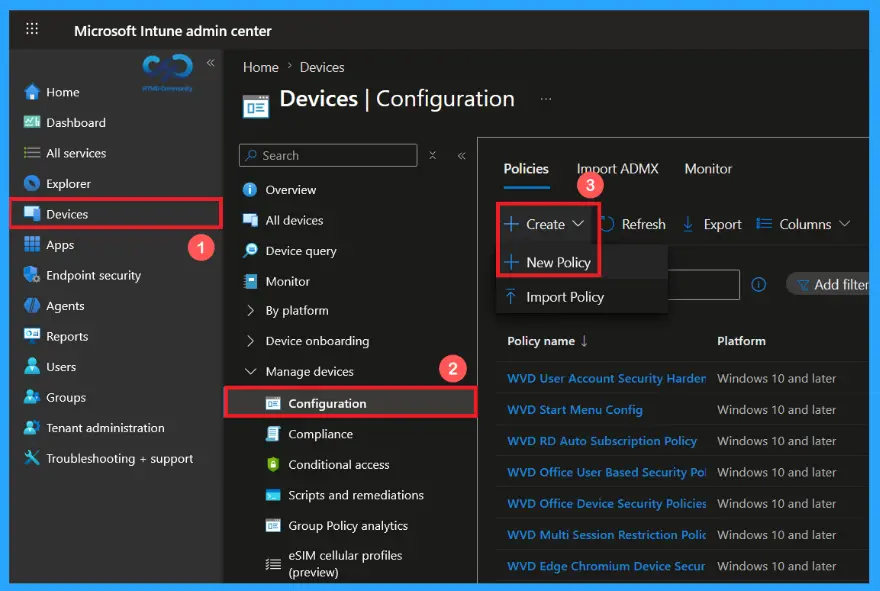
Signing into the Microsoft Intune Admin Center is the first step to take while creating the policy. After this step, click on the Devices and then select Configuration from the list of options. Then click on the Create down arrow and select New Policy.
Profile creation in a Policy
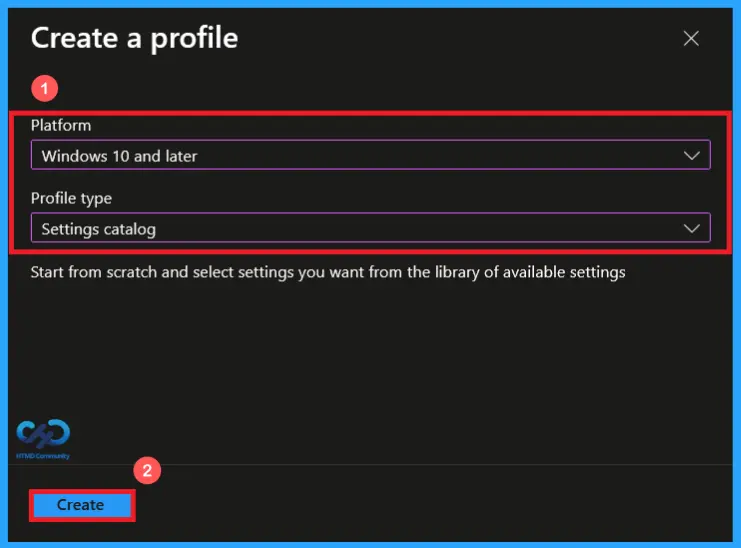
The next step that you need to take is to select the Platform and Profile type. From this window, I selected the platform as Windows 10 and later, and Profile type as settings catalog. Then click Create. I feel creating the policy is not that complicated, even though there are further steps ahead.
Basics Tab in this Policy
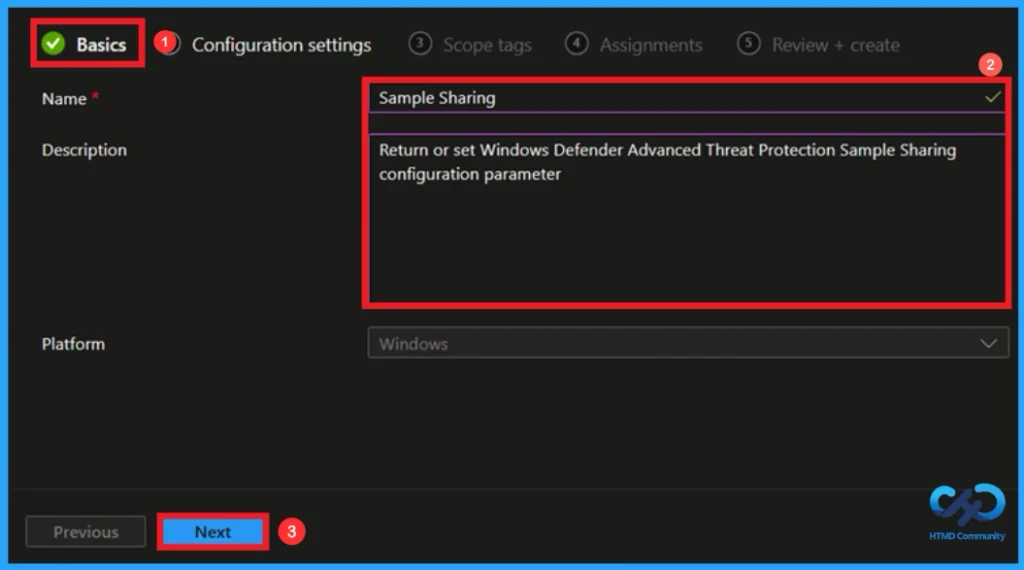
This is the first tab you can see while creating the policy. In this tab, we give the basic information related to the policy, that is, the name and Description. Here, entering Name is mandatory but Description is not mandatory, you can add it if you want. Here I added both. I gave the name as Sample Sharing and Description (return or Windows defender advanced threat protection sample sharing configuration parameter). Then click on Next.
Configuration Settings Tab in this policy
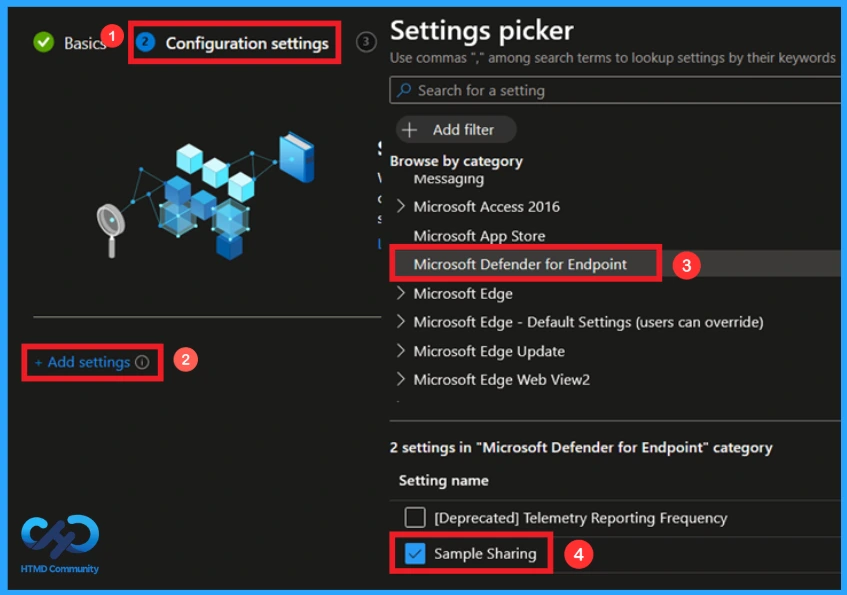
In this tab, you can select the policy that you need to create. To select the policy, click on the +Add settings and then a Settings picker will display on the screen. Here, I selected a category from a list of categories. i selected the Category Microsoft Defender for Endpoint, and I chose the Sample Sharing policy, which is under this category.
Default Setting of this Policy
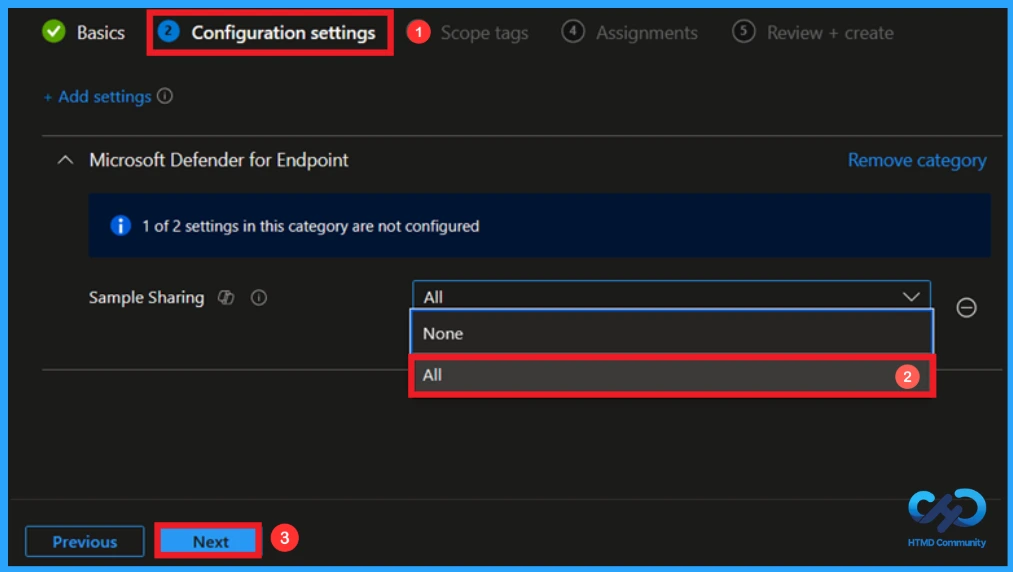
By default, the policy will be set to the All option. Setting the policy to this option means Suspicious files are uploaded to Microsoft.Microsoft analyzes them to detect new threats faster. If you like to create the policy using this option click on Next.
Disabling the Setting
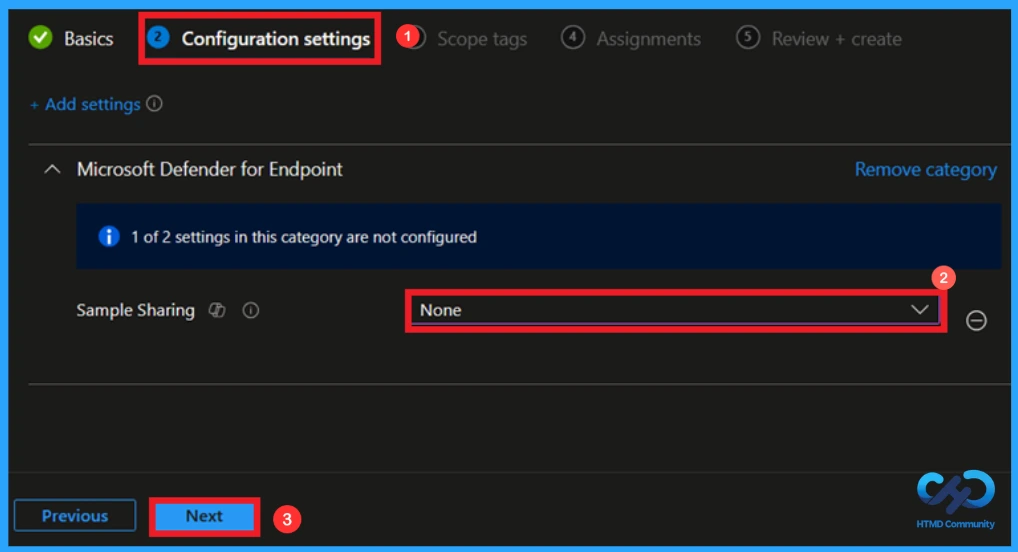
Here, I choosed the option None to create the policy because no suspicious samples are sent to Microsoft. This improves privacy and keeps files within the organization. Moreover, sensitive files are not automatically shared with Microsoft. So, I selected this option to create the policy. Then click Next to continue.
Scope tags to Control the Visibility
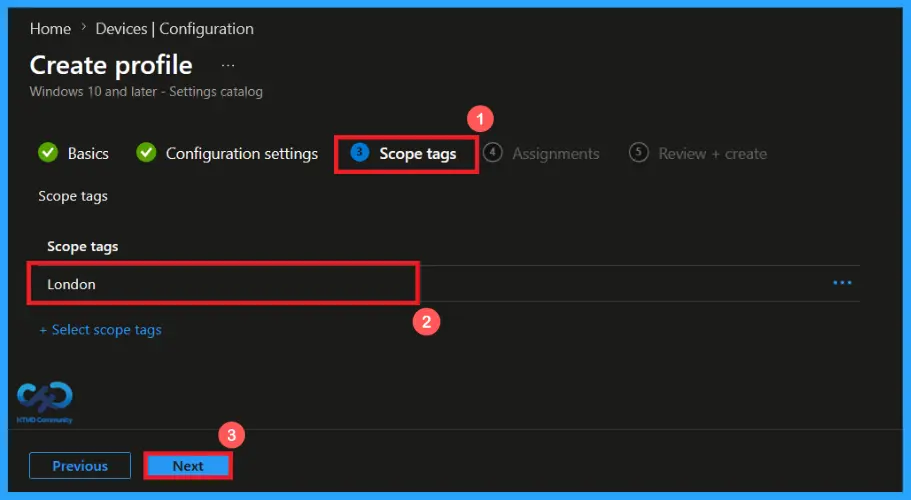
A scope tag in Intune is used to control visibility and access to Intune resources based on administrative roles. Scope tags are not mandatory. You can add the scope tag using the select scope tags button. Click Next to continue.
Assignments Tab to Add Group
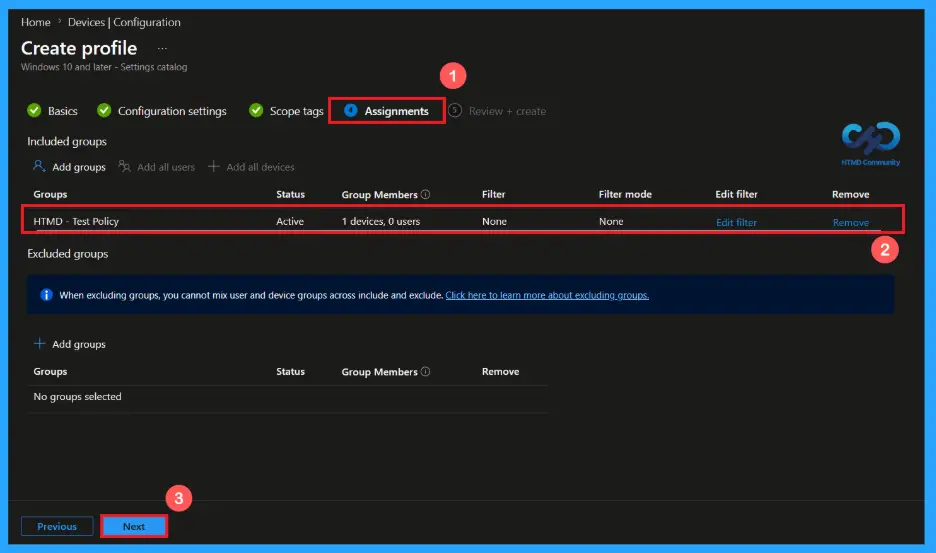
On the Assignments tab, you can select which users or devices get this policy. Under Include Groups, click on Add Groups. From the list, select the group that you want to target. Here, I selected (HTMD – Test Policy). Then click the Next button to continue.
Finalising the Policy
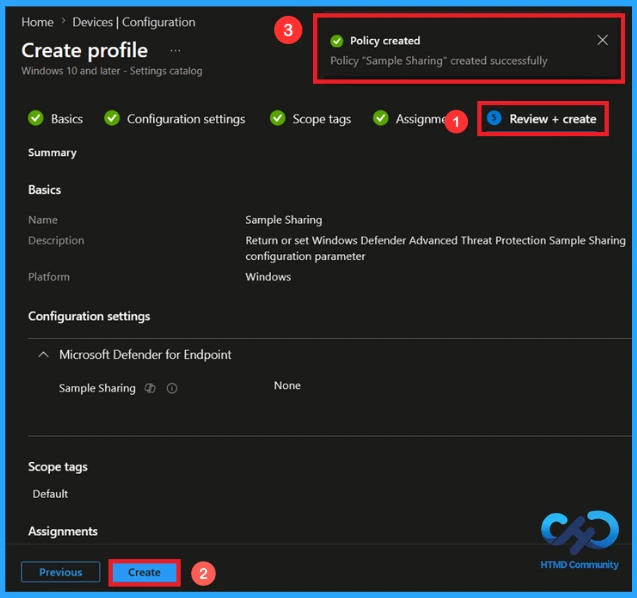
At the Review + Create step, you can review each tab to avoid misconfiguration. After reviewing the details, you can make any necessary changes by clicking the Previous option. We click Create to finish, and a notification confirms that the Sample Sharing policy has been created successfully.
Monitoring the Status of the Policy
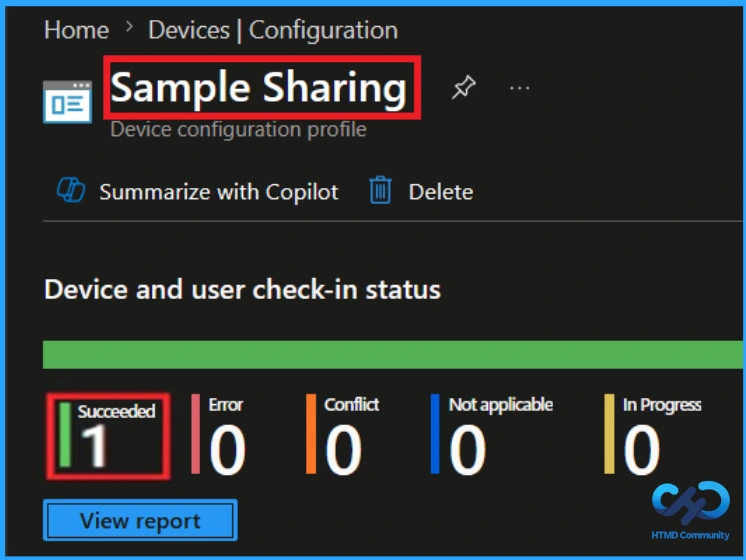
You can check a policy’s status in the Intune portal. Generally, it takes 8 hours for policies to be created. By using the manual sync option, you can reduce the configuration delay in the company portal app on the device, then check the status again. Navigate to Devices > Configuration. Click on the specific policy to see its details.
How to Remove an Assigned Group from this Policy
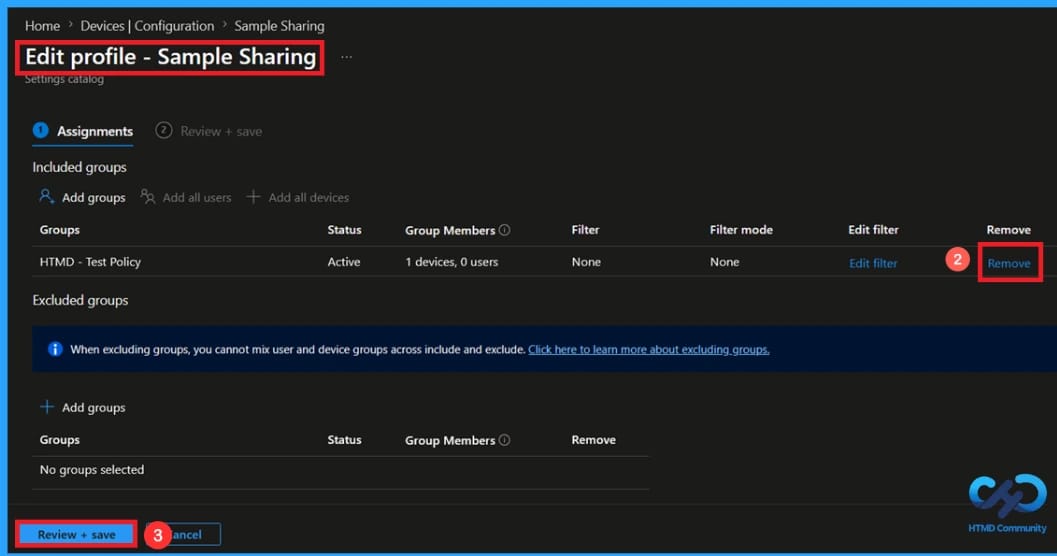
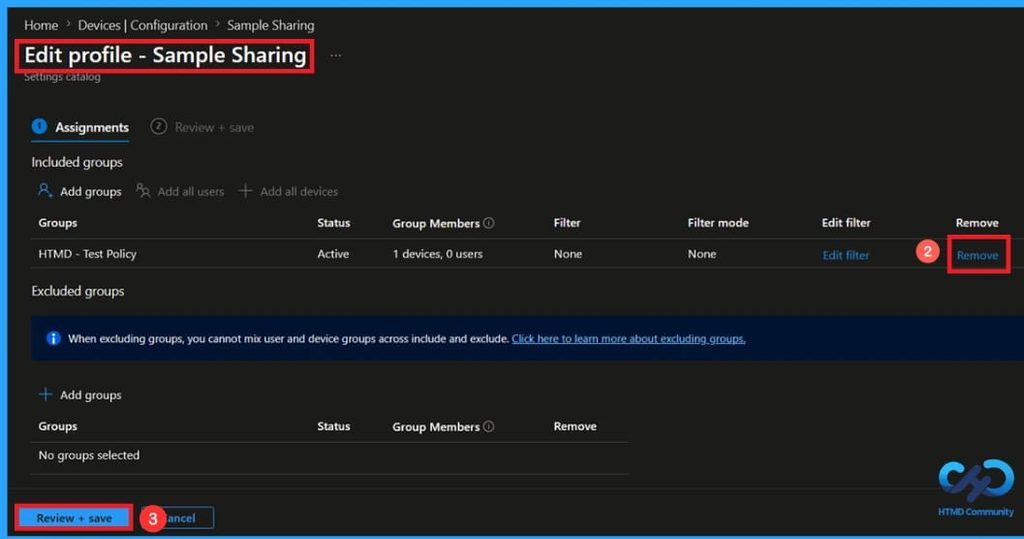
If you need to remove a group from a policy assignment for security updates. Open the policy from the configuration tab and click on the edit button. Then, click on the Remove button. Click Review + Save after making the changes.
For detailed information, you can refer to our previous post – Learn How to Delete or Remove App Assignment from Intune using by Step-by-Step Guide.
How to Delete this Policy from Intune Portal
If you want to delete this policy for any reason, you can do it easily. First, search for the policy name in the configuration section. When you find the policy name, click the 3-dot menu next to it and tap the Delete option.
For more information, you can refer to our previous post – How to Delete Allow Clipboard History Policy in Intune Step by Step Guide.
Need Further Assistance or Have Technical Questions?
Join the LinkedIn Page and Telegram group to get the latest step-by-step guides and news updates. Join our Meetup Page to participate in User group meetings. Also, Join the WhatsApp Community and WhatsApp Channel to get the latest news on Microsoft Technologies. We are there on Reddit as well.
Author
Anoop C Nair is Workplace Technology solution architect with 25+ years of experience in global enterprise organizations such as JP Morgan, Capgemini, etc. He is Microsoft Certified Trainer. Microsoft MVP from 2015 onwards for consecutive 11 years! He also conducts Intune and modern workplace tech training for enterprise organizations. He is Blogger, Speaker, and Founder of HTMD Community and HTMD Conference. His focus is on Device Management technologies such as Intune, Windows, Cloud PC. He writes about technologies like Intune, SCCM, Windows, Cloud PC, Windows, Entra, Microsoft Security.