
Let’s learn the 3 Easy Methods to Reset Windows 11 PC. The reset feature in Windows 11 is the best feature for ensuring the smooth functioning of our PCs.
You have different options to reset whether we want to keep our files or start fresh. To use the reset feature, remove everything on a computer that you use for working at home or gaming. It allows the system to return to its original state, causing malfunction or freeze.
Resetting is particularly helpful when you have problems with specific Windows components, such as Windows updates not working or apps crashing. Many applications and programs cause issues while running, so resetting is the best choice to wipe everything.
The reset option is straightforward to use and understand. It helps increase the computer’s speed so we can complete our work quickly. The factory reset erases all items and allows us to set up a new device.

- Reset Windows Security App in Windows 11
- Reset Local Security Policy Settings to Default in Windows 11
What are the Features of the Reset Option?

The reset option clears all pending errors or events and brings our system to normal condition or an initial state, usually in a controlled manner. Some important features are given below.
1. It helps to resolve the running issue of an application quickly
2. It allows you to restore a system to its original state
3. It helps to raise the PC performance level
3 Easy Methods to Reset Windows 11 PC
The reset option helps to reinstall the Windows operating system and preserve personal files. We can easily Reset Windows 11 PC using different methods. The table below gives the details.
| Different Methods |
|---|
| 1. Reset Windows 11 PC from Advanced Startup at Boot |
| 2. Reset Windows 11 PC from Settings in Windows 11 |
| 3. Reset Windows 11 PC using PowerShell in Windows 11 |
1. Reset Windows 11 PC from Advanced Startup at Boot
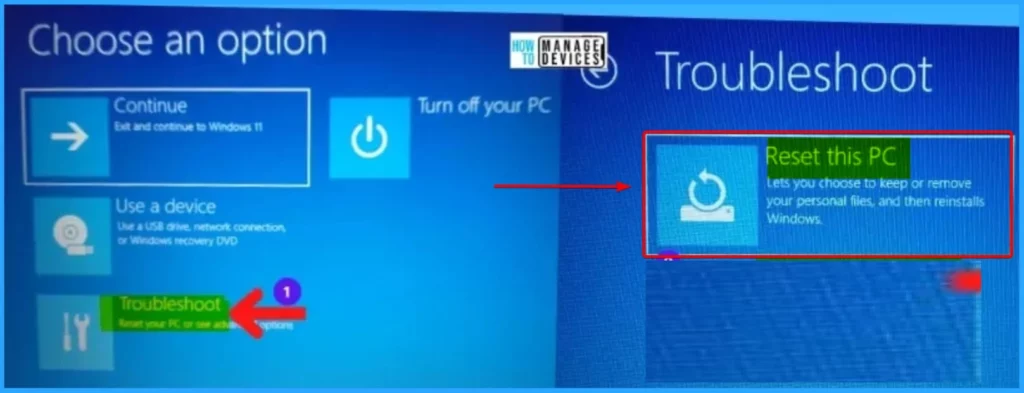
Advance startup at Boot is the first method used to Reset our PC. We can easily do it with troubleshooting options. To do this, we first Boot to Advance Startup. Then click the Troubleshoot option, as we see in the below screenshot. Then click the Advanced options. It helps to keep our data and reset the PC.
2. Reset Windows 11 PC from Settings in Windows 11
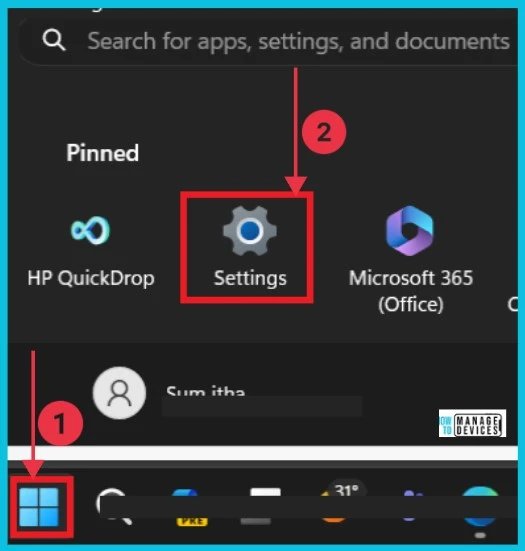
This is the next method used to reset the Windows 11 PC. To do this, first, you have to select the following manner. Using the Settings application to reset Windows 11 PC is the easiest method for end users.
- Select Settings app from the Start button
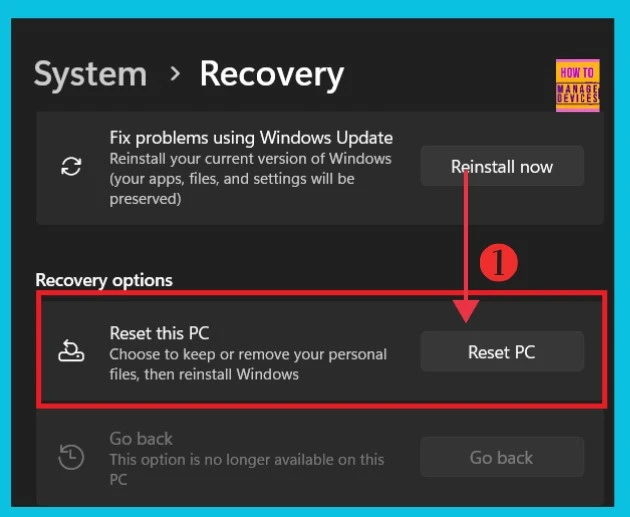
After clicking the Settings app, click the System from the screenshot below. Then click the Recovery option on the right side. This option helps to reset, advance startup, and go back.
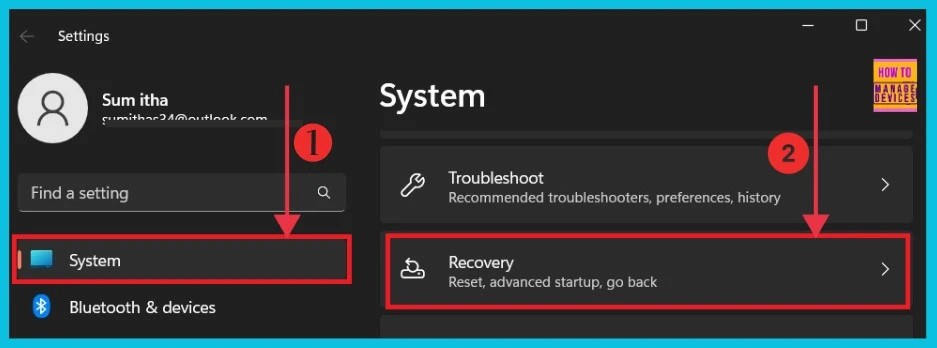
The screenshot below gives the details about the Recovery. Here, we can keep or remove our files and then reinstall Windows.
- Remove or Change Reading Pane Layout in Outlook for Windows 11
- Reset Touchpad Settings and Gestures to Default in Windows 11
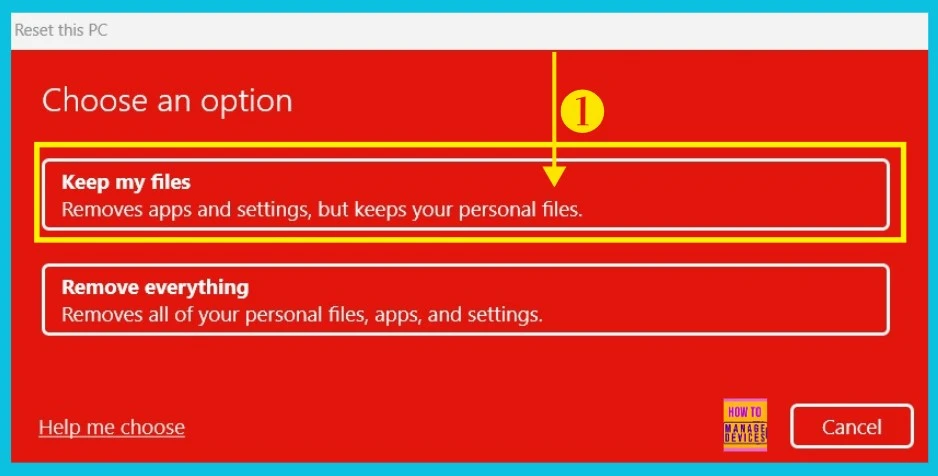
After clicking the Reset PC option, the PC asks for a confirmation for reset. Here, we can see two options; now we choose the first option, Keep my files. This option removes apps and settings but keeps our files.
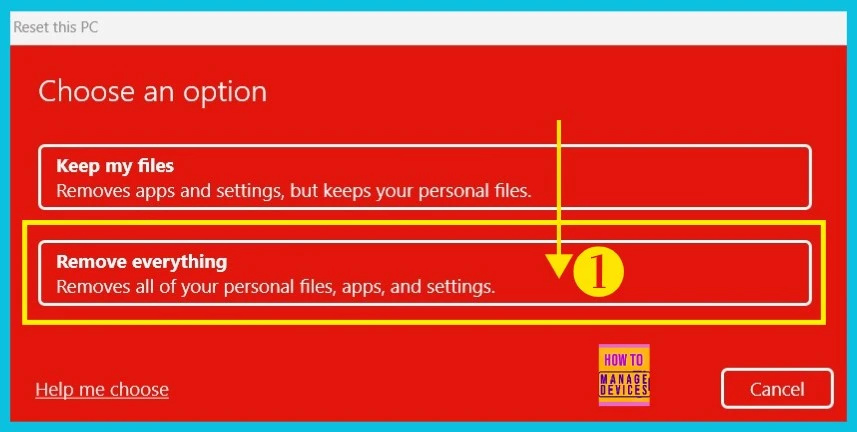
The second option is to Remove everything. This option lets us remove all our files, apps, and settings with just one click.
3. Reset Windows 11 PC using PowerShell in Windows 11
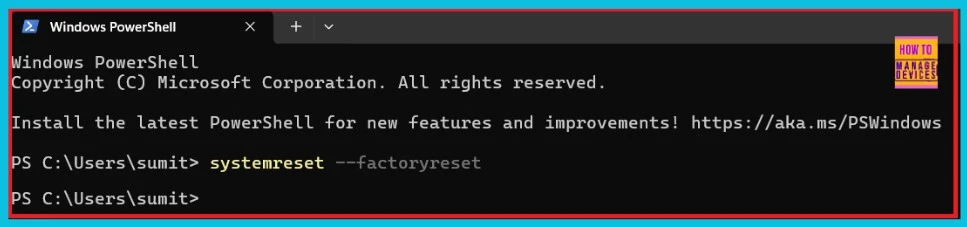
Using Powershell is the third method used to reset Windows 11 PC. First, we have to search Windows PowerShell using the search option. Then right-click the Windows Powershell and click Run as administrator.
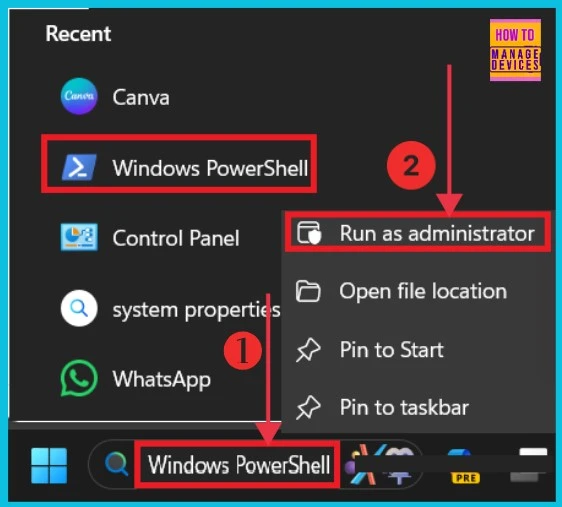
Now we can see the powershell window here and give the commands to reset the PC. Now, the PC asks for permission, which helps save and reset our files.
- systemreset –factoryreset
We are on WhatsApp now. To get the latest step-by-step guides, news, and updates, Join our Channel. Click here. HTMD WhatsApp.
Author
Anoop C Nair is Workplace Technology solution architect with 25+ years of experience in global enterprise organizations such as JP Morgan, Capgemini, etc. He is Microsoft Certified Trainer. Microsoft MVP from 2015 onwards for consecutive 11 years! He also conducts Intune and modern workplace tech training for enterprise organizations. He is Blogger, Speaker, and Founder of HTMD Community and HTMD Conference. His focus is on Device Management technologies such as Intune, Windows, Cloud PC, He writes about technologies like Intune, SCCM, Windows, Cloud PC, Windows, Entra, Microsoft Security.
Thanks, I have a latop with files I don’t need and smt is like lurking on it so it’s kinda scary and it just needs a whole new start.
Honestly, resetting Windows 11 can feel like a pain, but it’s a solid fix for a lot of issues. If you’re struggling with compatibility or slowdowns, I found an interesting tool that can help with some related setups—check it out here: .