
Key Takeaways
- Quickly Identify Unprotected Devices
- Review Tenant-Wide Compliance Setting
- Supports Faster Troubleshooting
- Improves Zero Trust and Conditional Access
- Part of the Modern Intune Compliance Reporting Experience
Microsoft Intune provides the Devices without compliance policy report to help administrators identify enrolled devices that don’t have a compliance policy assigned. The report also lets you review device compliance status, monitor compliance trends, and identify individual settings that cause devices to become noncompliant. This visibility helps IT teams quickly detect security gaps and ensure every managed device is evaluated against organizational compliance requirements.
Table of Content
Table of Contents
Intune Report for Devices without Compliance Policy
Compliance policies are a critical component of Microsoft Intune because they work with Microsoft Entra Conditional Access to protect corporate resources by allowing access only from compliant devices. By regularly reviewing the Devices without compliance policy report, administrators can identify unprotected devices, assign the appropriate compliance policies, and strengthen their organisation’s Zero Trust security posture while simplifying compliance monitoring and troubleshooting.
- List Of Intune Default Reports Reporting Strategies Advanced Reporting Options
- Configure Update Compliance Patch Management Reports Using Intune And Log Analytics
- How to Configure Notifications for Noncompliant Devices in Microsoft Intune
Intune Report for Devices without Compliance Policy
Device compliance reports are meant to be broad in nature and provide a more traditional reporting view of data to identify aggregated metrics. The Devices without Compliance Policy report is designed to work with large datasets to get a full device compliance picture and help to troubleshoot.
- Sign in to the Microsoft Intune admin center
- Select Reports > Device compliance.
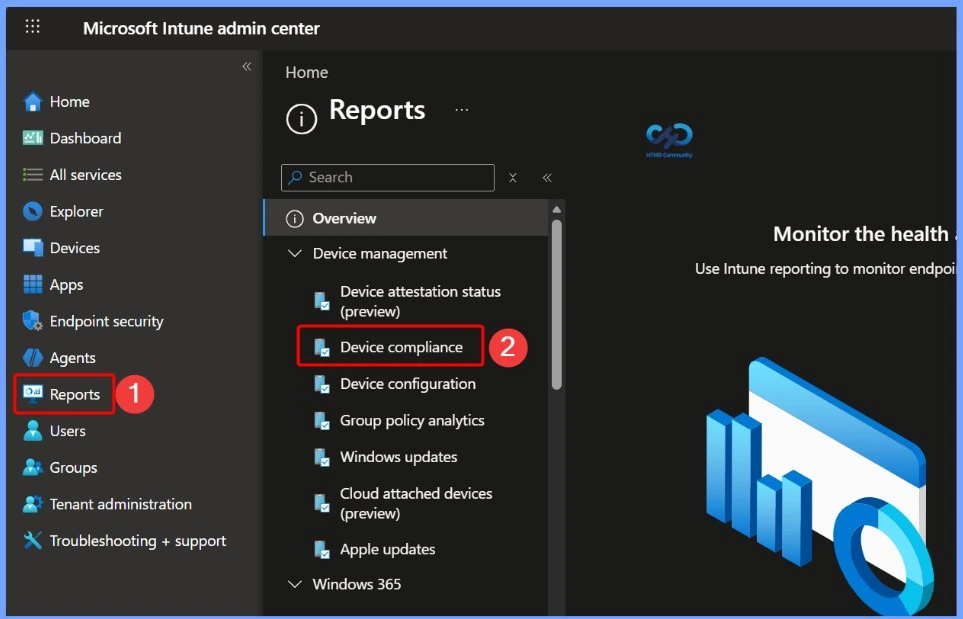
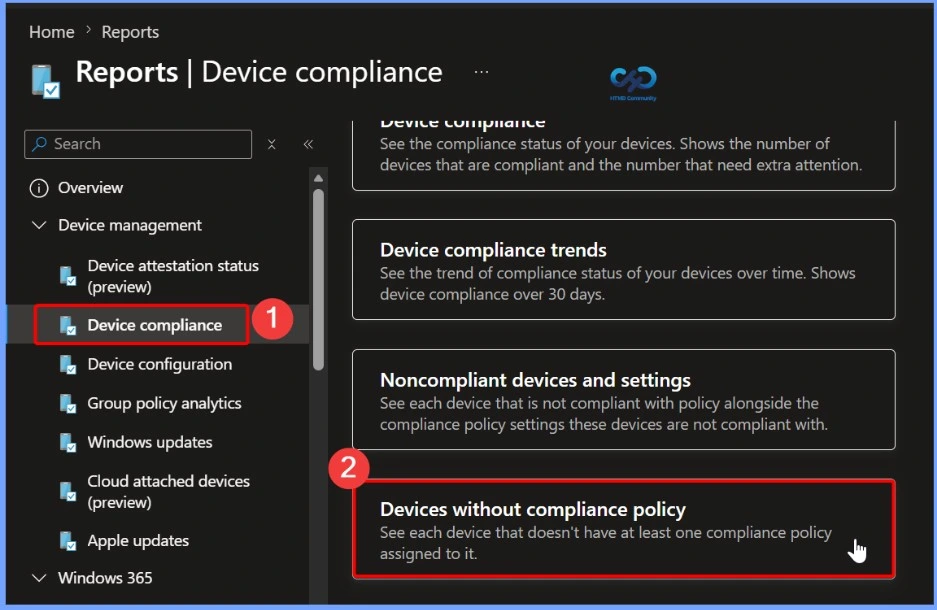
In the Device compliance, click on the Reports tab > Devices without compliance policy (preview) to see each device that doesn’t have at least one compliance policy assigned to it. The screenshot helps you to show more details.

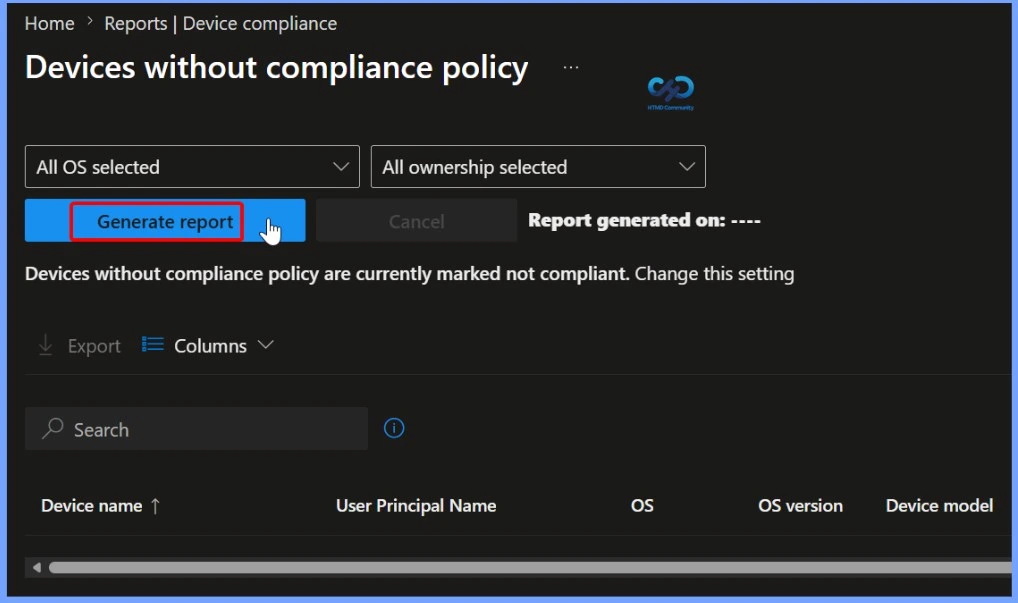
Generate the Devices Without Compliance Policy Report
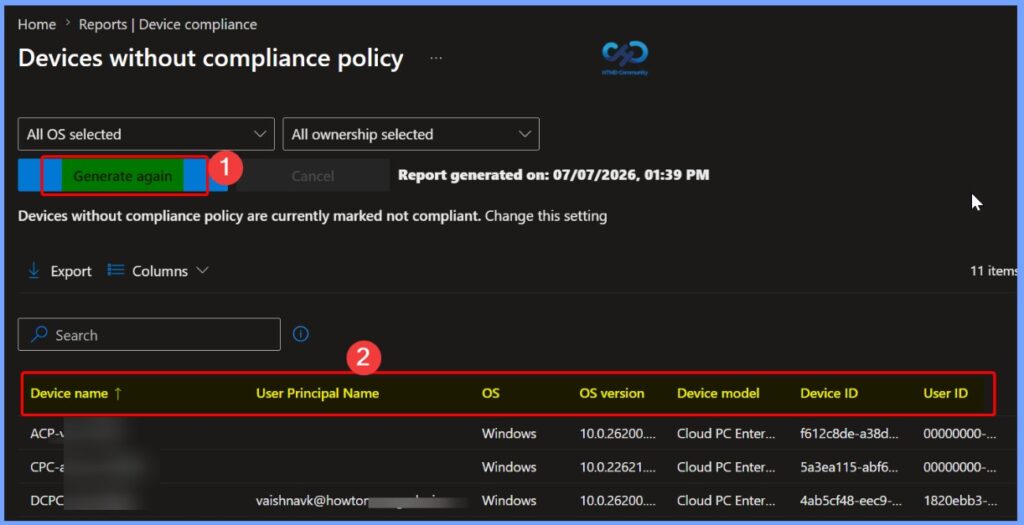
After selecting the Devices without compliance policy report, you can optionally filter the results by Operating System (OS) and Ownership to narrow down the devices you want to review. Once the desired filters are applied, click Generate report (or Generate again to refresh the results). Intune will generate the report, displaying all devices that don’t have a compliance policy assigned based on the selected criteria.
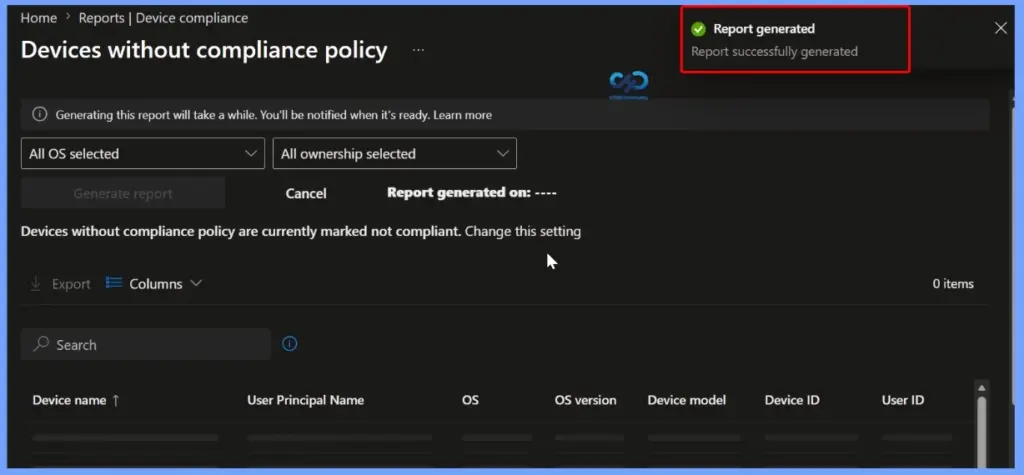
Verify Successful Report Generation
Once the report has been generated, Intune displays a notification in the upper-right corner of the admin center with the message “Report successfully generated.” This confirmation indicates that the report is ready to view, allowing you to review devices without an assigned compliance policy based on the selected filters.
The report generates one row per device that hasn’t been assigned a compliance policy. In the report, you will find the following information that can be used to sort the results.
- Device Name – Displays the name of the device as it appears in the Devices list and when creating groups.
- User Principal Name (UPN) – Shows the primary user associated with the device.
- Operating System (OS) – Identifies the device’s operating system, such as Windows, Android, iOS/iPadOS, or macOS.
- OS Version – Displays the installed operating system version (for example, Windows 11 22000.675 or Android 12.0).
- Device Model – Shows the hardware model, such as Surface Book 2 or Samsung Galaxy Note 10.
- Device ID – Displays the unique identifier assigned to the device in Microsoft Intune.
- User ID – Shows the unique identifier of the user associated with the device.
Customise Report Columns for Better Visibility
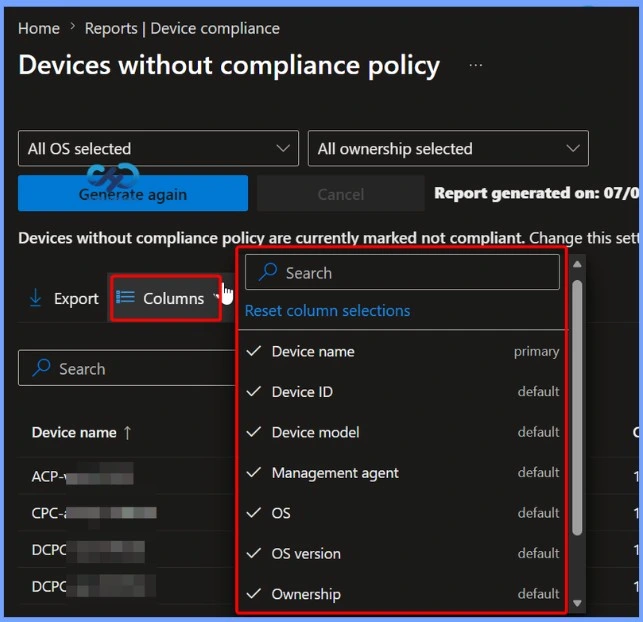
Use the Columns property to add or remove columns from the generated report. Click on the Columns, A flyout displays, here you can Check or Uncheck the columns that you want to include. Select Apply to update and Click Generate again to generate report.
| Customise Report Columns for Better Visibility |
|---|
| Device name Device ID Device model Management agent OS OS version Ownership |
Filter the Report by Operating System (OS)
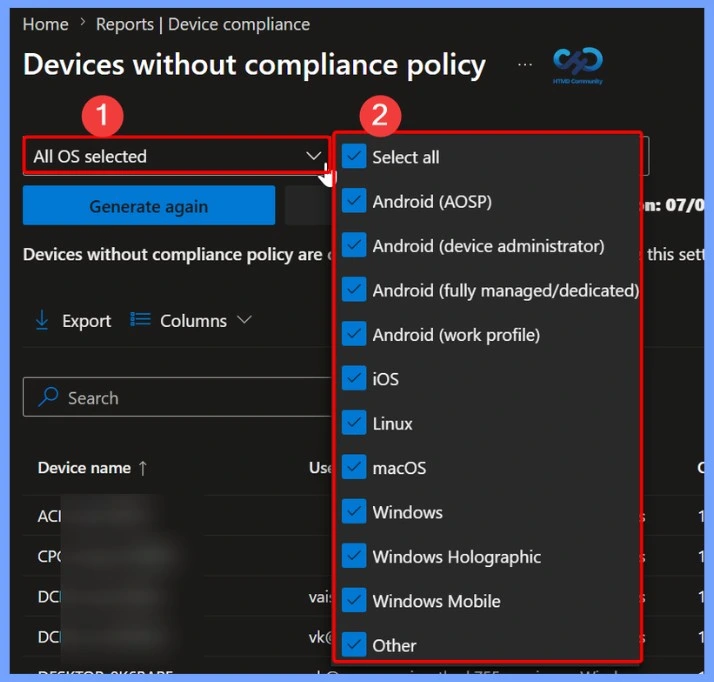
Use the OS filter to narrow the Devices without compliance policy report to specific operating systems. By default, all OS selected is enabled, which includes every supported platform. You can expand the drop-down list, select or clear individual operating systems, and then click Generate again to refresh the report with the selected filters.
Available OS filter options include:
- Select all
- Android (AOSP)
- Android (Device Administrator)
- Android (Fully Managed/Dedicated)
- Android (Work Profile)
- iOS
- Linux
- macOS
- Windows
- Windows Holographic
- Windows Mobile
- Windows Phone
- Other
Filter the Report by Device Ownership
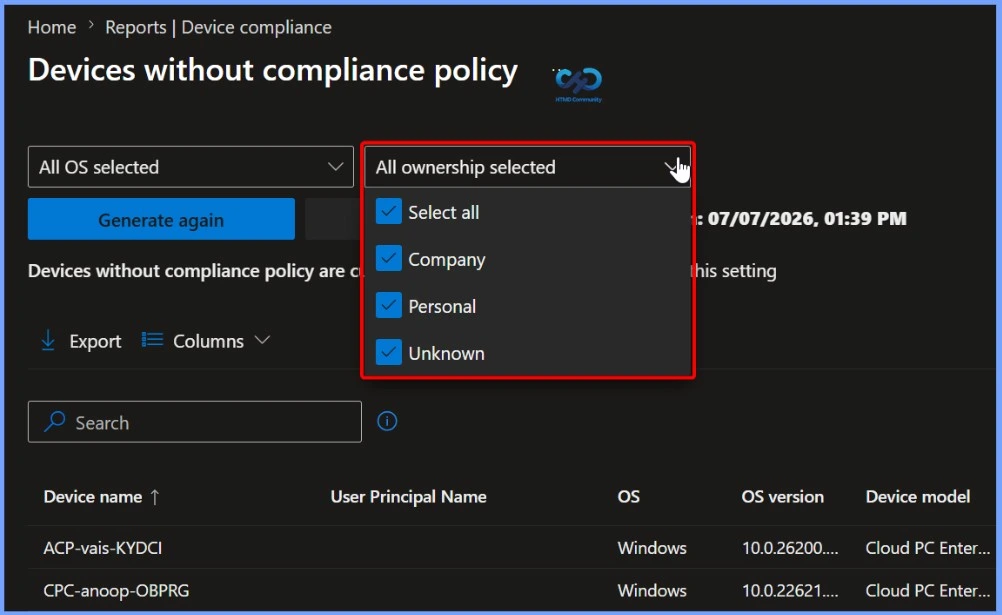
The Ownership filter helps you narrow the Devices without compliance policy report based on device ownership. By default, All ownership selected is enabled, displaying devices from every ownership category. You can select one or more ownership types to focus on a specific group of devices, then click Generate again to refresh the report with the updated filter.
Available ownership filter options:
- Select all – Includes all ownership types.
- Company – Displays corporate-owned devices managed by the organization.
- Personal – Shows user-owned (BYOD) devices enrolled in Intune.
- Unknown – Lists devices where the ownership type hasn’t been identified or assigned.
Export the Devices Without Compliance Policy Report
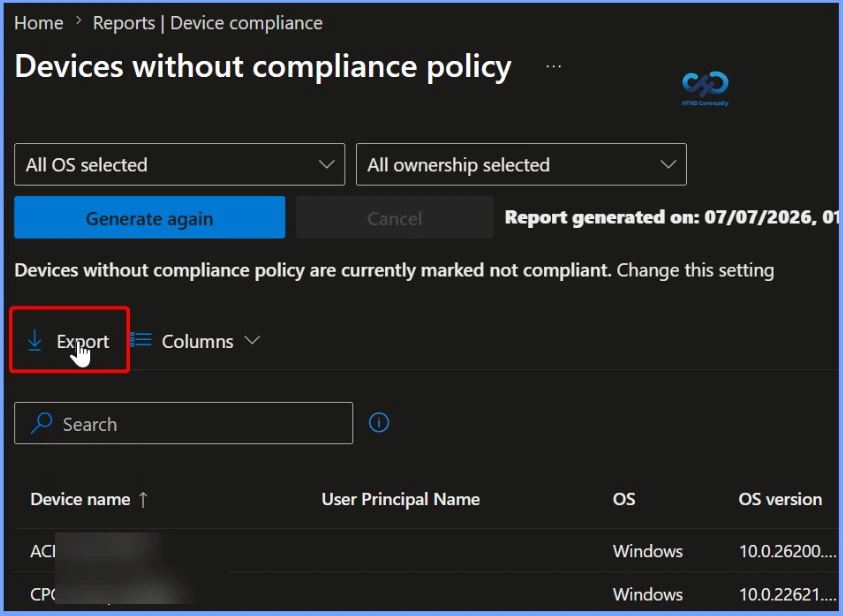
After generating the Devices without compliance policy report, click Export to download the report for offline analysis or record-keeping. The exported report contains the filtered device data based on the selected Operating System (OS) and Ownership filters, making it easier to review, share with stakeholders, or use for compliance audits and troubleshooting.
Review the Exported Devices Without Compliance Policy Report
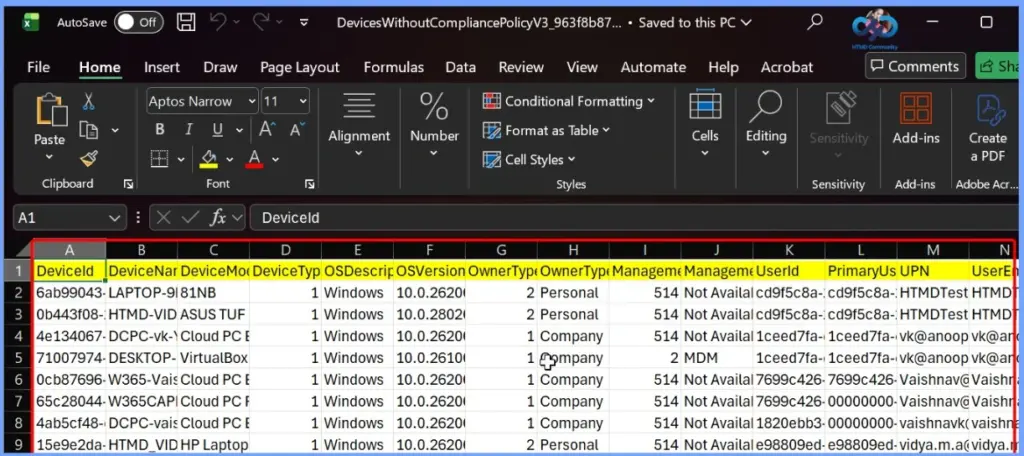
After exporting the report, the data is downloaded as a CSV file, which can be opened in Microsoft Excel for detailed analysis. The exported report includes comprehensive device information such as Device ID, Device Name, Device Model, Operating System, OS Version, Ownership Type, Management State, User ID, Primary User, and User Principal Name (UPN).
Compliance Policy Settings
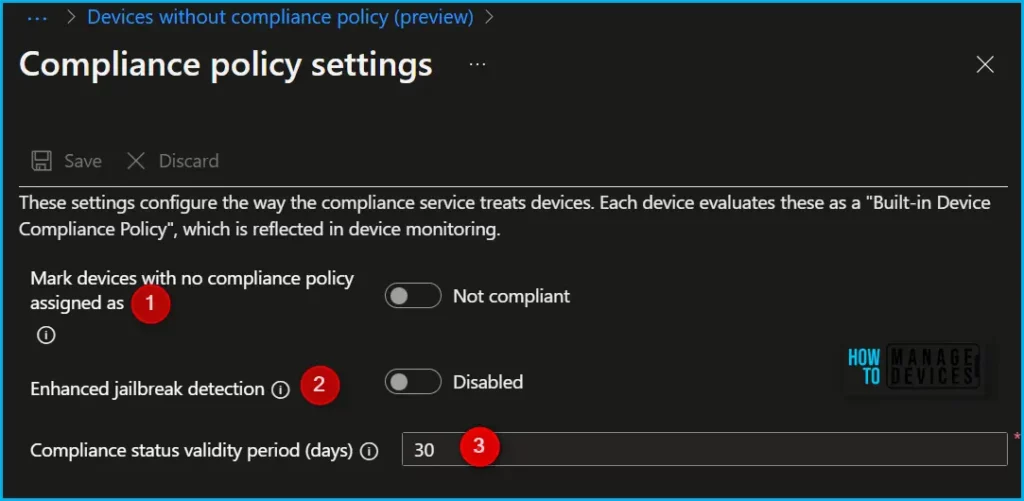
Compliance policy settings are tenant-wide settings that determine how Intune’s compliance service interacts with your devices. These settings are distinct from the settings you configure in a device compliance policy.
To manage the compliance policy settings, sign in to Microsoft Intune admin center and Navigate to Endpoint security > Device compliance > Compliance policy settings. Compliance policy settings include the following settings:
- Mark devices with no compliance policy assigned as This setting determines how Intune treats devices that haven’t been assigned a device compliance policy. This setting has two values:
- Compliant (default): This security feature is off. Devices that aren’t sent a device compliance policy are considered compliant.
- Not compliant: This security feature is on. Devices that haven’t received a device compliance policy are considered noncompliant.
Need Further Assistance or Have Technical Questions?
Join the LinkedIn Page and Telegram group to get the latest step-by-step guides and news updates. Join our Meetup Page to participate in User group meetings. Also, join the WhatsApp Community and the Whatsapp channel to get the latest news on Microsoft Technologies. We are there on Reddit as well.
Author
Jitesh, Microsoft MVP, has over six years of working experience in the IT Industry. He writes and shares his experiences related to Microsoft device management technologies and IT Infrastructure management. His primary focus is Windows 10/11 Deployment solution with Configuration Manager, Microsoft Deployment Toolkit (MDT), and Microsoft Intune.