
Key Takeaways
- Intune now supports complex Windows application deployment using the IntuneWin (.intunewin) packaging format.
- Administrators can deploy MSI, EXE, PowerShell scripts, batch files, MST transforms, and multiple-file applications through Win32 apps.
- Intune Win32 App Deployment provides advanced features such as dependencies, supersedence, detection rules, requirement rules, and custom install commands.
- Many organisations prefer deploying even MSI applications as Win32 apps because they offer better flexibility, control, and troubleshooting capabilities.
- Microsoft Intune supports multiple application types across platforms, including Win32 apps, Microsoft Store apps, LOB apps, Android, iOS/iPadOS, and macOS applications.
With Win32 app deployment, IT teams can package and deploy MSI, EXE, PowerShell scripts, batch files, MST transforms, and applications containing multiple installation files. This modern deployment method removes earlier limitations and provides greater flexibility for enterprise application management.
Table of Content
Table of Contents
Complete Guide to Microsoft Intune Application Deployment using MSI EXE and IntuneWin Formats
Microsoft Intune supports a wide range of application types across multiple platforms, including Win32 apps, Microsoft Store apps, Line-of-Business (LOB) apps, Android apps, iOS/iPadOS apps, and macOS applications.
Intune Application Deployment using MSI EXE IntuneWin Formats
We faced a major limitation in the Intune Win32 App Deployment (Intune Management Extension). Intune supported only a single MSI file, so we could not deploy applications with EXE, multiple MSIs, MST, batch files, etc. Intune solved its limitations with the Intune Win32 App Deployment solution.
- Intune Win32 App Deployment allows complex Windows applications to be deployed through Intune.
- Creating IntuneWin packages will enable you to manage software deployments and overcome limitations efficiently.
- Intune offers a diverse range of supported application types, catering to various platforms and requirements.
- It includes applications such as Store apps, Microsoft app, Android enterprise system apps, LOB apps, macOS apps, and Windows apps; check out the List of Supported Intune Application Types.
What is Intune Win32 App Deployment or Intune Application Deployment
Win32 application deployment in Microsoft Intune supports both 32-bit (x86) and 64-bit (x64) Windows applications. Using the Intune Win32 App Deployment model, administrators can deploy traditional desktop applications packaged as MSI, EXE, PowerShell scripts, batch files, MST transforms, and applications with multiple installation files through the .intunewin format.

- Earlier, the Windows MDM channel supported only basic MSI application deployments and had limitations with complex Windows apps.
- It did not support advanced deployment scenarios such as EXE installers, multiple MSI files, MST transforms, custom scripts, dependencies, and flexible application packaging.
- To solve these limitations, Microsoft introduced the Intune Management Extension (IME), an agent-based solution for advanced Win32 app deployment.
- Intune Win32 App Deployment now supports:
- Dependencies
- Supersedence
- Custom detection rules
- Requirement rules
- Retry logic
- PowerShell-based installations
- Advanced troubleshooting
- Microsoft continues improving Win32 app deployment with support for:
- Windows Autopilot
- Windows 365 Cloud PCs
- ARM64 devices
- Modern application lifecycle management through the Intune admin center.
Pre-requisites of Intune Win32 App Deployment / Intune Management Extension
Before using Intune Win32 App Management, you must ensure that your environment meets the required prerequisites. Microsoft Intune supports Win32 app deployment on supported Windows Enterprise, Professional, and Education editions. Devices must also be registered or joined to Microsoft Entra ID and enrolled into Intune management.
- Supported Windows editions:
- Windows Enterprise
- Windows Professional
- Windows Education
- Devices must be:
- Microsoft Entra registered
- Microsoft Entra joined
- Hybrid domain joined
- Group Policy enrolled
- Intune Management Extension (IME) is required for Win32 app deployment.
- IME installs automatically when:
- Win32 apps are assigned
- PowerShell scripts are assigned
- Microsoft Store apps are assigned
- Proactive remediations are assigned
- Custom compliance policies are assigned
- Maximum supported app size:
- Up to 30 GB per application
- Applications must support:
- Silent installation
- Unattended installation mode
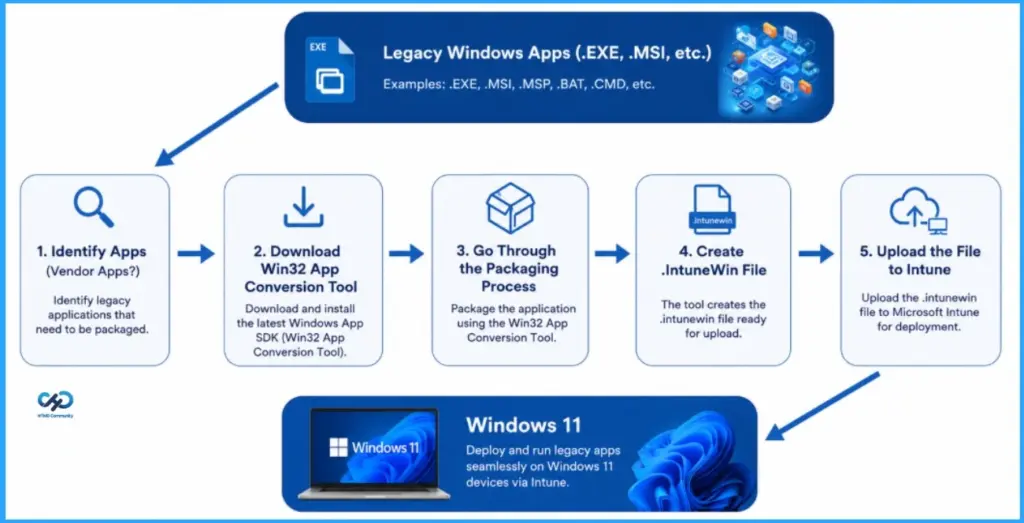
- Use the Microsoft Win32 Content Prep Tool to create .intunewin packages for deployment.
Important Considerations for Intune Win32 App Deployment
Microsoft Intune Win32 app deployment supports application packages up to 30 GB per app, allowing administrators to deploy large enterprise applications efficiently. However, applications deployed through Intune must support silent or unattended installation because deployments are performed without user interaction. For large or complex applications, administrators may also need to use custom PowerShell scripting, advanced detection rules, and additional packaging configurations to ensure successful installation, reporting, and lifecycle management.
Download the Microsoft Win32 Content Prep Tool
To deploy Win32 applications through Microsoft Intune, administrators must first convert application installation files into the .intunewin format. Microsoft provides a free utility called the Microsoft Win32 Content Prep Tool for this purpose.
The Win32 Content Prep Tool is not a traditional application packaging solution like MSI packaging tools. Instead, it is a simple command-line utility that packages existing installation source files such as MSI, EXE, PowerShell scripts, batch files, and supporting folders into a single .intunewin file that Intune can upload and deploy.
- Download the Microsoft Win32 Content Prep Tool from GitHub.
- The tool converts application source files into:
- .intunewin format
- You do not need advanced packaging skills for basic app conversion.
- The tool mainly:
- Compresses files
- Encrypts content
- Prepares the app for Intune upload
IntuneWin Extension Packaging Tool (Intune Management Extension) – https://www.anoopcnair.com/intune-application-model-intunewin-packages/
Download the IntuneWinAppUtil.exe.
Note: Intune Win32 app packaging is similar to zipping files with WinZip or 7-Zip. No advanced packaging skills are required to create .intunewin apps.
[Intune Win32 App Deployment Troubleshooting post – Intune Win32 app Troubleshooting
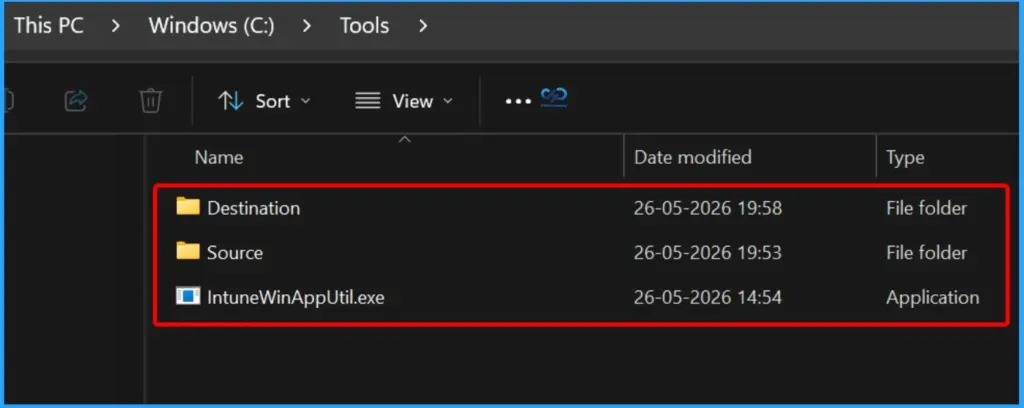
How to Prepare Source and Destination Folders for Intune Win32 App Packaging Using IntuneWinAppUtil.exe
Here, we create two separate folders named Source and Destination, and place the IntuneWinAppUtil.exe tool outside the Source folder. Copy all the application installation files (such as MSI, EXE, scripts, and related files) into the Source folder. The Intune prep tool will use the files inside the Source folder and generate the packaged .intunewin file in the Destination folder for Win32 app deployment through the Intune Management Extension.
| Folder/File | Details |
|---|---|
| Source | Stores all application installation files used for packaging – MSI, EXE, scripts, configuration files, dependencies, etc. |
| Destination | Stores the generated packaged output file – The final .intunewin package created by the Intune prep tool |
| IntuneWinAppUtil.exe | Intune Win32 App Packaging Tool Keep this tool outside the Source folder to avoid packaging unnecessary files |
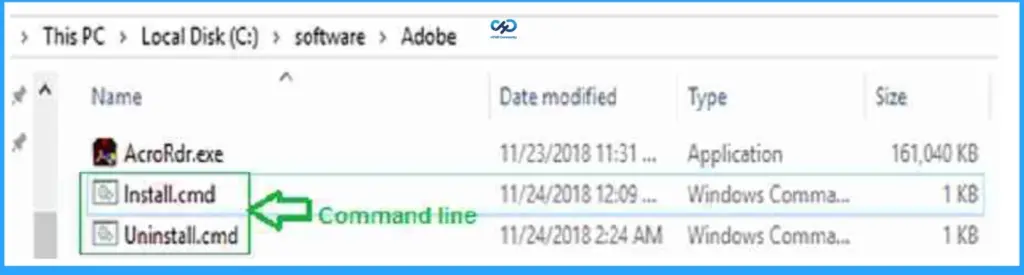
It is recommended to use a CMD or batch (.bat) file to handle the application installation and uninstallation process in Intune Win32 app deployment. Using script files gives better control over the installation flow, helps manage multiple commands in the correct order, and makes troubleshooting easier.
Run the IntuneWinAppUtil Tool to Create the .intunewin Package
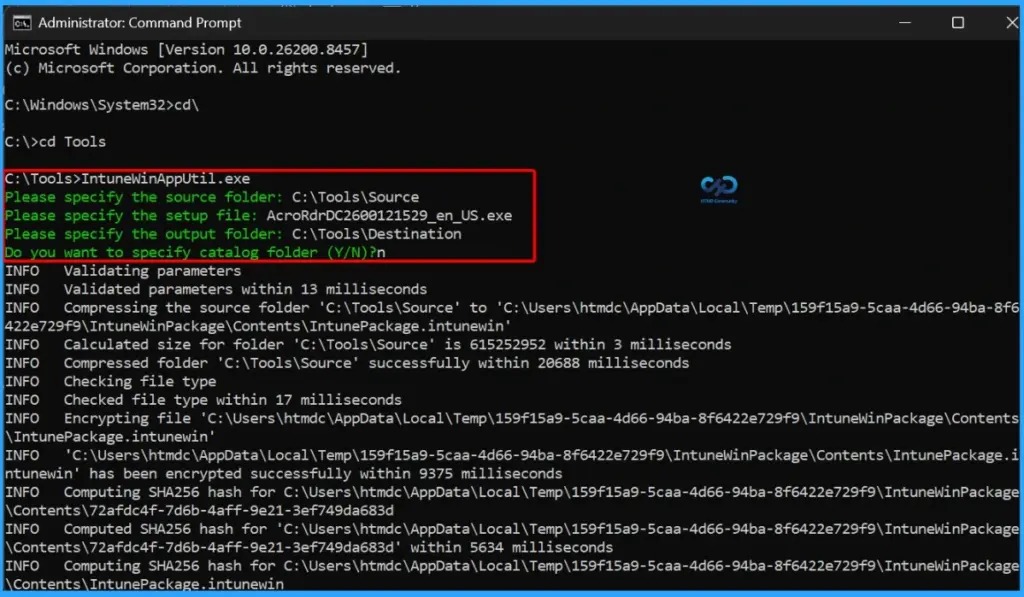
As shown in the image below, open Command Prompt and navigate to the folder where IntuneWinAppUtil.exe is stored. Run the tool and provide the required details, including the Source folder path, the setup file name, and the Destination folder path. The tool will then package the application and create the final .intunewin file, which can be uploaded to Microsoft Intune for Win32 app deployment.
Microsoft Windows [Version 10.0.26200.8457]
(c) Microsoft Corporation. All rights reserved.C:\Windows\System32>cd\
C:>cd Tools
C:\Tools>IntuneWinAppUtil.exe
Please specify the source folder: C:Tools\Source
Please specify the setup file: AcroRdrDC2600121529_en_US. exe
Please specify the output folder: C:Tools\Destination
Do you want to specify catalog folder (Y/N)?n
Validating parameters
Validated parameters within 13 milliseconds
Compressing the source folder ‘C: Tools\Source’ to ‘C: \Users\htmdc\AppData\Local \ Temp\159f15a9-5caa-4d66-94ba-8f6
422e729f9\IntuneWinPackage\Contents\ IntunePackage. intunewin’
Calculated size for folder ‘C: \Tools\Source’ is 615252952 within 3 milliseconds
How to Create and Deploy Win32 App in Intune
Follow the steps below to create a Windows app (Win32) using Intune. You already have the intunewin file required to make the app.
- Sign in to the Microsoft Intune admin center https://intune.microsoft.com/.
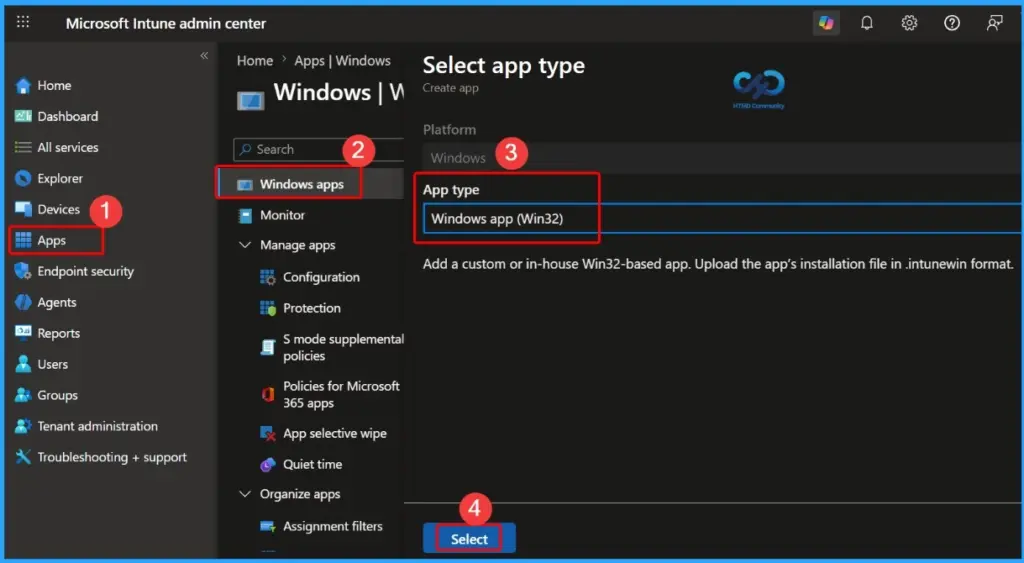
- Select Apps > All Apps> Create, or navigate to Apps > Windows > Windows Apps> Create.
- On the Select app type pane, select Windows app (Win32) under the Other app types and click Select.
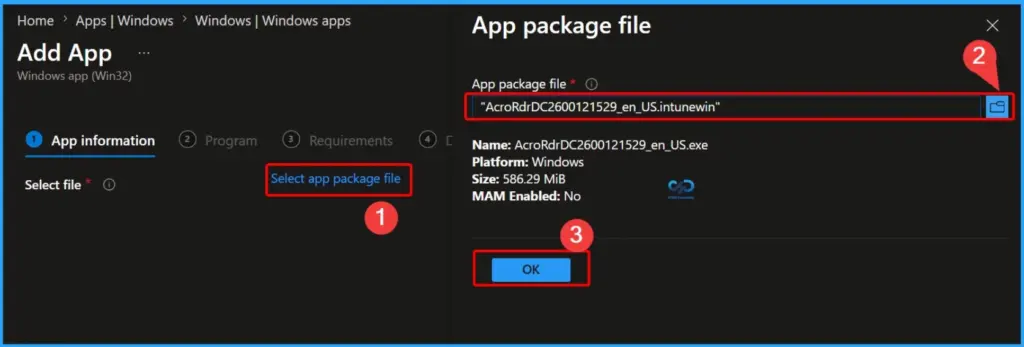
On the Add Information pane, click Select app package file. Select the folder button. Then, select the previously created intunewin file using the Intune prep tool. The app details appear.
- When you’re finished, select OK on the App package file pane.
| Name | Platform | Size | MAM Enabled |
|---|---|---|---|
| AcroRdrDC2600121529_en_US.exe | Windows | 586.29 MB | No |
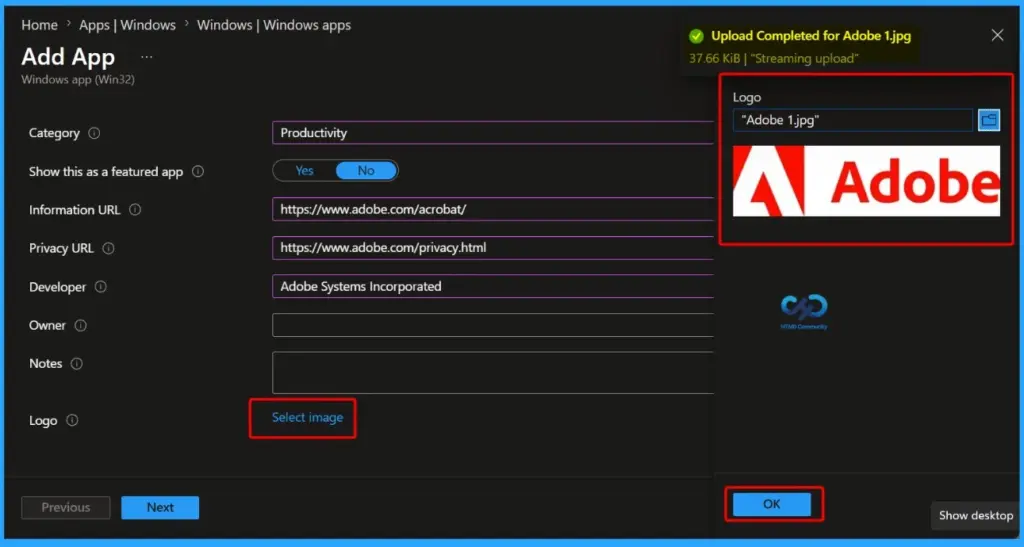
Update the application information by entering details such as the App Name, Description, Publisher, Category, and Logo in the Intune portal. These details help users easily identify the application in the Company Portal and improve app management for administrators.
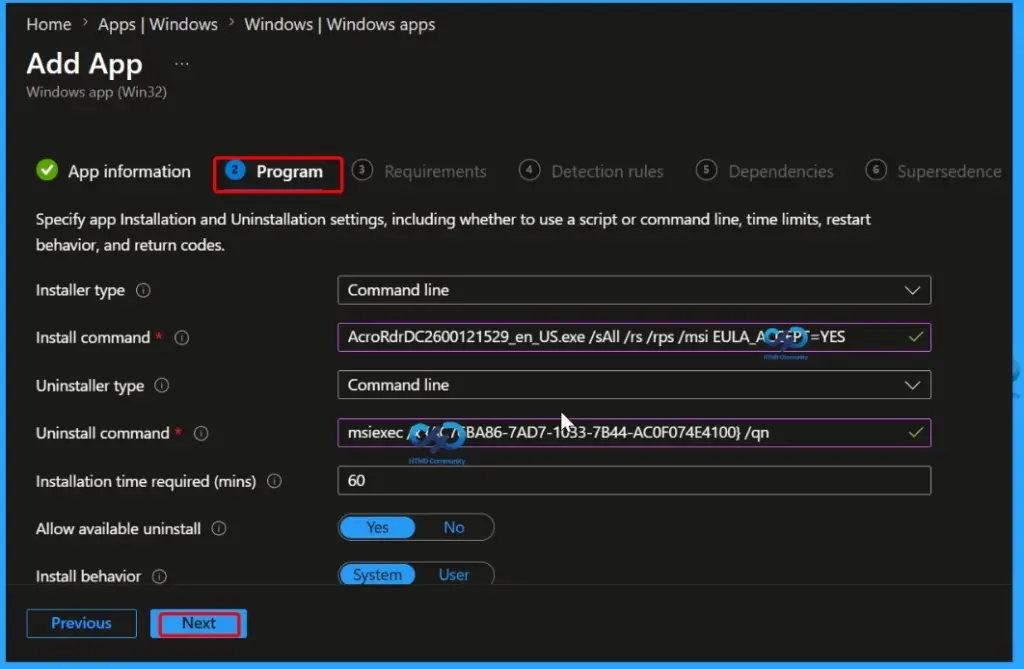
On the Program page, configure the application installation and uninstallation settings for the Intune Win32 app deployment. Add the Install command with the complete command line required to install the application. Add the Uninstall command with the complete command line required to remove the application.
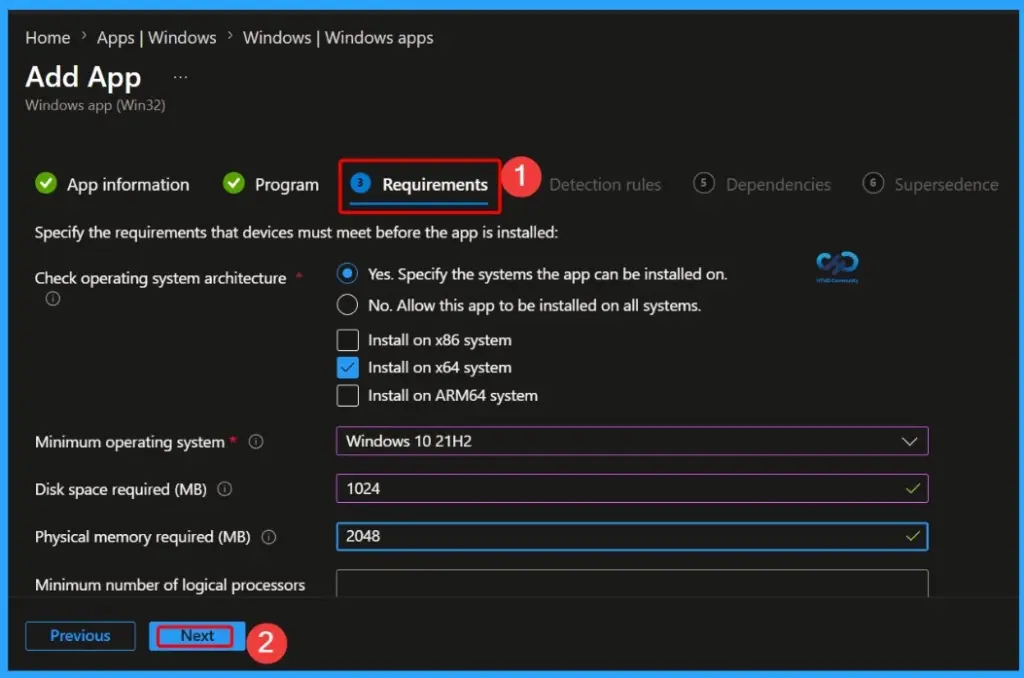
On the Requirements page, configure the minimum device requirements that must be met before the application can be installed. These settings help ensure that the app is deployed only to supported devices. Select the required Operating system architecture, such as 32-bit, 64-bit, or both, depending on the application support. Then choose the Minimum operating system version required for the app installation, such as Windows 10 or Windows 11 versions.
You can choose from built-in and custom requirements rules when creating your Win32 application. Explore Intune Win32 App Requirement Rules.
| Requirements | Details |
|---|---|
| Check operating system architecture | Install on x64 system |
| Minimum operating system | Windows 10 21H2 |
| Disk space required (MB) | 1024 |
| Physical memory required (MB) | 2048 |
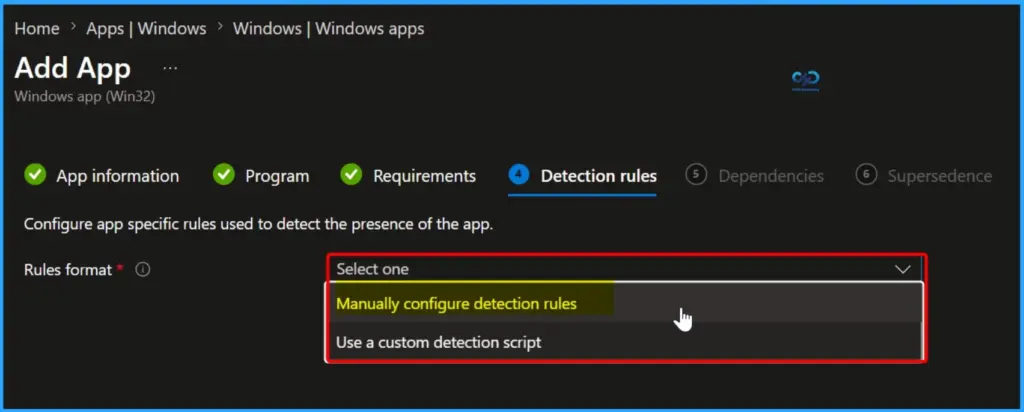
On the Detection Rules page, select the rule format that Intune will use to detect whether the application is already installed on the device. There are two methods available for configuring detection rules.
The first option is Manually configure detection rules, where you can create rules based on MSI product code, file existence, folder path, registry keys, or application version. This is the most commonly used method for standard Win32 applications.
The second option is Use a custom detection script, where you can upload a PowerShell script to check the application installation status. This method is useful for advanced scenarios where standard detection methods are not enough. Intune uses the script result to determine whether the application is installed successfully on the device.
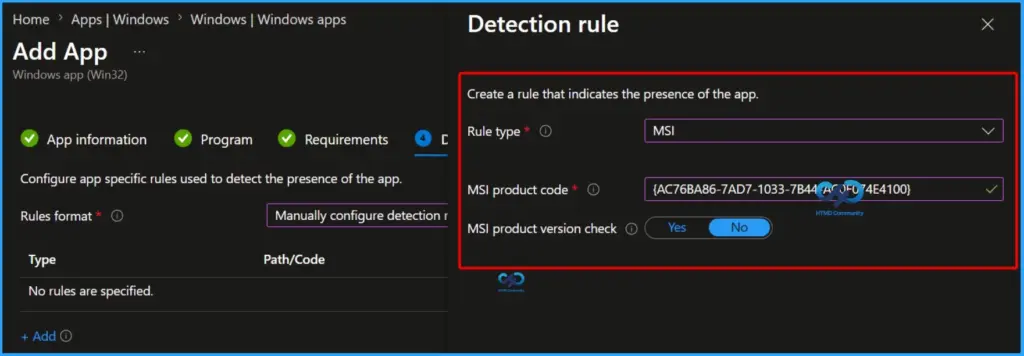
You can choose any one of the following Detection Rule types to identify whether the application is already installed on the device. Detection rules are important because Intune uses them to verify the installation status after deployment. Choose the detection method based on how the application is installed and managed in your environment.
Detection Method for Intune Win32 App.
- MSI – Uses the MSI product code to detect applications installed through MSI packages. This is the easiest and most reliable method for MSI-based apps.
- File – Checks whether a specific file or folder exists on the device. You can also verify the file version if needed.
- Registry – Checks registry keys or values created during application installation.
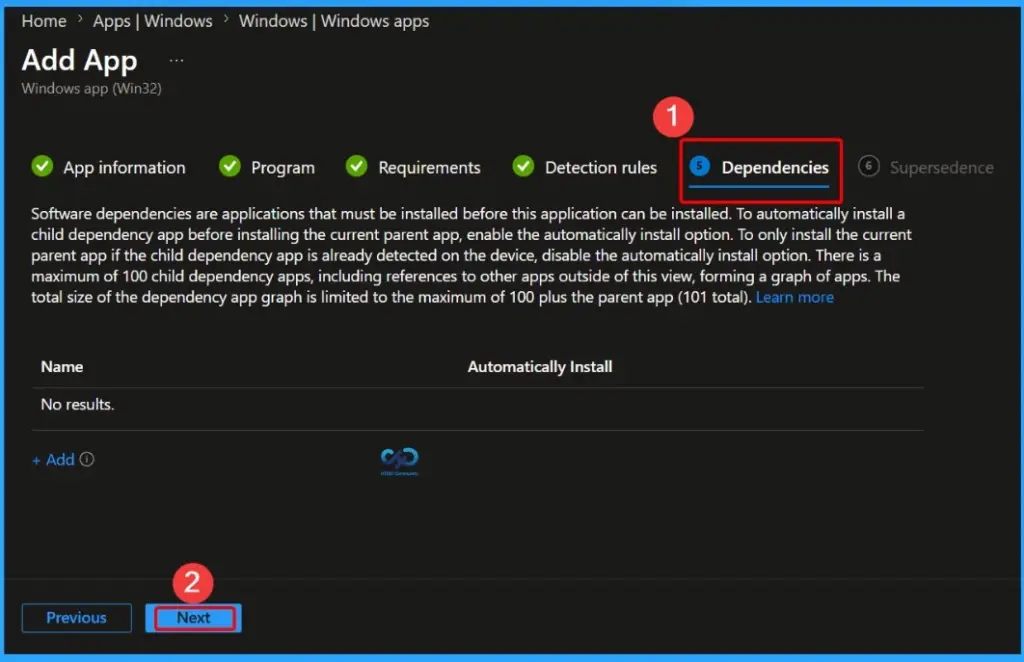
Software Dependencies
Software dependencies are applications that must be installed before this application can be installed. To automatically install a child dependency app before installing the current parent app, enable the automatically install option. To only install the current parent app if the child dependency app is already detected on the device, disable the automatically install option.
There is a maximum of 100 child dependency apps, including references to other apps outside of this view, forming a graph of apps. The total size of the dependency app graph is limited to the maximum of 100 plus the parent app (101 total).
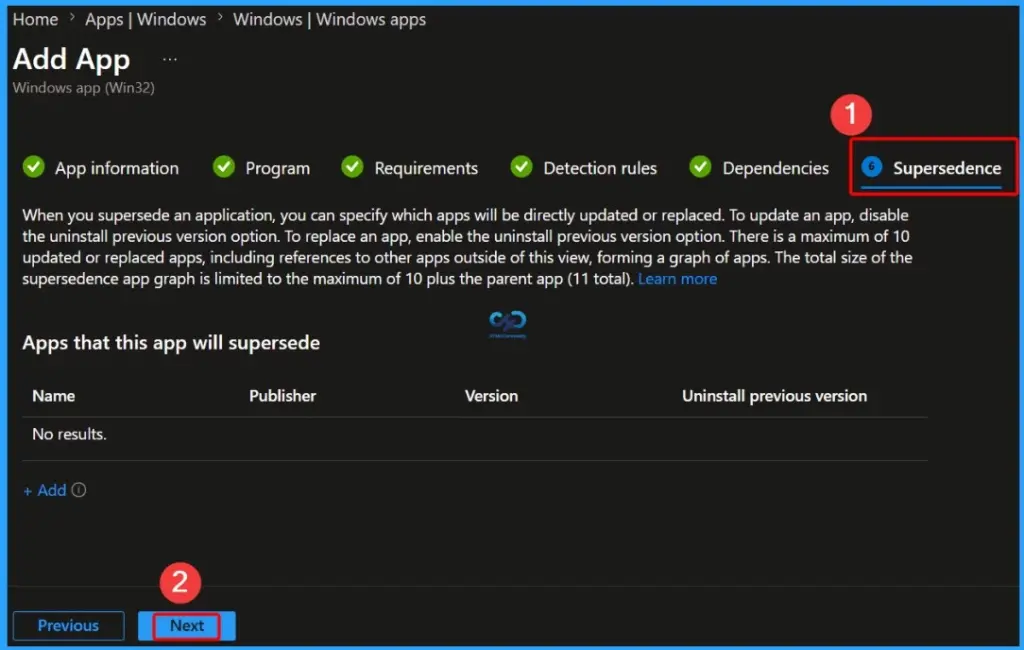
Supersedence
When you supersede an application, you can specify which apps will be directly updated or replaced. To update an app, disable the uninstall previous version option. To replace an app, enable the uninstall previous version option. There is a maximum of 10 updated or replaced apps, including references to other apps outside of this view, forming a graph of apps. The total size of the supersedence app graph is limited to the maximum of 10 plus the parent app (11 total).
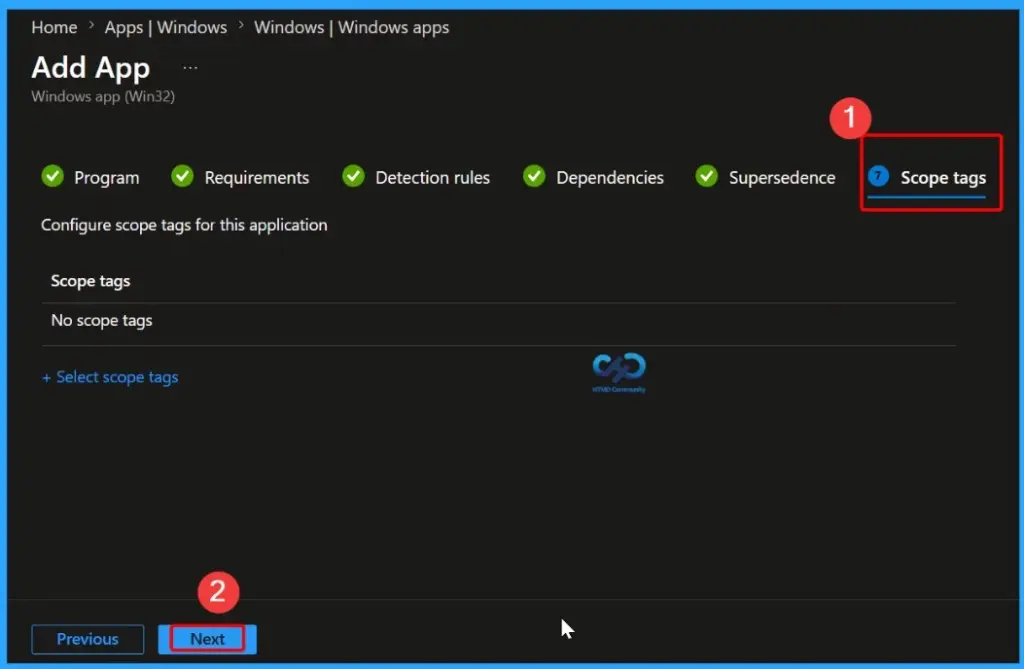
Scope Tags Page
On the Scope Tags page, you can assign scope tags to control which administrators can view and manage the application in Microsoft Intune. Scope tags are mainly used in Role-Based Access Control (RBAC) to limit access for different IT teams or departments.
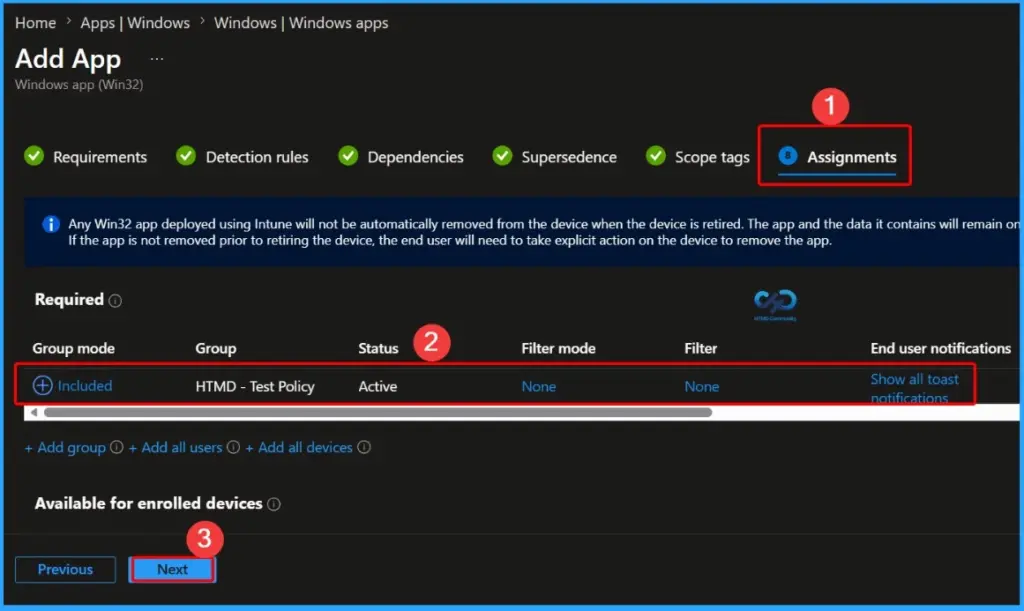
Assignments Page
On the Assignments page, choose how the application will be deployed to devices in Intune. You can use the following assignment types based on your deployment requirements. Here, we select the HTMD Test Policy group as a required group.
- Required – Automatically installs the application on the targeted devices without user interaction.
- Available for enrolled devices – Makes the application available in the Company Portal, allowing users to install it manually when needed.
- Uninstall – Removes the application automatically from the selected users or devices.
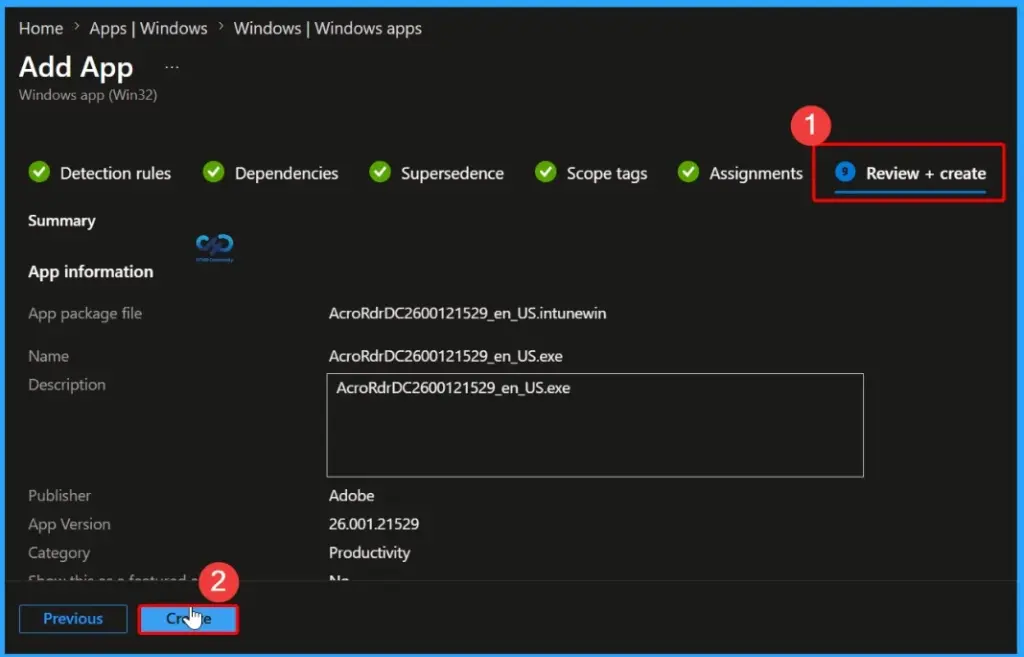
Review + Create
On the Review + Create page, review all the configuration settings for the Win32 application before deployment. Verify details such as the application information, install and uninstall commands, requirements, detection rules, scope tags, and assignments.
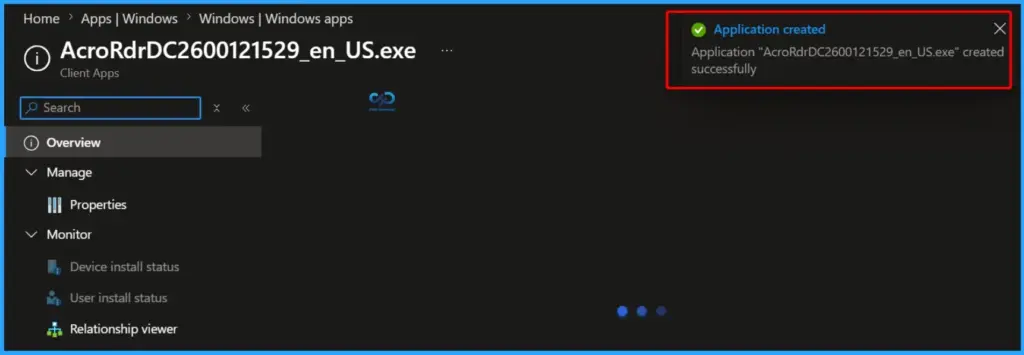
Intune Win32 App Created Successfully
After the Win32 application package AcroRdrDC2600121529_en_US.exe is uploaded and processed successfully, a confirmation notification appears in the top-right corner of the Microsoft Intune portal. This notification confirms that the application has been created successfully.
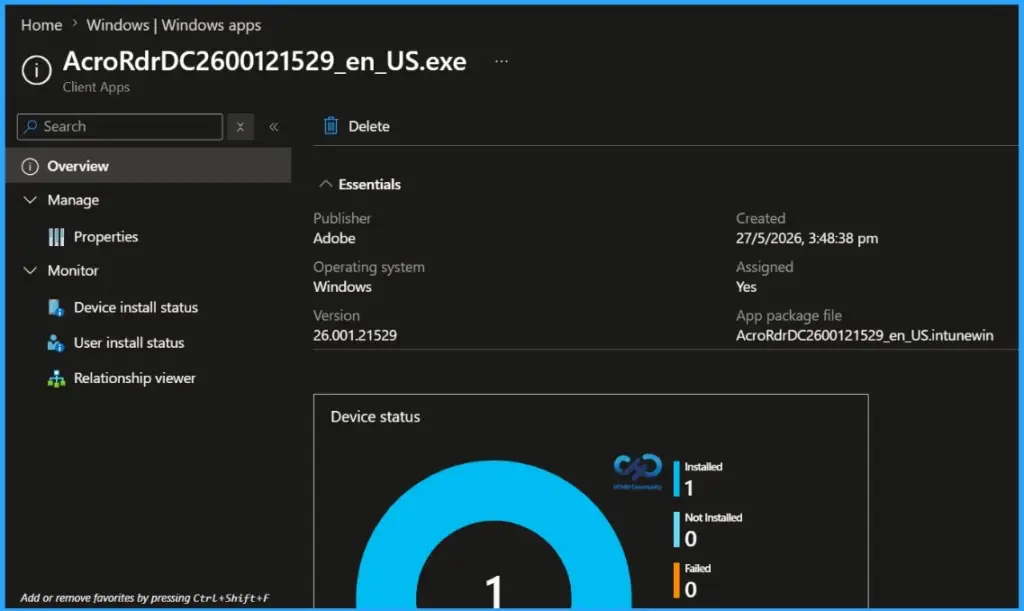
Device Status
Here, you can see that the application has been successfully installed on 1 device. The deployment status page in Microsoft Intune also provides additional details such as the Publisher name, Operating System, Application version, Created date and time, Assignment status, and installation results. These details help administrators monitor the deployment status and verify whether the application installation was completed successfully on the targeted devices.
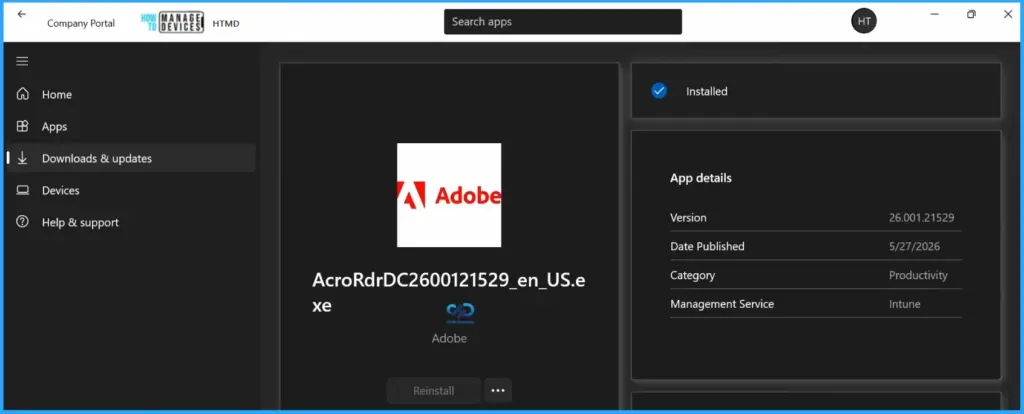
End User Experience
You can also verify the application on the assigned device. Open the Start Menu, search for Company Portal, and launch the application. Then go to Downloads & updates, where you can view the deployed application details, installation status, version information, and available updates. This helps users confirm that the application has been successfully deployed through Microsoft Intune.
[Intune Win32 App Deployment Troubleshooting post – Intune Win32 app Troubleshooting
Need Further Assistance or Have Technical Questions?
Join the LinkedIn Page and Telegram group to get the latest step-by-step guides and news updates. Join our Meetup Page to participate in User group meetings. Also, join the WhatsApp Community and the Whatsapp channel to get the latest news on Microsoft Technologies. We are there on Reddit as well.
Resources:
Intune Troubleshooting – https://www.anoopcnair.com/configuration-profile-settings-view/
Author
Vimal has more than ten years of experience in SCCM device management solutions. His primary focus is Device Management technologies like Microsoft Intune, ConfigMgr (SCCM), OS Deployment, and Patch Management. He writes about SCCM, Windows 10, Microsoft Intune, and MDT.
what is the MSI product key and where can i find it?
I dint got your question completely..
Are you referring MSI product key configured in Intune console for detection logic ? Intune console will automatically detect MSI key if you select the MSI file for detection logic.
If MSI is installed successfully in the system then you can verify registry – HKEY_LOCAL_MACHINE\Software\Microsoft\Windows\CurrentVersion\Uninstall
Hi Anoop,
I need to deploy a application as win32 app to Windows Autopilot devices, the app has a has a prerequisite of .net 3.5, do you know how how I could use a batch file to install .net 3.5 first and then install the app?
Thanks
Steve
Currently intune cannot natively handle application dependency.Many users voted for this feature as mentioned in the below URL.
https://microsoftintune.uservoice.com/forums/291681-ideas/suggestions/8307447-priority-based-application-deployment
In batch file , we may have to handle it manually. Like Calling .net 3.5 installation first , add some pause and then call remaining apps.
Steve – It’s under development. You will soon see Win32 app deployment (sidecar) with dependency feature https://docs.microsoft.com/en-us/intune/in-development#enable-win32-app-dependencies-
Hello Anoop,
I am trying to deploy win 32 application as ‘available’, but I am not able to see the application in company portal, but when I deploy the windows store applications as available, I can see those windows store applications in Company portal. Also, I can deploy the application as required and it is installing perfectly fine, the problem is only with the win 32 apps deployed as “Available”
Hello Harsha,
Did you tried deploying application as “Available” for User Azure AD group or Device group ?
I tried from my side and its showing up for me.
Is that apps showing in Company portal web URL ? .. https://portal.manage.microsoft.com/
Hello Vimal,
Sorry for the late reply, I have deployed it to user Azure AD group itself. It doesnt show in the company portal app or the portal web url. we are using intune standalone and all the devices are win 10 1709. Also, wanted to let you know, Intune management extension is not getting installed, I figured that will get installed if the win32 app is deployed without any hiccup, if im not wrong.
Yes Harsha, if win32 app is deployed then only Intune management extension gets installed
So, can you please help me out with this.. is there anything that I need to do ?
Harsha – Can you please explain what are the steps you followed to troubleshoot Intune Win32 App agent installation issues? or Sidecar agent installation issues? I would recommend to start with Windows 10 MDM troubleshooting from event logs. The other step which I advice is to unenroll and enroll back to Intune. Once that is done, please deploy the Intune Win32 packaged application. This should initiate the Win32 app client installation….
Hello Anoop,
I have removed the enrollment and added it back and tried, still the same, but now I am getting the “ADALUseWindowsAuthenticationTenant failed,” and “Automatic registration failed at join phase” (event IDs : 305, 304), when I checked the event log and dsregcmd /status shows Azureadjoined = no
Is this only with one Windows 10 device? What is the version of Windows 10? I would try with another machine if you have not already tried this option. Also, what is the error showing in Intune troubleshooting tab? Pending for Install?
You reference using an install and uninstall script, how exactly did you write that? My familiarity with batch scripts is limited but would it just be msiexec /i software.exe /s or /quiet /QUIET /S /Silent (what is required)?
Normally i test the application install/uninstall commandline manually. If its sucess , Then i copy the same commandline to batch file and deploy using Intune. Commandline is based on the file type you are using.Please Test commandline manually before trying with Intune.
Another point is Intune automtically detect the Installation commandline if you specify the MSI file while Preparing Intunewin file format.You can open the Detection.xml and verify.
Hello!
What is the content of the install.cmd and unistall.cmd scripts?
What is the difference between creating the cmd file or adding the commands manually to the Intune portal in “specify the commands …”?
Technically there is no difference ..you can directly mention command line and it will work
But in real production scenario , Packaging team always follow a standard process like using install and uninstall script
Hi – is anyone else having trouble selecting the ‘user’ context for Install Behavior on the ‘Program’ pane? For me it’s greyed out, which means my app won’t be installed with admin privileges…
Hey Joe,
Could you figure this out? I too am facing the same problem with one of my deployments. I do see this option as enabled for other packages, but I have no clue why it is greyed out for just one specific package that I am trying to deploy.
Thanks,
Kris.
https://superuser.com/questions/1484434/microsoft-intune-install-behavior-disabled
Hello Anoop,
Is there a way to deploy the app in 64-bit mode? regkey imports are added in the WOW6432Node registry. I can’t find a way to add them in the native hive.
Please check below link for more details on 32-bit or 64-bit process behavior in Intunewin32 apps
you need lauch the cmd in 64 bit context
https://www.anoopcnair.com/intune-win32-app-deploy-system32-vs-syswow64/
Hello,
Thank you for your reponse. I have solved my problem.
Best regards
Wietse
Please check below link for more details on 32-bit or 64-bit process behavior in Intunewin32 apps deployment
https://www.anoopcnair.com/intune-win32-app-deploy-system32-vs-syswow64/
Hi – Can this tool be used to package applications with out silent switches.
intuneWinAppUtil.exe is just a prep tool to wrap the apps so that intune can deploy. This tool is not for app packaging.
Yeah you can so that with Microsoft Intune Application model using IntuneWin https://howtomanagedevices.com/intune/1092/intune-application-model-guide/
@Wietse – How did you solve your problem of:
“Is there a way to deploy the app in 64-bit mode? regkey imports are added in the WOW6432Node registry. I can’t find a way to add them in the native hive.”
We are experiencing the exact same issue.
Well, in my case what i did:
Created a Windows app (win32) App type:
I had a reg file that needed to be imported. I used “reg import ….” and changed the command to:
reg IMPORT run.reg /reg:64
Now the keys are added to the native hive, simple but it worked.
If you only need to deploy some keys, maybe you can also use Powershell scripting, this one has the option “Run script in 64 bit PowerShell Host”.
Greetings
Thank you! Will give this a try
Hii All,
I get some error during creation of .Intunewin File “Entries more than 4Gb are not supported in update mode”
Please help me on the same.
Regrads
Kamal
May be this is a known issue or a feature. Did you raise a ticket to fix this or check with please
Please check if you are using the latest version of Intune Win32-Content-Prep-Tool.
Also noticed similar issue reported –
https://github.com/Microsoft/Intune-Win32-App-Packaging-Tool/issues/6
I think you have an error in how the Packaging tool. You point to acrordr.exe instead of the full path for the installer application c:\software\adobe\acrordr.exe. According to the documentation and testing you need to put the full path to the installer. Also in the latest version of the pacakge intunewin file, when you go to extract it, you cannot access the installer files directly (I.E. cannot see what is packaged).
Hi Anoop/Vimal,
I have created a package using PowerShell Deployment Tool with some steps for Pre-Installation and Post-Installation. The Application is getting installed successfully, but the pre and post installations are not working. Can you please hep me on this?
Hi Anoop,
I am struggling with Visual Studio 2019 installation via Intune. I have tried to prepare offline installation files but when downloaded, they take cca 40 GB. I know there is a cap of 8 GB per package in Intune. If I run the vs_enterprise.exe –quiet, in Company portal it hangs in “Installing” status for a while, and then fails.
Thank you
Hello,
I am installing adobe reader using the prep tool. The endpoint downloads the bin file in incoming folder but fails after that. Its not moving to Staging folder, please advise
Thanks,
Have you checked the log file? as mentioned in the https://www.anoopcnair.com/intune-win32-app-troubleshooting/
Hello Anoop,
Can you provide the text content of your Install and Uninstall bat files?
Hello Andre – This is install/uninstall the basic commands.
Hi Anoop
Is it possible to package a BIOS update app to be deployed using InTune? It would be likely using a BIN file with Setup Information file.
I think you can deploy all the apps that you can deploy from SCCM using the Win32 app model or the InutneWin model.
I have WinEXE application in C#, .NET Framework 4.6
Whenever a user is trying to it deploy through Intune, a command prompt is shown.
The same exe works fine with other bulk deployment tools like SCCM.
How do I suppress all prompts or make complete silent installation through Intune?
I think you are mentioning a command prompt popup and it goes away quickly? What is the command line that you mentioned while creating Win32 app?
IntuneWinAppUtil.exe does not work on Windows 11! Typical Microsoft….
Well, I have tested this with Windows 11 build and it worked fine https://www.anoopcnair.com/intunewinapputil-exe-windows-11-compatibility/. Am I missing something here, sir?
Hi Anoop,
I am a beginner in intune, we have all windows 10 devices on prem AD joined managed by sccm. there is a requirement to manage some of these devices through intune as they are mostly off the network and require company resources and applications/email access. what is the best method to enroll and manage them through intune? is it mandatory to configure co-management to enroll the domain joined windows pc. can I just HAADJ and manually or auto enroll the devices? (irrespective of sccm client on them)
Hi Anoop,
We have ConnectWise Manage Client 64-bit imported as a Windows MSI line-of-business app and not Win32.
Now I have to automate removing and installing the new version of ConnectWise Manage Client Windows MSI line-of-business app.
Do you know if this is possible with .msi I can’t find any docs for it .
Regards
Tim
Hello,
I have been struggling with deploying applications within User context through Intune. I noticed you had mentioned this in your post above.
Limitations of Win32 App Deployment / Intune Management Extension
Now check the limits of Win32 App Deployment or Intune Management Extension.
User context app installation is not available.
Is User context app install limited? There is an option even in the screenshots you provided that show the option for Install behavior to be set to either System or User. Does this not control the context by which the application is installed? If I package the .msi as .intunewin, upload to Intune and deploy, even with an ALLUSERS=”” set, the application installs under C:\Program Files.
Hi Anoop, i like this
what about automated packaging, is it worth it? Use the app Pckgr or scapman for faster package or why not?
Hi All,
Can i get a cmd line for Install.cmd and Uninstall.cmd please?
This is a good article describing the process of win 32 apps publishing in Intune. I have a question about MSI self healing and repair using Add Remove programs. Since Intune deletes the source upon install completion, how is self heal or repair handled when the original source no longer exists? Or is this not an issue any more? Please advise if you or microsoft might have a solution for this.
Hi,
is there a possibility if we can wrap the remote update manager in win32 application and can update the adobe applications through this. any article to refer or any suggestion on commands and detection rules with detailed instructions or what file needs to be uploaded as package whether it should be remote update manager or the adobe application. I am new to Intune but struggling from past some days.
Hey,
Great article!
If I run a Win32 app under the SYSTEM behavior, how can I get the current username or the session of the user for whom Intune is deploying the installation?