

Key Takeaways :
- Antivirus policies in Microsoft Intune are part of Endpoint Security.
- Tamper Protection Policy blocks attempts to modify or disable key Microsoft Defender Antivirus settings (e.g., real-time protection, cloud-delivered protection, exclusions).
- Even local administrators or malware cannot override these settings.
- Tamper Protection works seamlessly with Defender for Endpoint plans (P1, P2, Business).
- Get-MpComputerStatus | Select IsTamperProtected is the PowerShell command used check the Tamper Protection status on the local machine
Let’s learn how to enable or disable Tamper Protection in Microsoft Intune using Endpoint Security Antivirus Policy. This article will help you understand how to allow Tamper Protection in Microsoft Defender for Endpoint using Endpoint Security Antivirus Policy.
Microsoft Defender Antivirus provides strong protection for Windows devices against malware and other security threats. It is designed to safeguard systems by detecting and neutralising harmful software, ensuring that users can operate their devices securely. Alongside this, Microsoft Intune offers a cloud-based platform that allows organisations to manage and secure their devices and applications from a centralised location. Together, these tools form a comprehensive approach to endpoint security.
Within Intune, administrators can implement endpoint security Antivirus policies to manage device security settings. These policies function in a way similar to configuration templates, grouping related settings into logical collections. By applying these policies, organisations can ensure that their devices consistently adhere to established security standards, reducing the likelihood of vulnerabilities and misconfigurations across the network.
The use of Antivirus policies in Intune also enables security teams to deploy and configure Microsoft Defender uniformly across all managed devices. This consistency helps maintain a strong security posture across the organisation, minimising risks and ensuring compliance with internal and external requirements. Ultimately, the combination of Microsoft Defender and Intune provides a scalable and reliable solution for protecting modern device fleets.

Table of Contents
What is Tamper Protection?
Tamper protection in Microsoft Defender for Endpoint is designed to safeguard critical security settings, such as virus and threat protection, from being disabled or altered. Cyber attackers often attempt to weaken defences by turning off these features, which can give them easier access to sensitive data, allow malware installation, and enable exploitation of devices and identities. By preventing unauthorised changes, tamper protection helps ensure that essential security measures remain active and effective against such threats.
- An Easy Method to Enable Tamper Protection for macOS using Intune
- How to Configure Check for Signatures before Running Scan Policy using Intune
- How to Allow or Block Email Scanning using Intune Policy
- Allow or Disallow Scanning of Archives using Intune Policy
This capability is part of Microsoft’s broader anti-tampering protections, which also include attack surface reduction rules. Together, these built-in protections strengthen the overall security posture of devices by reducing opportunities for malicious actors to compromise systems. Tamper protection plays a vital role in maintaining consistent and reliable defence across managed environments.
Tamper protection is supported on a wide range of operating systems. It is available for Windows 10 and 11 (including Enterprise multi-session), Windows Server 2016 and later, Windows Server version 1803 or later, and Windows Server 2012 R2 when using the modern unified solution. It also extends to Azure Stack HCI OS version 23H2 and later. Additionally, tamper protection is available for macOS, though its functionality differs slightly from Windows. This cross-platform support ensures organisations can applytamper protection across diverse device fleets.
Requirements for Managing Tamper Protection in Intune
Let’s review the requirements for managing Tamper Protection in Intune. The table below outlines the specific details of these requirements. Thanks to Microsoft for providing such a comprehensive and detailed reference table on the prerequisites and conditions for managing Tamper Protection in Intune.
| Requirement | Details |
|---|---|
| Roles and permissions | You must have appropriate permissions assigned through roles, such as Security Administrator. See Microsoft Entra roles with Intune access. |
| Device management | Your organisation uses Configuration Manager or Intune to manage devices. Co-managed devices aren’t supported for this feature. |
| Intune licenses | Intune licenses are required. |
| Operating System | Windows devices must be running Windows 10 version 1709 or later or Windows 11. |
| Security intelligence | You must be using Windows security with security intelligence updated to version 1.287.60.0 (or later). |
| Antimalware platform | Devices must be using antimalware platform version 4.18.1906.3 (or later) and the anti-malware engine version 1.1.15500.X (or later). |
| Microsoft Entra ID | Your Intune and Defender for Endpoint tenants must share the same Microsoft Entra infrastructure. |
| Defender for Endpoint | Your organisation uses Configuration Manager or Intune to manage devices. Co-managed devices aren’t supported for this feature. |
- End of Defender Application Guard for Office
- Free Microsoft Defender for Endpoint MDE Training Videos
- Turn on Real-time Monitoring Antivirus policy for Microsoft Defender in Intune
Enable Tamper Protection for your Organisation Using Microsoft Intune Antivirus Policy
Let’s learn how to enable Tamper Protection for your Organisation Using Microsoft Intune Antivirus Policy. Please make sure you have enough access to create the Intune policy.
- Sign in to the Microsoft Intune Admin Portal with your credentials.
- Select Endpoint security > Antivirus > Create Policy.
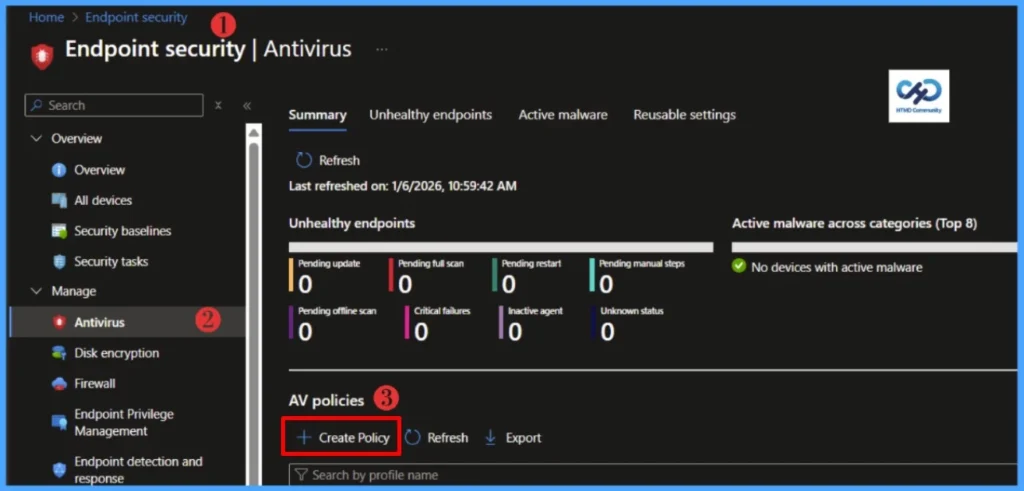
On the Create a profile flyout that opens, select Windows as the platform and Windows Security Experience as the profile, then click Create.
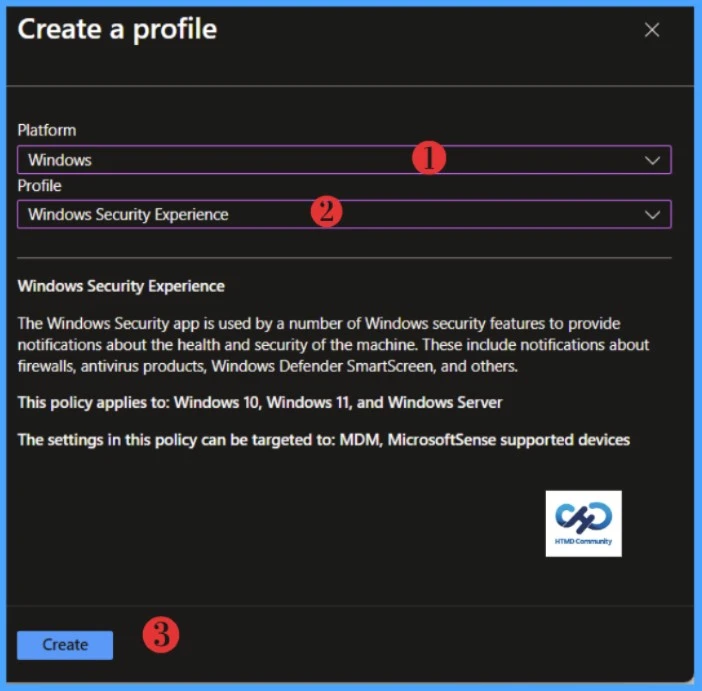
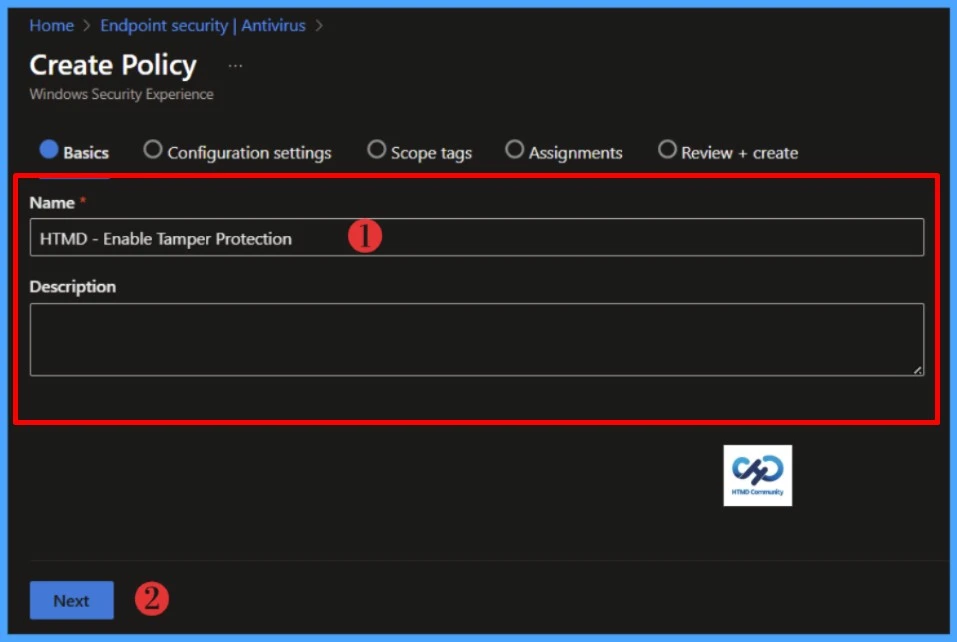
When the Create policy wizard opens, navigate to the Basics tab and configure the required settings. Provide a unique and descriptive name for the policy in the Name field, and optionally add further details in the Description field. Once these entries are complete, select Next to continue with the policy creation process.
- Antivirus Agent Status Intune Report | Endpoint Manager
- Monitor Intune App Protection Policy Status
- Monitor Device Enrollment Profile Deployment Report in Intune
On the Configuration settings tab, Tamper protection (device) is available in the Defender section. Select On, and then select Next.
NOTE! Tamper protection settings are configured with an MDM solution, such as Intune and is available in Windows 10 Enterprise E5 or equivalent subscriptions.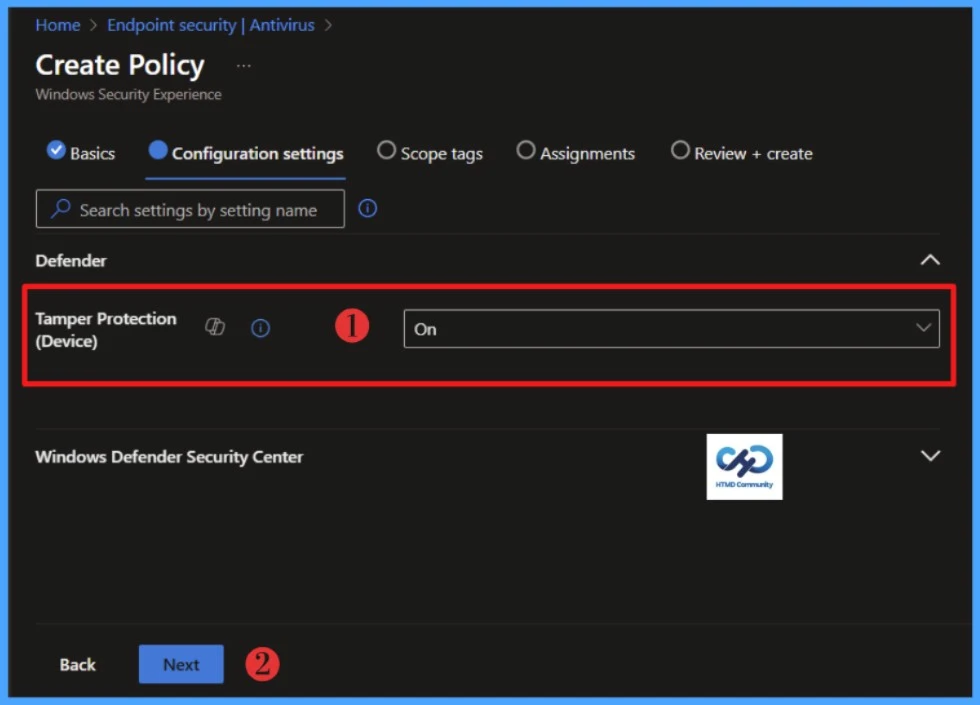
Click Next to display the Scope tags page. Add the Scope tags if you wish, and click Next to assign the policy to computers. I will deploy it to the HTMD – Test Computers Device Group.
Read more : Intune Scope Tags Implementation Guide
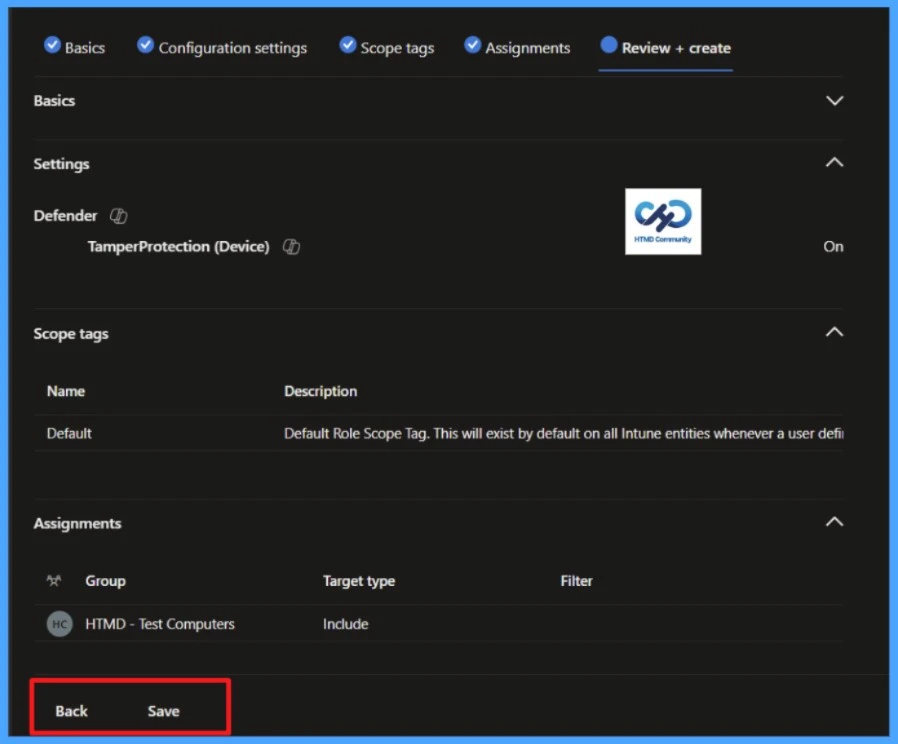
Please take a moment to carefully review all the settings you’ve defined for the Enable Tamper Protection policy on the “Review + Create” page. When you’re ready, select “Save” to implement the changes.
Monitor Configuration Profile Deployment in Microsoft Intune
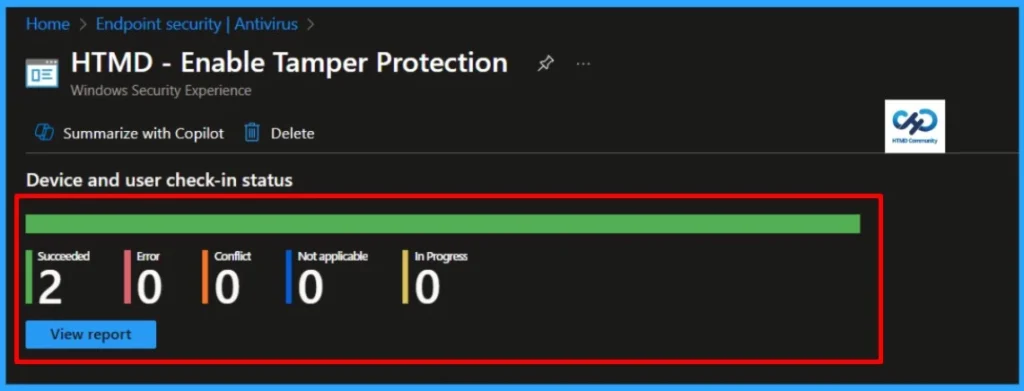
The Antivirus Policy is deployed to Azure AD groups. Let’s see how we can monitor the deployment and status of installation from the Intune portal. To monitor the Intune policy assignment, follow these steps:
- Navigate to the list of Antivirus Policies and select the policy you targeted.
- Check the device and user check-in status from here.
- If you click “View Report,” you can see additional details.
Monitor Antivirus Policy Deployment from the Windows Client Side
Let’s learn how to Monitor Antivirus Policy Deployment from the Windows Client Side. We can monitor Tamper Protection Policy Deployment from the Windows Client Side using different methods.
- Antivirus Agent Status Intune Report | Endpoint Manager
- Monitor Intune App Protection Policy Status
- Monitor Device Enrollment Profile Deployment Report in Intune
You can use the below PowerShell command to check the Tamper Protection status. Open PowerShell as administrator and run the command.
Get-MpComputerStatus | Select RealTimeProtectionEnabled, IsTamperProtected
End User Experience
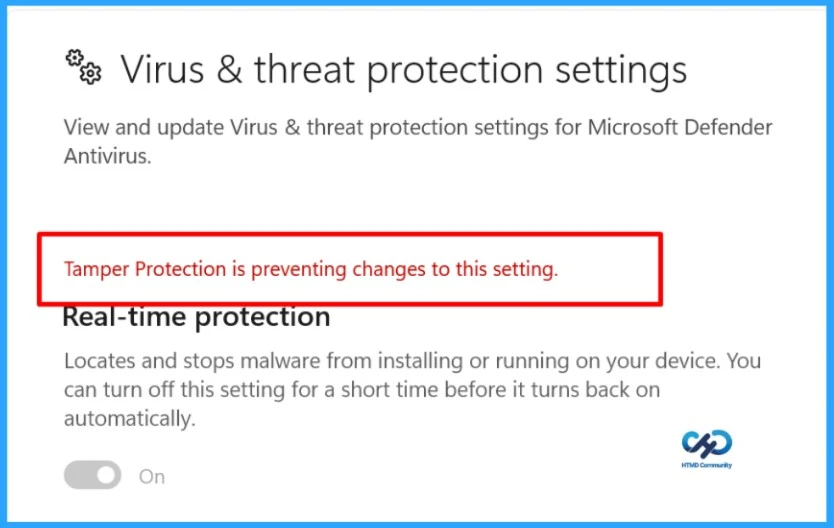
We’ve deployed the Tamper Protection policy to Entra groups. Let’s walk through what the end‑user experience looks like once it’s turned on.
- In Windows 10 or 11 devices, in the search box, type Windows Security and then select Windows Security in the list of results.
- In Windows Security, select Virus & Threat Protection.
- Scroll down to the Virus & Threat Protection settings and select Manage settings.
- You can see a message stating Tamper Protection is preventing changes to this setting
I trust that this article will significantly benefit you and your organisation. I appreciate your patience in reading this post. I look forward to seeing you in the next post. Keep supporting the HTMD Community.
Need Further Assistance or Have Technical Questions?
Join the LinkedIn Page and Telegram group to get the latest step-by-step guides and news updates. Join our Meetup Page to participate in User group meetings. Also, Join the WhatsApp Community to get the latest news on Microsoft Technologies. We are there on Reddit as well.Author
About the Author: Sujin Nelladath, a Microsoft Graph MVP with over 11 years of experience in SCCM device management and Automation solutions, writes and shares his experiences with Microsoft device management technologies, Azure, DevOps and PowerShell automation.