
Key Takeaways
- Configure a time limit to automatically remove disconnected Remote Desktop Services sessions from the server after the specified duration.
- The default timeout for Windows 365 Flex shared Cloud PCs is 30 minutes.
- Select Never if you want disconnected sessions to remain active indefinitely, which is also the default behavior.
- Console sessions are excluded, so disconnected session time limits do not apply to them.
- If the policy is disabled or left unconfigured, Remote Desktop Services keeps disconnected sessions for an unlimited time by default.
In this article, I am going to explain how to set a time limit for disconnected sessions on Windows 365 Shared Cloud PCs using Microsoft Intune. This policy setting helps administrators define how long a disconnected Remote Desktop Services session can remain active on the server. Normally, users can disconnect from a remote session without signing out, allowing their applications and processes to continue running in the background. By default, these disconnected sessions remain active on the server indefinitely unless a specific time limit is configured.
Table of Content
Table of Contents
Set Time Limit for Disconnected Sessions – TS_SESSIONS_Disconnected_Timeout_2
The table below provides a brief overview of the policy scope, Windows editions, and applicable operating systems, along with the minimum required patch (KB) details.
| Scope | Editions | Applicable OS |
|---|---|---|
| ✅ Device ❌ Use | ✅ Pro ✅ Enterprise ✅ Education ✅ IoT Enterprise / IoT Enterprise LTSC | ✅ Windows 10, version 2004 with KB5005101 [10.0.19041.1202] and later ✅ Windows 10, version 20H2 with KB5005101 [10.0.19042.1202] and later ✅ Windows 10, version 21H1 with KB5005101 [10.0.19043.1202] and later ✅ Windows 11, version 21H2 [10.0.22000] and later |
- Microsoft Dev Box Moves to Maintenance Mode as Windows 365 Takes Lead for Developer Scenarios
- How to Set Time Limit for Active But Idle Remote Desktop Services Sessions on Windows 365 Flex with Intune
- Snapshot-Based Reset for Windows 365 Frontline in Shared Mode
- 4 Primary Ways to Connect Windows 365 on Windows and Microsoft Teams Optimizations on Windows App
Create a Configuration to Set Time Limit for Disconnected Sessions in Intune
To Set Time Limit for Disconnected Sessions on Windows 365 Flex shared Cloud PCs using Microsoft Intune, follow these steps. First, sign in to the Microsoft Intune Admin Center with your administrator credentials.
- Navigate to Devices > Windows > Manage devices > Configuration
- Click on +Create > +New Policy
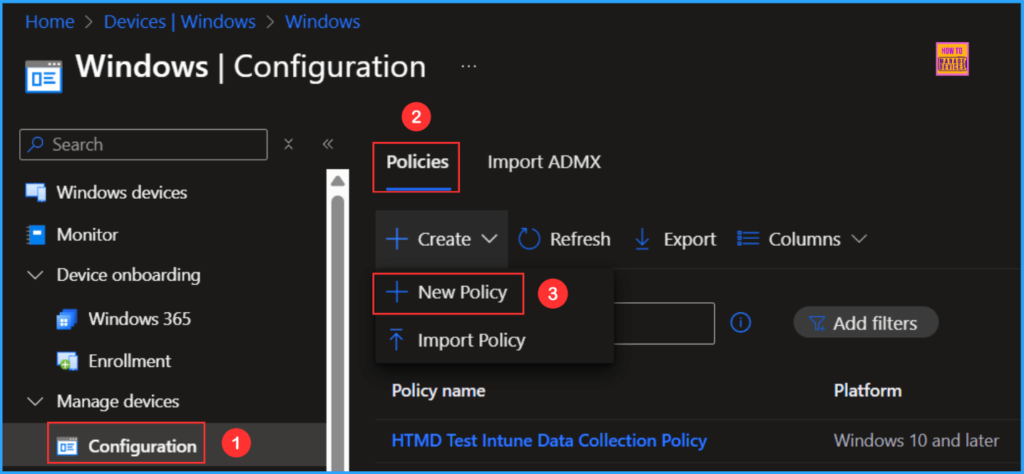
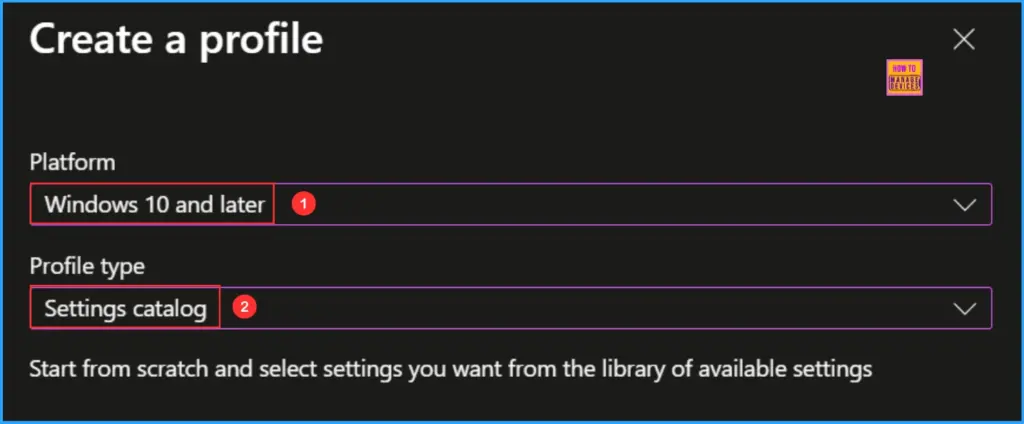
Next, we will create a new configuration profile from scratch. First, need to provide the options mentioned below. The settings catalog is a library of available configurations in Intune.

- Platform: Windows 10 and later
- Profile type: Settings catalog
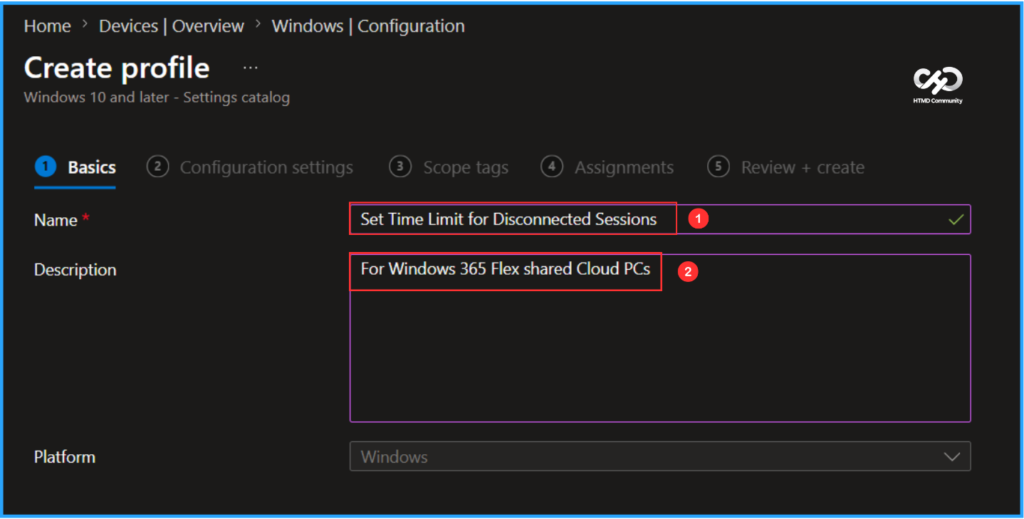
In the Basics details pane, name the configuration policy as “Set Time Limit for Disconnected Sessions.” It is also helpful to provide a brief description of the policy’s purpose. In this case, I have applied it for Windows 365 Flex shared Cloud PCs. After that, click Next.
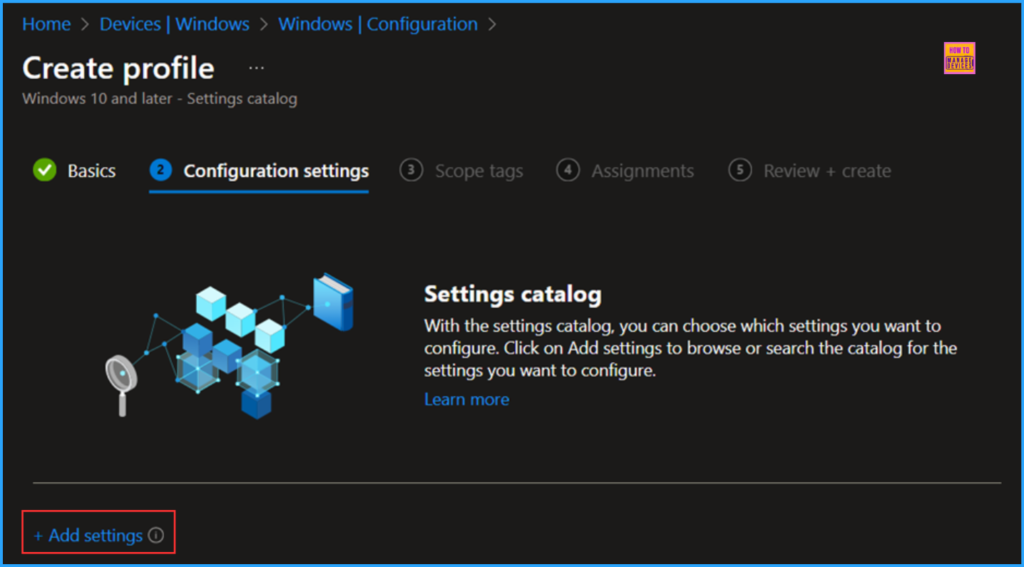
We can now add the necessary settings to the Configuration settings pane. To do this, click +Add settings in the bottom-left corner of the page.
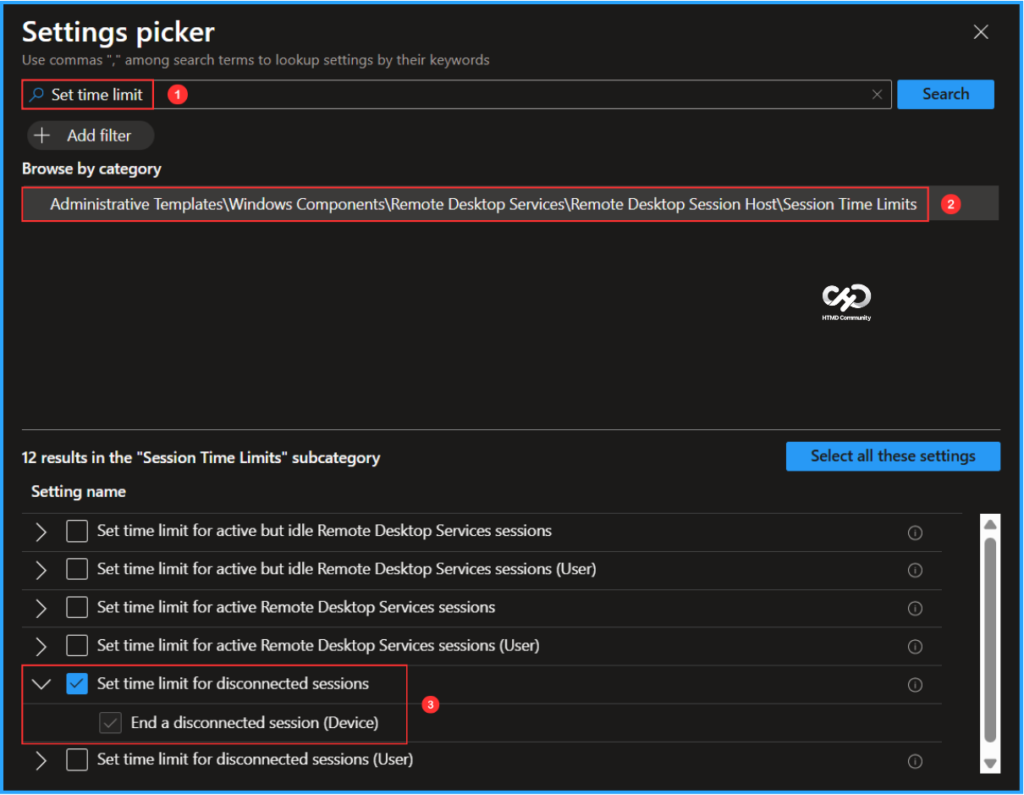
Search for “Session time limit” as your keyword. This will help us find the appropriate policy based on your current needs. Next, navigate to the category labelled Administrative Templates\Windows Components\Remote Desktop Services\Remote Desktop Session Host\Session Time Limits. Click on it, then check the option “Set Time Limit for Disconnected Sessions” Finally, close the Settings picker window.
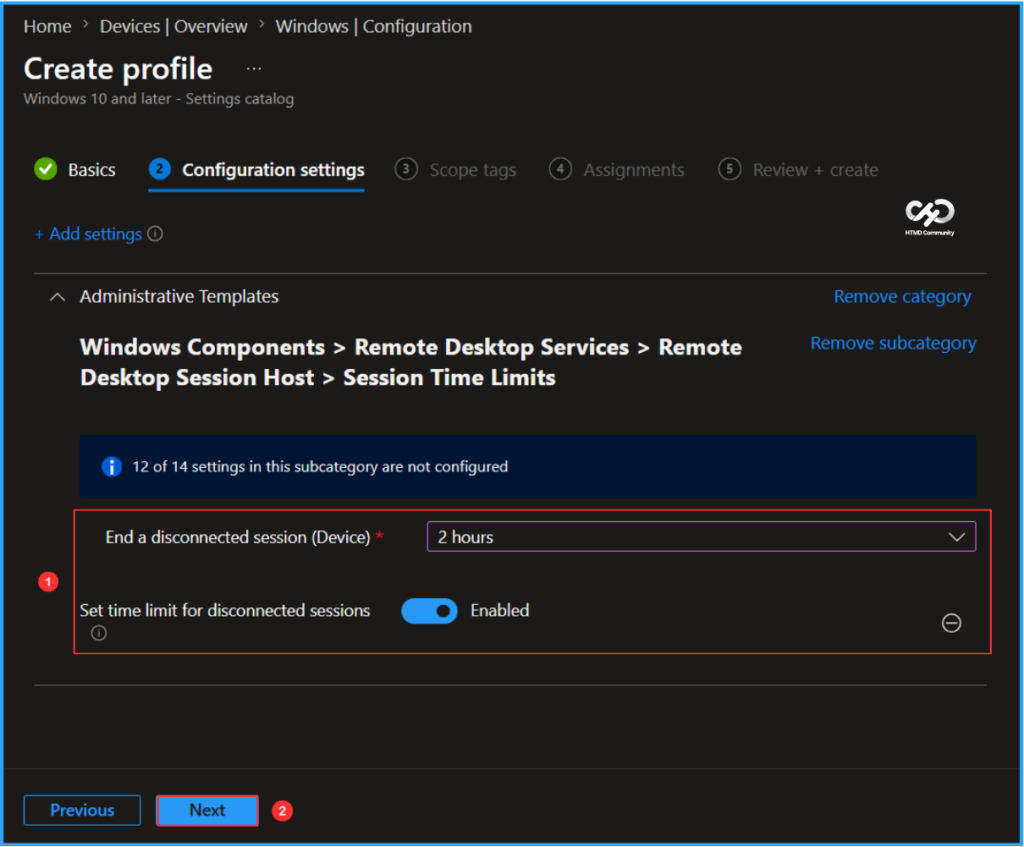
On the Session Time Limits configuration settings page, make sure to enable the option for Set Time Limit for Disconnected Sessions. Additionally, set the End a disconnected session (Device) to 2 hours, and then click Next.
Note: This policy setting is available under both Computer Configuration and User Configuration. When both are configured, the Computer Configuration setting takes precedence.
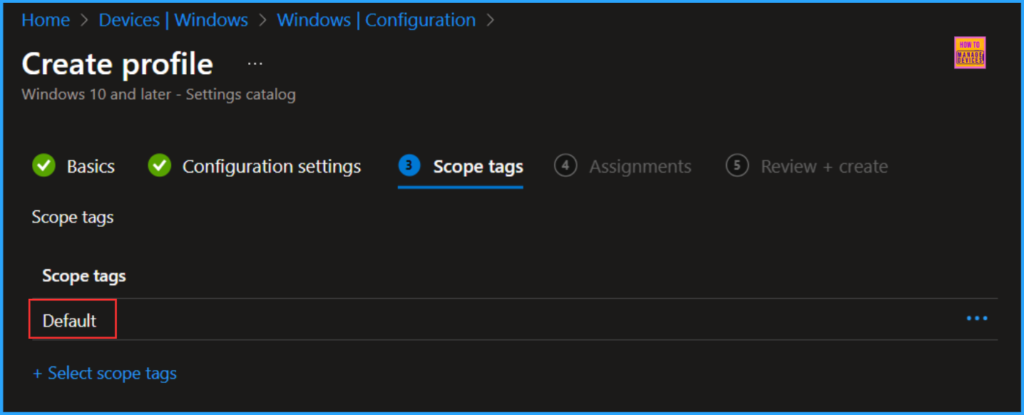
On the next page, leave the Scope tags as Default. If your tenant has custom scope tags, you can select them based on your policy needs, then click on Next.
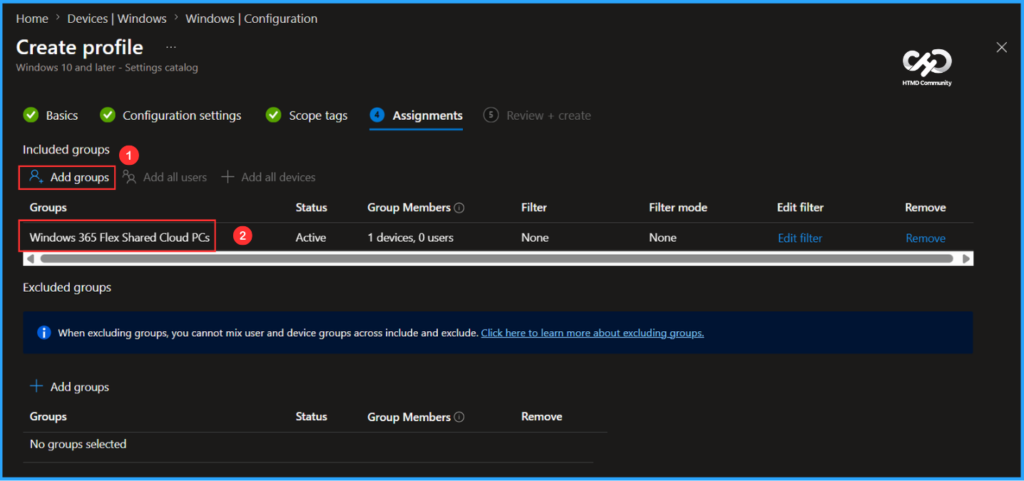
I am assigning the configuration policy to the Windows 365 Flex Shared Cloud PCs device group. To do this, click Add groups, then select the desired device group under the Included groups option. In this example, I am not using any filters, and I have left the Excluded groups option blank.
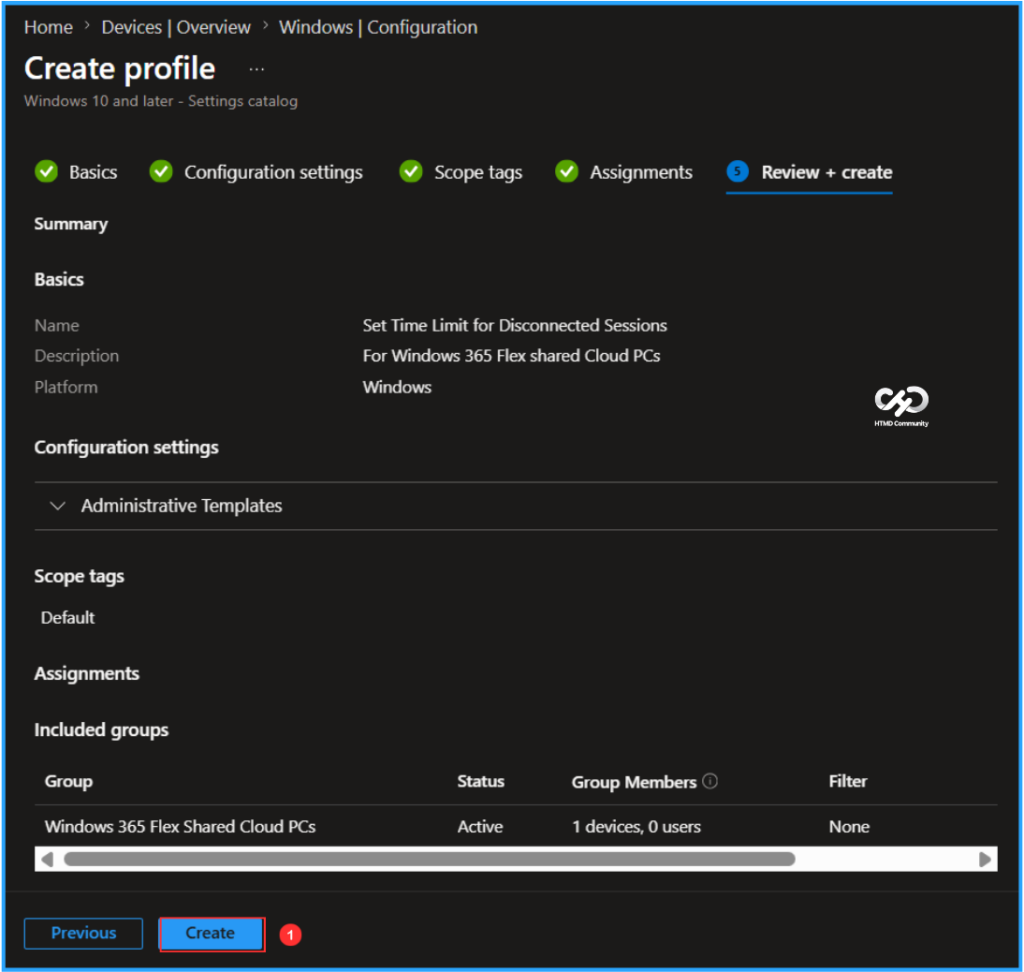
On the Review + create page, carefully review all the settings you’ve defined for the Set Time Limit for Disconnected Sessions policy. Once you’ve confirmed everything is correct, select Create to deploy the policy.
- How to Setup Windows 365 Cloud PCs with Autopilot Device Preparation
- How to Create Remote Connection Experience Settings for Windows 365 Cloud PCs
- How to Set Alert for Windows 365 Cloud PCs in Grace Period using Intune
Monitor the Set Time Limit for Disconnected Sessions Policy Deployment
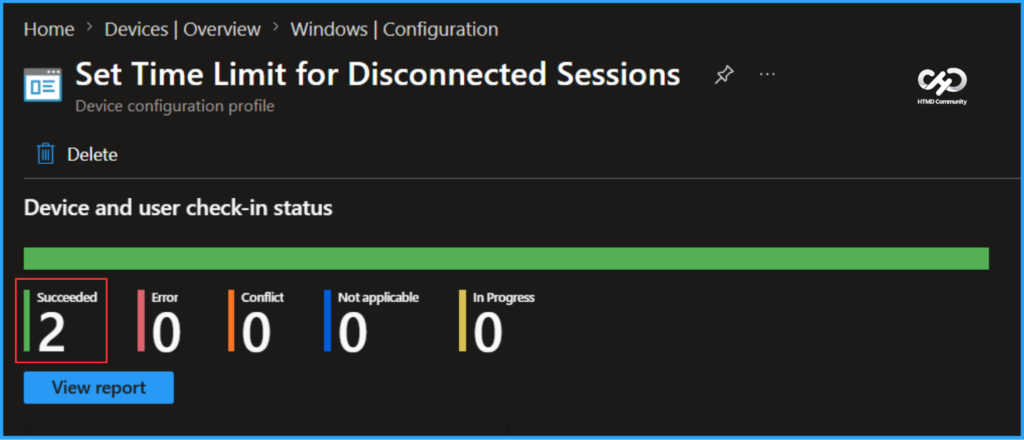
The configuration policy has been deployed to the Windows 365 Flex Shared Cloud PCs Microsoft Entra ID Device group. Once the Cloud PC is synced, the policy will take effect immediately. To monitor the policy deployment status from the Intune Portal, follow the steps below
- Navigate to Devices > Windows > Configuration > Search for the Set Time Limit for Disconnected Sessions configuration policy.
- Under the Device and user check-in status, you can see the policy’s deployment status
Intune Event Log Analysis
We can now verify if the Set Time Limit for Disconnected Sessions policy is functioning correctly. First, log in to the device that is affected by the policy. Then, check the policy’s status using the Intune Event Logs. To do this, open the Event Viewer on the device.
- Navigate to Applications and Services Logs > Microsoft > Windows > Devicemanagement-Enterprise-Diagnostics-Provider – Admin
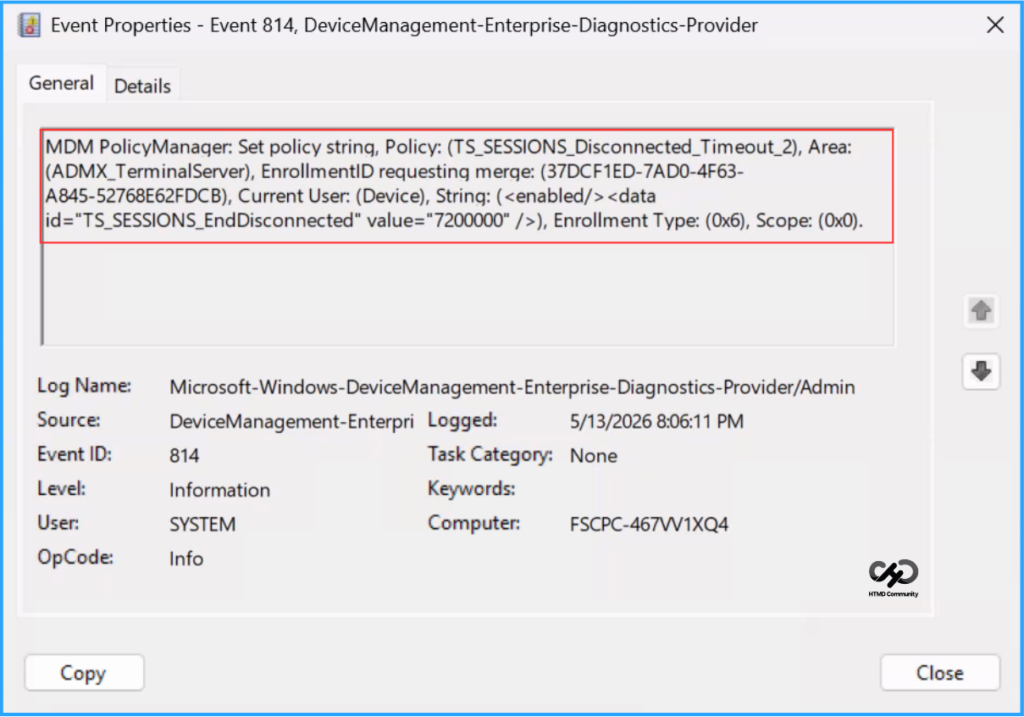
Filter the latest logs using Event ID 814 to easily locate the successful log. The screenshot below indicates that the policy was successfully applied to the system, confirming that our policy has worked as expected.
Need Further Assistance or Have Technical Questions?
Join the LinkedIn Page and Telegram group to get the latest step-by-step guides and news updates. Join our Meetup Page to participate in User group meetings. Also, join the WhatsApp Community and the Whatsapp channel to get the latest news on Microsoft Technologies. We are there on Reddit as well.
Author
Vaishnav K has 12 years of experience in SCCM, Intune, Modern Device Management, and Automation Solutions. He writes and shares knowledge about Microsoft Intune, Windows 365, Azure, Entra, PowerShell Scripting, and Automation. Check out his profile on LinkedIn.