
Key Takeaways
- Windows 11, version 26H2 security baseline is now available in Microsoft Intune
- The baseline includes new settings, updated default values, and revised security guidance
- Existing security baseline profiles don’t automatically update to version 26H2
- Administrators can create a new baseline profile or update an existing profile
- Configure NetBIOS settings isn’t included in this baseline release
In this post, we are discussing Windows 11 26H2 Security Baseline in Microsoft Intune for Enhanced Security and Best Practices. Microsoft has released the Windows 11, version 26H2 security baseline in Microsoft Intune. This is the latest Windows security baseline available in Intune and provides administrators with Microsoft’s current recommendations for securing Windows 11 devices. The new security baseline includes new security settings, updated default values, and revised security guidance based on the latest Windows security recommendations. It helps organizations a consistent security configuration across managed Windows 11 devices.
Table of Contents
Table of Contents
Windows 11 26H2 Security Baseline in Microsoft Intune for Enhanced Security and Best Practices
Existing security baseline profiles in Intune don’t automatically move to the new version. Administrators who want to use the Windows 11, version 26H2 baseline need to create a new baseline profile or update an existing profile to the latest version. The new baseline gives administrators an updated set of security settings for Windows 11, version 26H2. It helps organizations use Microsoft’s latest recommended security settings when managing Windows 11 devices through Intune.
- Deploy Windows 365 Security Baseline Policies to Cloud PCs
- Windows 11 Settings About Page Update With GPU And Storage Specifications
- Intune Security Baselines Policies for Windows 10 or Windows 11 Deployment Guide
- Intune Security Baseline Microsoft Defender Policy Troubleshooting Tips for Cloud PCs
- Update Security Baselines for Microsoft 365 Apps from Intune
What’ New
The Windows 11, version 26H2 security baseline introduces new security settings, updated default values, and revised security recommendations in Microsoft Intune. To use the Windows 11, version 26H2 security baseline, Intune admins can create a new baseline profile or update an existing profile to the latest version. Review the settings before moving from a previous baseline version, especially if existing profiles include customizations. The Configure NetBIOS settings policy isn’t included in this release because it is currently supported only on Windows Insider builds and Microsoft planned for a future baseline update.
How to Get Started
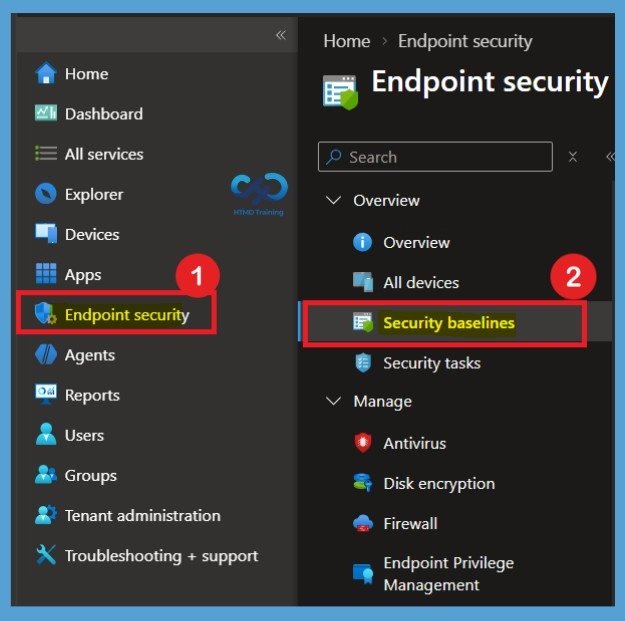
To get started with the Windows 11, version 26H2 security baseline, open the Microsoft Intune admin center and go to the Security Baselines section. From there, administrators can select the Windows security baseline and review the available profiles and settings. Microsoft Intune admin center > Endpoint security > Security baselines

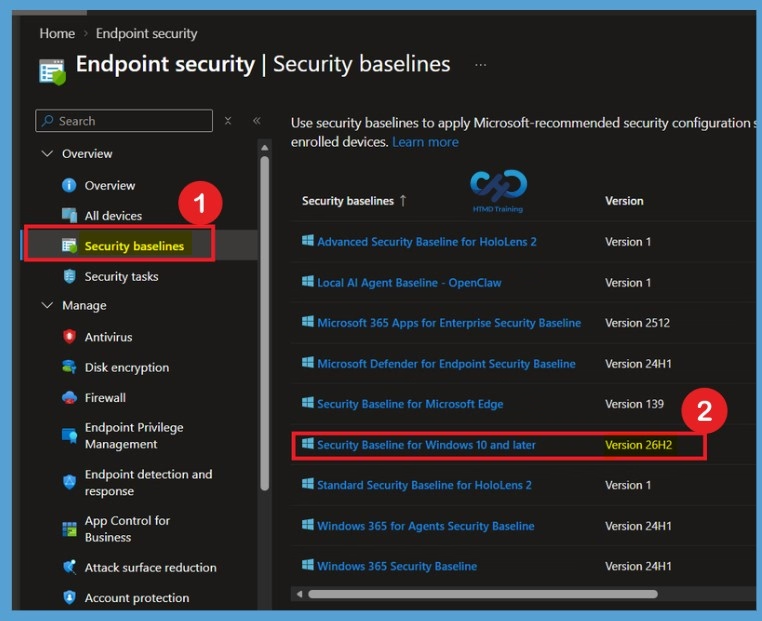
From the Security baselines page, select Security Baseline for Windows 10 and later from the list. Check the Version column and select the baseline showing 26H2 to open the latest Windows 11 security baseline.
Create Policy for Security Baseline
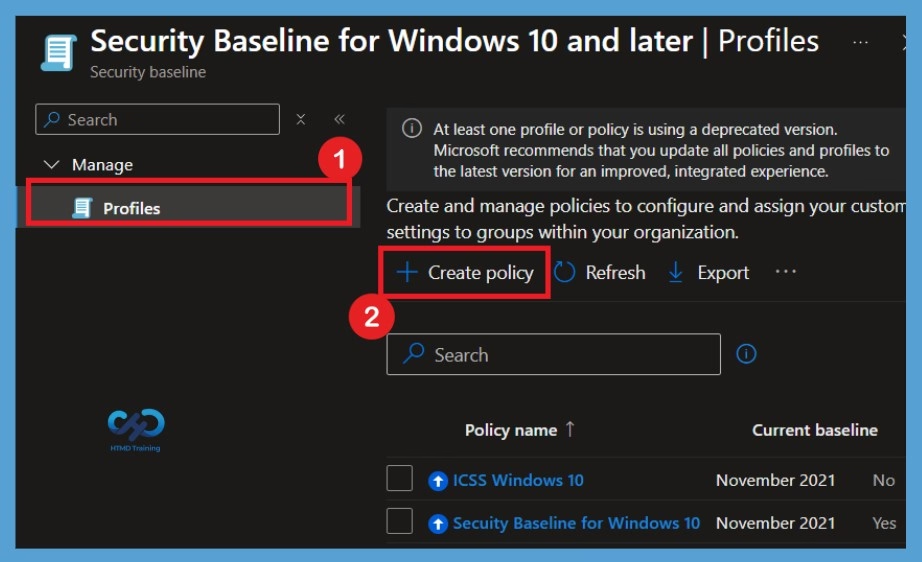
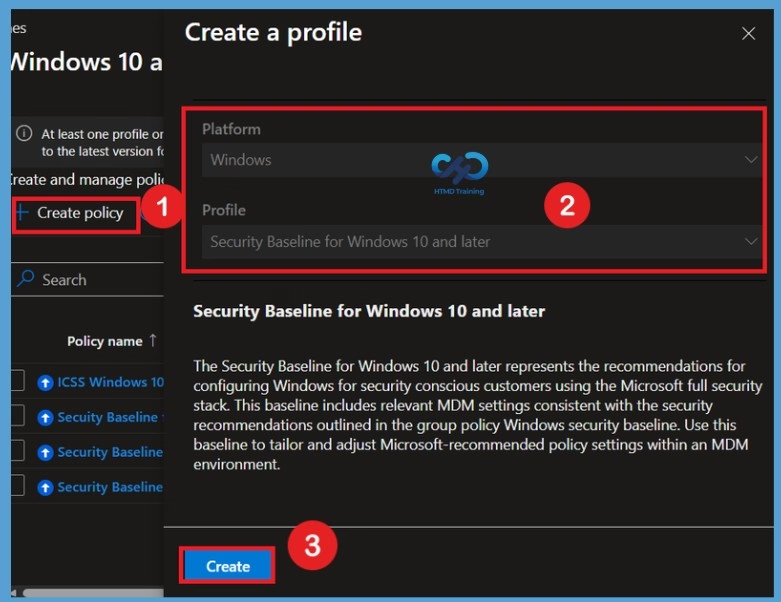
After selecting the Windows 10 and later security baseline version 26H2, you will be taken to the Profiles section. Here, you can see the available policy profiles under the Security Baseline for Windows 10 and later. These profiles help you configure and manage recommended security settings for Windows devices. To start creating a new security baseline policy, select + Create Policy. This will open the policy creation process, where you can provide the required details and configure the baseline settings.
Creating the Security Baseline Profile
After selecting + Create Policy, the Create a Profile window will appear. In this section, the Platform and Profile fields are already selected and cannot be changed. The platform is set to Windows, while the profile is set to Security Baseline for Windows 10 and later. The Security Baseline for Windows 10 and later provides Microsoft-recommended security settings for organizations that want to strengthen Windows security by using the Microsoft security stack.
These recommended settings help organizations establish a strong security configuration for managed Windows devices. Once you have verified that the platform and profile are correctly selected, select Create to continue with the policy creation process.
| Create Profile | Info |
|---|---|
| Platform | Windows |
| Profile | Security Baseline for Windows 10 and later |
Configure Basic Information
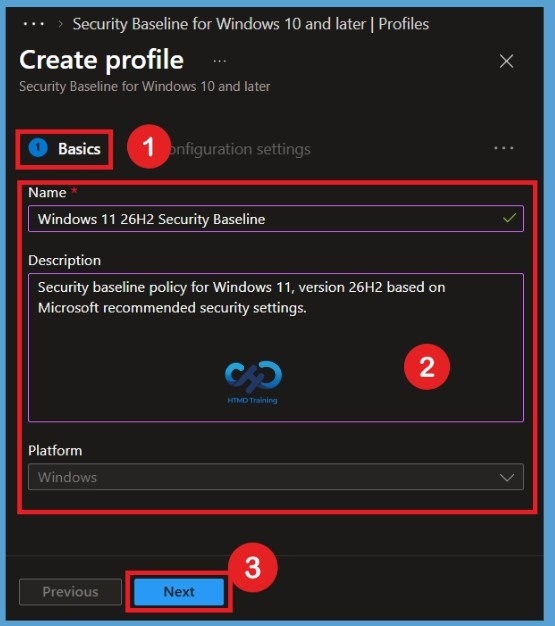
After clicking Create, you will be taken to the Basics tab. Here, you need to provide the basic information for the security baseline policy, including the policy name and description. The Platform is already set to Windows, so no changes are required in this field. In the Name field, enter a suitable name for the policy, such as Windows 11 26H2 Security Baseline.
In the Description field, you can enter a description such as Security Baseline Policy for Windows 11 Version 26H2 based on Microsoft recommended security settings. After entering the required information, select Next to continue to the configuration settings.
Configure Security Baseline Settings
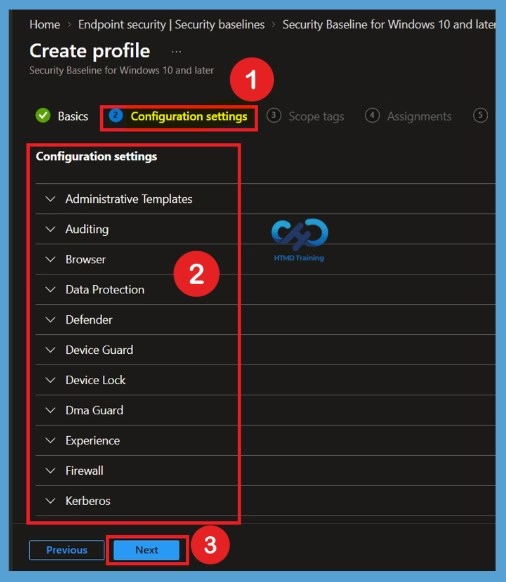
After completing the Basic settings, select Next to move to the Configuration settings page. This page displays the security settings included in the Windows 11, version 26H2 security baseline, which is now available in Microsoft Intune. The new baseline includes new settings, updated default values, and revised security guidance based on Microsoft’s latest security recommendations.
You can see different categories such as Administrative Templates, Auditing, Browser, Data Protection, Microsoft Defender, Device Guard, Device Lock, and other security-related settings. Expand each category using the drop-down arrow to review the available settings and make changes according to your organization’s security requirements.
- When moving from an earlier security baseline version to the Windows 11, version 26H2 baseline, review the settings carefully, especially if you have customized existing configurations.
- Existing security baseline profiles don’t automatically update to the new version.
- You need to create a new baseline profile or update an existing profile to use the latest 26H2 baseline settings.
Configure Administrative Templates
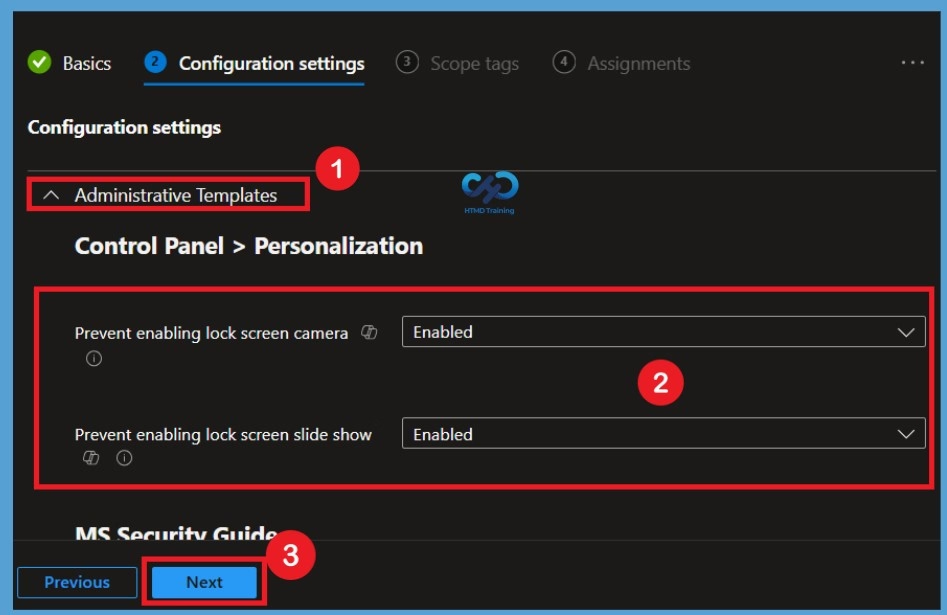
For example, expand Administrative Templates by selecting the drop-down arrow. You can then see the different settings available under this category. For example, under Control Panel > Personalization, you can see settings such as Prevent enabling lock screen camera and Prevent enabling lock screen slide show, which are enabled by default in the security baseline. There are many security settings available across these categories, and you can review them based on your organization’s requirements.
If you want to continue with the recommended default configuration, you can leave the settings unchanged. If you want to customize a setting, simply select it and use the drop-down menu to change its value, such as changing Enabled to Disabled. This makes it easy to review and customize the security baseline settings before deploying the policy.
Add Scope Tags
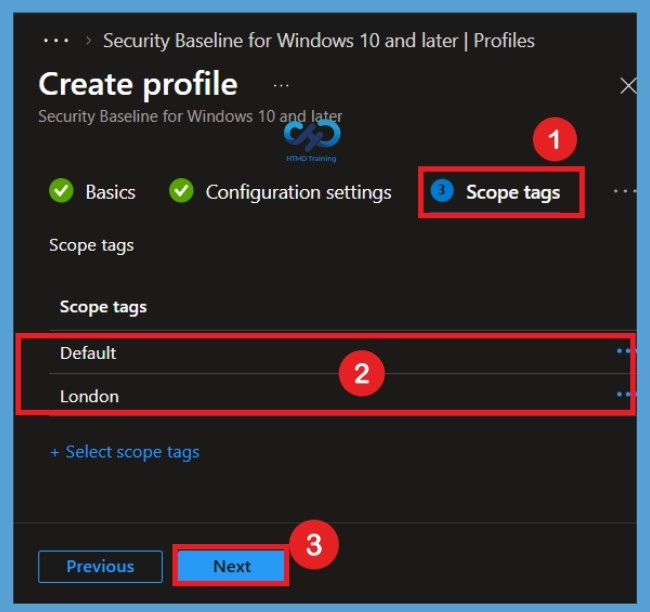
After reviewing the configuration settings, select Next to move to the Scope tags page. Here, you can add scope tags based on your organization’s requirements to help organize and manage the security baseline. For this configuration, I am adding the London scope tag. Once you have selected the required scope tag, select Next to continue to the Assignments step.
Assign the Security Baseline
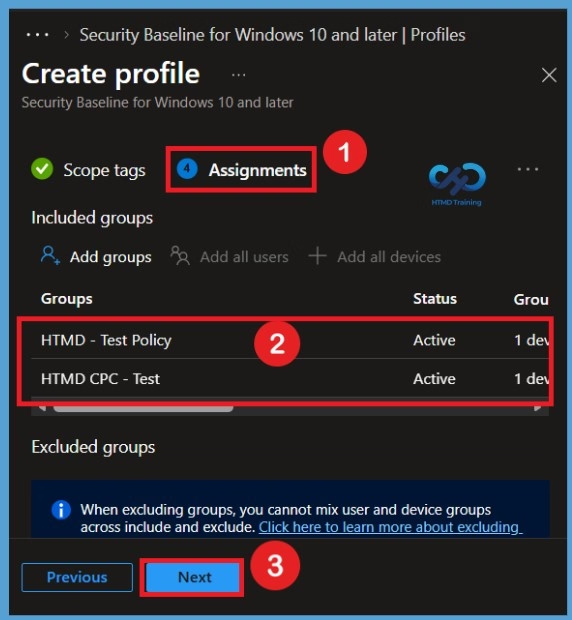
The next step is Assignments. Here, you can select the groups to which you want to apply the security baseline. You can add different user or device groups based on your organization’s requirements. For this example, I am adding the HTMD Test Policy and HTMD CPC Test Policy groups. After selecting the required groups, select Next to continue.
Review and Create the Security Baseline
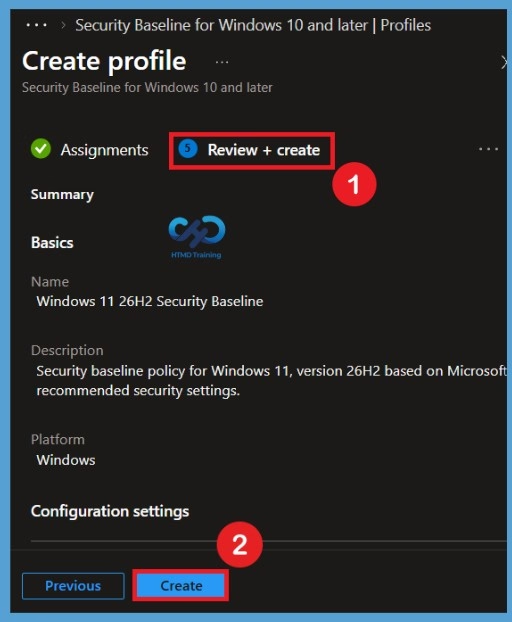
The final step is Review + create, which provides a summary of all the settings configured for the security baseline. Here, you can review the details from the Basic, Configuration settings, Scope tags, and Assignments sections. If you want to make any changes, you can go back to the relevant section and update the settings before creating the policy. Once you have reviewed everything and confirmed the configuration, select Create to create the security baseline.
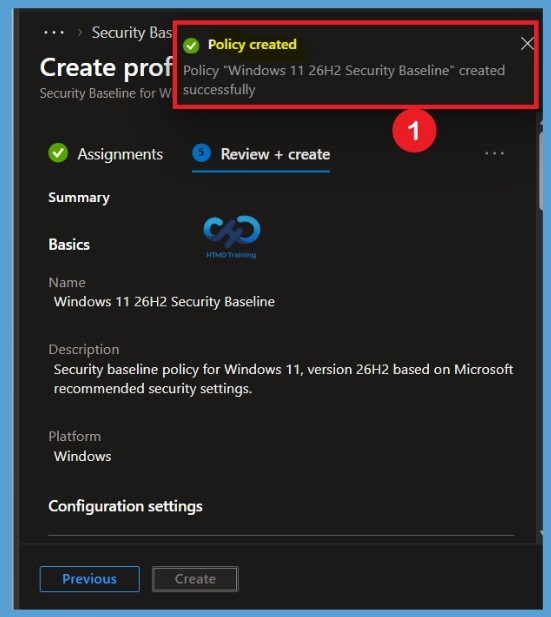
After selecting Create, you will see a notification confirming that the Windows 11, version 26H2 security baseline was created successfully. This confirms that the security baseline policy has been successfully created with the configuration and assignments you specified.
Verify the Security Baseline Profile
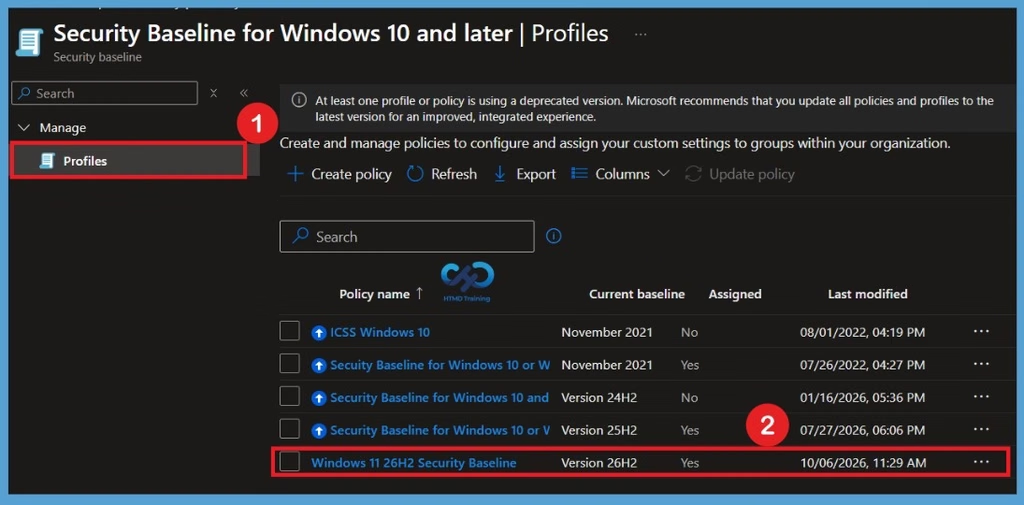
After receiving the policy created successfully notification you can manually verify that the security baseline was created correctly. To do this, return to the Security baselines profile page. Here, you can see the Windows 11, version 26H2 security baseline listed among the available profiles. Seeing the newly created profile in the list confirms that the security baseline has been successfully created.
Need Further Assistance or Have Technical Questions?
Join the LinkedIn Page and Telegram group to get the latest step-by-step guides and news updates. Join our Meetup Page to participate in User group meetings. Also, join the WhatsApp Community and the Whatsapp channel to get the latest news on Microsoft Technologies. We are there on Reddit as well.
Author
Anoop C Nair is Workplace Technology solution architect with 25+ years of experience in global enterprise organizations such as JP Morgan, Capgemini, etc. He is Microsoft Certified Trainer. Microsoft MVP from 2015 onwards for consecutive 11 years! He also conducts Intune and modern workplace tech training for enterprise organizations. He is Blogger, Speaker, and Founder of HTMD Community and HTMD Conference. His focus is on Device Management technologies such as Intune, Windows, Cloud PC. He writes about technologies like Intune, SCCM, Windows, Cloud PC, Windows, Entra, Microsoft Security.