
Key Takeaways
- The latest Microsoft Edge security baseline available in Intune is version 139.
- Existing security baseline profiles do not automatically move to the latest version when Microsoft releases a new baseline.
- Administrators can review the changes between the existing and new baseline versions before updating a profile.
- Administrators can also choose to use the default settings from the latest baseline instead of keeping previous customizations.
In this post, we are discussing about Update Microsoft Edge Security Baseline to the Latest Version using Intune. Microsoft regularly updates the security baselines available in Intune to keep the recommended security settings aligned with the latest security requirements. These baselines provide a ready-to-use set of security configurations for products such as Microsoft Edge. In this article, we will walk through how to update an existing Microsoft Edge Security Baseline profile in Microsoft Intune. The example uses an existing Version 128 profile and shows how to create the updated baseline using the newer Version 139 version available in the tenant.
Table of Contents
Table of Contents
Update Microsoft Edge Security Baseline to the Latest Version using Intune
The existing older versions will be deprecated with the new release of the Security Baseline version. The older security baseline profile settings can not be editable or modified. You can continue using profiles based on older versions, including editing name, descriptions, and assignments. Updating the baseline is important because existing profiles do not automatically move to a newer baseline version.
Older profiles can continue to be used, but their baseline configuration settings become read-only. Moving to the newer version allows administrators to review the latest Microsoft recommended settings and decide how existing customizations should be handled.
- Deploy Windows 365 Security Baseline Policies to Cloud PCs
- Setting Up MS Edge Homepage Using Intune HTMD
- Secure Microsoft Edge Browser Using Intune Security Policies
Open Security Baselines in Intune
Let’s follow the steps to update security baselines for Microsoft Edge from Intune. It’s recommended that before you update the version of a profile that’s assigned to groups, test the version update on a copy of the profile so you can validate the new baseline settings on the test group of devices.

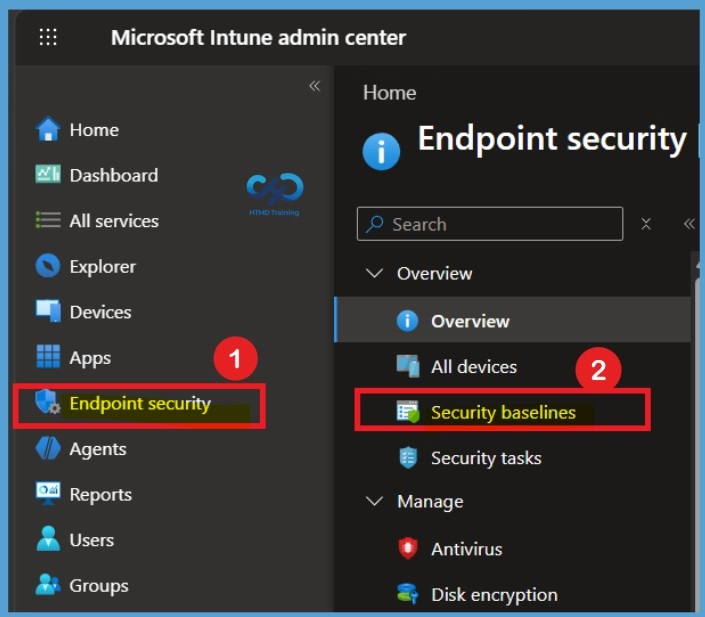
First, sign in to the Microsoft Intune Admin Center using your Intune administrator credentials. After signing in, select Endpoint security from the left-side navigation menu. Then select Security baselines to open the available security baseline policies.
- Sign in to Microsoft Intune Admin Center
- Navigate to the Endpoint Security node. Click on the Security Baselines.
Here you can see several other baseline policies in this node, Select Security Baseline for Microsoft Edge from the lists of Security Baselines.
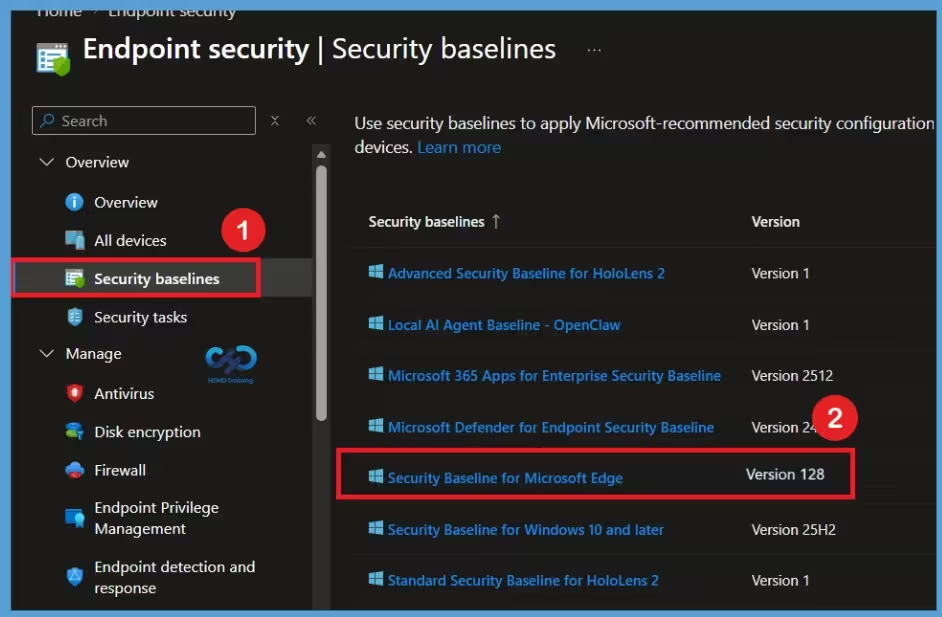
Version 112 of Microsoft Edge will become the default version when creating new profiles. Existing profiles on the latest versions across all security baselines will still be editable and manageable when the new versions are released. Here, I have selected Security Baseline for Microsoft Edge to the Edge security settings. This opens the Microsoft Edge baseline page, where you can view and manage the available baseline profiles. From here, we can select the existing profile and continue with the version update process.
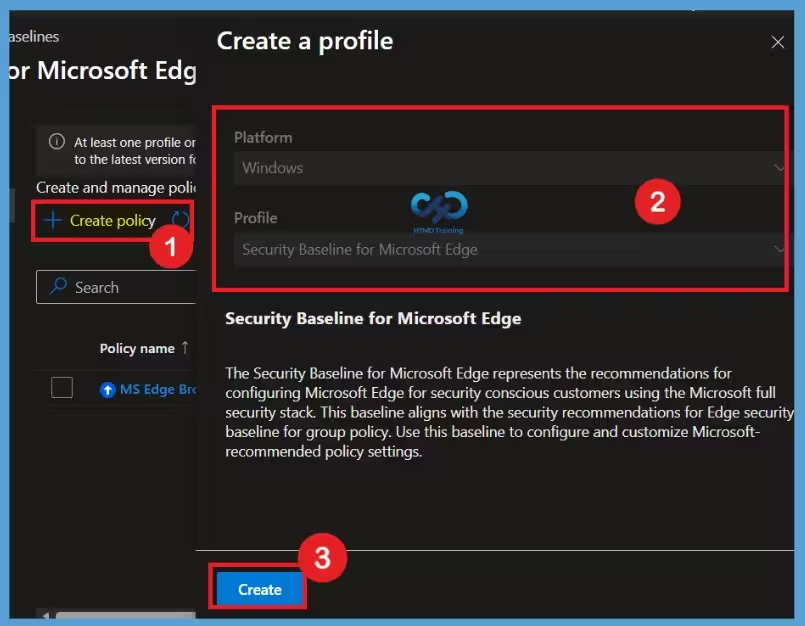
- Click Create Policy
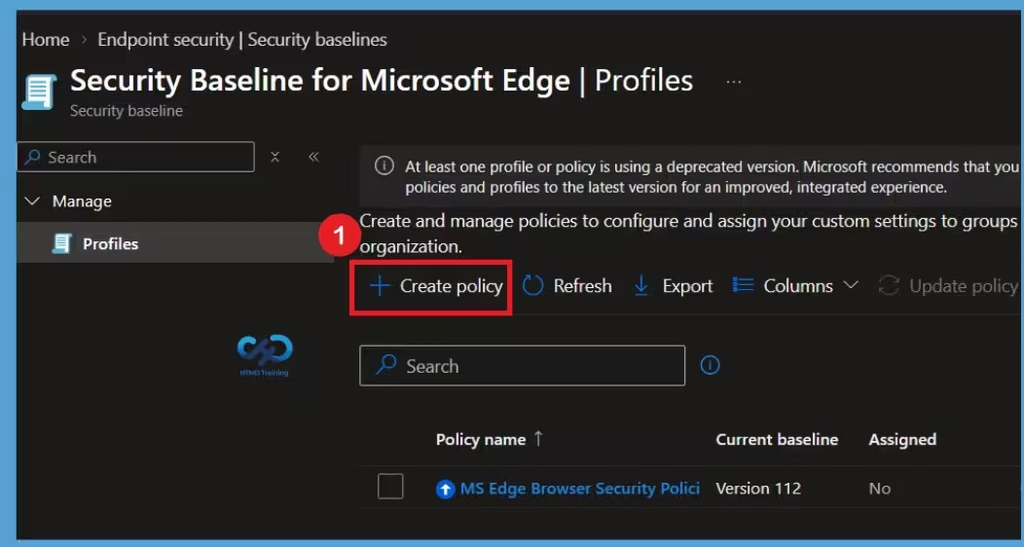
Create the Microsoft Edge Security Baseline Profile
Select the Create policy option to start creating the Microsoft Edge security baseline profile. A Create a profile window will appear. Here, Platform is set to Windows, and Profile is set to Security Baseline for Microsoft Edge by default. These options are already selected and cannot be changed. Select the blue Create button to continue. Intune will then open the profile creation page, where you can configure the details and settings for the Microsoft Edge security baseline.
Existing profiles won’t be deleted. Admins can keep previous profiles even after creating a new one on the latest version. However, Microsoft always recommends keeping only the latest baseline version on your devices to keep your environment secure with the latest Microsoft-recommended security settings.
Note: It is important to back up your existing production baseline policies and perform changes in the latest version. You have an option to duplicate the security baseline, just like duplicating settings catalog.
Configure the Basic Details
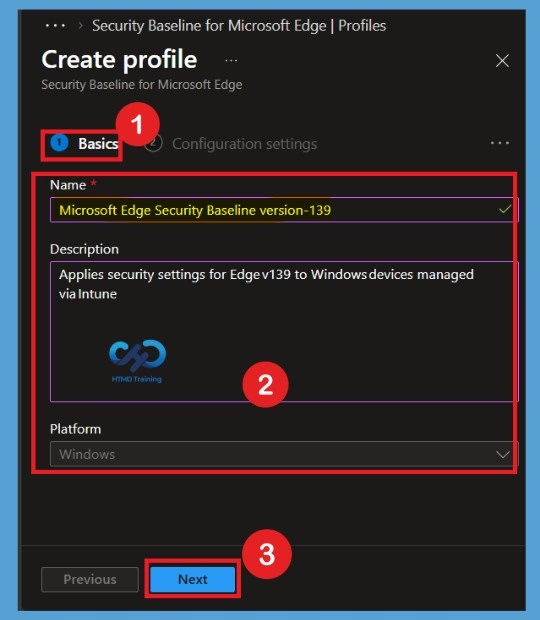
On the Basics page, enter the required details for the security baseline profile. In the Name field, enter Microsoft Edge Security Baseline Version 139. For the description, enter Apply security settings for Edge version 139 to Windows devices managed via Intune. The Platform is already set to Windows by default, and this option cannot be changed. After entering the required details, select Next to continue to the configuration settings.
Configuration Settings
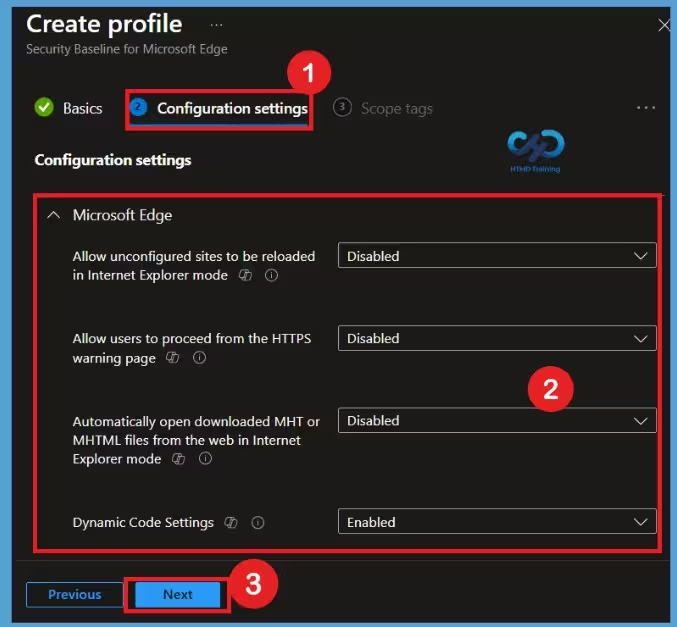
On the Configuration settings tab, view the Settings groups available in the baseline you selected. You can expand a group to view the settings in that group and the default values for those settings in the baseline. To find specific settings: Review the file so that you understand which settings are new or removed and what the default values for these settings are in the updated profile and Click Next.
| Setting | Recommended Value |
|---|---|
| Allow unconfigured sites to be reloaded in Internet Explorer mode | Disabled |
| Allow users to proceed from the HTTPS warning page | Disabled |
| Automatically open downloaded MHT/MHTML files in IE mode | Disabled |
| Dynamic Code Settings | Enabled |
Configure Scope Tags
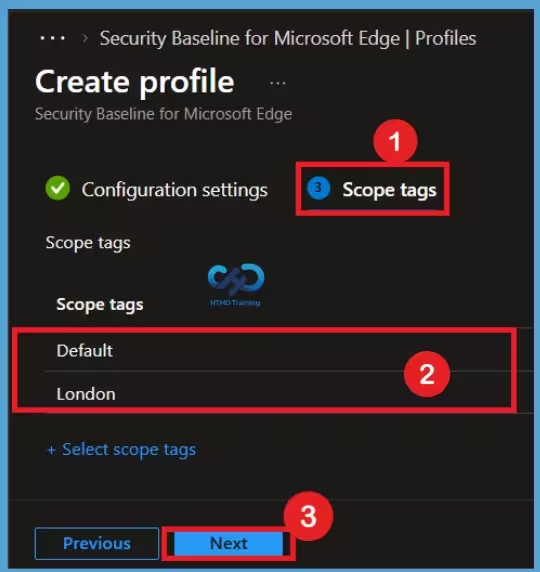
The next step is Scope tags, where you can select the tags that control which Intune administrators can view or manage this policy. Scope tags are useful in organizations where different administrators manage different locations, or groups of devices. Here, I selected London as the scope tag for this Microsoft Edge security baseline. After selecting the required scope tag, click Next to continue to the assignment settings.
Select the Assignment Groups
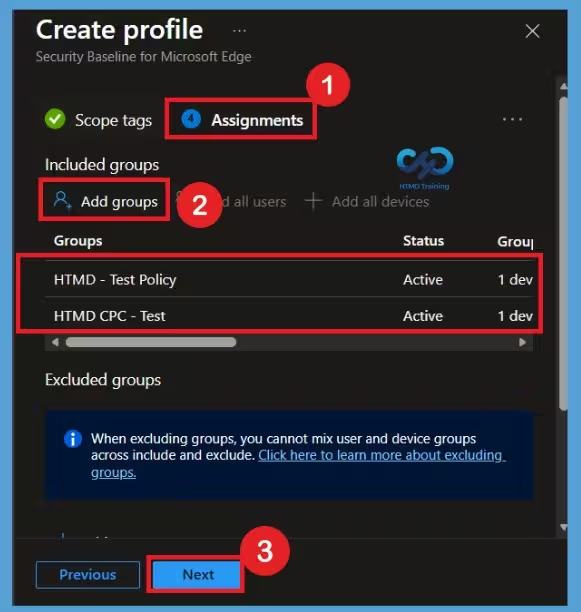
The next step is Assignments, where you can choose the users or devices that should receive the Microsoft Edge security baseline. Select Add groups and choose the required groups from the available list. Here, I selected two test groups, HTMD Test Policy and HTMD CPC Test, for the policy assignment. After selecting both groups, verify that they are listed under the included groups and then select Next to continue with the remaining configuration steps.
Review and Create the Security Baseline
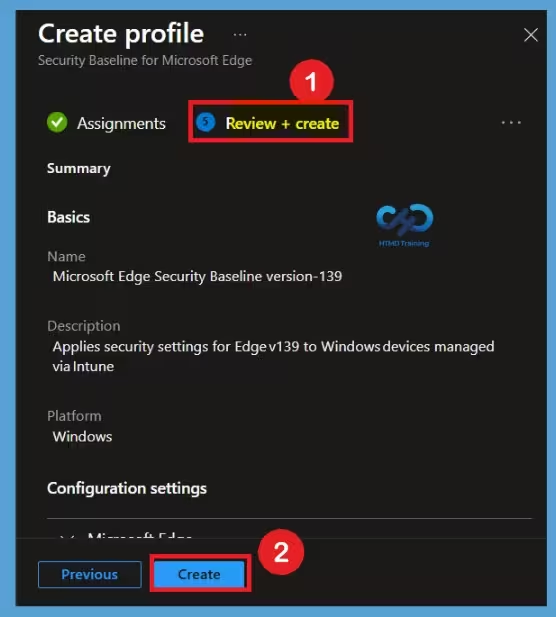
The Review + create page is the final summary page for the policy. Here, you can review all the details you entered, including the profile name, configuration settings, scope tags, and assignment groups. If you find anything that needs to be changed, select Previous to go back to the earlier pages and make the required changes. Once you have reviewed all the information and confirmed that everything is correct, select Create to complete the Microsoft Edge security baseline profile.
Confirm the Security Baseline Profile Creation
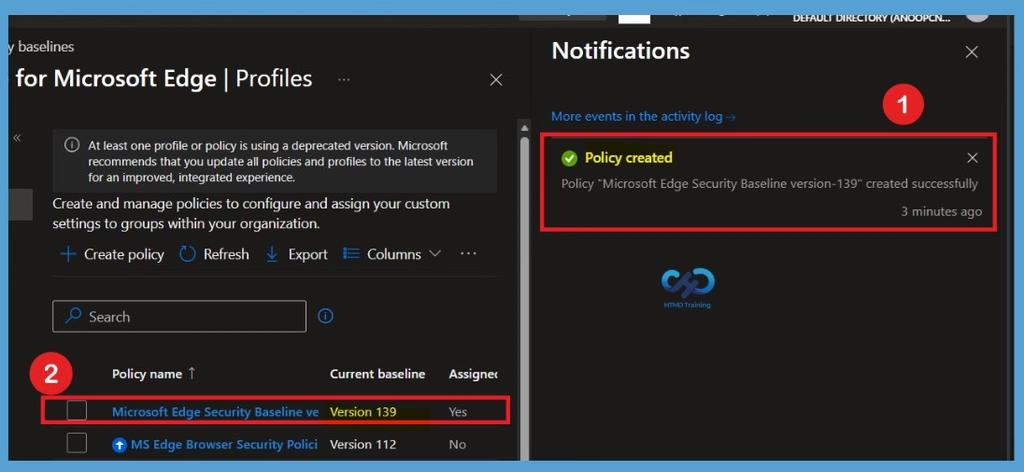
After selecting Create on the Review + create page, Intune will create the security baseline profile. Once the process is completed, a notification appears confirming that the policy was created successfully. You can see the newly created Microsoft Edge Security Baseline Version 139 profile in the Profiles section, where the updated baseline version is also displayed. This confirms that the new Edge security baseline profile has been successfully created and is ready for the assigned groups.
Check the Monitoring Status
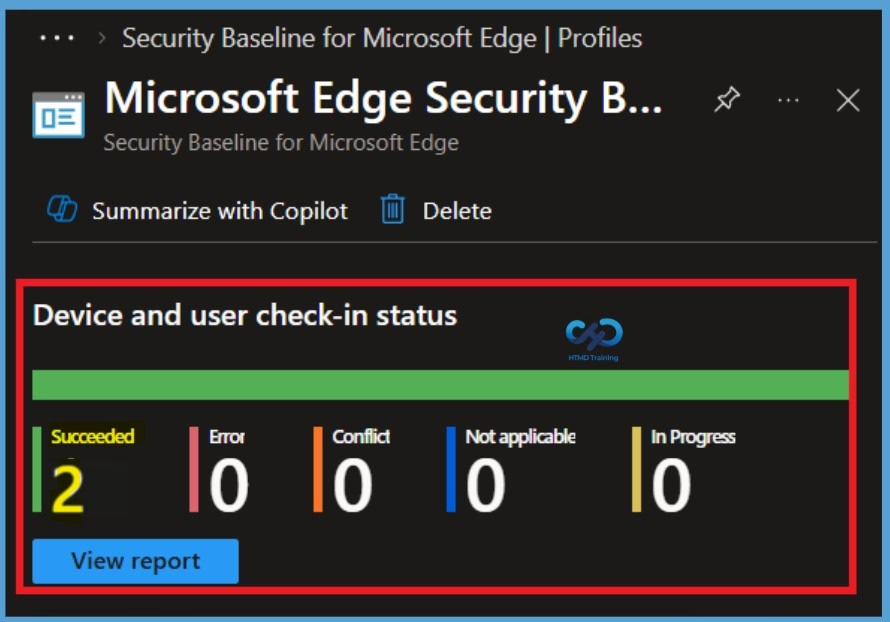
After creating the Microsoft Edge Security Baseline Version 139 profile, you can also check its deployment status from the Intune portal. Go to Endpoint security > Security baselines and select Security Baseline for Microsoft Edge. From the list of profiles, select the newly created Microsoft Edge Security Baseline Version 139 profile.
In the Properties section, you can check the deployment status for the assigned devices. Here, the status shows as Succeeded, confirming that the security baseline has been successfully applied to the devices.
Video Tutorial on Intune Security Baseline Policies Templates
Let’s have a look at the Video Tutorial on Intune Security Baseline Policies Templates by Anoop C Nair. In this video guide, you are going to learn about Intune Security Baseline Decoded Easiest option to set up security policies for your organization. Also, the challenges with Security Baseline Templates.
Need Further Assistance or Have Technical Questions?
Join the LinkedIn Page and Telegram group to get the latest step-by-step guides and news updates. Join our Meetup Page to participate in User group meetings. Also, join the WhatsApp Community and the Whatsapp channel to get the latest news on Microsoft Technologies. We are there on Reddit as well.
Author
About Author – Jitesh, Microsoft MVP, has over six years of working experience in the IT Industry. He writes and shares his experiences related to Microsoft device management technologies and IT Infrastructure management. His primary focus is Windows 10/11 Deployment solution with Configuration Manager, Microsoft Deployment Toolkit (MDT), and Microsoft Intune.