
Key Takeaways
- The Intune Settings Catalog, introduced in Service Release 2101, simplifies how MEM admins create and manage device and user policies.
- It provides a centralized and searchable location to find and configure settings that were previously spread across multiple profile types.
- The Settings Catalog is generally available (GA) starting with Intune Service Release 2206.
- It supports Windows, macOS, iOS/iPadOS, Android, and select Linux devices.
This post teaches you to create a policy with the Intune Settings Catalog. The 2101 Service Release of Microsoft Intune added a new feature settings catalog to make it easier for MEM Admins to customize, set, and manage device and user policy settings.
The Settings Catalog in Intune makes it easier to manage and deploy policies. It helps you quickly find the settings you need and brings together options that were previously in different places, making policy management faster and simpler for administrators.
The Setting Catalog is generally available for Windows, macOS, iOS/iPadOS, Android, and some Linux devices, starting with Intune Service Release 2206. This helps the product team continuously provide valuable feedback about the new feature in the preview before the Microsoft product team finalizes the features.
When you create the policy, it creates a device configuration profile. You can then assign or deploy this profile to devices in your organization. If you want to turn off Windows 10 News and Interests on the Taskbar using MEM Intune, check out the post on managing settings with the Settings Catalog.

Table of Contents
What is Settings Catalog in Intune?
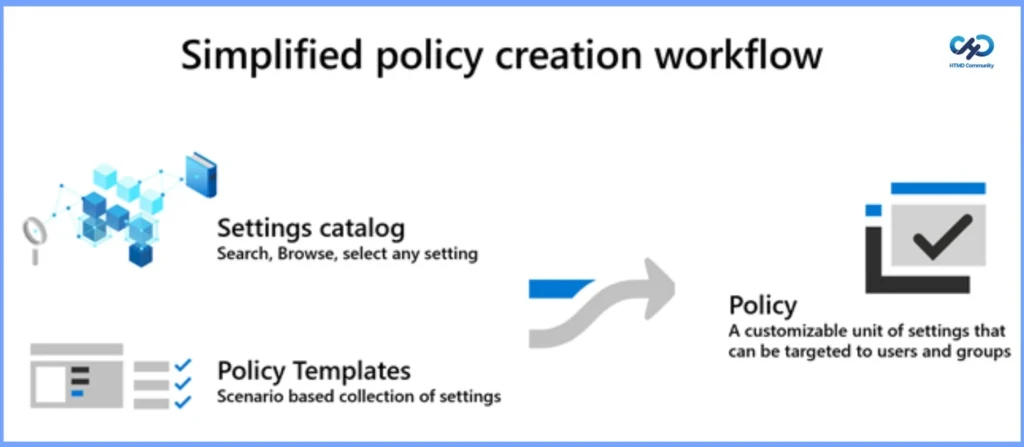
The settings catalog lists all the settings you can configure in one place. This feature simplifies creating a policy and seeing all the available settings. More settings are continually being added. Microsoft made many improvements to Intune settings catalog policies.
The policies avoid any parity issue between Intune and Windows 10 CSP policy support. In the past, there was a big parity issue between Windows MDM-supported and Intune-supported CSP policies.
- Most Intune admins used custom policies to catch up with this parity issue between Intune Vs. Windows MDM parity issue. This was giving organizations a lot of overhead in terms of managing policies.
- Troubleshoot Microsoft Edge Security Policy Deployment Issues With Intune
- Intune Security Baseline Microsoft Defender Policy Troubleshooting Tips
- Configure Edge Chromium Favorites Using Intune | Endpoint Manager
Supported Platforms
This feature is supported across multiple operating systems, including Windows, macOS, iOS/iPadOS, Android, and select Linux distributions, enabling consistent policy management across a wide range of devices.
How to Configure Settings Catalog Profile?
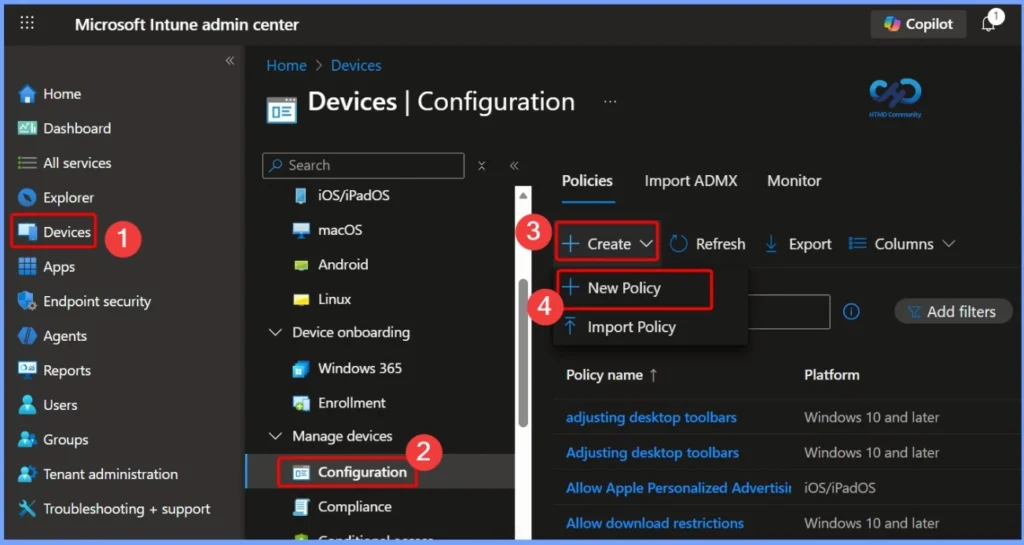
Let’s check the steps to create a policy and show how to search and filter the settings in Intune.
- Sign in to the Microsoft Endpoint Manager admin center
- Select Devices > Configuration > Create > New Policy
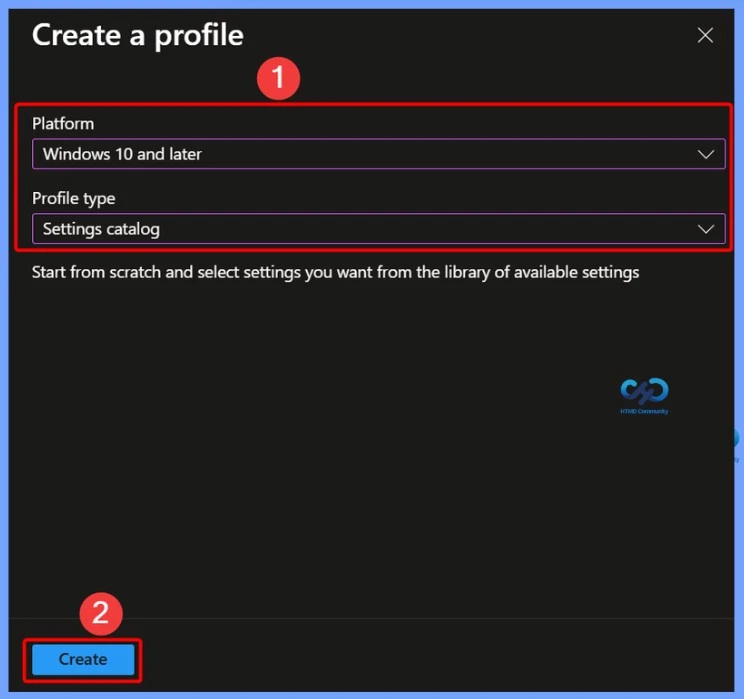
In the Create Profile section, select the platform as Windows 10 and later and choose Settings catalog as the profile type. Then, click the Create button. For example, in this scenario, the selected platform is Windows 10 and later.
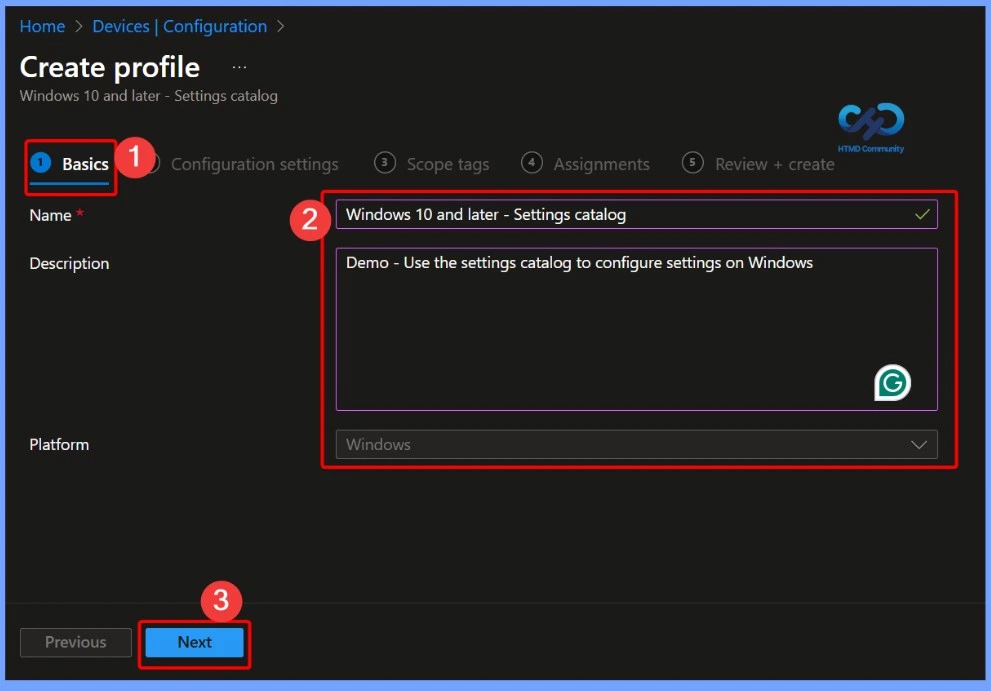
Basics – Profile Name and Description
In the Basics section, enter a clear and descriptive name for the profile. You can also add an optional description to explain the purpose of the profile, then select Next to continue. The below screenshot shows more details.
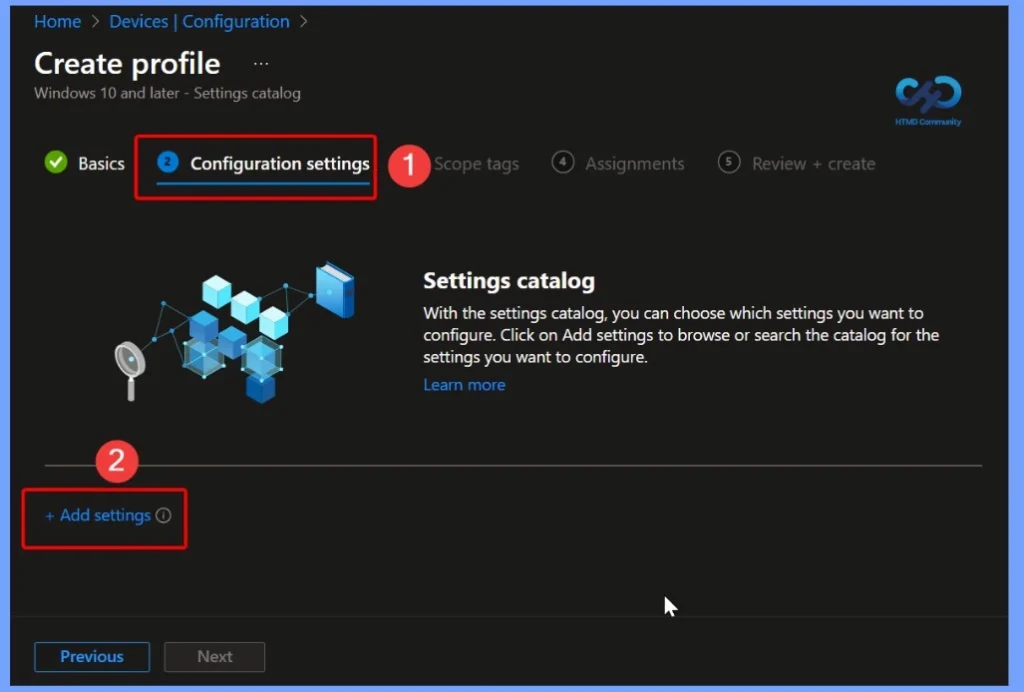
Configuration Settings – Add and Select Settings
In the Configuration settings section, select the Add settings hyperlink to choose and configure the required policy settings. With the settings catalog, you can choose which settings you want to configure. Click on Add settings to browse or search the catalog for the settings you want to configure.
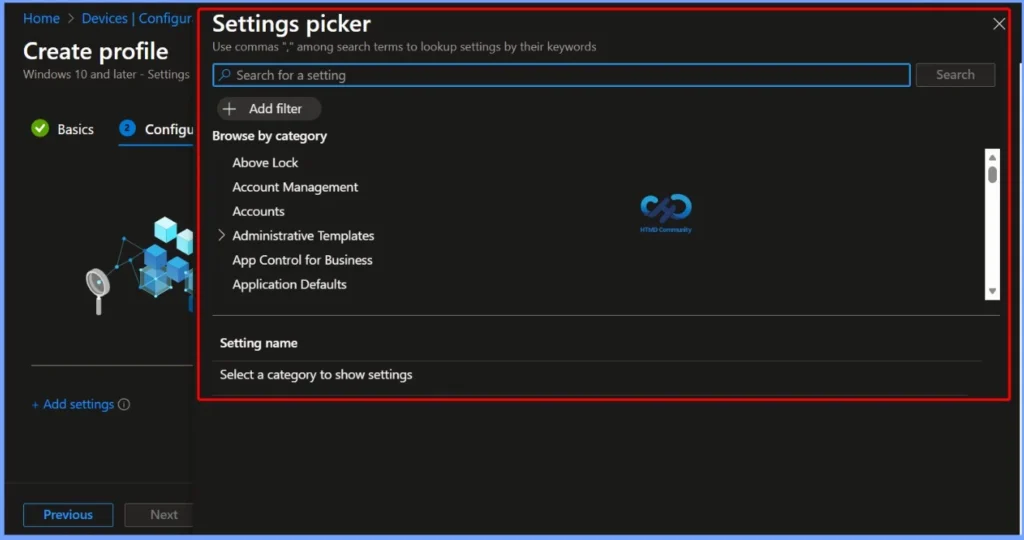
In the settings picker, select a category to see all the available settings. You can browse by category or scroll through the list of available settings to find the settings you need.
Note: The Settings Picker will allow you to search, browse for, and select any settings available in the settings catalog for configuration in your policy.
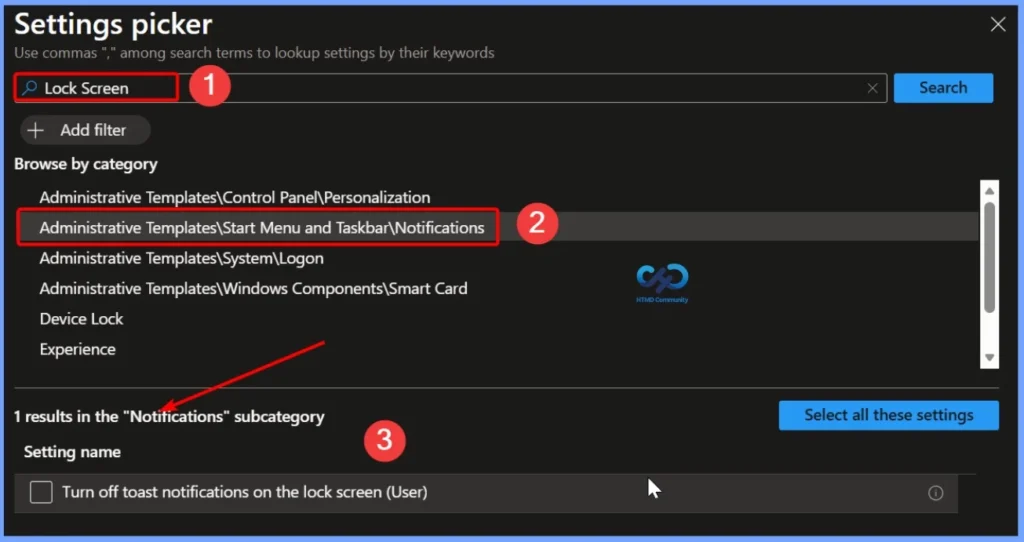
Use Search to Find Specific Settings
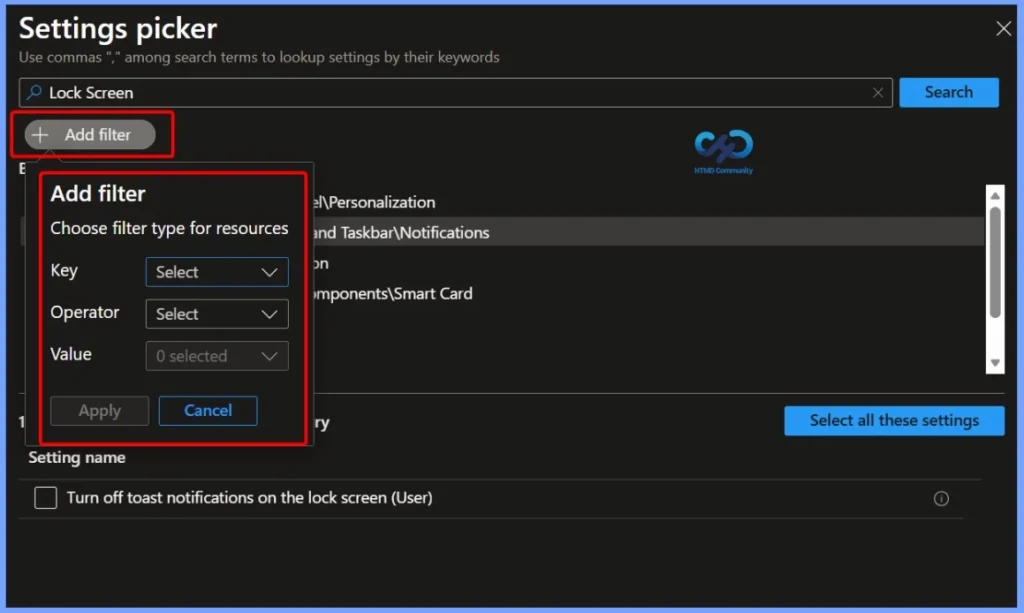
In your policy, select +Add settings and use the Search option to quickly find specific settings. You can search by category or by entering keywords, such as Lock Screen, to locate the required configuration easily.
The settings catalog contains thousands of settings. Use the built-in features to make it easier to find specific settings.
Filtering Policy Settings
The new settings catalog filter allows Intune admin to use filter settings to narrow down the search based on the Operating system edition.
In your policy, use Add settings > Add filter. Next, select the key, operator, and value. In value, you can filter Windows 10 OS editions. This means you can set the filter for Windows Enterprise and see all settings applicable to Windows devices running that edition of Windows 10.
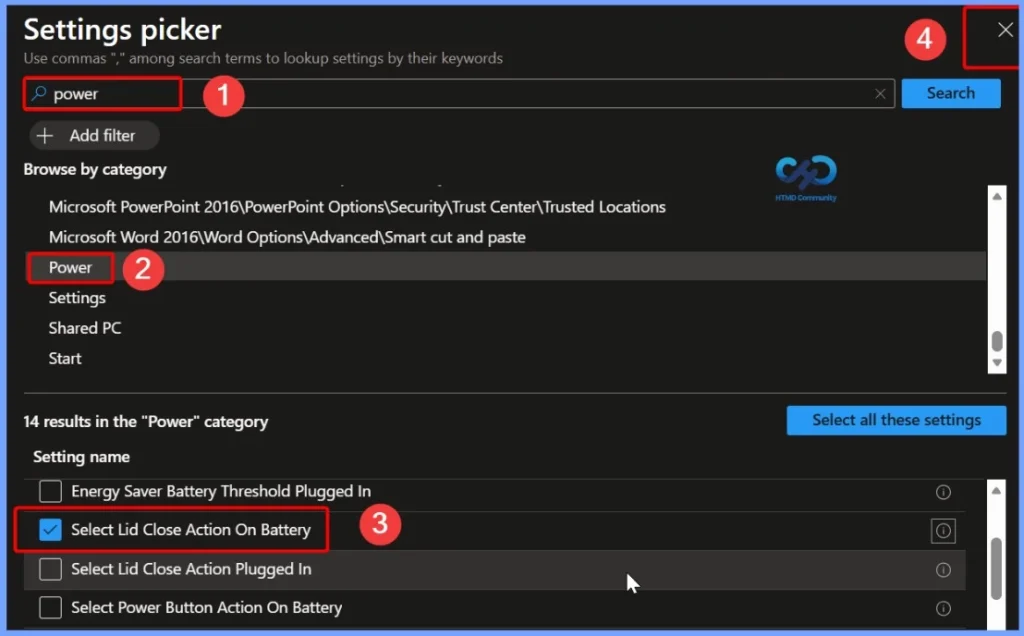
You can choose individual settings that you want to configure or select Select all these settings to include all options within a category. For example, selecting Power displays all available settings related to that category. After adding the required settings, close the settings picker to continue configuring the policy.
Configure and Review Selected Settings
All selected settings are displayed with their default values. If you do not want to configure a specific setting, select the minus (-) icon to remove it. You can also click the information (i) icon for each setting to view detailed tooltip text and available values, helping you clearly understand the effect of each setting before applying it.
Any setting not in your policy will be considered not configured in the settings catalog. Removing a setting from an existing settings catalog policy will not only remove that setting from the policy but also remove the previously set enforcement from assigned devices on the next device check-in.
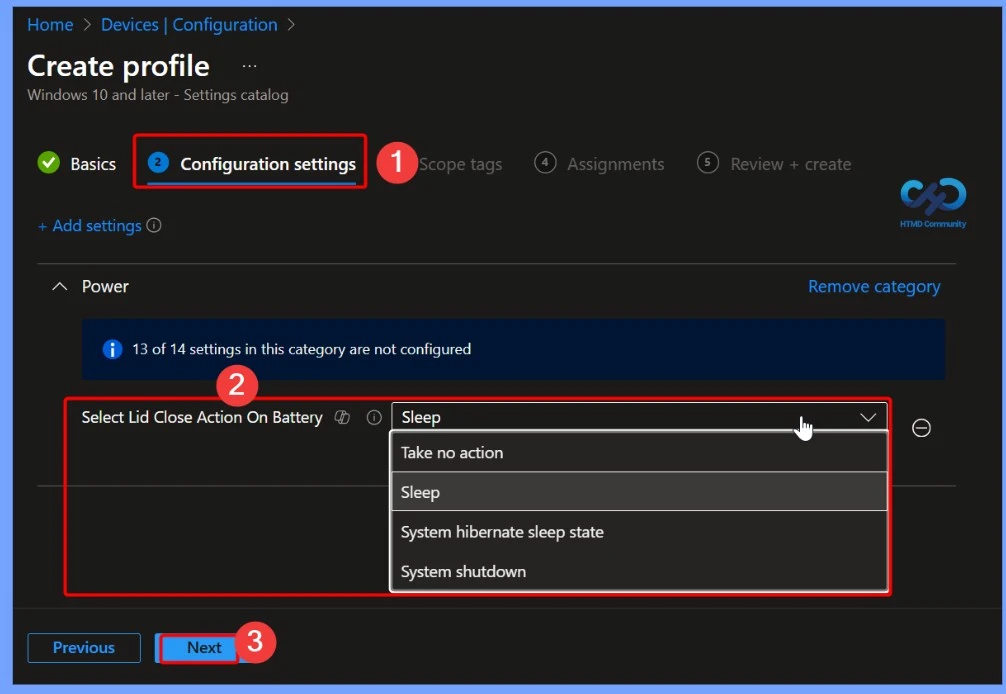
- In Assignments, select the users or groups that will receive your profile. Select Next to continue.
- You can assign a tag to filter the profile to specific IT groups in scope tags. Add scope tags (if required) and click Next.
- Review your settings in Review + Create. When you select Create, your changes are saved, and the profile is assigned. The policy is also shown in the profiles list.
- The next time the device checks for configuration updates, the settings you configured are applied.
Need Further Assistance or Have Technical Questions?
Join the LinkedIn Page and Telegram group to get the latest step-by-step guides and news updates. Join our Meetup Page to participate in User group meetings. Also, join the WhatsApp Community to get the latest news on Microsoft Technologies. We are there on Reddit as well.
Author
About Author – Jitesh, Microsoft MVP, has over six years of working experience in the IT Industry. He writes and shares his experiences related to Microsoft device management technologies and IT Infrastructure management. His primary focus is Windows 10/11 Deployment solution with Configuration Manager, Microsoft Deployment Toolkit (MDT), and Microsoft Intune.
How to Export the Settings Catalog like the Custom CSP to Backup and restore to DEV Tenant?