
Key Takeaways
- Intune Win32 App Requirement Rules help control when and where applications are installed on managed devices.
- Requirement rules are checked by Intune before app installation to ensure devices meet the defined conditions.
- Built-in and custom requirement rules help admins target apps more precisely without creating multiple assignments.
- PowerShell scripts can be used as custom requirement rules, such as checking device enrollment dates from the registry.
- The Requirements tab in Intune Win32 app configuration allows admins to define device conditions before deployment starts.
Intune Win32 App Requirement Rules help administrators control how and when applications are installed on managed devices. Before deploying an app, Intune checks whether the targeted device meets the configured requirements. These rules can include built-in options or custom PowerShell scripts, allowing admins to refine deployments without creating multiple assignments.
Table of Content
Table of Contents
Intune Win32 App Requirement Rules
There are some built-in and custom requirements rules you can choose from when creating your Win32 application. That will help you to manage the deployment of the app without building multiple assignments. Here’s how you can use the script in an Intune Win32 App requirement rules, Mark Thomas has written a PowerShell script that gets the device enrollment date from the registry on the client. This can then be used as a requirement rule on a Win32 app.
More details to post Targeting Intune Win32 apps and PowerShell Scripts based on the Enrollment Date. You can also use the requirements tab while creating a win32 app, where you need to specify the requirements that devices must meet before the app is installed.
- Migrate Group Policies GPOs to Intune Settings Catalog policy
- Intune Application Deployment using MSI EXE IntuneWin Formats
- Easy Steps to Configure Company Portal Icon of an Application
Intune Win32 App Requirement Rules
You can use the following steps to add or modify requirement rules for the app installation from the Intune admin center. In this section, I’m modifying the existing apps to show you the details of Win32 app requirement rules. You can also use the option while creating an app from scratch.

- Sign in to the Microsoft Intune admin center https://endpoint.microsoft.com
- Select Apps > All Apps > 7-Zip 19.00. Select the existing Win32 application from the list.
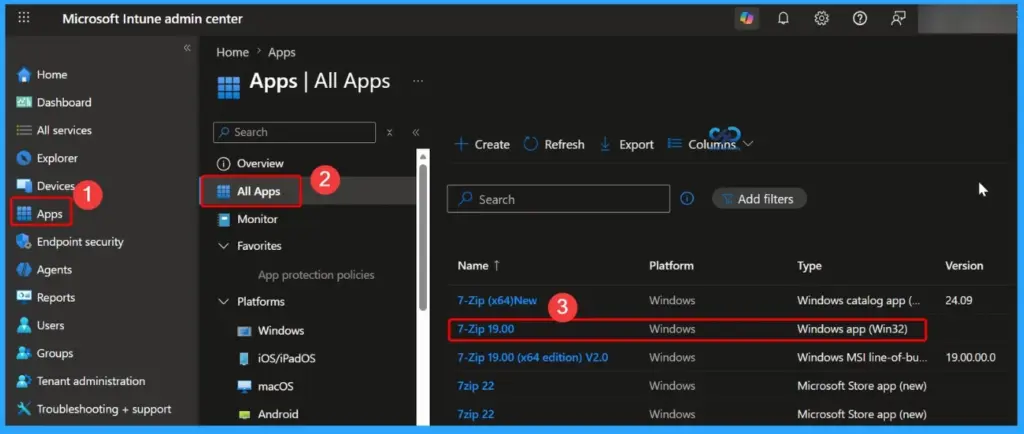
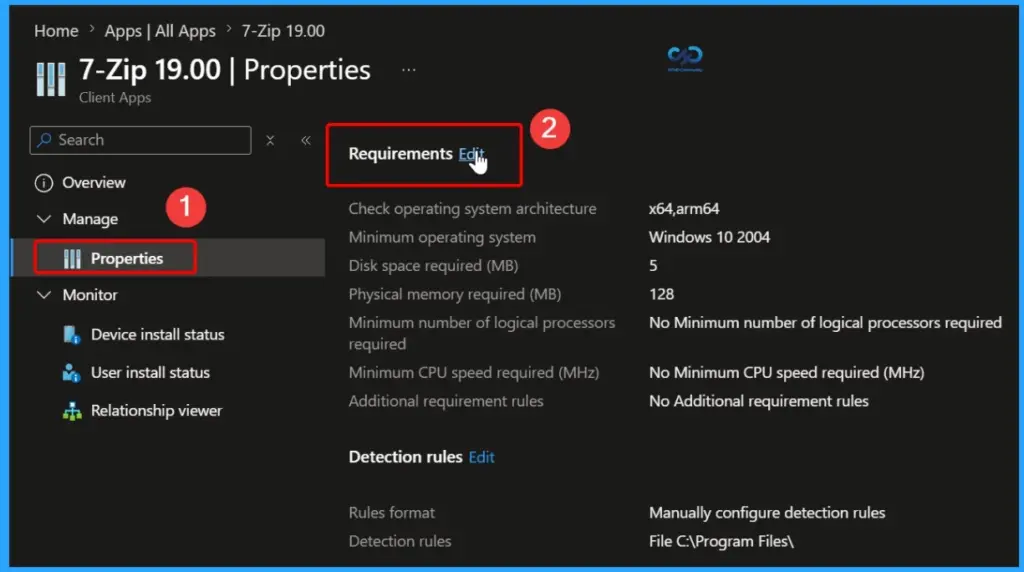
Select the application and click on Properties. Scroll down to the Requirements section and click Edit to configure or modify the application requirement rules. The below screenshot shows more details.
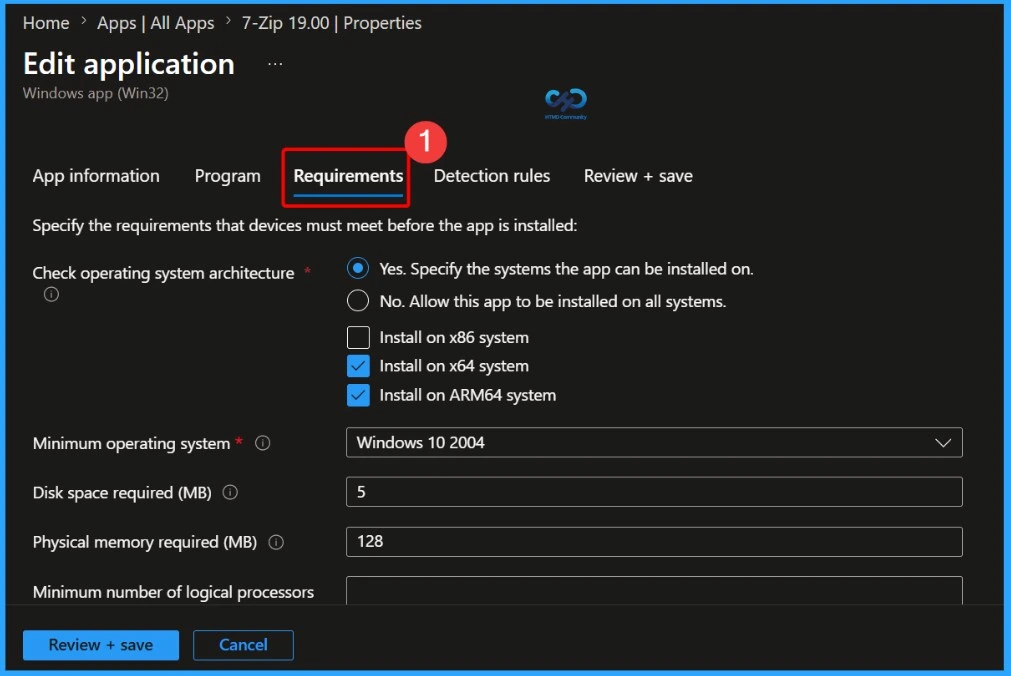
On the Requirements page, specify the requirements that devices must meet before the app is installed:
- Check Operating system architecture: Choose the architectures needed to install the app.
- Yes. Specify the systems the app can be installed on.
- No. Allow this app to be installed on all systems.
- Install on x86 system
- Install on x64 system
- Install on ARM64 system
- Minimum operating system: Select the minimum operating system needed to install the app.
- Disk space required (MB): Optionally, add the free disk space needed on the system drive to install the app.
- Physical memory required (MB): Optionally, add the physical memory (RAM) required to install the app.
- Minimum number of logical processors required: Optionally, add the minimum number of logical processors required to install the app.
- Minimum CPU speed required (MHz): Optionally, add the minimum CPU speed required to install the app.
- Configure additional requirement rules:
Configure Additional Requirement Rules for Win32 Apps
Choose the type of detection method used to determine how a requirement is validated. You will get different sets of options to validate Win32 App requirement rules.
Select Add to display the Add a Requirement rule pane and configure more requirement rules. Select the Requirement type value to choose the type of rule that you’ll use to determine how a requirement is validated. Requirement rules can be based on file system information, registry values, or PowerShell scripts.
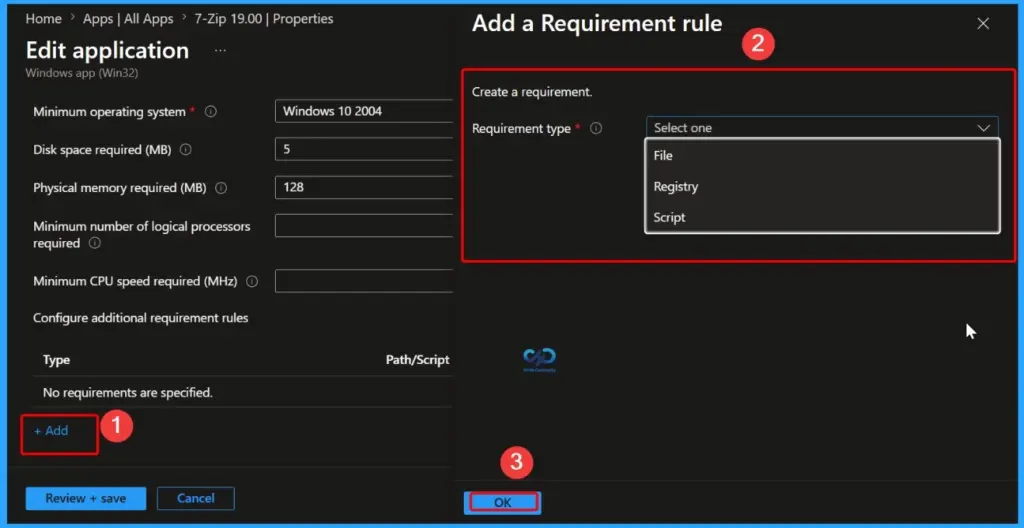
Requirement Type as File
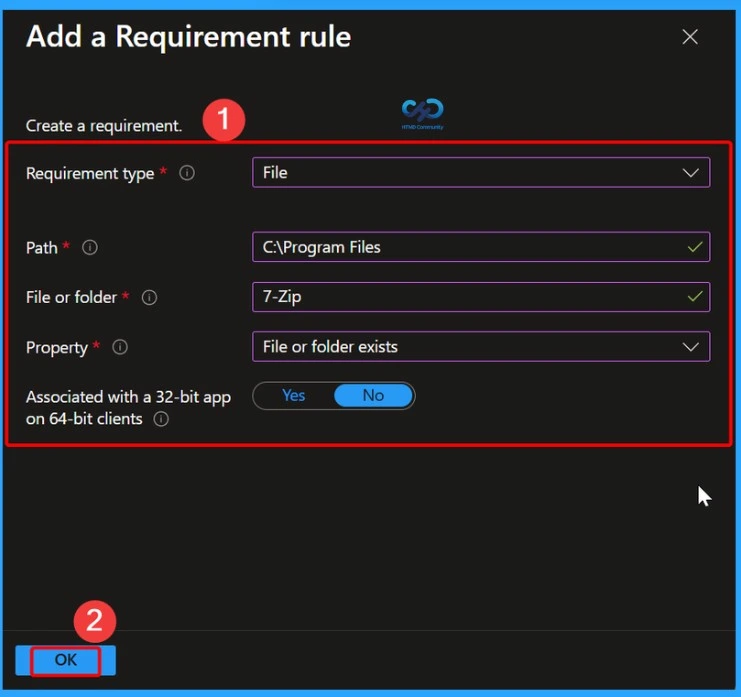
Next, select the Requirement type as File. This option checks whether a specific file or folder exists on the device and can also validate details such as the file version, size, or creation date.
In the Path field, enter the full folder location where the file or folder is stored. In File or folder, type the name of the file or folder that Intune should detect.
Under Detection method, choose how Intune should verify the application. Available options include checking whether the file or folder exists, the date it was created or modified, the file version, or the file size in MB.
For Associated with a 32-bit app on 64-bit clients, select Yes if the app is a 32-bit application running on 64-bit devices. Select No to use the default 64-bit detection method.
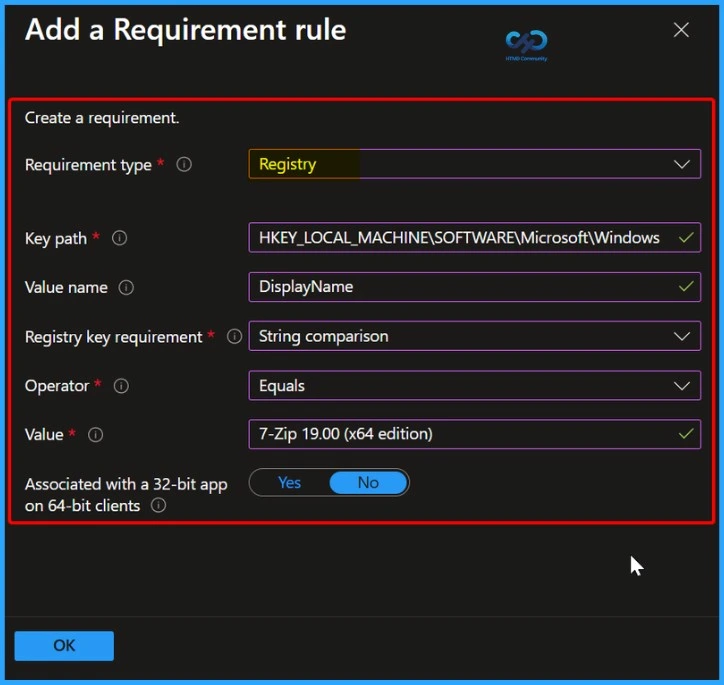
Requirement Type as Registry
When you choose Registry as the Requirement type value, the requirement rule must detect a registry setting based on value, string, integer, or version.
- Key path: The full path of the registry entry that contains the value to detect.
- Value name: The name of the registry value to detect. If this value is empty, the detection will happen on the key. The (default) value of a key will be used as a detection value if the detection method is other than file or folder existence.
- Registry key requirement: Select the type of registry key comparison that’s used to determine how the requirement rule is validated.
- Associated with a 32-bit app on 64-bit clients: Select Yes to search the 32-bit registry on 64-bit clients. Select No (default) to search the 64-bit registry on 64-bit clients. 32-bit clients will always search the 32-bit registry.
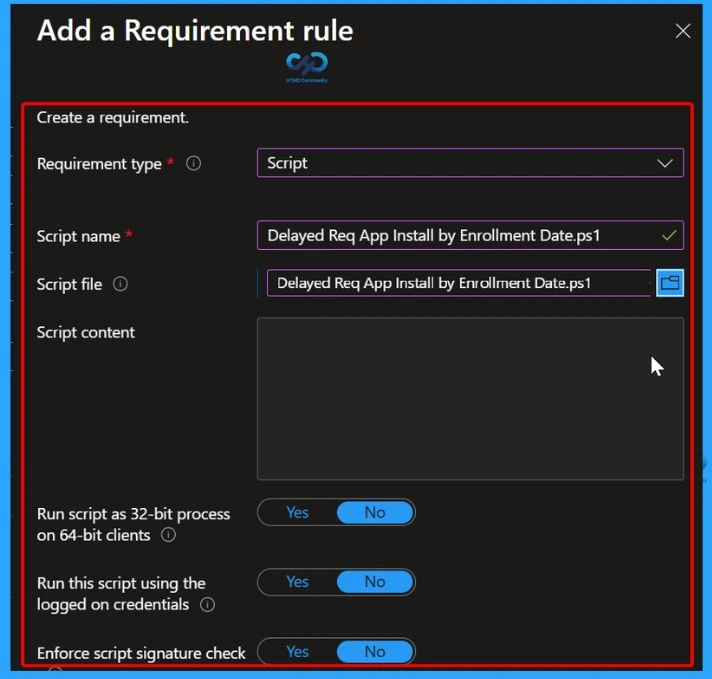
Requirement Type as Script
Next, select the Requirement type as Script. This option allows administrators to use a PowerShell script to define custom requirement rules for the application deployment. Script-based requirement rules are useful when the built-in options are not enough and you need advanced checks before the app installation starts.
In the Script name field, enter a suitable name for the script so it can be easily identified later. Then upload the PowerShell script file in the Script file section. Once the script is uploaded, the script content will automatically appear in the console for review.
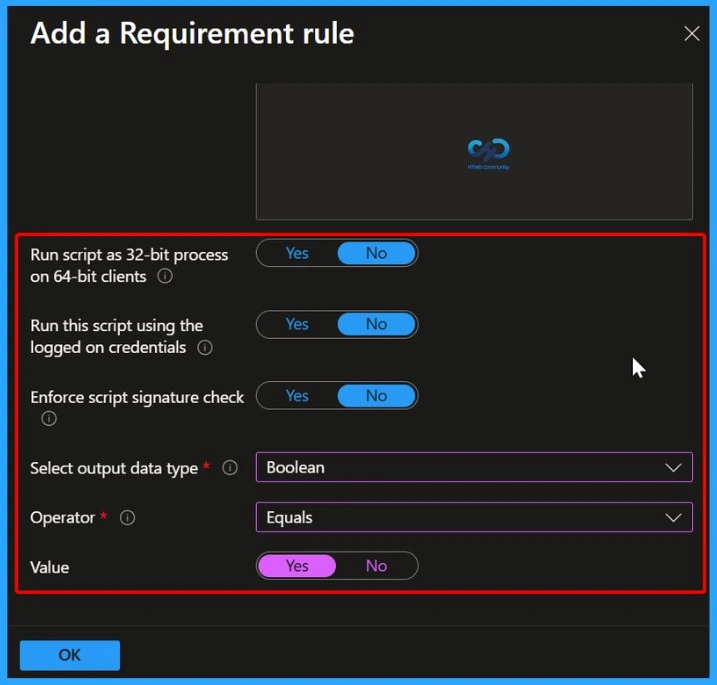
You can configure several additional settings based on your requirement. The Run script as 32-bit process on 64-bit clients option allows the script to run in 32-bit mode on 64-bit devices if needed for compatibility with older applications. The Run this script using the logged on credentials option lets the script run in the context of the signed-in user instead of the system account. You can also enable Enforce script signature check to ensure that only signed and trusted PowerShell scripts are allowed to run.
During deployment, Intune executes the PowerShell script on the target device and checks the returned result. If the script confirms that the requirement conditions are met, the application installation will continue. If the conditions are not met, the app installation will be skipped on that device.
You can use Powershell script to validate custom Intune win32 app requirements, More details to post Targeting Intune Win32 apps, and PowerShell Scripts based on the Enrollment Date.
Script Requirement Settings
In the lower section of the script requirement settings, you can configure how the PowerShell script should run and how Intune should evaluate the returned result.
The Run script as 32-bit process on 64-bit clients option allows the script to run in 32-bit mode on 64-bit devices. This is useful for applications or scripts that depend on 32-bit components. The Run this script using the logged on credentials setting runs the script in the context of the currently signed-in user instead of the system account.
You can also enable Enforce script signature check to make sure only digitally signed and trusted PowerShell scripts are executed, which improves security and prevents unauthorized scripts from running.
Next, select the Output data type based on the value returned by the script. In this example, Boolean is selected, which means the script returns either True or False. Under Operator, choose the condition used to compare the returned result. Here, the operator is set to Equals. Finally, set the Value to Yes, which means the requirement will be considered successful only if the script returns a positive Boolean result. After configuring all settings, click OK to save the requirement rule.
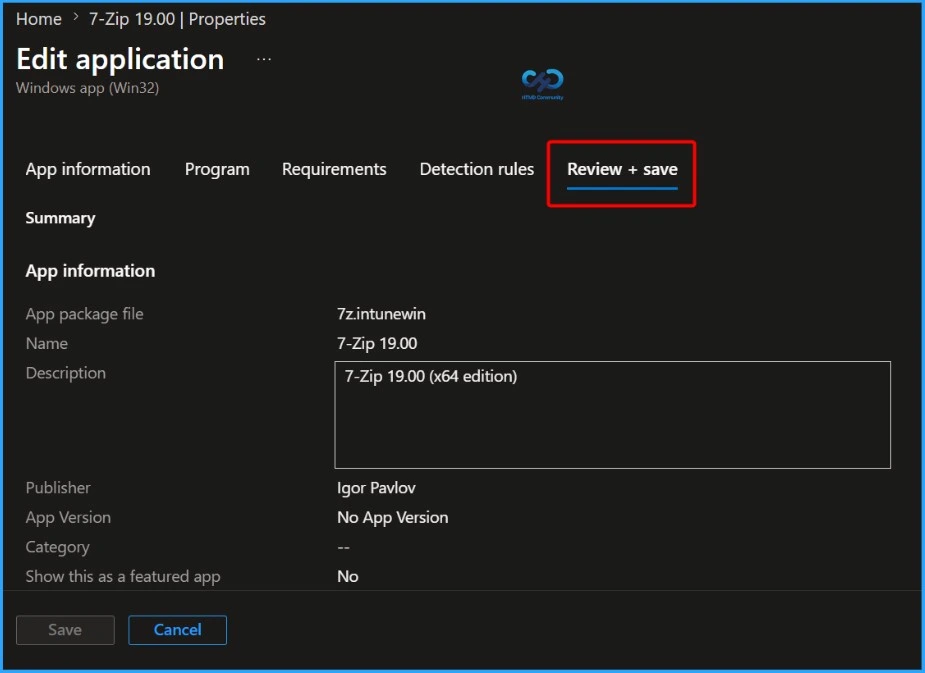
When you’re finished setting the requirement rules, select OK. Select Next to display the Detection rules page. On the Detection rules pane, configure the rules to detect the app’s presence and learn about Intune Win32 App Deployment Detection Methods. Once you have selected the summary screen will appear. Select Review + save.
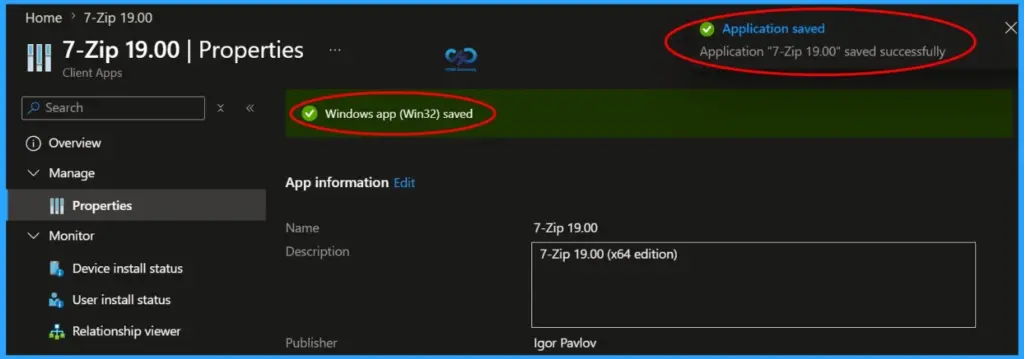
A notification will appear automatically in the top right-hand corner with a message. Here you can see, the application “7-Zip 19.00” was saved successfully. Here you can see the status message “Windows app (Win32) saved”.
Check Applicability – Intune Win32 App Requirement Rules
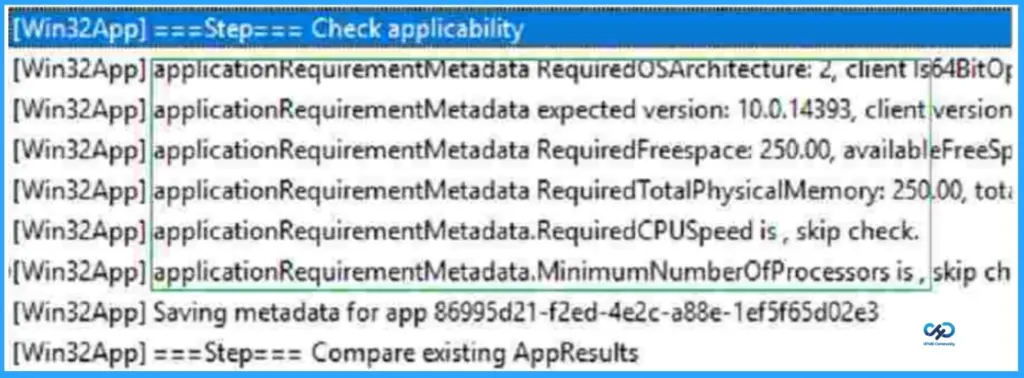
Once the application installation starts, the app “Detection rule” will be evaluated. Once it is completed, the next step is “Check Applicability.” Checks were performed against the rules we configured before.
You can track the details logged at IntuneManagementExtension.log located C:\ProgramData\Microsoft\IntuneManagementExtension\Log to review how the requirements are evaluated. For example, here, you can see Check the applicability of an application.
The Intune management extension is the client-side component to manage the MDM Intune Win 32 application deployment. Learn more about Intune Win32 App Issues Troubleshooting Client-Side Process Flow.
You can look at the Level 3 deep dive troubleshooting Intune Management Extension (IME) Level 3 Troubleshooting Guide.
Need Further Assistance or Have Technical Questions?
Join the LinkedIn Page and Telegram group to get the latest step-by-step guides and news updates. Join our Meetup Page to participate in User group meetings. Also, join the WhatsApp Community and the Whatsapp channel to get the latest news on Microsoft Technologies. We are there on Reddit as well.
Author
About Author – Jitesh, Microsoft MVP, has over six years of working experience in the IT Industry. He writes and shares his experiences related to Microsoft device management technologies and IT Infrastructure management. His primary focus is Windows 10/11 Deployment solution with Configuration Manager, Microsoft Deployment Toolkit (MDT), and Microsoft Intune.