

Key Takeaways
- This policy setting allows you to block macros from running in Office files that come from the Internet.
- The Block Internet Macros for Office Applications policy helps prevent macros from running in Office files downloaded from the internet.
- The policy can help reduce security risks caused by malicious macros in untrusted Office documents.
- The setting can be configured for supported Microsoft Office applications, including Word, Excel, PowerPoint, Access, and Visio.
Let’s learn how to Block Internet Macros for Office Applications to Prevent Security Threats using Intune Policy. Microsoft made changes in the default behavior of Internet Macros for Office Applications. Microsoft Office macros are useful for automating repetitive tasks and performing actions within applications such as Microsoft Word, Excel, PowerPoint, Access, and Visio. However, macros can also create a security risk when they are included in files downloaded from the internet.
Table of Contents
Table of Contents
Block Internet Macros for Office Applications to Prevent Security Threats using Intune Policy
You can use Intune Settings Catalog or Group Policy to block the internet macro download for Microsoft office applications on Windows 11 devices. This will block macros from running in Office files from the Internet. The Block Internet Macros for Office Applications policy helps organizations protect users from this type of security risk. When configured, the policy prevents macros from running in supported Microsoft Office files that originate from the internet.
- Collect Intune Logs from MEM Portal Diagnostic Data
- Intune Logs Event IDs IME Logs Details for Windows Client Side Troubleshooting
- Intune Audit Logs Track Who Created Updated Device Compliance Policy
Block Internet Macros for Office Applications
Let’s check end-user experience and workflow when Block Internet Macros for Office Applications policy is implemented. The Office app Trust bar shows the following error when blocking internet macros via Cloud policy or via default settings implemented for all the users.
SECURITY RISK Microsoft has blocked macros from running because the source of this file is untrusted.

Confirm the Macro Policy is Set or not
You can use the following method to confirm whether the Office 365 macro policies set on Windows devices or not. The policy was set to Disabled or Not Configured, then the app would check the settings under:
- File > Options
- Trust Center > Trust Center Setting.
- Macro Settings.
- The default is set to “Disable all macros with notification,” which allows users to enable content in the Trust Bar.
Create Intune Cloud Policy to Block Macros from Internet
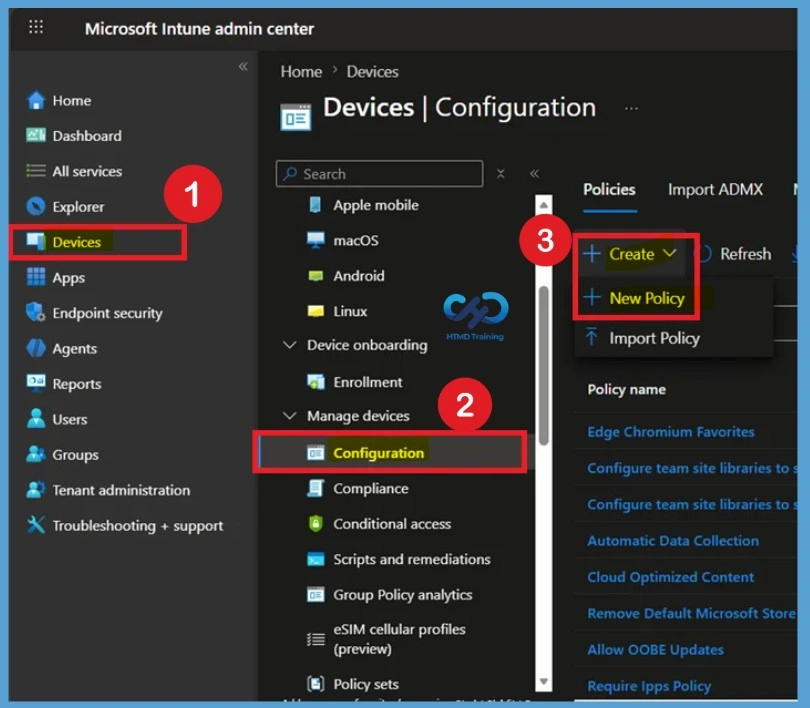
To begin, sign in to the Microsoft Intune admin center and navigate to Devices > Windows > Configuration profiles. Select Create > New policy to start creating a new configuration profile for Windows devices. Choose Windows 10 and later as the platform and select Settings catalog as the profile type.
- Sign in to the Microsoft Intune Admin Center
- Select Devices > Windows > Configuration profiles > Create profile
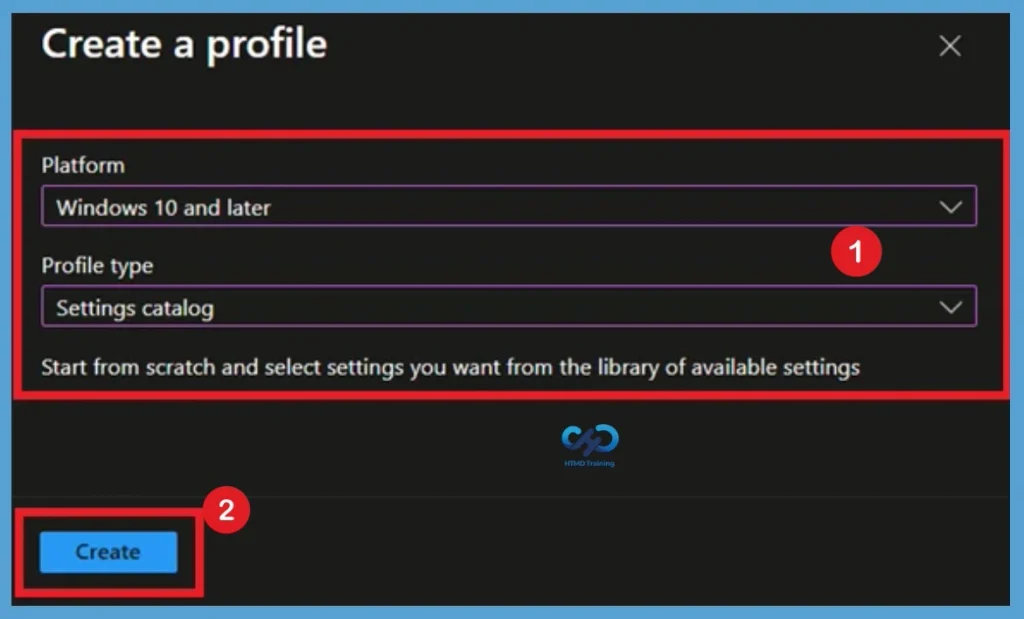
Choose Windows 10 and later as the platform and select Settings catalog as the profile type. The Settings Catalog allows administrators to search for and configure individual policy settings, including the settings required for the Block Internet Macros for Office Applications policy. Click on Create button.
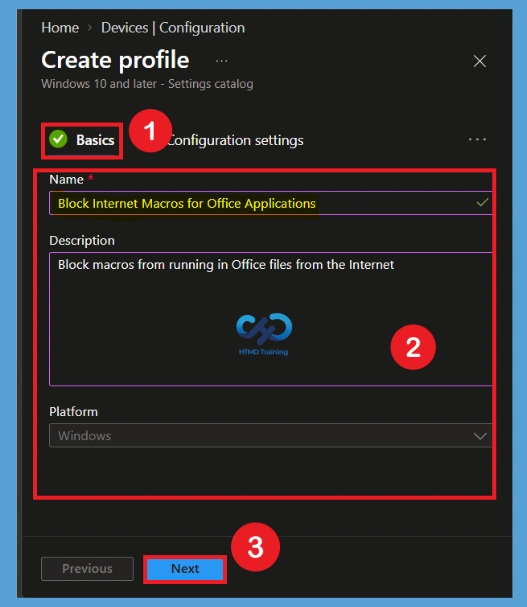
Basic Tab
In the Basics section, enter a meaningful name for the policy. For example, you can use Block Internet Macros for Office Applications so that administrators can easily identify the purpose of the profile later. You can also add a description such as Block macros from running in Office files from the Internet. A clear description helps other administrators understand why the policy was created and what security setting it manages before opening the profile configuration.
- Optionally, enter a Description for the policy – Block macros from running in Office files from the Internet.
- Select Next to continue.
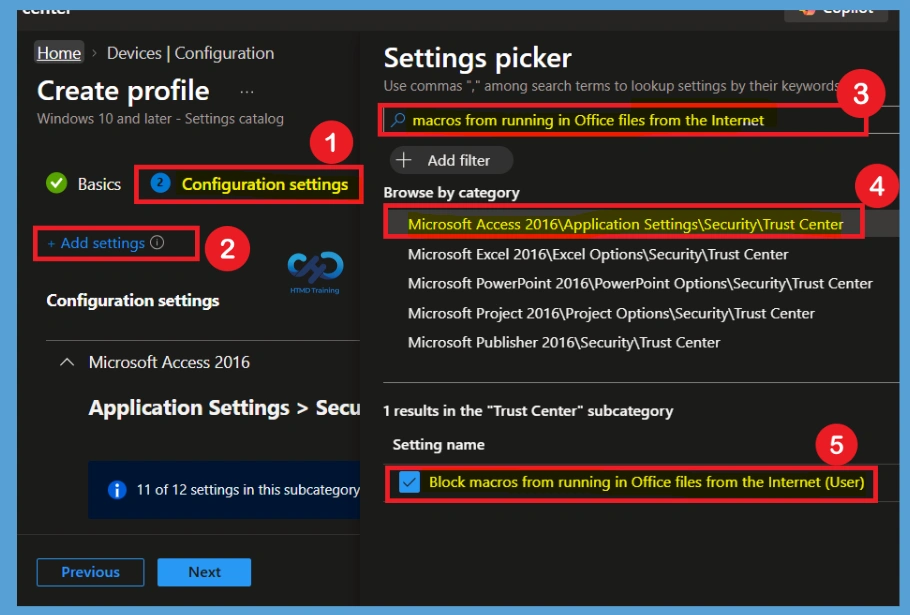
Configuration Settings
In Configuration settings, click Add settings to browse or search the catalog for the settings you want to configure. In this case, to block internet macros from running on office apps.On the Settings Picker windows, use the search box and type macros from running in Office files from the Internet, and click Search.
- Block macros from running in Office files from the Internet (User)
- Use commas “,” among search terms to lookup settings by their keywords “macros from running in Office files from the Internet.”.
- The Browse by category – 1 results in the “Trust Center” subcategory – Setting name.
Block Internet Macros for Office Applications Policy is Disabled by Default
The Block macros from running in Office files from the Internet setting is not enabled by default through the Intune policy. This means administrators must explicitly configure and enable the setting if they want Intune to enforce macro blocking for the selected Office applications.
When the setting remains unconfigured or disabled, the policy does not actively enforce this specific macro-blocking behavior through Intune. Therefore, organizations that want centralized protection should enable the appropriate setting for the required Office applications.
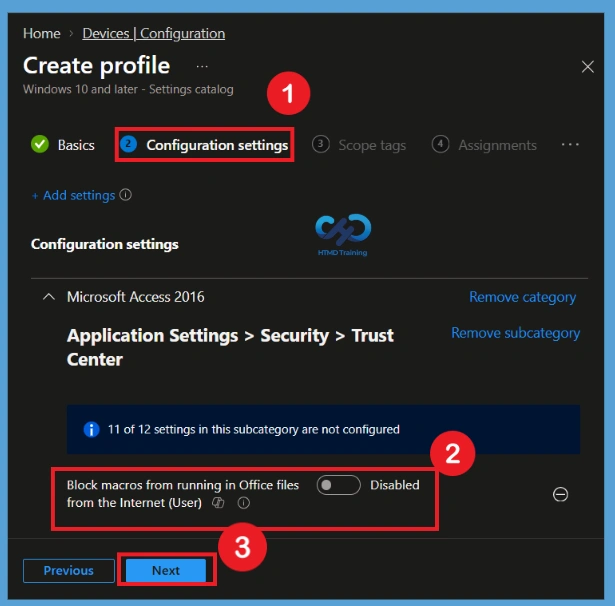
Enable the Block Internet Macros for Office Applications Policy
This policy setting allows you to block macros from running in Office files from the Internet. If you enable this policy setting, macros are blocked from running, even if “Enable all macros” is selected in the Macro Settings section of the Trust Center.
The disabled macro policy is available for 5 office applications such as Access, Excel, PowerPoint, Visio, and Word. You can use the settings called “Block macros from running in Office files from the Internet (User)” to change the default behavior of the Office application towards enabling the Macros received from the internet.
- Microsoft Access 2016 – Application Settings > Security > Trust Center – 11 of 12 settings in this subcategory are not configured.
- Microsoft Excel 2016 – Excel Options > Security > Trust Center – 15 of 16 settings in this subcategory are not configured.
- Microsoft PowerPoint 2016 – PowerPoint Options > Security > Trust Center – 13 of 14 settings in this subcategory are not configured.
- Microsoft Visio 2016 – Visio Options > Security > Trust Center – 114 of 115 settings in this subcategory are not configured.
- Microsoft Word 2016 – Word Options > Security > Trust Center – 18 of 19 settings in this subcategory are not configured.
Also, instead of having the choice to “Enable Content,” users will receive a notification that macros are blocked from running. Macros will be allowed to run if the Office file is saved to a trusted location or was previously trusted by the user. If you disable or don’t configure this policy setting, the settings configured in the Macro Settings section of the Trust Center determine whether macros run in Office files that come from the Internet.
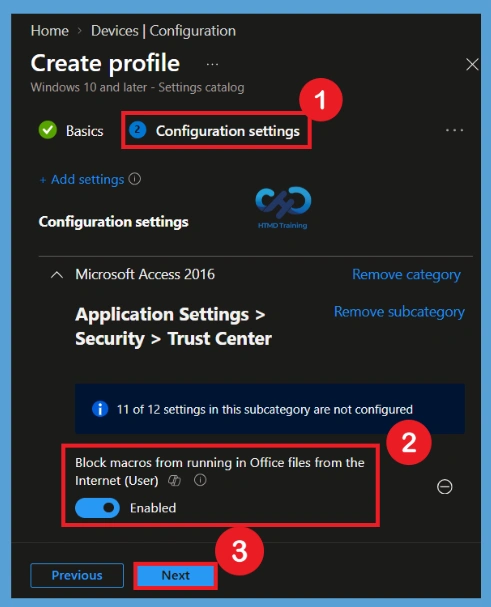
- Use the slider (move to the right) to enable the block policy for running the macros from office files, as shown in the below screenshot.
- Follow the same steps for all 5 applications.
- Click on Next.
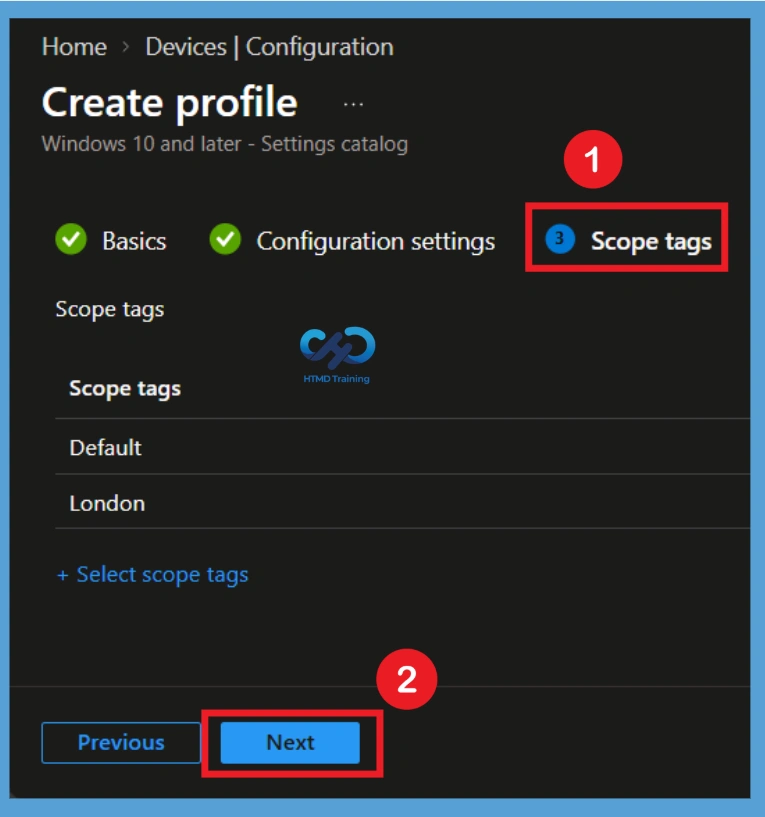
Configure Scope Tags
The Scope tags section allows administrators to apply role-based access controls to the policy. In Scope tags you can assign a tag to filter the profile to specific IT groups. Add scope tags (if required) and click Next.
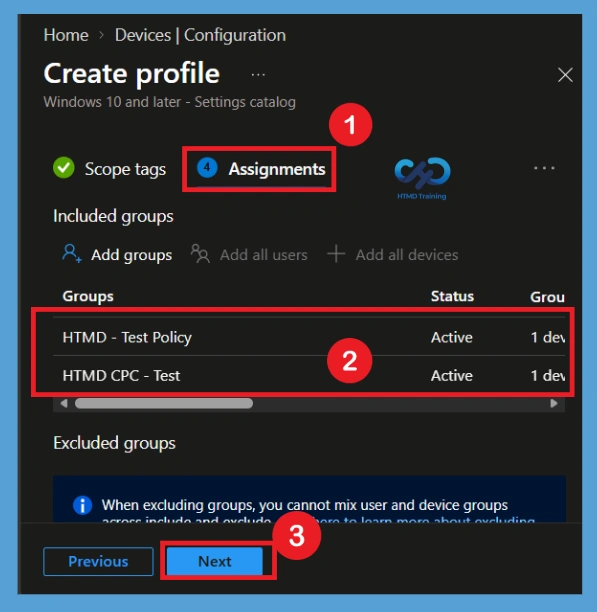
Assign the Block Internet Macros for Office Applications Policy
In the Assignments section, select the Microsoft Entra ID groups that should receive the Block Internet Macros for Office Applications policy. You can assign the policy to the appropriate user or device groups based on your organization’s deployment requirements. Here, I selected the HTMD-Test Policy group and HTMD CPC Test group.
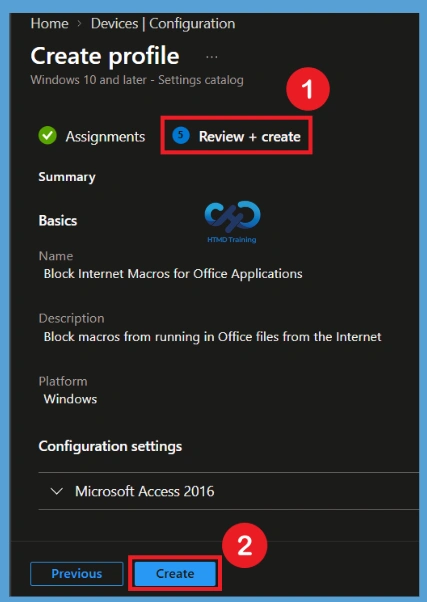
Review and Create the Block Internet Macros
The Review + create page displays a summary of the policy configuration. Review the policy name, selected Office application settings, scope tags, and group assignments to ensure that everything is configured correctly. Once you confirm the configuration, select Create to save and deploy the Block Internet Macros for Office Applications policy. Intune will then begin processing the policy and delivering it to the targeted users or devices.
Monitor the Block Internet Macros for Office Applications
After deployment, you can monitor the Block Internet Macros for Office Applications policy from the Intune admin center. Open the configuration profile and check the device and user status to see whether the policy was successfully applied.
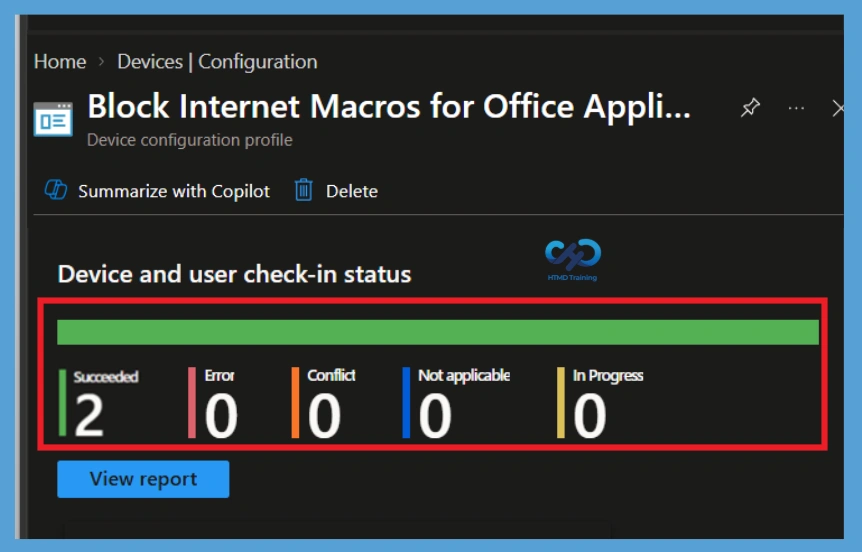
Intune Policy Deployment
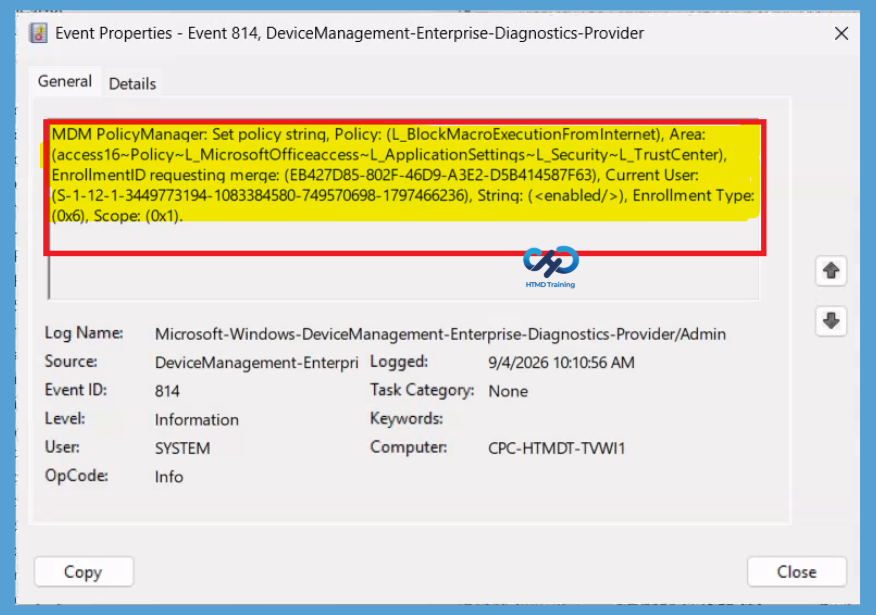
You can check Intune settings catalog profile report from Intune Portal, which provides an overall view of device configuration policies and deployment status. The next step is to look into the event logs and confirm whether the policy is applied or not. Event Log path for Intune logs – > Applications and Services -> Microsoft->Windows->DeviceManagement-Enterprise-Diagnostics-Provider->Admin
| Policy Information |
|---|
| MDM PolicyManager: Set policy string, Policy: (L_BlockMacroExecutionFromInternet), Area: (access16~Policy~L_MicrosoftOfficeaccess~L_ApplicationSettings~L_Security~L_TrustCenter), EnrollmentID requesting merge: (EB427D85-802F-46D9-A3E2-D5B414587F63), Current User: (S-1-12-1-3449773194-1083384580-749570698-1797466236), String: (<enabled/>), Enrollment Type: (0x6), Scope: (0x1). |
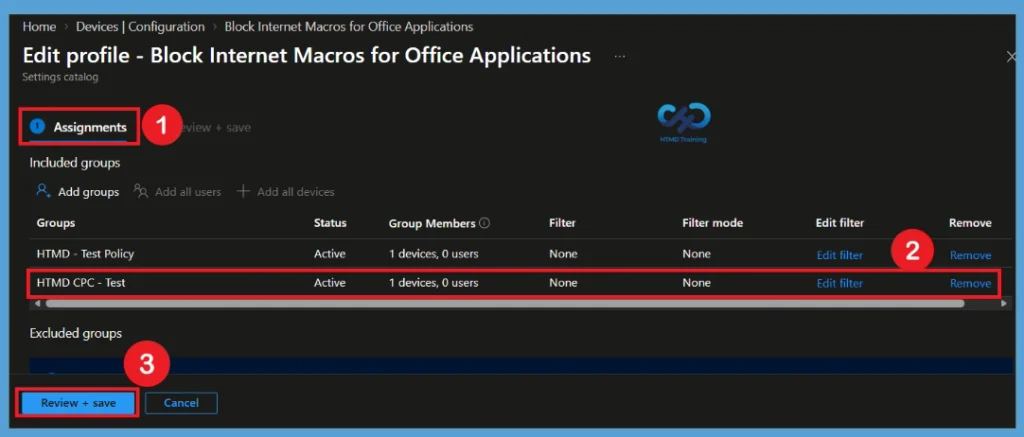
Remove Assigned Groups from the Block Internet Macros for Policy
If you no longer want a particular group to receive the policy, open the Block Internet Macros for Office Applications configuration profile and edit its assignments. Remove the group that should no longer be included in the deployment. After saving the changes, Intune updates the policy assignment for the affected group. This allows administrators to stop deploying the policy to selected users or devices without deleting the entire configuration profile.
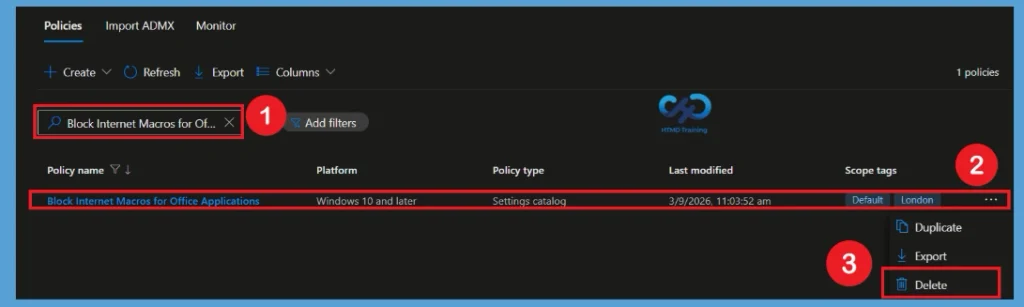
Delete the Block Internet Macros
If the policy is no longer required, you can permanently remove it from Intune. First, locate the Block Internet Macros for Office Applications policy under Devices > Windows > Configuration profiles. Select the policy and choose Delete, then confirm the deletion when prompted. Once permanently deleted, the configuration profile is removed from Intune and will no longer be available for management.
Need Further Assistance or Have Technical Questions?
Join the LinkedIn Page and Telegram group to get the latest step-by-step guides and news updates. Join our Meetup Page to participate in User group meetings. Also, join the WhatsApp Community and the Whatsapp channel to get the latest news on Microsoft Technologies. We are there on Reddit as well.
Author
Anoop C Nair is Workplace Technology solution architect with 25+ years of experience in global enterprise organizations such as JP Morgan, Capgemini, etc. He is Microsoft Certified Trainer. Microsoft MVP from 2015 onwards for consecutive 11 years! He also conducts Intune and modern workplace tech training for enterprise organizations. He is Blogger, Speaker, and Founder of HTMD Community and HTMD Conference. His focus is on Device Management technologies such as Intune, Windows, Cloud PC. He writes about technologies like Intune, SCCM, Windows, Cloud PC, Windows, Entra, Microsoft Security.