
Key Takeaways
- Get notified about Cloud PC issues such as connection, provisioning, and image upload failures.
- Customize alert rules by setting conditions, thresholds, and severity levels.
- Choose how to receive alerts through Intune notifications and/or email.
- Email alerts are sent automatically when an issue occurs and again if the issue reappears after being resolved.
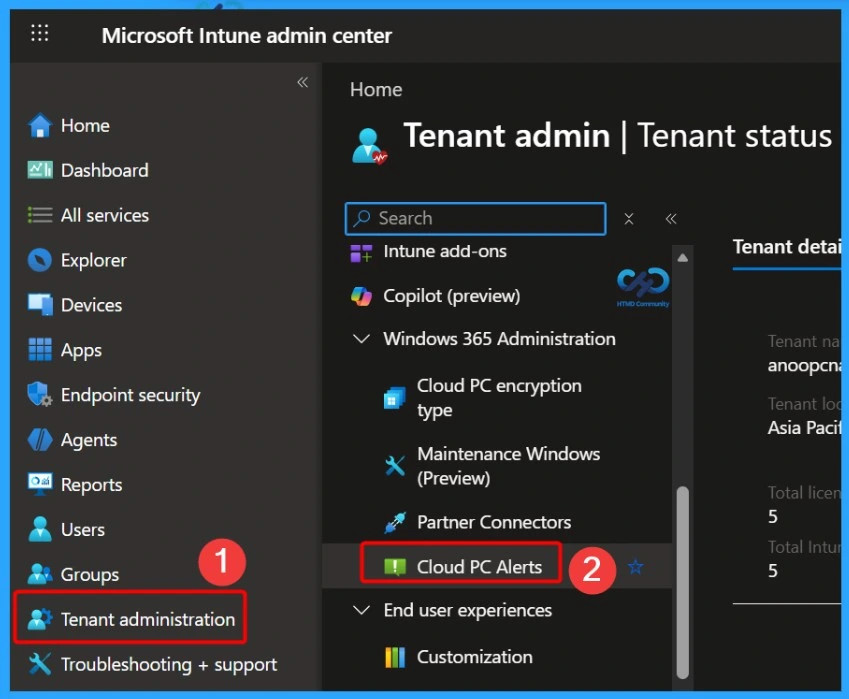
- View alerts in Intune Admin Center under Tenant Administration > Cloud PC Alerts (requires Intune Administrator or Windows 365 Administrator permissions).
How to Configure Windows 365 Cloud PC Status and Performance Alerts in Intune! Windows 365 Alerts help administrators monitor Cloud PC environments by notifying them about issues such as connection, provisioning, and image upload failures. Alerts can also warn when Windows 365 Flex concurrency limits are reached or when User Experience Sync storage is running low. Notifications appear in the Intune admin center and can also be sent by email.
Table of Content
Table of Contents
How to Configure Windows 365 Cloud PC Status and Performance Alerts in Intune
Windows 365 provides customizable alerts to help you track Cloud PC health and performance. Administrators can configure alert conditions, thresholds, severity levels, and notification methods. Email notifications are also very helpful, sent when an alert is triggered and again if the issue reoccurs after being resolved.
- Get Email Alerts for Intune Outages Microsoft 365 Services Advisory Status Change
- Intune Service Health Status Message In MEM Admin Center
- Windows 365 Frontline is Now Windows 365 Flex with No Change to Features or Licensing
Requirements
Your account must have a Windows 365 Enterprise license and be assigned either the Intune Administrator or Windows 365 Administrator role to view Cloud PC alerts. The table below shows more details.
| Requirement Type | Requirement |
|---|---|
| License | Windows 365 Enterprise |
| Administrative Role | Intune Administrator |
| Administrative Role | Windows 365 Administrator |
Get Alerts for Windows 365 Cloud PC Status
Microsoft 365 Service health status portal helps admins when service issues prevent tenant admins from accessing Service health in the Microsoft 365 admin center. Here you will see how you can configure the Windows 365 Alerts system to notify you when specific events occur in your Cloud PC environment.

- The first step is to sign in to the Microsoft Intune admin Center https://intune.microsoft.com/.
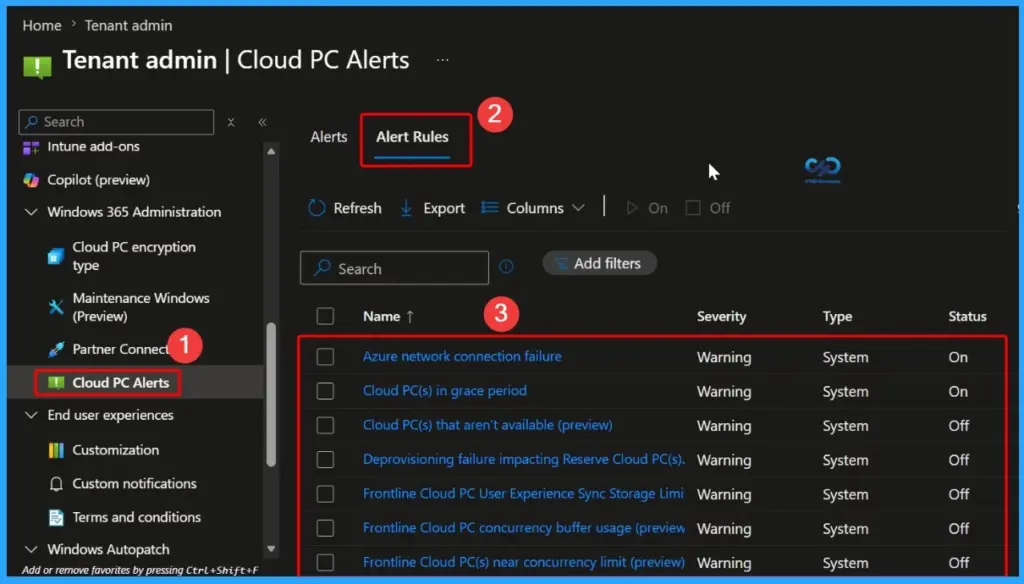
- Navigate to the Tenant administration > Cloud PC Alerts
Alerts
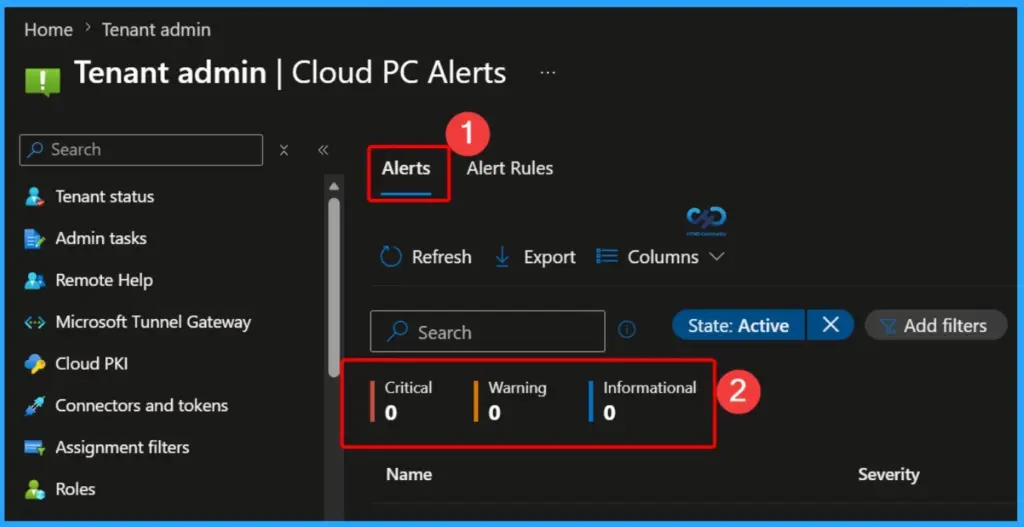
In Cloud PC Alerts, there are two tabs: Alerts and Alert Rules. The Alerts tab shows all current and recent alerts in your Windows 365 environment. Each alert is categorized by its severity level, such as Critical, Warning, or Informational, helping administrators quickly identify and prioritize issues that need attention.
Add Filters in Alerts
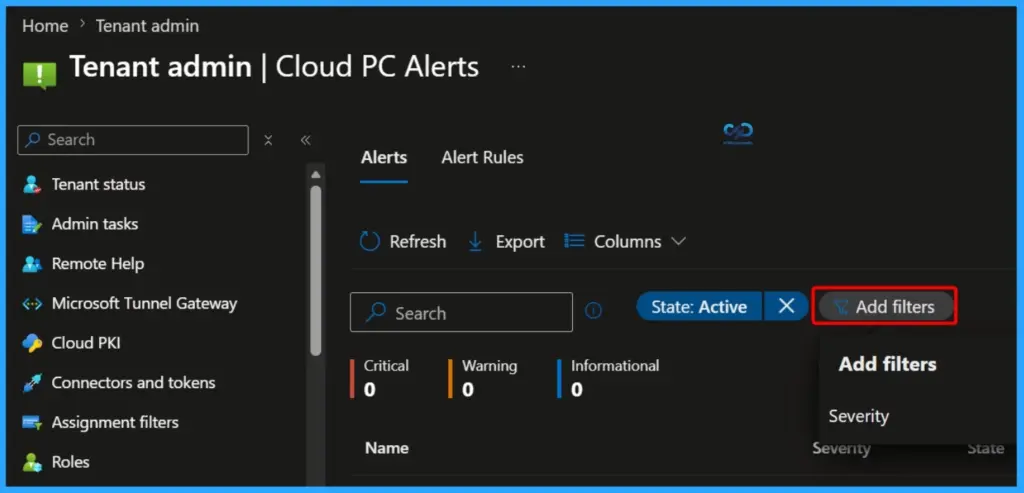
By default, the Alerts tab displays only active alerts. You can use the Add filter option to quickly find specific alerts based on their Severity or State. The available severity levels are Informational, Warning, and Critical, while the state options are Active and Resolved. These filters help administrators easily locate and manage alerts in the Windows 365 environment.
Alert Rules
Alert Rules are predefined settings that determine when and how alerts are generated in your Windows 365 environment. They help administrators monitor Cloud PC health and receive notifications when specific conditions or issues occur.
- Azure network connection failure
- Cloud PC(s) in grace period
- Cloud PC(s) that aren’t available (preview)
- Deprovisioning failure impacting Reserve Cloud PC(s).
- Frontline Cloud PC User Experience Sync Storage Limi
- Frontline Cloud PC concurrency buffer usage (preview
- Frontline Cloud PC(s) near concurrency limit (preview)
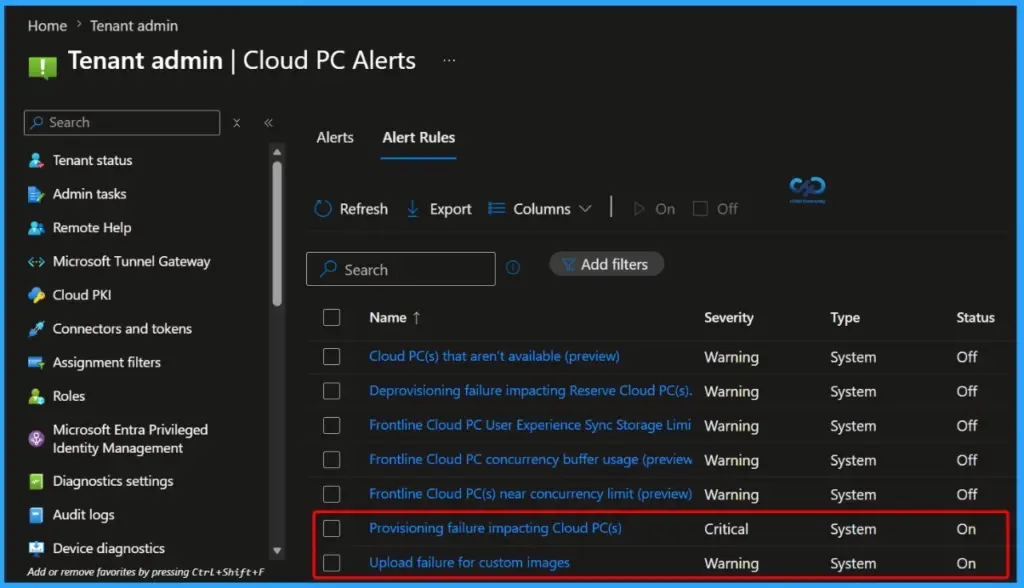
- Provisioning failure impacting Cloud PC(s)
- Upload failure for custom images
Provisioning Failure Impacting Cloud PC(s) and Upload Failure for Custom Images
This alert rule is triggered when one or more Cloud PCs fail during the provisioning process. Provisioning failures can prevent users from accessing their Cloud PCs and may occur due to configuration issues, licensing problems, or service-related errors. Administrators can use this alert to quickly identify and resolve deployment issues.
This alert rule is triggered when a custom image upload fails in Windows 365. Custom images are used to create Cloud PCs with specific applications and configurations. If the upload process fails, administrators are notified so they can investigate the issue and ensure the image is successfully uploaded and available for Cloud PC provisioning.
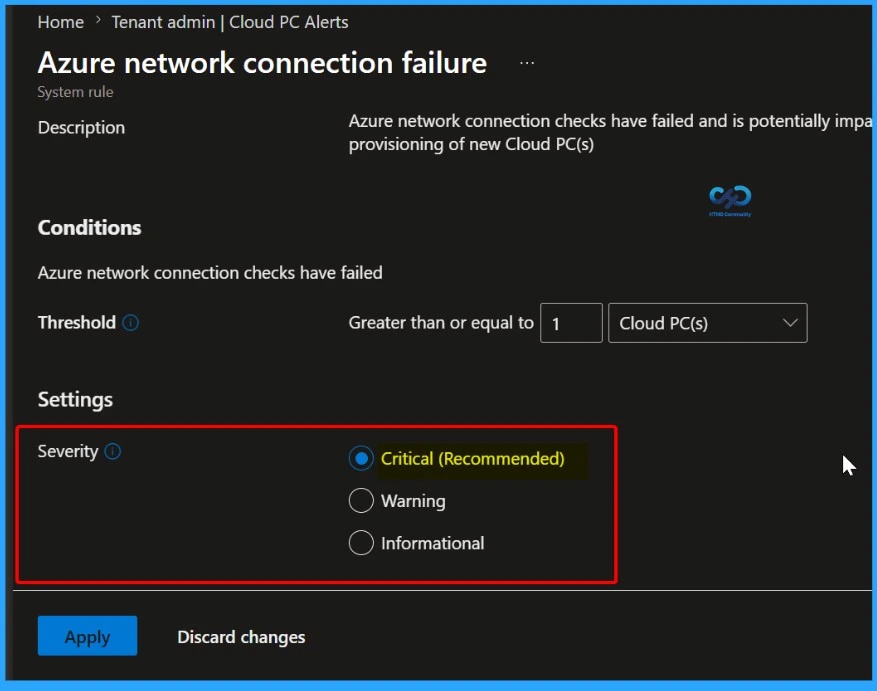
Azure network connection failure alert rule
From the list of Alerts Rule we selected one rule that Azure network connection failure alert rule, which is triggered when Azure network connection checks fail. This issue can affect existing Cloud PCs and may also prevent the provisioning of new Cloud PCs. To ensure administrators are notified immediately about this high-impact issue, set the Severity level to Critical (Recommended). This helps prioritize the alert and enables faster troubleshooting and resolution.
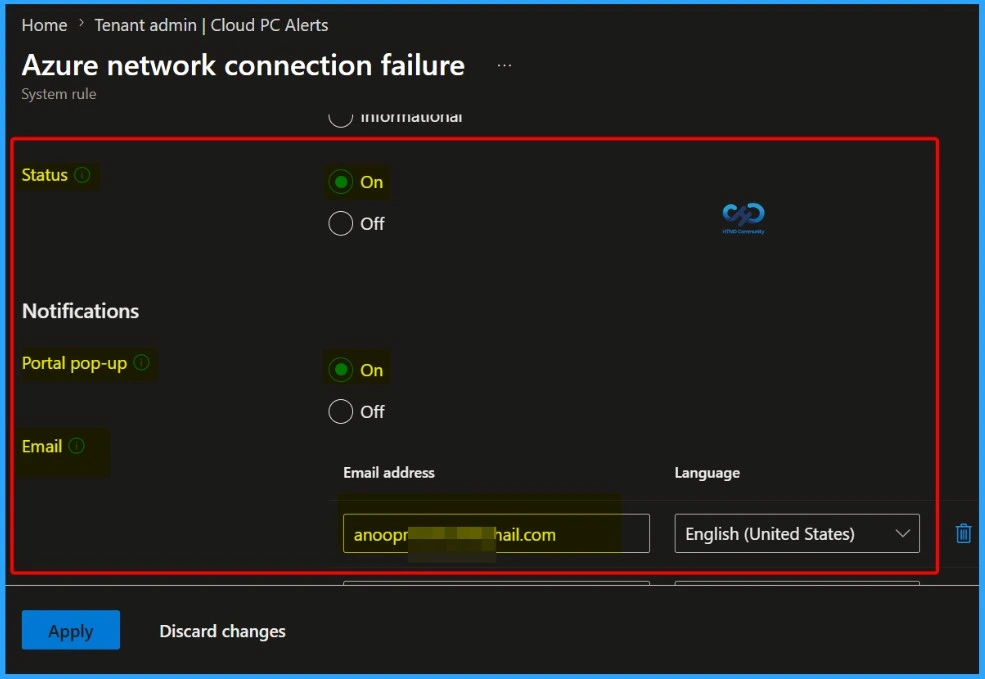
Configure Alert Notifications
Set the Status of the alert rule to On to enable monitoring for Azure network connection failures. Under the Notifications section, keep Portal Pop-up notifications set to On so alerts appear in the Microsoft Intune admin center. You can also add one or more email addresses to receive email notifications whenever the alert is triggered, ensuring administrators are informed promptly about critical issues.
View Alert Rule Details Using Columns
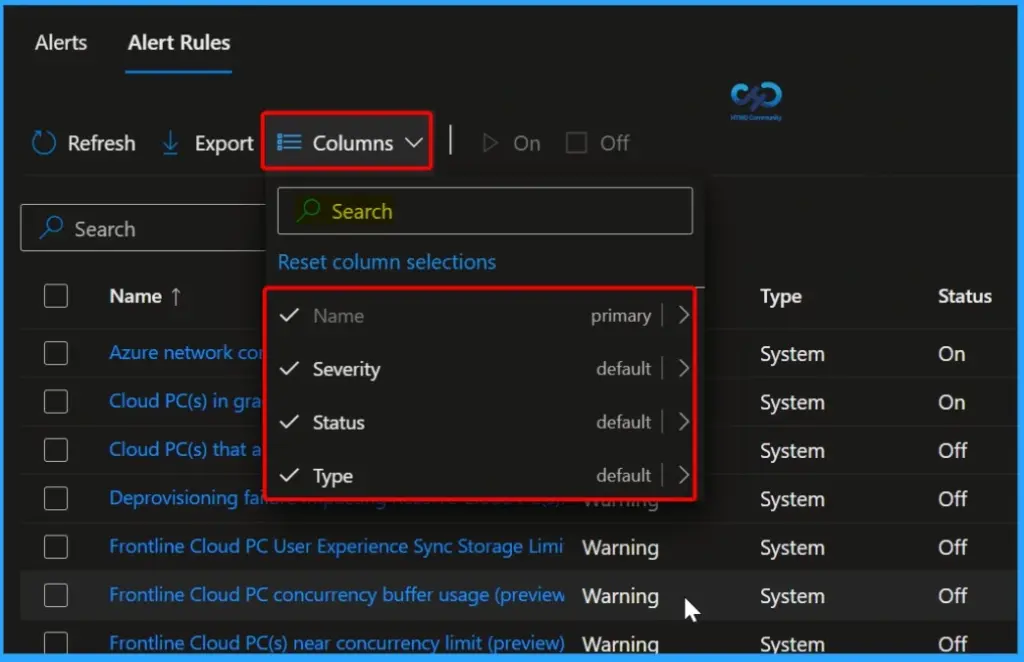
The Columns option in the Alert Rules tab helps you display and manage the information shown for each alert rule. By selecting Columns, you can view additional details such as the alert name, severity, status, notification settings, and other relevant properties. This makes it easier to review and manage alert rules in the Windows 365 environment.
Available Options in the Alert Rules Tab
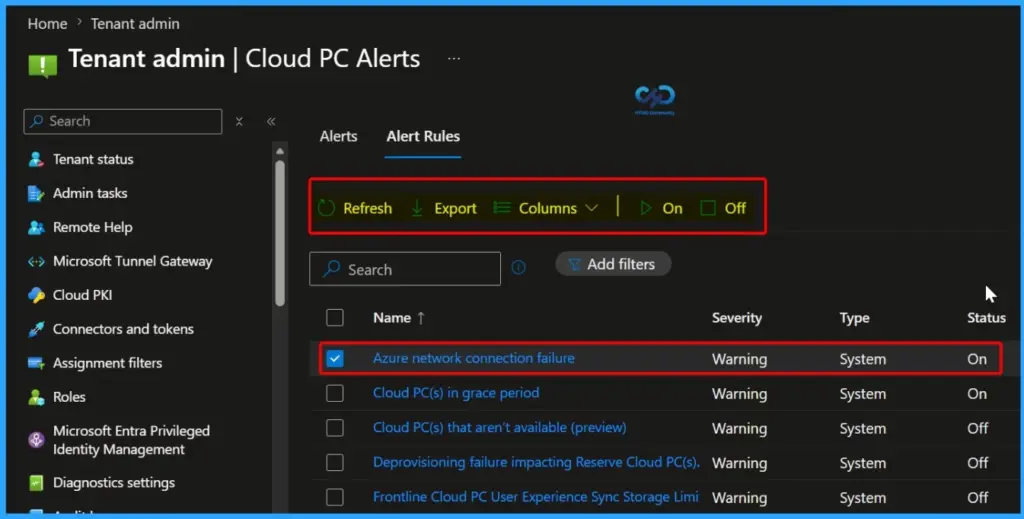
The Alert Rules tab provides several options to help manage and monitor alert rules effectively. The Refresh option updates the list with the latest information, while Export allows you to download the alert rule details for reporting or review. The Columns option lets you customize the information displayed in the list. You can also use the On and Off options to enable or disable selected alert rules based on your monitoring requirements.
Turn Off Alert Rules for the Tenant
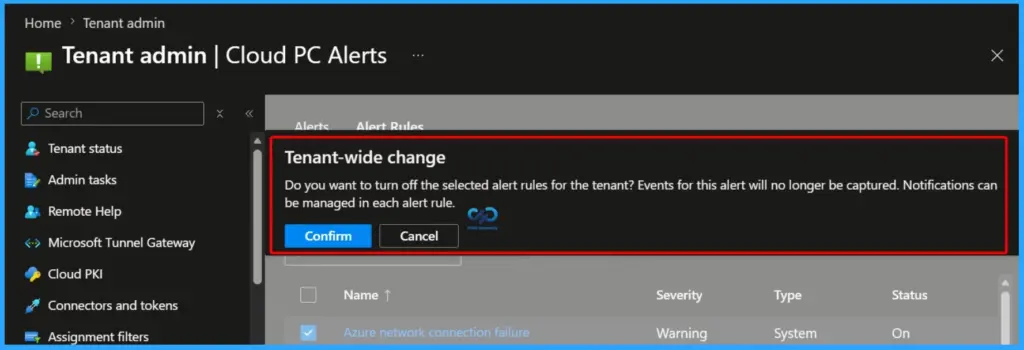
When you select Off for an alert rule, a Tenant-wide change confirmation message appears. This message asks whether you want to turn off the selected alert rules for the entire tenant. If you confirm the action, events related to those alert rules will no longer be captured, and new alerts will not be generated. Notification settings can still be managed individually within each alert rule if needed.
Resources
Alerts in Windows 365 | Microsoft Learn
Need Further Assistance or Have Technical Questions?
Join the LinkedIn Page and Telegram group to get the latest step-by-step guides and news updates. Join our Meetup Page to participate in User group meetings. Also, join the WhatsApp Community and the Whatsapp channel to get the latest news on Microsoft Technologies. We are there on Reddit as well.
Author
About Author – Jitesh, Microsoft MVP, has over six years of working experience in the IT Industry. He writes and shares his experiences related to Microsoft device management technologies and IT Infrastructure management. His primary focus is Windows 10/11 Deployment solution with Configuration Manager, Microsoft Deployment Toolkit (MDT), and Microsoft Intune.