

KeyTakeaways
- Learn how to configure the Allow Auto Unlock policy in Microsoft Intune.
- Prevent users from automatically unlocking their Mac using an Apple Watch.
- Improve Mac device security by restricting Apple Watch-based automatic unlocking.
- If false, disallows auto unlock. Available in macOS 10.12 and later, and iOS 14.5 and later.
Let’s learn how you can Configure Auto Unlock on Mac Policy to Prevent Apple Watch Unlocking using Intune. This guide on how to prevent auto-unlock with your Apple Watch on a Mac. Preventing your Mac from auto-unlocking with your Apple Watch is an important security measure to consider, especially if you’re concerned about unauthorized access to your computer. While the feature is convenient, knowing the potential security risks and how to disable them when needed is essential. In some situations, you may not want your Mac to automatically unlock, such as in shared workspaces or when you want to control when and how your computer unlocks.
Table of Contents
Table of Contents
Configure Auto Unlock on Mac Policy to Prevent Apple Watch Unlocking using Intune
While you are wearing an Apple Watch, your Mac can sense when you are nearby and log you in automatically. You can also use Apple Watch to approve other requests for your administrator password. Apple provides an Auto Unlock feature that allows users to unlock their Mac automatically when they are wearing a paired Apple Watch nearby. This feature offers convenience by reducing the need to enter a password every time they access their Mac.
- Microsoft Office License Removal Tool For Mac Office Apps Troubleshoot
- Manage System Integrity Protection For MacOS Devices Using Intune
- Upgrade To MacOS Sonoma And Intune Management
- How To Set Microsoft Outlook For MacOS Using Intune
Prevent Auto Unlock Mac with Apple Watch using Intune
In this guide, we will explore how to prevent Auto Unlock with Apple Watch on macOS devices using Microsoft Intune. We will configure the Allow Auto Unlock setting in the Settings Catalog, assign the configuration profile to the required device groups, and monitor the policy deployment status through the Microsoft Intune admin center.
- Sign in to the Microsoft Intune Admin portal.
- Select Devices > Configuration profiles > Create profile or navigate directly to macOS > Configuration profiles. Here, in this case platform will be prepopulated.
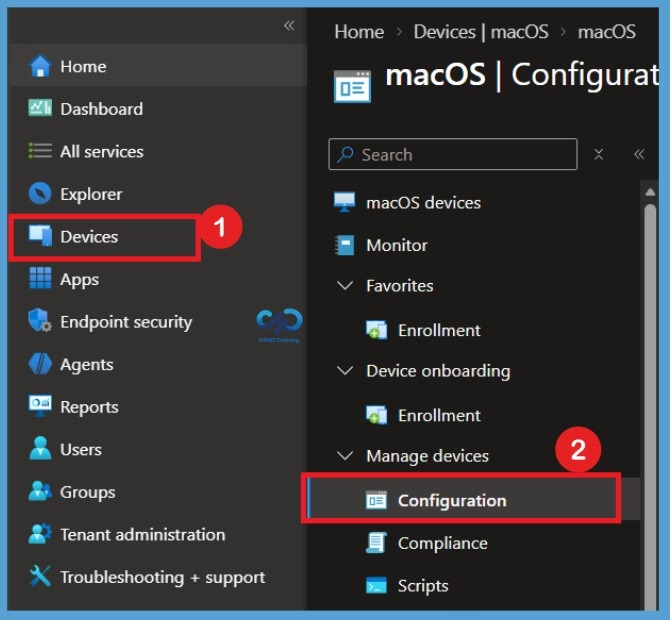
Create a New macOS Configuration Profile in Intune
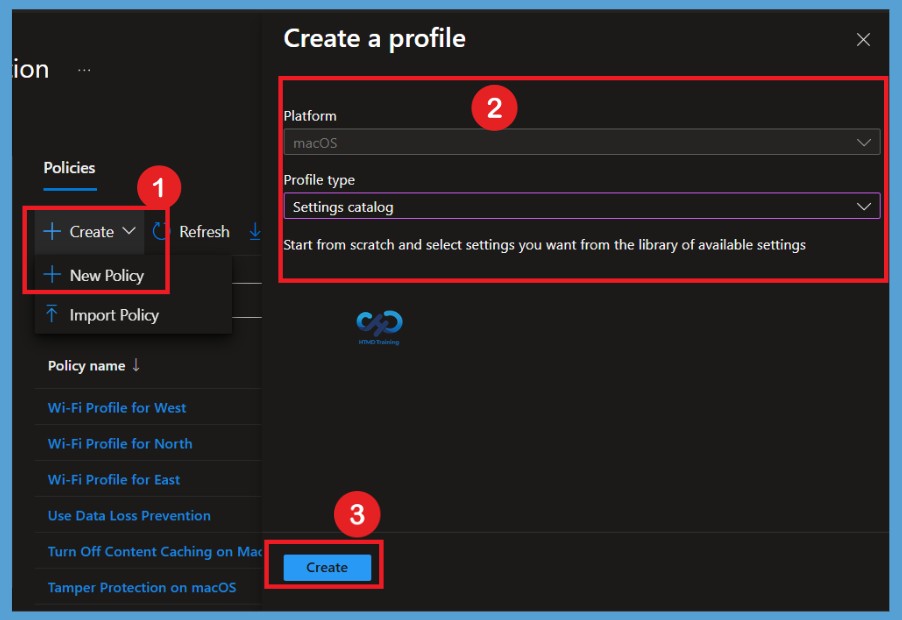
After selecting Device Configuration, navigate to the Policies section. Here, you can see the + Create option. Click it to choose between New Policy and Import Policy. Select New Policy to create a new configuration profile. You will be redirected to the Create Profile page, where macOS is already selected as the platform. Select Settings Catalog as the Profile Type and click on Create to continue.

Basic Details for the macOS Policy in Intune
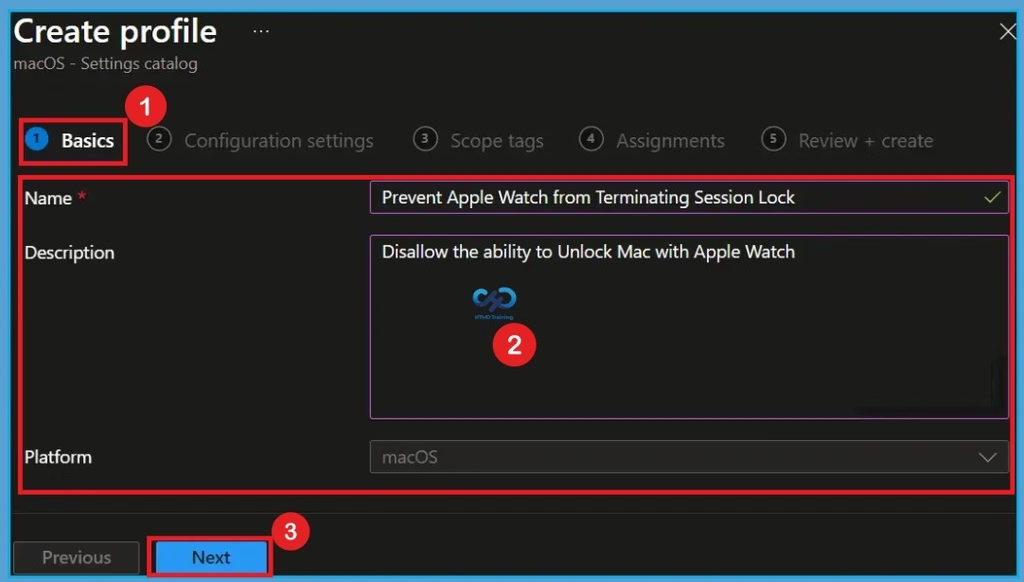
After creating the profile, you will be redirected to the Basics tab. In this section, you need to enter a name and description for the policy. Here, I entered “Prevent Apple Watch from Terminating Session Lock” as the policy name and “Disallow the ability to unlock Mac with Apple Watch” as the description. The macOS platform is already selected. After entering these details, click on Next to continue.
Configuration Settings
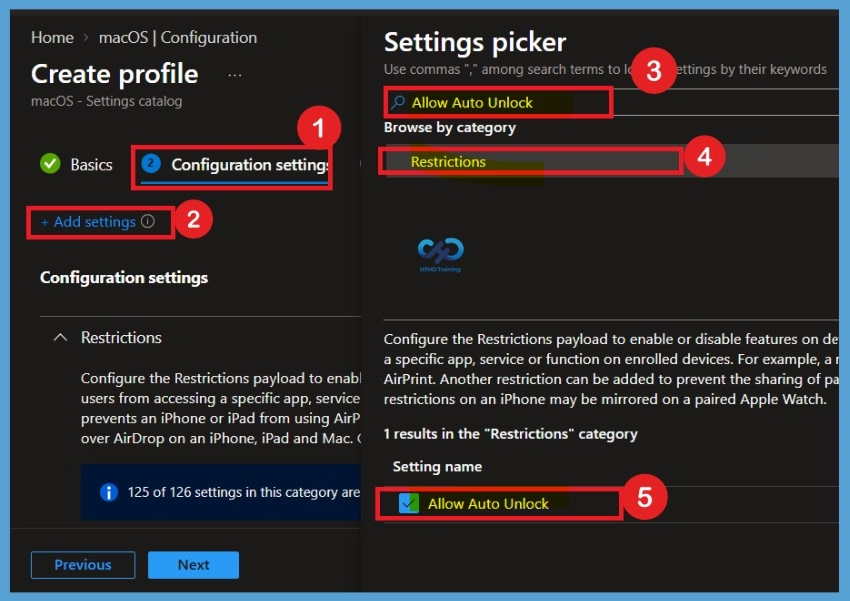
On the Configuration settings tab, With the settings catalog, you can choose which settings you want to configure. Click on Add Settings to browse or search the catalog for the settings you want to configure.Search for “Auto Unlock” or “Allow Auto Unlock”. Select the “Restrictions” from the search result. Select “Allow Auto Unlock” and close the settings picker pane.
Defaulted Settings
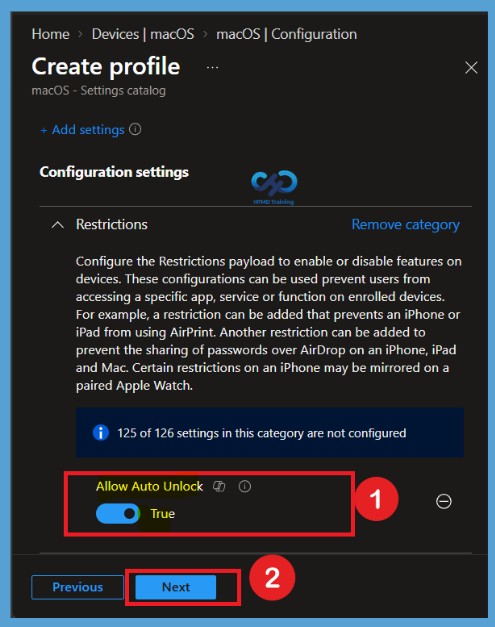
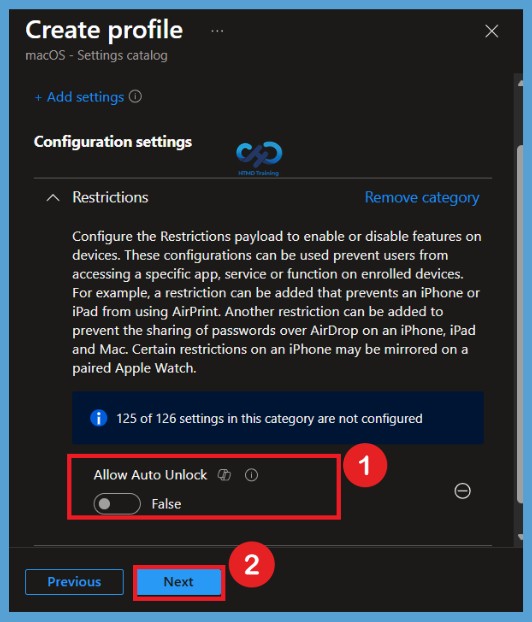
After selecting Allow Auto Unlock, the setting will appear under the Configuration settings section. Here, you can see that the default value is set to True, which allows users to unlock their Mac automatically using a paired Apple Watch. To prevent this functionality, change the setting to False. After configuring the required value, click on Next to continue.
Allow Auto Unlock to False
Configure the Restrictions payload to enable or disable features on devices. These configurations can be used to prevent users from accessing a specific app, service, or function on enrolled devices. Another restriction can be added to prevent the sharing of passwords over Airdrop on an iPhone, iPad and Mac. Certain restrictions on an iPhone may be mirrored on a paired Apple Watch. This policy setting allows you to allow Auto Unlock on devices, Toggle the switch to set False, and click on Next.
Scope Tags for the macOS Policy
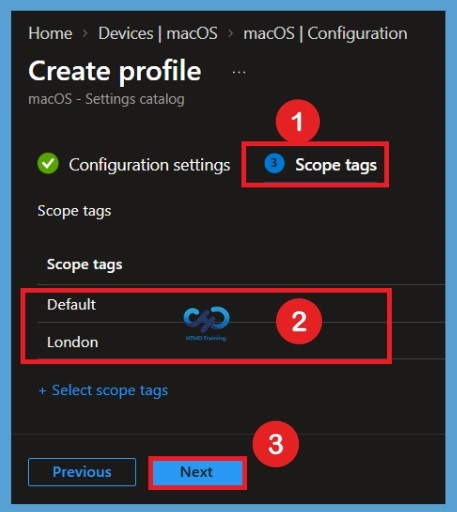
In the next step, you will be redirected to the Scope tags tab. Here, I selected London as the scope tag to organize and manage access to the configuration profile. After selecting the required scope tag, click on Next to continue.
Assignments
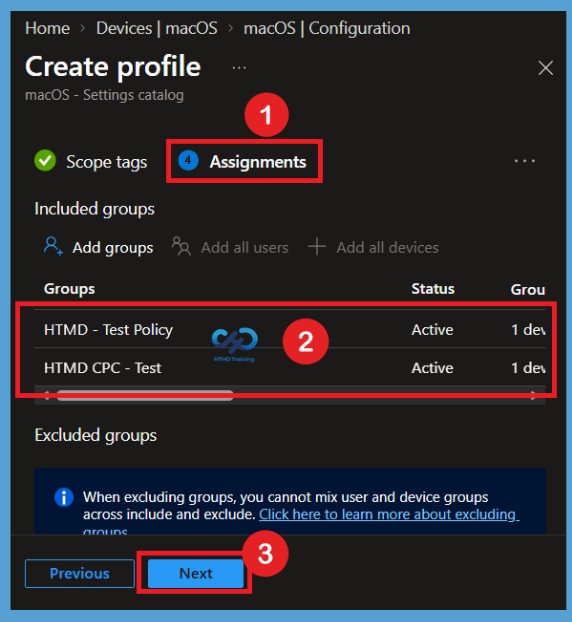
Now, you are on the Assignments page, where you can assign the configuration profile to the required groups. Here, I selected HTMD test policy and HTMD CPC test under Included Groups to deploy the policy to the targeted groups. After selecting the groups, click on Next to continue to the Review + Create page.
Review + Create Tab
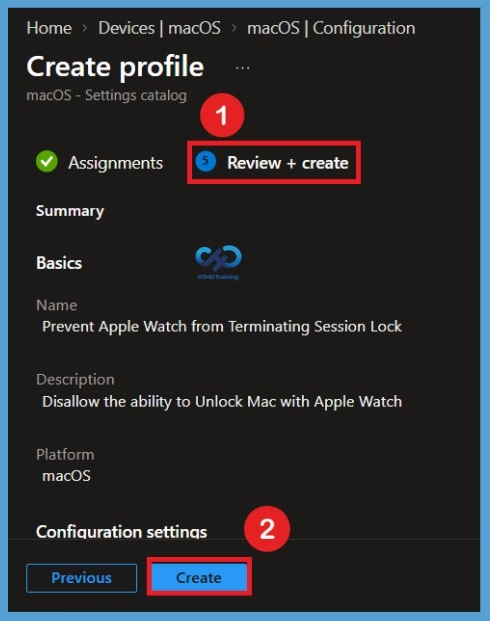
The next step is the Review + Create page, where you can review all the details configured for the policy, including the basic information, configuration settings, scope tags, and assignments. If you need to make any changes, you can return to the previous steps and edit the required settings. After reviewing all the details, click on Create to create the configuration profile in Microsoft Intune.
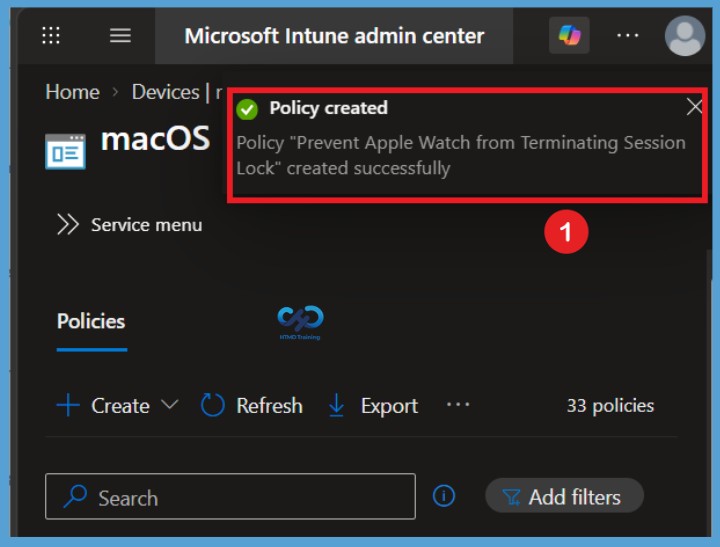
After clicking on Create, a notification will appear in the top-right corner of the Microsoft Intune admin center confirming that the policy was created successfully. The notification displays the message “Prevent Apple Watch from Terminating Session Lock” created successfully. You can close the notification after verifying the successful policy creation.
Monitor Prevent Auto Unlock Mac Policy
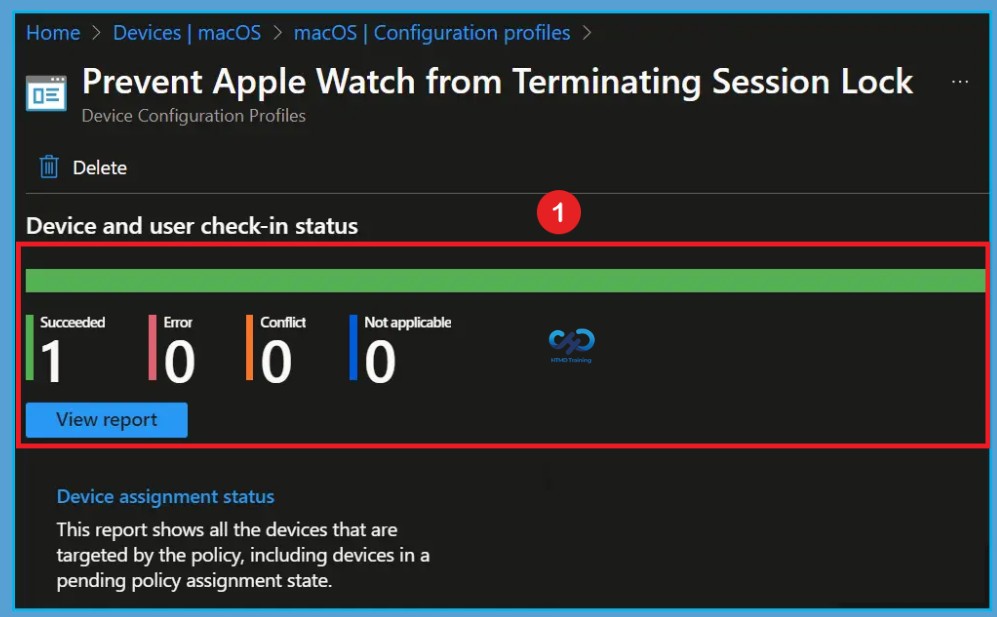
Intune provides several features to monitor and manage device configuration profiles. Once the configuration profile is applied, To monitor Intune policy assignment, from the list of Configuration Profiles, select the policy you targeted, and here you can check the device and user check-in status. Navigate to Devices > Configuration profiles and search for the policy named Prevent Apple Watch from Terminating Session Lock. Select the policy to open its Overview page, where you can check the device and user check-in status.
Note! The device groups will receive your profile settings when the devices check in with the Intune service. The Policy applies to the device.
If you click View Report, additional details are displayed. Additionally, you can quickly check the update as devices/users check-in status reports:
Need Further Assistance or Have Technical Questions?
Join the LinkedIn Page and Telegram group to get the latest step-by-step guides and news updates. Join our Meetup Page to participate in User group meetings. Also, join the WhatsApp Community and the Whatsapp channel to get the latest news on Microsoft Technologies. We are there on Reddit as well.
Author
About Author – Jitesh, Microsoft MVP, has over six years of working experience in the IT Industry. He writes and shares his experiences related to Microsoft device management technologies and IT Infrastructure management. His primary focus is Windows 10/11 Deployment solution with Configuration Manager, Microsoft Deployment Toolkit (MDT), and Microsoft Intune.