
Key Takeaways
- Understand the difference between Auto, Light, and Dark theme options.
- Appearance settings personalize your own portal experience and don’t affect other administrators.
- Discover that appearance settings are user-specific and don’t affect other Intune administrators.
- Improve workspace visibility by selecting the theme that best matches your working environment.
In this post, you will learn Customize Intune Dark Mode for Enhanced Visibility and Productivity. The dark theme delivers a simple experience across the Intune Admin Center you depend on so that you can focus on your work more easily. The dark theme for Intune Console provides a great look compared to the light theme. It’s also good If you are a person who spends a lot of time working in the Intune Admin, Dark mode can reduce eye strain in low-light conditions.
Table of Contents
Table of Contents
Customize Intune Dark Theme Mode for Enhanced Visibility and Productivity
Choosing the right appearance settings can make the portal more comfortable to use while improving navigation across different workloads. The Intune admin center now offers a simplified Appearance experience that lets administrators personalize the portal with Light, Dark, or Auto themes. Along with theme selection, administrators can also configure how the left navigation menu behaves by choosing either Collapsed or Expanded mode, making the portal easier to navigate based on individual preference.
- Intune Managed Application Troubleshooting
- Latest Intune Admin Portal Walkthrough Guide | MEM Admin Center
- MDM Diagnostics Tool – Tips & Tricks – Windows Autopilot Troubleshooting
Enable Dark Mode for Intune Admin Portal
Open a web browser and sign in to the Microsoft Intune admin center using an account that has the necessary administrative permissions. After successful authentication, the Intune home page displays the available workloads, including Devices, Apps, Endpoint Security, Reports, and Tenant Administration.
- Sign in to the Microsoft Endpoint Manager admin center
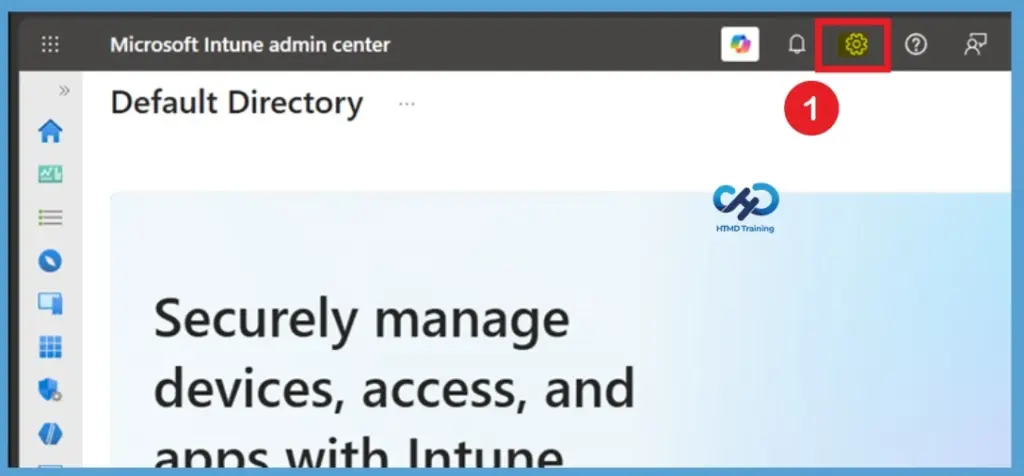
- Once logged in to Intune Admin Center, click the Settings icon in the top-right corner. Most settings are available from the Settings menu.
In the Portal settings window, select Appearance from the available categories. This page contains the options used to customize how the Intune admin center looks and how the navigation menu behaves. Under the Theme section, you’ll find three available options: Auto, Light, and Dark. The Auto option automatically follows your operating system or browser theme, while Light provides the standard portal appearance.

Select Dark to apply a darker interface across the Intune admin center. The dark theme offers improved visual contrast and can help reduce eye strain, especially when working for extended periods or in low-light environments.
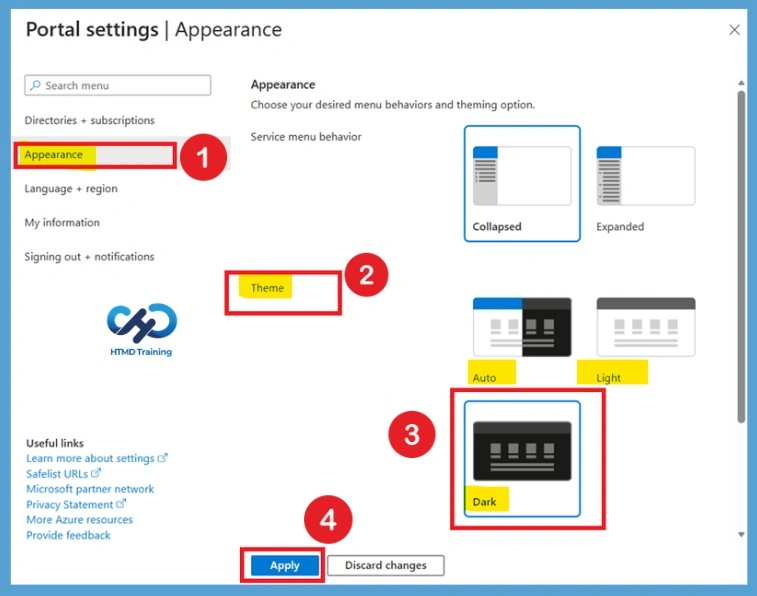
After selecting the Dark theme, click Apply to save your appearance settings. The Intune admin center immediately updates the interface using the selected theme. The changes take effect instantly without requiring you to sign out or refresh the browser. Once applied, the dark theme remains your default appearance until you manually change it back to Light or Auto from the Appearance settings
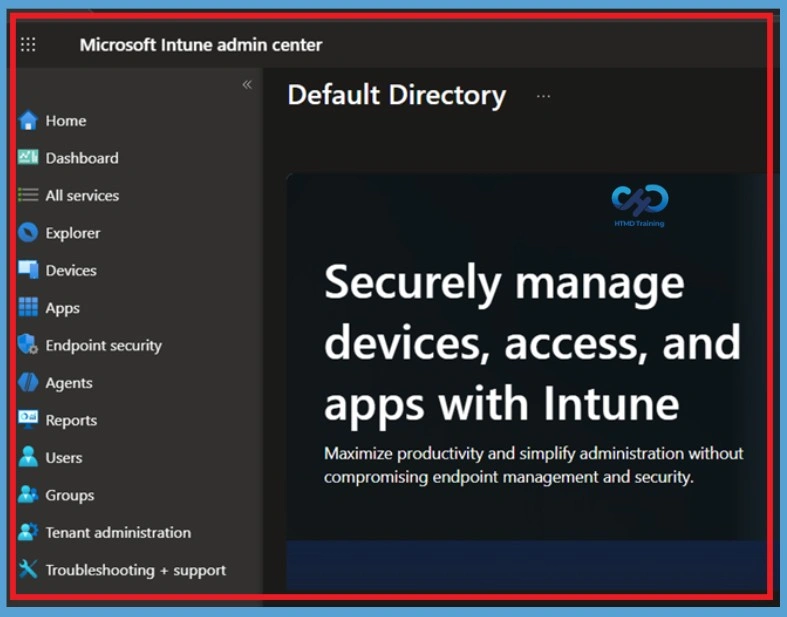
- Here’s an example of the dark theme applied to Intune admin portal Home
Note: The selected dark theme for the Intune console is applied. You don’t need to sign out to apply the effect.
Appearance
In the Portal settings window, select Appearance from the available categories. This page contains the options used to customize how the Intune admin center looks and how the navigation menu behaves. The Appearance page lets you configure both the Service menu behavior and the Theme. You can choose whether the navigation menu remains expanded or collapsed and select the color theme that best suits your working environment.
- You can select which Appearance you need after that you can click on the Apply.
| Appearance Settings | Info |
|---|---|
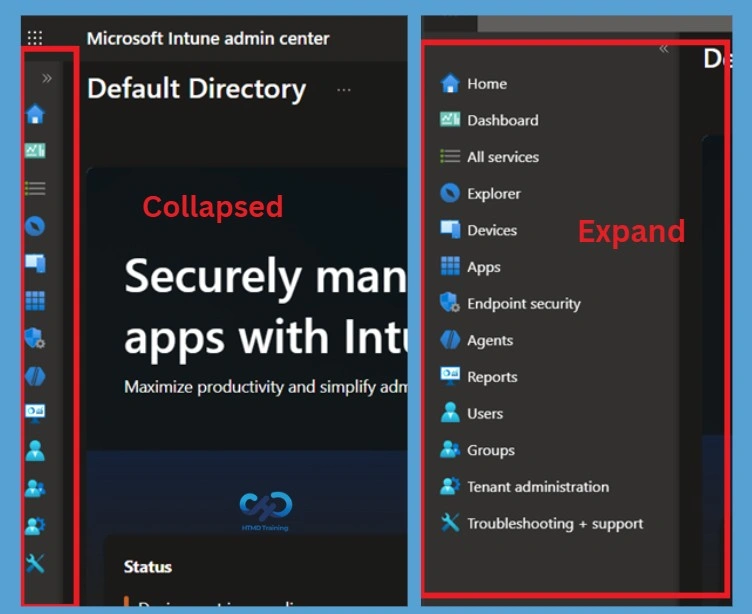
| Collapsed | The Collapsed option minimizes the navigation menu to icons, providing more workspace for viewing devices, policies, reports, and configuration settings. This option is ideal for administrators working on smaller displays or who prefer a cleaner interface. |
| Expanded | The Expanded option keeps the full navigation menu visible at all times. All service names remain displayed, making it easier to browse between different Intune workloads without expanding the menu repeatedly. This layout is especially useful for new administrators or users who frequently switch between multiple sections of the portal. |
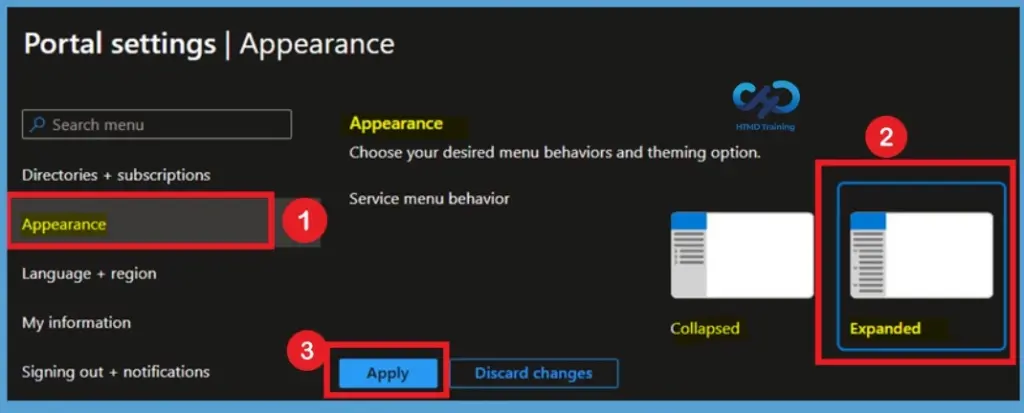
The menu setting allows you to choose how the navigation pane is displayed in the Microsoft Intune admin center. Selecting Collapsed minimizes the left navigation menu to icons, providing more workspace for viewing policies, devices, and reports. Choosing Expanded keeps the full navigation menu visible with service names, making it easier to navigate between different Intune workloads without expanding the menu each time.
- Select the option that best matches your preferred style and click Apply to save the changes
Need Further Assistance or Have Technical Questions?
Join the LinkedIn Page and Telegram group to get the latest step-by-step guides and news updates. Join our Meetup Page to participate in User group meetings. Also, join the WhatsApp Community and the WhatsApp channel to get the latest news on Microsoft Technologies. We are there on Reddit as well
Author
About Author – Jitesh, Microsoft MVP, has over six years of working experience in the IT Industry. He writes and shares his experiences related to Microsoft device management technologies and IT Infrastructure management. His primary focus is Windows 10/11 Deployment solution with Configuration Manager, Microsoft Deployment Toolkit (MDT), and Microsoft Intune.