
Key Takeaways
- Administrators can allow or block the device category selection prompt for end users.
- The setting applies to the Company Portal app, Company Portal website, and Intune app on Android.
- Selecting Allow displays the device category selection prompt to targeted users.
- Administrators can use device categories to organise devices and support targeted management.
Let’s check how to Control Device Category Selection in Company Portal using Intune. You will have the ability to allow or block options to let users select device categories in the Company Portal. This categorization is important because it allows administrators to apply policies and settings to specific groups of devices. You can now hide the prompt from end users and leave the device-to-category mapping up to Intune admins. When it comes to device-to-category mapping in Intune, administrators have a great deal of control.
Table of Contents
Table of Contents
Control Device Category Selection in Company Portal using Intune
They can define their own custom categories based on the specific needs of their organization, or they can use the default categories provided by Intune. These categories can be based on a variety of criteria, such as device type, operating system, ownership, and more. You can automatically use Intune device categories to add devices to groups based on pre-defined categories automatically. The Intune Device Category helps IT admins to provide access to company resources for the managed devices.
Overall, the level of control that Intune administrators have over device-to-category mapping is a key feature of the service. It allows organizations to tailor their device management and security policies to their specific needs, ensuring that their devices are secure and compliant with company policies.
- New Endpoint Privilege Management In Intune Service Release 2303 March Update
- AAD Groups Based On Intune Device Categories
- Block Android Device Manufacturer Enrollment In Intune
Allow or Block End User Prompts for Intune Device Categories
Sign in to the Microsoft Intune admin center and select Tenant administration from the left-hand navigation menu. Under the End user experiences section, select Customization to open the customization settings. This section allows administrators to manage the Company Portal experience and configure settings that control how information and options are presented to end users.

- Sign in to the Microsoft Intune admin center
- Navigate to Tenant Administration > Customization.
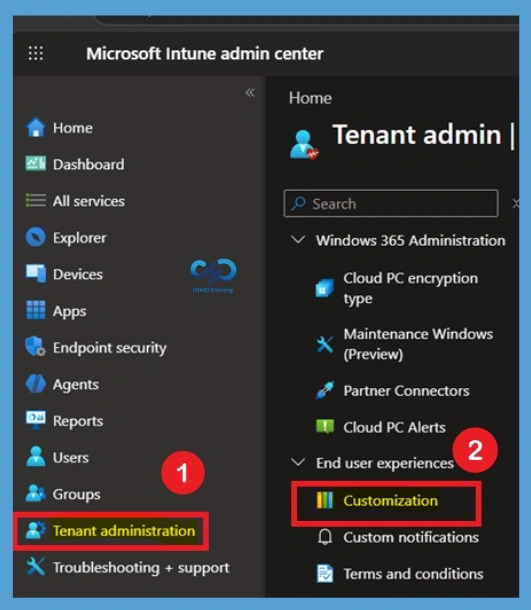
On the Customization page, you can view the available customization policies configured in the tenant. Locate the Default policy and select it to open its configuration. The Default policy applies to all users and devices unless a group-targeted customization policy is assigned to specific users and overrides the default settings.
Note – These settings will apply to the Company Portal apps, Company Portal website, and Intune app on Android.
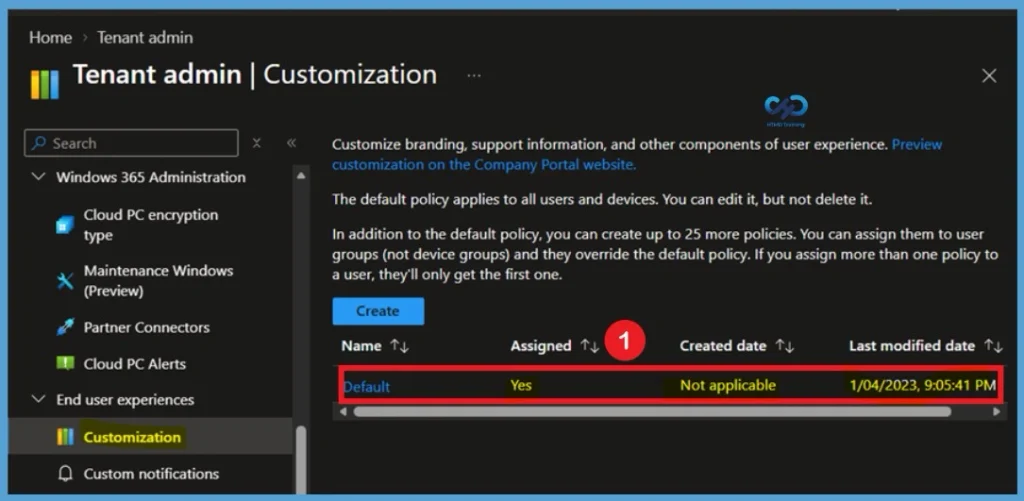
Open the Policy Settings
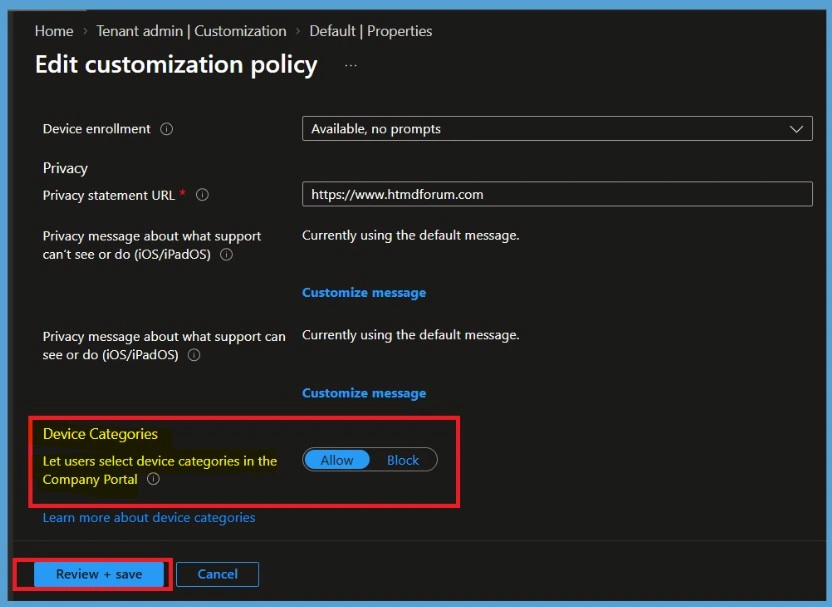
After opening the customisation policy, select Properties from the Manage section on the left side. Under the Settings section, select Edit to modify the available configuration options. This allows you to change the end-user experience settings, including whether users are allowed to select a device category through the Company Portal.
Allow Device Category Selection
In the Settings configuration, locate the Device Categories section and find the Let users select device categories in the Company Portal option. Select Allow to enable the device category prompt for users.Users are shown category selection once for each device. Once you are done with the changes, click on Save and proceed.
| Field name | More information |
|---|---|
| Let users select device categories in the Company Portal | If your tenant has device categories set up, users on targeted devices are prompted to choose a category when they sign in to Company Portal. Select Block to hide the prompt across all platforms. Select Allow to show the prompt. |
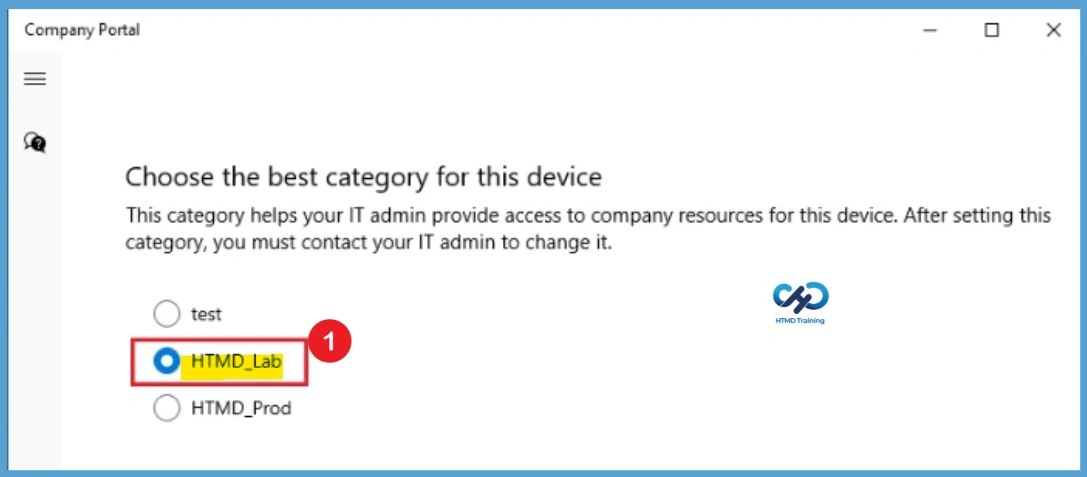
Intune Device Category End-User Experience
Now, review the end-user experience after you complete the device category configuration. If you allow users to select device categories, once the device is enrolled, you will see the following screen and the steps below to assign a device category.
Open the Company Portal. It will prompt you to choose the Device Category. Click Done, and the device will be assigned to chosen Device category.
Need Further Assistance or Have Technical Questions?
Join the LinkedIn Page and Telegram group to get the latest step-by-step guides and news updates. Join our Meetup Page to participate in User group meetings. Also, join the WhatsApp Community and the Whatsapp channel to get the latest news on Microsoft Technologies. We are there on Reddit as well.
Author
About Author – Jitesh, Microsoft MVP, has over six years of working experience in the IT Industry. He writes and shares his experiences related to Microsoft device management technologies and IT Infrastructure management. His primary focus is Windows 10/11 Deployment solution with Configuration Manager, Microsoft Deployment Toolkit (MDT), and Microsoft Intune.
Hi, the block option doesn’t work. We have had it set to Block then assigned the customisation to all devices, but users are still prompted even when we have already given the device a category via Intune portal.
i think that assignment works on users and not devices