
Key Takeaways
- Enrollment Notifications inform users whenever a new device is enrolled with their corporate account.
- Notifications help users quickly identify unauthorised or unexpected device enrollments.
- Microsoft Intune supports both email and push notifications for supported platforms.
- Email notifications can be customised with HTML formatting, company branding, and contact information.
Let’s discuss Configure Device Enrollment Notifications in Microsoft Intune. Microsoft Intune includes Enrollment Notifications, a feature that helps organisations notify users whenever a new device is enrolled using their corporate account. These notifications improve visibility into device enrollment activities and enable users to quickly identify unauthorised or unexpected enrollments.
Table of Contents
Table of Contents
Configure Device Enrollment Notifications in Microsoft Intune
With the addition of enrollment notifications on Windows, Android or Apple devices, an administrator can send a customized email notification to an end user’s email account upon a new enrollment. They can also send a push notification that will appear in an enrolled Android or iOS/iPadOS Company Portal app. End users will then be asked to verify the enrollment and, if suspicious, it can be reported from the notification.
The Enrollment Notifications improve security by notifying users if someone enrolls a device with their credentials. You can test and use these features in your environments and provide feedback. Enrollment notifications work on devices running Android, iOS/iPadOS, macOS and Windows 10/11.
- Intune To Deploy Apps With User Interaction Using ServiceUI
- Intune Win32 App Deployment Toast Notifications And Company Portal User Experience
- Intune Win32 App Deployment Toast Notification | User Experience
- Use ServiceUI with Intune to Bring SYSTEM Process to Interactive Mode
- Intune Win32 App Deployment Toast Notification | User Experience
Configure Device Enrollment Notifications in Intune
Open the Microsoft Intune admin center using an account with either the Global Administrator or Intune Administrator role. These administrative roles are required to create and manage Enrollment Notification policies within your tenant. After signing in, verify that your account has the necessary permissions before proceeding. Enrollment Notifications are managed centrally within Intune, making it easy to create and maintain consistent notification settings for all supported platforms.

- Sign in to the Microsoft Intune admin center
- Navigate to Devices > Enrollment > Select the Device (Windows / iOS, android ) to select the platform and then select enrollment notifications.
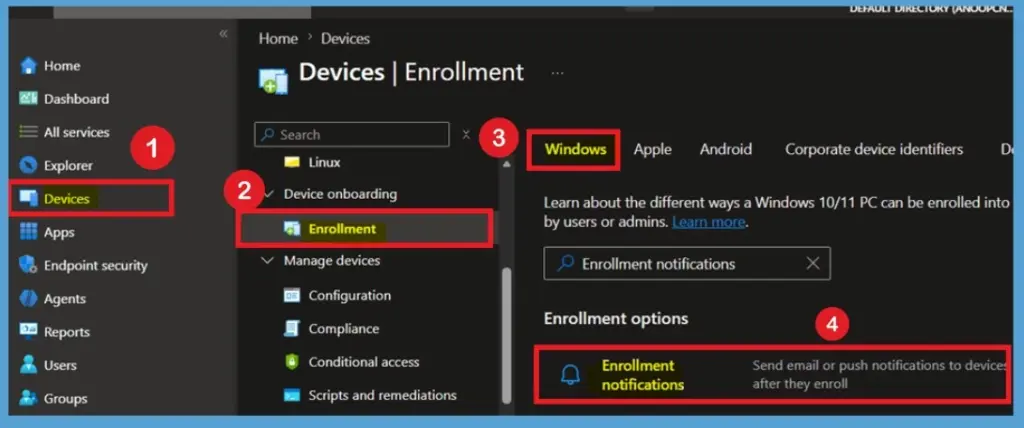
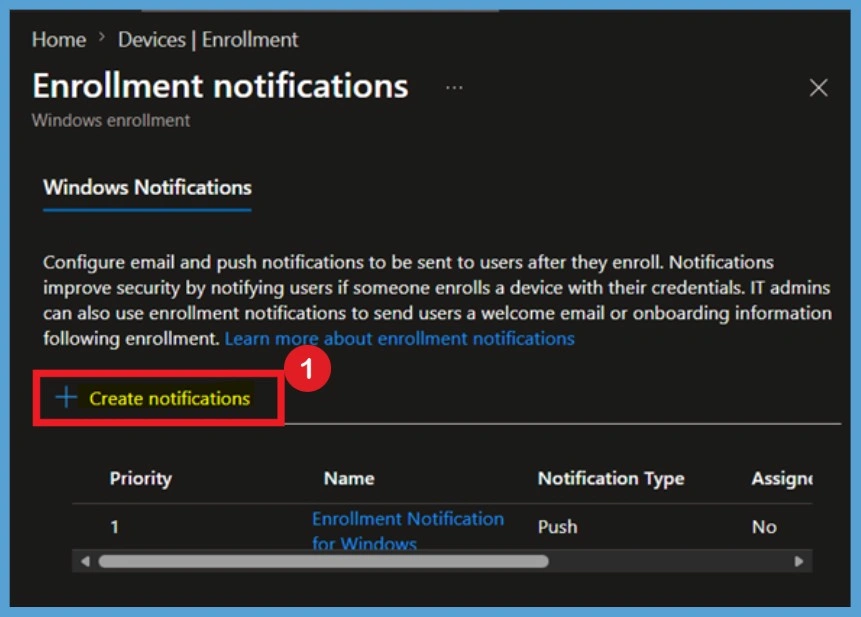
On the Enrollment notifications page, click + Create notification to start creating a new enrollment notification policy. Configure email and push notifications to be sent to users after they enrol. Notifications
improve security by notifying users if someone enrols a device with their credentials. IT admins
can also use enrollment notifications to send users a welcome email.
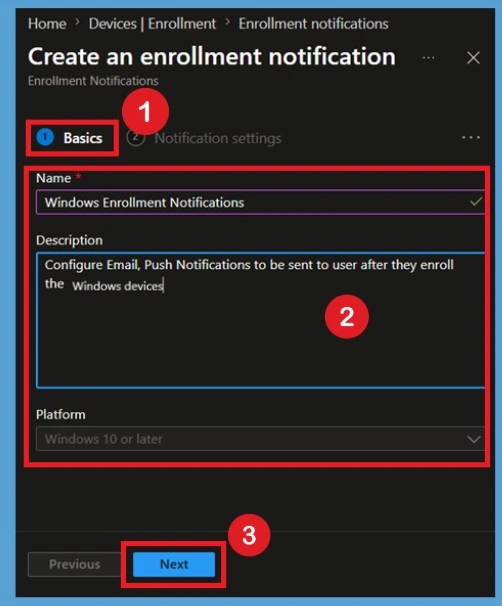
Configure Basic Information for the Enrollment Notification
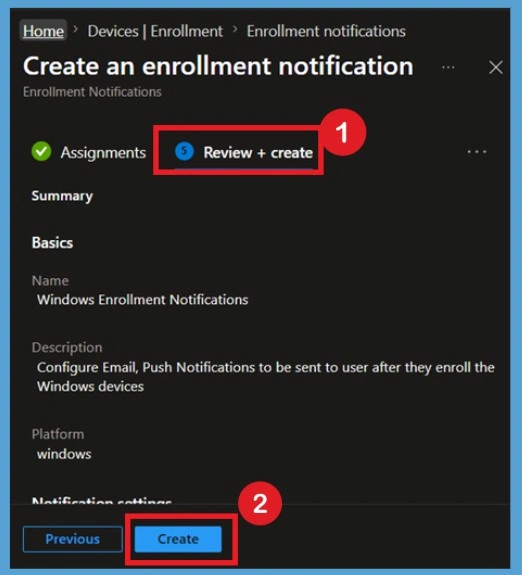
After clicking + Create, the Basics page opens. Enter a descriptive Name that clearly identifies the notification policy. Providing a meaningful name (Windows Enrollment Notifications) makes it easier to locate and manage the policy later, especially in environments with multiple enrollment notification configurations.
Optionally, enter a Description explaining the purpose of the notification, like Description Configure Email, Push Notifications to be sent to user after they enroll the Windows devices. This is useful for documenting the policy and helping other administrators understand its intended use. Once you have entered the required information, review the selected platform and click Next to continue to the notification settings.
Note – Enrollment notifications only work with user-driven enrollment methods.
Notification Settings
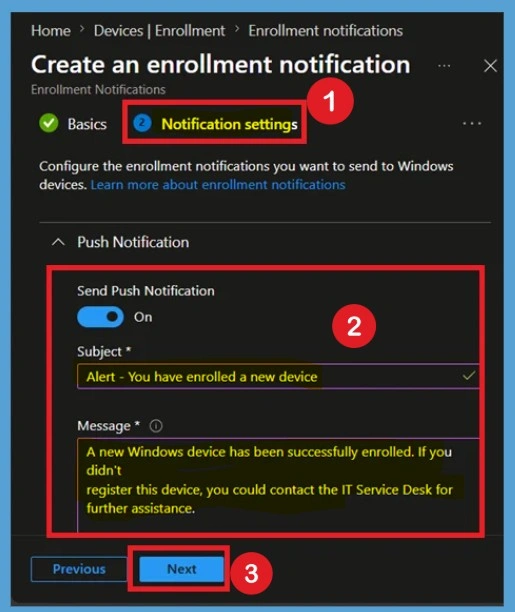
On the Notification settings page, expand the Push Notification section and turn Send Push Notification to On. Enter a meaningful Subject and a clear Message that informs users when a new device has been enrolled using their corporate account.
The notification should instruct users to contact the IT support team immediately if they do not recognise the enrolled device. A clear security message helps users identify unauthorised enrollments and report suspicious activity as soon as possible. In Notification settings, configure the notification messages. The options for push notifications are:
| Notification Settings | Information |
|---|---|
| Send Push Notification | Flip the switch On to enable and create a push notification. |
| Subject | Enter the subject of the enrollment notification. |
| Message | Enter your message, explaining the purpose of the notification. The character limit is 2000. |
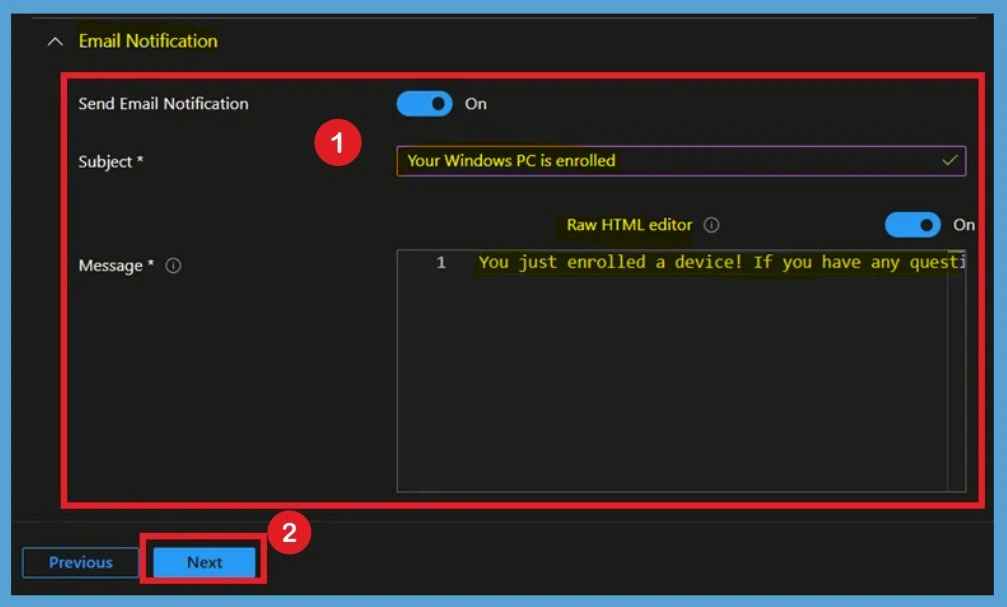
When you scroll down the Notification Settings, you get the Email notification Section. In the Email Notification section, enable Send Email Notification and enter the Subject and Message that users will receive after a successful enrollment. Email notifications provide more flexibility than push notifications and allow you to include additional information for end users. Here you can enter the Subject and the Message. The options for email notifications are:
It should also be noted that email notifications will allow administrators to have some control over customisation, with the ability to add HTML and branding so the notification doesn’t look suspicious to end users. The push notifications will only have a subject and message to configure.
- Send Email Notification: Flip the switch on to enable and create an email notification.
- Subject: Enter the subject of the enrollment notification.
- Message: Enter your message. The character limit is 2000.
- Raw HTML editor: Flip the switch on to enable HTML formatting.
- Here, add the Subject as Your Windows PC is Enrolled
- Toggle HTML editor – On.
- Message: You just enrolled a device! If you have any questions or need assistance, please contact your IT support team.
Email Header
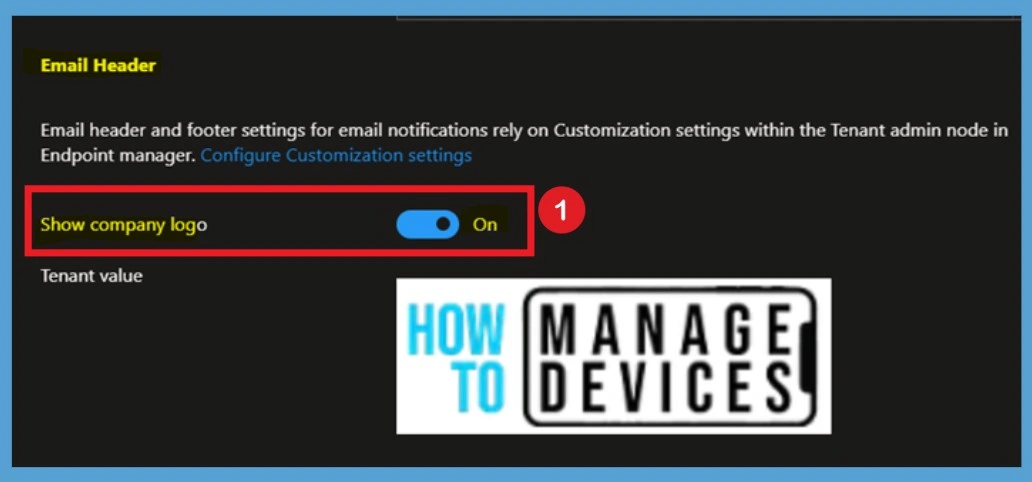
After the email notification, you can see the option Email Header. You can apply your tenant’s branding and customisation settings to email notifications. The options for branding and customisation are:
- Show company logo: Flip the switch on to make your organisation’s logo visible in the email header. This option becomes available after you’ve configured Company Portal branding in your tenant.
Email Footer
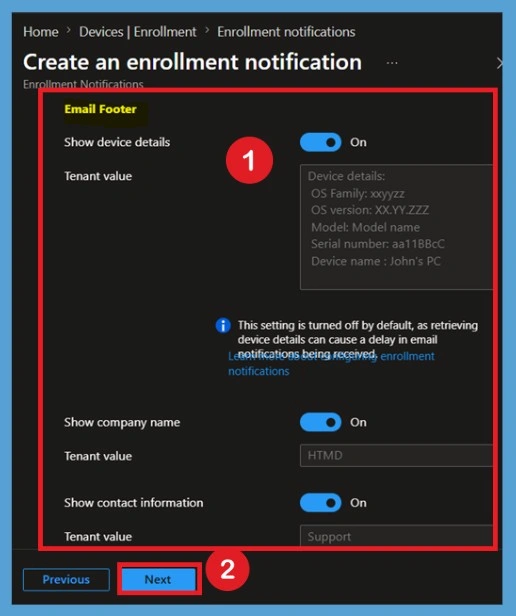
In this section, just after the Email header, the Email Footer section provides several options to include additional organisational and device information in the enrollment notification email. You can enable Show device details, Show company name, Show contact information, and Show Company Portal website link based on your organisation’s requirements.
- Show device details: Flip the switch on to make the following device details visible in the footer of the email:
- o Device name
- Model
- OS
- o OS version
- o Serial number
- Show company name: Flip the switch on to make your organisation’s name visible in the footer of the email. The tenant value is automatically populated.
- Show contact information: Flip the switch on to show your organisation’s contact information. The tenant value is automatically populated.
- Show Company portal website link: Flip the switch on to show a link to the Company Portal website. The tenant value is automatically populated
Scope Tags
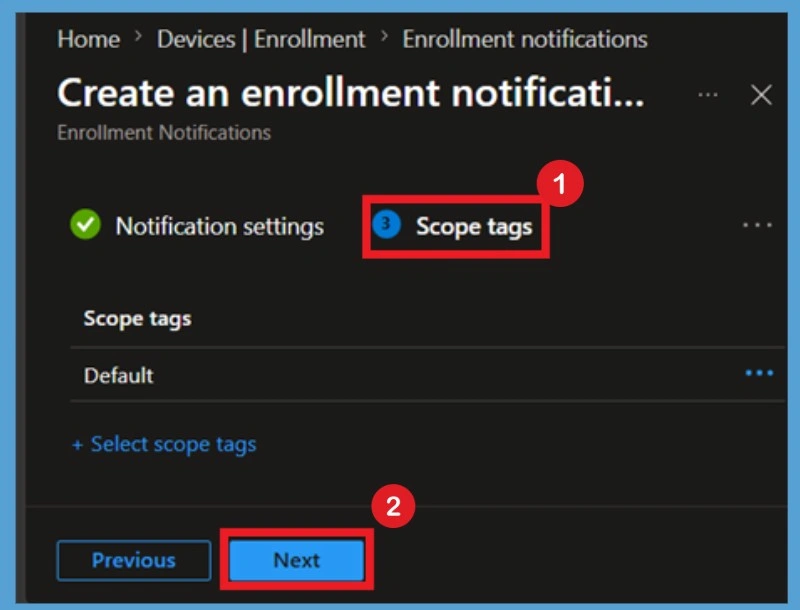
Scope tags are filtering options provided in Intune to ease the admin jobs. In the scope tag section, you will get an option to configure scope tags for the application. Click on Next.
Assignments
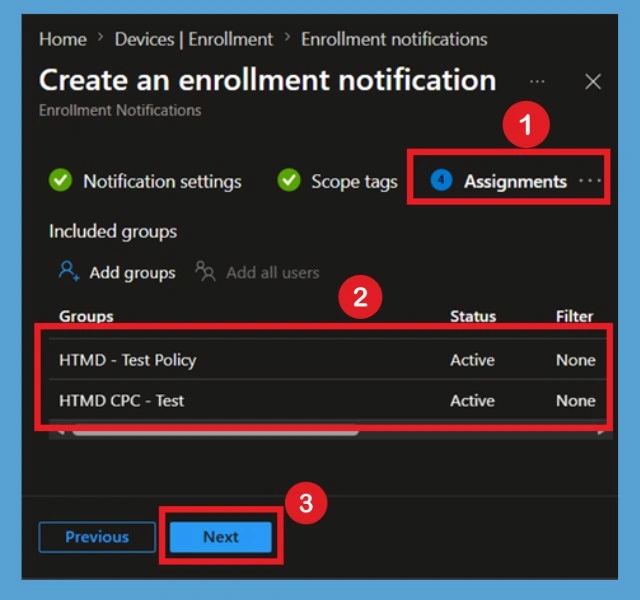
Under Assignments, in Included groups, click Add groups and then choose Select groups to include one or more groups. Here, I selected 2 groups, such as HTMD – Test Policy and HTMD CPC – Test. Click Next to continue
Review + Create
The Review + create page summarises all configuration settings before deployment. Carefully review the notification name, notification settings, branding options, scope tags, and assignments. After verifying the configuration, select Create to publish the Enrollment Notification policy. After reviewing Click on the Create option.
End Result
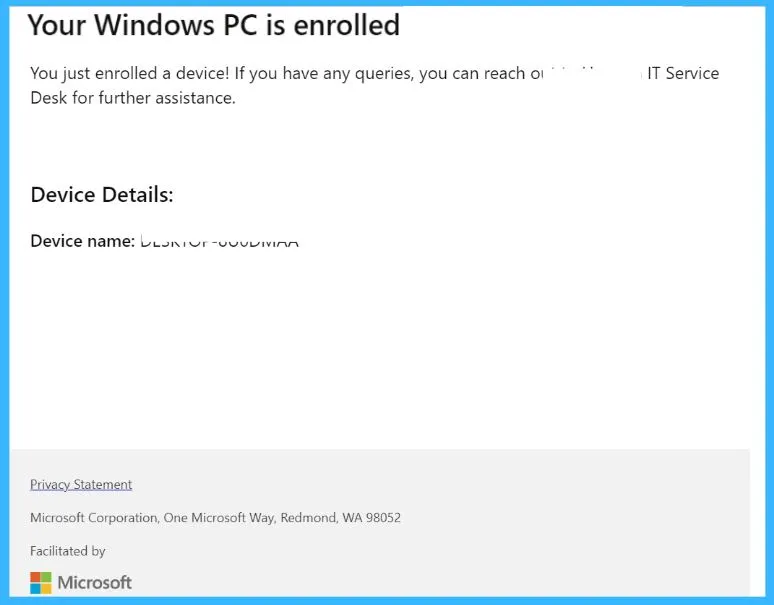
Enrollment notifications are sent out to assigned groups when enrollment is triggered. Return to Enrollment notifications to view and edit notifications or change priority level. Here’s what an enrollment notification looks like to a device user. You can customise the text and details based on your requirements later. You will receive an email from microsoft.noreply@microsoft.com.
Need Further Assistance or Have Technical Questions?
Join the LinkedIn Page and Telegram group to get the latest step-by-step guides and news updates. Join our Meetup Page to participate in User group meetings. Also, join the WhatsApp Community and the WhatsApp channel to get the latest news on Microsoft Technologies. We are there on Reddit as well
Author
About Author – Jitesh, Microsoft MVP, has over six years of working experience in the IT Industry. He writes and shares his experiences related to Microsoft device management technologies and IT Infrastructure management. His primary focus is Windows 10/11 Deployment solution with Configuration Manager, Microsoft Deployment Toolkit (MDT), and Microsoft Intune.
hi Jitesh,
I’m testing this since last week, and for now i’m mitiged.
most of the time, a wronf device name is sent, i’m using it with hybrid join, my device name is APXXXXXXXX, and the name in email is DESKTOP-XXXXX.
also, some of the time, the only information in email is device name, not the rest.
Could i’ve done something wrong ?
It is not working on DEP devices ,Android – COPE and fully managed devices
Is there a way to also notify admins of the enrolment or only the users?
Tested with a spare iPhone and worked as expected.
Ppic, this is because the device name is not set until the user is logged in.