

Key Takeaways
- The Device Group Membership report in Microsoft Intune helps administrators view all Microsoft Entra ID groups associated with a managed device.
- The report displays both Direct and Transitive group memberships, making it easier to identify how a device receives policies and applications.
- Administrators can quickly troubleshoot policy deployment, application assignment, and configuration targeting issues using the report.
- The report provides valuable details such as Group Name, Object ID, Membership Type, and Membership Relationship.
Microsoft Intune provides several built-in monitoring reports that help administrators understand how devices are managed within their organization. One of the most useful reports for troubleshooting policy deployments, application assignments, and configuration targeting is the Device Group Membership report. This report allows administrators to view all Microsoft Entra ID (Azure Active Directory) groups associated with a managed device directly from the Intune Admin Center.
Table of Contents
Table of Contents
Analyze Device Group Membership to Identify Policy and App Deployment Sources in Intune
The Device Group Membership report displays both direct and transitive group memberships for a selected device. Direct memberships represent groups to which the device is explicitly assigned, while transitive memberships include parent groups through nested group relationships. This visibility helps administrators quickly identify which groups are responsible for delivering policies, applications, compliance settings, and other Intune workloads to a device.
- How to Create Nested Azure AD Dynamic Groups
- How to Get Application Version Details From Intune
- Create AAD Dynamic Groups based on Domain Join Type Hybrid Azure AD and Azure AD
Get Started
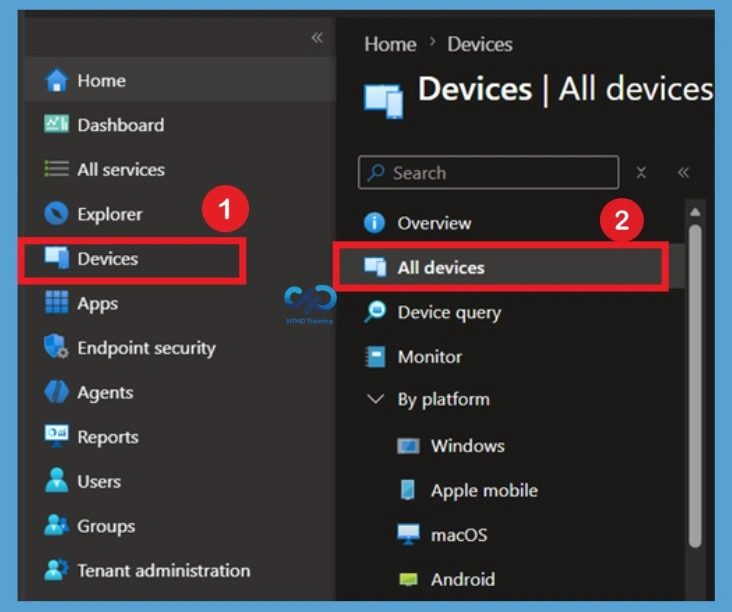
To view the group membership for the managed device, Sign in to Microsoft Intune Admin Choose Devices > All devices and select the device from the list. For Example, I selected the device. Navigate to Devices > All devices in the Microsoft Intune Admin Center. The all Devices page displays every enrolled and managed device within your organization, allowing administrators to quickly locate and manage endpoints from a centralized location.
Note: You can also select the Devices by choosing the By platform and Select Windows.

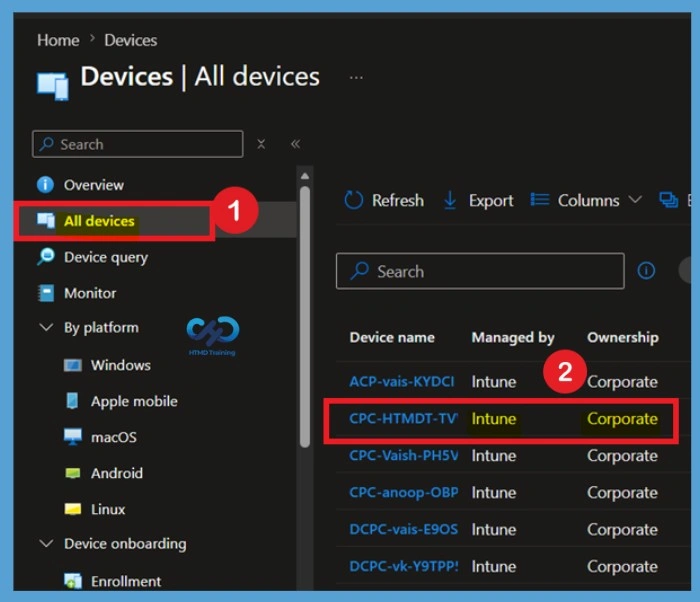
Use the search box or browse the device inventory to find the required device. Once identified, select the device name to open its management dashboard and access detailed information, reports, and monitoring options. Here I selected a device called CPC-HTMDT-TVWI1.
Review the Device Overview
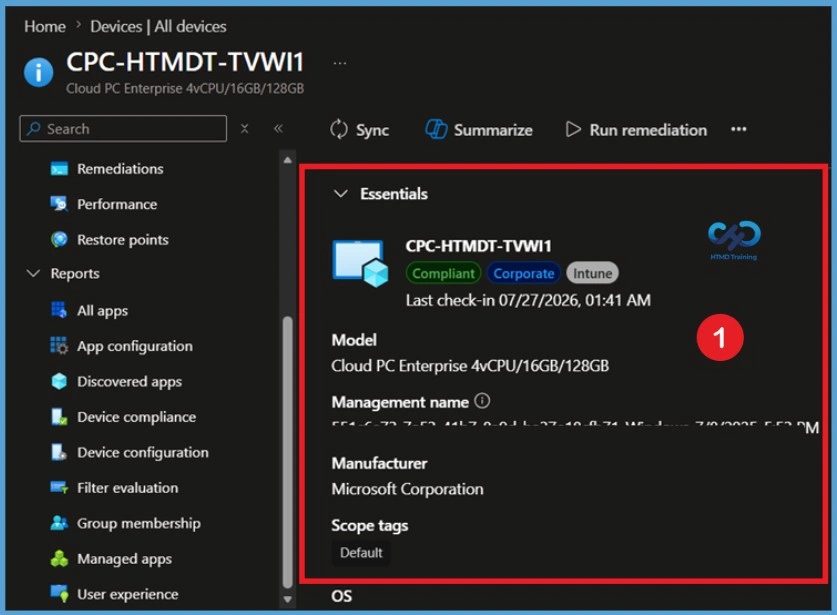
After selecting the device, the device overview page opens and displays essential information such as compliance status, ownership, management type, manufacturer, model, and last check-in time. This section provides a quick summary of the device’s current state.
Reviewing these details helps administrators verify that they are working with the correct device before investigating group memberships, policy assignments, application deployments, or compliance issues.
Open the Group Membership Report
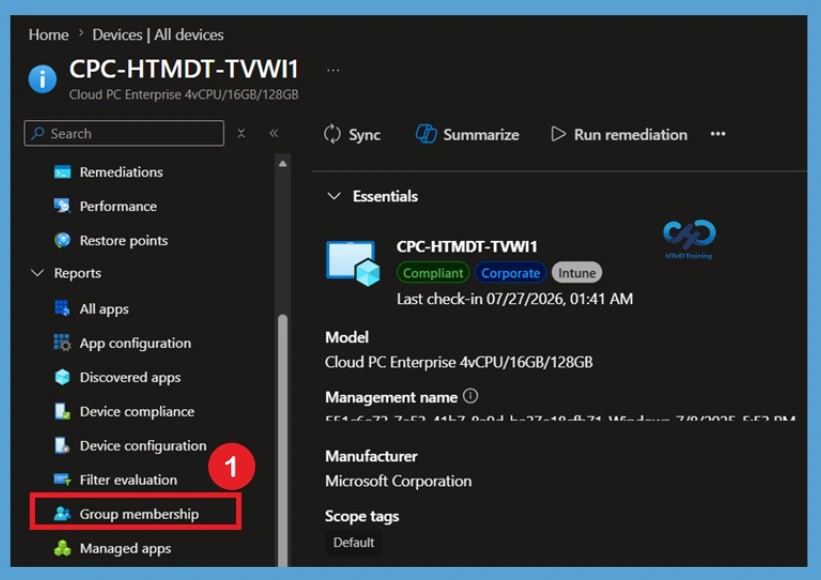
In the device navigation pane, scroll to the Reports section and select Group membership. This report provides a complete list of Microsoft Entra ID groups associated with the selected managed device. The Group Membership report is particularly useful when troubleshooting policy deployment issues because it helps administrators identify the groups responsible for delivering applications, configuration profiles, compliance policies, and other Intune workloads.
The Group membership report provides the group membership of all AAD groups for a specific managed device. The report provides the following columns:
- Name
- Object Id
- Membership Type
- Direct or Transitive
PowerShell Method to Get Group Membership of Intune Managed Devices
Let’s also quickly check the PowerShell Method to Get Group Membership of Intune Managed Devices. You can get these details easily using the Edge extension as mentioned in the Intune Graph API post.
Import-Module Microsoft.Graph.Identity.DirectoryManagement
Get-MgDeviceTransitiveMemberOf -DeviceId $deviceId
Import-Module Microsoft.Graph.Identity.DirectoryManagement
Get-MgDeviceMemberOf -DeviceId $deviceIdAdd a Membership Filter
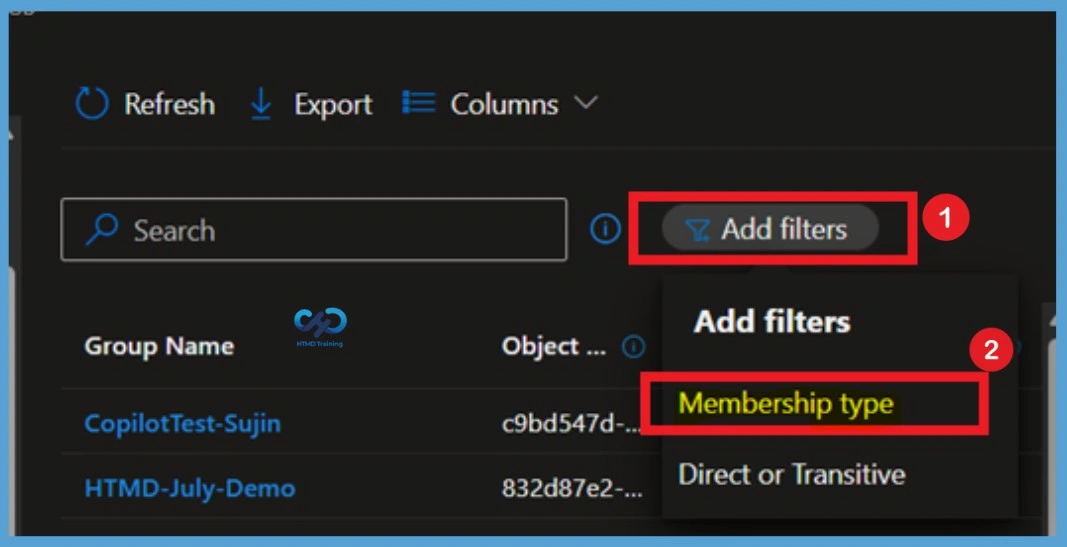
The group membership filter allows Intune admin to use filter settings to narrow down the search based on the Membership type and whether the device is a direct member or a transitive member. Transitive membership shows direct and parent group membership, which can help identify where policies and apps are coming from.
| Filter Option | Filter Option |
|---|---|
| Membership type | Filters groups based on how members are added. |
| Direct or Transitive | Filters groups based on membership relationship. |
Filter by Membership Type
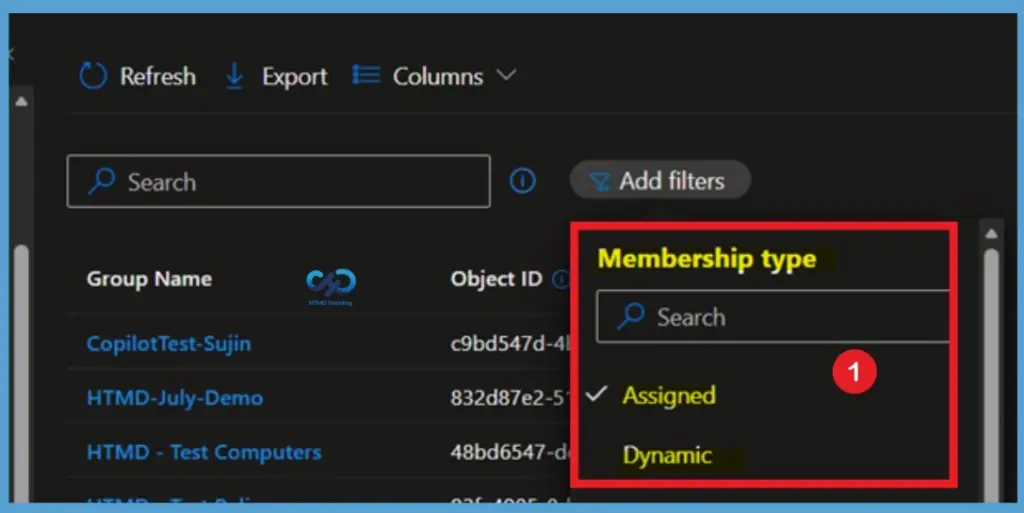
When you select membership type, you can see the option to identify whether the device’s membership is assigned or dynamic. Also, you can easily refer to the membership type column. Choose the appropriate membership type to view only the relevant groups associated with the selected device.
- Here, I selected Assigned
Export the Device Group Membership Report
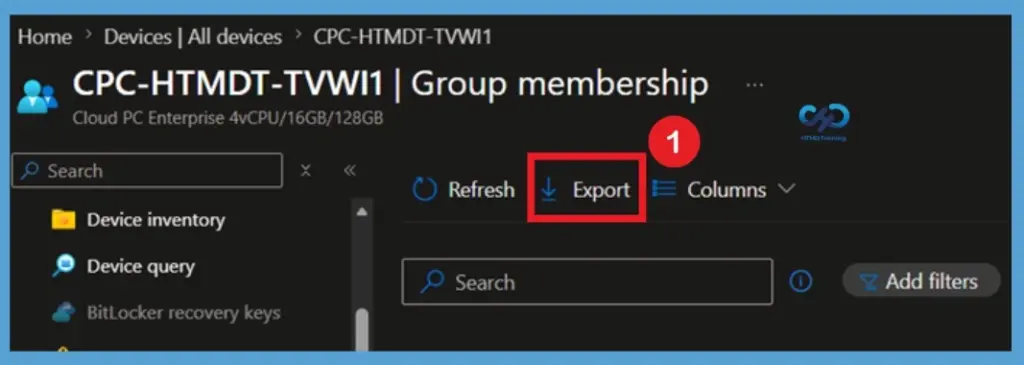
You can export the list of groups for the managed devices to a .csv file by selecting Export from the Group Membership. Click on Download to export the listed groups of managed devices. The Device Group Membership report can be exported for offline analysis, auditing, and troubleshooting purposes. Intune begins preparing the report and generates a downloadable file containing the currently displayed group membership information.
Columns Available in the Device Group Membership Report
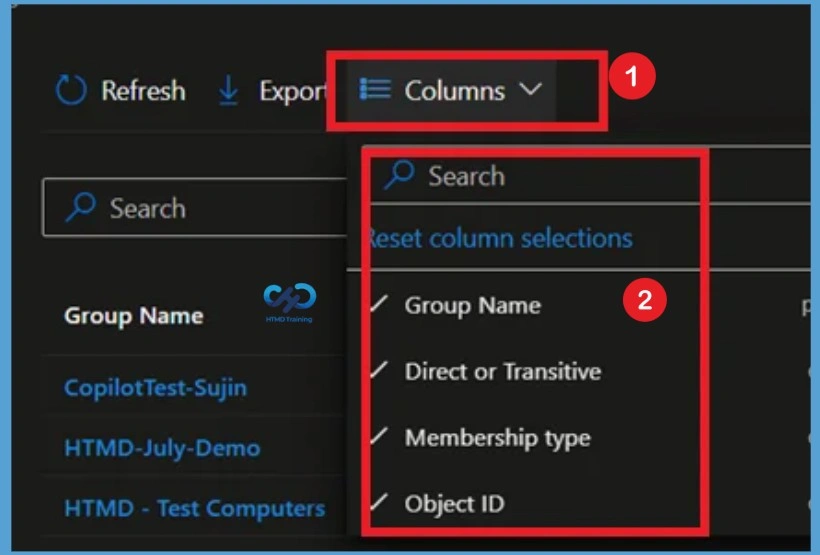
The Columns option in the Device Group Membership report allows administrators to customize the information displayed in the report grid. By selecting the required columns, administrators can focus on the most relevant group membership details and report analysis. The report includes key columns such as Group Name, Object ID, Membership Type, and Direct or Transitive Membership.
Review the Exported CSV File
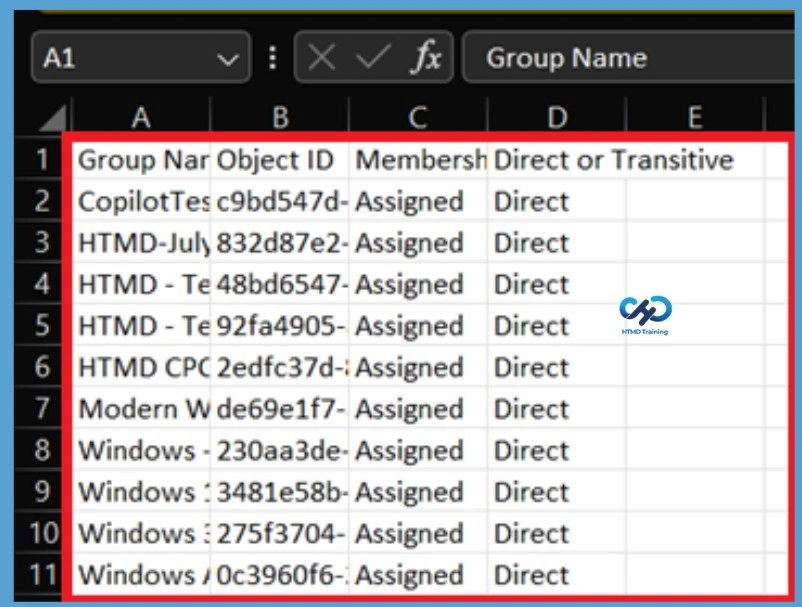
A notification will appear automatically in the top right-hand corner with the message Export is in progress. All exported data will be automatically downloaded to your browsers in a .csv file format, and a notification message will appear Export completed.
You can now open the exported discovered applications list, and The Group membership report provides the group membership of all groups for a specific managed device.
Need Further Assistance or Have Technical Questions?
Join the LinkedIn Page and Telegram group to get the latest step-by-step guides and news updates. Join our Meetup Page to participate in User group meetings. Also, join the WhatsApp Community and the WhatsApp channel to get the latest news on Microsoft Technologies. We are there on Reddit as well
Author
About Author – Jitesh, Microsoft MVP, has over six years of working experience in the IT Industry. He writes and shares his experiences related to Microsoft device management technologies and IT Infrastructure management. His primary focus is Windows 10/11 Deployment solution with Configuration Manager, Microsoft Deployment Toolkit (MDT), and Microsoft Intune.