
Key Takeaways
- Microsoft introduced a policy to uninstall inactive Microsoft Copilot apps from managed devices.
- The policy only works when both Microsoft 365 Copilot and Microsoft Copilot are installed.
- Apps installed manually by users will not be removed.
- The Copilot app must remain unused for 14 days before removal.
In this Post, we are discussing Intune Policy Now Allows Automatic Removal of Unused Copilot App. Microsoft has introduced a new policy setting that allows IT administrators to uninstall the Microsoft Copilot app from managed devices under specific conditions. The feature is designed to help organizations better control app deployments and reduce unused software across enterprise environments.
Table of Contents
Table of Contents
Intune Policy Now Allows Automatic Removal of Unused Copilot App
According to Microsoft, the policy will only remove the Copilot app from devices where both Microsoft 365 Copilot and Microsoft Copilot are installed, the app was not manually installed by the user, and the app has not been opened in the last 14 days.
- Microsoft Introducing Copilot+ PCs
- Classic Outlook for Windows Now Improved with Copilot
- How to Prepare Microsoft Copilot with Zero Trust
How Get Started
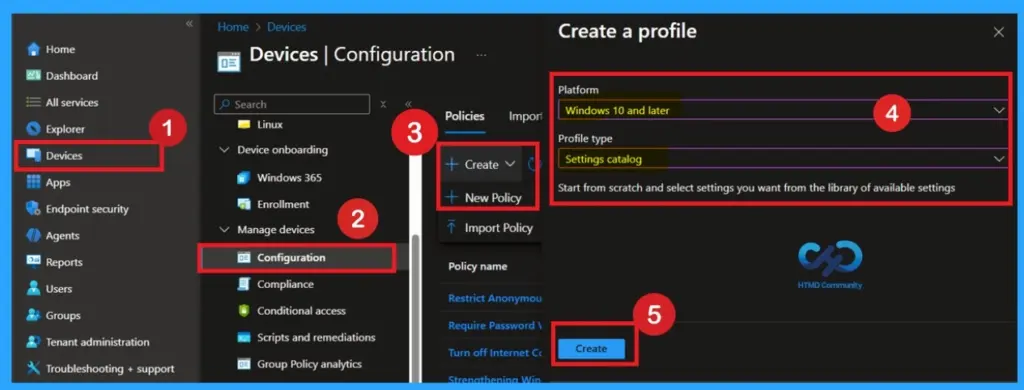
Now, let’s look at how it can be deployed through the Microsoft Intune Admin Center. First, go to the Devices section in the Intune Admin Center. Next, click on Configuration profiles and then select + Create profile. When creating the profile, you will need to provide the required details such as the Platform and Profile type. For the Platform, select Windows 10 and later.

- For the Profile type, choose Settings catalog.
- Finally, click on Create to complete the process.
- This will deploy the policy through Intune.
How to Start Configuration With Basics
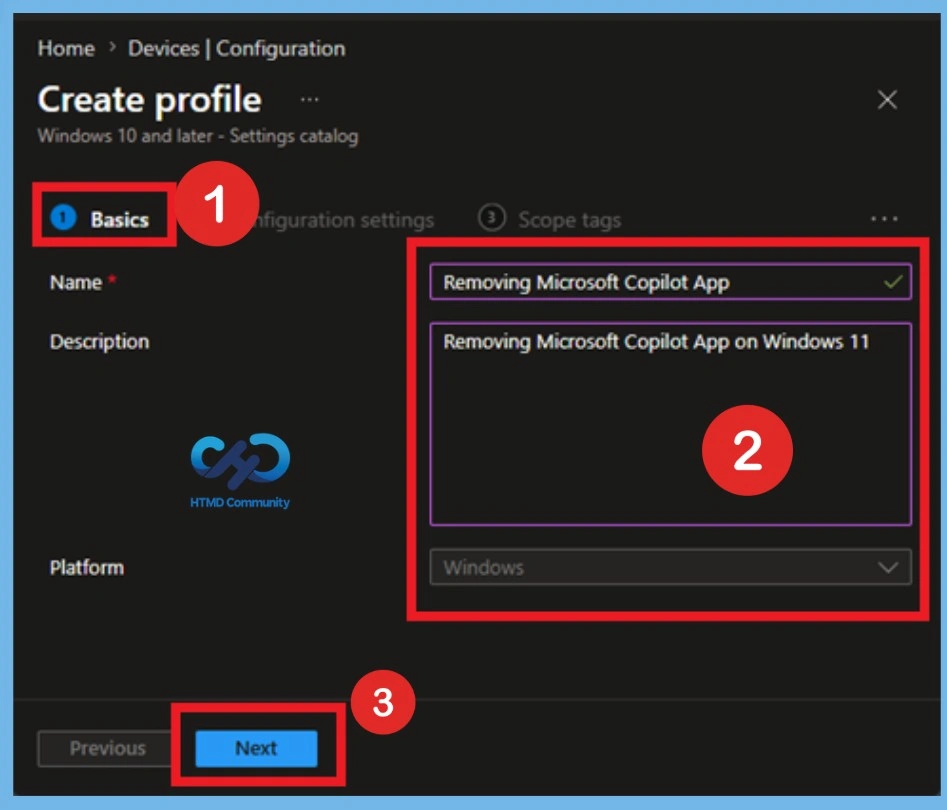
After creating the profile, you will be taken to the Basics tab. Here, you need to enter the basic details such as the Name and Description of the policy. Provide an appropriate name that clearly identifies the purpose of the policy. The policy name act as an identifier, making it easier to recognize and manage later. You may also add a description to give more context about what the policy is for or how it should be used.
- Once the required details are filled in, click on Next to proceed.
How to Configure policy through Settings Picker
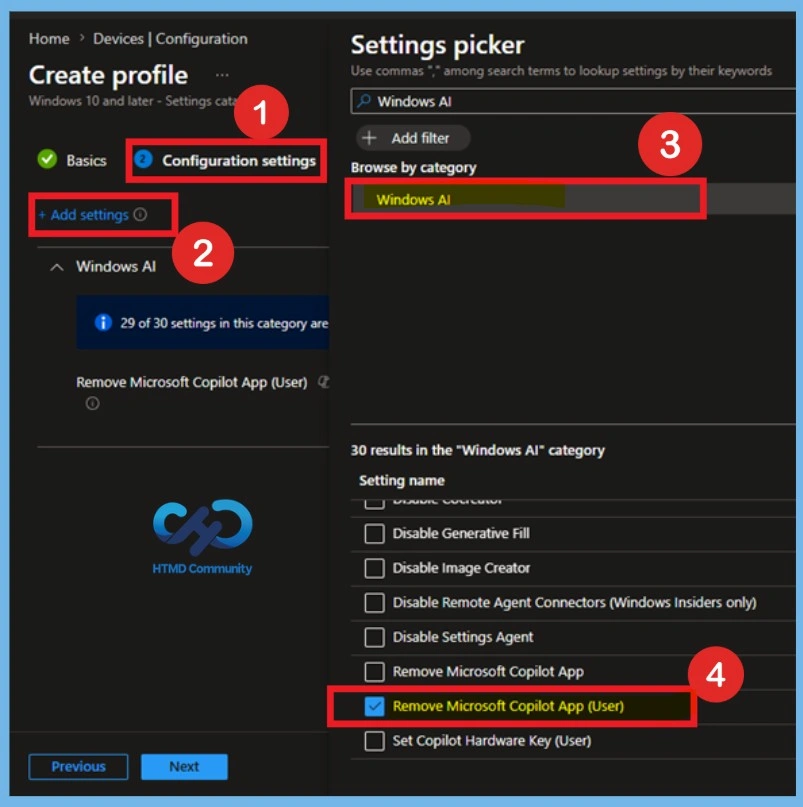
According to MS this approach ensures that only inactive and automatically deployed versions of the app are affected. For configuring the policy, you can click on the Add Setting option then you will get the Settings Picker Window, there you can set appropriate policy settings. First, you can use the search bar or scroll down to find the Windows AI option. In the select the option Remove.
Default State of Policy
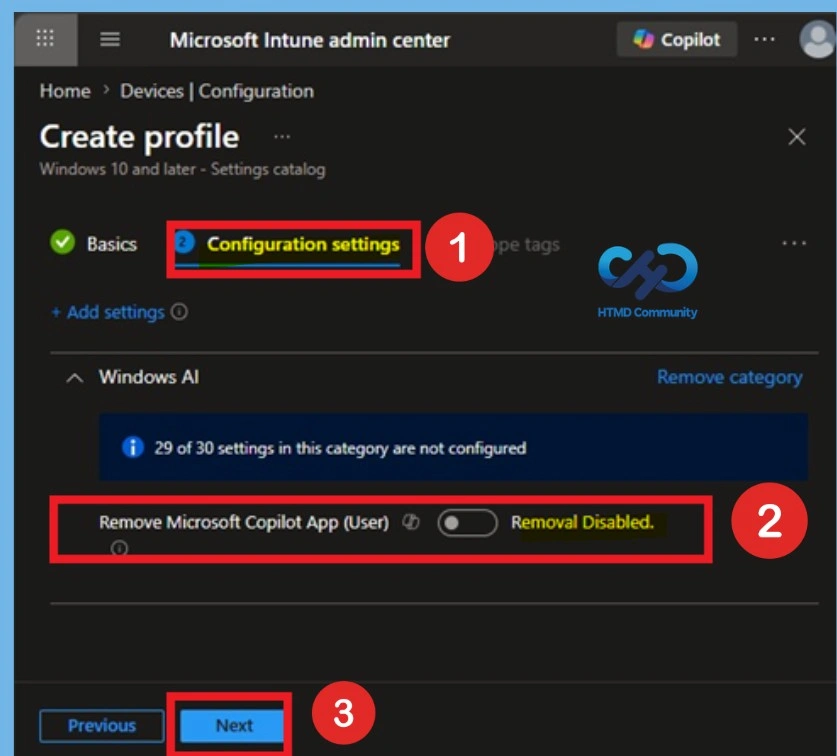
When I selected the policy from the settings picker category then I close the settings picker window. Then we can see that the policy configuration there the policy is in Disabled state. If you want to continue with that you can continue that by clicking on the Next.
Enabled the Policy
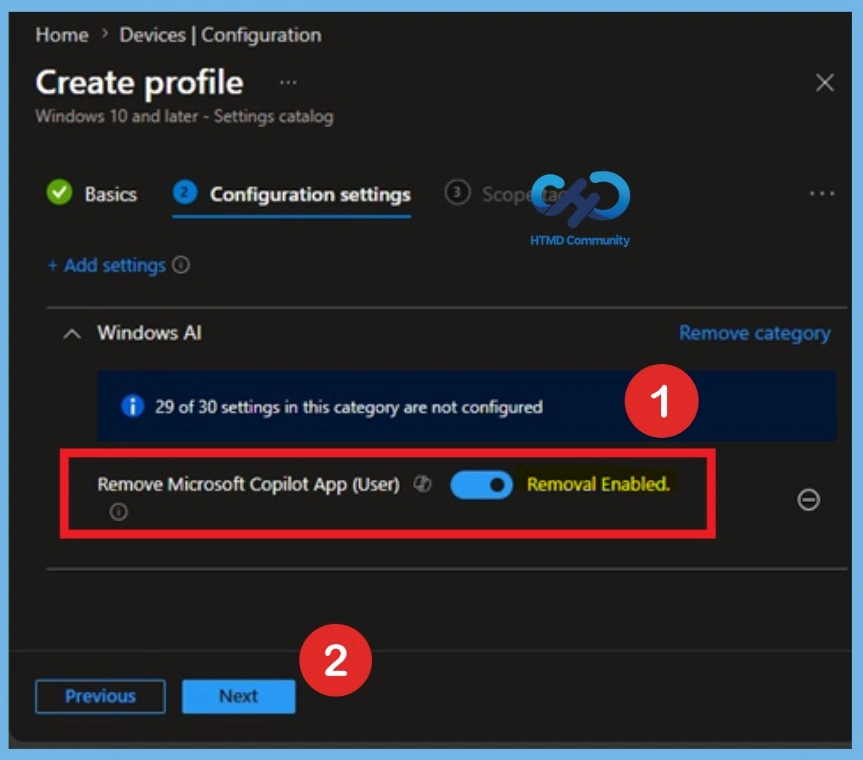
Enabling this policy is very simple. You just need to move the toggle button from left to right, and it will turn blue, indicating that the policy is enabled. After that, click on Next. You can proceed this policy in enabled mode.
Scope Tags Important
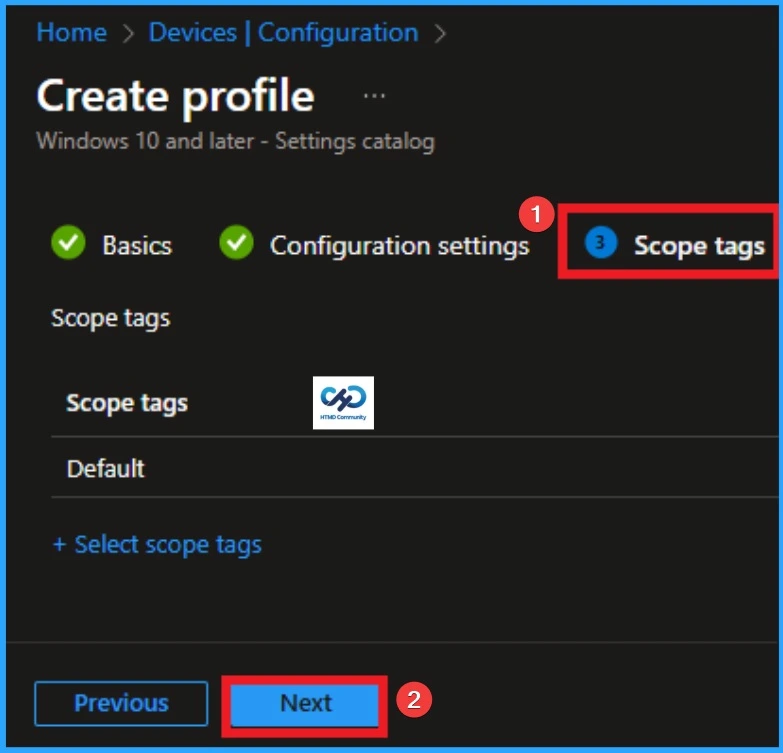
The purpose of scope tags is to categorize and associate your policy with a specific scope, making it easier to manage assignments for particular environments. Here, you can add a scope tag for the policy, although it is not mandatory.
Assigned Groups for the policy
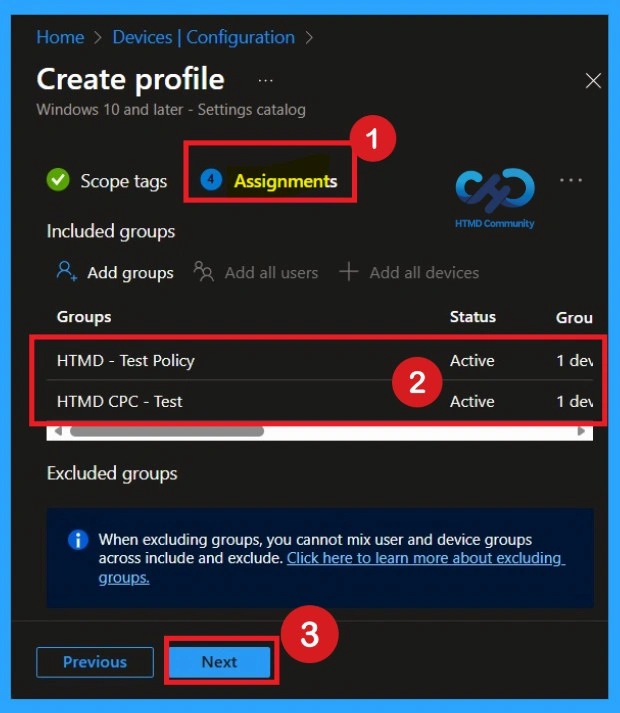
The next step is the Assignment tab, which is crucial for deploying policies. In this section, you can specify the group to which you want to apply the policy. I clicked on “Add Groups” under the Include Groups option. After selecting the group I want to deploy the policy to, I clicked Next to continue.
Review + Create Option
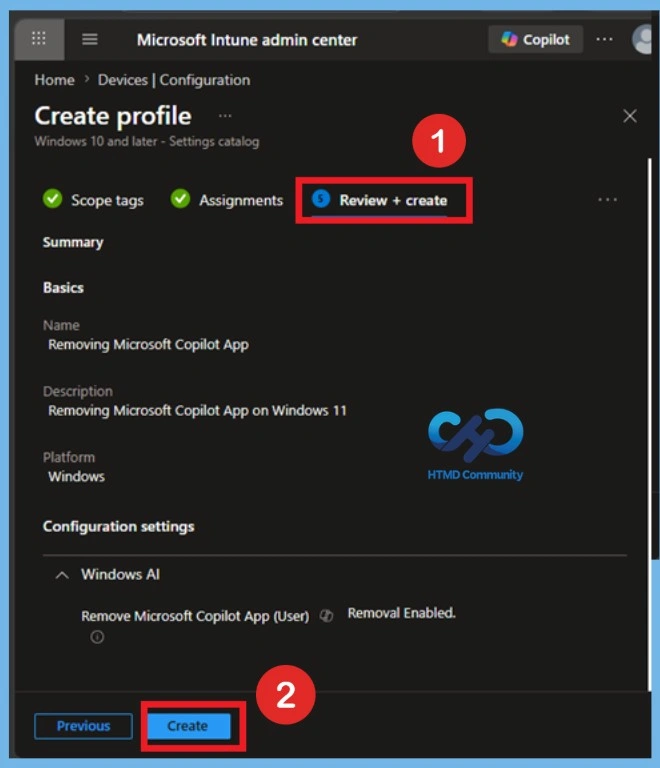
After completing the assignments, you will reach the review and create option, which is the final stage of policy creation. Here, you can review all the details about the policy, including the basics details and configuration details etc. After Review the details click on the Create option. Now your policy Created and configure this policy through the selected groups.
Monitor the Status Guide
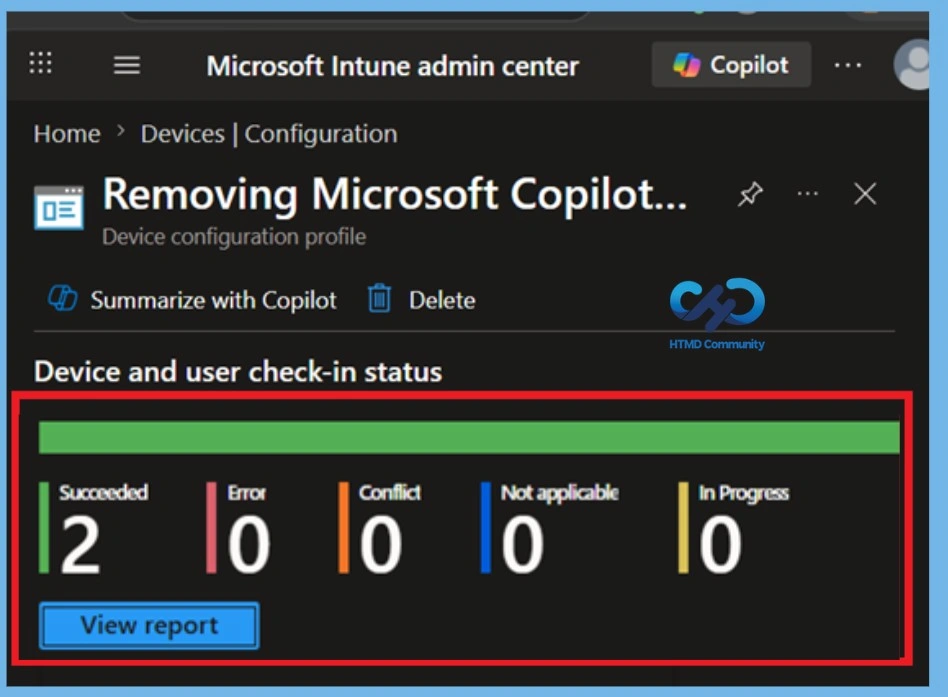
After creating the policy, administrators may want to confirm whether it has been successfully deployed. To check this, go to Devices > Configurations and search for the policy name you created. Once you find the policy, click on it to open the Monitoring Status page. On this page, you can view the deployment details for both devices and users. The status will show if the policy has been applied successfully.
- If it is as Succeeded, it means the deployment worked as expected.
- You may see 1 or 2 under “Succeeded.” If there are no entries under Error, Conflict, Not Applicable, or In Progress, it indicates that the policy has been deployed without issues.
End Result Through Event Viewer
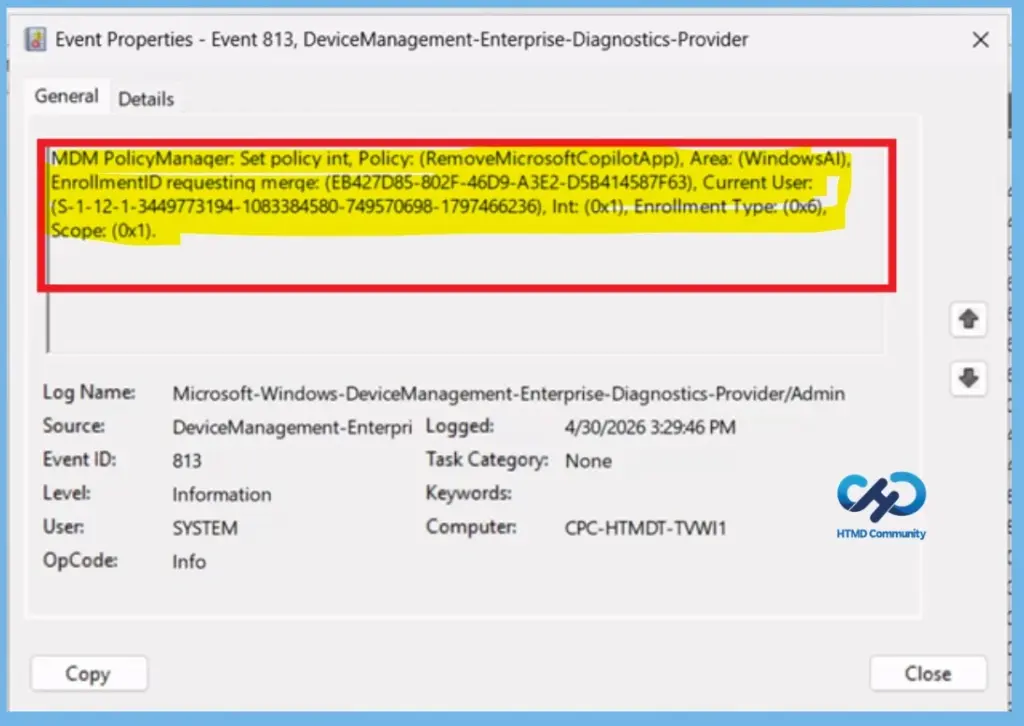
You can verify the confirmation in the Event Viewer by looking for Event ID 813 or 814. To access this, open Event Viewer and navigate to Applications and Services Logs > Microsoft > Windows >Device Management Enterprise Diagnostic Provider > Admin.
- You can see a list of policy-related events now.
- I found the policy details in the Event ID 813.
| Policy Details |
|---|
| MDM PolicyManager. Set policy int, Policy: (RemoveMicrosoftCopilotApp), Area: (WindowsAl), EnrollmentiD requestinq merqe: (EB427D85-802F-46D9-A3E2-D5B414587F63), Current User: (S-1-12-1-3449773194-1083384580-749570698-1797466236), Int: (0x1), Enrollment Type: (0x6), Scope: (0x1). |
How to Remove Assigned Groups
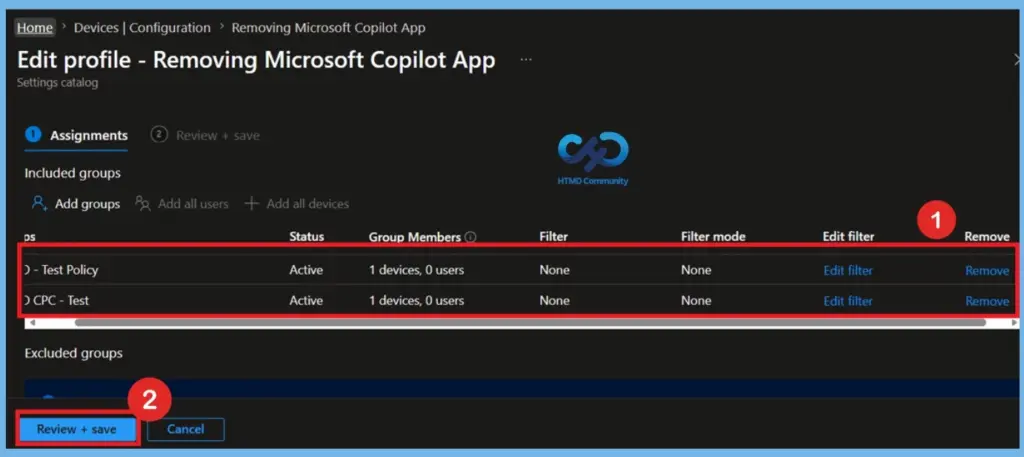
Start by navigating to the Monitoring status page via Devices > Configuration. Search for the policy by name (Removing Microsoft Copilot App) and click on it to open its monitoring details. Scroll down to the Assignments section and click Edit. This will take you back to the policy’s assignment settings.
- From here, you can remove the group you no longer want the policy to apply to.
- For a view of the process, refer to the screenshot below.
For detailed information, you can refer to our previous post – Learn How to Delete or Remove App Assignment from Intune using by Step-by-Step Guide.
How to Delete a Created Policy Permanently
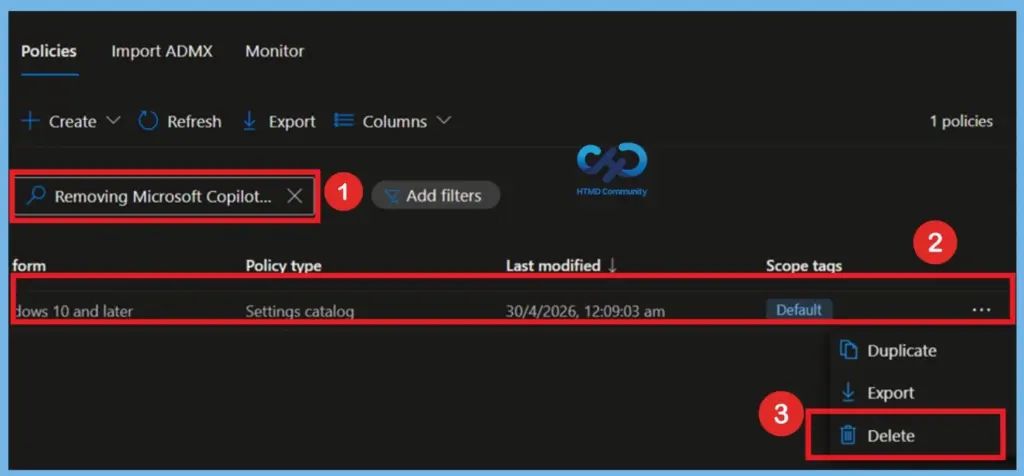
If you want to permanently delete a policy, search for the policy name in the Configuration search bar. Once the policy appears, click on the 3-dot menu next to it. You will see 3 options: Duplicate, Export, and Delete. Select Delete, and the policy will be permanently removed.
Windows CSP Details
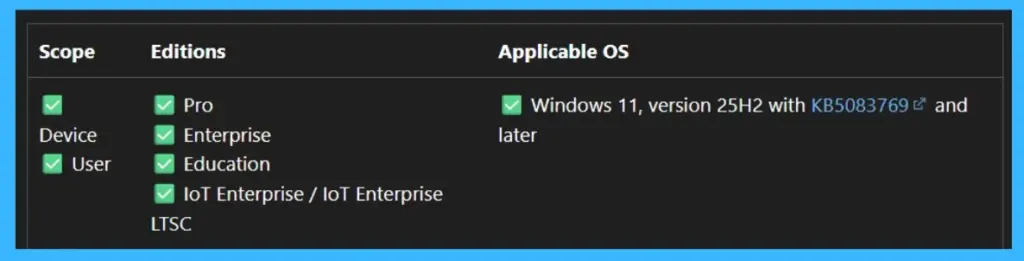
This policy Available at both the user and device scope on Windows 11 (25H2 with KB5083769 or later), the setting accepts values of 0 (disabled) or 1 (enabled), and supports add, delete, get, and replace operations. When enabled, the app is removed but users can reinstall it manually, giving organizations a way to smooth unused Copilot deployments while considering user choice.
For Users : ./User/Vendor/MSFT/Policy/Config/WindowsAI/RemoveMicrosoftCopilotApp
Need Further Assistance or Have Technical Questions?
Join the LinkedIn Page and Telegram group to get the latest step-by-step guides and news updates. Join our Meetup Page to participate in User group meetings. Also, join the WhatsApp Community and the WhatsApp channel to get the latest news on Microsoft Technologies. We are there on Reddit as well.
Author
Anoop C Nair is a Workplace Technology solution architect with 25+ years of experience. Microsoft Certified Trainer. Microsoft MVP from 2015 onwards for consecutive 11+ years! He is a blogger, Speaker, and Founder of HTMD Community and HTMD Conference. His main focus is on Device Management technologies like Intune, Windows, and Cloud PC. He writes about technologies like Intune, SCCM, Windows, Cloud PC, Entra, and Microsoft Security.