
Key Takeaways
- The report displays policies in Error, Conflict, and Pending states for easier troubleshooting.
- Improved filtering and search capabilities help narrow results by platform, policy type, and status.
- Detailed device and user-level failure information helps identify assignment conflicts and unsupported settings.
- Export functionality allows administrators to download assignment failure details as a CSV report for offline analysis.
Let’s check the Monitor Intune Policy Deployment Errors Using Assignment Failures Report. The Assignment failures operational report helps you troubleshoot errors and conflicts for configuration profiles that have been targeted to devices. Microsoft has significantly improved the Intune reporting experience in recent service updates by introducing unified reporting views, improved filtering options, faster export functionality, and better troubleshooting insights.
Table of Contents
Table of Contents
Monitor Intune Policy Deployment Errors Using Assignment Failures Report
The assignment failures report now provides a centralised view for configuration profiles, security baselines, endpoint security policies, and Settings Catalog deployments from a single reporting experience in the Intune admin center. This guide explains how to access the Intune Policy Assignment Failure Report, review policy deployment errors, filter and export reports, monitor assignment issues, and troubleshoot configuration profile failures using the latest Intune admin center experience.
- Latest Intune Admin Portal Walkthrough Guide | MEM Admin Center
- Intune Reporting Issue: Expedite Windows Security Patch Deployment
- List of Intune Default Reports Reporting Strategies Advanced Reporting Options
Navigate to the Assignment Failures Report in Intune Admin Center
Intune provides several ways to manage Configuration Profiles, Security Baselines, and Endpoint Security profiles. Use the following steps to access the Assignment failures report from the Microsoft Intune admin center. Sign in to the Microsoft Intune admin center and navigate to Endpoint security > Assignment failures. The latest Intune admin center experience may look different from older Microsoft Endpoint Manager screenshots used in previous guides.
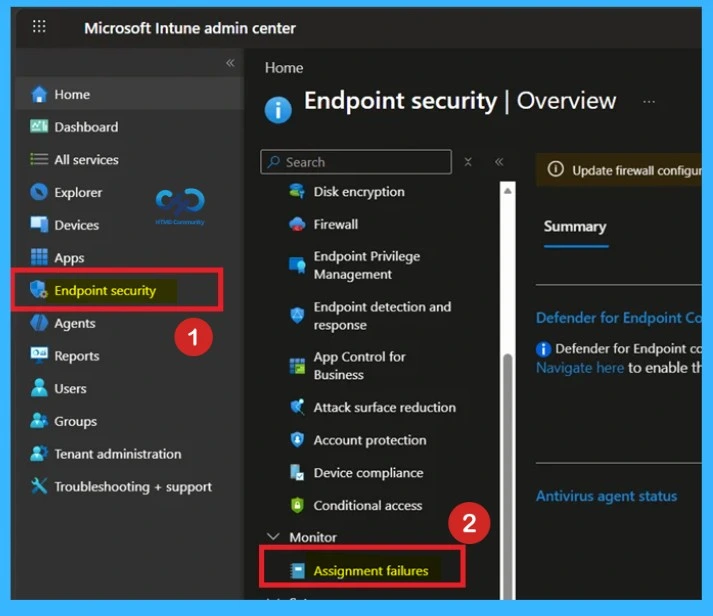
This report lists configuration profiles for the tenant and each affected policy with its type and source, helping administrators quickly identify which configurations failed to apply. This improves visibility into endpoint protection and compliance health, allowing admins to export reports, refresh data, and filter results for faster troubleshooting within the Settings Catalog.

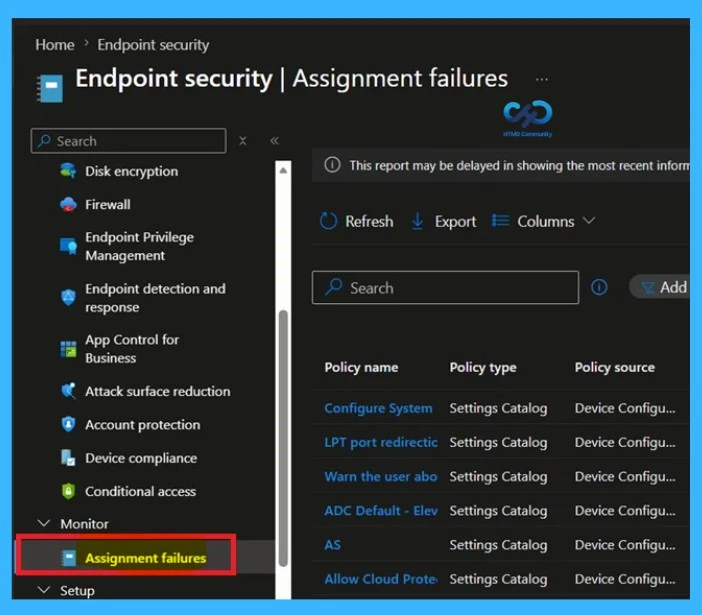
Intune Assignment Failures
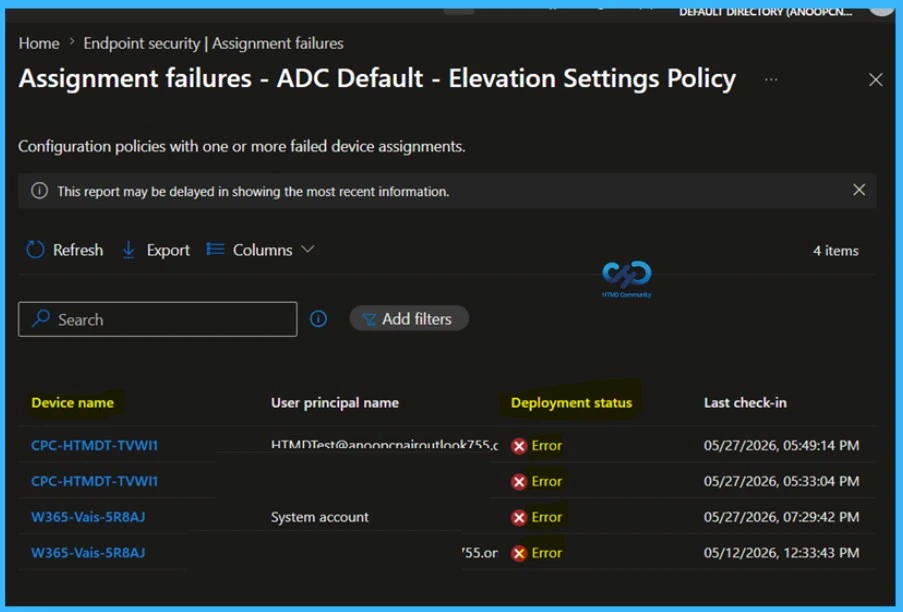
Here you can see a list of devices and users in a failure state related to the profile. The status shows the status of the device or user check-in at a set level within the policy. The states include error, conflict, and success. Each row shows the device name, user principal name, deployment status, and last check‑in time, giving admins quick visibility into which endpoints are affected.
| Deployment Status | Info |
|---|---|
| Error | policy failed to apply. |
| Conflict | overlapping or contradictory assignments. |
| Success | policy applied correctly. |
Assignment Failures Filter
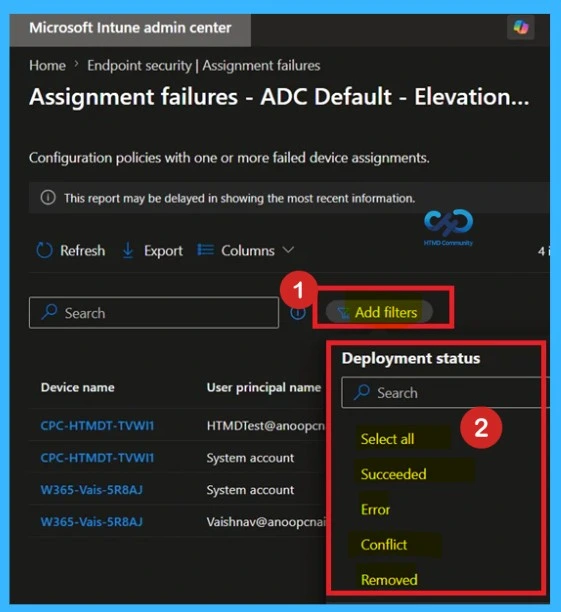
You can also filter by type and platform, sort based on column, and search by profile name. Intune provides a detailed view of configuration policies that failed to apply on one or more devices. Administrators can use the Add filters option to refine results based on Deployment status, selecting from states such as Succeeded, Error, Conflict, or Removed.
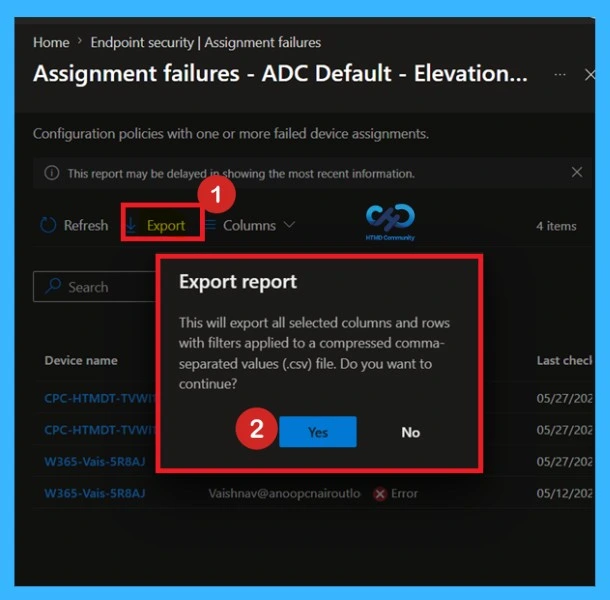
You can quickly export the assignment failures summary reports. Click on the Export. The popup will appear with the message when exporting the configuration policy device report, Click Yes. This will export data to a comma-separated values (.csv) file.
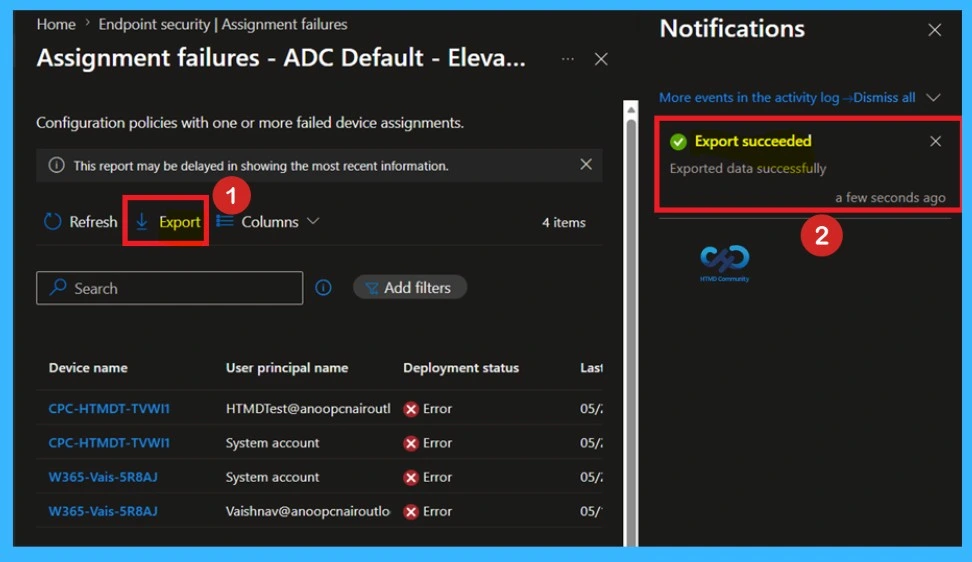
When the export process starts, Intune displays a notification in the top-right corner of the admin center. You will get a success message once the process completes. The notification shows: Export assignment failures summary report is in progress. Once the export completes successfully, another notification confirms the report download is ready.
Need Further Assistance or Have Technical Questions?
Join the LinkedIn Page and Telegram group to get the latest step-by-step guides and news updates. Join our Meetup Page to participate in User group meetings. Also, join the WhatsApp Community and the WhatsApp channel to get the latest news on Microsoft Technologies. We are there on Reddit as well
Author
About Author – Jitesh, Microsoft MVP, has over six years of working experience in the IT Industry. He writes and shares his experiences related to Microsoft device management technologies and IT Infrastructure management. His primary focus is Windows 10/11 Deployment solution with Configuration Manager, Microsoft Deployment Toolkit (MDT), and Microsoft Intune.