

Key Takeaways – Intune Filter OS Version Rule
- Intune filters allow you to precisely include or exclude Windows 11 devices for policies and app assignments without relying only on groups.
- Filters use device properties (like OS version) to dynamically scope deployments based on conditions you define.
- Helps ensure only relevant devices receive specific configurations, reducing misconfigurations and policy conflicts.
- Devices are continuously evaluated against filter rules, and results are logged in the Intune admin center.
This post will walk you through how to create an Intune Filter OS Version Rule for Windows 11 Devices. Let’s quickly look into the steps on how to filter Windows 11 Intune-managed devices. You can also create Microsoft Entra ID dynamic device groups for Windows 11 Devices.
Intune filters make it easy to target Windows 11 devices based on OS version for policy and app deployments. Administrators can dynamically include or exclude devices by specific Windows 11 versions, ensuring that only the intended devices receive the required configurations or applications.
Devices are continuously evaluated against the Intune filter rules you configure to determine whether they meet the defined conditions. Based on this evaluation, devices are either included or excluded from policy and app assignments. The results of these filter evaluations are logged and made available in the Intune admin center.
You can have a closer look at Intune assignment filters. When you create a policy, you can use filters to assign a policy based on the rules you create. A filter allows you to narrow the assignment scope of a policy.

Table of Contents
How to Create an Intune Filter OS Version Rule for Windows 11 Devices
In the Intune admin center, creating a Windows 11 filter rule follows a familiar process. While the overall steps remain consistent with other Intune filters, the critical part is configuring the rule logic to match the required Windows 11 OS version.
- Sign in to the Intune Intune admin center https://intune.microsoft.com/.
- Navigate to the Tenant administration > Assignment Filters.
- Click the + Create button and select Managed devices from the lists in the filters to start the process.
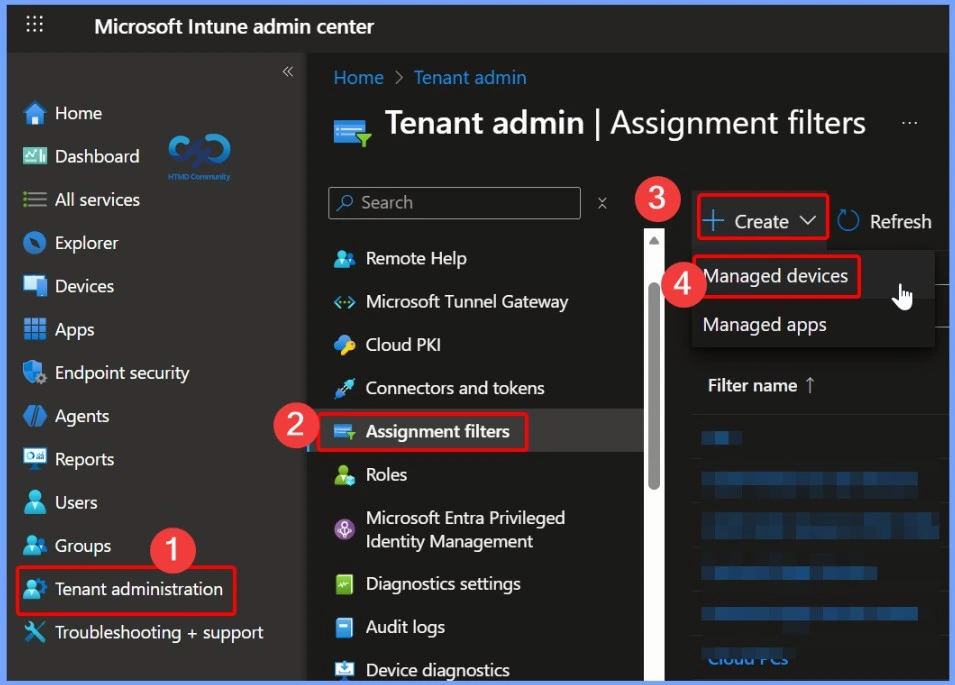
- Intune Filters for Assigning Apps Policies and Profiles In Intune Portal
- Enforce Users To Enroll Devices With Intune Conditional Access Policies
- How to Check Associated Assignments for Intune Filters
On the Basics page, enter the required details to create a Windows 11 OS version–based device filter. Provide a clear and descriptive name and description that indicate the purpose of the filter, such as targeting specific Windows 11 OS versions. From the Platform drop-down list, select Windows 10 and later, as this platform option also includes Windows 11 devices.
- After completing these details, click the Next button to continue with the filter configuration.
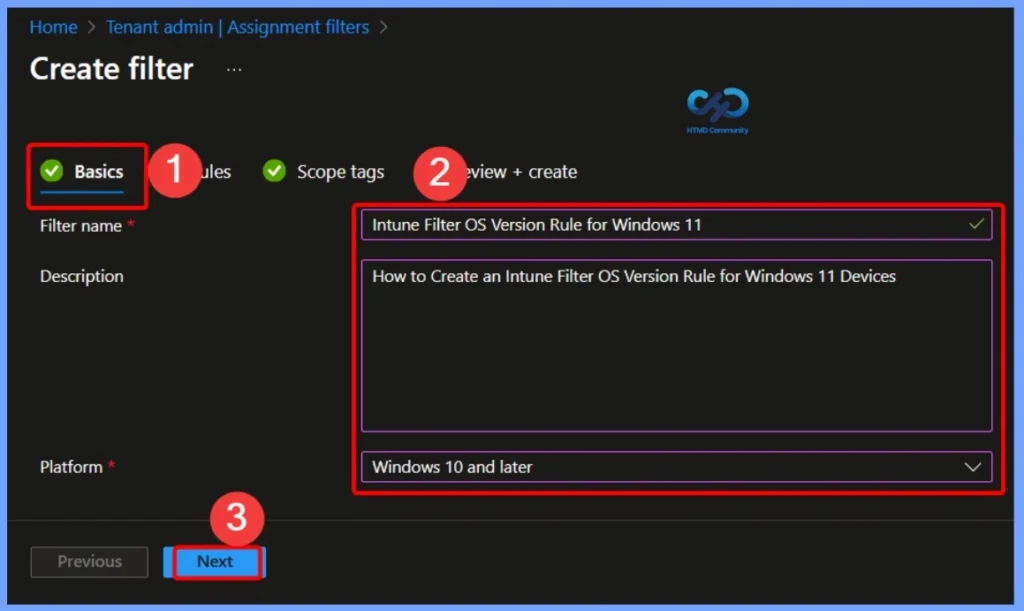
Rule Builder for Windows 11 25H2 Filter
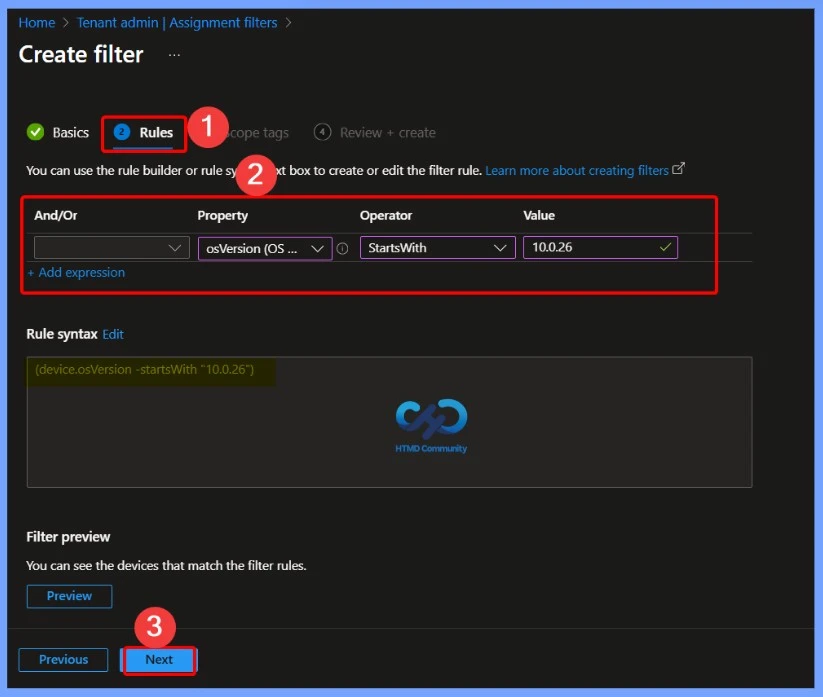
On the next page of the Intune filter rule configuration for Windows 11 devices, you can define the logic used to identify devices based on their Windows 11 OS version. This step is where you build the filter conditions using the available device properties exposed in the drop-down list.
To create a Windows 11 OS version–based filter in Intune, select the appropriate device property and value combination. You can use OS version or build number details to accurately target specific Windows 11 releases.
For reference, Windows 11 build numbers follow a predictable pattern. The initial Windows 11 release started with build 22000, while later feature updates use higher build numbers (for example, builds beginning with 22621 and above). These build numbers can be used to differentiate Windows 11 versions when creating Intune filter rules.
Always refer to the latest Windows 11 version and build documentation to ensure your Intune filter logic aligns with production-released versions. As of now, the latest Windows 11 release is version 25H2, with the OS build 10.0.26200.7623. Using the correct OS version or build number helps ensure accurate device targeting and prevents unintended policy or application assignments.
| Property | Operator | Value |
|---|---|---|
| osVersion | StartsWith | 10.0.26 |
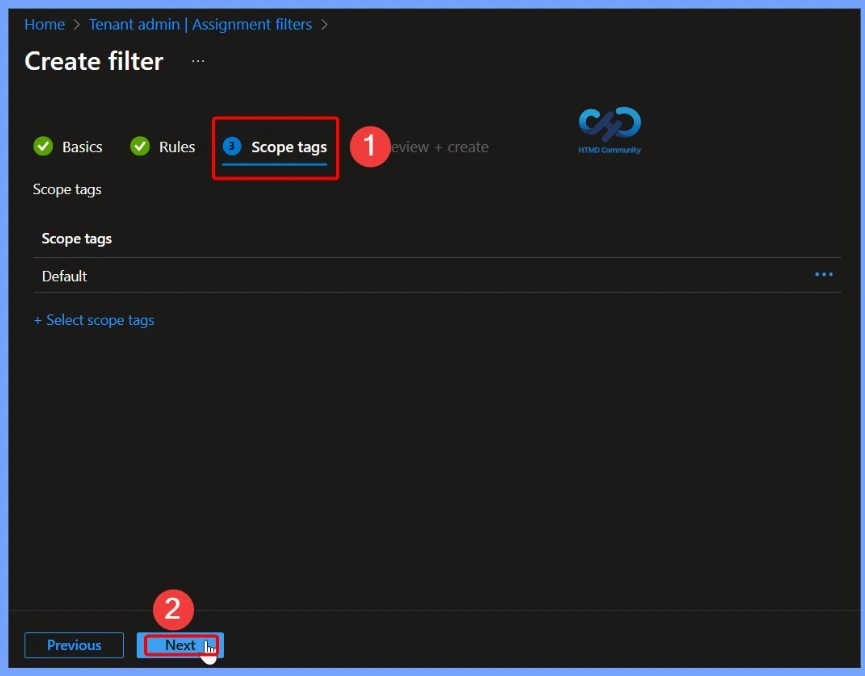
Scope Tags are Filtering Options in Microsoft Intune
Scope tag are filtering options in Microsoft Intune that help simplify administrative tasks by enabling role-based access control. By using scope tags, administrators can limit visibility and management access to specific Intune objects such as policies, profiles, and apps.
Review and Create the Intune OS Version Filter for Windows 11 Devices
On the Review + Create page, verify all the configured settings for the Windows 11 OS version–based Intune filter. Review the filter name, platform selection, and rule logic to ensure the OS version conditions accurately match the intended Windows 11 devices.
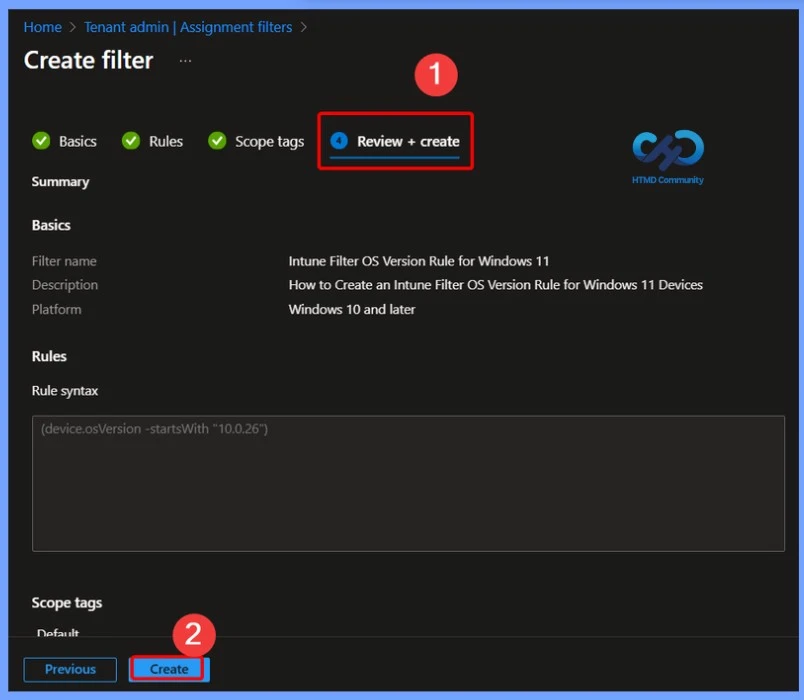
Complete the Intune Filter Rule Creation
You can complete the filter rule creation process by clicking on Next and Create. A notification message will appear showing that the filter has been created. The filter is also shown in the filters list and is ready to be used.
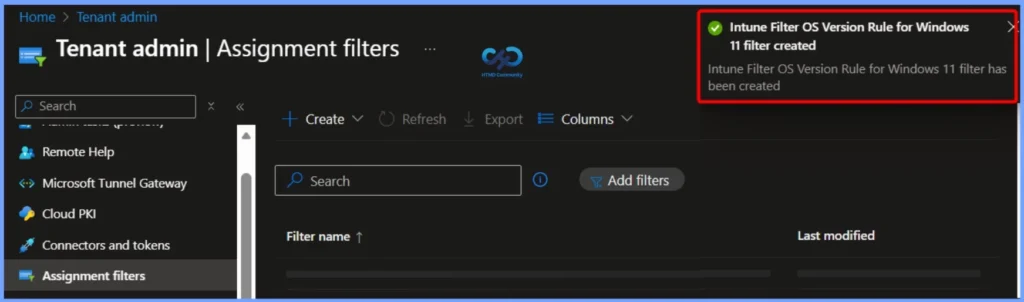
Use Windows 11 25H2 Filter Rule for Intune Policy Assignments
Let’s look at the real-time use of the assignment filter rule during the assignment process flow. You can use the following scenario to include Windows 11 25H2 devices. In Intune Admin Center, navigate to the Devices > Configuration Profiles and select the existing setting catalog policy from the list to include Windows 11 25H2 devices from this policy.
For Example, I selected the block users from account details on the sign-in policy from the existing list. Click on the Edit option from the assignments section, and click on the Edit Filter option from the Included Groups section.
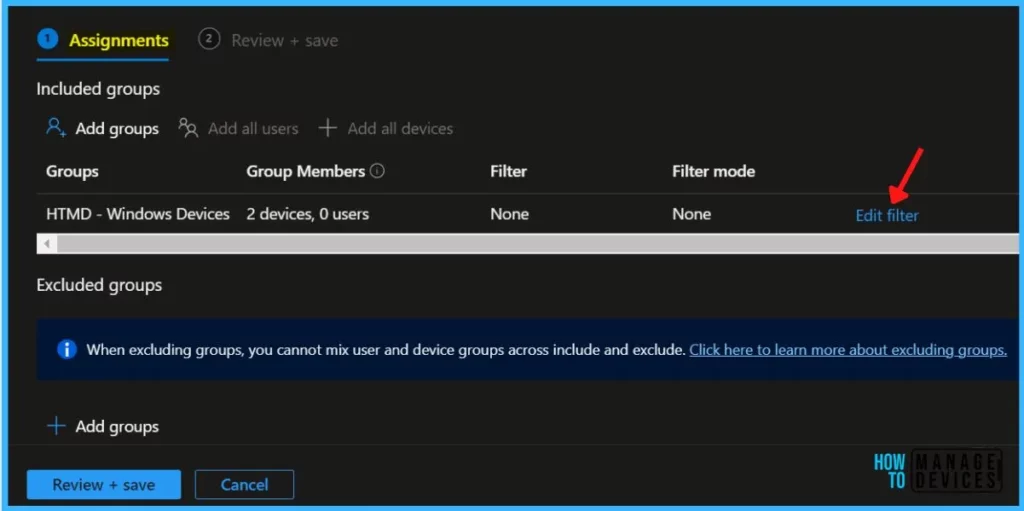
Include or Exclude Windows 11 25H2 Devices in the Policy
You can now select either Include or Exclude Windows 11 devices from this policy. I wanted to include Windows 11 25h2 devices in this policy.
- Click on Include filtered devices in assignment from the Filters blade.
- Select the Windows 11 25H2 Devices filter rule from the list below.
- Click on the Select & Review + Save button to complete the assignment of the filtering rule.
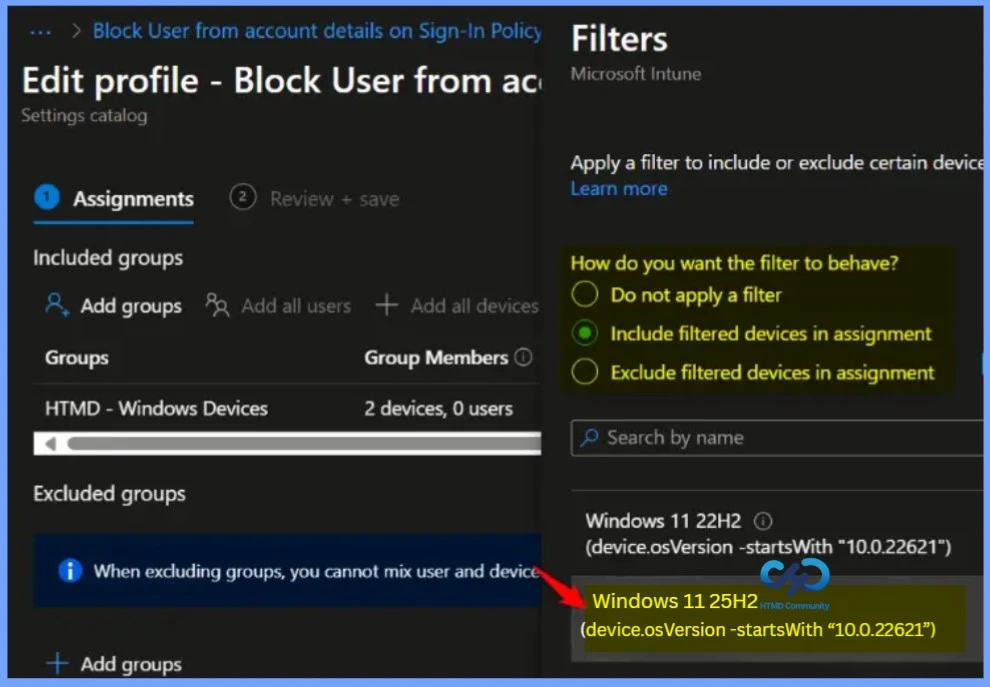
Verify Filter and Filter Mode Assignment for Windows 11 25H2 Devices
Ensure that filter and filter modes are correctly assigned to include Windows 11 25H2 devices for this settings catalog policy. Ideally, the policy should be applied on Windows 11 25H2 PCs because we have included it using the filter rules.
The same can be confirmed from Mode = Include & Evaluation Result = Match from the Evaluation Result column by clicking on the View Reports button from the Device Status section of the settings catalog policy.
The Intune filter evaluation options can help you with troubleshooting filter assignment-related issues. Intune filters can become very complex, and the evaluation options would surely help to identify issues. You can find more details about Intune Filter Evaluation Report Options available for Troubleshooting.
Need Further Assistance or Have Technical Questions?
Join the LinkedIn Page and Telegram group to get the latest step-by-step guides and news updates. Join our Meetup Page to participate in User group meetings. Also, join the WhatsApp Community to get the latest news on Microsoft Technologies. We are there on Reddit as well.
Author
About Author – Jitesh, Microsoft MVP, has over six years of working experience in the IT Industry. He writes and shares his experiences related to Microsoft device management technologies and IT Infrastructure management. His primary focus is Windows 10/11 Deployment solution with Configuration Manager, Microsoft Deployment Toolkit (MDT), and Microsoft Intune.
Thanks for the great article. Is it possible to define a filter rule so that it applies to devices with at least Windows 11 23H2 installed (so includes future Windows 11 feature releases)?