
Key Takeaways
- Microsoft Intune allows administrators to create Quiet Time policies for iOS/iPadOS and Android platforms to manage work-related notifications.
- Intune supports two Quiet Time policy types, Date Range and Days of the week, to configure notification-silencing schedules.
- Administrators can mute Microsoft Outlook and Teams notifications for a full day or during specific hours.
- The Days of the week policy allows administrators to configure quiet time schedules for selected days, including weekends.
Microsoft Intune provides Quiet Time policies that help administrators manage work-related notifications on iOS/iPadOS and Android devices. These policies allow admins to automatically mute Microsoft Outlook and Teams notifications during specified periods, helping users reduce distractions outside working hours. The global quiet time settings provide an effective way to establish policies for scheduling quiet time periods for end users. By utilizing these settings, admins can automatically mute Microsoft Outlook and Teams notifications. These policies serve the purpose of limiting the notifications received by end users outside of their work hours.
Table of Contents
Table of Contents
Configure Intune Quiet Time Policy for iOS iPadOS and Android Apps
There are two quiet time policy types, Date Range and Days of the week, available for iOS/iPadOS and Android platforms. This policy allows administrators to define specific timeframes during which notifications are silenced or restricted, enabling users to focus on their tasks without interruptions. One of the key features of the Intune Quiet Time Policy is the ability to set start and end times for the quiet period. Administrators can define the exact hours or specific timeframes during which notifications should be silenced.
- New Intune Managed Apps Filter Rules | Create Filter Rules Based On App Version
- Windows LAPS Role Based Access Controls Using Intune
Create Quiet Time Policy for iOS/iPadOS and Android
This flexibility allows organizations to tailor the policy to their specific work schedules and requirements. Implementing the Intune Quiet Time Policy can help to improve productivity by minimizing distractions, enhancing focus on important tasks, reducing interruptions during meetings or critical work hours, and overall better work-life balance for employees. Quiet time, mute work-related notifications for end users by creating and assigning the policy. These policies can be used to limit end-user notifications received after work hours. To create a quiet time policy, use the following steps:
- Sign in to the Microsoft Intune admin center.
- Select Apps > Quiet Time
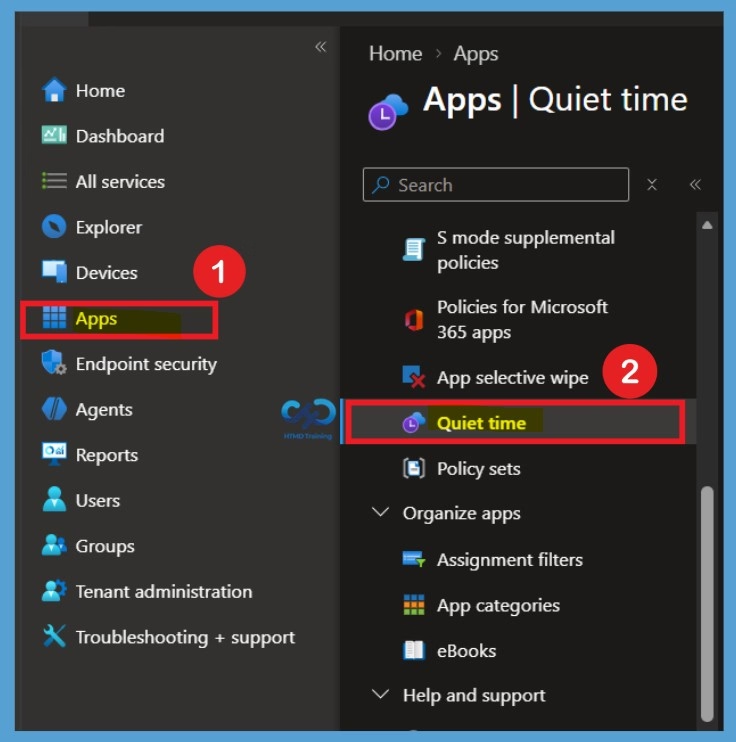
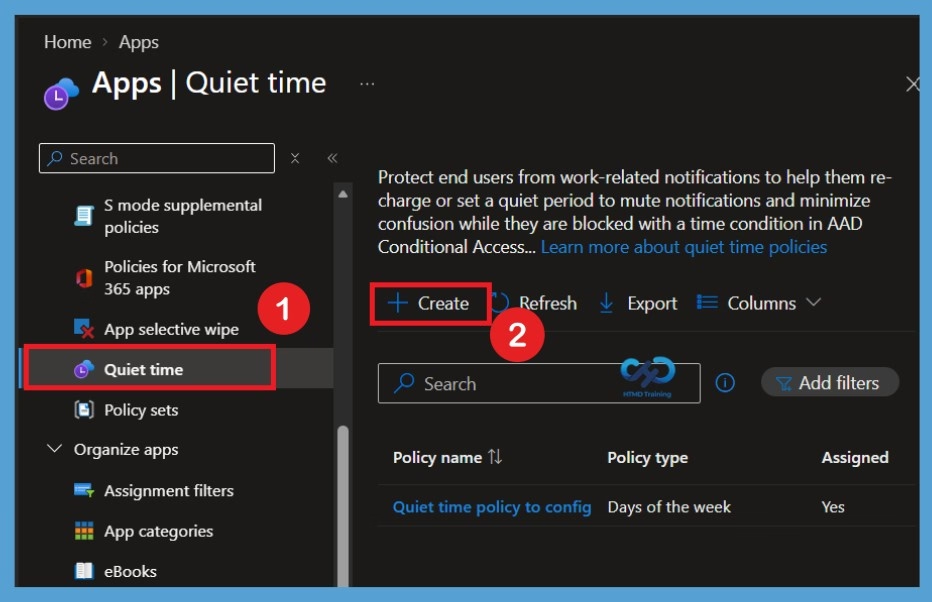
When you select Quiet Time, you will see the option to create a policy under the Policies tab. Click on Create Policy to begin the policy creation process. Microsoft Intune allows you to configure Quiet Time policies to manage Outlook and Teams notifications for iOS/iPadOS and Android devices.

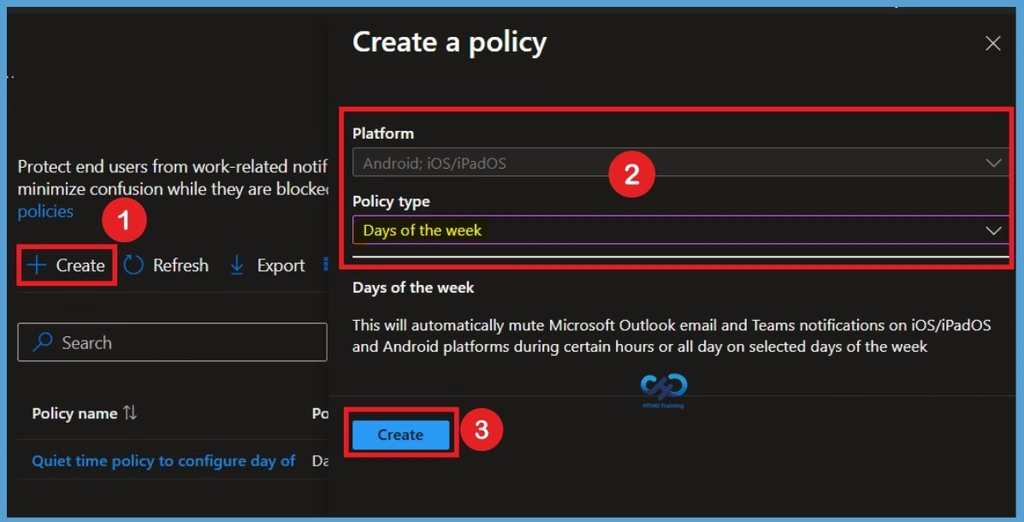
When you click on Create Policy, the Create Policy window will appear. The Platform field is already filled with Android and iOS/iPadOS, so you do not need to select it manually. Under Policy Type, you will find three options: Date Range, Days of the week, and Non-working time. Here, I selected Days of the week and clicked on Create to proceed with the policy configuration.
| Policy Type | Description |
|---|---|
| Date Range | Select this option to automatically mute Microsoft Outlook email and Teams notifications on iOS/iPadOS and Android platforms during the specified range. |
| Days of the week | Select this option to automatically mute Microsoft Outlook email and Teams notifications on iOS/iPadOS and Android platforms during certain hours or all day on selected days of the week. |
Basics
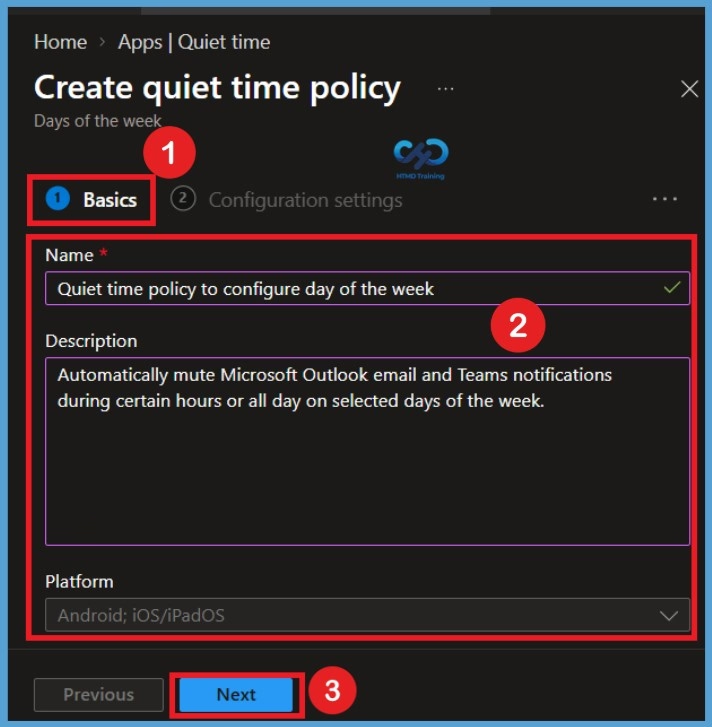
On the Basics page, add a Name (For Example, Quiet time policy to configure day of the week) and an optional Description for the quiet time policy. The Platform value is prepopulated with “Android; iOS/iPadOS.” Select Next to display the Configuration settings page.
Configuration Settings
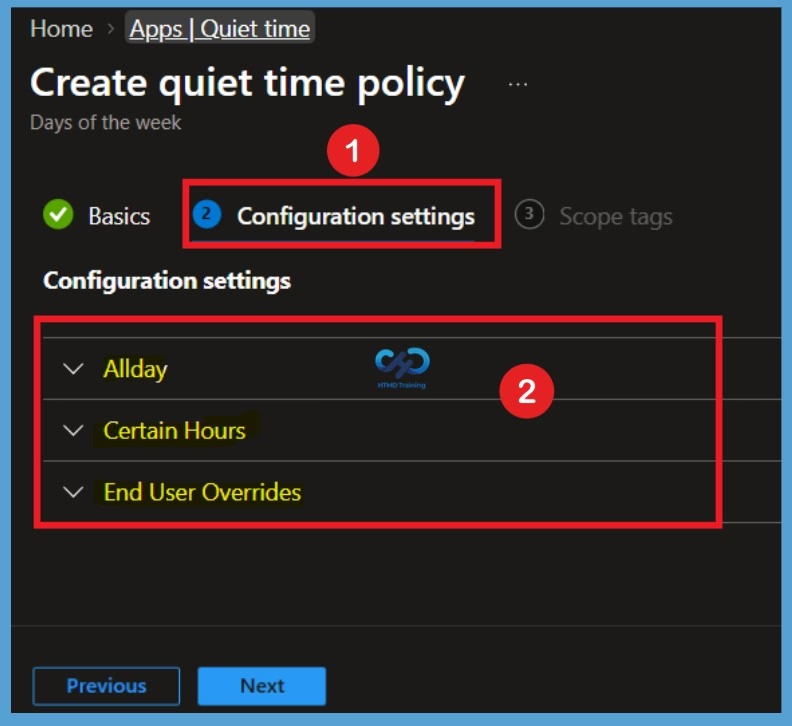
After completing the Basics tab, you will be directed to the Configuration settings page. Here, you can find three categories: All day, Certain Hours, and End User Overrides. Each category provides different settings to configure the Quiet Time policy. You need to configure the required settings in each category based on your organization’s notification management requirements.
Configuration Settings for Days of the Week
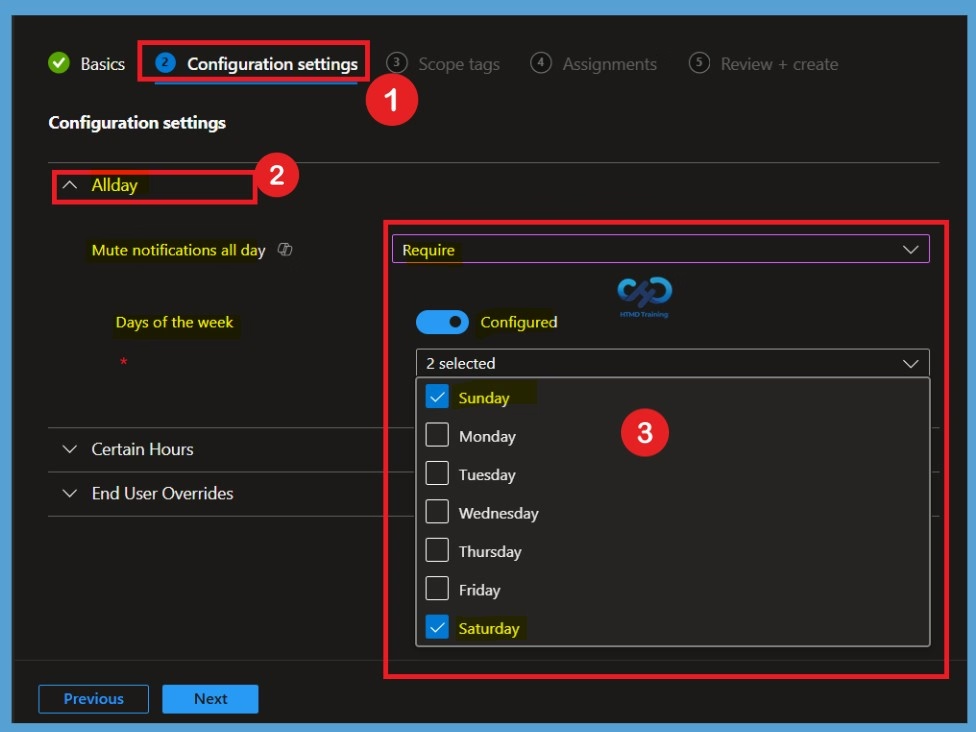
On the Configuration settings page, select how you want to apply quiet time settings. Each type of Quiet Time policy has different configuration values. The Days of week policy has the Allday, Certain Hours, and End User Overrides configuration settings sections. In Allday, you will find two options to be configured,
- Mute notifications all day: Set to Require to enable muting notifications for a full 24 hours on specific days of the week.
- Days of the week: Set to Configured and then select one or more days of the week that notifications must be muted for a full 24 hours. I preferred to select weekends (Saturday, Sunday)
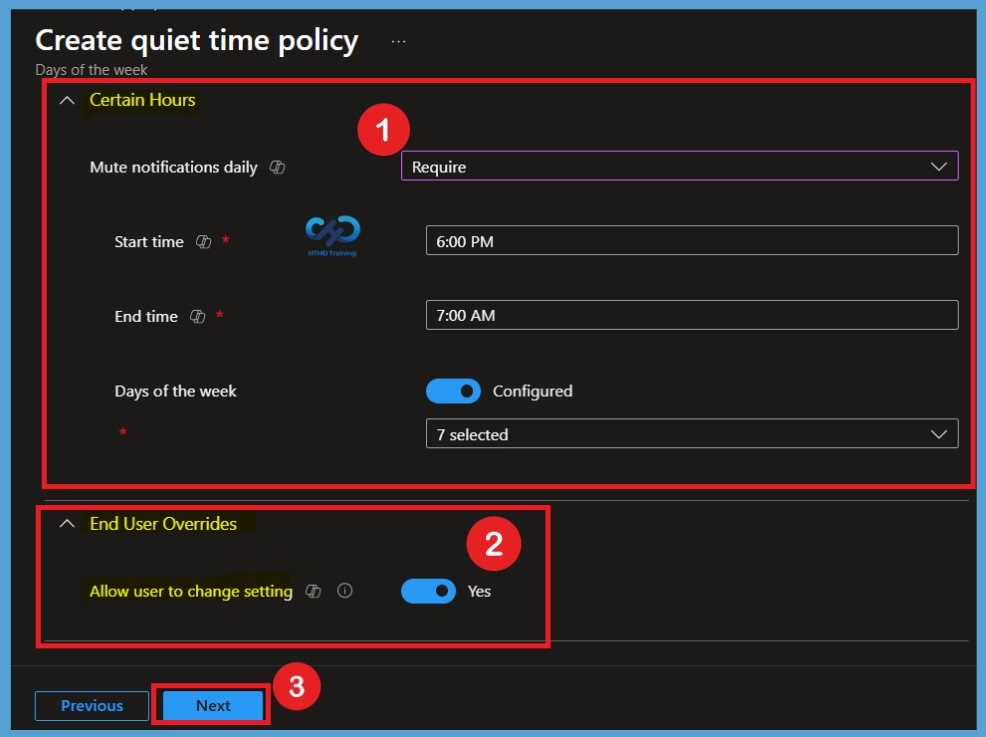
Next, expand the Certain Hours category by clicking the dropdown arrow. Under Mute notifications daily, select Require enabling notification muting during specific hours. Set the Start time to 6:00 PM and the End time to 7:00 AM. Under Days of the week, toggle the setting from left to right and select Configured to choose the days on which notifications should be muted during the specified hours. You will have the following options to be configured here for muting notifications for certain hours by specifying the days of the week, start, and end times.
Next, expand the End User Overrides category to configure the user override settings. Under Allow user to change settings, toggle the option from left to right and set it to Yes to allow end users to modify their global Quiet Time settings. Once you have configured the required settings, click Next to proceed to the Assignments page.
- Mute notifications daily: Set to Require to enable muting notifications for certain hours on specific days of the week.
- Start time: Set the start time for muting notifications for certain hours on specific days of the week.
- End time: Set the end time for muting notifications for certain hours on specific days of the week.
- Days of the week: Set to Configured and then select one or more days of the week that notifications must be muted for certain hours.
Note: If Non-working time policy is applied to the user, they will be prevented from editing their global quiet time settings by default.
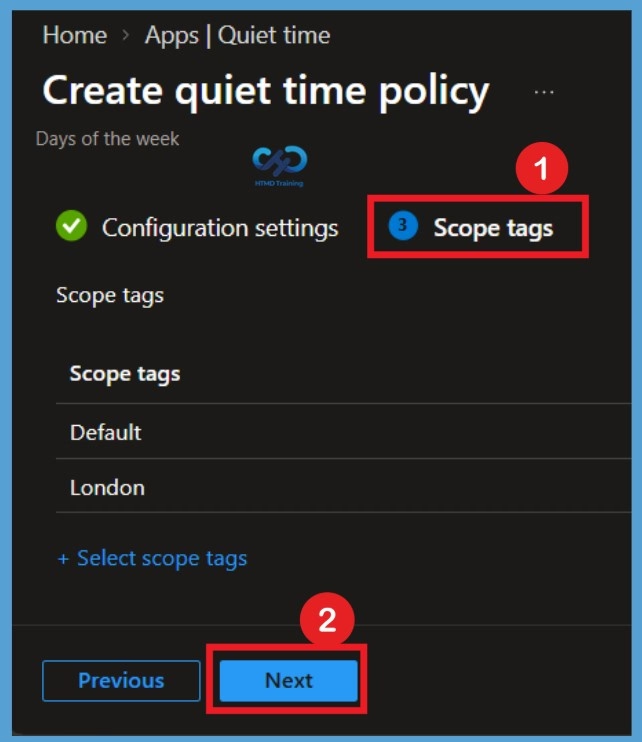
After completing the Configuration settings, you will proceed to the Scope tags page. Here, you can assign a scope tag to control the administrative visibility of the Quiet Time policy. For this example, I selected the London as scope tag. This step is optional, so you can skip it if you do not need to assign a scope tag. Once you have configured the scope tag, click Next to proceed to the Assignments page.
Assignments
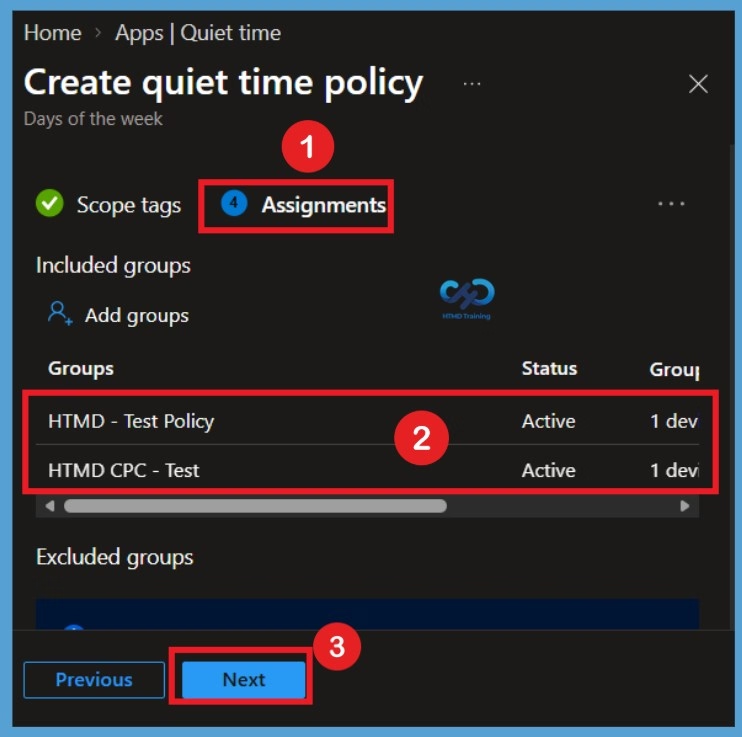
On the Assignments page, you can select the groups to which you want to deploy the Quiet Time policy. Under the Include section, click on Add groups and select the required groups. For this example, I selected HTMD Test Policy and HTMD CPC Test. After adding the groups, click Next to proceed to the Review + create page.
Review + Create
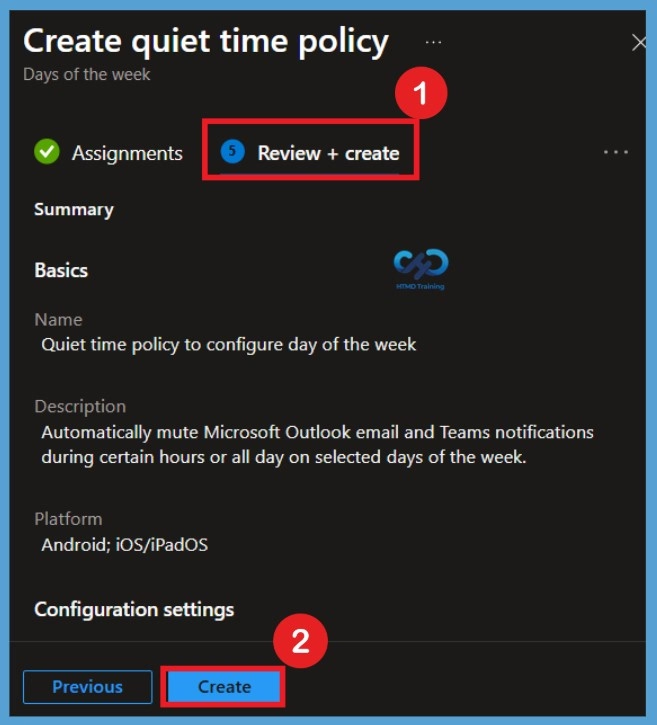
The final step is the Review + create page, where you can review all the configured settings, including the basic details, configuration settings, scope tags, and assignments. If you need to make any changes, click Previous to return to the relevant section and update the settings. Once you have verified that all the details are correct, click Create to create the Quiet Time policy in Microsoft Intune.
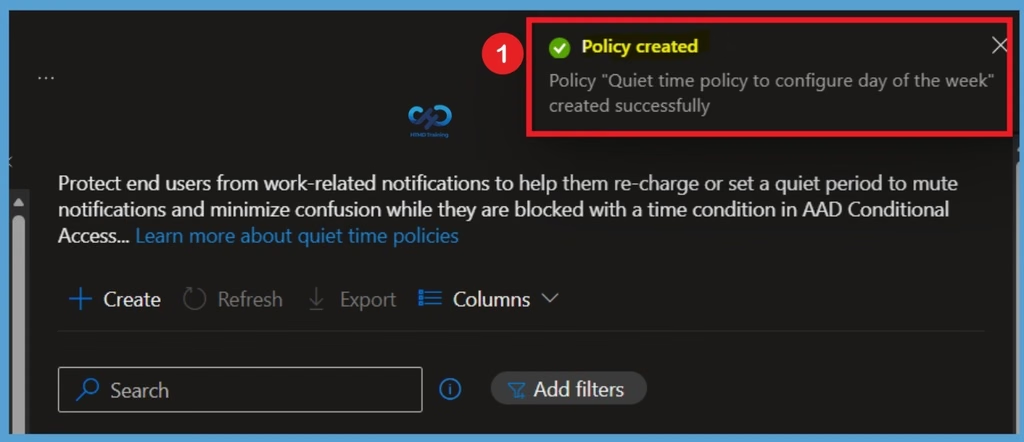
After clicking the Create button, a notification appears confirming that the policy was created successfully. The message states, “Quiet time policy to configure day of the week created successfully.” The newly created Quiet Time policy will now be displayed on the Microsoft Intune admin center under the Quiet Time policies list.
Once the Intune Quiet Time policy is applied, notifications on the devices within the specified timeframe will be silenced or restricted according to the configured settings. You can edit an existing quiet time policy and apply it to the targeted users. However, when you change existing policies, users won’t see the changes for a 24-hour period.
Need Further Assistance or Have Technical Questions?
Join the LinkedIn Page and Telegram group to get the latest step-by-step guides and news updates. Join our Meetup Page to participate in User group meetings. Also, join the WhatsApp Community and the Whatsapp channel to get the latest news on Microsoft Technologies. We are there on Reddit as well.
Author
About Author – Jitesh, Microsoft MVP, has over six years of working experience in the IT Industry. He writes and shares his experiences related to Microsoft device management technologies and IT Infrastructure management. His primary focus is Windows 10/11 Deployment solution with Configuration Manager, Microsoft Deployment Toolkit (MDT), and Microsoft Intune.