
Key Takeaways
- Microsoft Intune allows administrators to manage the Guest Account on macOS devices.
- The Disable Guest Account setting is available through the macOS Settings Catalog.
- Administrators can use this policy to prevent guest users from logging in to managed Mac devices.
- This property has no effect if Enable Guest Account is true. If true, disables the guest account.
This post will show you how Prevent Unauthorized Guest Access by Disabling the Guest Account on macOS using Intune Policy. The Guest Account allows temporary and limited access to your Mac, typically for individuals without a user account. While it can be useful in some situations, it can also pose security risks if not managed properly. By default, the guest user account is disabled. The Guest account policy, you can enforce to configure whether the Guest account is enabled or disabled. This account allows unauthenticated network users to gain access to the system by signing in as a Guest with no password.
Table of Contents
Table of Contents
Prevent Unauthorized Guest Access by Disabling the Guest Account on macOS using Intune Policy
Unauthorized users can access any resources that are accessible to the Guest account over the network. This privilege means that any network shared folders with permissions that allow access to the Guest account, the Guests group, or the Everyone group will be accessible over the network. This accessibility can lead to the exposure or corruption of data.
- Microsoft Office License Removal Tool For Mac Office Apps Troubleshoot
- Manage System Integrity Protection For MacOS Devices Using Intune
- How to Install Fonts On MacOS Using Intune
- Best Enhancements In Microsoft Intune To Manage Apple Devices
Disable Guest Account on macOS using Intune
Disabling the Guest Account is a recommended security practice, especially if you are concerned about unauthorized users gaining access to your computer. However, always ensure you have a strong, secure password for your primary user account and consider other security measures, such as enabling FileVault encryption to enhance the overall security of your Mac.
Here’s how you can disable the Guest Account on macOS, To ensure that the Guest Account is successfully disabled, it’s a good practice to test the configuration on a sample macOS device before deploying it organization-wide. To deploy the Policy:

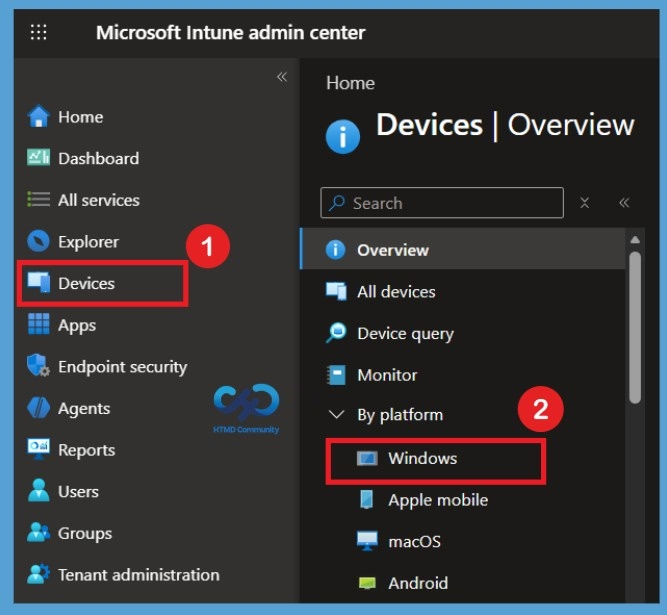
- Sign in to the Microsoft Intune Admin Center
- Select Devices > macOS > Configuration profiles, and click + New Policy.
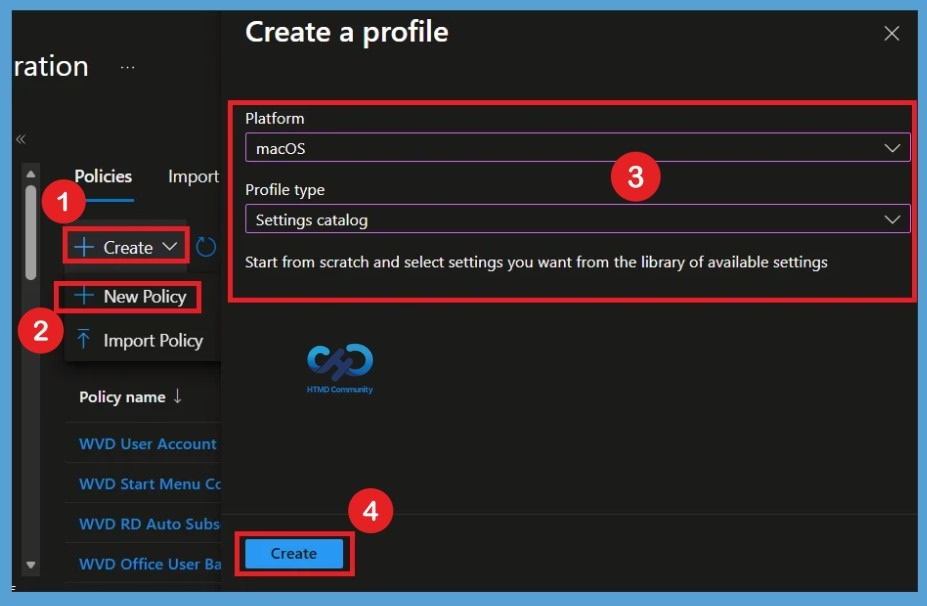
After selecting Configuration, go to the Policies section and click Create. From the available options, select New Policy to open the Create a Profile window. Here, select macOS as the platform and Settings Catalog as the profile type. Once you have made the required selections, click Create to proceed with the policy configuration.
Basics Tab
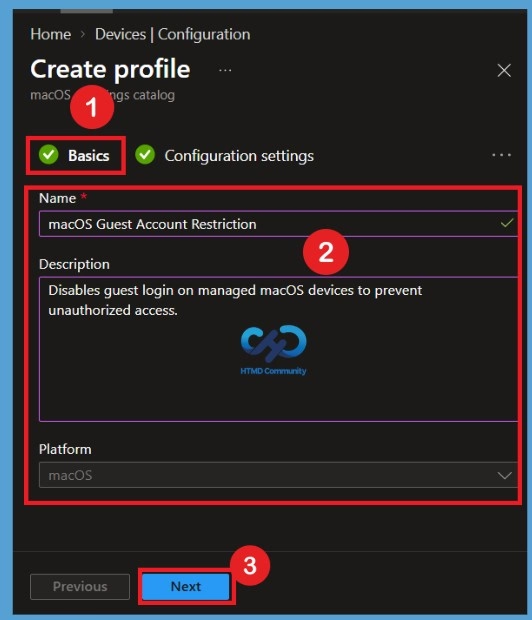
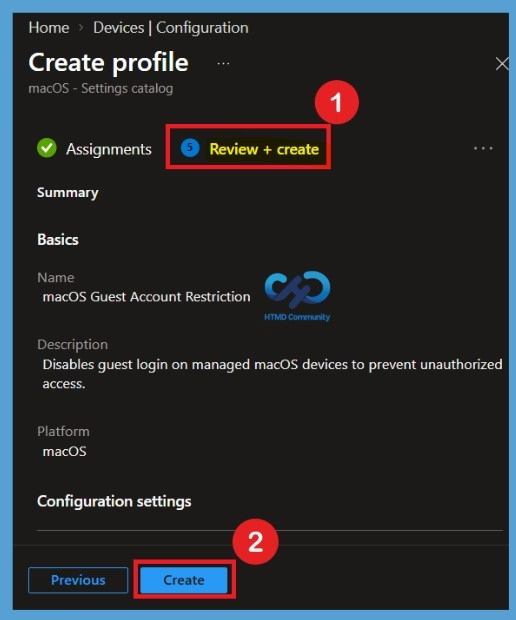
In the Basics tab, enter a name for the configuration profile. For example, enter macOS Guest Account Restriction in the Name field. You can also add a description explaining the purpose of the policy, such as disabling guest login on managed macOS devices to help prevent unauthorized access. Once the required details are entered, click Next to continue.
Configuration Settings for Disabled Guest Account Policy
On the Configuration settings tab, With the settings catalog, you can choose which settings you want to configure. Click on Add Settings to browse or search the catalog for the settings you want to configure. Search for “Guest” or “Guest Account”. Select “Accounts” from the search result. Select “Disable Guest Account” and close the settings picker pane.
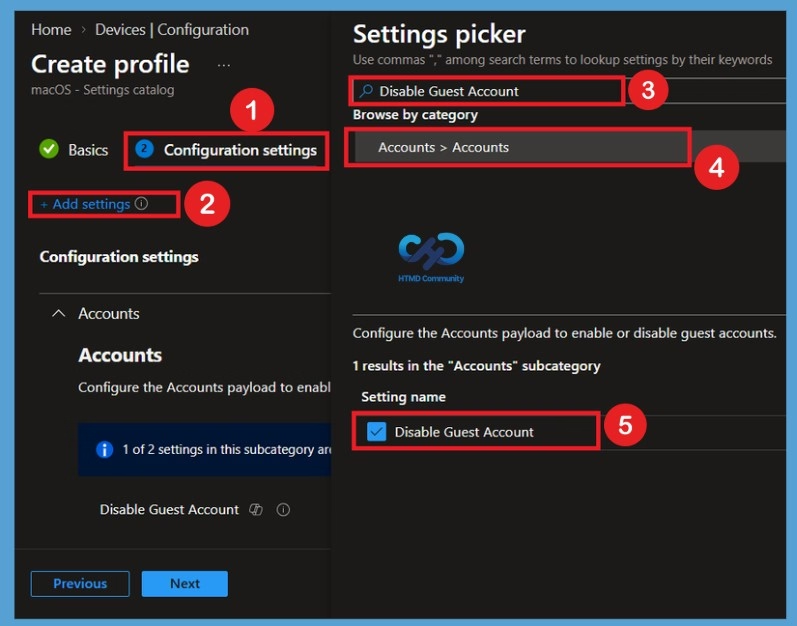
Disabled State of Policy
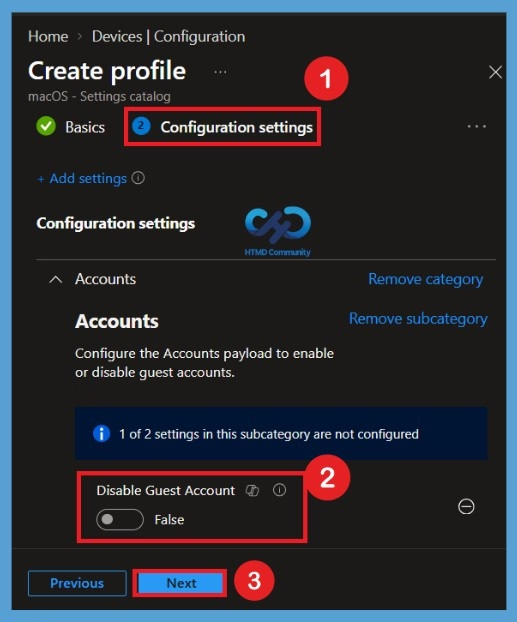
After selecting the Disable Guest Account setting, the policy is set to False by default. This means the setting is not enabled initially, so the Guest Account is not being disabled through this policy. To enforce the restriction and prevent Guest users from accessing the Mac, toggle the setting to True.
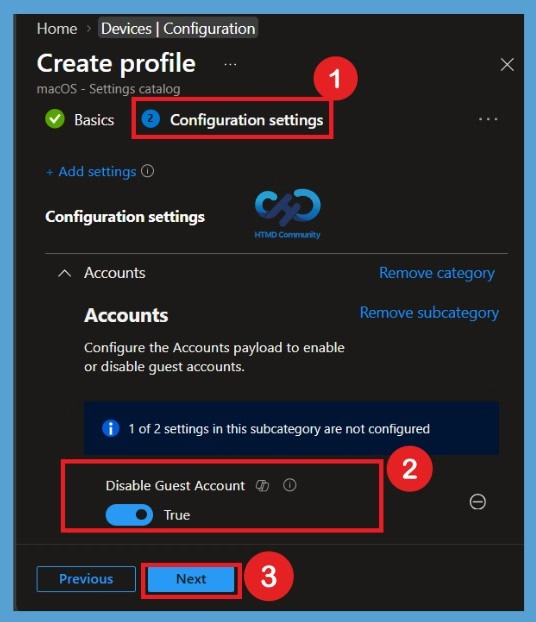
Configure the account payload to enable or disable guest accounts. This policy setting allows you to disable guest accounts on macOS devices, Toggle the switch to set True, and click on Next.
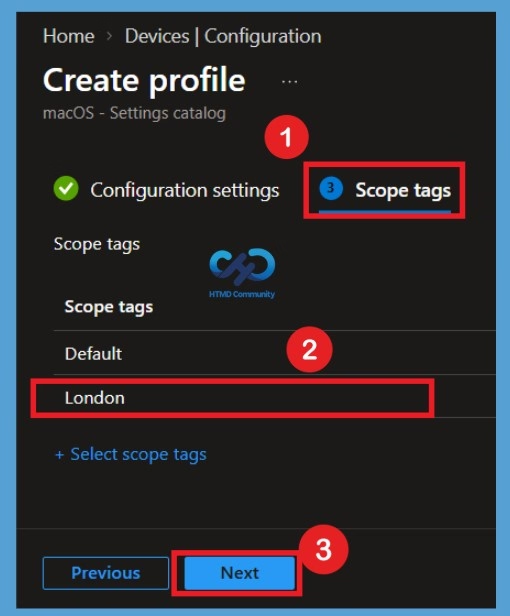
Scope Tags
In the Scope tags section, I select the London scope tag to apply the appropriate administrative scope to this policy. After selecting the required scope tag, click Next to continue with the policy configuration.
Assignments
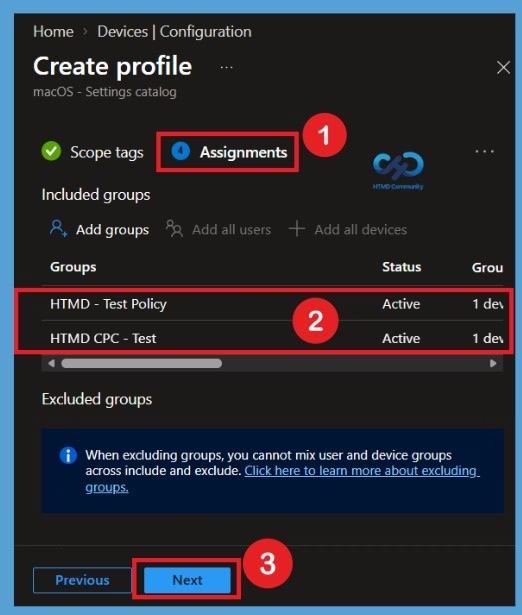
After Scope Tags, we need to assign the policy to the required groups. In the Assignments section, I have selected two groups, HTMD Test Policies and HTMD CPC Test, as examples. You can select the groups you want to target for this policy deployment. Once the required groups are selected, click Next to continue with the remaining configuration steps.
In the Review + Create tab, you need to review your settings. After clicking Create, your changes are saved, and the profile will be assigned to the added devices group. A notification will appear automatically if you see it in the top right-hand corner. You can see that the Policy “macOS Guest Account Restriction ” was created successfully. The macOS device groups will receive your profile settings when the devices check in with the Intune service. The disabling guest account policy applies to the device.
Monitor Guest Account Policy
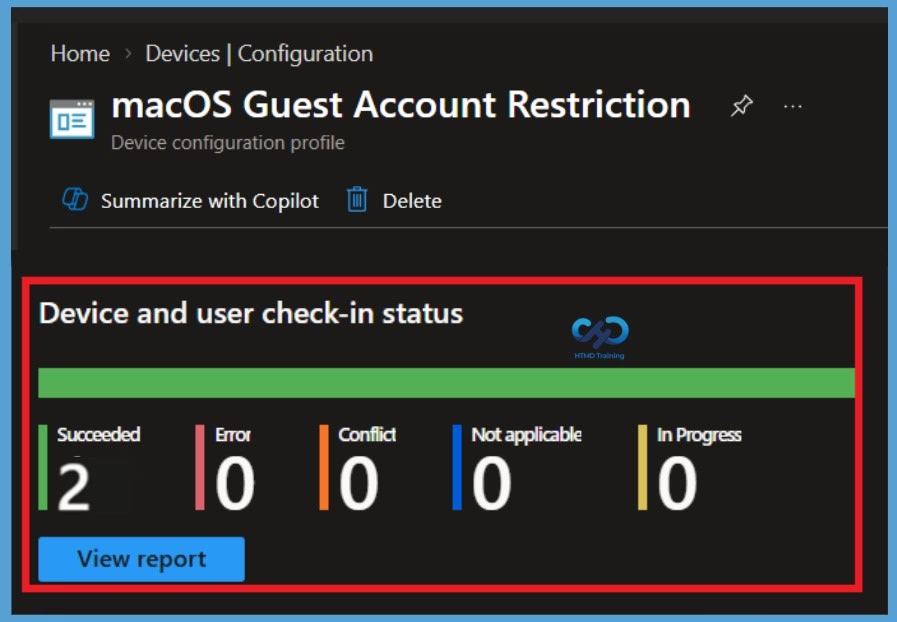
Intune provides several features to monitor and manage device configuration profiles. Once the configuration profile is applied, To monitor macOS policy assignment, from the list of Configuration Profiles, select the policy you targeted, and here you can check the device and user check-in status.
If you click View Report, additional details are displayed. Additionally, you can quickly check the update as devices/users check-in status reports:
End User Experience
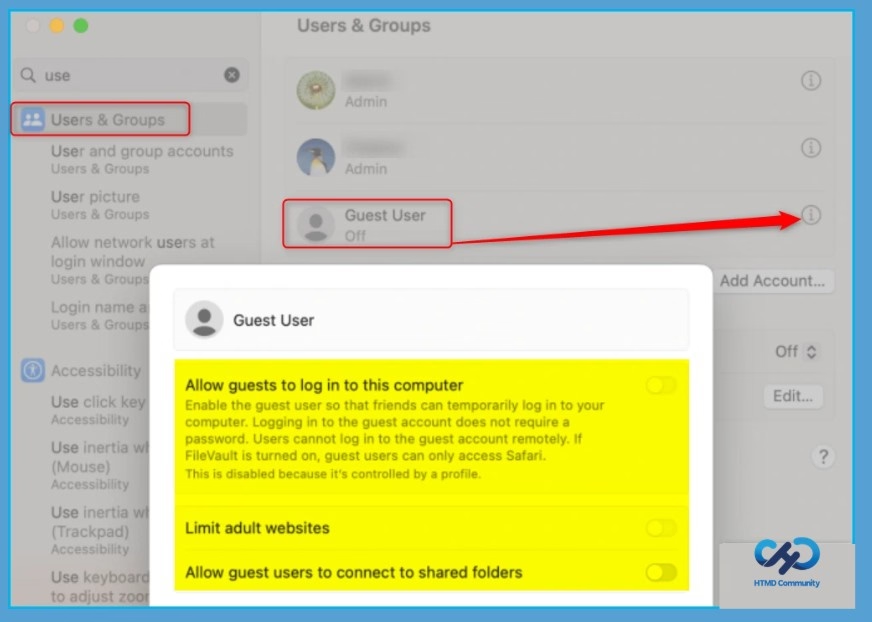
Once the guest accounts are disabled from Intune policy, The Admin users don’t have the capability to enable from the devices. Click on the Apple menu on targeted macOS devices and select “System Preferences“. This will open a window with various settings for your Mac. Search for “Users & Groups” and select “Guest User” on the left: In the list of user accounts on the left side of the Users & Groups window, click on the “Guest User.” The option “Allow guests to log in to this computer” should be unchecked.
Remove a Device Group from the Policy
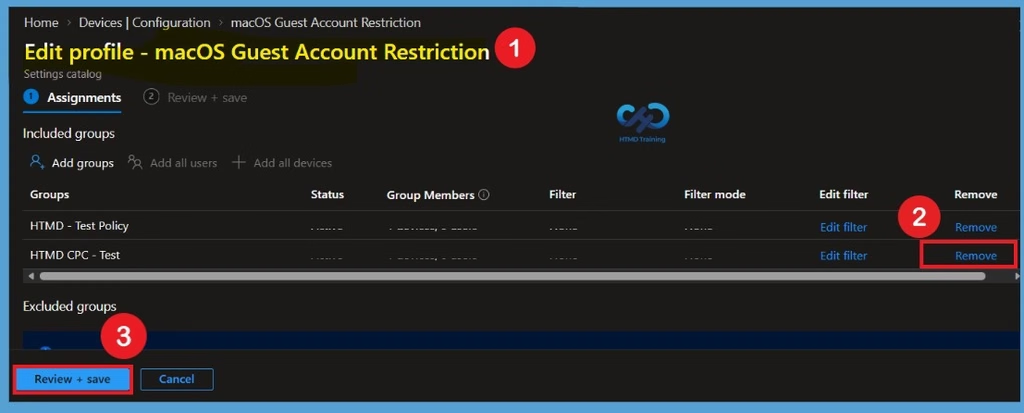
If you no longer want the policy to apply to a particular device group, you can remove the group from the policy assignment. Open Devices > macOS > Configuration profiles and select the macOS Guest Account Restriction policy. Open Assignments and locate the group under Included groups. Select the group you want to remove and choose Remove or remove it from the assignment list. Save the changes to update the policy assignment.
Permanently Delete the Policy from the Tenant
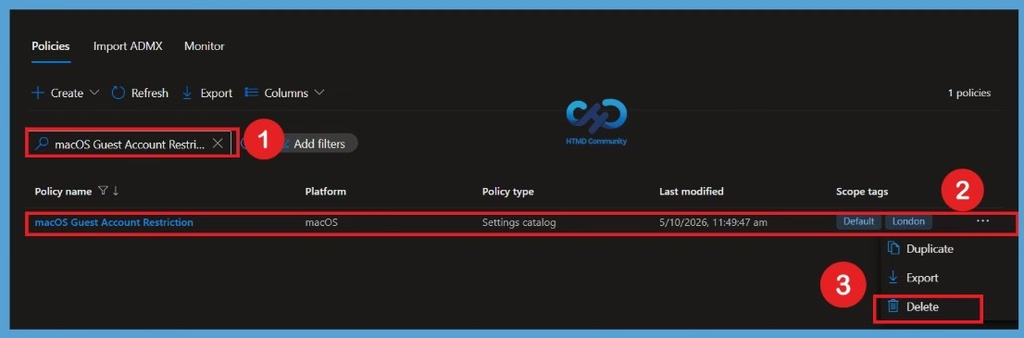
If the policy is no longer required, you can permanently remove the configuration profile from the Intune tenant. Go to Devices > macOS > Configuration profiles and select the macOS Guest Account Restriction policy. From the policy overview page, select Delete and confirm the deletion when prompted.
Before deleting the policy, make sure that it is no longer required and review its assignments. Deleting the configuration profile removes the policy from Intune and prevents it from being managed or assigned to devices through that profile.
Need Further Assistance or Have Technical Questions?
Join the LinkedIn Page and Telegram group to get the latest step-by-step guides and news updates. Join our Meetup Page to participate in User group meetings. Also, join the WhatsApp Community and the Whatsapp channel to get the latest news on Microsoft Technologies. We are there on Reddit as well.
Author
About Author – Jitesh, Microsoft MVP, has over six years of working experience in the IT Industry. He writes and shares his experiences related to Microsoft device management technologies and IT Infrastructure management. His primary focus is Windows 10/11 Deployment solution with Configuration Manager, Microsoft Deployment Toolkit (MDT), and Microsoft Intune.