
Key Takeaways
- The Disable Clear TPM Button antivirus policy is configured under the Windows Security experience profile.
- This policy supports consistent security enforcement across Intune-managed Windows devices.
- This policy controls whether users can reset the TPM from Windows Security.
- Enabled Value 1 – Hides and disables the Clear TPM button to prevent accidental TPM resets.
- Disabled or Not Configured – Value 1 (Default) – Allows users to see and use the Clear TPM button on supported devices.
- Enabling this policy helps protect encryption keys, reduce user errors, and improve overall device security in managed environments.
- Accidentally clearing TPM can block access to encrypted data.
- Helps IT admins protect data, avoid device lockouts, and reduce helpdesk calls.
How to Protect TPM Encryption Keys by Disabling Clear TPM using Intune Policy! This policy controls whether users can clear the Trusted Platform Module (TPM) from the Windows Security app by enabling or disabling the Clear TPM button.
When enabled, the button is blocked to prevent users from resetting the TPM and potentially losing encryption keys, Windows Hello data, or access to BitLocker-protected drives; when disabled or not configured, the button remains available on supported devices.
This policy helps IT administrators by preventing accidental or unauthorized TPM resets, which can otherwise lead to BitLocker recovery issues, data loss, or device lockouts. By disabling the Clear TPM option through Intune, admins can protect encryption keys and critical device security configurations.
This also helps reduce helpdesk incidents and ensures consistent security enforcement across managed devices without requiring user awareness or intervention. In this post you will get all the details of the how to Protect TPM Encryption Keys by Disabling Clear TPM using Intune Policy.

Table of Contents
How to Protect TPM Encryption Keys by Disabling Clear TPM using Intune Policy
If a company encrypts all employee laptops using BitLocker and manages them with Intune. If a user clicks Clear TPM in Windows Security by mistake, the laptop may ask for a BitLocker recovery key or even block access to data. To avoid this, the IT admin enables this policy, which removes the Clear TPM button so users cannot click it.
- Sign in to the Microsoft Intune admin center.
- From the left navigation pane, select Endpoint security.
- Under Endpoint security, choose Antivirus.
- Click + Create to start creating a new policy.

- BitLocker Recovery Key Process for Windows Autopilot New Update
- Ensuring Data Protection through Windows Recall with New Security Architecture TPM Windows Hello
- How to Run TPM Troubleshooter in Windows 11
Provide the Required Basic Configuration Details
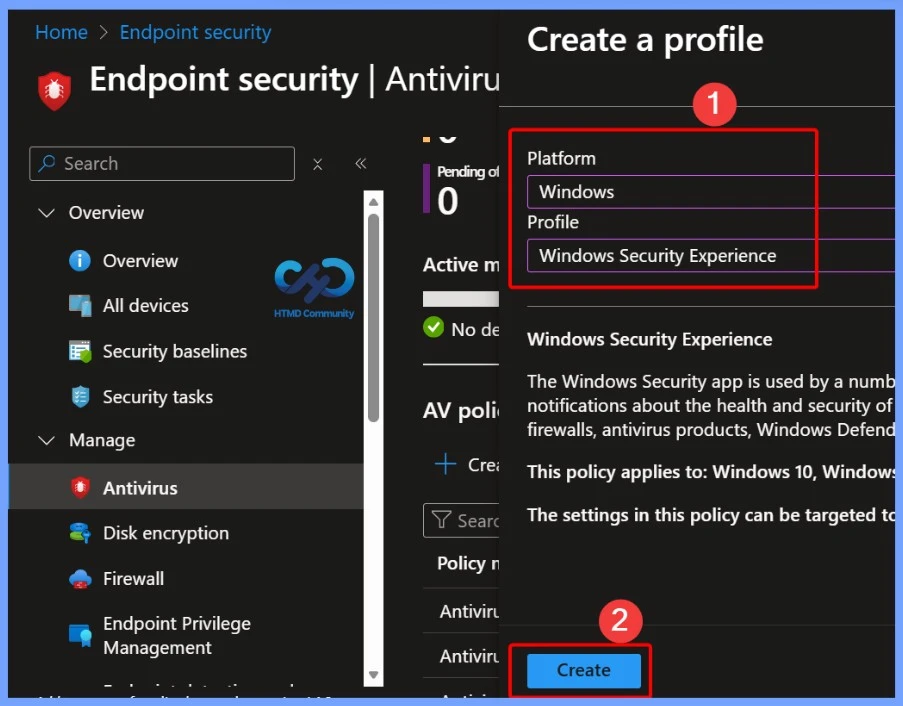
Once the Create a profile window opens, provide the required basic configuration details. Set the Platform to Windows and select Windows Security experience as the profile type. After making these selections, move forward to the next step to configure the policy settings.
Basic Settings for Disabling Clear TPM Button in Intune
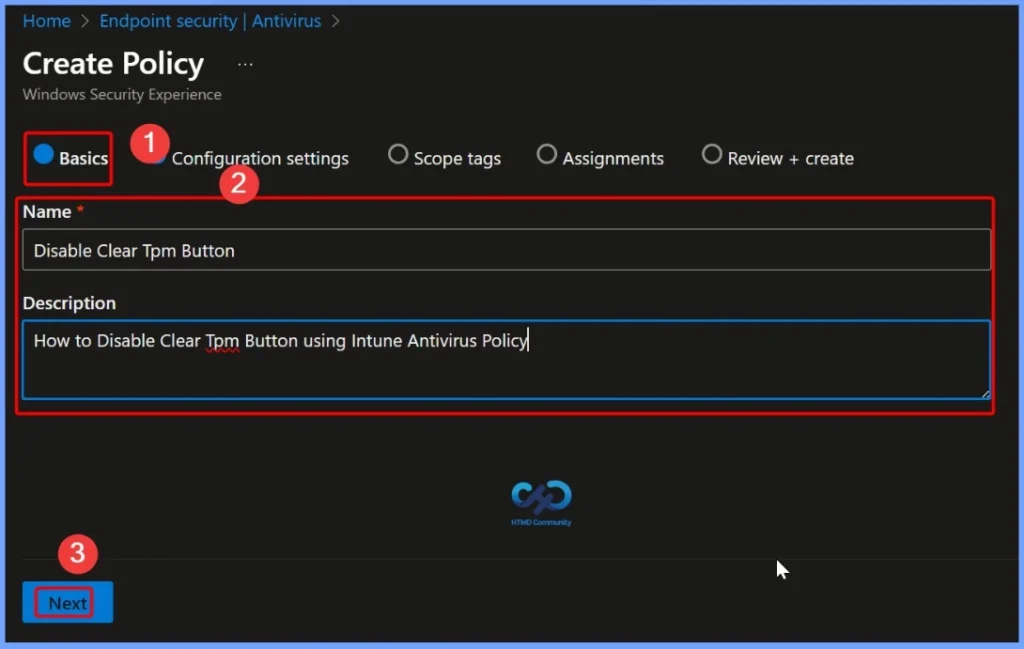
The Basics Settings tab helps you to provide the essential details for the policy configuration. Enter a Name such as Disable Clear TPM Button to clearly identify the policy. In the Description field, provide a brief explanation like How to Disable Clear TPM Button using Intune Antivirus Policy to help administrators understand the purpose of the Policy.
Settings for Disabling Clear TPM Button in Intune
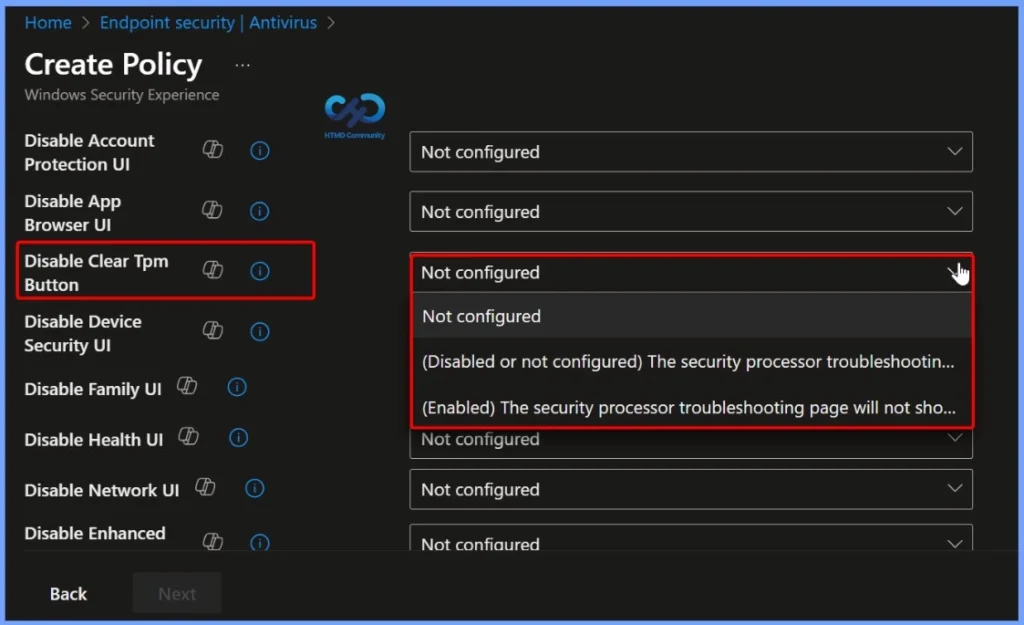
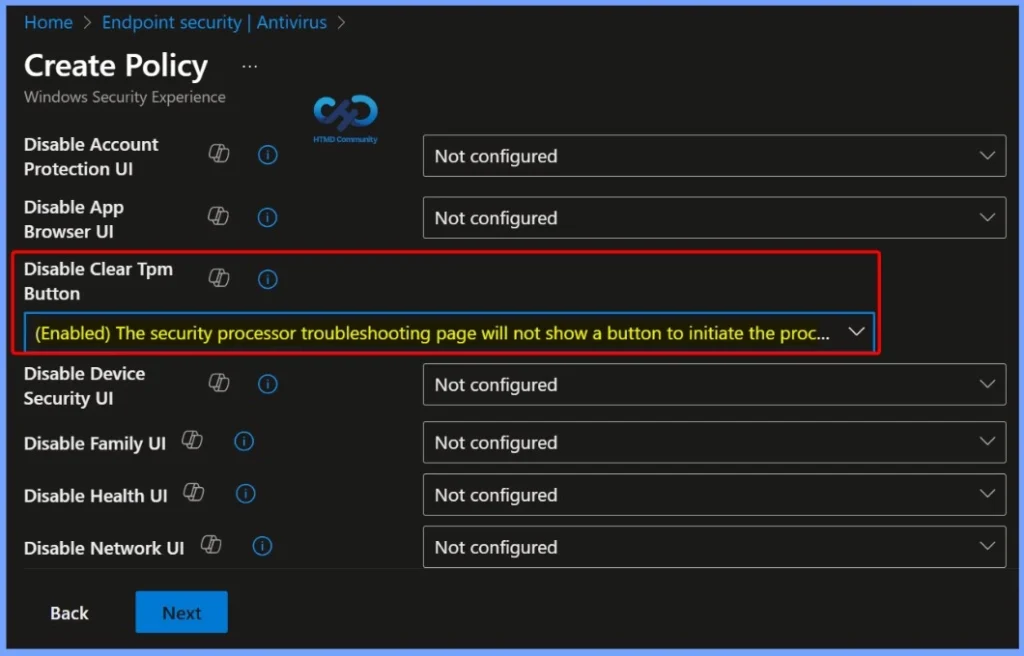
The Disabling Clear TPM Button policy in Intune offers 3 configuration options: Enabled, Disabled, and Not configured. When set to Enabled, the Clear TPM button in Windows Security becomes unavailable for users, preventing accidental TPM resets.
Choosing Disabled allows users to access and use the Clear TPM button on supported devices. If the policy is Not configured, it behaves the same as Disabled, keeping the button available by default. These settings help IT admins control device security while balancing user access.
Enabling the Disable TPM Button Policy in Intune
When you select the Enabled option in the Disable TPM Button policy, the Clear TPM button in Windows Security becomes unavailable for users. This setting helps IT administrators prevent accidental or unauthorized TPM resets, protecting encryption keys, Windows Hello credentials, and other critical security data on managed devices.
- New BitLocker Disk Encryption Policy For Intune Endpoint Security
- Turn Off Store Application Setting To Disable End User Access To Store Apps Using Intune Policy
Specific Property Settings of the Policy
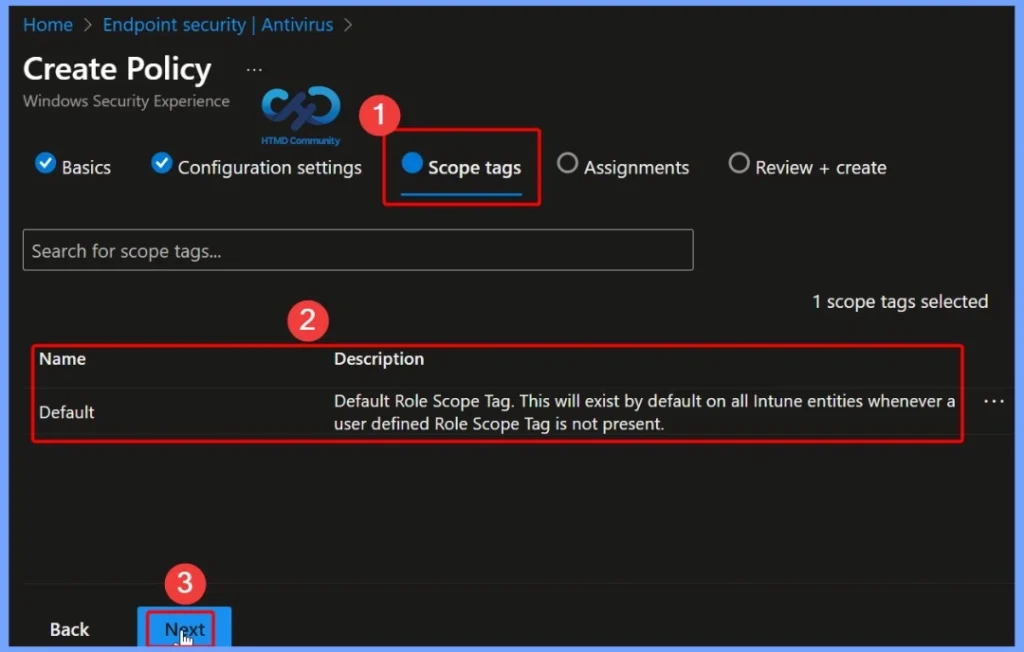
The Disable TPM Button policy in Intune has specific property settings that define its behavior. The Property Name is linked to the Clear TPM button control, with a Property Value formatted as an integer (int). Here in the Scope tags settings, we select the default settings.
Policy also Supports Multiple Access Types
This policy also supports multiple Access Types, including Add, Delete, Get, and Replace, allowing administrators flexibility in managing the setting. The Default Value is set to 0, which corresponds to the Disabled state, meaning the Clear TPM button is available by default unless the policy is explicitly enabled.
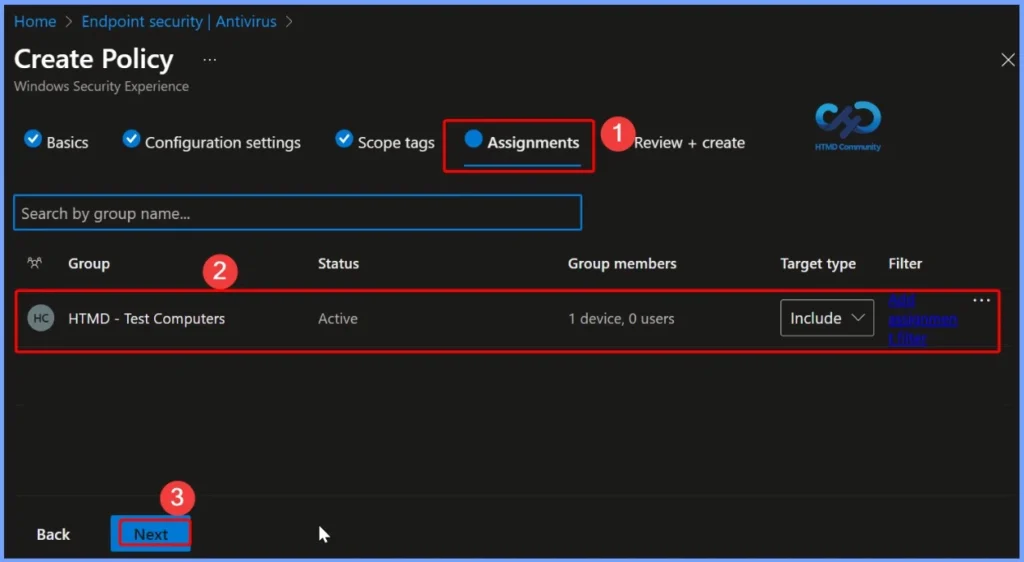
- In the Assignments tab, select the device group that you want to deploy the policy.
- Here, we select the device group as HTMD Test Computers.
- Click Next to Proceed.
Policy Values for Disable TPM Button in Intune
The Disable TPM Button policy in Intune uses specific values to control the Clear TPM button behavior. A value of 0 (Default), which corresponds to Disabled or Not Configured, allows the security processor troubleshooting page to display a button that initiates the TPM clearing process. A value of 1 (Enabled) removes this button from the page, preventing users from starting the process to clear the TPM.
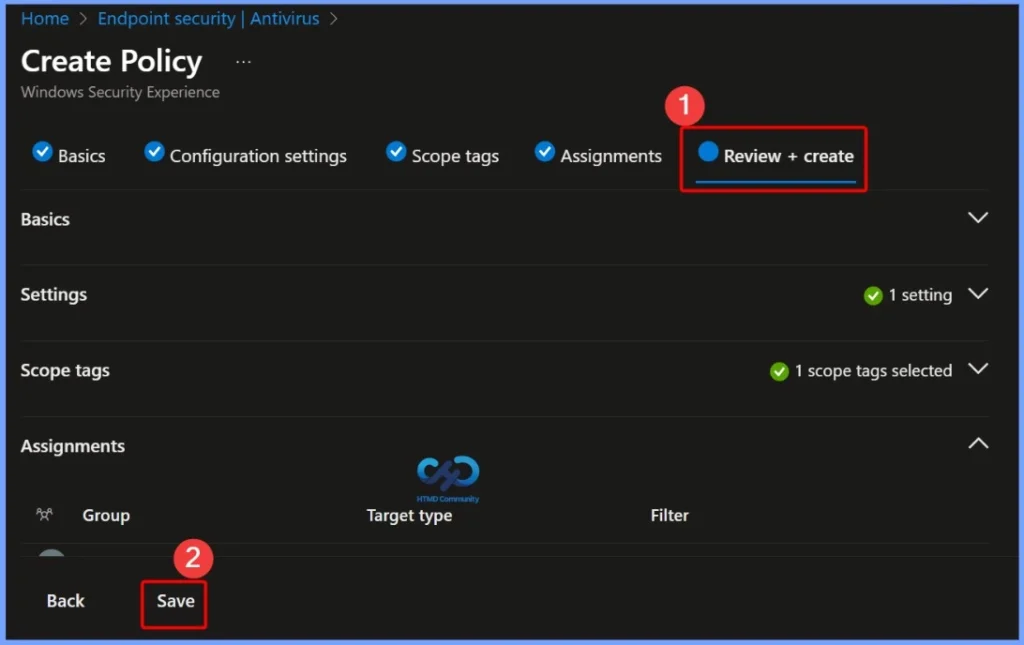
- The Review + Create tab in Intune allows administrators to verify all the settings configured for the policy before deployment.
- This step helps prevent misconfigurations and ensures smooth policy deployment.
- Select the Create button to create the policy
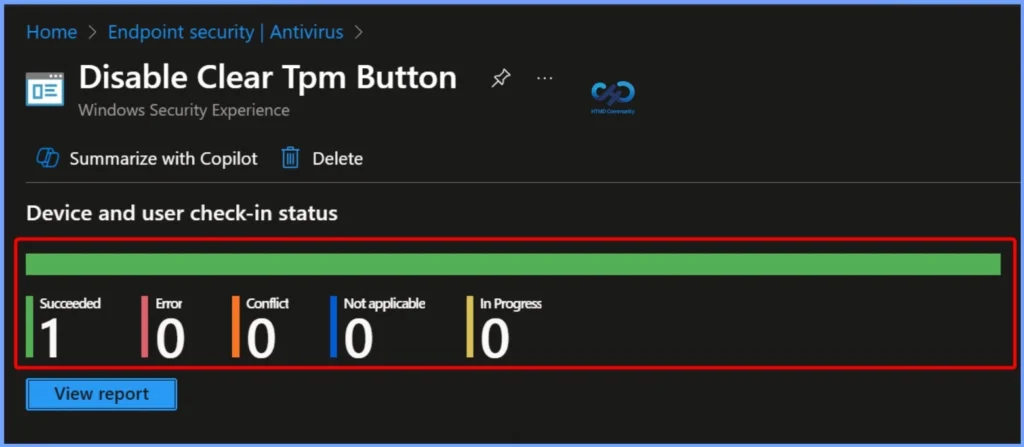
Device and User Check-in Status for the Disable Clear TPM Button Policy in Intune
The Device and user check-in status for the Disable Clear TPM Button policy in Intune under the Windows Security Experience profile indicates that the policy has successfully applied to 1 device. There are no errors, conflicts, or devices marked as not applicable or in progress. This confirms that the policy is active and functioning correctly on the targeted device.
- How to Discover TPM Status across Windows Devices using Intune Inventory
- TPM 2.0 Transition to Windows 11 For Better Security
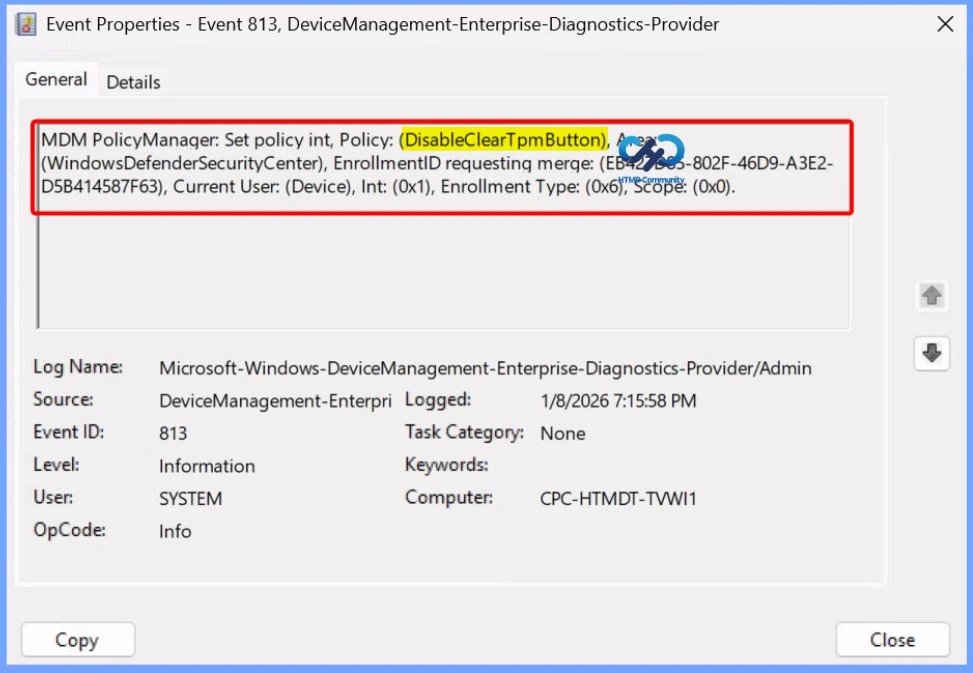
Client Side Verification for Disable Clear TPM Button
It includes details such as the Enrollment ID, the current user/device, the intention code (Int: 0x1), the enrollment type (0x6), and the scope (0x0). This log confirms that the policy was successfully set and applied on the device, providing administrators with a record of policy deployment and enforcement.
To get the client-side verification, open the Event Viewer and navigate to Applications and Services Logs > Microsoft> Windows > Device Management > Enterprise Diagnostic Provider > Admin. Once there, you can search for specific policy results by using the Filter Current Log feature located in the right pane. This helps quickly get the relevant results within the log.
Need Further Assistance or Have Technical Questions?
Join the LinkedIn Page and Telegram group to get the latest step-by-step guides and news updates. Join our Meetup Page to participate in User group meetings. Also, Join the WhatsApp Community to get the latest news on Microsoft Technologies. We are there on Reddit as well.
Author
Anoop C Nair has been Microsoft MVP for 10 consecutive years from 2015 onwards. He is a Workplace Solution Architect with more than 22+ years of experience in Workplace technologies. He is a Blogger, Speaker, and Local User Group Community leader. His primary focus is on Device Management technologies like SCCM and Intune. He writes about technologies like Intune, SCCM, Windows, Cloud PC, Windows, Entra, Microsoft Security, Career, etc.