
Key Takeaways
- Removes the Search link from the Windows Start menu and the Start menu context menu.
- Disables Windows + F keyboard shortcut for opening Search.
- Prevents users from using the F3 key and Ctrl + F within the affected File Explorer search interface.
- Removes the Search option from the context menu of drives and folders in File Explorer.
- Helps provide a simplified and standardized Windows desktop experience for managed users.
In this post, you will see how to Remove Search Link from Start Menu to Restrict Search UI Elements in Windows Using Intune Policy. This policy setting allows you to remove the Search link from the Start menu and disables some File Explorer search elements. This does not remove the search box from the new style Start menu. If you enable this policy setting, the Search item is removed from the Start menu and the context menu when you right-click the Start menu.
Table of Contents
Table of Contents
Remove Search Link from Start Menu to Restrict Search UI Elements in Windows Using Intune Policy
Also, you have to understand that the system does not respond when users press the Application key (the key with the Windows logo) + F. If the device doesn’t get local search results by default, It will start navigating you to search online and include web results from Bing search. These suggestions are based on their past entries into the Search Box, which also provides web results. You can assign the Intune policy to disable web search from the start menu.
- Prohibit Access to Control Panel and PC Settings to Prevent Users from Modifying System Settings using Intune Policy
- Disable Control Panel PC Settings Using Intune Prohibit access
- Set Microsoft Edge Default Search Engine Using Intune
- How to Start Troubleshooting Intune Issues | Fix Intune Issues with Easy Steps MEM
Remove Search link from Start Menu Using Intune – Get Started
Remove Search Link from Start Menu policy in Intune is used to prevent users from accessing the Search link from the Windows Start menu and related search options in File Explorer. This policy is helpful in managed environments where administrators want to simplify the Windows user experience and restrict access to specific search-related UI elements. It can also help organizations maintain a controlled and consistent desktop environment across Windows devices.
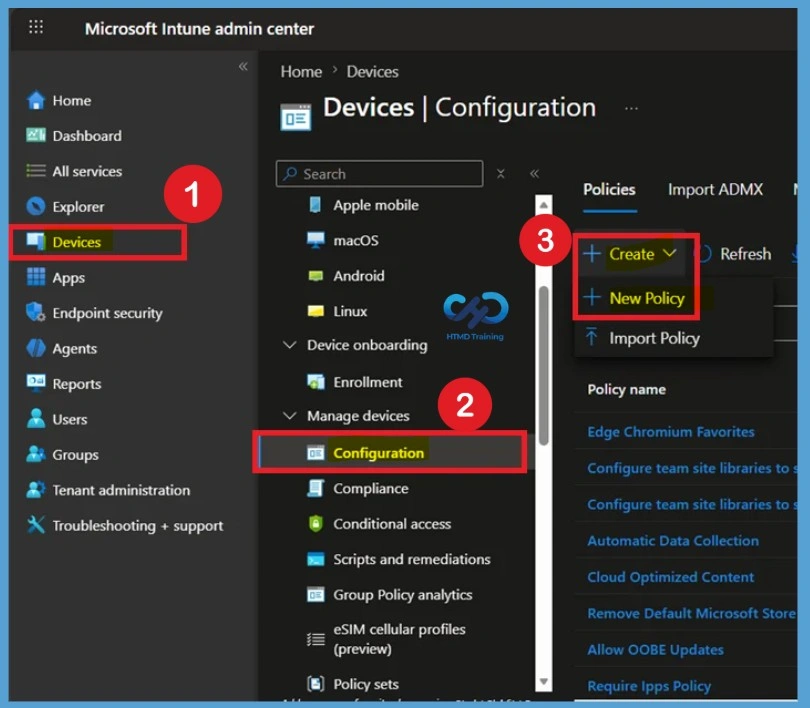
So let’s look how to deploy this policy in MS Intune. First, Sign In to the Microsoft Intune Admin Center. After signing in, navigate to Devices > Windows > Configuration Profiles and select Create > New Policy to begin creating a new Settings Catalog profile for the Remove Search Link from Start Menu policy.

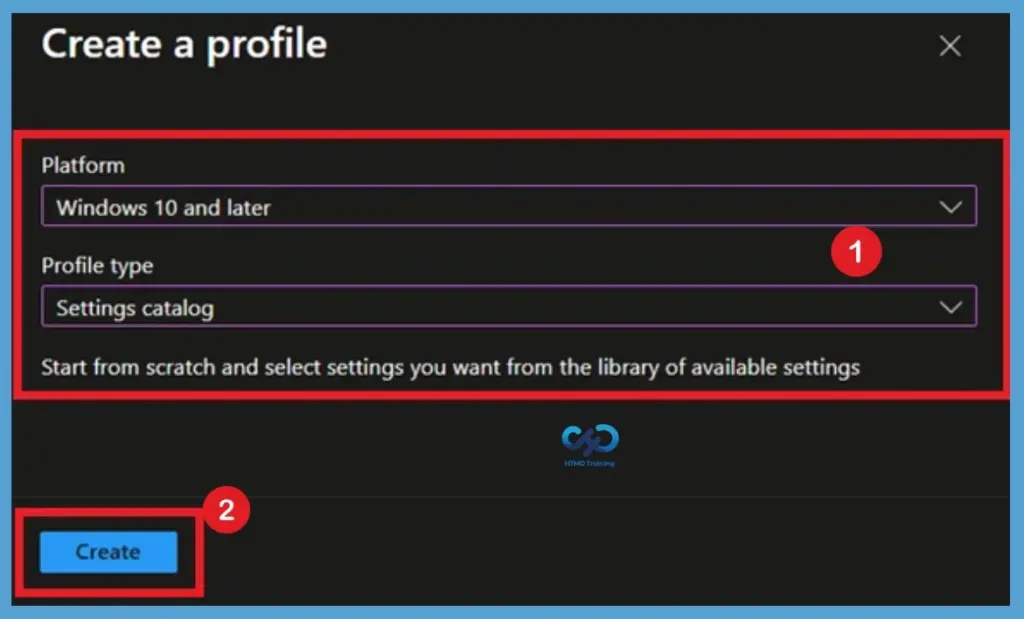
When creating a new policy, select Windows 10 and later as the platform and choose Settings Catalog as the profile type. The Settings Catalog includes thousands of Windows configuration settings and is Microsoft’s recommended method for managing modern Windows policies in Intune.
What is the Role of Basic Tab
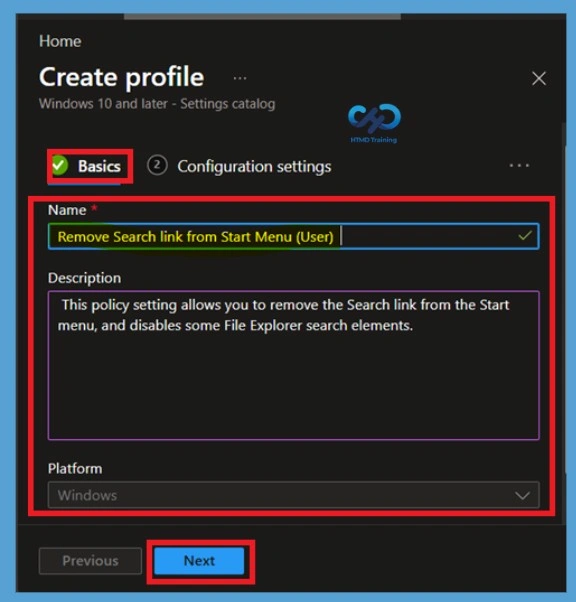
The Basics tab is used to provide essential information for the policy profile. Administrators should assign a name that clearly identifies the purpose of the policy. For example, you can use a name such as Remove Search Link from Start Menu and optionally provide a description explaining the business requirement or intended user experience. Once completed, select Next to continue.
- I enter the name as – Remove Search link from Start Menu (User)
- The Description as – This policy setting allows you to remove the Search link from the Start menu and disables some File Explorer search elements.
Configuration Settings
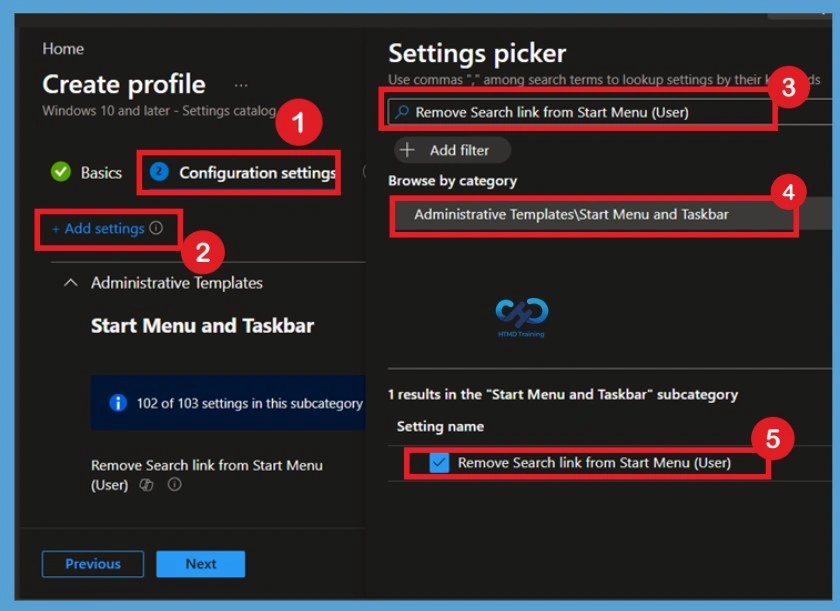
In the Configuration Settings page, click Add Settings to open the Settings Picker window. Use the search box to search for Remove Search Link from Start Menu (User) and select the policy available under Administrative Templates > Start Menu and Taskbar.
Selecting the appropriate policy setting ensures that administrators can configure and manage the Search-related user interface elements directly from the Intune Settings Catalog. Once selected, the setting is added to the configuration profile and becomes available for further customization. Now you can close setting catalog after the selection.
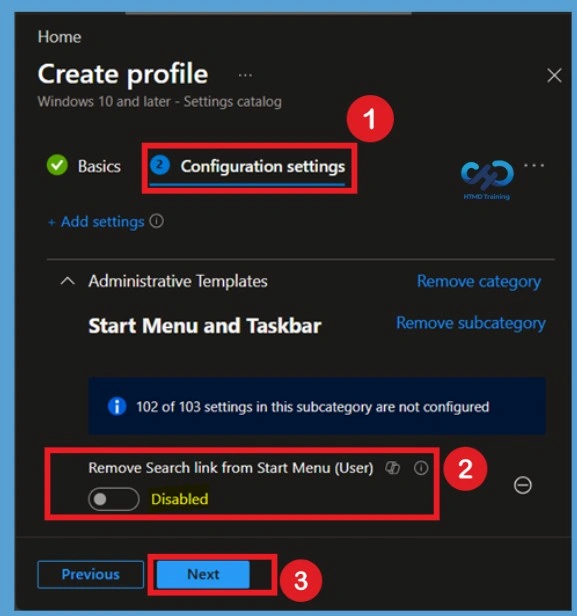
Defaulted State of the Policy
The Remove Search Link from Start Menu (User) policy is set to Disabled (Not Configured) by default in Microsoft Intune. When the policy remains disabled or is not configured, Windows displays the Search link and allows users to access the standard search experience from the Start menu and other supported locations. In this default state, users can continue using search-related keyboard shortcuts and File Explorer search functionality without any restrictions.
- Organizations that do not require limitations on Windows Search UI elements can leave the policy in its default configuration.
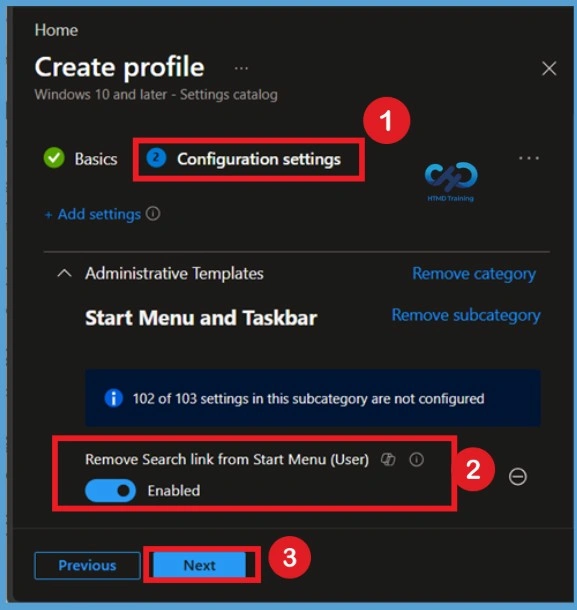
Enable the Remove Search link from Start Menu Policy
When enabled, users will no longer be able to access the Search item from the Start menu or use the Windows + F keyboard shortcut. The policy also disables F3 and Ctrl + F for the affected File Explorer search experience and removes Search from the context menu of folders and drives. However, it only affects specific user interface components and does not disable Windows Search services or other supported search methods available in Windows.
- Remove Search link from Start Menu (User) – This policy setting allows you to remove the Search link from the Start menu and disables some File Explorer search elements.
- Enabling this policy setting also prevents the user from using the F3 key.
- In File Explorer, the Search item still appears on the Standard buttons toolbar, but the system does not respond when the user presses Ctrl+F.
- This policy setting affects the specified user interface elements only.
Note – This does not remove the search box from the new style Start menu.
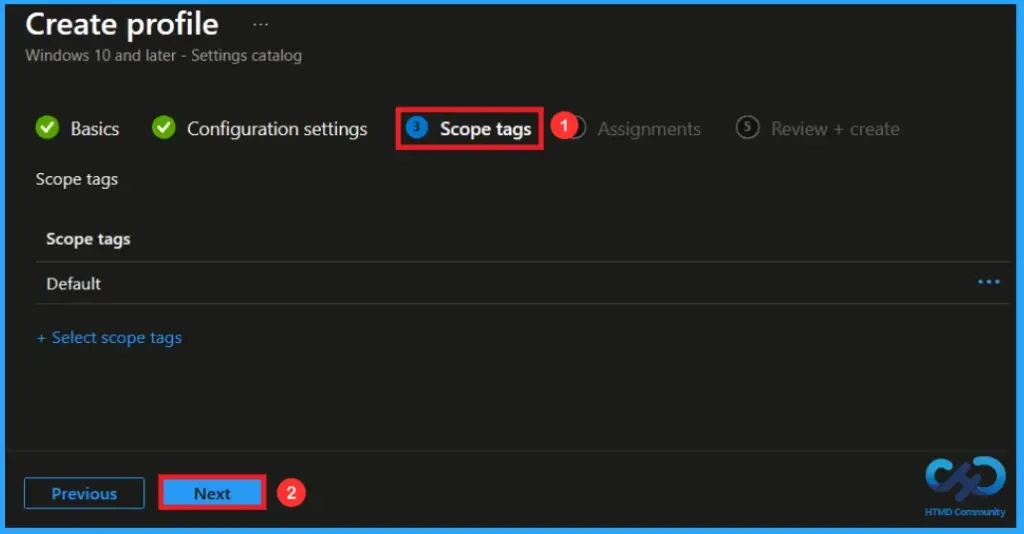
Know the Scope Tag
Scope tags are used to implement role-based access control within Microsoft Intune. They help administrators limit visibility and management of policies to specific IT teams or delegated administrators. Here I skip this section by clicking on the Next Button.
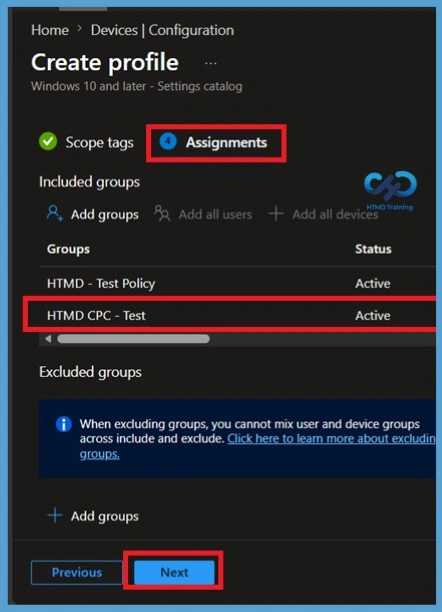
Assignment Section of Remove Search link from Start Menu
In the Assignments section, click Add groups under Included groups and select the required user or device groups. Assigning the policy ensures it is applied only to the intended users or devices, such as test groups or production environments. Here I selected the HTMD Test groups and then click on the Next.
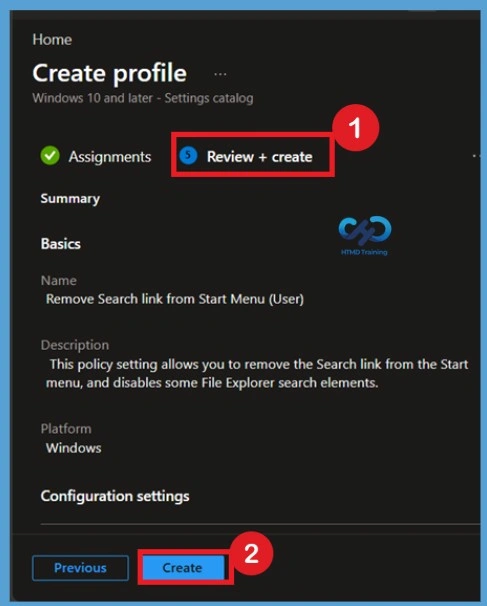
Review + Create tab for Remove Search link from Start Menu
Before creating the policy, carefully review all selected configurations to ensure the correct settings, assignments, and scope tags have been applied. This helps avoid unintended deployments across production environments. After reviewing the configuration, select Create to save and deploy the policy. A notification will appear automatically in the top right-hand corner with a message.
Also, you get notification that Policy “Remove Search link from Start Menu” created successfully. The policy is also shown in the Configuration profiles list.
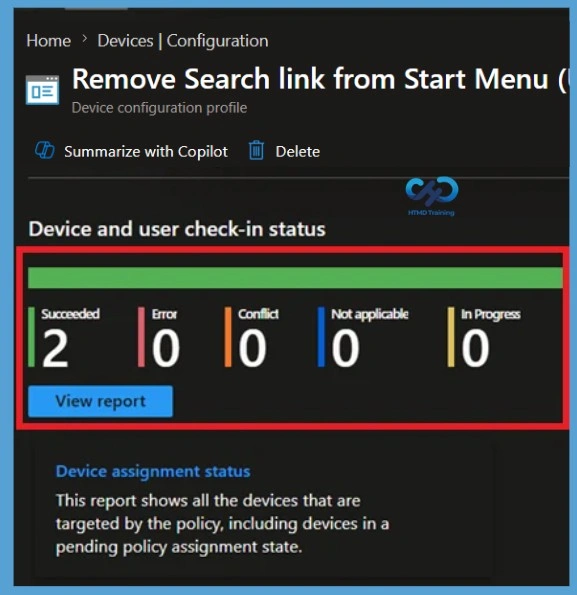
Monitor Status- Remove Search link from Start Menu
After deployment, monitor the Remove Search link from Start Menu policy from the Intune admin center. The monitoring page displays deployment results, including successful, pending, and failed device check-ins. Reviewing the policy status helps administrators quickly identify devices that require troubleshooting or additional investigation.
- Device>Configuration Profile>Search the Policy Name (Remove Search link from Start Menu)
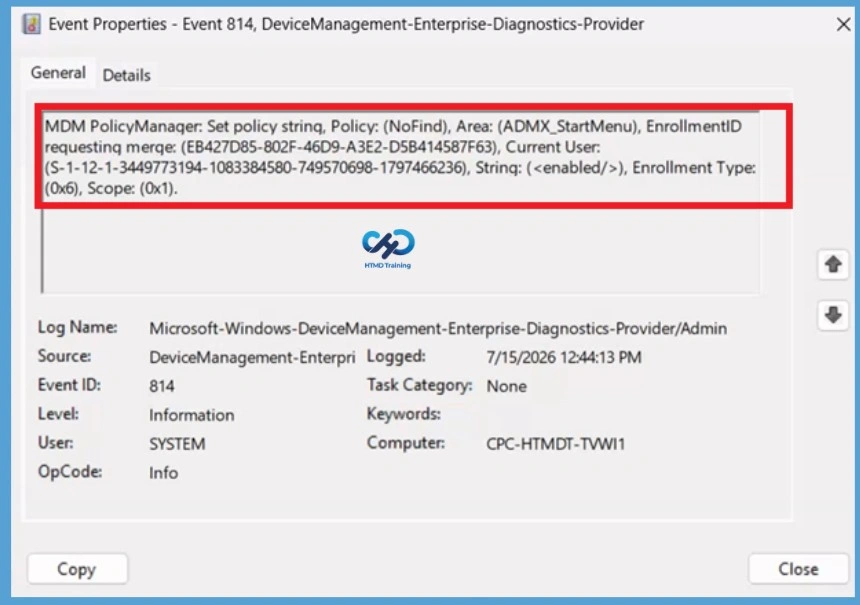
Client Side Verification
The Intune event ID indicates a string policy is applied on the Windows 11 devices. You can also see the exact value of the policy applied to those users. In the target device, you can check the Event log path to confirm – Applications and Services Logs – Microsoft – Windows – Device management-Enterprise-Diagnostics-Provider – Admin.
You can look at the Event ID 813 or 814 generated for the configured policies for managing apps. Here are the highlights from the Event logs. This policy is applied to the current user.
| Policy Details |
|---|
| MDM PolicyManager: Set policy strinq, Policy: (NoFind), Area: (ADMX_StartMenu), EnrollmentID requesting merqe: (EB427D85-802F-46D9-A3E2-D5B414587F63), Current User: (S-1-12-1-3449773194-1083384580-749570698-1797466236), Strinq: (), Enrollment Type: (0x6), Scope: (0x1). |
Remove Assigned Groups from the Policy
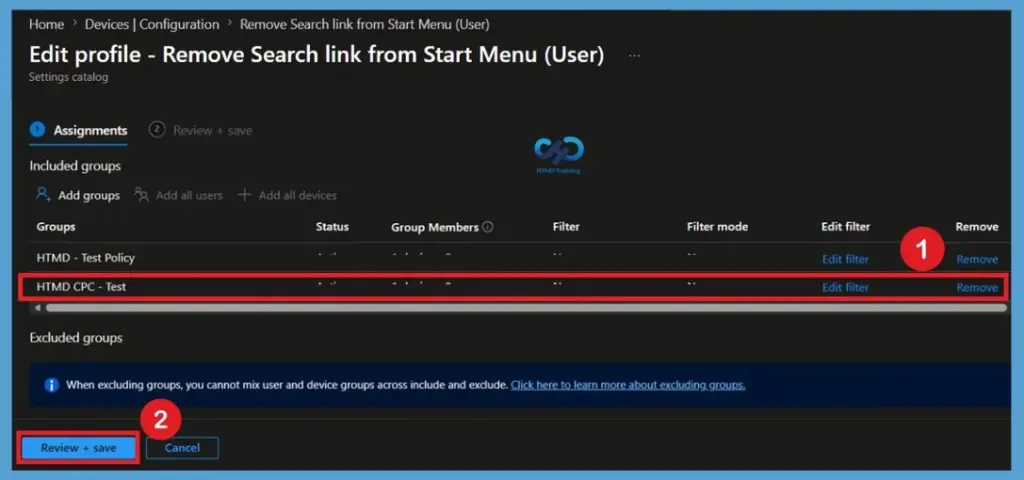
If you no longer want the Remove Search Link from Start Menu policy to apply to specific users or devices, you can remove the assigned Microsoft Entra groups from the policy. This is useful when testing is complete or when the policy is no longer required for a particular set of users. To remove the assignments, navigate to the policy profile in the Intune admin center and select Properties > Assignments > Edit. Remove the included or excluded groups associated with the policy and save the changes.
For detailed information, you can refer to our previous post – Learn How to Delete or Remove App Assignment from Intune using by Step-by-Step Guide.
Delete the Remove Search link from Start Menu Policy Permanently
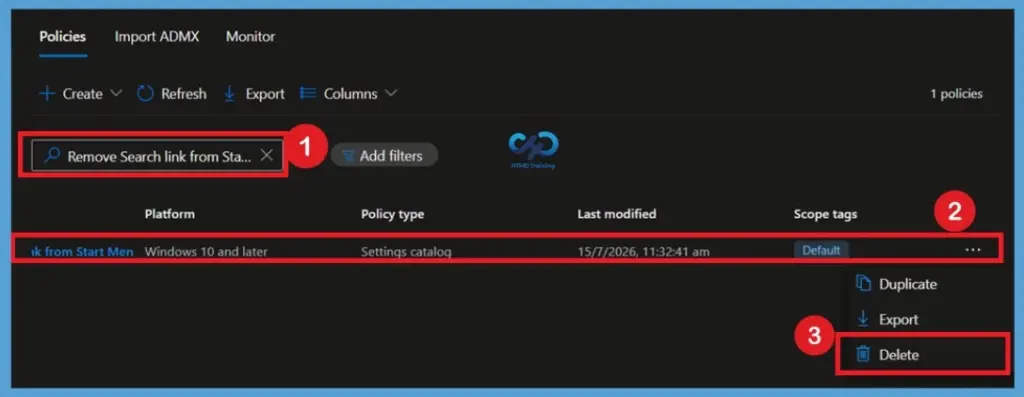
To delete the Remove Search link from Start Menu policy, go to Devices > Windows > Configuration Profiles, select the Remove Search Link from Start Menu profile, and choose Delete. Confirm the deletion when prompted. Once removed, Intune will no longer manage the Policy setting.
For detailed information, you can refer to our previous post – How to Delete Allow Clipboard History Policy in Intune Step by Step Guide.
Need Further Assistance or Have Technical Questions?
Join the LinkedIn Page and Telegram group to get the latest step-by-step guides and news updates. Join our Meetup Page to participate in User group meetings. Also, join the WhatsApp Community and the WhatsApp channel to get the latest news on Microsoft Technologies. We are there on Reddit as well
Author
About Author – Jitesh, Microsoft MVP, has over six years of working experience in the IT Industry. He writes and shares his experiences related to Microsoft device management technologies and IT Infrastructure management. His primary focus is Windows 10/11 Deployment solution with Configuration Manager, Microsoft Deployment Toolkit (MDT), and Microsoft Intune.
Hi, is there any way to do this for multi-session environments like Pooled AVDs? The (user) configuration profiles do not apply to multi session.
Thanks!
You can check Settings Catalog for this settings -> https://www.anoopcnair.com/intune-support-for-multi-session-windows-server/