
Key Takeaways
- Send customized push notifications directly to managed Android and iOS/iPadOS devices.
- Communicate important IT announcements, update reminders, and maintenance notifications.
- Target either user groups or individual enrolled devices.
- Notifications are delivered through the Company Portal app or Microsoft Intune app.
Let’s learn how to Send Custom Notifications to Android and iOS Devices to Improve User Communication using Intune. These messages appear as standard push notifications from the Company Portal app and the Microsoft Intune app on a user’s device, just as notifications from other applications appear. Custom notification messages include a short title and a message body. These messages can be customized for any general communication purpose, and don’t use for sensitive communications.
Table of Contents
Table of Contents
Send Custom Notifications to Android and iOS Devices to Improve User Communication using Intune
Suppose we need to send a notification to the user, such as restarting the device to complete the installation of an update. Intune sends messages to the users’ Company Portal app or the Microsoft Intune app, which then creates the push notification. Users don’t need to be signed into the app for the notification to be pushed on the device, but the device must have been enrolled by the targeted user.
Intune, the Company Portal app, and the Microsoft Intune app, can not guarantee delivery of a custom notification. Custom notifications might appear after several hours of delay, if at all, so they shouldn’t be used for urgent messages.
You can also make the Intunewin32 application deployment with a message popup. Well, not with user access but with System access, Vimal has well explained the details use ServiceUI with Intune to Bring the SYSTEM Process to Interactive Mode while deploying an application.

- How to Configure Notifications for Noncompliant Devices in Microsoft Intune
- Intune Delete action no longer Retire iOS and Android Devices
- Disable Toast Notifications From Lock Screen Using Intune
Prerequisites for Using Custom Notifications In Intune
Device configuration -Devices must have the Company Portal app or the Microsoft Intune app installed before users can receive custom notifications. They must also have configured permissions to allow the Company Portal app or the Microsoft Intune app to send push notifications. iOS, iPadOS, and Android Enterprise devices. It is not supported on Windows or macOS.
| Permissions |
|---|
| To send notifications to groups, your account must have the following RBAC permission in Intune: Organization > Update. |
| To send notifications to a device, your account must have the Intune RBAC permission: Remote tasks > Send custom notifications. |
Send Custom Notification to Intune Managed Groups
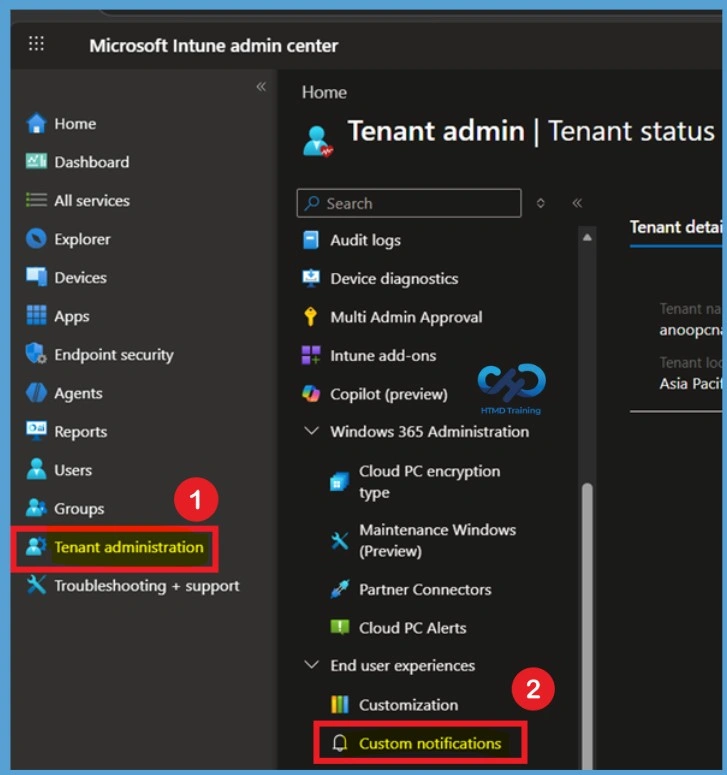
Sign in to the Microsoft Intune Admin Center with an account that has the required permissions to send custom notifications. From the left navigation pane, select Tenant administration, and then under the End user experiences section, click Custom notifications. This area allows administrators to create and send notification messages to managed Android and iOS/iPadOS users.
Important – Intune custom notifications aren’t supported by macOS and Windows devices.
Configure the Notification Title and Message through Basics
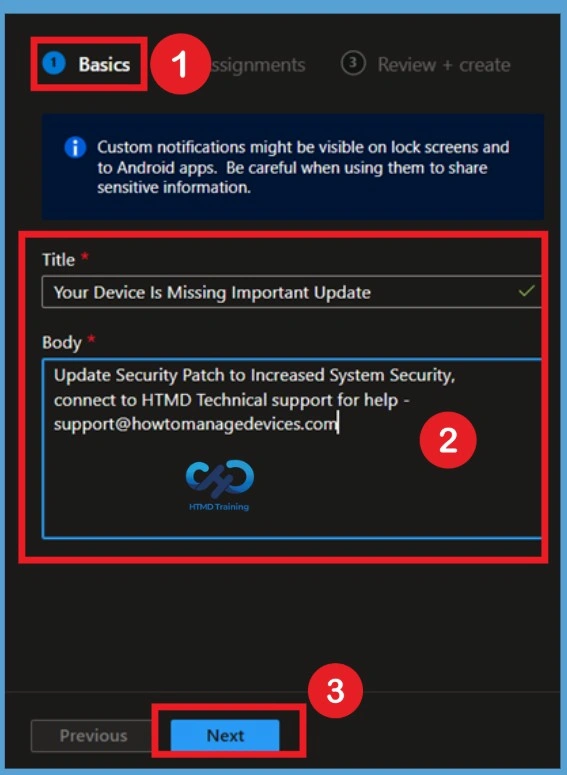
On the Basics page, enter a meaningful title and message for the notification. The title should briefly describe the purpose of the notification, while the message body should provide clear instructions or information for the user. When creating the notification content, avoid including sensitive or confidential information because notifications may appear on device lock screens. Use clear and concise language so users can quickly understand the purpose of the message and take any required action.
- Title – Specify a title for this notification. Titles are limited to 50 characters.
- Body – Specify the message. Messages are limited to 500 characters.
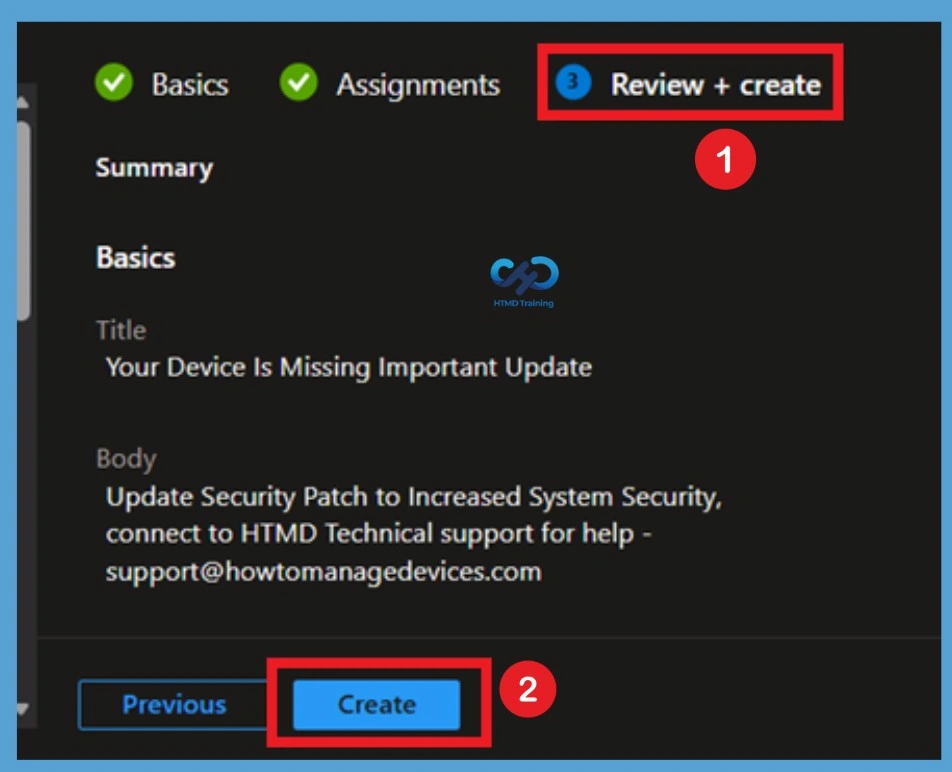
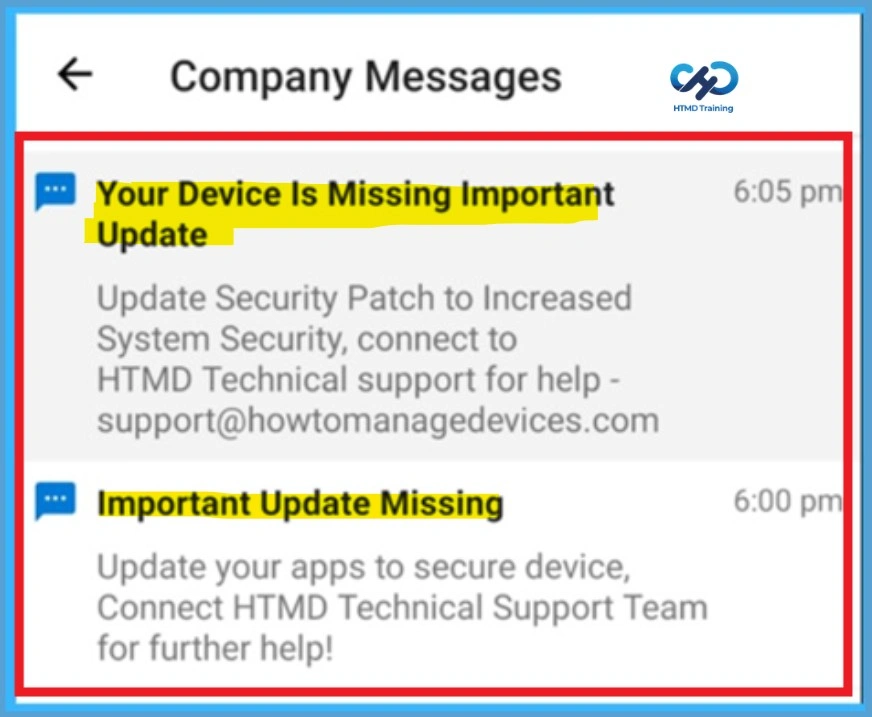
- Here I entered Title – Your Device Is Missing Important Update
- Body- Update Security Patch to Increased System Security, connect to HTMD Technical support for help – support@howtomanagedevices.com
- After entering the notification details, click Next to proceed to the assignment stage.
Select User Groups for the Notification
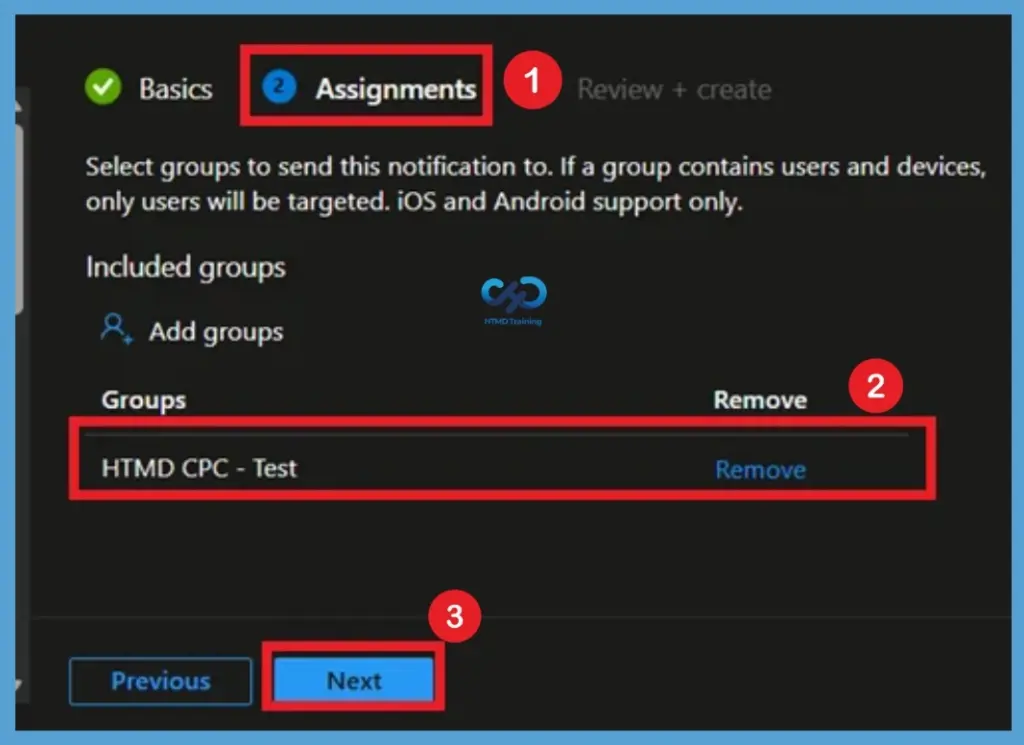
On the Assignments page, click Add groups and select one or more Microsoft Entra ID groups that contain the users who should receive the notification. Intune sends the notification to all eligible Android and iOS/iPadOS devices enrolled by users who belong to the selected groups. After verifying the selected groups, click Next to continue to the review page.
Note – When sending a notification to a group, messages target only the users in the group. They are sent to each iOS/iPadOS or Android device that the user has registered. Devices in the group will be ignored when targeting the notification.
Review + Create
The Review + create page displays a summary of the notification configuration, including the title, message body, and assigned groups. Carefully review the information to ensure the notification content is accurate and that the correct groups have been selected.
Since Intune does not store previously sent notification messages, it is important to verify all details before sending. Once you confirm the configuration is correct, click Create to submit the notification. Intune immediately begins processing the notification for delivery to the targeted users.
Verify Successful Notification Submission
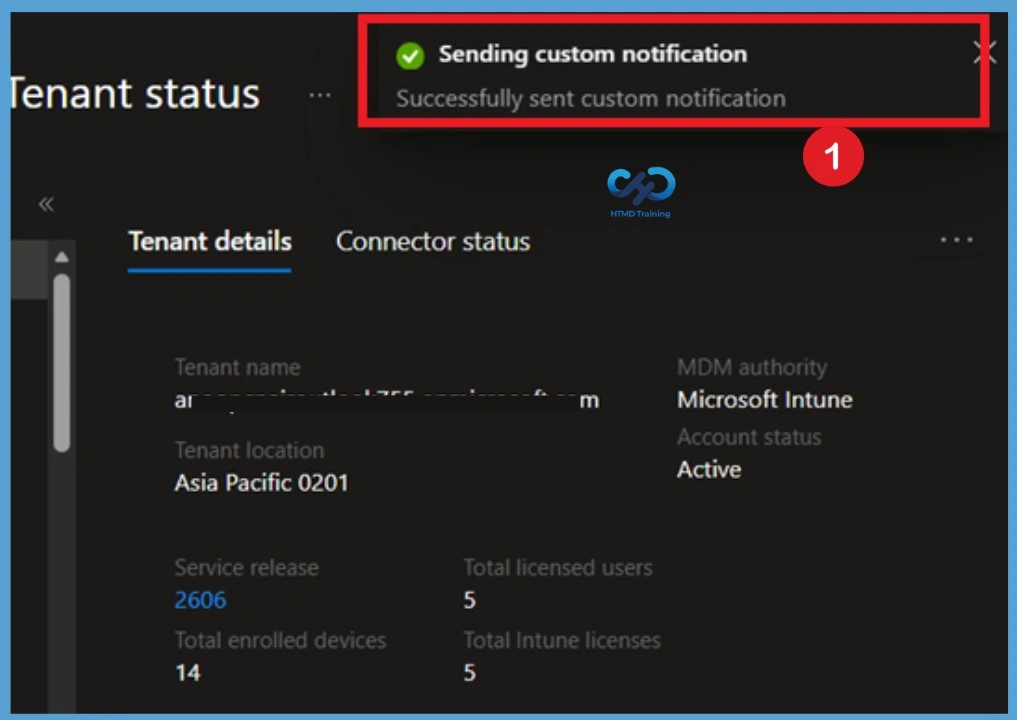
After clicking Create, a confirmation message appears in the upper-right corner of the Intune Admin Center indicating that the custom notification was successfully sent. This confirmation verifies that Intune has accepted and processed the notification request. A notification will appear automatically in the top right-hand corner with a message. You can see that the Successfully sent custom notification. The custom Notification Message is no longer stored in Intune.
Send Custom Notification to Individual Android or iOS/iPadOS Device
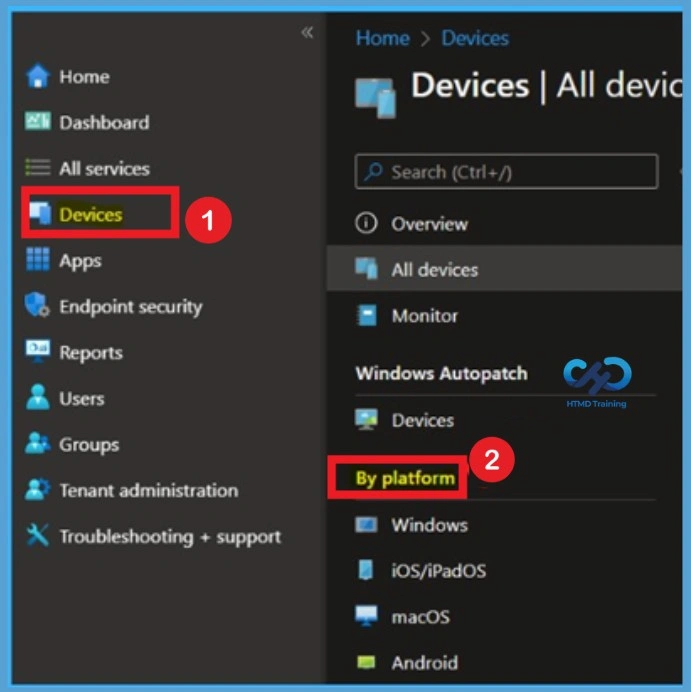
You can send notifications to a single device. Instead of using groups, you select a device and then use a remote device action to send the custom notification. When sending messages to individual devices, you can only send up to 10 messages per hour to the same device. Sign in to Microsoft Intune Admin Center, and then go to Devices > All devices. For Example, I selected the Andriod device.
Note: You can also select the Devices by choosing the By platform and Selecting Andriod or iOS/iPadOS.
Send Custom Notification in Android
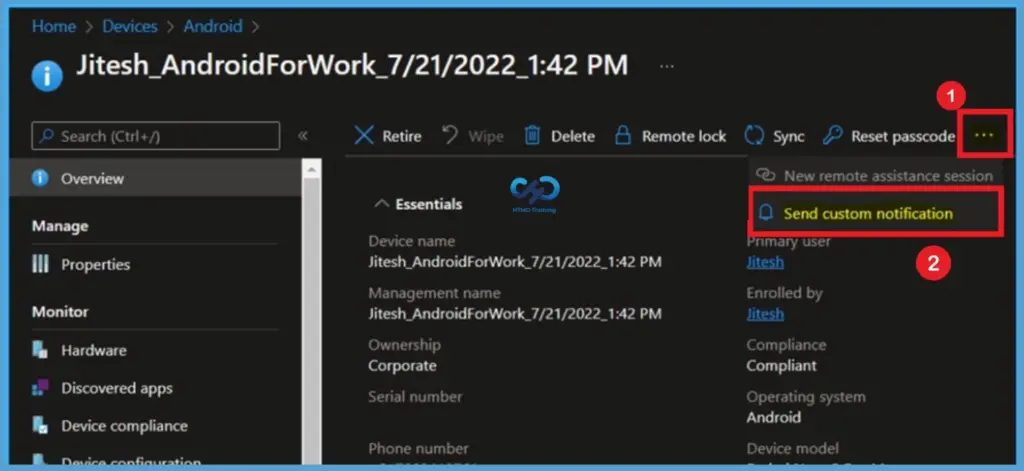
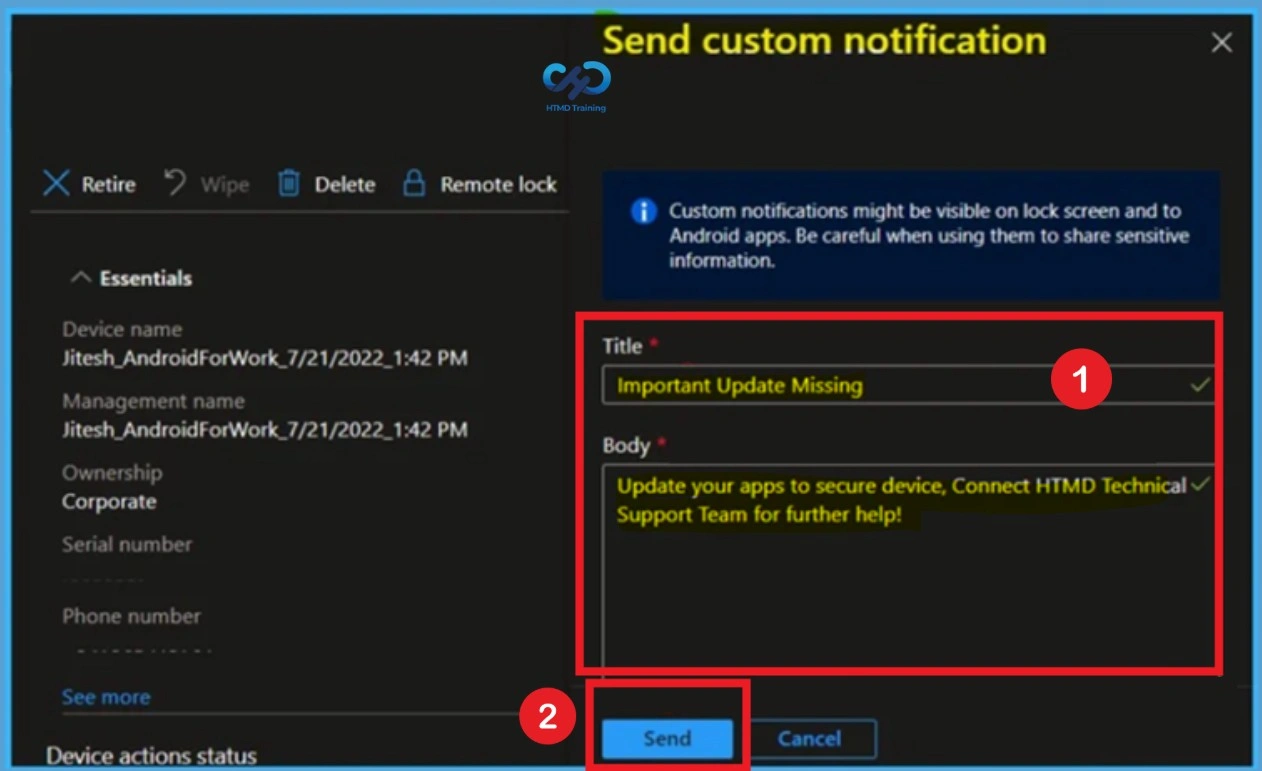
Double-click the name of the managed device to which you want to send a notification. On the devices Overview page, select the Send Custom Notification device action to open the Send Custom Notification pane. If this option isn’t available, select the … (ellipses) option from the upper right side of the page and then select Send Custom Notification.
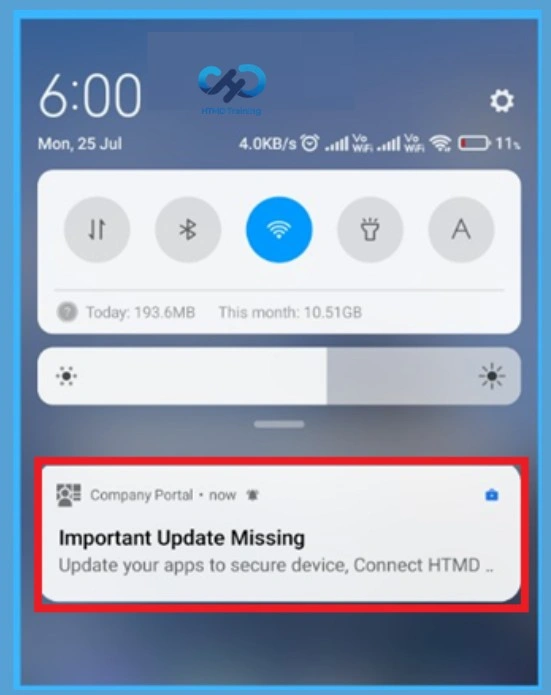
On the Basics page, provide the information that will be displayed to users when the notification is delivered to their devices. Start by entering a Title that helps users immediately recognize the purpose of the message. Then, enter the notification Body, which should contain the details, instructions, or information you want to communicate. I entered Title as: Important Update Missing and Body as: Update your apps to secure device, Connect HTMD Technical Support Team for further help!
- Title – As above Mentioned Specify a title for this notification. Titles are limited to 50 characters.
- Body – Specify the message. Messages are limited to 500 characters.
Confirm the Notification
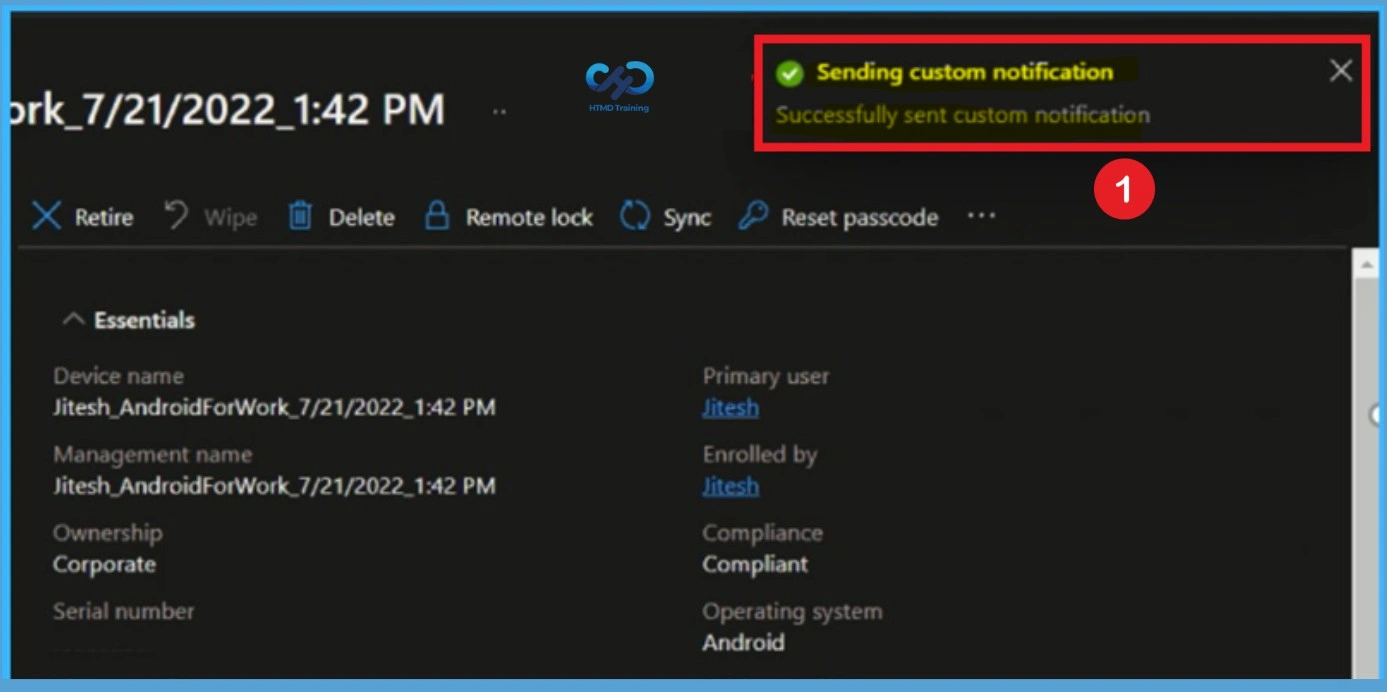
A notification will appear automatically in the top right-hand corner with a message. You can see that the Successfully sent custom notification. Once the notification is sent, the message content is not retained within the Intune admin center for future reference. Administrators cannot view previously sent custom notifications or monitor whether users have received or read the message. Therefore, it is recommended to keep a copy of important notification content if it may need to be reused or sent again at a later time.
End Users Experience – Custom Notification on an Android Device
On a device, users see custom notification messages sent by Intune as a standard push notification from the Company Portal app or the Microsoft Intune app. These notifications are similar to the push notifications users receive from other apps on the device. Custom notifications can be visible on lock screens on both iOS/iPadOS and Android devices, depending on device settings.
- The notification remains until the user dismisses it. If the device is locked, the notification resembles the following screenshot:
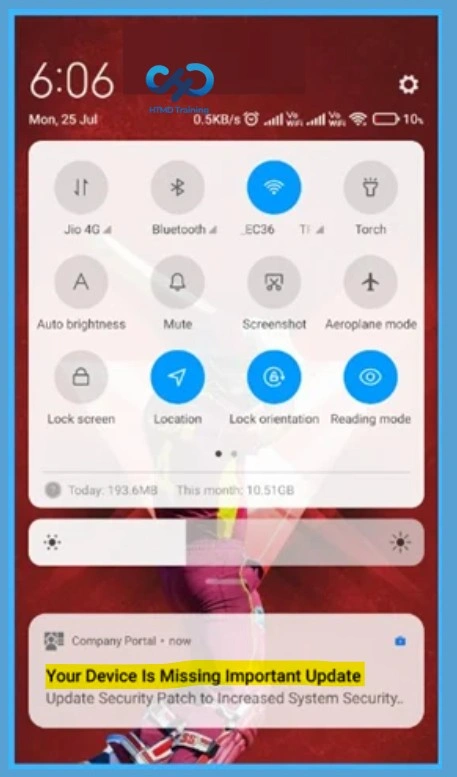
After the custom notification is sent from the Microsoft Intune Admin Center, users receive the message as a standard push notification through the Company Portal app or the Microsoft Intune app. The notification appears in the device notification panel, similar to notifications generated by other mobile applications, making it easy for users to identify and review important communications. If you have the Company Portal app open on your device, the notification resembles the following screenshot:
View Notification Messages in the Company Portal App
Users can tap the notification directly from the notification center to view the complete message. In addition, all custom notifications can be accessed from the Company Messages section within the Company Portal app, providing a centralized location for reviewing organizational communications.
Intune doesn’t track the custom notifications you send, and Devices don’t log the receipt outside of the device’s notification center. The notification can also be seen by opening up Intune Company Portal, Click on the Notification Icon to see the message.
Need Further Assistance or Have Technical Questions?
Join the LinkedIn Page and Telegram group to get the latest step-by-step guides and news updates. Join our Meetup Page to participate in User group meetings. Also, join the WhatsApp Community and the WhatsApp channel to get the latest news on Microsoft Technologies. We are there on Reddit as well
Author
About Author – Jitesh, Microsoft MVP, has over six years of working experience in the IT Industry. He writes and shares his experiences related to Microsoft device management technologies and IT Infrastructure management. His primary focus is Windows 10/11 Deployment solution with Configuration Manager, Microsoft Deployment Toolkit (MDT), and Microsoft Intune.