
Key Takeaways
- Prevents Microsoft Teams from opening automatically when users sign in to Windows.
- Reduces unnecessary Teams activity running in the background.
- Gives users more control over when Microsoft Teams starts.
- Applying the policy before Teams installation helps ensure the desired startup behavior from the beginning.
Let’s discuss Prevent Microsoft Teams Auto Start to Reduce Unnecessary Background Activity using Intune. You can prevent Microsoft Teams from starting automatically using multiple methods. The Intune policy setting controls whether Microsoft Teams start automatically when the user logs into a device after Teams is installed. Once a user starts Teams for the first time, Teams is configured to start automatically the next time the user logs into the device.
Table of Contents
Table of Contents
Prevent Microsoft Teams Auto Start to Reduce Unnecessary Background Activity using Intune
If you enable this policy setting, Teams does not start automatically when the user logs in to the device and the user have not started Teams previously. The important thing here is If you enable this policy setting, you must do so before Teams is installed. Microsoft Teams has a default behavior to start with the computer upon boot and remain active in the background.
- Remove Microsoft Teams Chat Icon From Taskbar Using Intune MEM
- Windows 11 Chat Application Microsoft Teams How to Configure or Enable
- Intune Logs Event IDs IME Logs Details For Windows Client Side Troubleshooting
Disable Microsoft Teams Auto Start Using Intune
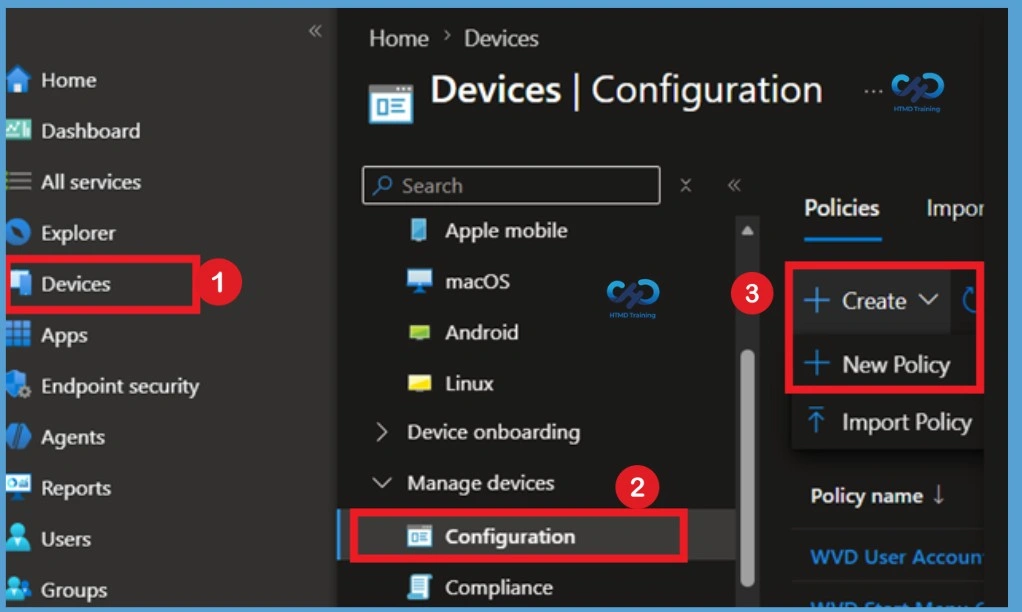
he Disable Microsoft Teams Auto Start policy is used to control whether Microsoft Teams starts automatically when users sign in to Windows. It is useful when organizations want Teams to remain available for users but do not want it to launch automatically after installation. To create this policy, sign in to the Microsoft Intune admin center and go to Devices > Windows > Configuration profiles. Select Create profile to start the configuration.
- Login to Microsoft Intune Admin Center
- Navigate to Devices > Windows > Configuration profiles.
- Click on +Create Profile.
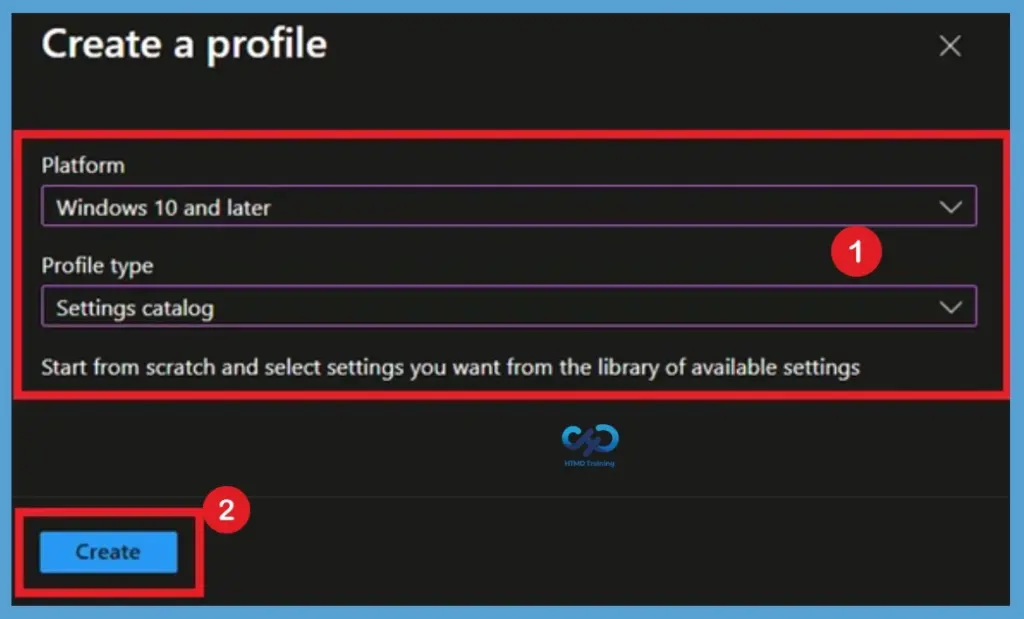
In Create Profile, Select Platform, Windows 10, and later and Profile, Select Profile Type as Settings catalog. Click on Create button.

Know the Basic Tab
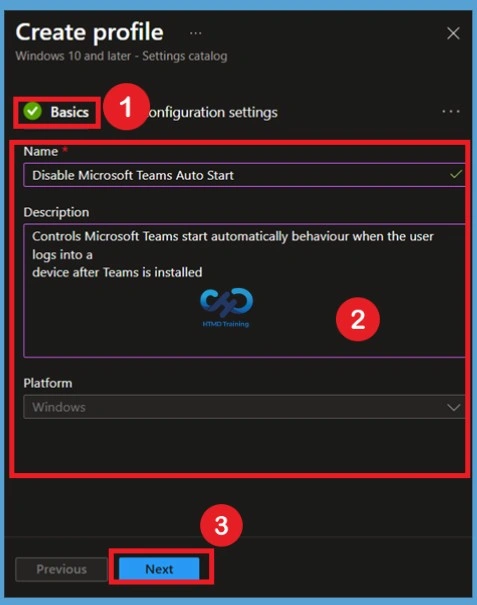
On the Basics page, enter Disable Microsoft Teams Auto Start in the Name field. This name helps you easily identify the policy in Intune. In the Description field, add a short explanation such as “Controls Microsoft Teams automatic startup behavior when the user logs in to a device after Teams is installed. After entering the name and description and confirming the platform, select Next to continue to the Configuration settings page.
Configuration Settings
In Configuration settings, click Add settings to browse or search the catalog for the settings you want to configure. On the Settings Picker windows, Select Microsoft Teams to see all the settings in this category. You will see, 2 settings in “Microsoft Teams” subcategory. Here, you need to select the below settings Prevent Microsoft Teams from starting automatically after installation (User). After adding your settings, click the cross mark at the right-hand corner to close the settings picker.
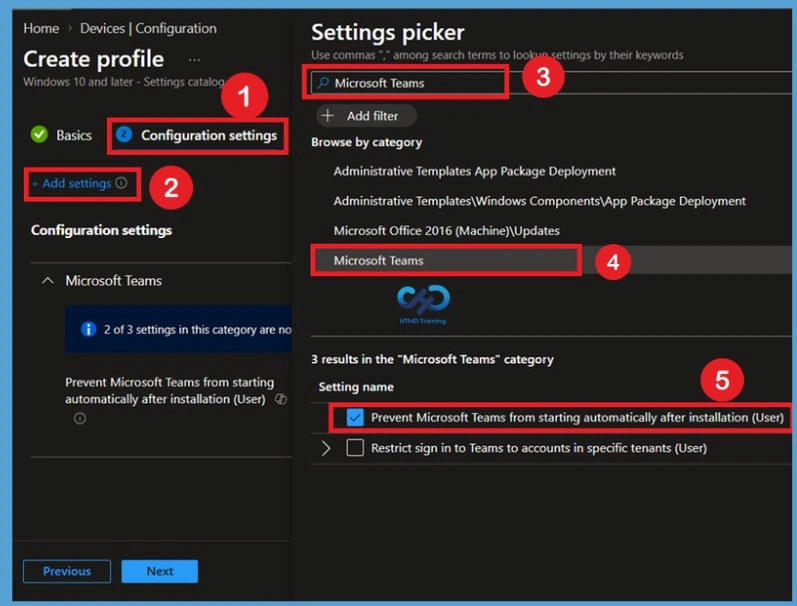
Disabled by Default for Teams Auto Start Policy
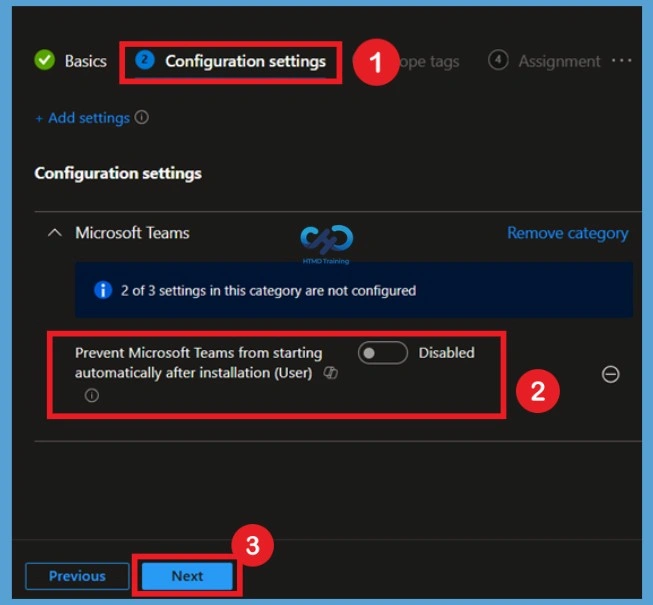
After adding the Prevent Microsoft Teams from starting automatically after installation (User) setting, it is shown as Disabled by default. When the setting is disabled, Intune does not prevent Teams from starting automatically. The setting needs to be enabled to apply the required startup behavior.
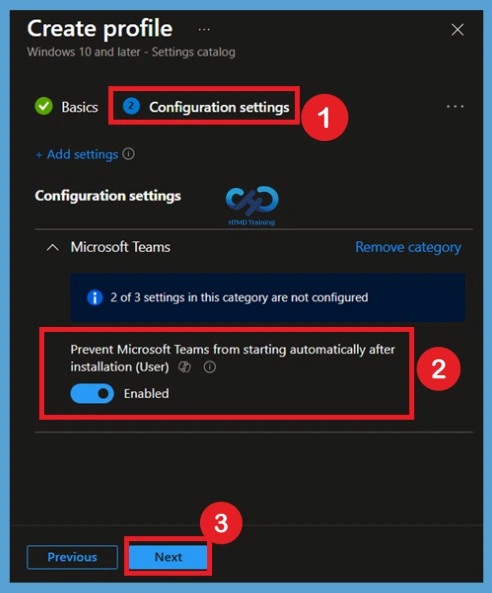
Enable Teams Auto Start Policy
The setting is shown and configured with a default value Disabled. Set Prevent Microsoft Teams from starting automatically after installation (User) to Enabled. Prevent Microsoft Teams from starting automatically after installation (User): This policy setting controls whether Microsoft Teams start automatically when the user logs into a device after Teams is installed. If you enable this policy setting, Teams does not start automatically when the user logs in to the device and the user have not started Teams previously.
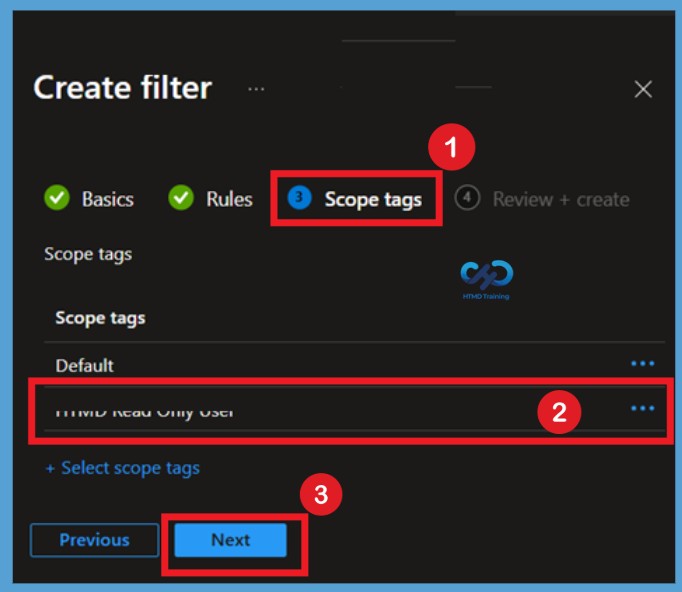
Scope Tag for Teams Auto Start Policy
On the Scope tags page, add the required scope tags if your organization uses them. Scope tags help control which administrators can view and manage the policy. If scope tags are not required, leave the default option unchanged. Select Next to continue to the assignment section.
Assignments for Teams Auto Start Policy
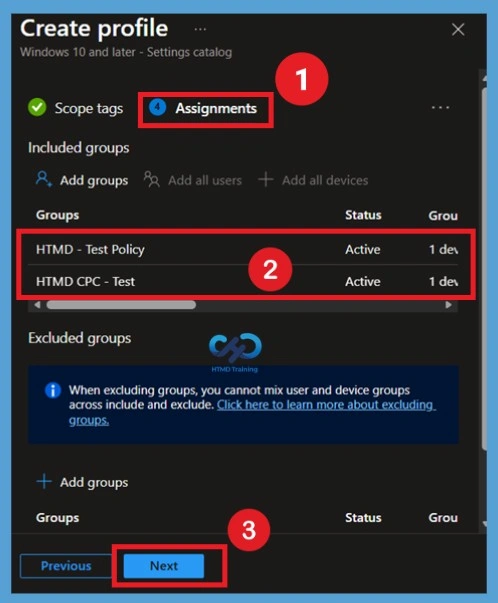
On the Assignments page, go to Included groups and select Add groups. Select the Microsoft Entra ID groups containing the users who should receive the disabled Microsoft Teams Auto Start policy. Review the selected groups and any filters. Make sure the policy is assigned to the correct users, then select Next.
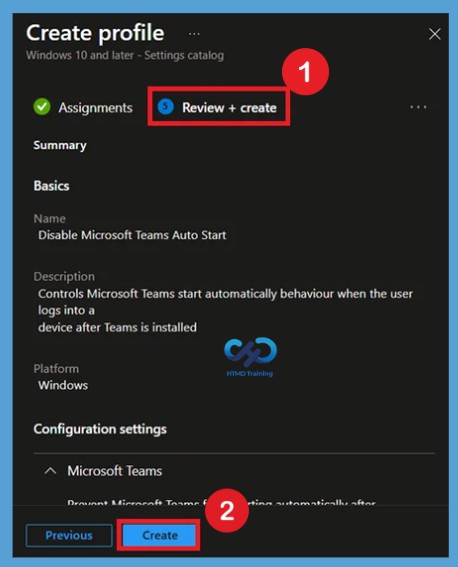
Review + Create- Teams Auto Start Policy
In Review + create, review your settings. When you select Create, your changes are saved, and the profile is assigned. A notification will appear automatically in the top right-hand corner with a message. Here you can see that Policy “Disable Microsoft Teams Auto Start” created successfully. The policy is also shown in the Configuration profiles list.
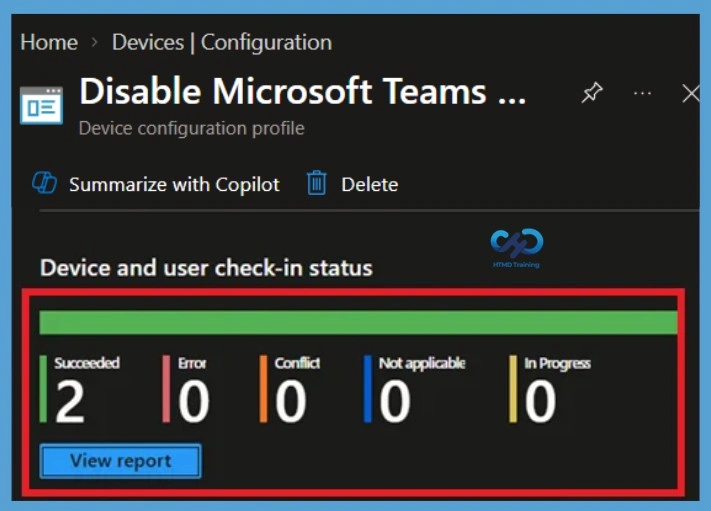
Monitoring Status of Teams Auto Start Policy
After creating the policy, open Disable Microsoft Teams Auto Start from Devices > Windows > Configuration profiles. Check the deployment status to see whether the policy has been successfully applied to the assigned users and devices. You can also check for devices or users showing errors or pending status. Your groups will receive your profile settings when the devices check-in with the Intune service. Once the policy applies to the devices. Users will not see Microsoft Teams starting automatically after installation.
Client-Side Verification
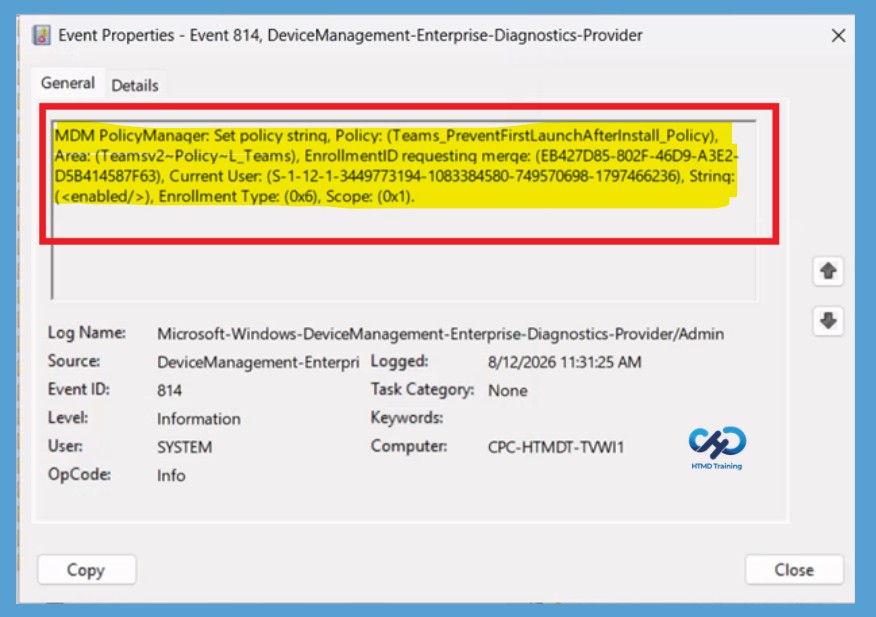
To verify policy application, open Event Viewer and navigate to Applications and Services Logs > Microsoft > Windows > DeviceManagement-Enterprise-Diagnostics-Provider > Admin. Select Filter Current Log from the Actions pane and search for Event ID 814, which indicates that the Intune policy has been processed successfully.
| Policy Info |
|---|
| MDM PolicyManager: Set policy strinq, Policy: (Teams_PreventFirstLaunchAfterinstall_Policy), Area: (Teamsv2~Policy~L_Teams), EnrollmentID requesting merge: (EB427D85-802F-46D9-A3E2- D5B414587F63), Current User: (S-1-12-1-3449773194-1083384580-749570698-1797466236), Strinq: (), Enrollment Type: (0x6), Scope: (0x1). |
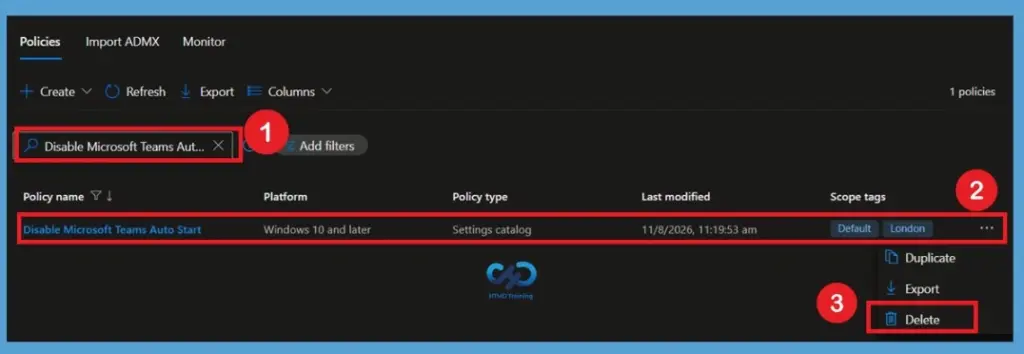
Delete the Disable Teams Auto Start Policy
When the policy is no longer needed, first remove all assigned groups to prevent deployment. Then open the policy, select the 3 -dot (… ) menu (More options) and select Delete option, confirm the deletion, and permanently remove the profile from Intune. The policy is deleted from the tenant and is no longer available for management.
For detailed information, you can refer to our previous post – Learn How to Delete or Remove App Assignment from Intune using by Step-by-Step Guide.
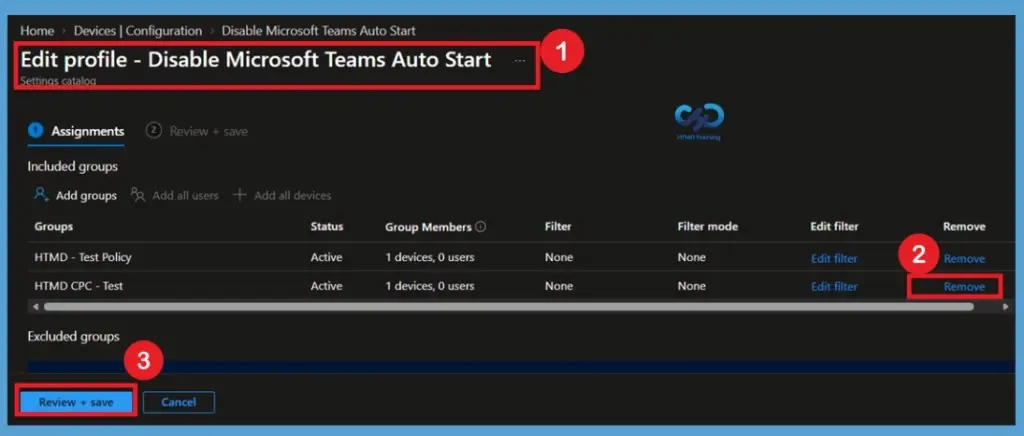
Remove Policy Assignments
If a group should no longer receive the disabled Microsoft Teams Auto Start policy, open the profile and select Assignments. Under Included groups, remove the required group and save the changes. The policy will no longer be assigned to that group, while it can continue to apply to other assigned groups.
For detailed information, you can refer to our previous post – How to Delete Allow Clipboard History Policy in Intune Step by Step Guide.
Need Further Assistance or Have Technical Questions?
Join the LinkedIn Page and Telegram group to get the latest step-by-step guides and news updates. Join our Meetup Page to participate in User group meetings. Also, join the WhatsApp Community and the WhatsApp channel to get the latest news on Microsoft Technologies. We are there on Reddit as well
Author
About Author – Jitesh, Microsoft MVP, has over six years of working experience in the IT Industry. He writes and shares his experiences related to Microsoft device management technologies and IT Infrastructure management. His primary focus is Windows 10/11 Deployment solution with Configuration Manager, Microsoft Deployment Toolkit (MDT), and Microsoft Intune.
Thanks for that detailed explanation… Your work is really appreciated, Appreciate sharing the knowledge likewise….
Thanks for the detailed steps.
Am I correct that if I deploy this config, then deploy Teams it won’t auto start but if the user then starts Teams and sets it up it will auto start from then on?
Thanks, I hadn’t realized they’ve added this to the settings catalog.
It’s important to note that this setting is only useful if Teams has not been installed or used on the device. It is also only applicable for user installs. It is not useful for device-wide installations of Teams. This may be updated by Microsoft over time, but the description in the settings catalog should be updated when a change has been made.
What is the best way to change the setting if Teams has already been installed and used?
Can you assign this configuration policy to a device group?
I have Teams system wide installer in C:\Program Files (x86)\Teams Installer. I enabled this configuration policy but check-in status in Intune is Not applicable