
Key Takeaways:
- UEFI Memory Protection for Virtualization-Based Security
- Ensuring sensitive system memory is protected from unauthorized access
- Prevents malicious code from exploiting memory vulnerabilities
- Enhances resilience against advanced threats targeting kernel-level memory
Let’s discuss Step-by-Step Guide to UEFI Memory Protection for Virtualization-Based Security using Intune. In modern security Virtualization-Based Security (VBS) is one of the strongest shields against sophisticated kernel-level attacks. The Require UEFI Memory Attributes Table setting is a specific gatekeeper that ensures the computer’s firmware (UEFI) is modern and secure enough to support these advanced features.
Table of Contents
Table of Contents
Step-by-Step Guide to UEFI Memory Protection for Virtualization-Based Security using Intune
This option will only enable Virtualization Based Protection of Code Integrity on devices with UEFI firmware support for the Memory Attributes Table. Devices without the UEFI Memory Attributes Table may have firmware that is incompatible with Virtualization Based Protection of Code Integrity which in some cases can lead to crashes or data loss or incompatibility with certain plug-in cards. If not setting this option the targeted
devices should be tested to ensure compatibility.
- How To Enable Require Platform Security Features Policy Using Intune
- How to Continue Syncing on Metered Networks on OneDrive using Intune Policy
- Prevent users from Moving their Windows Known Folders to OneDrive
- Allow Manual Start of Microsoft Account Sign In Assistant Using Intune Settings Catalog
How to Configure Policy from Intune Portal
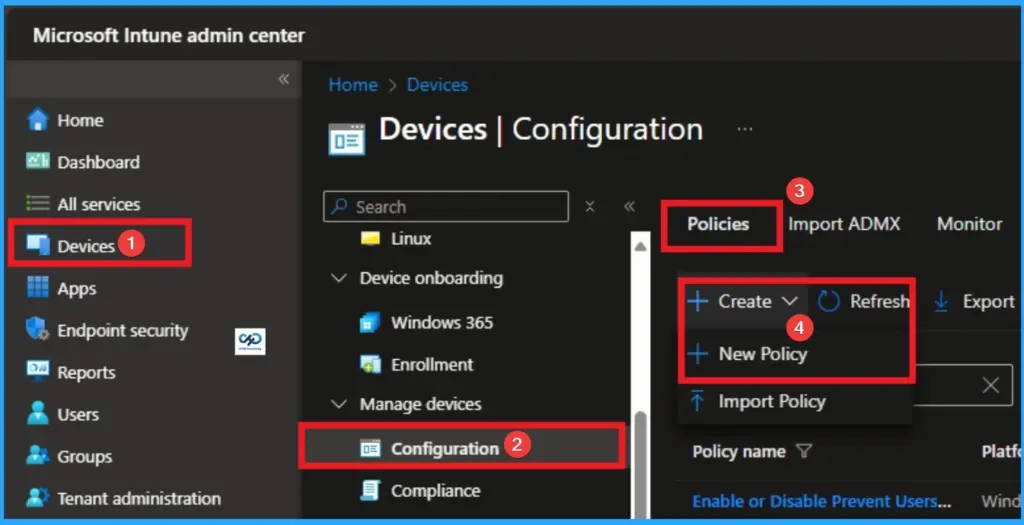
Through Microsoft Intune, you can easily configure Require UEFI Memory Attributes Table Policy. For this sign in with your credentials. Go to Devices > Configuration >+ Create > +New Policy.
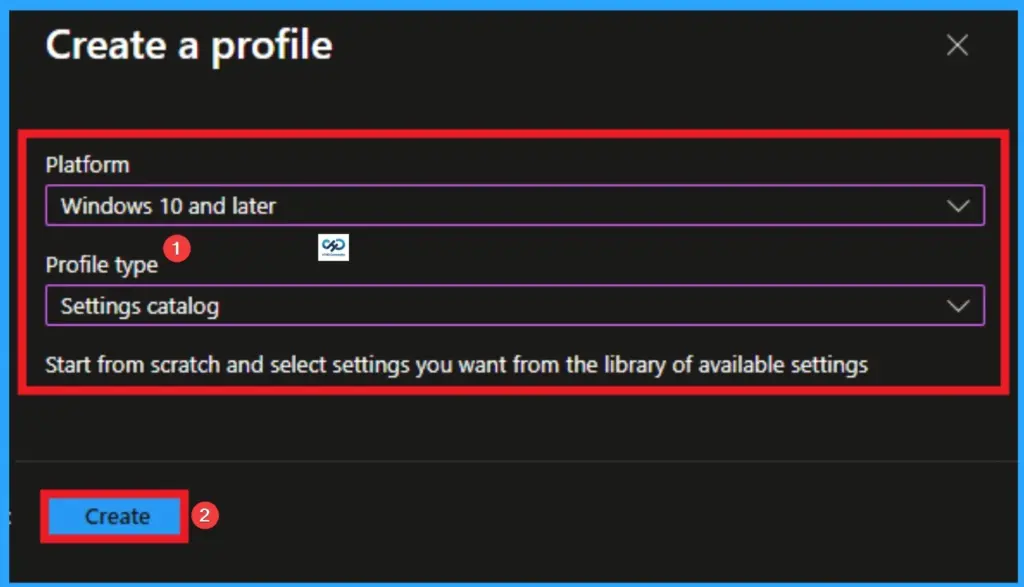
Creating Profile
Profile creation is the necessary step that helps you to assign the policy to appropriate platform and Profile. Here I would like to configure the policy to Windows 10 and later platform and settings catalog profile. Then click on the Create button.

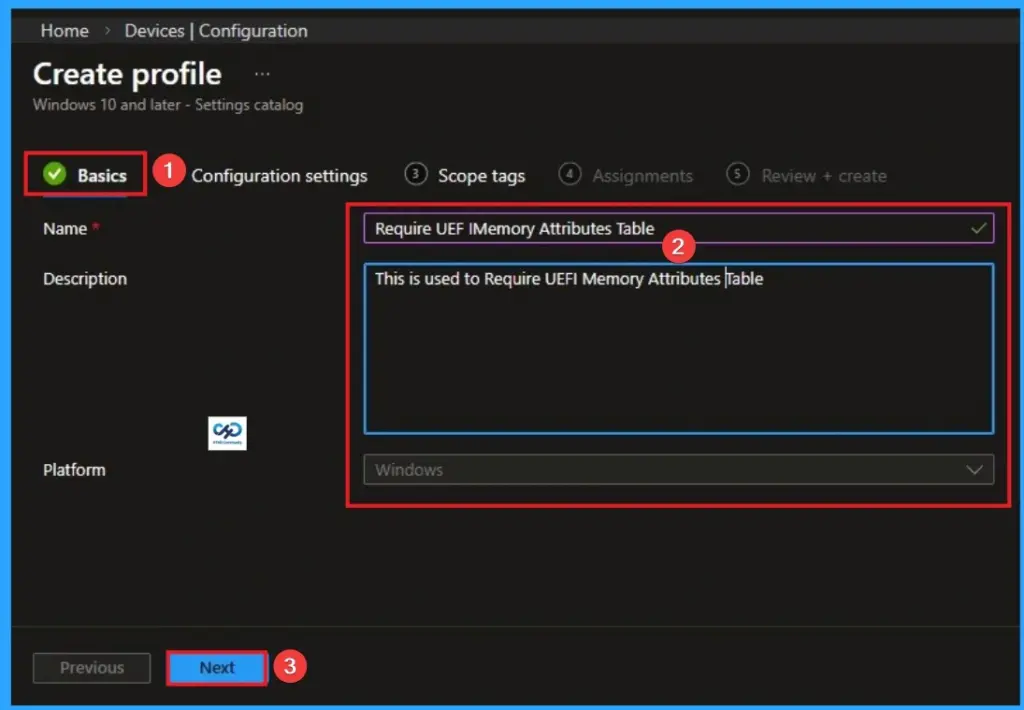
Basic Tab Name and Description
After that, you will get Basic Tab for adding Name and Description for the policy. The Name is very mandatory field which cannot be skip. The Description is optional and you can skip. Click on the Next button after adding Name.
Configure Require UEFI Memory Attributes Table Policy
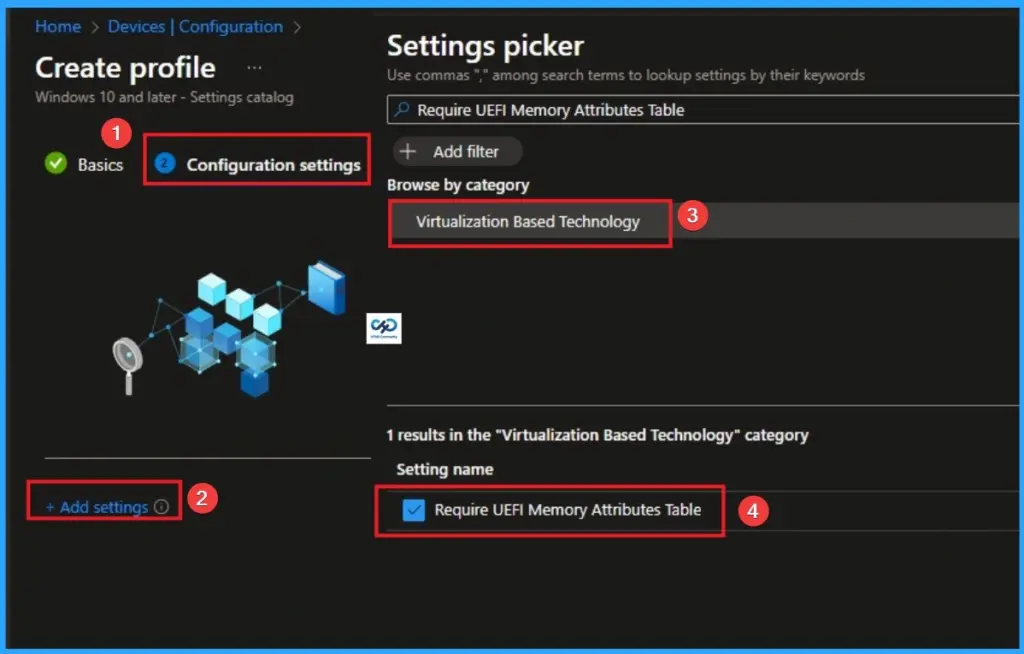
On the Configuration Settings Tab, you can easily Configure Require UEFI Memory Attributes Table. To access this settings, click on the +Add settings hyperlink. From the Settings Picker choose Virtualization Based Technology > Require UEFI Memory Attributes Table.
Choose Value for Require UEFI Memory Attributes Table Policy
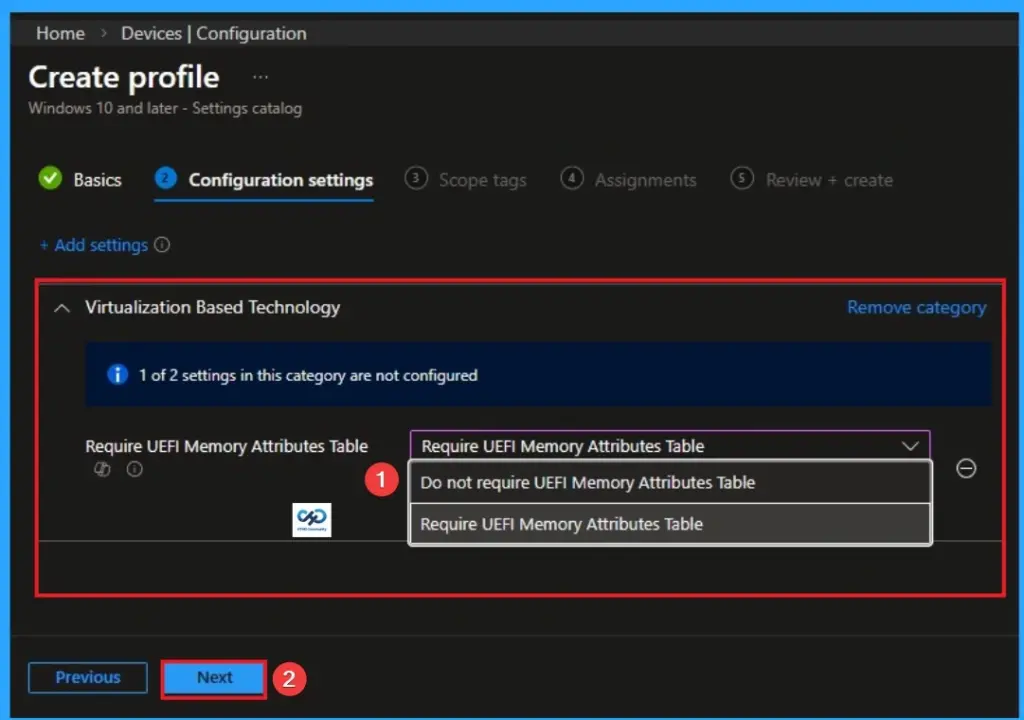
There is 2 values are available for Require UEFI Memory Attributes Table. The values are Require UEFI Memory Attributes Table and Do not require UEFI Memory Attributes Table. The below table shows more details of this policy.
| Values | Details |
|---|---|
| Require UEFI Memory Attributes Table | The Windows Boot Loader checks for the presence of the EFI_MEMORY_ATTRIBUTES_TABLE in the system UEFI. It ensures that Hypervisor-Enforced Code Integrity (HVCI) also known as Memory Integrityoperates at the highest possible security level. It allows the hypervisor to distinguish between executable and data within the firmware itself. This policy is best for Modern hardware fleets (Windows 11 certified devices) where you want to guarantee no “weak links” in memory protection. |
| Do not require UEFI Memory Attributes Table | This value (often the default or “Not Configured” behavior) is the more “forgiving” setting. It allows the system to attempt to turn on virtualization security even if the firmware isn’t perfect. |
Scope Tags
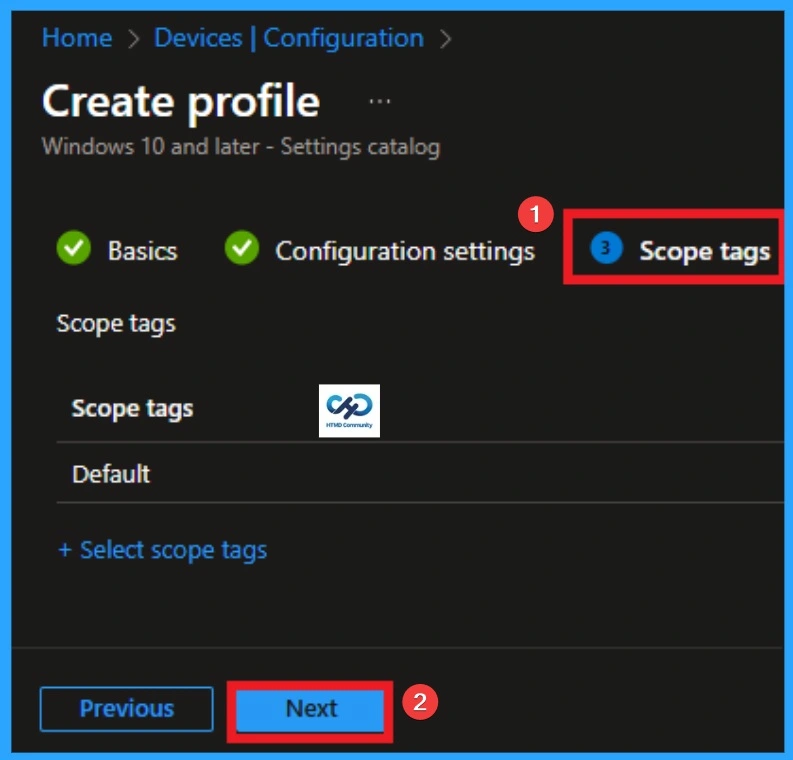
With scope tags, you create a restriction to the visibility of the Require UEFI Memory Attributes Table. It helps to organise resources as well. Here, I would like to skip this section, because it is not mandatory. Click on the Next button.
Assignments Tab
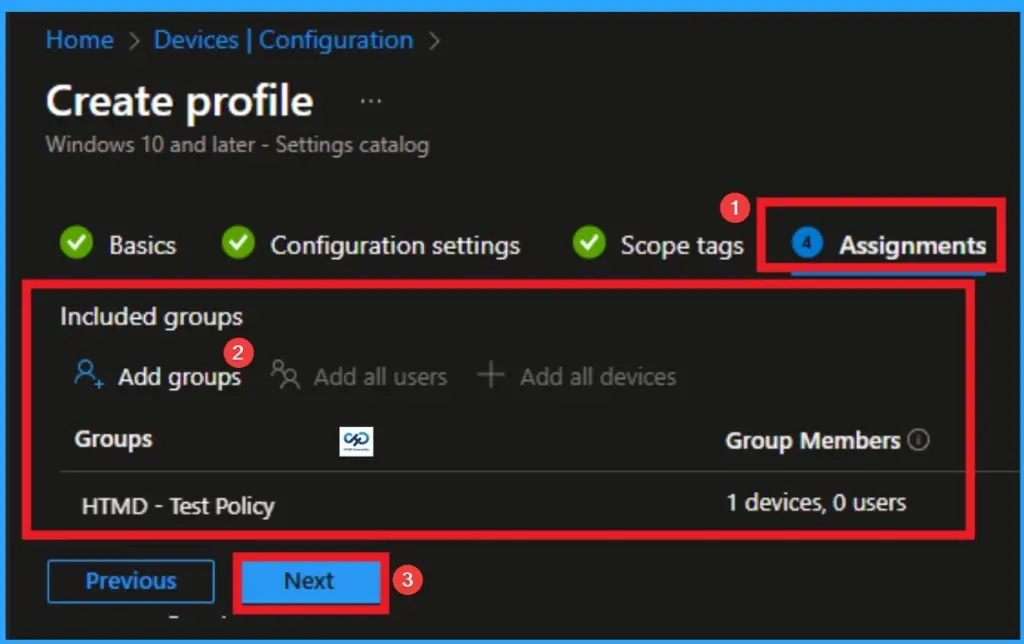
The assignments tab is the crucial step that determines which groups can be selected to assign the policy. Click on the +Add groups option under included groups. Select the group from the list of groups on your tenant.
Click on the Select button. And you can see the selected group on the Assignments tab. Click on the Next button in the window below.
Review + Create
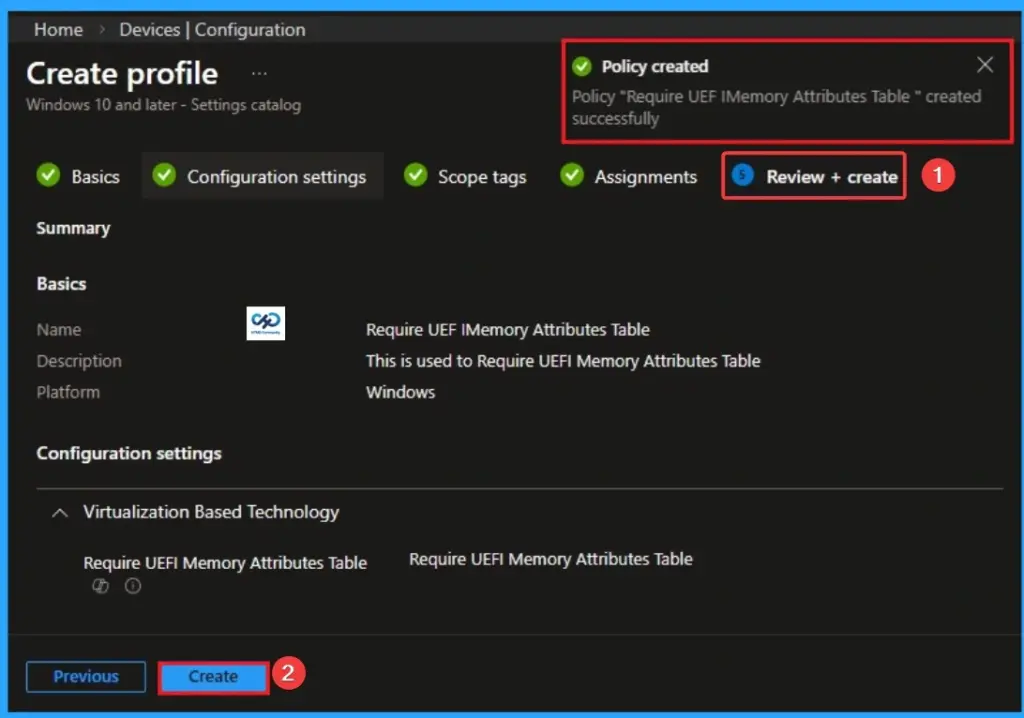
The Review + Create tab is the last step of policy creation. On this tab, you can verify every detail of the policy which are added in the previous steps (basic configuration settings, scope tag assignments s etc). If you want to make any changes, click on the previous button; otherwise, you can click on the Create button.
Monitoring Status
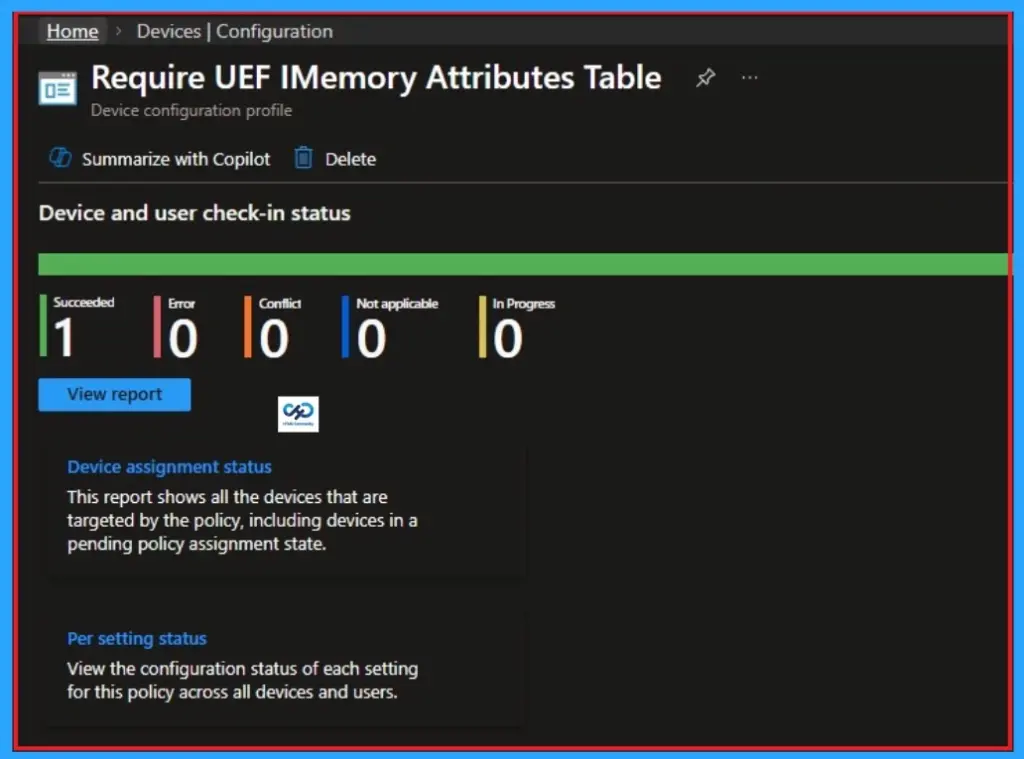
When the Policy is created successfully, you can sync the device on the Company portal for faster deployment. After syncing is completed, you can check the status on the Intune Portal. Go to Devices > Configuration and search for the policy.
Removing the Assigned Group from Require UEFI Memory Attributes Table Settings
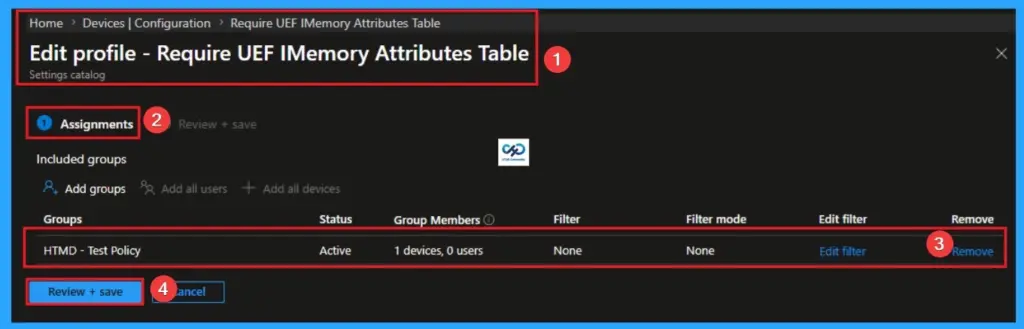
If you want to remove the Assigned group from the policy, it is possible from the Intune Portal. To do this, open the Policy on Intune Portal and edit the Assignments tab and the Remove Policy.
To get more detailed information, you can refer to our previous post – Learn How to Delete or Remove App Assignment from Intune using by Step-by-Step Guide.
How to Delete Require UEFI Memory Attributes Table
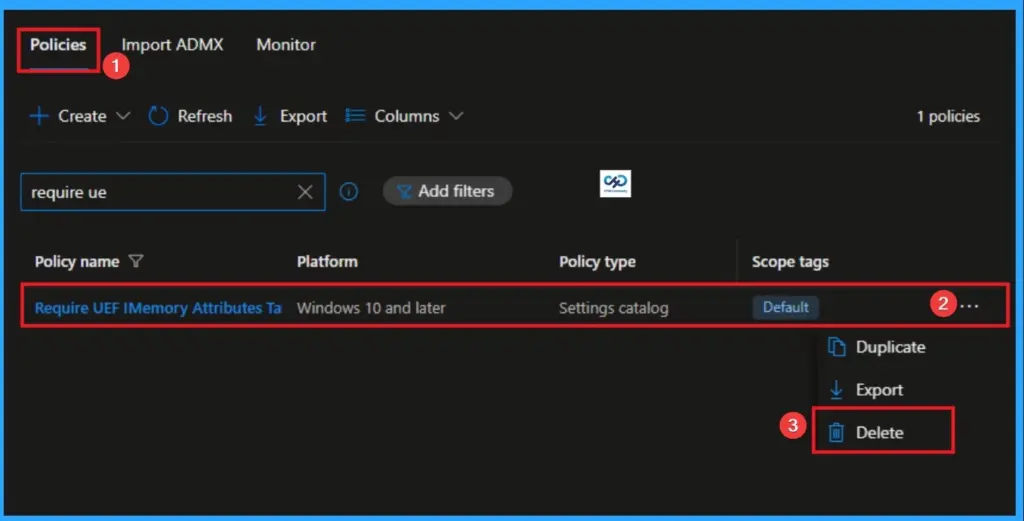
You can easily delete the Policy from the Intune Portal. From the Configuration section, you can delete the policy. It will completely remove it from the client devices.
For detailed information, you can refer to our previous post – How to Delete Allow Clipboard History Policy in Intune Step by Step Guide.
Need Further Assistance or Have Technical Questions?
Join the LinkedIn Page and Telegram group to get the latest step-by-step guides and news updates. Join our Meetup Page to participate in User group meetings. Also, join the WhatsApp Community and the WhatsApp channel to get the latest news on Microsoft Technologies. We are there on Reddit as well.
Author
Anoop C Nair is a Workplace Technology solution architect with 25+ years of experience. Microsoft Certified Trainer. Microsoft MVP from 2015 onwards for consecutive 11+ years! He is a blogger, Speaker, and Founder of HTMD Community and HTMD Conference. His main focus is on Device Management technologies like Intune, Windows, and Cloud PC. He writes about technologies like Intune, SCCM, Windows, Cloud PC, Entra, and Microsoft Security.