
Key Takeaways
- You can upgrade to Windows Server 2025 using Windows Update.
- You can upgrade from Windows Server 2019 or 2022.
- Your settings, roles, features, and data stay safe during upgrade.
- No need for installation media or ISO file.
- It works like a normal Windows Update.
- Helps keep your server secure and up to date with new features.
Easily Upgrade to Windows Server 2025 using Windows update without Losing Settings Roles Features and Data! Windows Server allows you to upgrade to a newer version using a method called an in-place upgrade. In this process, the new version of Windows Server is installed over your existing installation instead of setting up a new server. The main benefit is that all your current settings, server roles, features, and data remain unchanged. This makes the upgrade easier because you don’t need to reinstall applications or move data manually.
Table of Content
Table of Contents
Easily Upgrade to Windows Server 2025 using Windows Update without Losing Settings Roles Features and Data
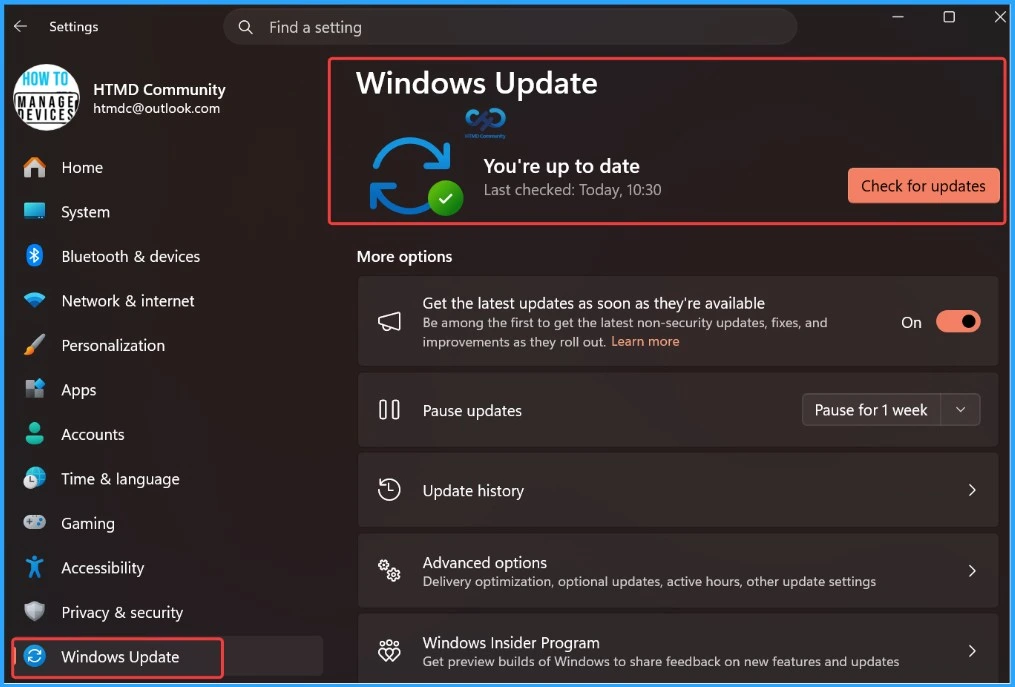
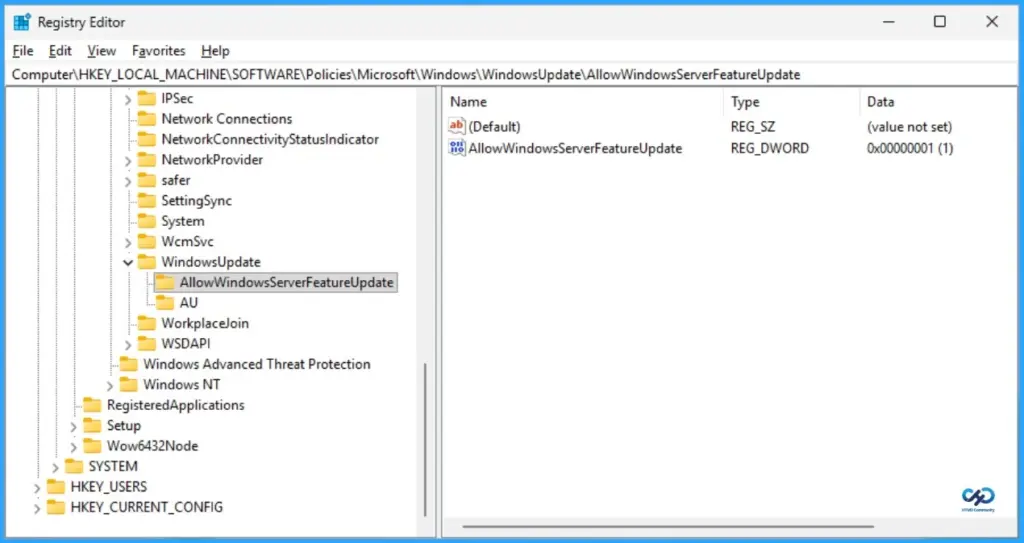
You can now upgrade to a newer version of Windows Server using Windows Update itself. This means you don’t need separate installation media like USB or ISO files. The upgrade process works like installing a normal monthly update.
It allows you to move from Windows Server 2019 or Windows Server 2022 to Windows Server 2025 while keeping your existing settings, server roles, features, and data. This helps reduce downtime and makes the upgrade process simpler and safer. It also ensures your servers stay secure, supported, and benefit from the latest improvements.
| Area | Details |
|---|---|
| Upgrade method | Uses Windows Update (like monthly updates) |
| Supported versions | Windows Server 2019 → Windows Server 2025 Windows Server 2022 → Windows Server 2025 |
| Installation type | In-place upgrade |
- Updated Windows 11 Version Numbers Build Numbers Major Minor Build Rev
- New Windows Update Targets RDP Phishing Threats with Security Alerts
- Microsoft Intune Introduces Feature Update Journey Report for End-to-End Windows Update Visibility
- Windows 11 Minimum System Requirements Updated
Key Planning Checklist for Windows Server 2025 Upgrade
Upgrading to Windows Server 2025 should be done in a planned and controlled way. It is recommended to start with less critical servers and gradually move to production systems. Always test the upgrade in a lab or test environment first to understand the process and avoid unexpected issues. The upgrade time depends on server performance, installed applications, and user load, but typically takes around two hours per server, including backup or snapshot creation.

- Begin upgrading with non-critical servers before moving to production systems.
- Validate the upgrade process in a test or lab environment first.
- Each server upgrade typically takes around 2 hours, including backup/snapshot.
- Coordinate with system administrators to avoid downtime and service disruption.
- Ensure only authorised users can apply Windows Updates and control update behavior.
- Licensing requirements
- Volume License + Software Assurance: No new key needed
- Retail/OEM: Windows Server 2025 key must be purchased
- Use KMS, Active Directory-based activation, or MAK tools (like VAMT or slmgr)
- Avoid in-place upgrade; prefer clean installation and follow the domain/forest upgrade sequence.
- Do not upgrade nodes individually use a rolling upgrade approach.
- Ensure at least 30–40 GB of free space on the system drive to avoid upgrade failure.
Need Further Assistance or Have Technical Questions?
Join the LinkedIn Page and Telegram group to get the latest step-by-step guides and news updates. Join our Meetup Page to participate in User group meetings. Also, join the WhatsApp Community and the Whatsapp channel to get the latest news on Microsoft Technologies. We are there on Reddit as well.
Resources
Windows message center | Microsoft Learn
Author
Anoop C Nair is a Workplace Technology solution architect with 25+ years of experience. Microsoft Certified Trainer. Microsoft MVP from 2015 onwards for consecutive 11+ years! He is a blogger, Speaker, and Founder of HTMD Community and HTMD Conference. His main focus is on Device Management technologies like Intune, Windows, and Cloud PC. He writes about technologies like Intune, SCCM, Windows, Cloud PC, Entra, and Microsoft Security.