
Key Takeaways
- Developer-Optimized Environment – Preconfigured for common development workloads and scenarios
- Faster Onboarding – Reduces the time required to set up new developer workstations.
- Consistent Cloud PC Experience – Standardized configurations across development teams.
- Minimal Administrative Effort – Simplifies provisioning and management of developer environments.
- Preview Availability – Available as a preview feature in Windows 365 for organizations looking to accelerate developer productivity.
In this article, I am going to discuss how to create a Windows 11 Enterprise Developer Configuration Windows 365 Cloud PC using Microsoft Intune. The image is currently in public preview. Windows 365 now offers a new Windows 11 developer-optimized image (Preview) that comes with preinstalled development tools and configurations. This ready-to-use image helps organizations quickly provision development-ready Cloud PCs, reducing onboarding time and simplifying environment setup while delivering a consistent experience for developers.
Table of Contents
What’s Included in Windows 11 Developer Configuration Image
The new Windows 11 Developer Configuration Image eliminates most of the manual setup traditionally required for development workstations by delivering a fully configured Windows + WSL Ubuntu environment with essential developer tools already installed and ready to use.
| Category | Details |
|---|---|
| Purpose | Provides a standardized, ready-to-use developer environment for Windows 365 Cloud PCs. |
| Benefits | Faster onboarding, Reduced manual setup, Consistent developer experience, Improved productivity from day one |
| Windows Configuration | Registry-based configurations and optimizations applied automatically. |
| Desktop Settings | Preconfigured desktop experience and personalization settings. |
| File Explorer Settings | Optimized File Explorer configuration for developers. |
| Taskbar Settings | Developer-friendly taskbar customization. |
| Search & Start Settings | Enhanced Start menu and Windows Search configurations. |
| Services & Features | Required Windows services and features enabled and configured. |
| Developer Tools (Windows) | PowerShell 7, Visual Studio Code, PowerToys, Python, Node.js, npm, nvm, Git, GitHub CLI, GitHub Copilot CLI, Oh My Posh, UV Tools, Azure CLI, .NET Runtime, .NET SDK, WinApp CLI. |
| VS Code Extensions | PowerShell, Python, Remote WSL, GitHub Pull Requests, Edge DevTools, Python Dependency Remediation. |
| WSL Setup | Windows Subsystem for Linux (WSL) installed and configured automatically. |
| Linux Distribution | Ubuntu preinstalled within WSL. |
| WSL User Configuration | Automated Bash script configures the Ubuntu developer environment. |
| Developer Tools in WSL | Same core development tools installed and configured inside Ubuntu for a consistent cross-platform experience. |
- How to Create Filter for All Windows 365 Cloud PCs with a Specific Configuration using Intune
- Provisioning Windows 365 FLEX / Frontline Shared Cloud PCs with Intune
- Microsoft Dev Box Moves to Maintenance Mode as Windows 365 Takes Lead for Developer Scenarios
Create a Provisioning Policy for Windows 11 Enterprise Developer Configuration Cloud PC
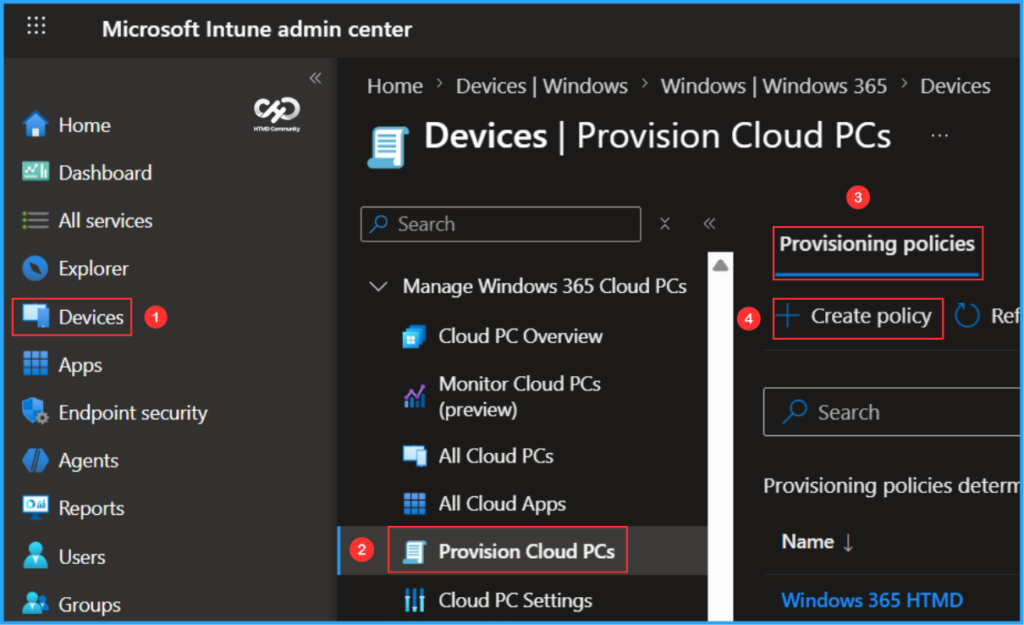
To create a Windows 365 Provisioning Policy for Windows 11 Enterprise Developer Configuration Cloud PC, login to the Microsoft Intune Admin Center using your administrator credentials.
- Navigate to > Devices > Manage Windows 365 Cloud PCs > Provision Cloud PCs
- Click on Provisioning policies > +Create policy
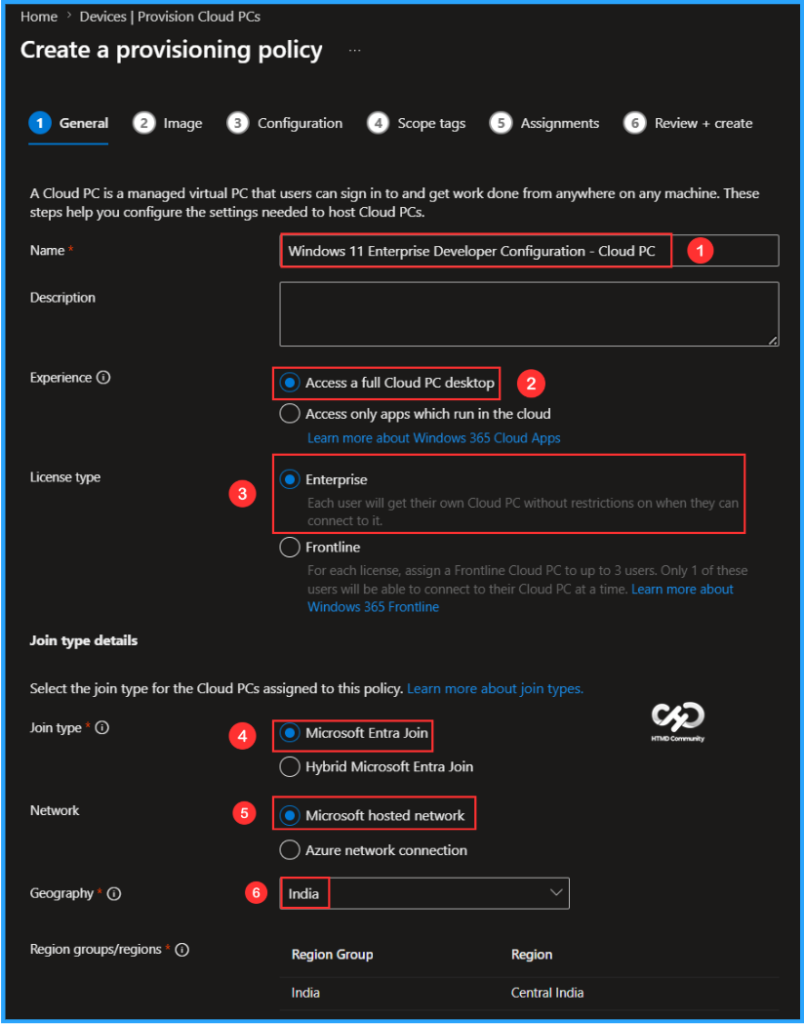
In the General tab, you can now add the following settings. Keep in mind, a Cloud PC is a managed virtual PC that users can sign in to get work done from anywhere on any machine. These steps help you configure the settings needed to host Cloud PCs.

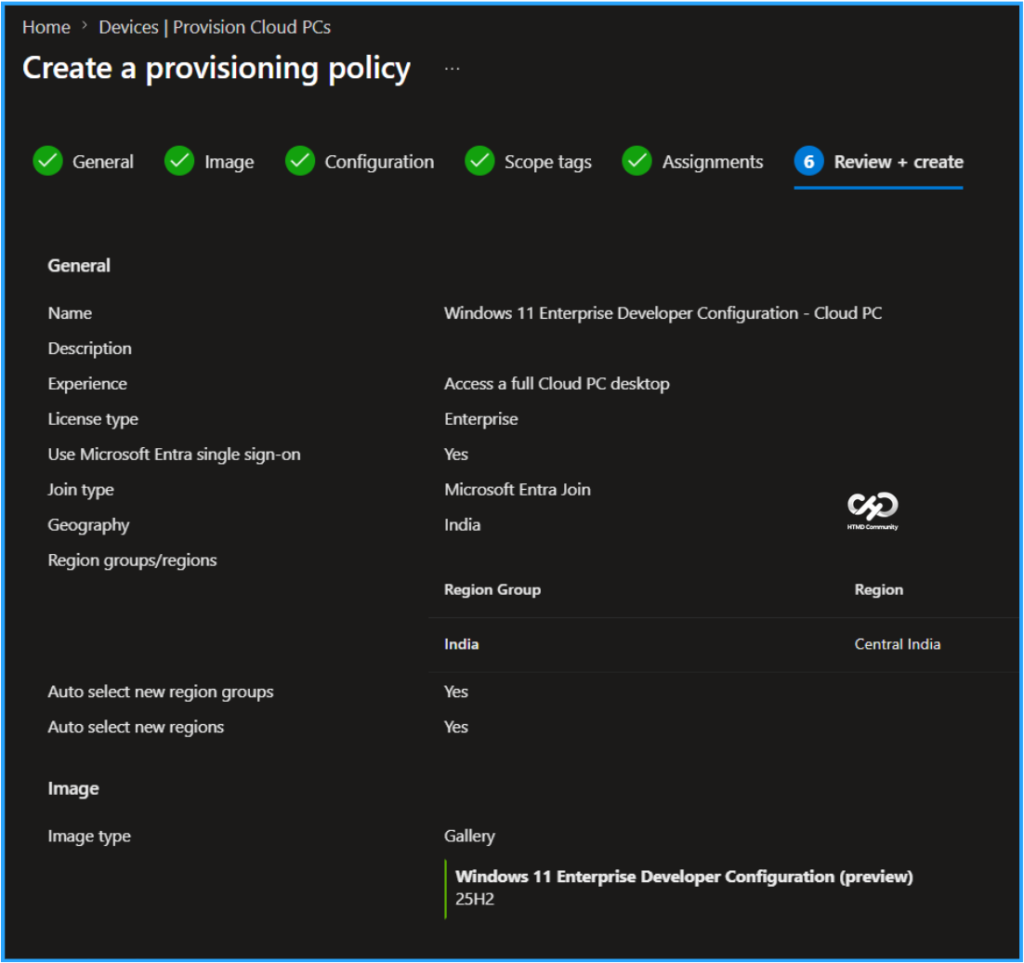
- Name: Windows 11 Enterprise Developer Configuration – Cloud PC
- Description: Optional
- Experience: Access a full Cloud PC desktop
- License type: Enterprise
- Join type: Microsoft Entra Join
- Network: Microsoft hosted network
- Geography: India
- Region groups/regions: India/Central India (Select all)
- Use Microsoft Entra single sign-on: Yes (Check the box)
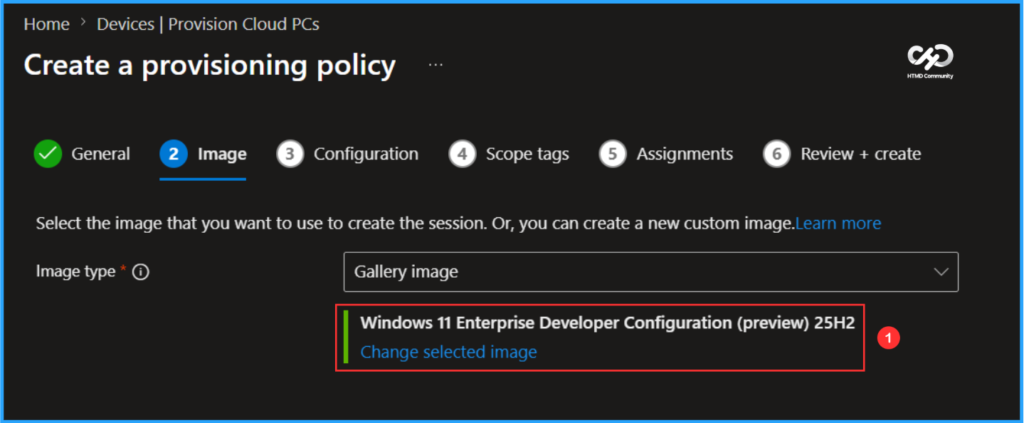
In the Image tab, keep the Image type as Gallery image. Click on Change selected image and select the new Image type, “Windows 11 Enterprise Developer Configuration (preview),” which corresponds to Windows 11 version 25H2.
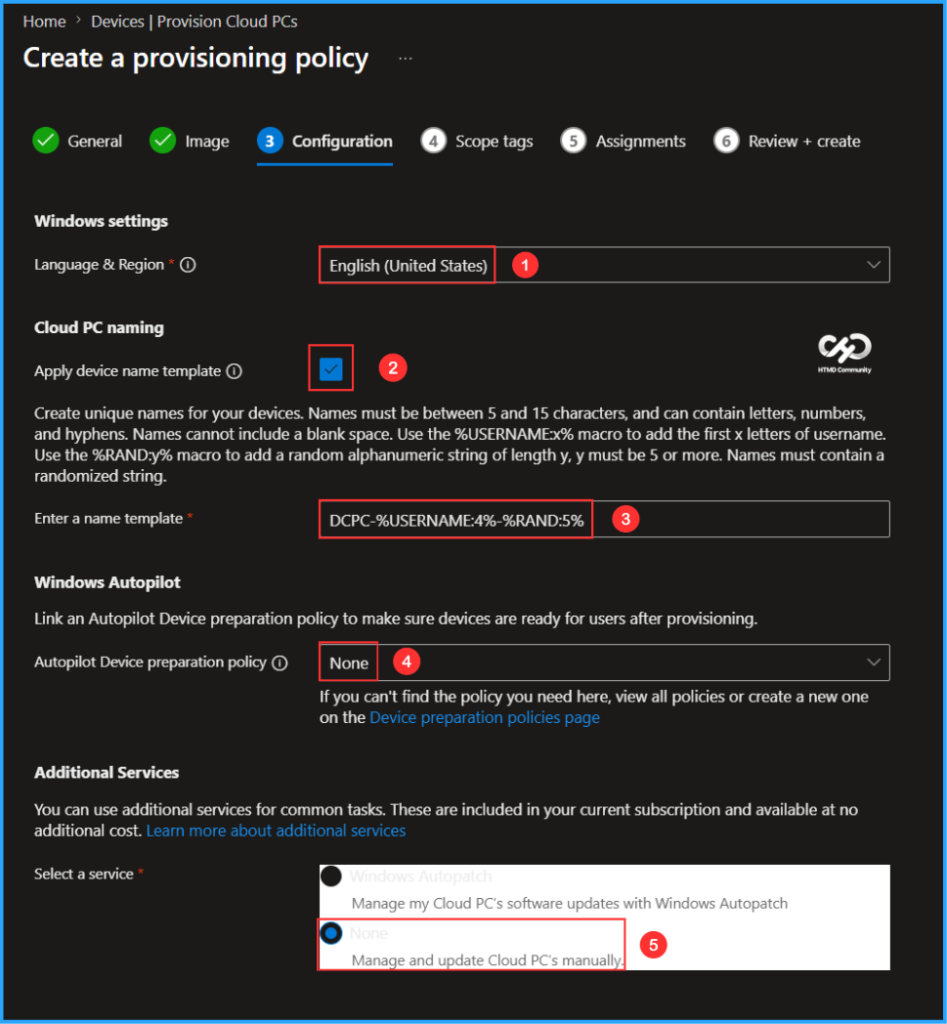
The next tab focuses on Windows settings, Cloud PC naming, Windows Autopilot and Additional Services configuration. You can select the options listed below.
- Language & Region: English (United States)
- Apply device name template: Yes (Check the box)
- Enter a name template: DCPC-%USERNAME:4%-%RAND:5%
- Autopilot Device preparation policy: None
- Select a service: None (Manage and update Cloud PC’s manually)
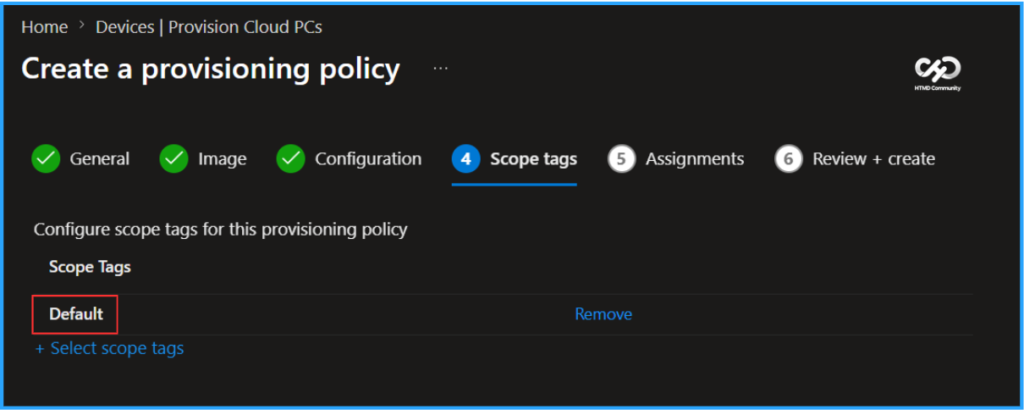
On the next page, keep the Scope tags set to Default. If your tenant has custom scope tags, select them based on your policy needs, and then click Next.
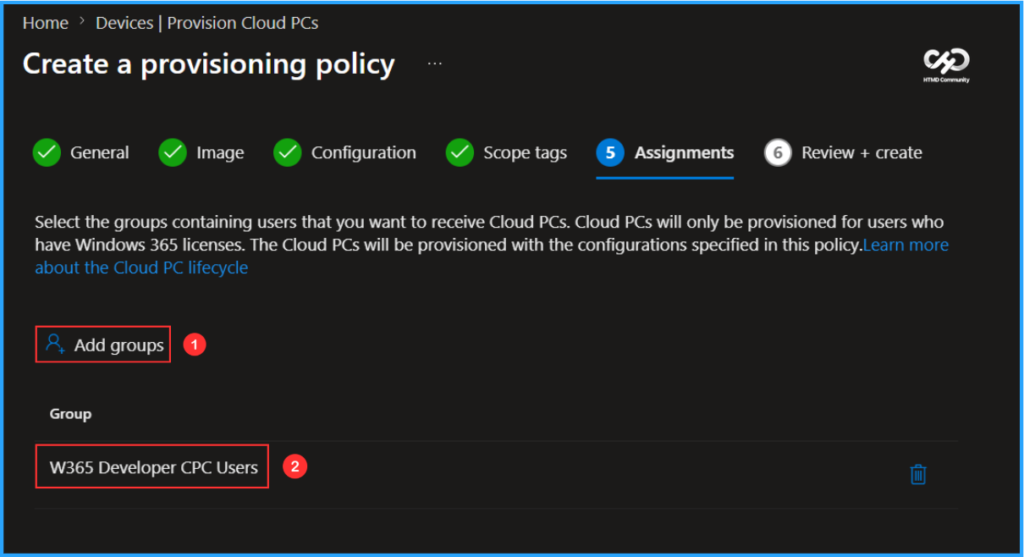
In this section, select the group that will receive Developer Cloud PCs. I will assign the policy to the W365 Developer CPC Users group. Ensure you have assigned a Windows 365 Enterprise Cloud PC license from the Microsoft 365 Admin Center to the same user who will be assigned this provisioning policy. To do this, click on Add groups and choose the appropriate user group.
On the Review + create page, review all settings for the Windows 11 Enterprise Developer Configuration – Cloud PC Provisioning Policy. After confirming, click Create to deploy the policy.
- How to Setup Windows 365 Cloud PCs with Autopilot Device Preparation
- How to Add Windows 365 Partner Connectors in Microsoft Intune
- New Windows 365 Navigation in Intune Improves Admin Efficiency and Visibility
Monitor the Windows 11 Enterprise Developer Configuration Provisioning Policy Deployment
The newly created Windows 11 Enterprise Developer Configuration Provisioning Policy has been deployed to the W365 Developer CPC Users. Please allow some time, around 15-20 minutes, for the policy to provision a new Cloud PC with preinstalled developer tools and settings. To monitor the status of the policy deployment, follow the steps outlined below in the Intune Portal.
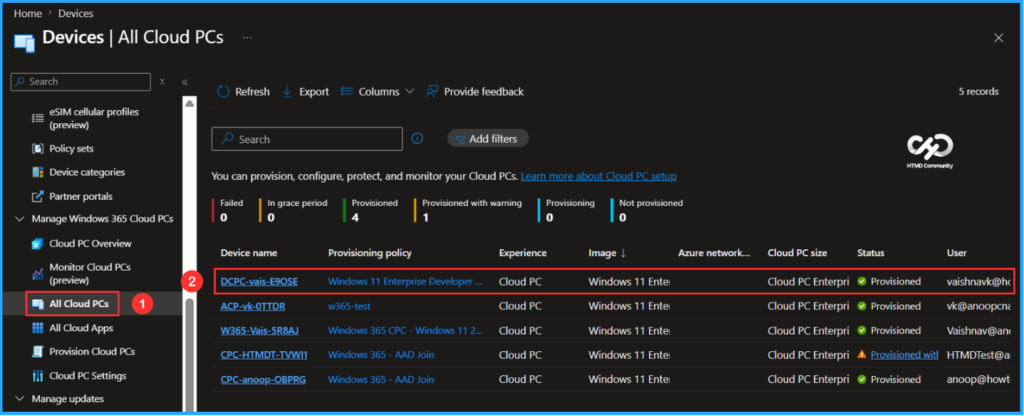
- Navigate to Devices > Manage Windows 365 Cloud PCs > All Cloud PCs > Find the “Windows 11 Enterprise Developer Configuration – Cloud PC”.
According to our configuration, Developer Windows 11 25H2 Enterprise Cloud PC with the device name “DCPC-vais-E9OSE” has been successfully provisioned and assigned to the users in the targeted group.
User Experience of Developer Cloud PC with Windows App
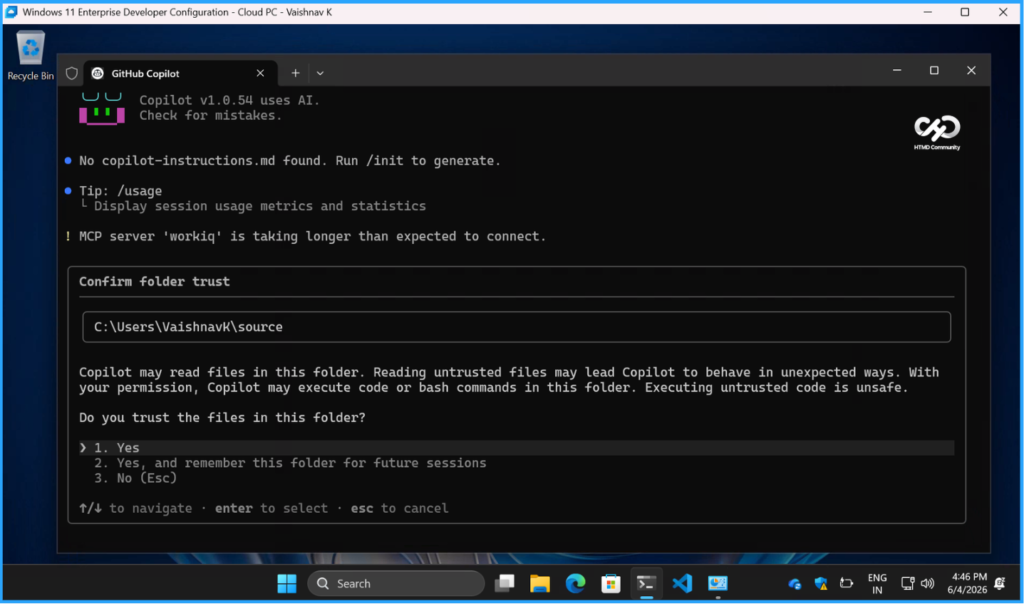
It’s time to evaluate the end-user experience of the newly provisioned Windows 11 Enterprise Developer Configuration Cloud PC. Start by opening the Windows App and signing in using the credentials assigned to the Cloud PC user. In the left pane, click on Devices. The assigned Cloud PC should appear in the list. Double-click on the Cloud PC. This will open the desktop experience of Windows 11 Enterprise Developer Configuration – Cloud PC – Vaishnav K. Now it’s ready to use for developers.
Need Further Assistance or Have Technical Questions?
Join the LinkedIn Page and Telegram group to get the latest step-by-step guides and news updates. Join our Meetup Page to participate in User group meetings. Also, join the WhatsApp Community to get the latest news on Microsoft Technologies. We are there on Reddit as well.
Author
Vaishnav K has over 12 years of experience in SCCM, Intune, Modern Device Management, and Automation Solutions. He writes and shares knowledge about Microsoft Intune, Windows 365, Azure, Entra, PowerShell Scripting, and Automation. Check out his profile on LinkedIn.