
Key Takeaways
- Managed Google Play is the primary application source for Android Enterprise devices in Intune.
- Administrators can search, approve, and synchronize Android applications directly from the Intune console.
- Public apps, private apps, and web links can all be managed through Managed Google Play.
- Approved applications automatically synchronize with Intune and become available for assignment.
In this post, you will learn how to Configure Android Managed Google Play Apps to Simplify App Management Using Microsoft Intune. After adding the store apps, you can make the Android app installed or available for Android devices. Managed Google Play is Google’s enterprise app store and sole source of applications for Android Enterprise in Intune. You can directly browse and approve Managed Google Play store apps in the Intune console, and if you prefer to synchronize a Managed Google Play app with Intune rather than adding it directly using Intune.
Table of Contents
Table of Contents
Configure Android Managed Google Play Apps to Simplify App Management using Intune
Managed Google Play supports multiple application types, including public store apps, private line-of-business (LOB) applications, and web links. Once approved in Managed Google Play, these applications can be synchronized with Intune and assigned to users or devices through deployment policies. This centralized management approach helps organizations maintain control over Android applications while improving the user experience.
If you are interested in knowing how the management has evolved and the different management modes that are on Android Enterprise, Joy will be talking about Android Management in general with Intune Android Management With Intune | Android Enterprise.
- Send Custom Notifications To Users Using Intune
- Deploy Private LOB Apps To Android Devices Using Intune
- Intune Delete action no longer Retire iOS and Android Devices
- Disable Toast Notifications From Lock Screen Using Intune
Android App Types in Microsoft Intune
Intune supports a wide range of app types for Android. The available options differ for each app type. Intune lets you add and assign the following app types to Android devices.

| App types to Android Devices. |
|---|
| Android Store apps |
| Managed Google Play app |
| Web link |
| Built-In app |
| Line of business app |
| Android Enterprise system app |
How to Add Android Managed Google Play Store App in Intune portal
Let’s follow the steps to add Managed Google Play store app directly in the Intune console. When you enroll an Android device in Intune, by default most of the system apps are not available. In the below step, you will learn how to deploy the Microsoft Edge Android app.
- Sign in to the Microsoft Intune admin center
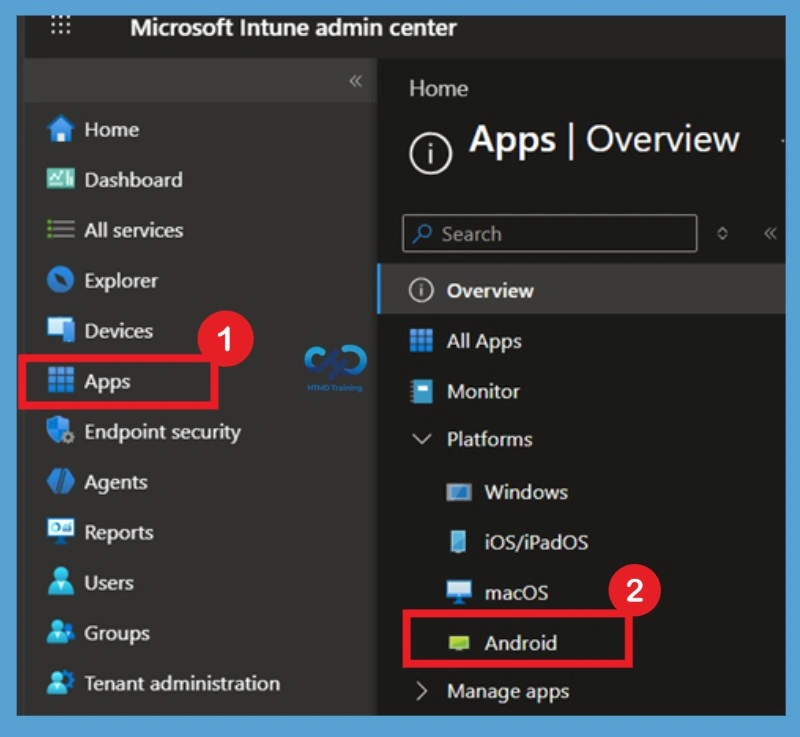
- Select Apps > navigate to> Android.
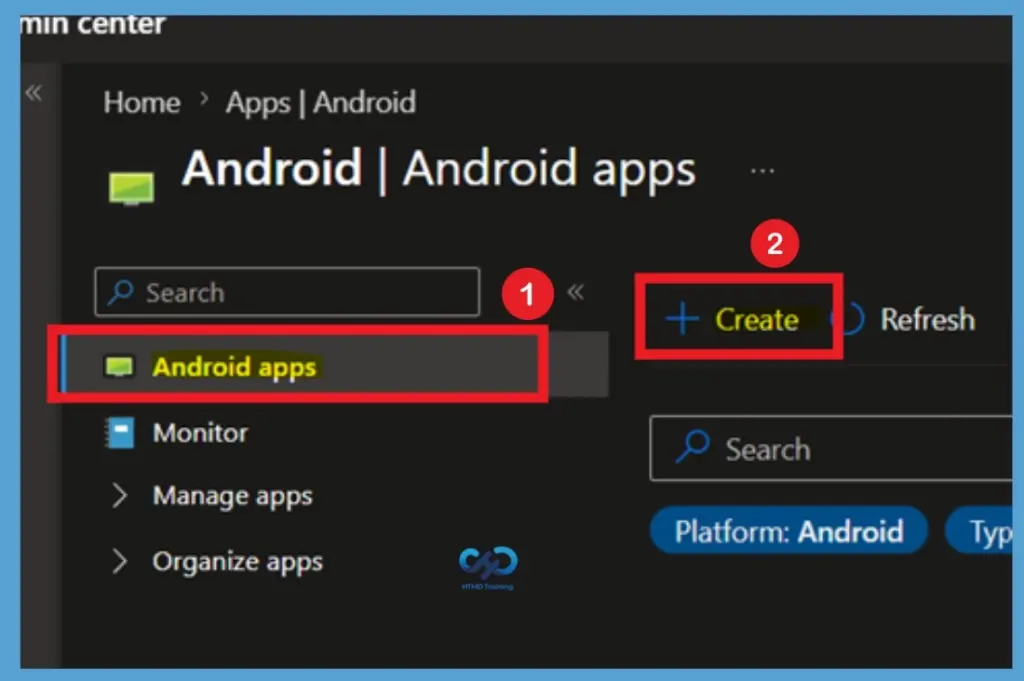
To add a new application, click the + Create button located at the top of the page. This action launches the app creation wizard, allowing administrators to select the type of Android application they want to deploy.
Select App Type
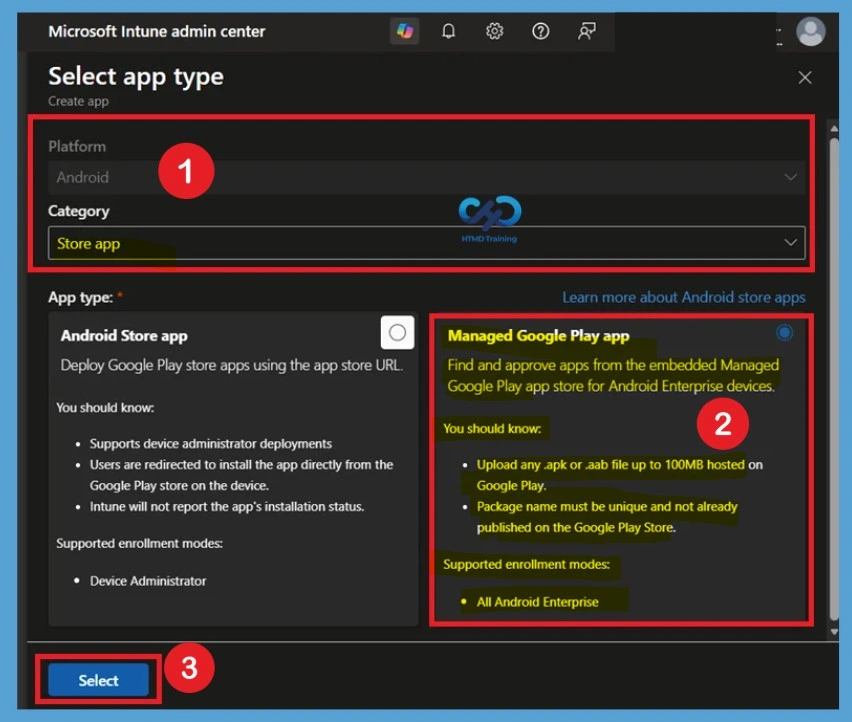
On the Select app type page, verify that Android is selected as the platform and Store app is selected as the category. Intune displays the available Android app types that can be added to the tenant.
Choose Managed Google Play app and click Select. This option enables administrators to browse applications directly from the integrated Managed Google Play store. It is the preferred method for deploying Android Enterprise applications because it supports app configuration, updates, and deployment reporting.
Search for the Required Application
On the Select app type pane, under the store app, select Managed Google Play app and click Select. In the Managed Google Play, based on your requirement, type the app name in the search box and click on the search icon. For Example, I searched for Microsoft Edge. Your Intune tenant account must be connected to your Android Enterprise account to browse Managed Google Play store apps.
- Search Microsoft Edge
- Click on the Edge from the Results
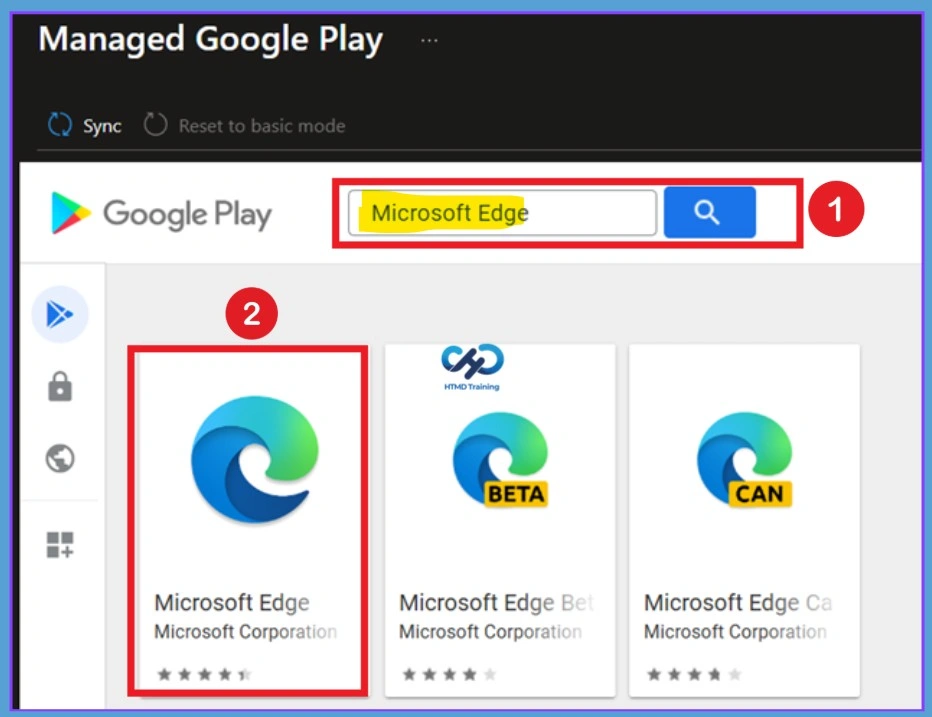
When adding Managed Google Play public apps in Intune, you will need to click Select for the apps you want to add and then Sync. Similarly, when adding Managed Google Play private apps and Google Play web links, you will need to click Select in the Managed Google Play pane to add them.
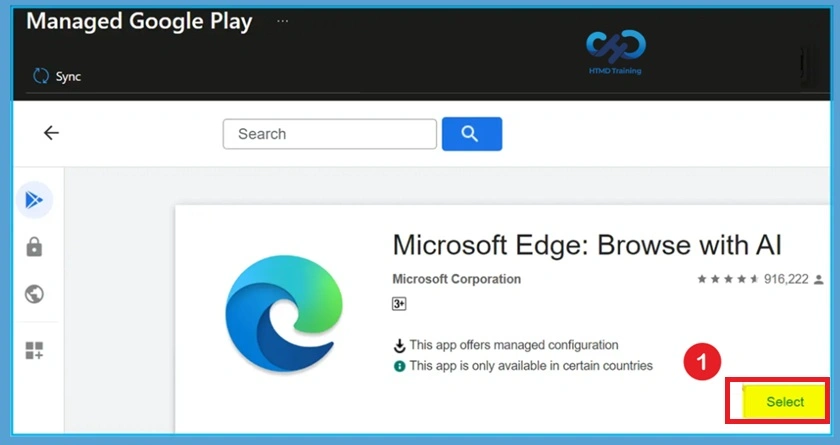
Approve and Select the Application
After locating the required application, open the application details page and click Select. This action approves the application for use within your organization’s Android Enterprise environment. Once approved, the application becomes associated with your Managed Google Play account.
Here you can see the selected app is approved, and Click Sync at the top of the blade to sync the app with the Managed Google Play service. All Managed Google Play apps, including private apps and web links, will automatically sync daily. This applies to previously added apps and all newly added apps going forward.
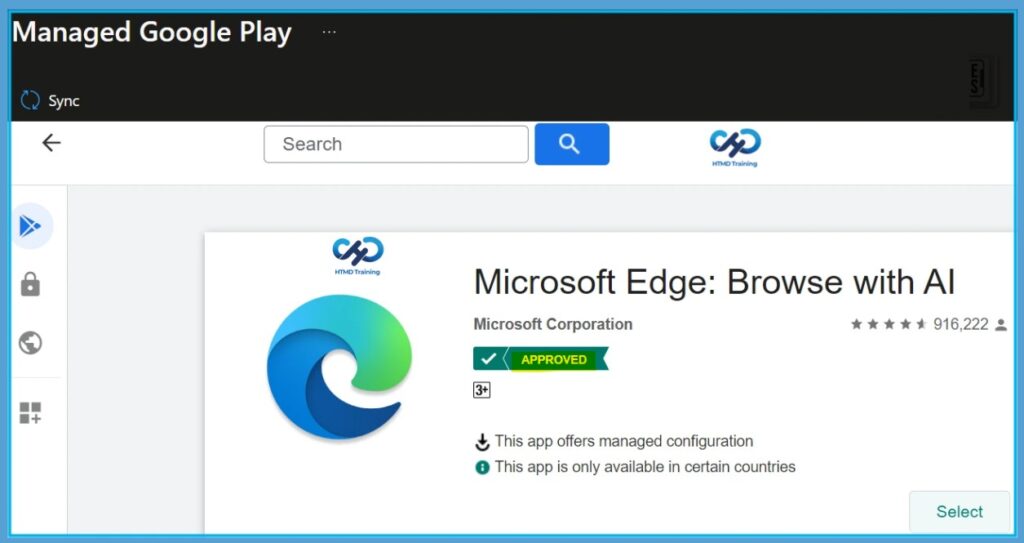
Verify the Application Appears in Android Apps
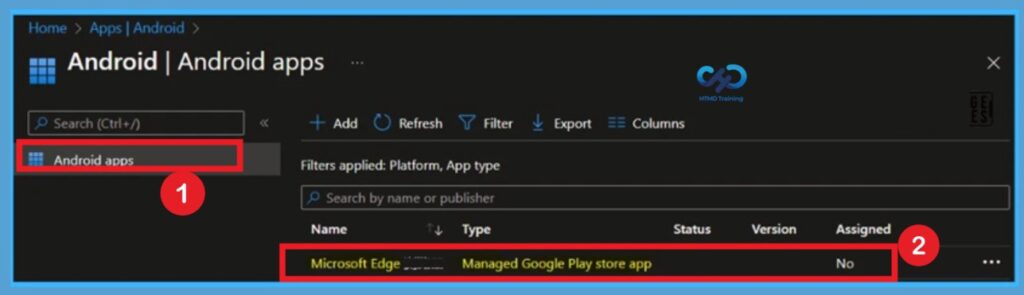
Once synchronization completes, return to the Android Apps page in Intune and click Refresh. The newly approved application should now appear in the application list. At this stage, the application has been successfully imported into Intune but has not yet been deployed. Administrators can select the application to configure assignments, app protection settings, and deployment options.
The newly added app will be displayed here in the Android apps Click Refresh to update the app list. The next step is to Assign applications to at least one group for the deployment. Select the added managed google play app from the list to modify the deployment.
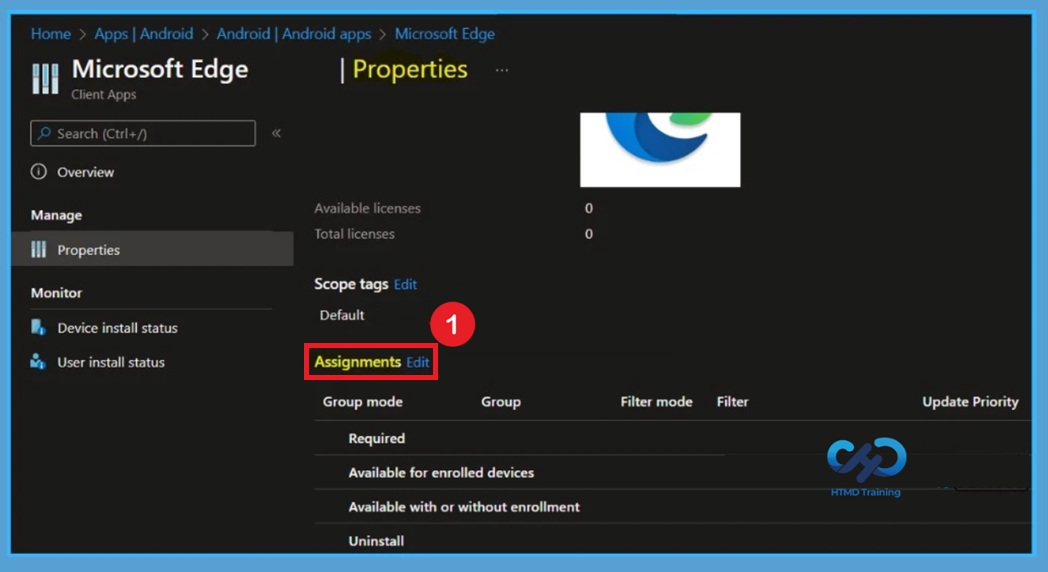
Select the newly added application and open Properties. Under the Assignments section, click Edit to configure deployment groups and installation behavior. One important note that App availability can be set based on the assignment type. Assignment type can be Required, Available for enrolled devices, Available with or without enrollment, or uninstall.
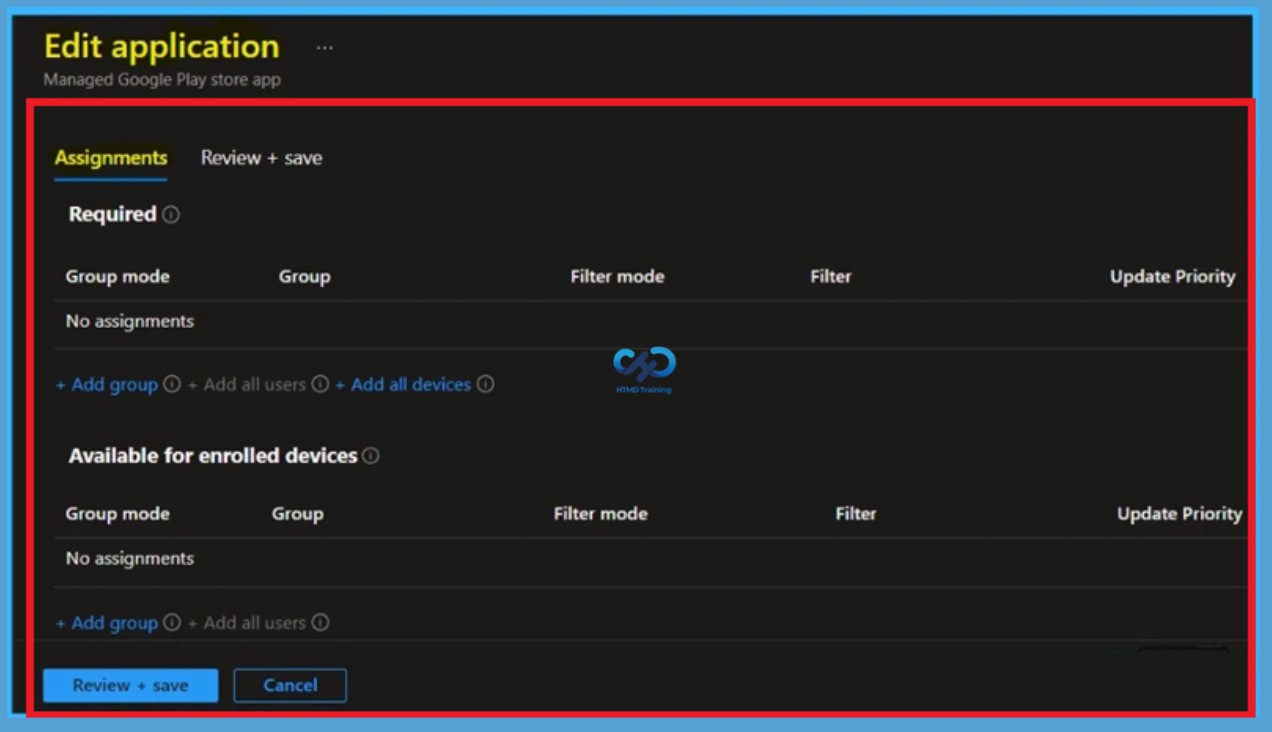
After you’ve selected assignments, select Next. The next screen will appear with the Summary, Review the selection and click Save. Available assignments are only valid for User Groups, not device groups. Selecting “Add all users” creates an assignment for all Intune licensed users in your organization. You can only use “All users” for one type of assignment. Additionally “All users” can not be excluded.
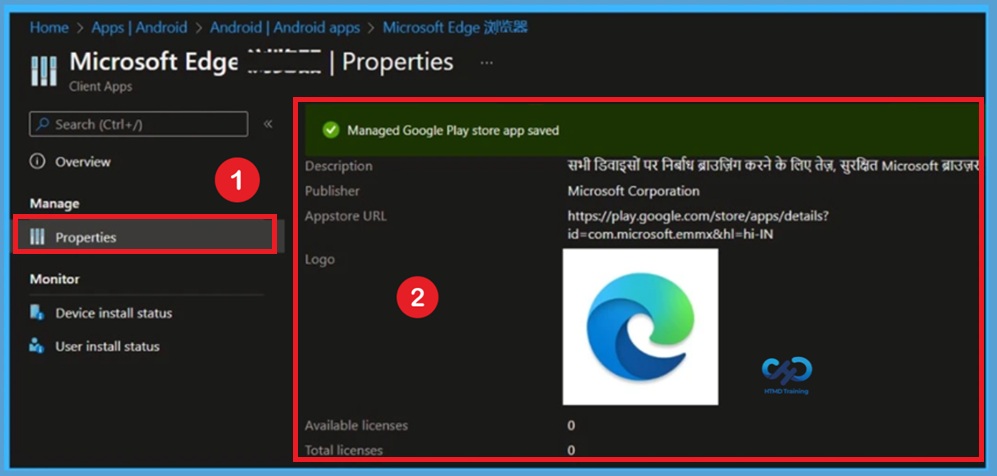
A notification will appear automatically in the top right-hand corner with a message. Here you can see the Managed Google Play store application saved successfully.
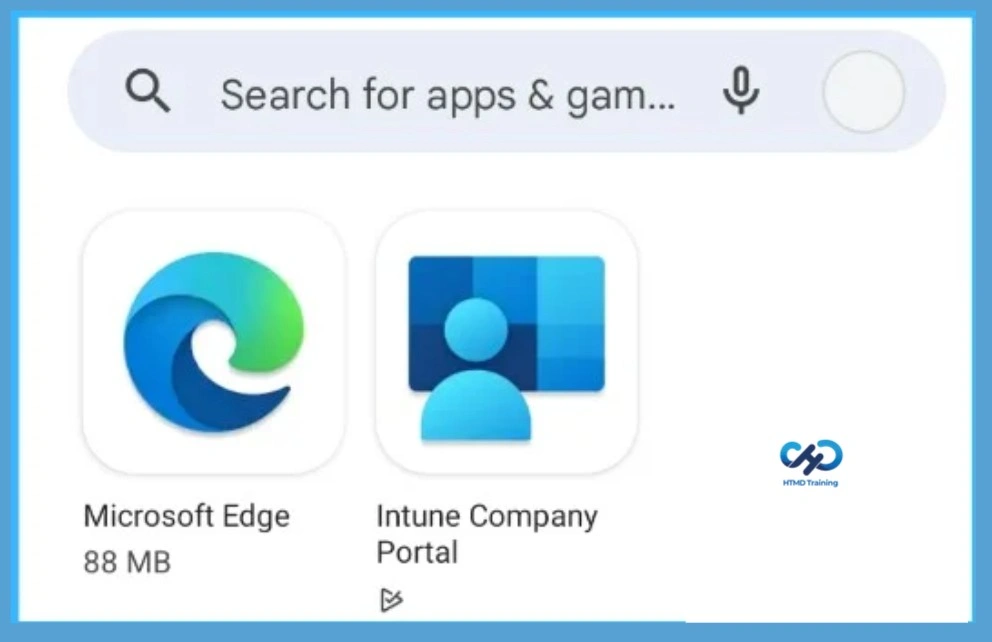
On an Android device, within a few moments, you will see Microsoft Edge is available to install. Users can proceed to install, and you can monitor the progress from the Intune console.
Need Further Assistance or Have Technical Questions?
Join the LinkedIn Page and Telegram group to get the latest step-by-step guides and news updates. Join our Meetup Page to participate in User group meetings. Also, join the WhatsApp Community and the WhatsApp channel to get the latest news on Microsoft Technologies. We are there on Reddit as well
Author
About Author – Jitesh, Microsoft MVP, has over six years of working experience in the IT Industry. He writes and shares his experiences related to Microsoft device management technologies and IT Infrastructure management. His primary focus is Windows 10/11 Deployment solution with Configuration Manager, Microsoft Deployment Toolkit (MDT), and Microsoft Intune.
Hi Anoop
M from UK. good article. But one question, how do we know this option “Keep approved when app requests new permissions ” selected during deployment? Is there any way to find out in Apps ?
Cheers , hope to hear from you soon
How long does it usually take for the apps to appear on the managed play store, I have waited over 24 hours and still no apps appear in the list, even though everything is all synced up.
Managed Google Play Store Web App not syncing to Intune. Web app is not listed under all apps or Android App in Endpoint manager. I have disable the ad blocker and created the web app, then synced. Unfortunately, I did not get any success.
can you help please?
Hi Murshed,
Is this behaviour you seen with specific app, or all.