How to Reset MFA Contact Details of Azure AD User 1

How to Reset MFA Contact Details of Azure AD User

Let’s discuss how to Reset the MFA Contact Details of an Azure AD User. In this post, we will see the different types of users in the Azure Active Directory (Azure AD or AAD) and how to delete a user’s existing contact details and request the user to fill in new contact details.

More details to change the Azure MFA Authentication phone from the MyApps portal – https://www.anoopcnair.com/change-azure-mfa-authentication-phone-myapps/(opens in a new tab). End-User and trying to change MFA Mobile Number – https://aka.ms/MFASetup.

We can easily reset the contact details used for MFA (Multi-Factor Authentication) from the Azure AD portal. This is very useful when the user gets an internal transfer within the organization to another country and wants to change the number.

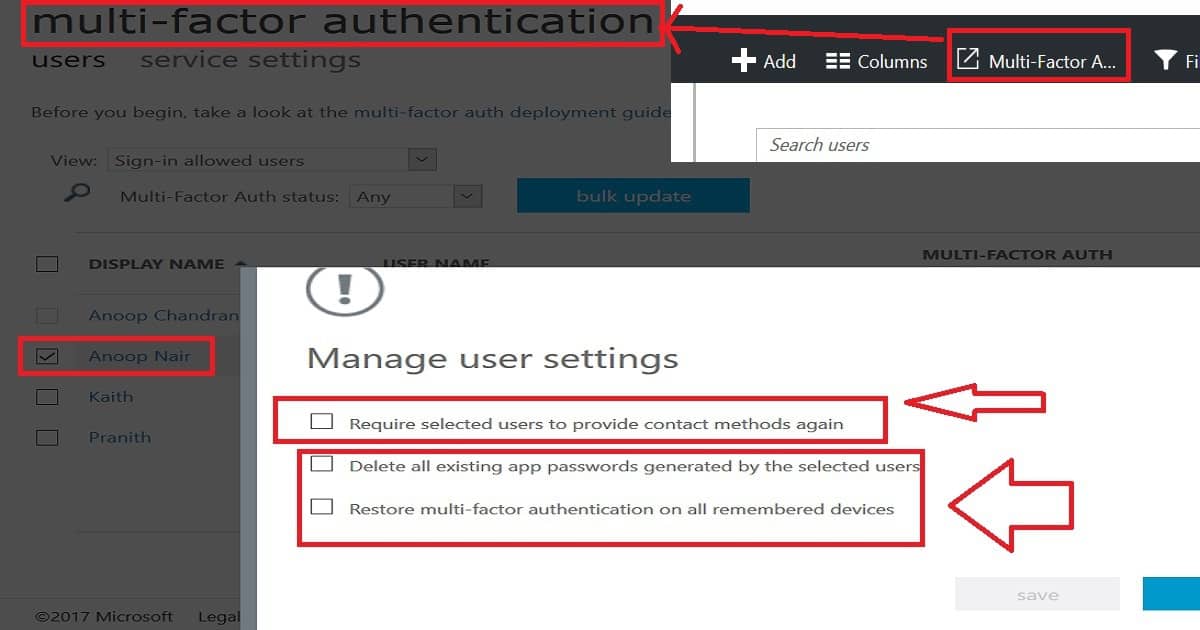
Also, there are options to “Delete all existing app passwords generated by the selected users” and “Restore multi-factor authentication on all remembered devices”.

Reset MFA Contact Details – MFA Mobile Contact Number Reset from Azure Portal with Admin Access?

Let’s talk about resetting the Multi-Factor Authentication (MFA) contacts of an Azure Active Directory (AD) user. The video below will guide you through the process, showing all the necessary details step by step. It’s a straightforward way to ensure that the MFA contacts for your Azure AD user are updated correctly.

How to Reset MFA Contact Details of Azure AD User – Video 1

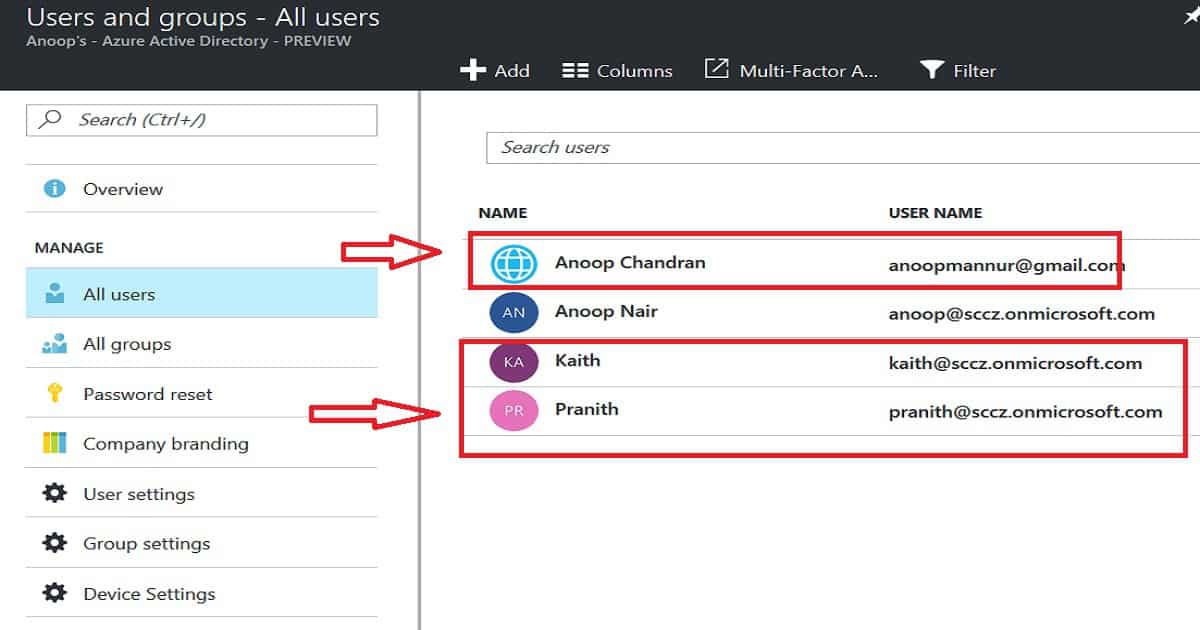
As you can see in the picture, two types of symbols are near user accounts. The one with external email IDs like Gmail and those kinds of users are guest users in Azure AD.
How to Reset MFA Contact Details of Azure AD User - Fig.1
How to Reset MFA Contact Details of Azure AD User – Fig.1

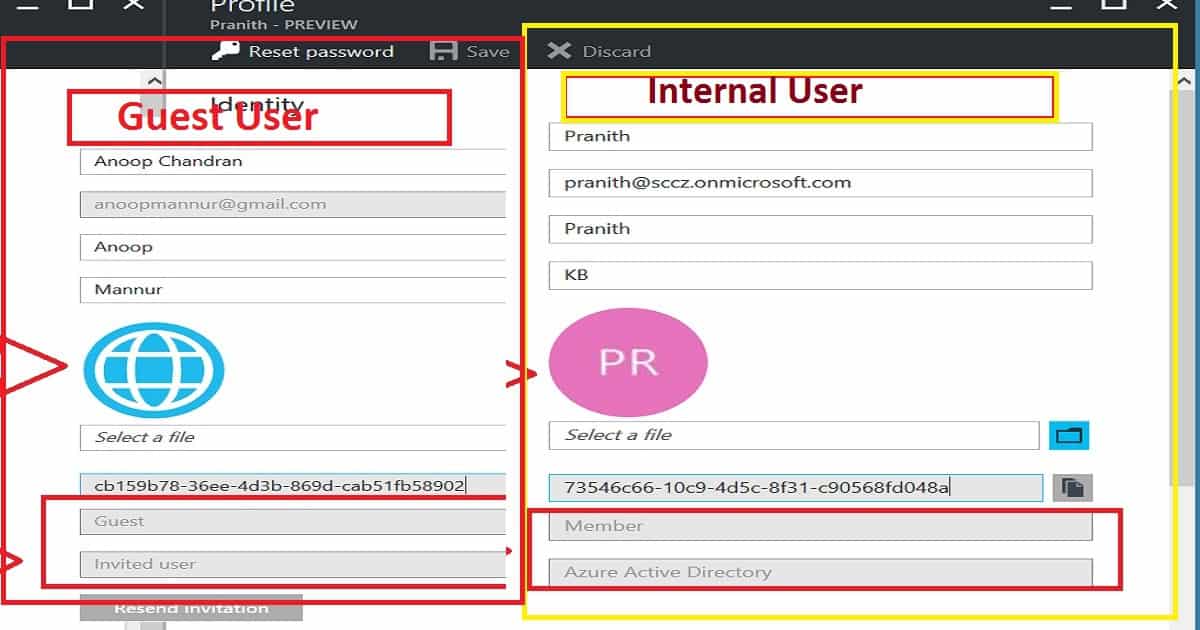
Using the Guest user option, you can temporarily grant external contractors access to your organization’s apps. Internal users with your organization’s email IDs are another type of user.
How to Reset MFA Contact Details of Azure AD User - Fig.2
How to Reset MFA Contact Details of Azure AD User – Fig.2

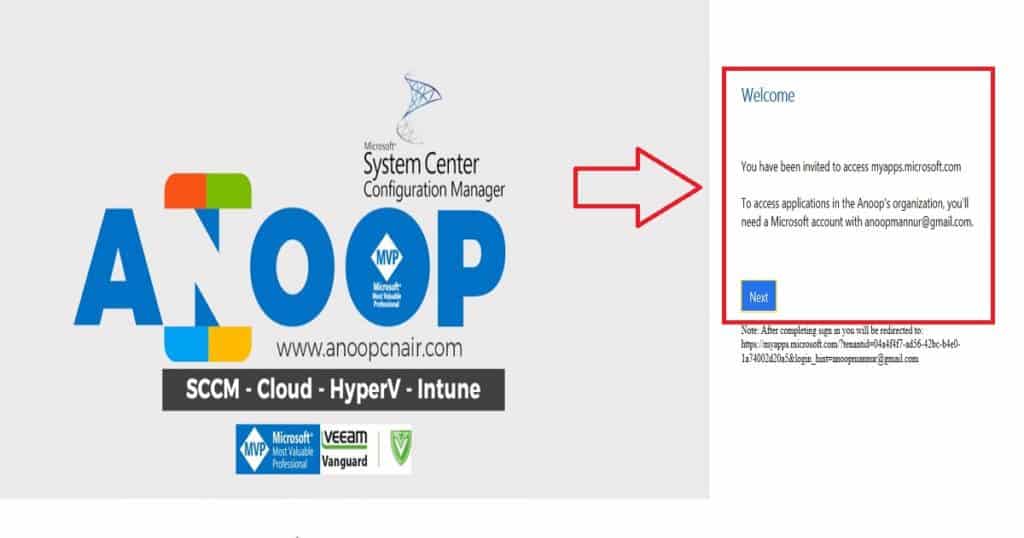
To access the organisation’s resources, Guest users should go through a secure onboarding process with MFA (Multi-Factor Authentication). Guest users will receive an invitation mail on the external email ID, and the email subject will be “You’re invited to the {Anoop’s} organization“.

The user has to click on the “Get Started” link from the mail, and they will be guided through the onboarding process with MFA. As you can see in the welcome screen (below picture), you will access the MyApps.microsoft.com portal, where guest users can access internal applications allocated to that user.
How to Reset MFA Contact Details of Azure AD User - Fig.3
How to Reset MFA Contact Details of Azure AD User – Fig.3

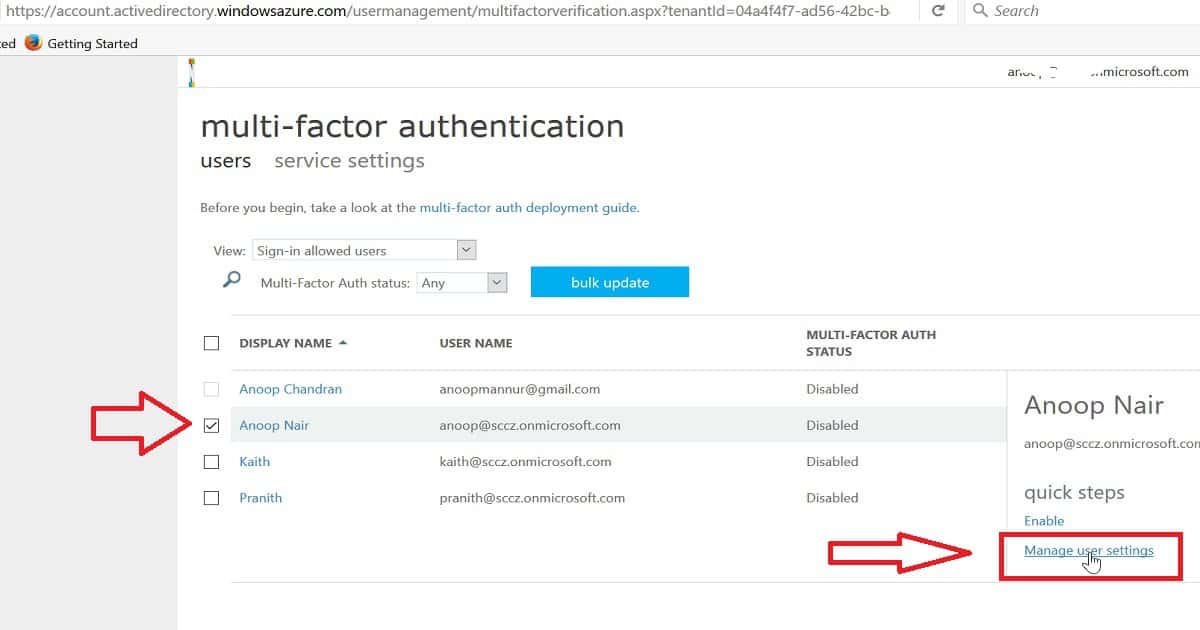
So, coming back to the main topic, “How to Reset the MFA Contact Details of an Azure AD User,” this option is available in the Azure portal: “Microsoft Azure Active Directory –> Users and groups—All users.” Click on “Multi-Factor Authentication.” In the new tab, you will see the option to reset the AAD user’s contact details.

  • This blade will allow you to reset all app passwords the selected users generate and ask users to perform MFA on all existing devices.
  • Select the user ID and click “Manage user setting” to reset the AAD user’s MFA contacts.
How to Reset the MFA Contact Details of an Azure AD User
Microsoft Azure Active Directory
Users and groups
All users
Multi-Factor Authentication
How to Reset MFA Contact Details of Azure AD User – Table 1
How to Reset MFA Contact Details of Azure AD User - Fig.4
How to Reset MFA Contact Details of Azure AD User – Fig.4

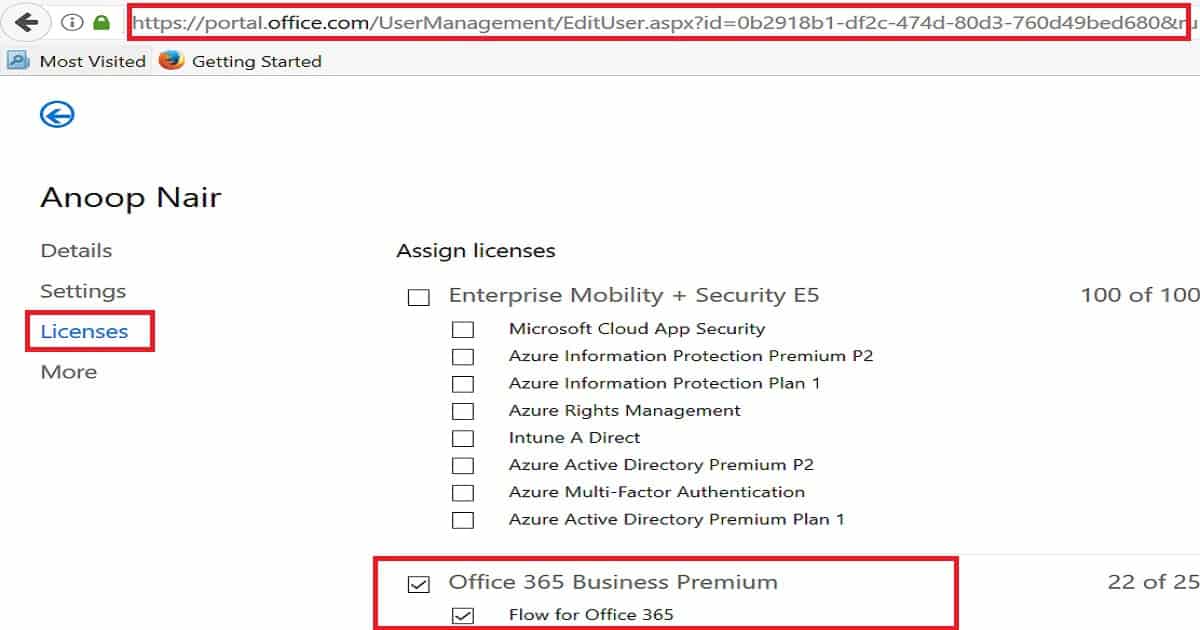
When you click on any user account from the above place (as seen in the above pic), it will take you to the Office 365 licensing portal. So, there is no need to log into the Office portal separately to assign user licenses. This is handy stuff.
How to Reset MFA Contact Details of Azure AD User - Fig.5
How to Reset MFA Contact Details of Azure AD User – Fig.5

Once you click on “Manage User Settings,” you will see the following options: The first one requires selected users to provide contact methods again, and the second one deletes all existing app passwords generated by the selected users.

3. Restore Multi-factor authentication on all remembered devices. To reset an Azure AD user’s MFA contact details, select option one, “Require selected users to provide contact methods again,” and click save. The next time a user logs into a device, AAD will prompt the user to provide contact details again.
How to Reset MFA Contact Details of Azure AD User - Fig.6
How to Reset MFA Contact Details of Azure AD User – Fig.6

We are on WhatsApp now. To get the latest step-by-step guides, news, and updates, Join our Channel. Click here. HTMD WhatsApp.

Author

Anoop C Nair is Microsoft MVP! He is a Device Management Admin with more than 20 years of experience (calculation done in 2021) in IT. He is a Blogger, Speaker, and Local User Group HTMD Community leader. His main focus is on Device Management technologies like SCCM 2012, Current Branch, and Intune. He writes about ConfigMgr, Windows 11, Windows 10, Azure AD, Microsoft Intune, Windows 365, AVD, etc.

How to Delete Clean Tidy Intune Azure Active Directory Environment | Microsoft Intune 2

How to Delete Clean Tidy Intune Azure Active Directory Environment | Microsoft Intune

How to Delete Clean Tidy Intune Azure Active Directory Environment | Microsoft Endpoint Manager? A Clean Intune environment always gives us better deployment results, and one of the important steps to keep your environment clean is explained in this post.

This is not the only way to keep your Intune environment clean. Rather you should have regular sanity checks for your environment to ensure that you don’t have duplicate copies of policies and applications.

Moreover, you should avoid duplicate deployments of policies and applications. Duplicate deployments of policies can cause conflicts and could result in unexpected results.

We SCCM Admins are familiar with the process of deletion and removal of a device in SCCM and Microsoft Intune. However, we are always not sure when you remove a device from SCCM, then that device record will automatically get removed from On-prem Active Directory or not.

Introduction – How to Delete Clean Tidy Intune Azure Active Directory Environment | Microsoft Intune

The removal or deletion of a device or machine from Active Directory is not SCCM’s responsibility, and this should be handled separately by on-prem Active Directory.

So how are these operations handled in the modern device management world in terms of Intune SA (or SCCM Hybrid) and Azure Active Directory? In most cases, I have not seen that when you retire and delete a device from Intune, that device record will automatically get purged from Azure Active Directory (AAD).

  • To have better results for your Compliance/configuration policy and application deployments in the modern device management world, we should ensure a clean environment with clean Azure AD.
  • You can get a better understanding of this issue from the above video tutorial.
  • How to Delete Clean Tidy Intune Azure Active Directory Environment | Microsoft Endpoint Manager?
How to Delete Clean Tidy Intune Azure Active Directory Environment | Microsoft Intune - Fig.1
How to Delete Clean Tidy Intune Azure Active Directory Environment | Microsoft Intune – Fig.1

How to Delete Clean Tidy Intune Azure Active Directory?

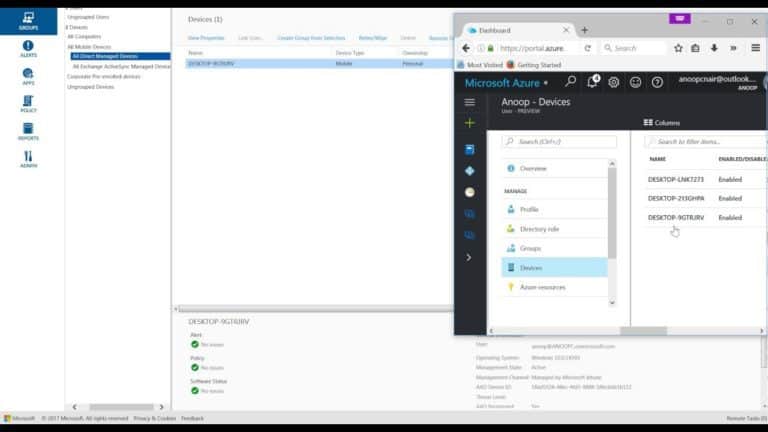
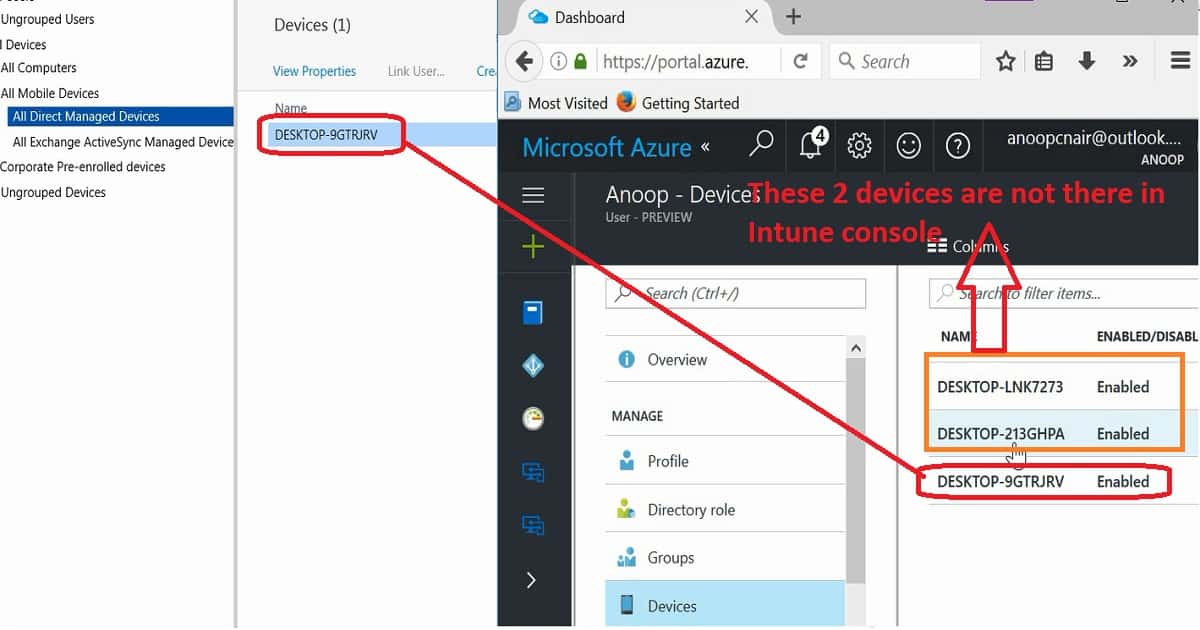
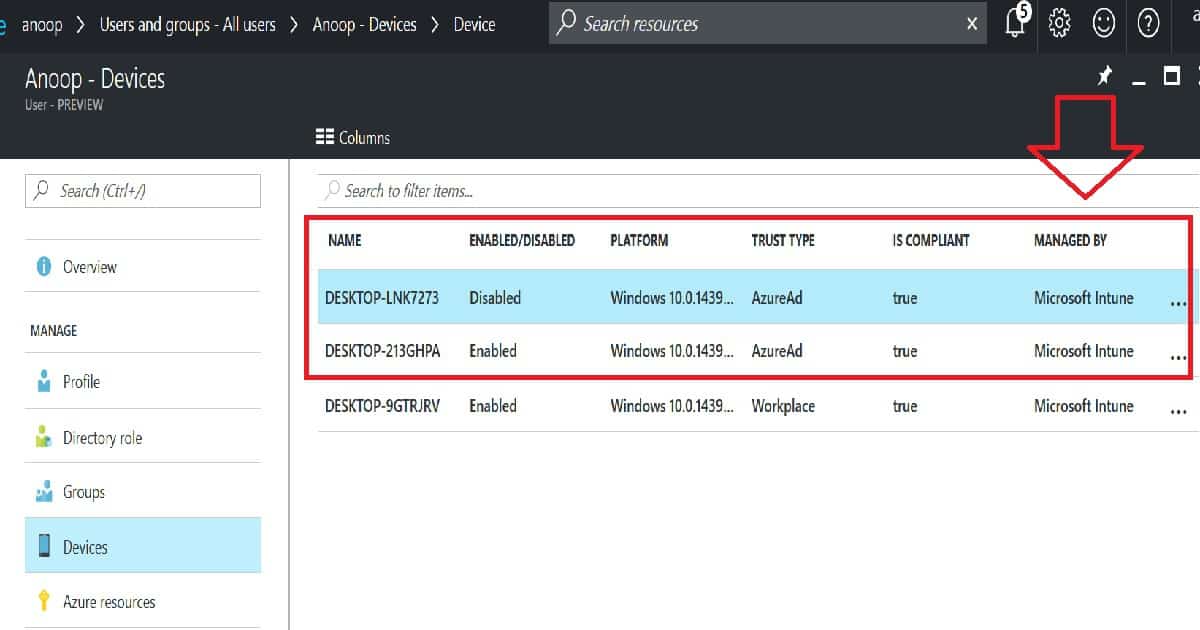
In the above example, Intune console shows me only one device assigned to my user account. Whereas if you look at my Azure AD user ID and check for the devices assigned against my account, you can see there are a total of 3 devices, and all the 3 devices have been shown as managed by Intune.

This is not accurate data that is getting reflected in Azure Active Directory. I’m not saying every time this scenario will happen. I’ve seen some devices automatically get removed from Intune and AAD. How to Delete Clean Tidy Intune Azure Active Directory Environment | Microsoft Endpoint Manager?

I suppose we should have a better accuracy/sync between Intune and Azure AD databases.  I don’t see a scheduled task in Azure AD to purge the deleted records from Microsoft Intune. I’m not sure whether this is coming in the near future or not.

To ensure better results for Intune device management policies, when you delete a device from Intune, you should make sure that the device record is removed from Azure AD. I’m planning to post a video tutorial showing how to delete a device from Azure AD to have a clean and tidy environment.

NameEnabled/DisabledPlatformTrust TypeIs CompliantManaged by
DESKTOP-LNK7273DisabledWindows 10.0.1439AzureAdTrueIntune
DESKTOP-213GHPAEnabledWindows 10.0.1439AzureAdTrueIntune
How to Delete Clean Tidy Intune Azure Active Directory Environment | Microsoft Intune – Table 1
How to Delete Clean Tidy Intune Azure Active Directory Environment | Microsoft Intune - Fig.2
How to Delete Clean Tidy Intune Azure Active Directory Environment | Microsoft Intune – Fig.2

Resources

Windows 10 Intune Enrollment Manual Process AAD Registration (anoopcnair.com)

Validate Azure AD Dynamic Group Rules | Intune

We are on WhatsApp now. To get the latest step-by-step guides, news, and updates, Join our Channel. Click here. HTMD WhatsApp.

Author

Anoop C Nair is Microsoft MVP! He is a Device Management Admin with more than 20 years of experience (calculation done in 2021) in IT. He is a Blogger, Speaker, and Local User Group HTMD Community leader. His main focus is on Device Management technologies like SCCM 2012, Current Branch, and Intune. He writes about ConfigMgr, Windows 11, Windows 10, Azure AD, Microsoft Intune, Windows 365, AVD, etc.

How to Sync On-Prem AD Users with Azure AD Intune ConfigMgr 3

How to Sync On-Prem AD Users with Azure AD Intune ConfigMgr

Let’s discuss how to Sync On-Prem AD Users with Azure AD Intune ConfigMgr. Using Azure AD Connect, you can sync on-prem AD users identities/attributes and passwords to Azure AD. Azure AD connect installation and configuration is very straightforward if we use (express settings 🙂 ).

I have a video tutorial here that helps you understand the AAD connect configuration, How to enable MFA for Azure AD to join Windows 10 devices and Twitter app integration with Azure AD.

In this post, I will cover two other Azure AD (AAD) Sync topics.

  1. Where is the Scheduled Task used to create Azure AD?
  2. How do you create a service connection point in the on-premises Active Directory?
  3. Video Tutorial – How to Sync On-Prem AD User Accounts with Azure AD

Windows 10 MDM devices can write back to on-prem AD. More details are available here. AAD Connect is mandatory for the write-back feature of Windows 10 devices.  

Earlier versions of Azure AD Connect used a Windows task scheduler to schedule the Azure AD sync of on-prem objects and attributes. The latest version of Azure AD Connect has an inbuilt sync engine. Hence, we won’t find a scheduled task for AAD Connect.

Index
How to Sync On-Prem AD Users with Azure AD Intune ConfigMgr
How to Sync On-Prem AD Users Accounts With Azure AD
How to Sync On-Prem AD Users with Azure AD Intune ConfigMgr – Table.1

How to Sync On-Prem AD Users with Azure AD Intune ConfigMgr

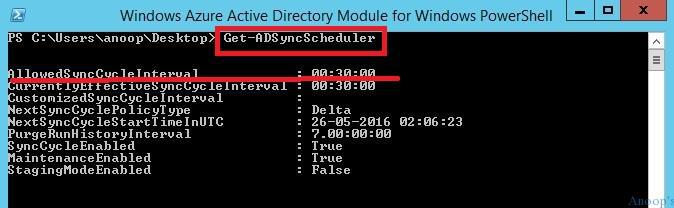
The new default synchronization frequency is 30 minutes. We can change the AD Sync Schedule using the PowerShell command “Get-ADSyncScheduler” and other parameters documented here.

How to Sync On-Prem AD Users with Azure AD Intune ConfigMgr

PS C:\Users\anoop\Desktop> Get-ADSyncSchedulerAllowedSyncCycleInterval            : 00:30:00
CurrentlyEffectiveSyncCycleInterval
: 00:30:00
CustomizedSyncCycleInterval         :
NextSyncCyclePolicyType             : Delta
NextSyncCycleStartTimeInUTC         : 26-05-2016 02:06:23
PurgeRunHistoryInterval             : 7.00:00:00
SyncCycleEnabled                    : True
MaintenanceEnabled                  : True
StagingModeEnabled    
              : False

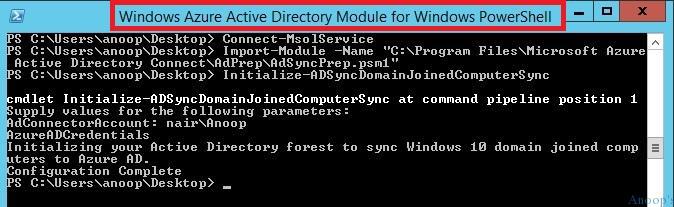
I had trouble creating a service connection point in the on-premises Active Directory. This service connection point is used to “Connect domain-joined devices to Azure AD for Windows 10 experiences.” I followed the documentation to configure the service connection points in on-premises AD but was getting stuck with PowerShell Commands. I ran the PowerShell commands per the above documentation but with no luck.

After that, I installed the appropriate version of the Windows Azure Active Directory Module for Windows PowerShell. Then I tried to run the following PowerShell commands, which worked like a champ!

How to Sync On-Prem AD Users with Azure AD Intune ConfigMgr
PS C:\Users\anoop\Desktop> Connect-MsolService

PS C:\Users\anoop\Desktop> Import-Module -Name "C:\Program Files\Microsoft Azure Active Directory Connect\AdPrep\AdSyncPrep.psm1"

PS C:\Users\anoop\Desktop> Initialize-ADSyncDomainJoinedComputerSync

cmdlet Initialize-ADSyncDomainJoinedComputerSync at command pipeline position 1
Supply values for the following parameters:
AdConnectorAccount: nair\Anoop
AzureADCredentials
Initializing your Active Directory forest to sync Windows 10 domain joined computers to Azure AD.
Configuration Complete

How to Sync On-Prem AD Users Accounts With Azure AD

This video helps you to understand the AAD connect configuration, how to enable MFA for Azure AD to join Windows 10 devices, and how to integrate the Twitter app with Azure AD. In this post, I will cover two other Azure AD (AAD) Sync topics.

I’ve already downloaded and installed the AAD connect tool, and I can show you how to configure it and start syncing it. How to enable MFA for AAD Join Machines How to integrate Twitter with Azure AD to get SSO.

We are on WhatsApp now. To get the latest step-by-step guides, news, and updates, Join our Channel. Click here. HTMD WhatsApp.

Author

Anoop C Nair is Microsoft MVP! He is a Device Management Admin with more than 20 years of experience (calculation done in 2021) in IT. He is a Blogger, Speaker, and Local User Group HTMD Community leader. His main focus is on Device Management technologies like SCCM 2012, Current Branch, and Intune. He writes about ConfigMgr, Windows 11, Windows 10, Azure AD, Microsoft Intune, Windows 365, AVD, etc.