

Key Takeaways
- Improves browsing privacy by communicating the user’s preference not to have browsing activity tracked.
- Enables organizations to enforce the setting instead of relying on users to configure it manually.
- Do Not Track requests do not guarantee that websites or third-party providers will stop tracking browsing activity.
Let’s learn Configure Do Not Track Requests in Microsoft Edge to Improve Browsing Privacy Using Intune. Microsoft Edge allows organizations to configure Do Not Track requests to express a user’s preference not to have their browsing activity tracked by websites and third-party content providers. Microsoft Edge will send Do Not Track requests to websites when the Send Do Not Track requests setting is turned on. Websites may still track your activities even when a Do Not Track request is sent.
Table of Contents
Table of Contents
Configure Do Not Track Requests in Microsoft Edge to Improve Browsing Privacy using Intune
Tracking refers to how websites, third-party content providers, advertisers, and others learn about how you interact with sites. Do Not Track is a privacy preference available in most web browsers, sending a Do Not Track request to sites doesn’t guarantee privacy protection. This might include tracking what pages your visit, links you click, and products you buy or review. This helps these sites offer personalized content like ads or recommendations, but it also means that your browsing activity is collected and often shared with other companies.
When Do Not Track is turned on, Microsoft Edge will send a Do Not Track request to both the sites you visit and to the third parties whose content is hosted on those sites. The Do Not Track request lets these sites, and content providers know that you prefer not to have your browsing activity tracked.
- Block Cookies in Microsoft Edge Using Intune
- Prevent InPrivate Web Browsing in Microsoft Edge Using Intune
- Intune Policy Device Assignment Status Report
- Intune Policy Per Setting Status Report
Create Profile for Send Do Not Track Requests for Edge Using Intune
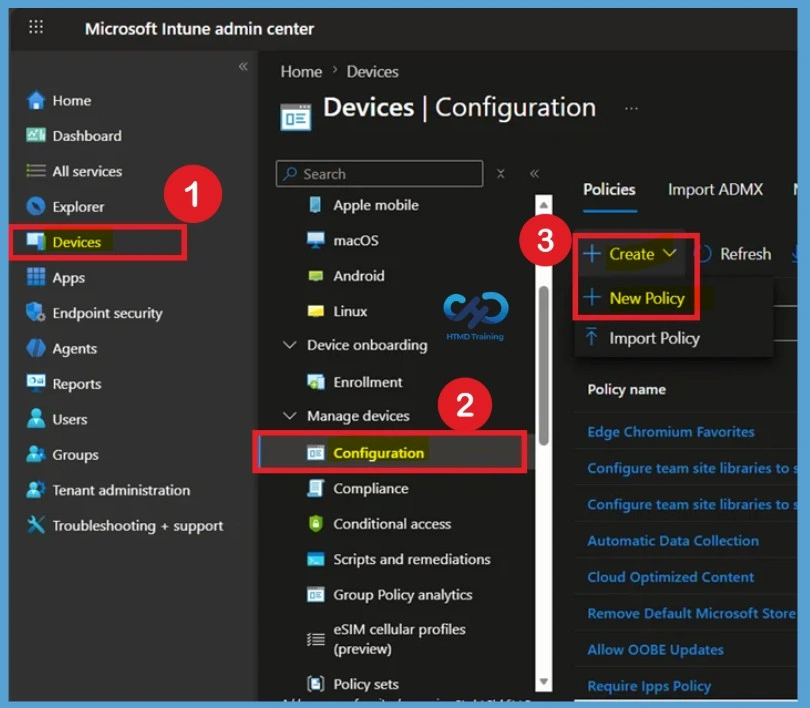
To begin configuring the Send Do Not Track Requests for Edge Using Intune policy, sign in to the Microsoft Intune admin center and navigate to Devices > Windows > Configuration profiles. Select Create > New policy to start creating a new configuration profile for Microsoft Edge.

- Sign in to the Microsoft Intune Admin Centre
- Select Devices > Windows > Configuration profiles > Create profile.
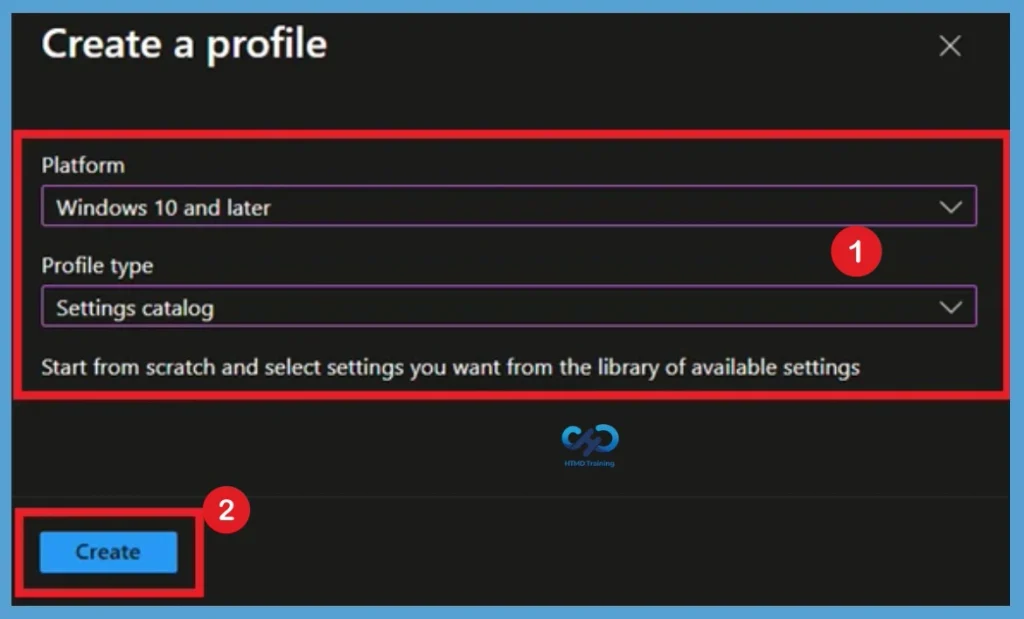
In Create Profile, Select Platform, Windows 10, and later and Profile, Select Profile Type as Settings catalog. Click on Create button.
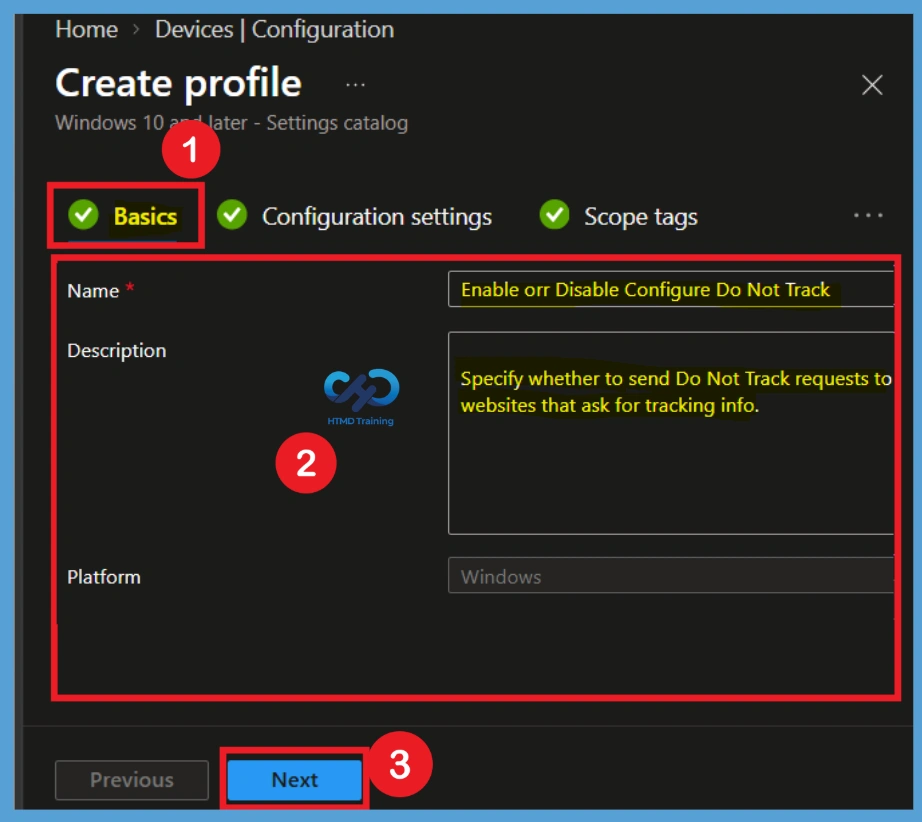
Basics for Send Do Not Track Requests
In the Basics step, enter a descriptive name for the policy, such as Enable or Disable Configure Do Not Track Using Intune. The policy name helps administrators easily identify the purpose of the configuration profile in the Intune admin center. You can also add a description explaining that the Enable or Disable Configure Do Not Track Using Intune policy controls whether Microsoft Edge sends Do Not Track requests to websites that ask for tracking information. After entering the required details, select Next to continue to the configuration settings step
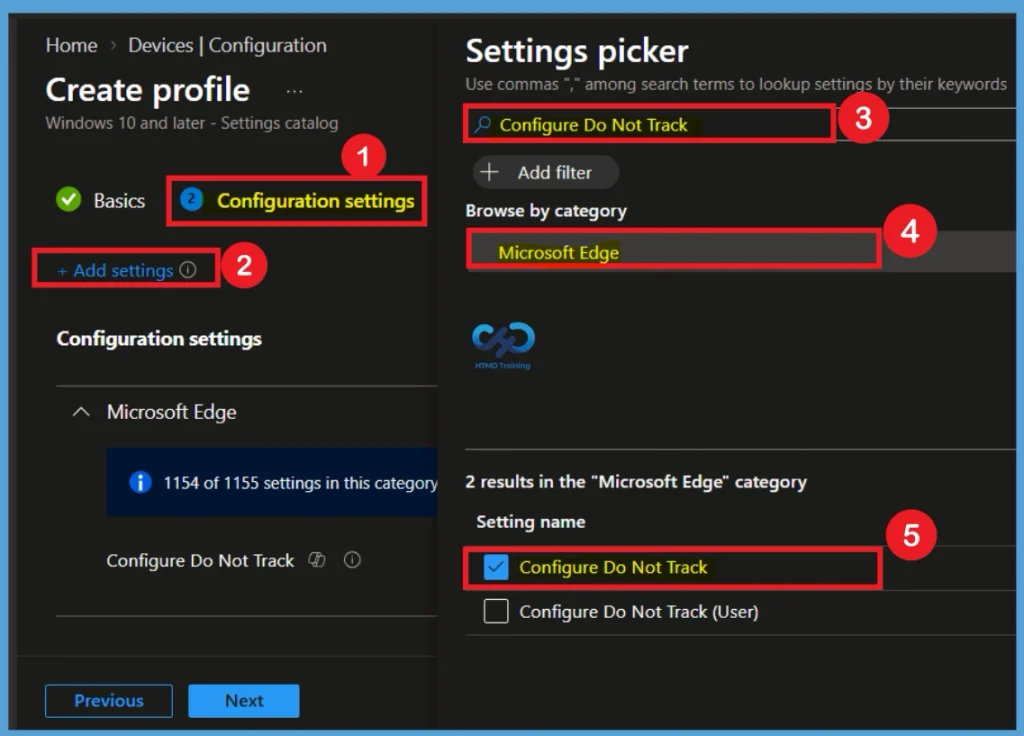
Configuration Settings for Send Do Not Track Requests for Edge
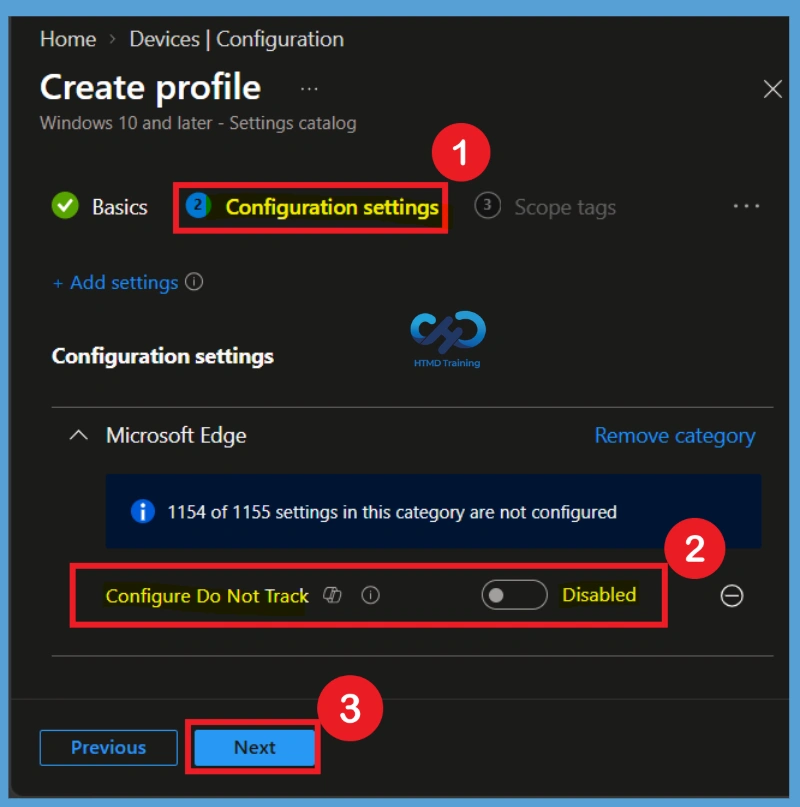
In the Configuration settings section, select Add settings to open the Settings Picker. Search for Microsoft Edge or use the search box to find the Configure Do Not Track setting. Add the Configure Do Not Track setting to the Send Do Not Track Requests for Edge using Intune policy. This setting controls whether Microsoft Edge sends Do Not Track requests to websites and third-party content providers.
Specify whether to send Do Not Track requests to websites that ask for tracking info. Do Not Track requests let the websites you visit know that you don’t want your browsing activity to be tracked.
Note – In policy, use the search box to find specific settings. You can search by category or a keyword, such as Do Not Track. It will display the related settings available.
Disabled by Default
By default, the Configure Do Not Track setting is disabled, which means Microsoft Edge does not automatically send Do Not Track requests to websites. Users may be able to configure the preference themselves when the setting is not enforced through policy.
Enable the Policy for Send Do Not Track Requests
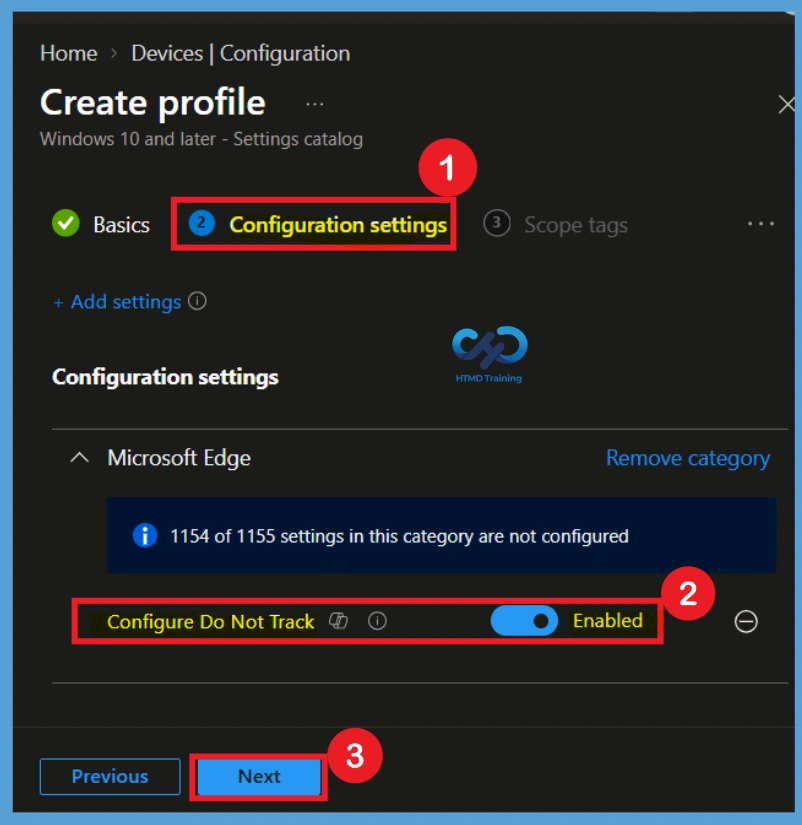
Set Configure Do Not Track to Enabled in the Send Do Not Track Requests for Edge Using Intune policy. When enabled, Microsoft Edge sends Do Not Track requests to websites that request tracking information. The request communicates the user’s preference not to have browsing activity tracked. However, enabling the Send Do Not Track Requests for Edge does not guarantee that websites or third-party providers will stop tracking activity.
- Here, I toggle the bar left to right for Enable the Policy.
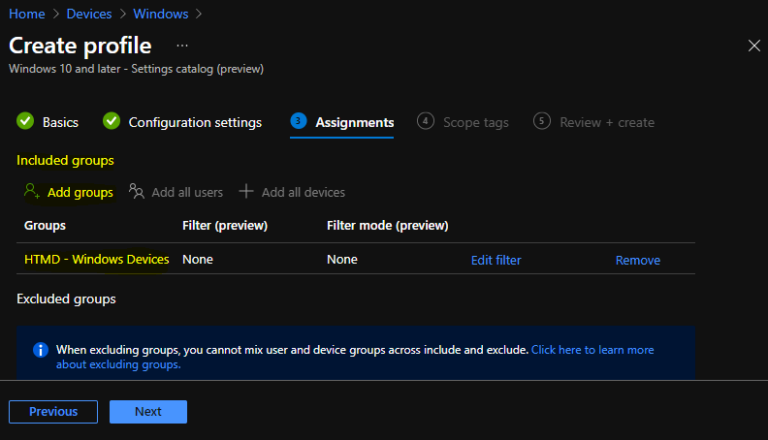
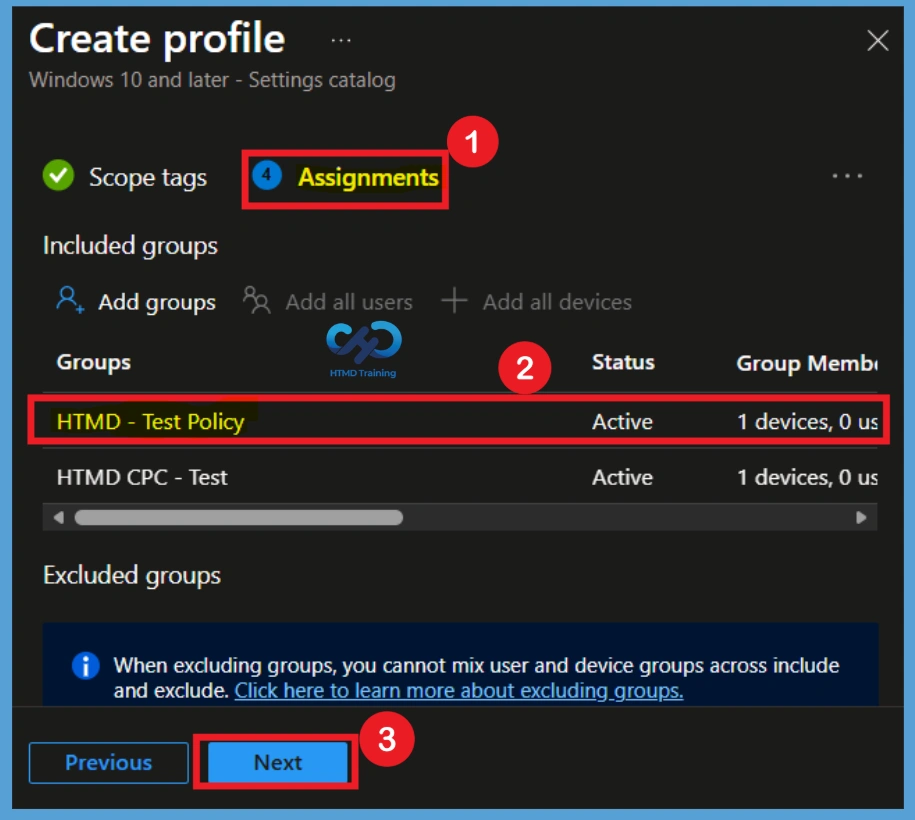
Under Assignments, In Included groups, click Add groups and then choose Select groups to include one or more groups. Click Next to continue.
Scope Tags
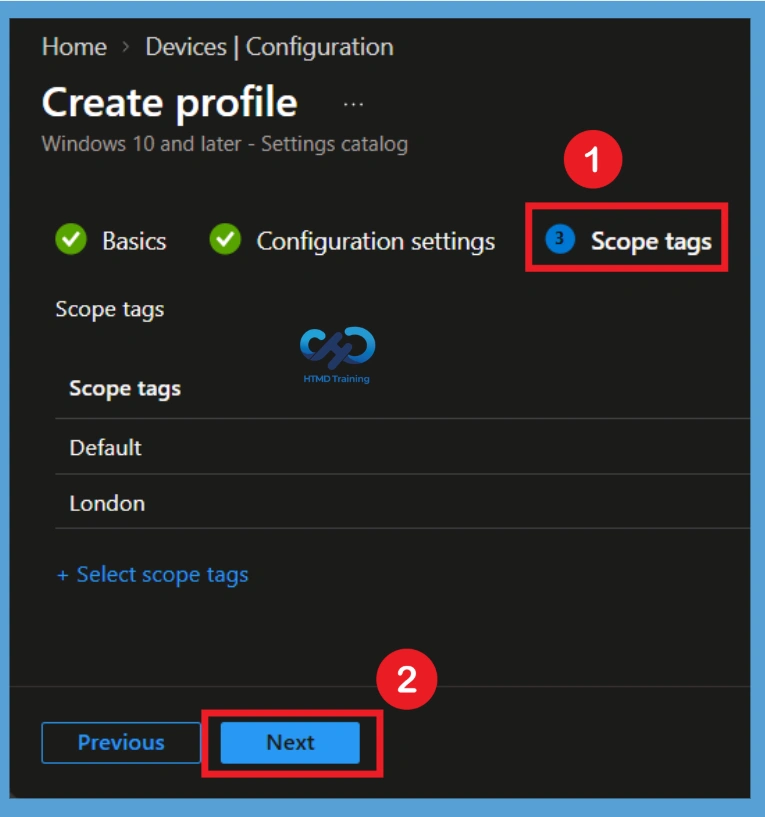
On the Scope tags page, you can add scope tags to the Send Do Not Track Requests for Edge Using Intune policy if your organization uses role-based access control and administrative scopes. In Scope tags, you can assign a tag to filter the profile to specific IT groups. Add scope tags (if required) and click Next.
Assignments
In the Assignments section, select the users or devices that should receive the Send Do Not Track Requests for Edge Using Intune policy. The assignments section is used to choose the users or devices that will receive the policy. Add a group by clicking on the Add group button. Here, I selected the HTMD-Test Policy group and HTMD CPC Test group. Review the assignment settings to ensure the correct targets are included and click Next to proceed with the policy deployment
Review + Create
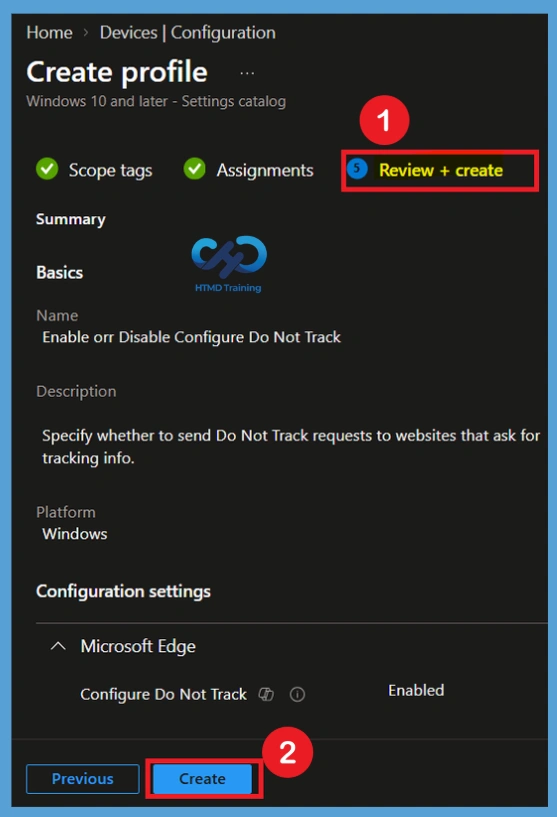
In Review + create, review your settings. When you select Create, your changes are saved, and the profile is assigned. A notification will appear automatically in the top right-hand corner with a message. You can see that Policy “Send Do Not Track Requests for Edge Using Intune” created successfully. The policy is also shown in the Configuration profiles list. Your groups will receive your profile settings when the devices check in with the Intune service the policy applies to the device.
Intune Reporting through Monitoring Status
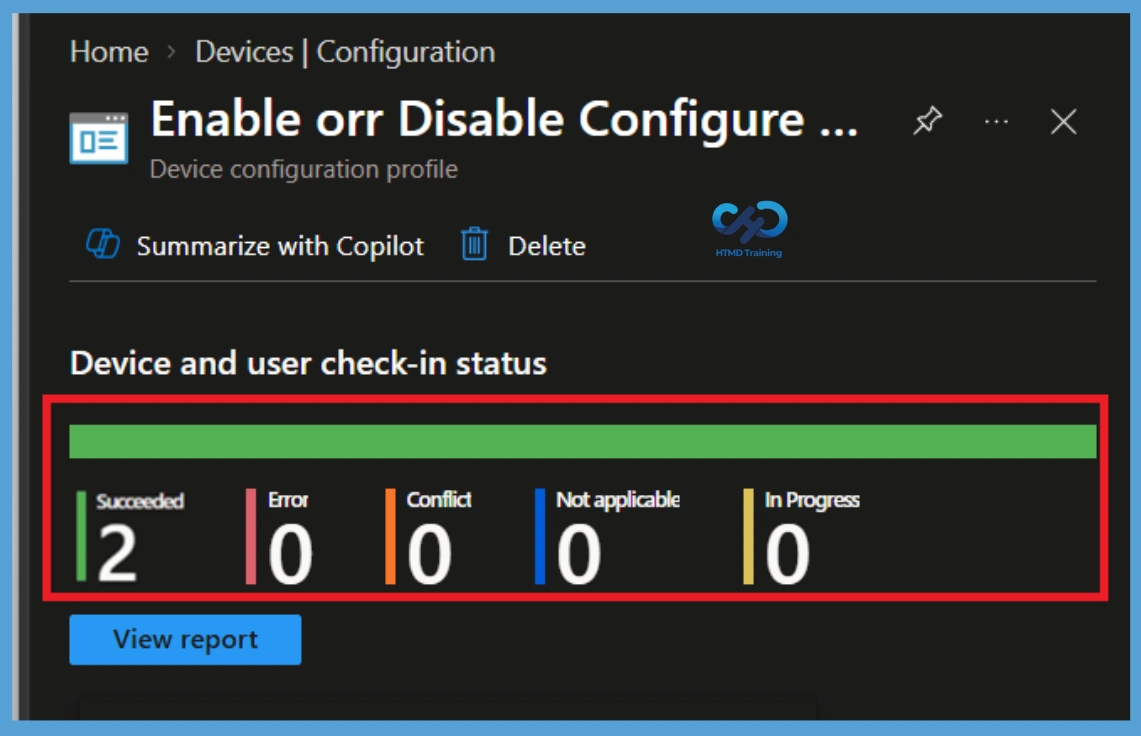
You can check Intune settings catalog profile report from Intune Portal, which provides an overall view of device configuration policies and deployment status. To monitor the policy assignment, from the list of Configuration Profiles, select the policy, and here you can check the device and user check-in status. If you click View Report, additional details are displayed.
Intune MDM Event Log
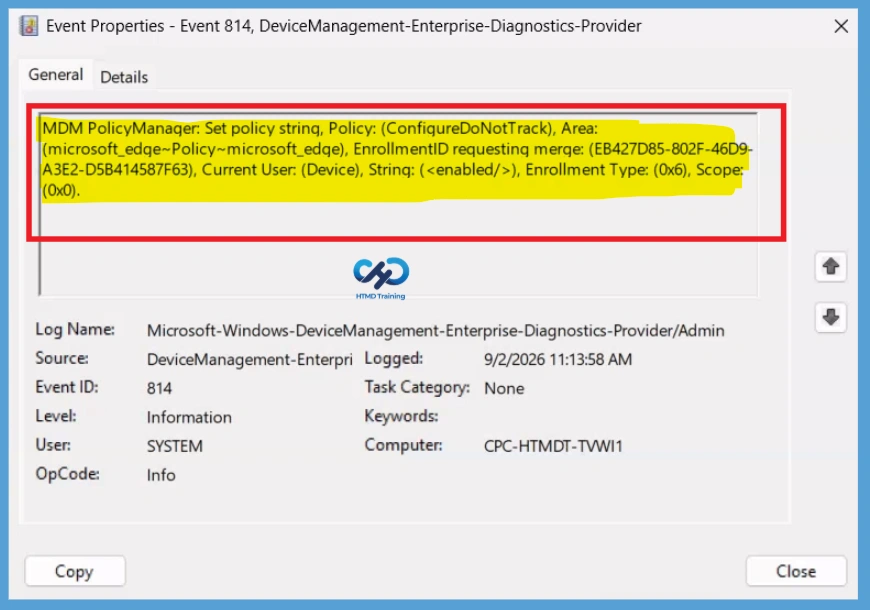
To enable client-side verification, open Event Viewer and navigate to Applications and Services Logs > Microsoft > Windows > Device Management > Enterprise Diagnostic Provider > Admin. Once there, you can search for specific policy results by using the Filter Current Log feature located in the right pane.
MDM PolicyManager: Set policy string, Policy: (ConfigureDoNotTrack), Area: (microsoft_edge~Policy~microsoft_edge), EnrollmentID requesting merge: (6C05885D-4A9C-4EF9-A8A7-1EE0190B36A9), Current User: (Device), String: (), Enrollment Type: (0x6), Scope: (0x0).
End User Experience – Send Do Not Track Requests in Microsoft Edge
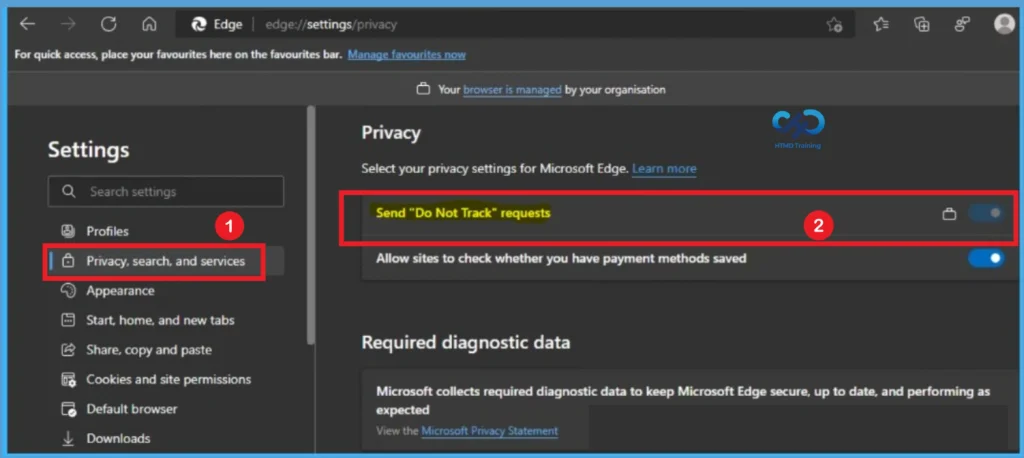
After the Send Do Not Track Requests for Edge Using Intune policy is successfully applied, users can open Microsoft Edge and navigate to Settings > Privacy, search, and services. The Send “Do Not Track” requests option will be visible under the Privacy settings. As shown in the image, the setting is turned on and displays a management indicator, confirming that the Send Do Not Track Requests for Edge policy is being controlled by the organization. This verifies that the Intune policy has been successfully applied to the Microsoft Edge browser.
Remove Assigned Groups from Send Do Not Track Requests
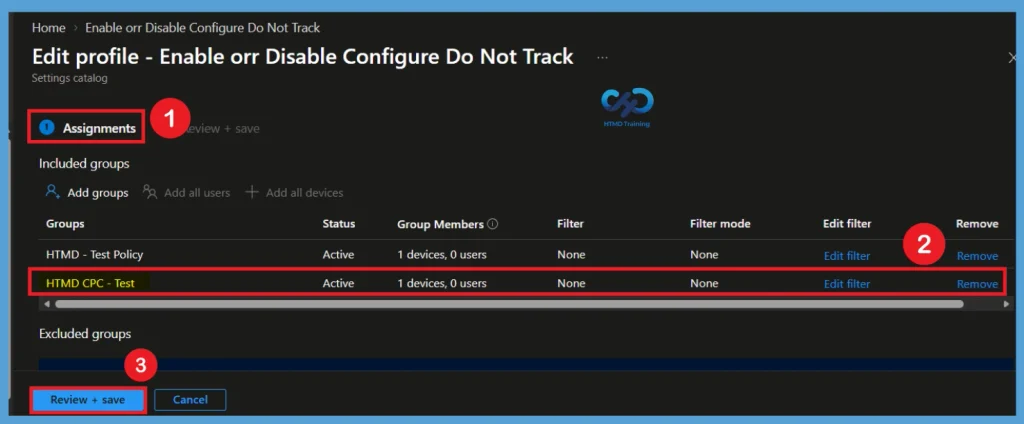
If a group no longer requires the policy, edit the Send Do Not Track Requests for Edge Using Intune profile and navigate to the Assignments section. Remove the group that should no longer receive the policy. After saving the changes, devices and users in the removed group will no longer be targeted by the Send Do Not Track Requests for Edge Using Intune policy through that assignment.
Delete Send Do Not Track Requests Policy Permanently
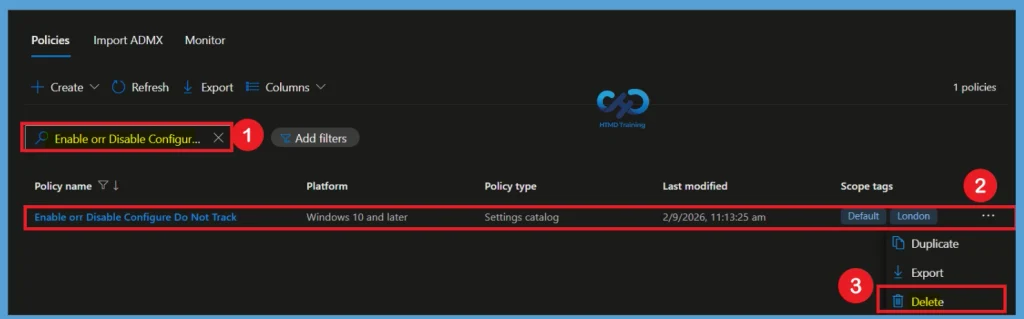
When the policy is no longer required, you can permanently delete the Send Do Not Track Requests for Edge Using Intune profile from the Intune admin center. Select the policy from the configuration profiles list and choose the Delete option. Before permanently deleting the Send Do Not Track Requests for Edge Using Intune policy, ensure that it is no longer required by any users or devices. Once deleted, the policy configuration is removed from Intune and can no longer be managed or deployed.
Need Further Assistance or Have Technical Questions?
Join the LinkedIn Page and Telegram group to get the latest step-by-step guides and news updates. Join our Meetup Page to participate in User group meetings. Also, join the WhatsApp Community and the WhatsApp channel to get the latest news on Microsoft Technologies. We are there on Reddit as well
Author
About Author – Jitesh, Microsoft MVP, has over six years of working experience in the IT Industry. He writes and shares his experiences related to Microsoft device management technologies and IT Infrastructure management. His primary focus is Windows 10/11 Deployment solution with Configuration Manager, Microsoft Deployment Toolkit (MDT), and Microsoft Intune.