

Key Takeaways
- Export Intune application lists to CSV to maintain and review the application inventory more easily.
- Customize application columns to include important details such as Version, Platform, Publisher, and Assignment.
- Apply filters based on Assigned status, Platform, and App type to export only the applications you need.
- Review app versions directly from the exported list to make application tracking easier.
In this post, you will learn how to Export Intune Application Lists with Filters and Details for Better App Tracking. Microsoft Intune provides several ways to manage and deploy applications across an organization. As the number of applications grows, IT administrators may need a simple way to review the applications available in the Intune environment, including their platforms, app types, publishers, and versions. You can manually export all the apps from an Intune portal to a CSV file if you are looking for a simple way to export your Intune applications.
Table of Contents
Table of Contents
Export Intune Application Lists with Filters and Details for Better App Tracking
The users of apps and devices at your company might have several app requirements. Before adding apps to Intune and making them available to your workforce, you may find it helpful to assess and understand a few app fundamentals. There are various types of apps that are available for Intune. By exporting lists of applications, you can determine app requirements needed by the users at your company, such as the platforms and capabilities that your workforce needs.
The App Install Status report also provides a list of apps with versions and installation details, App installation details include Version, Publisher, and Platform. Let’s check the Intune App Installation Status Report. You have better options with Intune for exporting and importing Intune policies and configurations from Graph API. You can also try to analyze Backup Your Intune Settings Using Script.
- Intune Win32 app Troubleshooting
- Deploy Progressive Web App PWAs Using Intune
- Migrate Group Policies GPOs to Intune Settings Catalog policy
Export Intune Applications
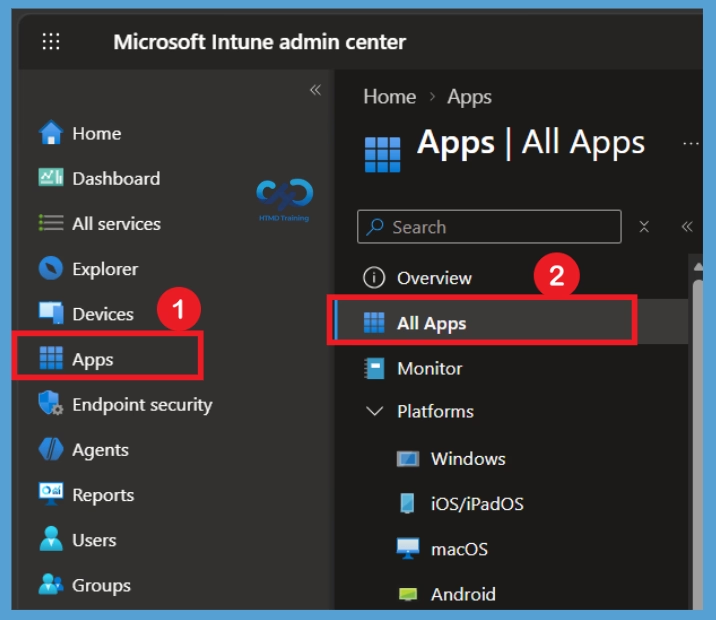
Here’s how you can export application lists from Intune portal. Sign in to the Microsoft Intune admin center using an account with the required permissions to view applications. After signing in, the Intune admin center provides access to different management areas, including applications, devices, policies, and reports.

- Navigate to Apps > All apps.
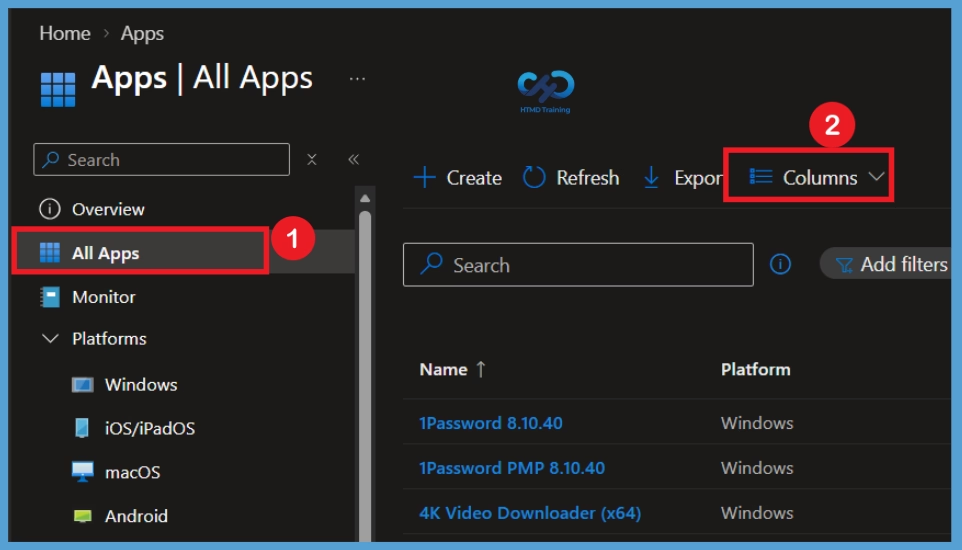
Select the required columns
On the All apps page, select Columns to customize the information displayed in the application list. A flyout menu appears with different column options that can be selected or cleared based on the information required for the report. For example, you can include details such as the application name, publisher, platform, app type, assignment status, and version. After selecting the required columns, select Apply to update the application list.
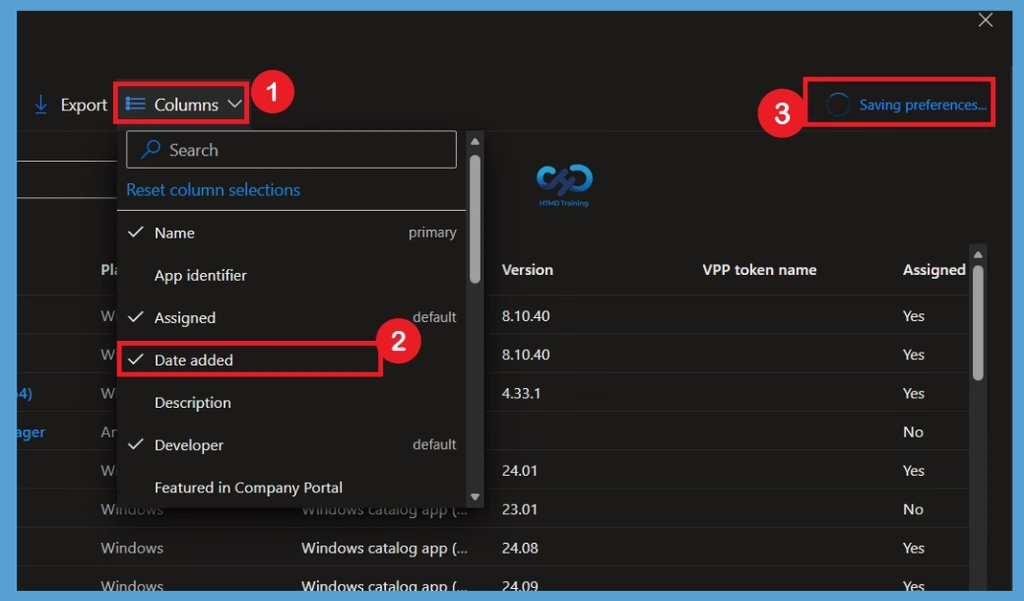
Select the Date Added Column
Here in this example, From the available column options, select Date added. This allows administrators to include the date and time information for each application directly in the main application list. After selecting Date added, Intune automatically saves the updated column preference, as indicated by the Saving preferences message shown in the upper-right corner. Administrators can also use the search option within the Columns menu to quickly locate the required column when the list contains many available fields.
- With a flyout display, you can Check or Uncheck the columns you want to include. Select Apply to update.
| Column Options |
|---|
| Name |
| App identifier |
| Assigned |
| Date added |
| Description |
| Developer |
| Featured in Company Portal |
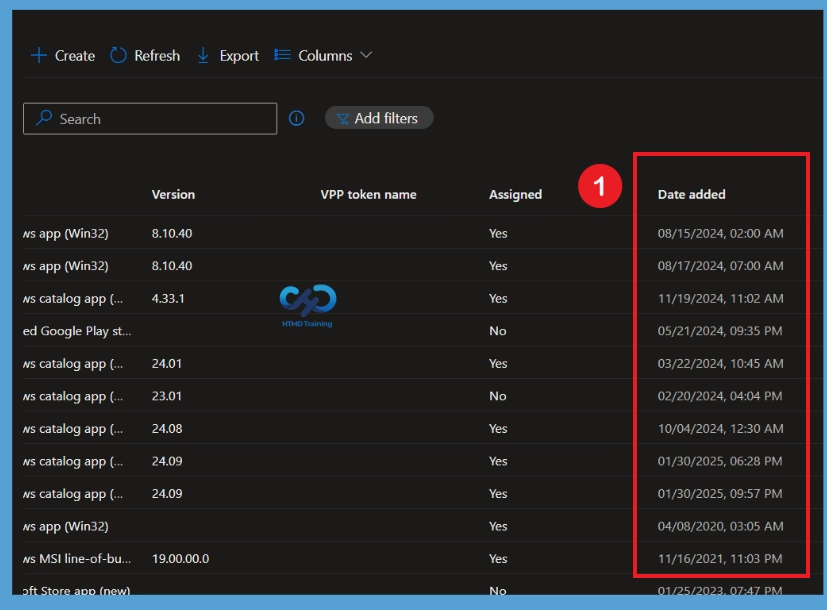
View When Applications Were Added
The Date added column displayed in the application list after the column preference has been saved. Each application now includes the specific date and time when it was added to Intune, making the information visible without opening each application individually. This view can help administrators review application history more easily and identify when different applications were introduced into the environment. The column can be viewed alongside details such as Version, and Assigned, providing a clearer overview of the applications being managed.
Configure the Application Filter
Next, select Filter to narrow down the applications displayed in the list. Intune provides filtering options that can help you find specific types of applications without having to export the entire list. You can filter the applications based on options such as Assigned, Platform, and App type. Select the required values from the filter flyout and then select Apply to display only the applications that match your selected criteria.
- Here selected the Platform option and select All Platform.
- After Selection Click on the Apply
Note – Intune supports a wide range of app types. The available options differ for each app type.
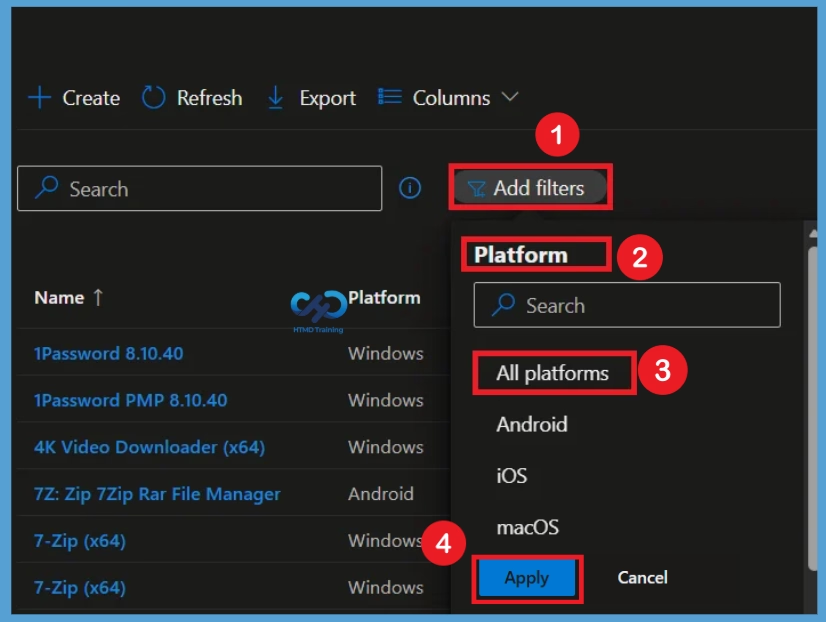
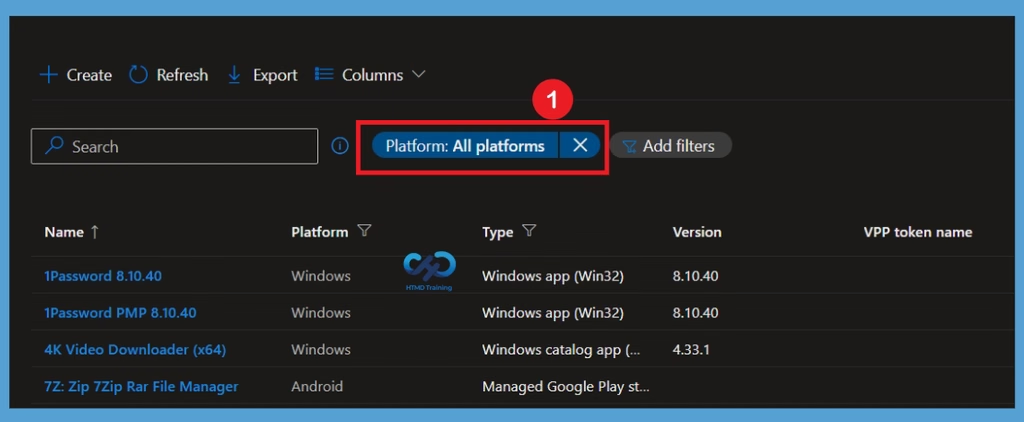
After clicking the Platform filter, select the required platform from the available options. Once the platform is selected, Intune updates the list to show only the applications that match the chosen platform, making it easier to review and export relevant applications.
Export Intune Applications
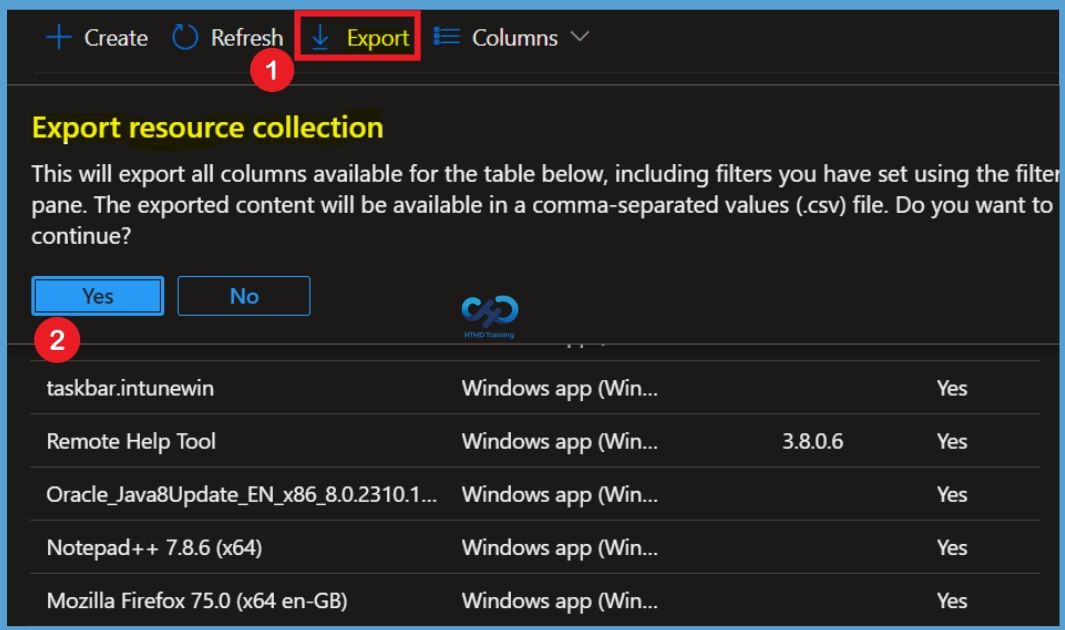
Select Export and on the export all apps, click Yes to export lists of apps, including filters you have set using the filter pane. A notification will appear automatically in the top right-hand corner with the message Export is in progress. You can also see the status by selecting the notification icon. All exported data will be automatically downloaded in a .csv file to your browsers, and a notification message will appear Export completed.
Need Further Assistance or Have Technical Questions?
Join the LinkedIn Page and Telegram group to get the latest step-by-step guides and news updates. Join our Meetup Page to participate in User group meetings. Also, join the WhatsApp Community and the WhatsApp channel to get the latest news on Microsoft Technologies. We are there on Reddit as well
Author
About Author – Jitesh, Microsoft MVP, has over six years of working experience in the IT Industry. He writes and shares his experiences related to Microsoft device management technologies and IT Infrastructure management. His primary focus is Windows 10/11 Deployment solution with Configuration Manager, Microsoft Deployment Toolkit (MDT), and Microsoft Intune.