
Key Takeaways
- The Scan all downloaded files and attachments policy helps protect Windows devices by scanning downloaded files and attachments for potential security threats.
- Enabling this policy strengthens Microsoft Defender Antivirus protection against malware and malicious downloads.
- Reduces the risk of malware infections caused by opening or accessing unsafe downloaded content.
- Strengthens Microsoft Defender Antivirus protection by ensuring downloaded files and attachments are scanned.
In this post, we will see and learn about the Scan all downloaded files and attachments Policy. We will enable the Scan all downloaded files and attachments Policy using Intune. We will make use of Configuration Profiles from Intune to Enable this policy. In order to ensure maximum protection with an antivirus solution like Microsoft Defender Antivirus, it is important to configure it heuristically to monitor suspicious and known malicious activity in real time. It is required to ensure the protection of your device and the data on it.
Table of Contents
Table of Contents
Enable Scan All Downloaded Files and Attachments to Improve Device Security using Intune
The policy setting allows you to configure scanning for all documents and attachments you download. Scanning will be enabled for all downloaded files and attachments, irrespective of whether you enable or disable this setting. The scanning of downloaded files and attachments will be disabled if this setting is disabled. This policy setting i.e. Scan all downloaded files and attachments Policy configures scanning for all downloaded files and attachments. Whatever files or attachments you download with the help of this policy, everything will be scanned because of this policy. Also, the recommended state for this setting is set to Enabled as per the CIS Document.
- Do not Delete Temp Folders upon Exit Security Policy using Intune
- Limit Local Account Blank Password Use to Console Logon Using Intune Policy
- Enforce Users To Enroll Devices With Intune Conditional Access Policies
Scan all downloaded files and attachments Policy Using Intune
Follow the steps stated below to Enable the Scan of all downloaded files and attachments Policy Using Intune:Sign in to the Intune Admin Center portal. Select Devices > Windows > Configuration profiles > Create a profile.
| Platform | Profile Type |
|---|---|
| Windows 10 and later | Settings Catalog |
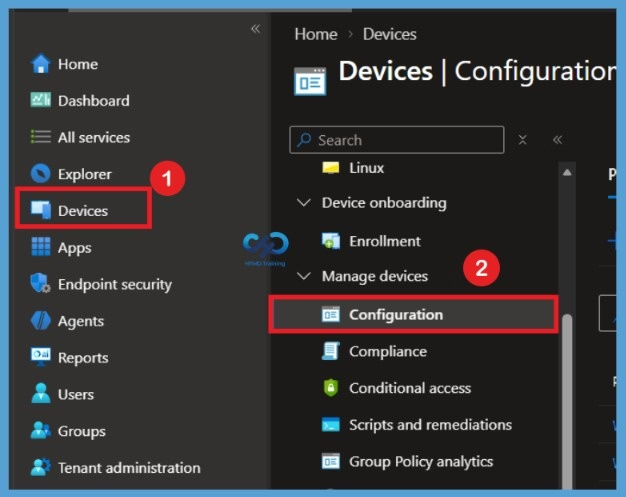
Creating a New Configuration Profile
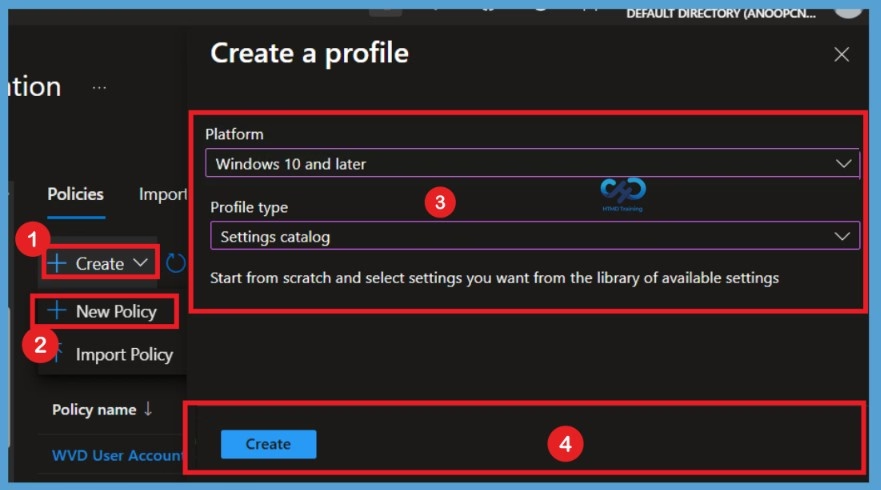
Once you click on Configuration settings, you will see the + Create option. Click on it and select + New policy. This will open the Create a profile window. Here, select Windows 10 and later as the platform and Settings catalog as the profile type. Once you have selected both options, click on Create to continue with the policy configuration.

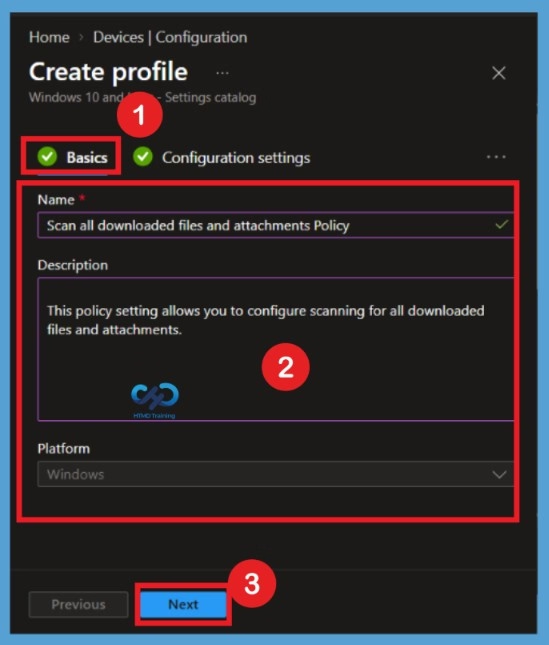
Basics
In the Basics tab, provide a meaningful name for the configuration profile, such as Scan all downloaded files and attachments Policy. Using a descriptive name helps administrators easily identify the purpose of the policy when managing multiple configuration profiles in Intune. You can also provide a description explaining that this profile enables Microsoft Defender Antivirus to scan downloaded files and attachments on managed Windows devices. Adding a clear description is optional but useful for future reference and policy management. Once you have entered the required information, select Next to continue.
Configuration Settings
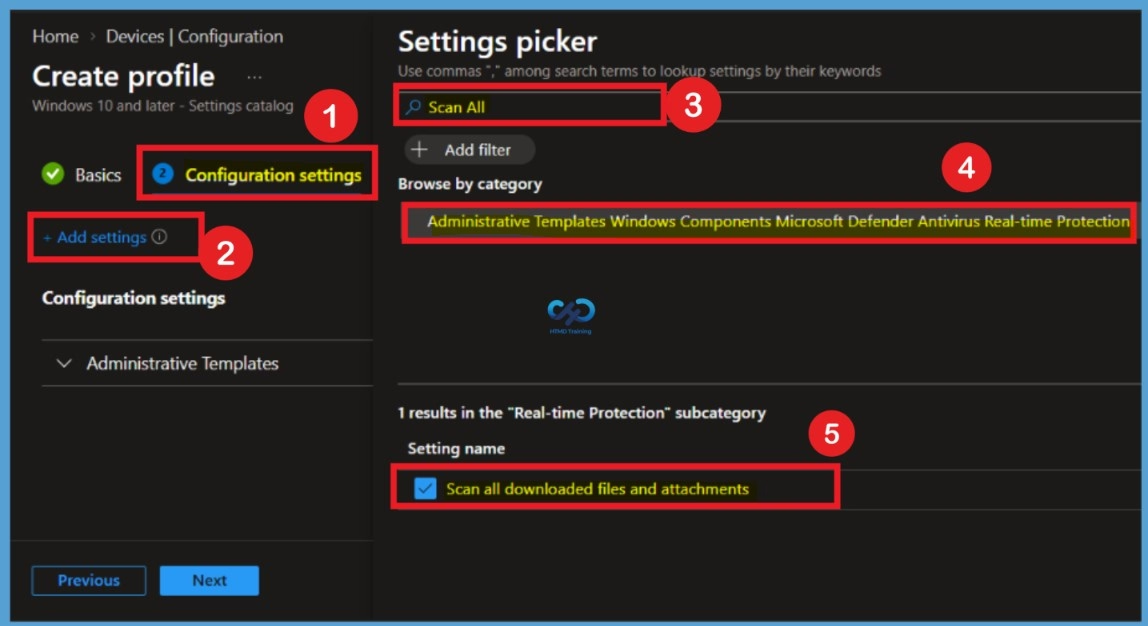
Now in Configuration settings, click Add settings to browse or search the catalog for the settings you want to configure. On the Settings Picker windows, if you search by the keyword Scan All, you will see Administrative Templates\ Windows Components\ Microsoft Defender Antivirus\ Real-time Protection, as shown below in the image, select this. On selecting the option as shown below in the image, you will see one setting name, which is Scan all downloaded files and attachments. After adding your setting, click the cross mark at the right-hand corner, as shown below.
Default Policy State
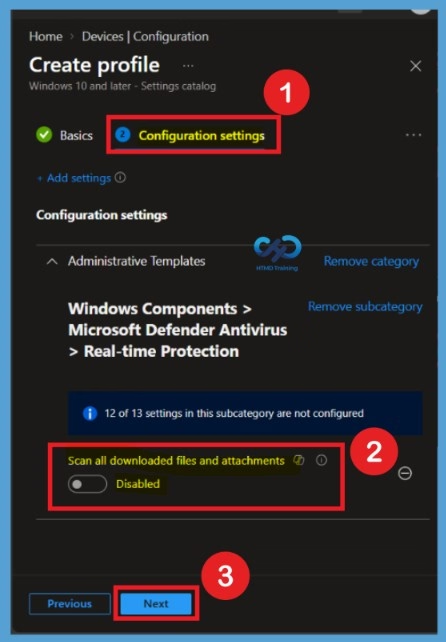
After adding the setting, you will find the Scan all downloaded files and attachments option under the Administrative Templates configuration settings. By default, this policy is set to Disabled. This means the policy is not explicitly configured to enforce scanning of all downloaded files and attachments through this setting.
Administrators should review the default state before deploying the configuration. To enforce the intended security configuration across managed Windows devices, change the policy state to Enabled. This helps ensure that Microsoft Defender Antivirus applies the configured scanning behavior to downloaded files and attachments.
Enable the Scan All Downloaded Files and Attachments Policy
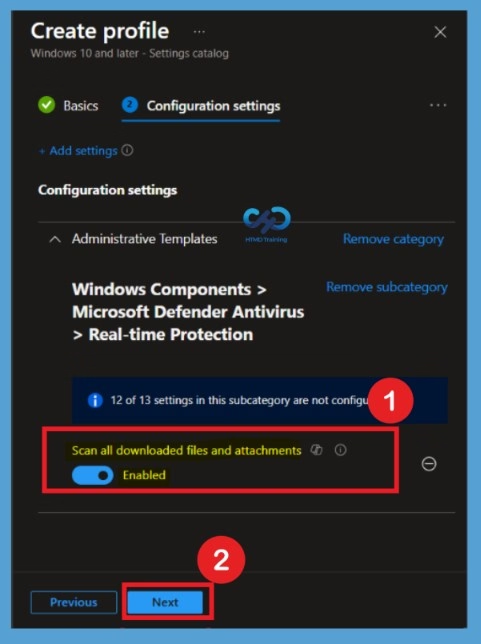
To enable the policy, locate Scan all downloaded files and attachments under Administrative Templates. Select the setting and change its configuration from Disabled to Enabled. Enabling this setting instructs Microsoft Defender Antivirus to scan downloaded files and attachments, helping detect potentially malicious content before it can affect the device. This configuration is particularly useful for organizations that want to strengthen endpoint protection and maintain consistent antivirus security settings. After enabling the policy, review the configuration and select Next to proceed.
Configure Scope Tags
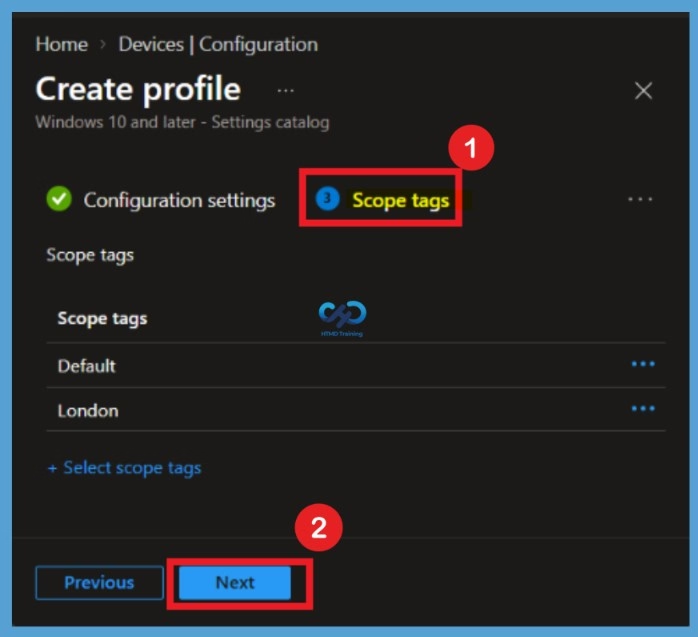
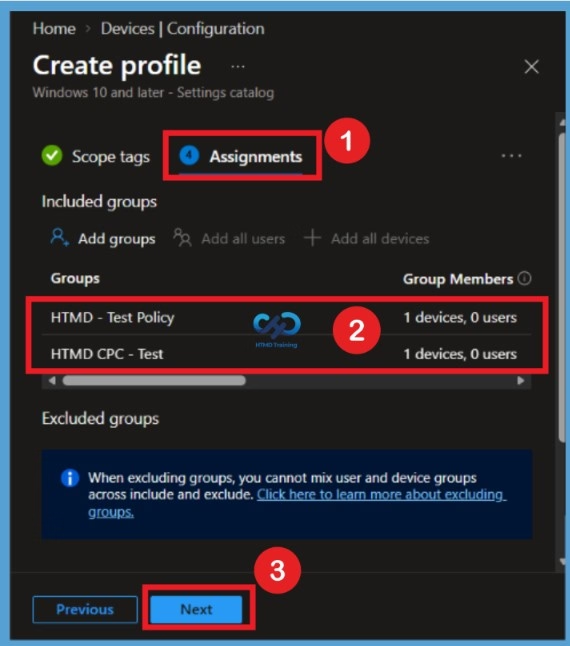
In Scope tags, you can assign a tag to filter the profile to specific IT groups. Add scope tags (if required) and click Next. Under Assignments, In Included groups, click Add groups, and then choose Select groups to include one or more groups. Click Next to continue.
Configure Assignments
Under the Assignments tab, go to Included groups and select Add groups. Choose Select groups to include and add the HTMD Test Policy and HTMD CPC Test groups. These groups will receive the Scan all downloaded files and attachments policy when their assigned Windows devices check in with the Intune service. After selecting both groups, click Next to proceed to Review + create.
Review + Create
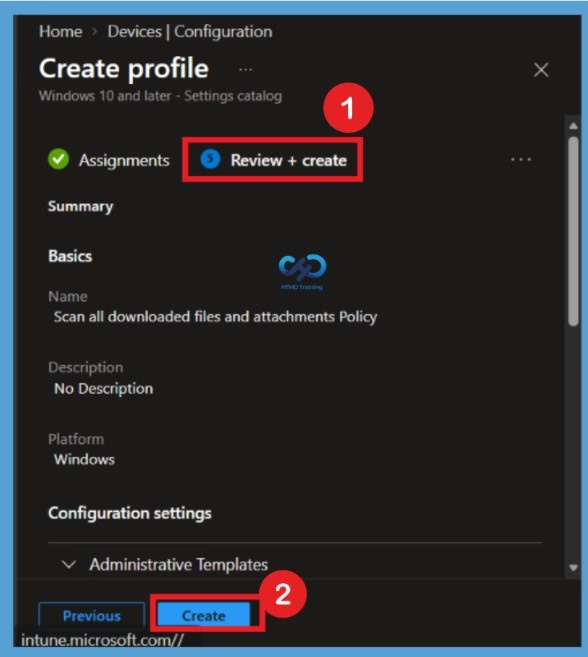
Now in Review + create, review your settings. When you click on Create, your changes are saved, and the profile is assigned. A notification will appear automatically in the top right-hand corner with a message. You can see that the Policy “Scan all downloaded files and attachments Policy” was created successfully. If you check, the Policy is available in the Configuration profiles list. Your groups will receive your profile settings when the devices check in with the Intune service. The Policy applies to the device.
Intune Reporting
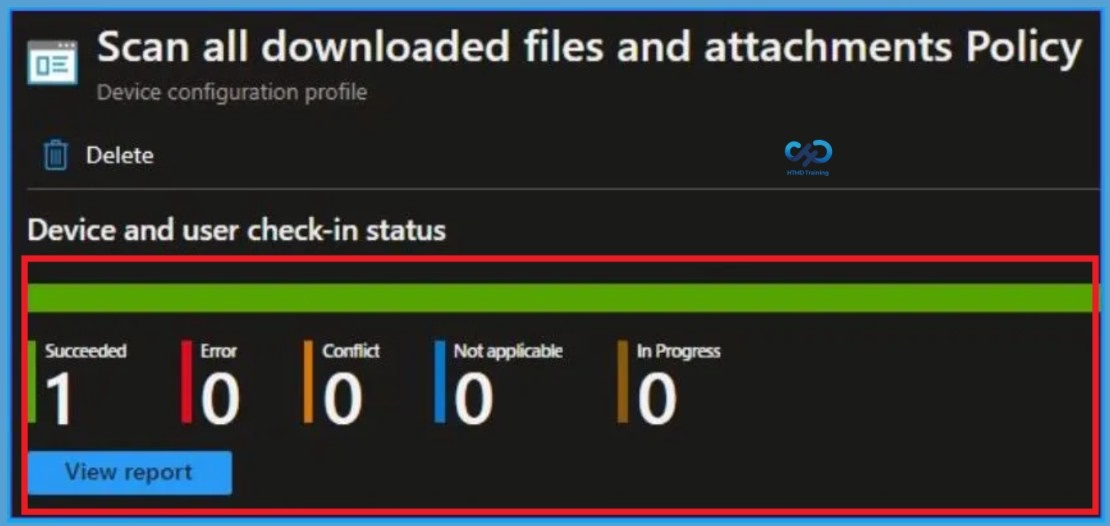
From Intune Portal, you can view the Intune settings catalog profile report, which provides an overview of device configuration policies and deployment status. To monitor the policy assignment, from the list of Configuration Profiles, select the Policy, and here you can check the device and user check-in status. If you click View Report, additional details are displayed.
Intune MDM Event Log
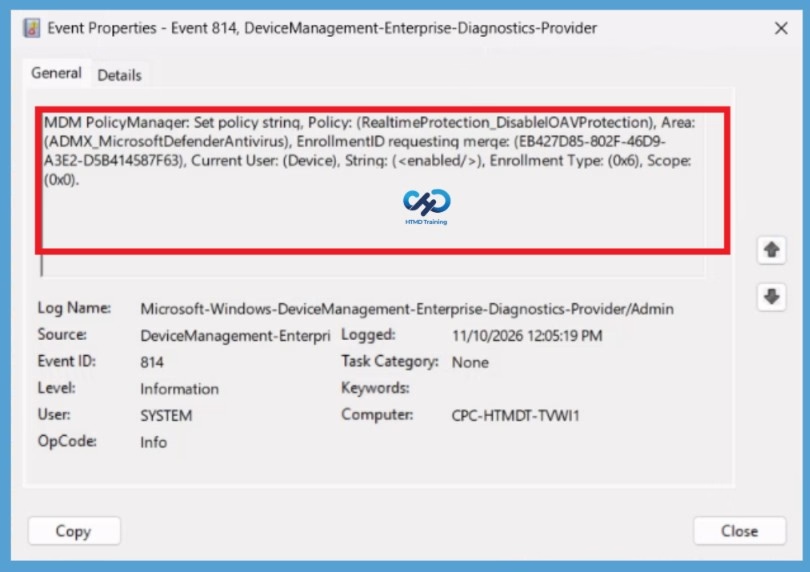
Intune event ID 813 or 814 indicates that a string policy has been applied to Windows 10 or 11 devices. In addition, you can view the exact value of the Policy that is being applied to those devices. You can check the Event log path to confirm this – Applications and Services Logs – Microsoft > Windows > Device management-Enterprise-Diagnostics-Provider > Admin.
| Policy Info |
|---|
| The log states the following – MDM PolicyManager: Set policy string, Policy: (RealtimeProtection_DisableIOAVProtection), Area: (ADMX_MicrosoftDefenderAntivirus), EnrollmentID requesting merge: (4009A089-4FBA-482B-9D17-9E5A8428CB98), Current User: (Device), String: (), Enrollment Type: (0xD), Scope: (0x0). |
Need Further Assistance or Have Technical Questions?
Join the LinkedIn Page and Telegram group to get the latest step-by-step guides and news updates. Join our Meetup Page to participate in User group meetings. Also, join the WhatsApp Community and the Whatsapp channel to get the latest news on Microsoft Technologies. We are there on Reddit as well.
Author
About Author – Jitesh, Microsoft MVP, has over six years of working experience in the IT Industry. He writes and shares his experiences related to Microsoft device management technologies and IT Infrastructure management. His primary focus is Windows 10/11 Deployment solution with Configuration Manager, Microsoft Deployment Toolkit (MDT), and Microsoft Intune.