
Key Takeaways
- Start troubleshooting from the Help and Support page in Microsoft Intune.
- Use the Microsoft Azure portal for built-in diagnostics and guided troubleshooting.
- Identify whether the issue is user-based or device-based before proceeding.
- Check policy assignments, deployment status, and error codes first.
- Verify device check-in and manual sync status if policies are not applying.
Follow a structured troubleshooting approach to quickly resolve the root cause of issues in Microsoft Intune. Start with diagnostics, verify assignments and deployment status, and review error details before moving to advanced analysis. Getting guidance available through the Microsoft Azure portal helps ensure consistent and effective troubleshooting.
Table of Content
Table of Contents
Latest Intune Troubleshooting Strategies for App and Policy Deployment
In this video, you will learn the latest troubleshooting strategies in Microsoft Intune to simplify app and policy deployment issues. The session covers practical techniques to identify deployment failures, analyze logs, re view device and user status, and use built-in reporting tools effectively.
- Remove Search Link from Start Menu to Restrict Search UI Elements in Windows using Intune Policy
- Deploy Microsoft Edge Default Search Engine Policy to Manage Browser Search Settings using Intune
- How to Troubleshoot Windows 10 Intune MDM Issues
- Intune Managed Application Troubleshooting
- MDM Diagnostics Tool – Tips & Tricks – Windows Autopilot Troubleshooting
- Windows Enrollment Status Screen Troubleshooting
How to Start Troubleshooting Intune Policy Deployment Issues
Let’s discuss how to start troubleshooting Intune Policy Deployment Issues. In this video, you will learn the step-by-step approach to start troubleshooting policy deployment issues in Microsoft Intune.
Checking Tenant Status and Service Health in Microsoft Intune
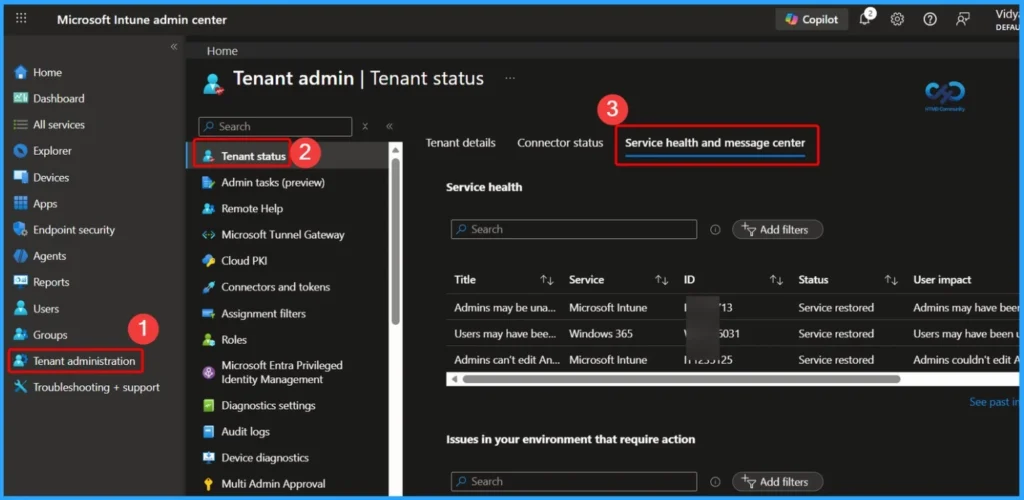
Go to Tenant administration > Tenant status > Service health and message center to review current service incidents, advisories, and recently resolved issues. This section provides visibility into service disruptions, user impact, and restoration updates related to Intune and connected services. Regularly checking the Service health and message center helps IT admins quickly determine whether an issue is tenant-related or service-related before starting detailed troubleshooting steps.

- Go to Microsoft Intune admin center > Tenant Administration > Tenant Status > Service health and message center.
User Level Troubleshooting in Microsoft Intune Admin Center
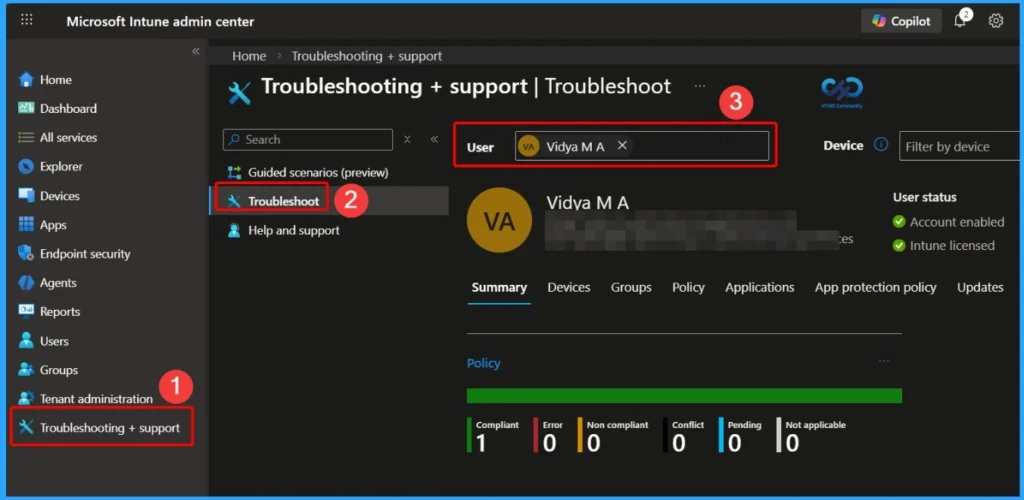
In the Microsoft Intune admin center, you can perform detailed user level troubleshooting from the Troubleshooting + support section. Go to Troubleshooting + support > Troubleshoot, then search and select the affected user. This view provides a comprehensive summary of the user’s device compliance status, assigned policies, applications, group memberships, and app protection policies.
- Device Configuration Profile Settings View-Intune Troubleshooting
- Windows Autopilot Troubleshooting – Beginners Guide
- Intune Win32 or. EXE App Troubleshooting Client-Side Process Flow
Using Help and Support in Microsoft Intune for Troubleshooting
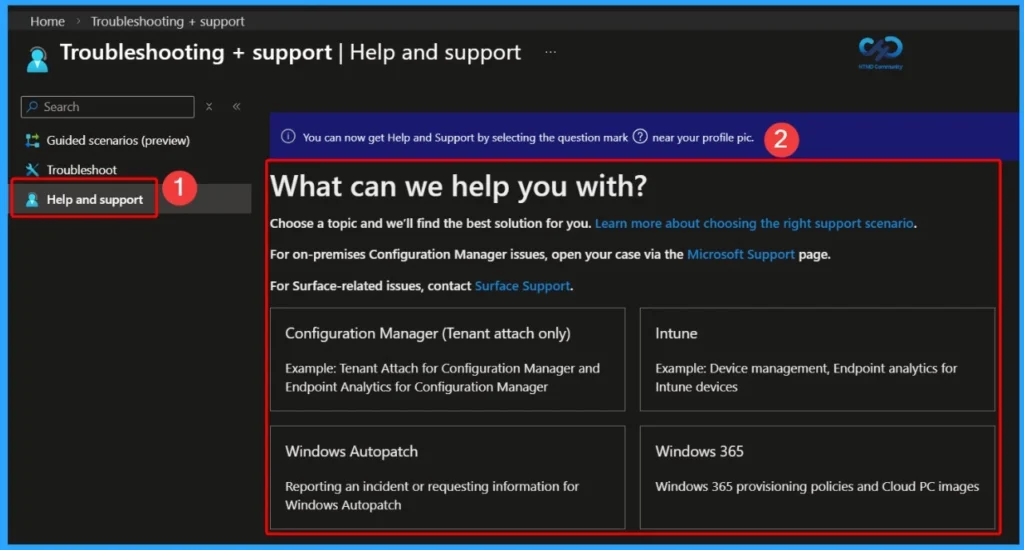
In the Microsoft Intune admin center, the Help and support section under Troubleshooting + support is the recommended starting point when you face any issue. From this page, you can select the relevant support scenario such as Intune, SCCM, Windows Autopatch, or Windows 365. The portal guides you to the most appropriate diagnostics, documentation, or support options based on your selection.
- Microsoft Intune Issues with Rapid Security Response Version of iOS iPadOS and macOS Update
- Explore New Intune Troubleshooting Dashboard for Intune Issues
- Not Applicable Status Issues with Offline Company Portal App | Intune Known Issue
Checking Configuration Profile Status in Intune
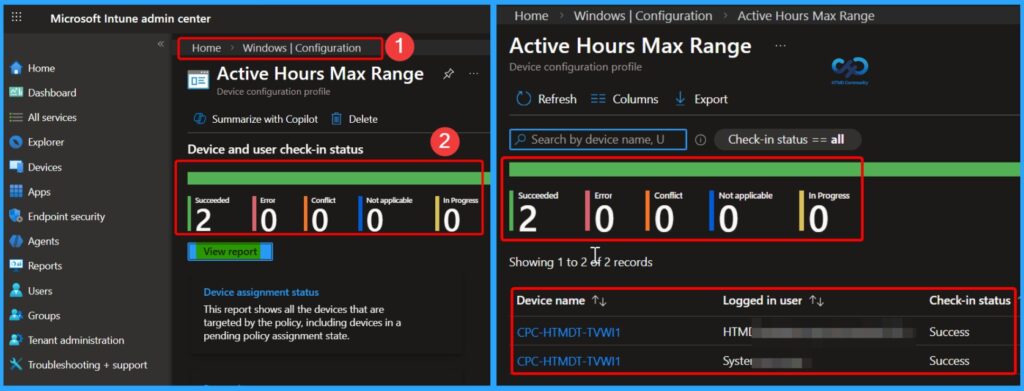
You can easily check configuration profile issues in Microsoft Intune. Go to the Intune admin center and navigate to Devices > Configuration profiles. Select the specific profile you want to review, then open the Per-settings status or Device status tab. This view shows whether the policy deployment status is Succeeded, Error, Conflict, or Not applicable for each device or user.
Monitoring Service Health in Microsoft 365 Admin Center
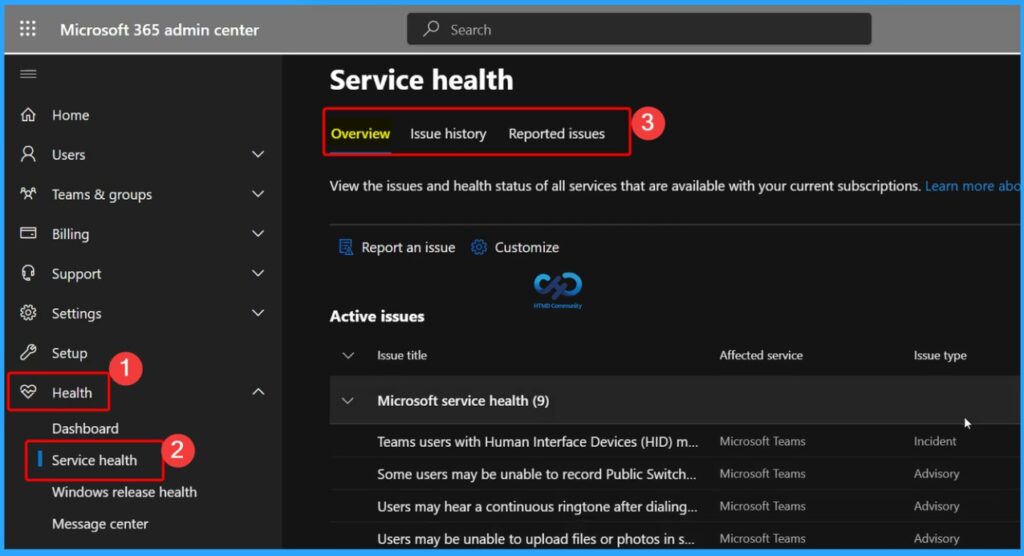
Checking the Service health dashboard helps IT admins quickly determine whether an issue is caused by a Microsoft service outage or an internal configuration problem, allowing faster and more accurate troubleshooting decisions.
- In the Microsoft 365 admin center, you can monitor overall service status by navigating to Health > Service health.
Reviewing User Details in the Intune Troubleshooting Tab
I selected Anoop Nair as the user. All the details of this user will be available in the troubleshooting tab. This will help the Intune admin to confirm whether we have targeted all the applications and policies to correct AAD groups. You can check and confirm whether the user.
| You can check and confirm whether the user |
|---|
| Does the user have a valid Intune license or not |
| Is the user part of the correct AAD group or not |
| Is the Device compliant or not |
| Status of Company Data Removal/wipe from a device |
Another set of user details you can check in the troubleshooting tab of Intune Blade is the Principal name of the selected user and Email ID. All the other information available in the Intune troubleshooting blade are
- Intune license assigned to a user or not
- Whether Devices compliant status
- Whether apps are in a compliant state or not
- Azure AD Group membership for the user
- Mobile Apps Assignment to the user
- Compliance policies deployed or assigned to users
- App protection status for the devices
- Configuration profile deployment status for the user
- List of the devices for that user and status of devices
There are some red icons, as seen in the video tutorial and the screenshot below. Those red icons could indicate potential issues with application or policy deployments. I could see problems with Anoop’s Android device. The app protection status does not look suitable for Android devices. The Intune troubleshooting blade provides a valuable report that “31 apps non-compliant“.
Intune Troubleshooting Blades has six (6) Assignment categories. Each type provides details about the user assignments. If some terms are missing, we need to examine the targeting AAD groups of those policies.
- Mobile Apps
- Compliance Policies
- Configuration Profiles
- App Protection Policies
- Windows 10 Update Rings
- Enrollment Restrictions
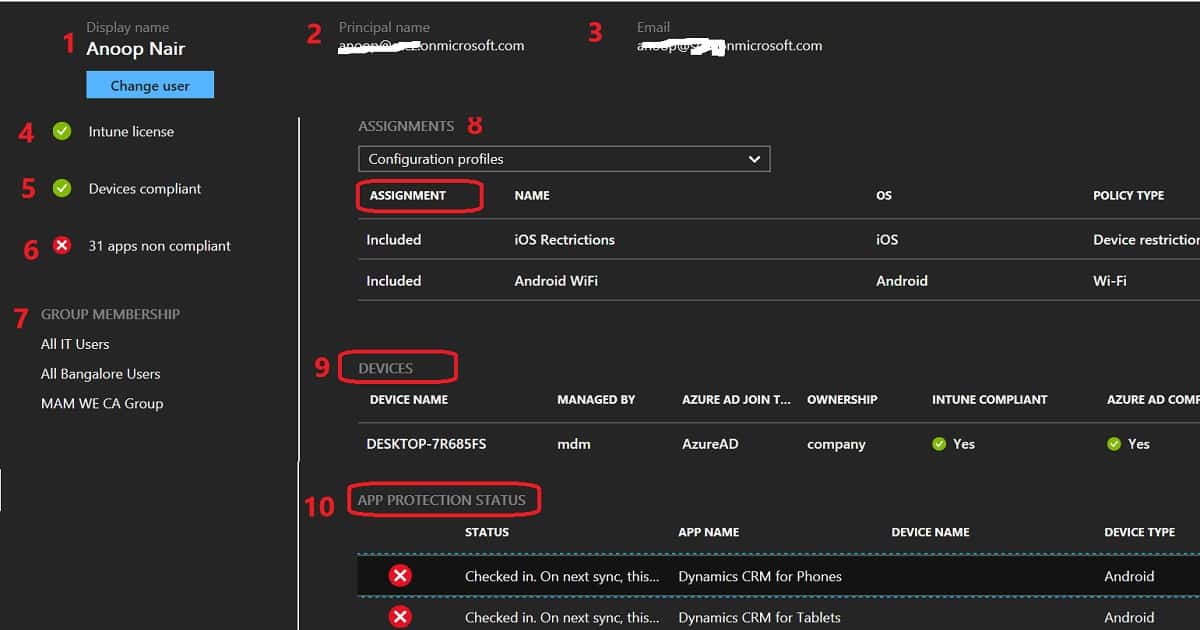
The above information is essential to start Intune troubleshooting from the Azure portal. From the troubleshooting tab, we can directly access details of each assigned policy for that user. We can also look at the device properties and hardware information for more detailed troubleshooting.
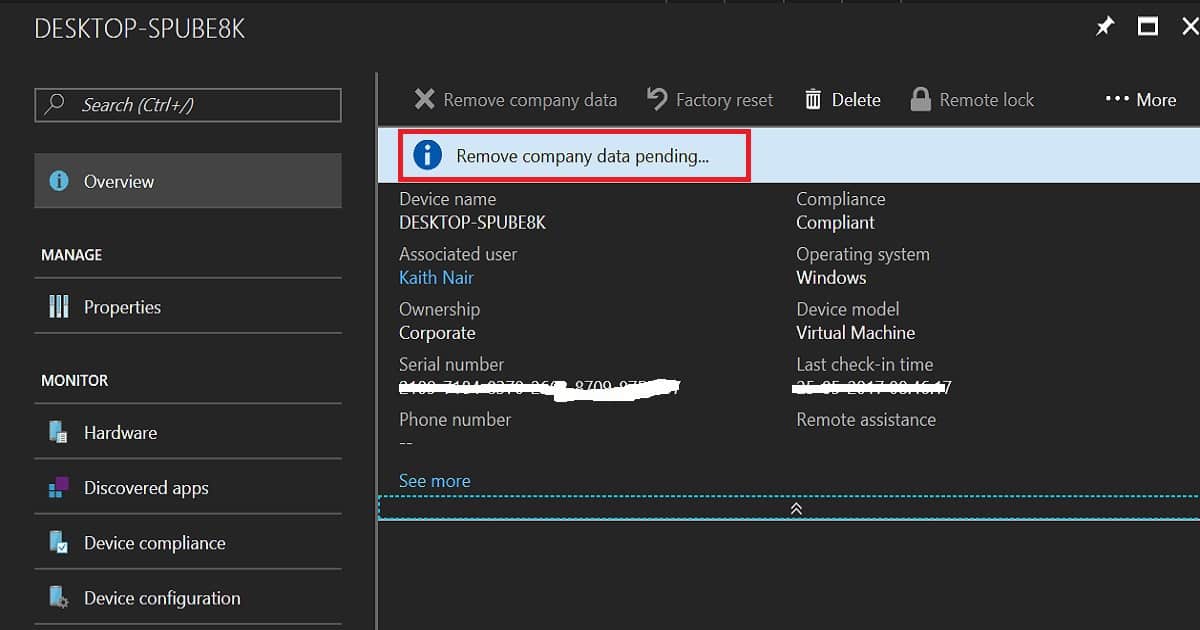
For example, you have started a company data wipe action for a device, but the device or user can still access the corporate mail from the device. Intune admin can directly search for the user from the Intune troubleshooting session and get all the user’s device details. Once the device is identified, you can check the following information about it.
Device name, Managed by, Azure AD join type, Ownership, Intune compliant, Azure AD compliant, OS, OS version, and Last check-in.
References
- How to get support for Microsoft Intune – here
- How to Troubleshoot Windows 10 MDM Policy Deployments – here
- Intune Support Case Severity Levels and Response time – here
Need Further Assistance or Have Technical Questions?
Join the LinkedIn Page and Telegram group to get the latest step-by-step guides and news updates. Join our Meetup Page to participate in User group meetings. Also, join the WhatsApp Community and the Whatsapp channel to get the latest news on Microsoft Technologies. We are there on Reddit as well.
Author
Anoop C Nair has been Microsoft MVP for 10 consecutive years from 2015 onwards. He is a Workplace Solution Architect with more than 22+ years of experience in Workplace technologies. He is a Blogger, Speaker, and Local User Group Community leader. His primary focus is on Device Management technologies like SCCM and Intune. He writes about technologies like Intune, SCCM, Windows, Cloud PC, Windows, Entra, Microsoft Security, Career, etc.
Thanks, that’s very informative and logical:) Cheers!