
Key Takeaways
- The User Account Control Switch to the Secure Desktop When Prompting for Elevation policy controls whether UAC prompts appear on the Secure Desktop or the normal interactive desktop.
- Disabling the policy prevents Windows from switching to the dimmed Secure Desktop when an elevation prompt appears.
- The configuration can provide a smoother and less disruptive elevation experience for users.
- The policy should be disabled only when there is a specific business or technical requirement.
Let’s learn how you can disable UAC Secure Desktop Mode using Intune. User Account Control (UAC) helps prevent malware from damaging a PC and allows organizations to deploy a better-managed desktop. When an executable file requests elevation, the interactive desktop, also called the user desktop, is switched to the secure desktop. The secure desktop dims the user desktop and displays an elevation prompt that must be responded to before continuing. When the user clicks Yes or No, the desktop switches back to the user desktop.
Table of Contents
Table of Contents
Disabling UAC Secure Desktop Mode for a Smoother Elevation Experience using Intune
User Account Control, commonly known as UAC, is a Windows security feature designed to prevent unauthorized applications and processes from making changes to the operating system. When an application or user action requires administrative elevation, UAC displays an elevation prompt before allowing the operation to continue.
By default, Windows can switch from the normal user desktop to the Secure Desktop when displaying this prompt. The Secure Desktop dims the user’s current desktop and displays the elevation request in an isolated desktop environment, helping protect the prompt from interference by other applications.
- Intune User Policy Troubleshooting Tips For Prevent Changing Theme
- Intune Logs Event IDs IME Logs Details for Windows Client Side Troubleshooting
- Collect Intune Logs from MEM Portal Diagnostic Data
- Intune Policy Device Assignment Status Report
- Intune Policy Per Setting Status Report
Disable UAC Secure Desktop Mode using Intune
Create Profile for User Account Control Switch to the Secure Desktop When Prompting for Elevation by, sign in to the Microsoft Intune admin center and navigate to Devices > Windows > Configuration profiles. Select Create profile to begin creating a new configuration profile. Let’s follow the step below to disable dimmed Secure Desktop using Intune –

- Sign in to Microsoft Intune admin center
- Select Devices > Windows > Configuration profiles
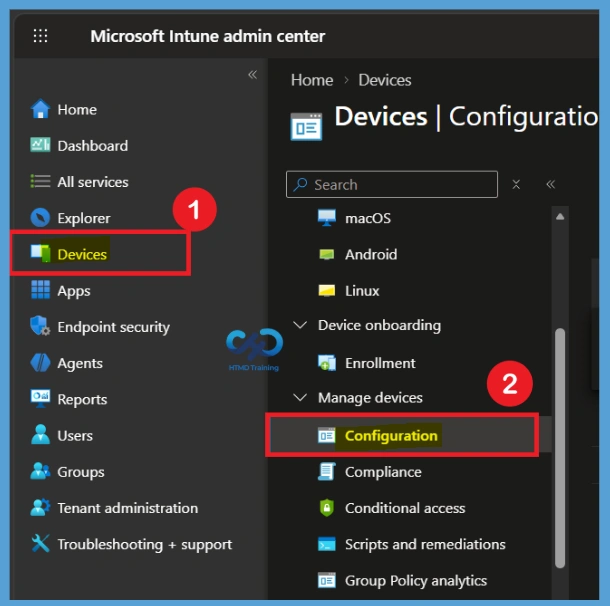
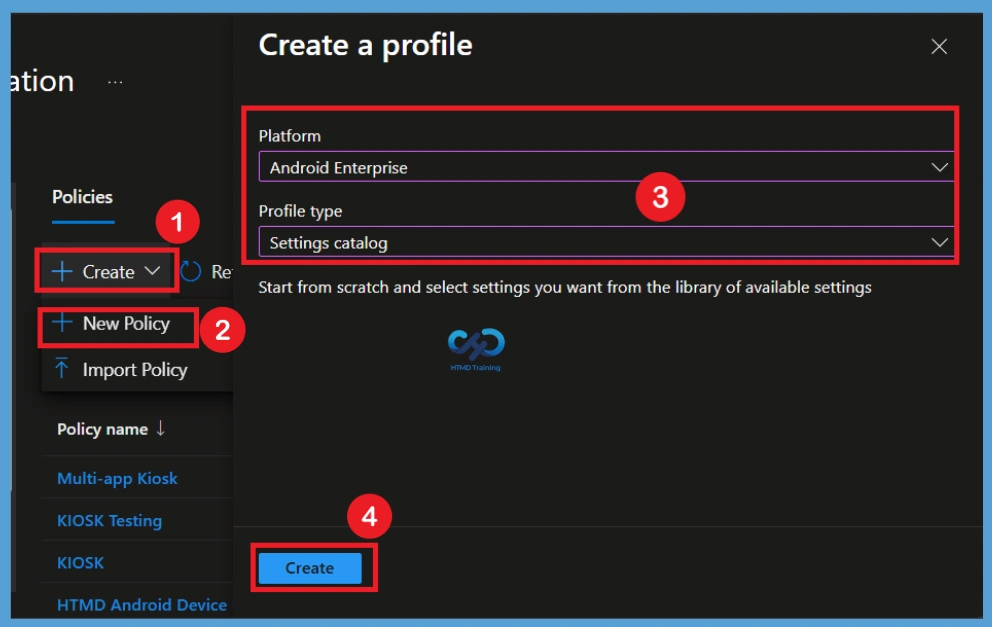
Select Create profile to begin creating a new configuration profile. In Create Profile, Select Platform, Windows 10, and later and Profile, Select Profile Type as Settings catalog. Click on Create button.
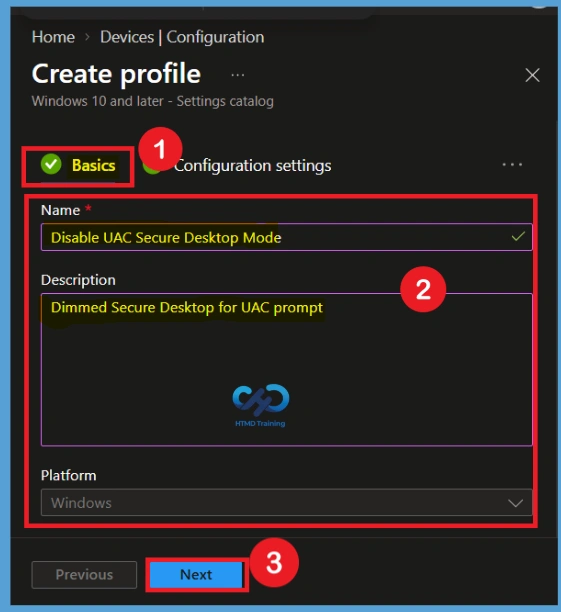
Basics for UAC Secure Desktop Mode
On the Basics page, provide a name for the configuration profile. For example, you can use Disable UAC Secure Desktop Mode. Add a description explaining that the profile configures the User Account Control Switch to the Secure Desktop When Prompting for Elevation policy to display UAC elevation prompts on the interactive desktop. Select Next after entering the required profile information.
Configuration Settings
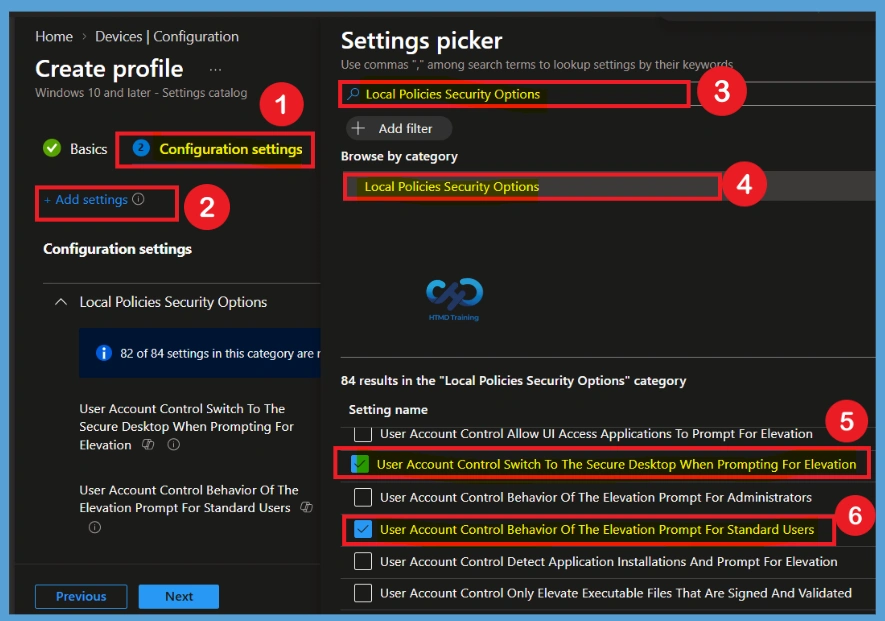
In Configuration settings, click Add settings to browse or search the catalog for the settings you want to configure. On the Settings Picker window, use the search box and type User Account Control, or Local Policies Security Options and click Search. Now select Local Policies Security Options. This will display all the available User Account Control (UAC) prompt settings. Selected the below settings from category –
- User Account Control Behavior of The Elevation Prompt for Standard Users
- User Account Control Switch to the Secure Desktop When Prompting for Elevation
Defaulted Value of the Policy
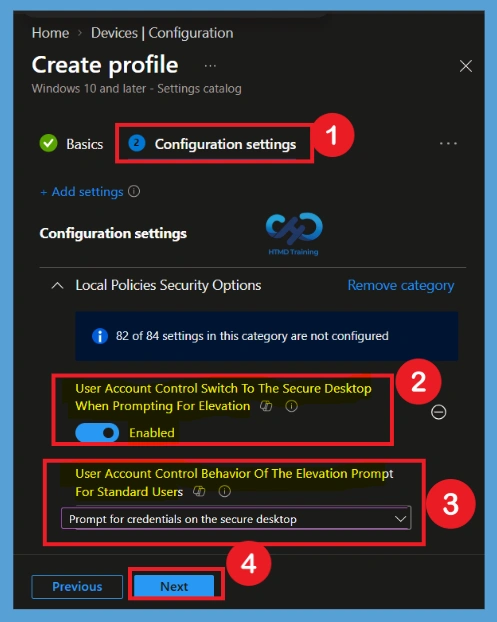
The setting is shown and configured with a default value. Account Control: Behavior of the elevation prompt for standard users This policy setting controls the behavior of the elevation prompt for standard users. The options are Prompt for credentials: (Default) When an operation requires elevation of privilege, the user is prompted to enter an administrative username and password.
- User Account Control Behavior of the Elevation Prompt For Standard Users – You can also change the prompt behavior policy settings for standard users. By default, Prompt for credentials on the secure desktop.
- User Account Control Switch To The Secure Desktop When Prompting For Elevation – This policy setting controls whether the elevation request prompt is displayed on the interactive user’s desktop or the secure desktop. Set to Enabled by default.
| Secure Desktop Setting | Elevation Request Behavior |
|---|---|
| Enabled | All elevation requests go to the secure desktop |
| Disabled | All elevation requests go to the interactive user’s desktop |
Enable the Policy
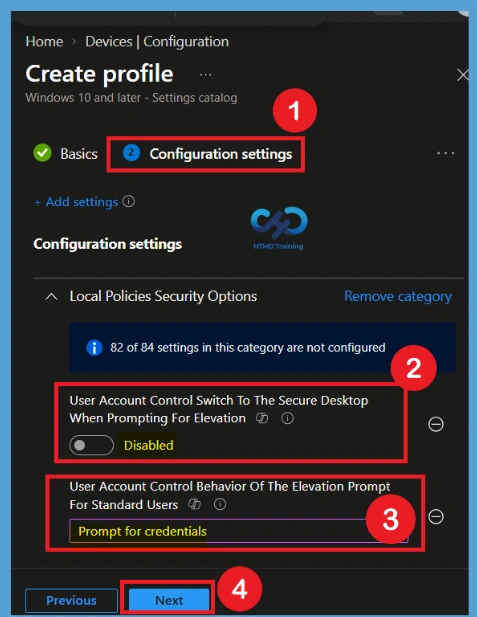
Configure User Account Control Switch to the Secure Desktop When Prompting for Elevation as Disabled. With this configuration, Windows will no longer switch to the dimmed Secure Desktop when an elevation request is displayed. Instead, the UAC prompt will appear on the interactive user’s normal desktop.
- User Account Control Behavior of the Elevation Prompt for Standard Users – You can also change the prompt behavior policy settings for standard users is now set to Prompt for credentials.
- Select Next after completing the configuration.
Scope Tags
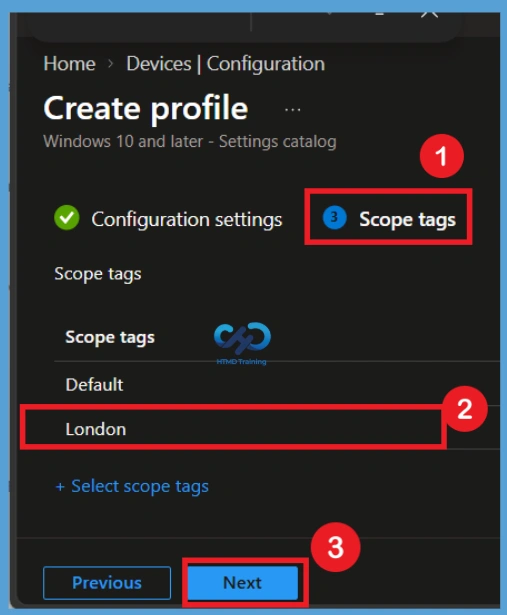
If your organization uses scope tags for delegated administration, select the appropriate scope tags. In Scope tags, you can assign a tag to filter the profile to specific IT groups. Add scope tags (if required) and click Next.
Assignments
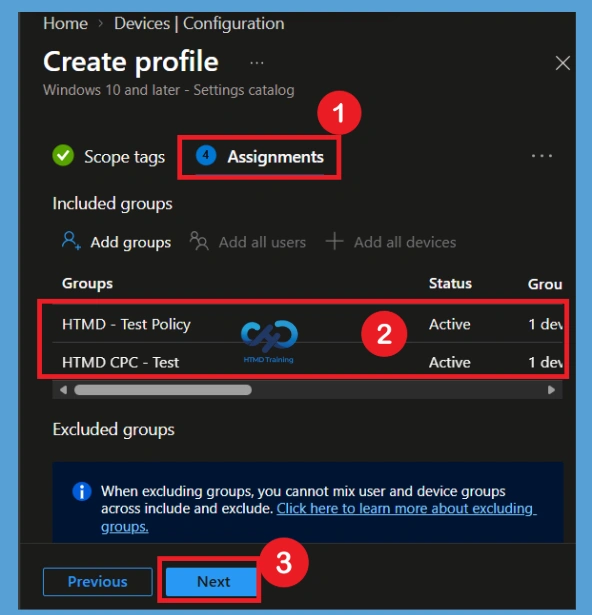
Under Assignments, In Included groups, click Add groups and then choose Select groups to include one or more groups to which you want to deploy the UAC settings. Here, The assignments section is used to choose the users or devices that will receive the policy. Add a group by clicking on the Add group button. Here, I selected the HTMD-Test Policy group and HTMD CPC Test group. Review the assignment settings to ensure the correct targets are included and click Next.
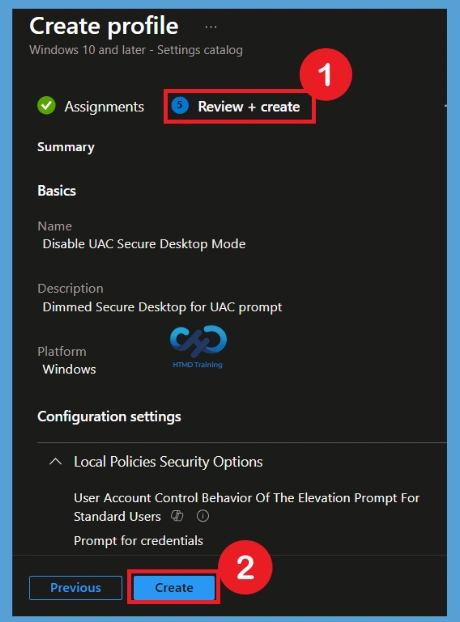
In Review + create, review your settings. When you select Create, your changes are saved, and the profile is assigned. A notification will appear automatically in the top right-hand corner with a message. The Policy “Disable UAC Secure Desktop Mode” created successfully. The policy is also shown in the Configuration profiles list. Your groups will receive your profile settings when the devices check in with the Intune service the policy applies to the devices.
Intune Reporting – Disable UAC Secure Desktop Mode
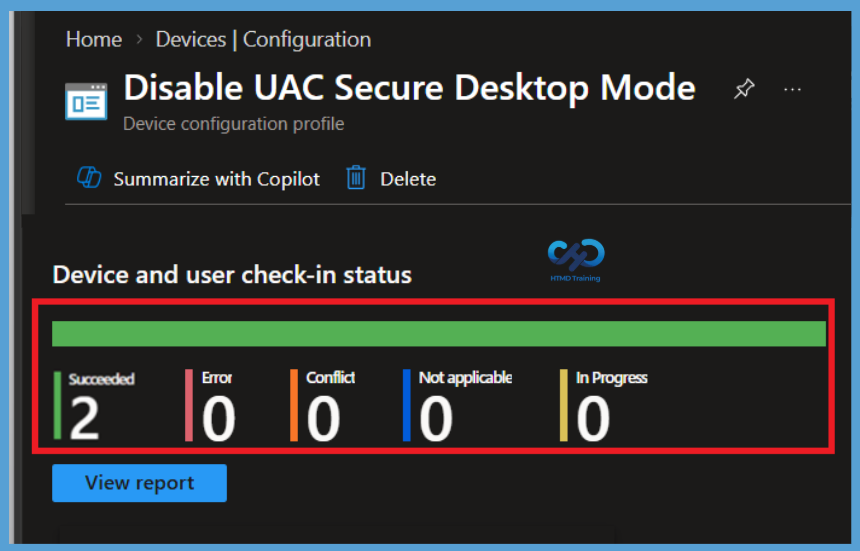
After the profile has been created and assigned, use Intune reporting to monitor its deployment status. Open Devices > Windows > Configuration profiles and select the disabled UAC Secure Desktop Mode profile. The profile reporting information allows you to review the status of assigned devices and identify whether the policy has been successfully applied, is still pending, or has reported an error. You can also review the per-setting status to confirm that User Account Control Switch to the Secure Desktop When Prompting for Elevation has been successfully configured as disabled.
Intune Client-Side Event Log
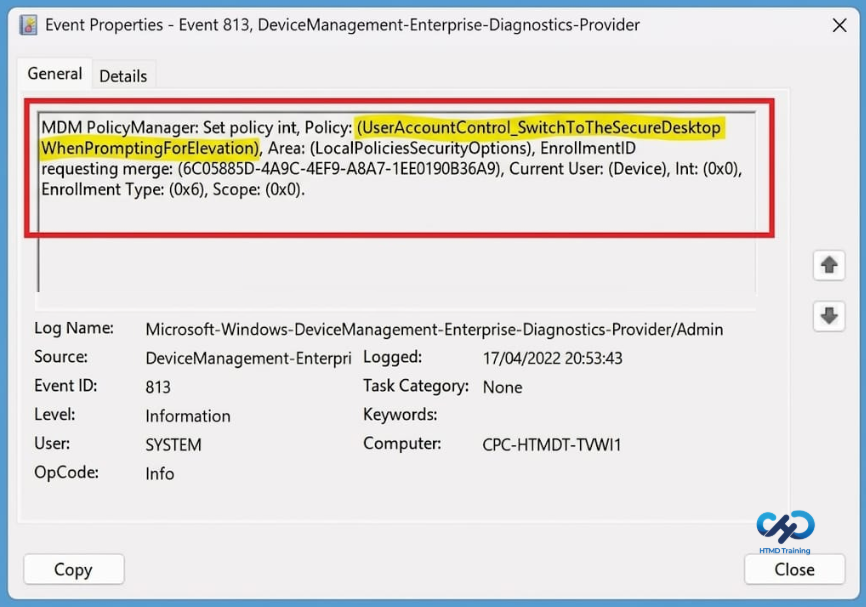
To enable client-side verification, open Event Viewer and navigate to Applications and Services Logs > Microsoft > Windows > Device Management > Enterprise Diagnostic Provider > Admin. Once there, you can search for specific policy results by using the Filter Current Log feature located in the right pane.
| Policy Info |
|---|
| MDM PolicyManager: Set policy int, Policy: (UserAccountControl_SwitchToTheSecureDesktop WhenPromptingForElevation), Area: (LocalPoliciesSecurityOptions), EnrollmentID requesting merge: (6C05885D-4A9C-4EF9-A8A7-1EE0190B36A9), Current User: (Device), Int: (0x0), Enrollment Type: (0x6), Scope: (0x0). |
Remove Assigned Groups from Disable UAC Secure Desktop Mode Policy
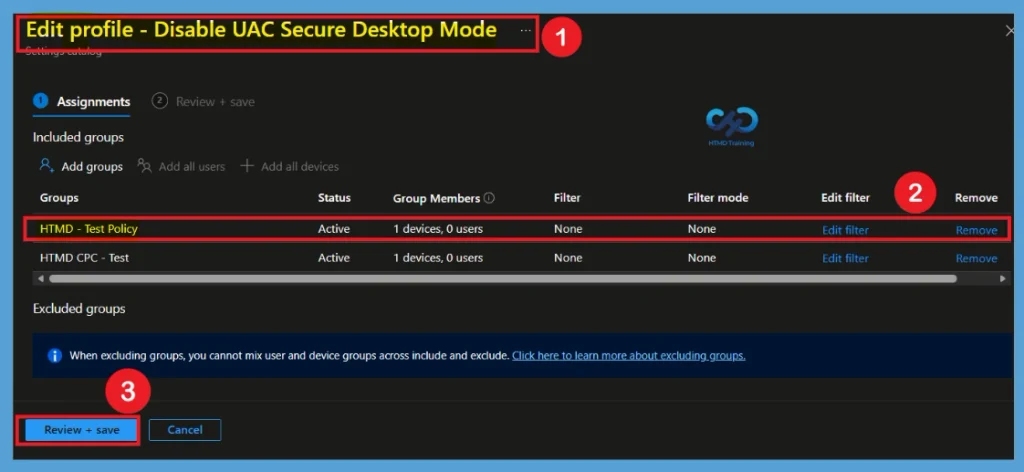
If you no longer want the policy to apply to a particular group, open the Disable UAC Secure Desktop Mode configuration profile and go to Assignments. Remove the group from the Included groups section and save the assignment changes. Once the device is no longer targeted by the policy, Intune will no longer actively assign the configuration to that device through the removed group.
Delete the Policy Permanently
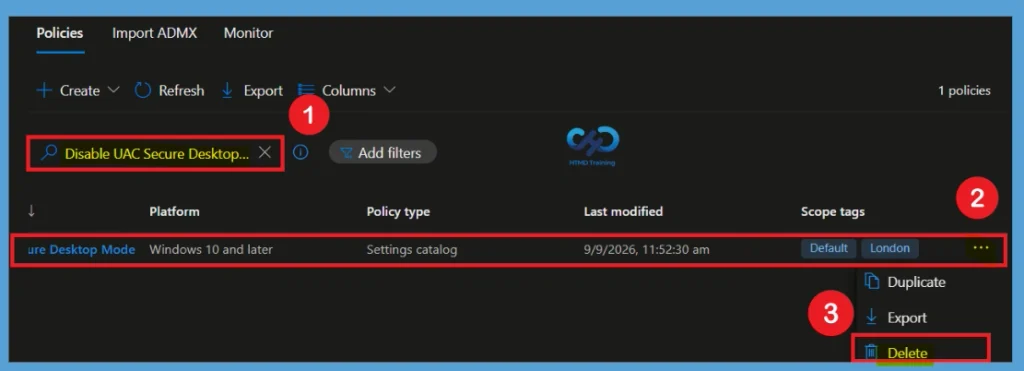
When the policy is no longer required, you can permanently delete the Disable UAC Secure Desktop Mode Using Intune profile from the Intune admin center. Select the policy from the configuration profiles list and choose the Delete option. Before permanently deleting the User Account Control Switch to the Secure Desktop When Prompting for Elevation policy, ensure that it is no longer required by any users or devices. Once deleted, the policy configuration is removed from Intune and can no longer be managed or deployed.
Need Further Assistance or Have Technical Questions?
Join the LinkedIn Page and Telegram group to get the latest step-by-step guides and news updates. Join our Meetup Page to participate in User group meetings. Also, join the WhatsApp Community and the Whatsapp channel to get the latest news on Microsoft Technologies. We are there on Reddit as well.
Author
About Author – Jitesh, Microsoft MVP, has over six years of working experience in the IT Industry. He writes and shares his experiences related to Microsoft device management technologies and IT Infrastructure management. His primary focus is Windows 10/11 Deployment solution with Configuration Manager, Microsoft Deployment Toolkit (MDT), and Microsoft Intune.