
Key Takeaways
- Provides device-level readiness assessment for Windows feature updates.
- Identifies hardware, application, and driver compatibility risks before deployment.
- Categorizes devices by readiness status such as Low Risk, Medium Risk, High Risk, and Replace Device.
- Supports proactive remediation of upgrade blockers before deployment.
Let’s check the Analyze Windows Feature Update Device Readiness Reports to Identify Windows 11 Upgrade Risks using Intune. The Windows feature update device readiness report provides a device-level view of compatibility risks associated with an upgrade or update to a chosen version of Windows. This report provides a device-level assessment of application, driver, and hardware readiness before deploying a Windows feature update, helping administrators minimize deployment failures and user disruptions.
Table of Contents
Table of Contents
Analyze Windows Feature Update Device Readiness Reports to Identify Windows 11 Upgrade Risks using Intune
The report of Windows diagnostic data and Microsoft compatibility intelligence to evaluate each managed device against a selected target Windows version. By reviewing readiness insights before creating a Feature Update deployment policy, IT administrators can proactively address blockers, validate upgrade eligibility, and improve the overall success rate of Windows update rollouts across the organization.
The Windows feature update device readiness require users of enrolled devices to have one of the following licenses:
| Licensing |
|---|
| Windows 10/11 Enterprise E3 or E5 (included in Microsoft 365 F3, E3, or E5) |
| Windows 10/11 Education A3 or A5 (included in Microsoft 365 A3 or A5) |
| Windows 10/11 Virtual Desktop Access (VDA) per user |
- Latest Intune Admin Portal Walkthrough Guide | MEM Admin Center
- Intune Reporting Issue: Expedite Windows Security Patch Deployment
- List of Intune Default Reports Reporting Strategies Advanced Reporting Options
Open Windows Updates Reports
To access Windows update reporting in Intune, sign in to the Microsoft Intune Admin Center and navigate to Reports > Windows Updates. This section provides centralized reporting capabilities that help administrators monitor update deployments, readiness assessments, compatibility risks, and update compliance across managed Windows devices.

Before using these reports, ensure that all prerequisites are satisfied and that eligible devices are configured to send the required diagnostic data. Accurate reporting depends on proper device enrollment, licensing, and data collection settings.
- Go to Reports > Windows updates.
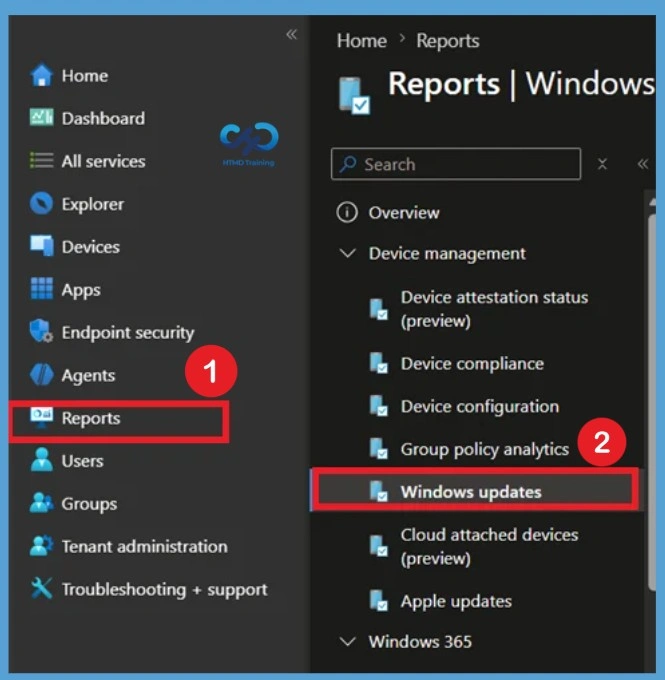
Access the Reports Tab
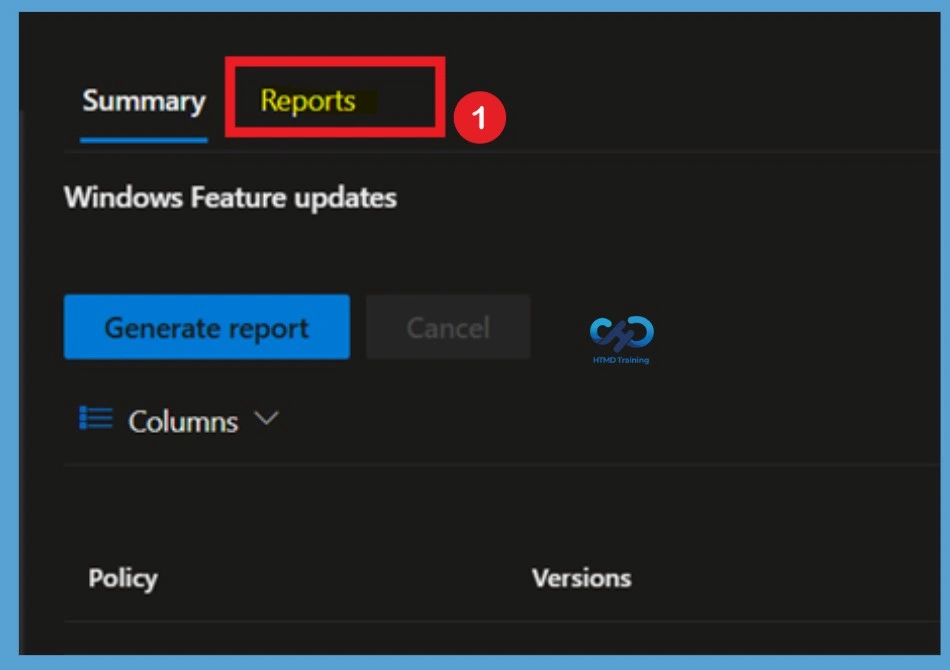
On the Windows Updates page, select the Reports tab to view the reporting dashboard. This area contains several built-in reports designed to provide visibility into Windows update deployments, update health, and upgrade readiness throughout the organization.
The Reports tab enables administrators to generate targeted reports based on different update scenarios. These reports help simplify planning, troubleshooting, and decision-making before deploying Windows feature updates at scale.
- Click on the Reports Tab
Explore Available Windows Update Reports
The Reports tab includes a collection of Windows Update reports that provide different types of deployment and compatibility insights. Each report focuses on a specific area of update management, helping administrators evaluate update readiness and identify potential deployment challenges.
Available reports include feature update status, expedited update status, compatibility risk analysis, update distribution statistics, device readiness assessments, and driver update tracking. Together, these reports offer a comprehensive view of the Windows update environment within Intune.
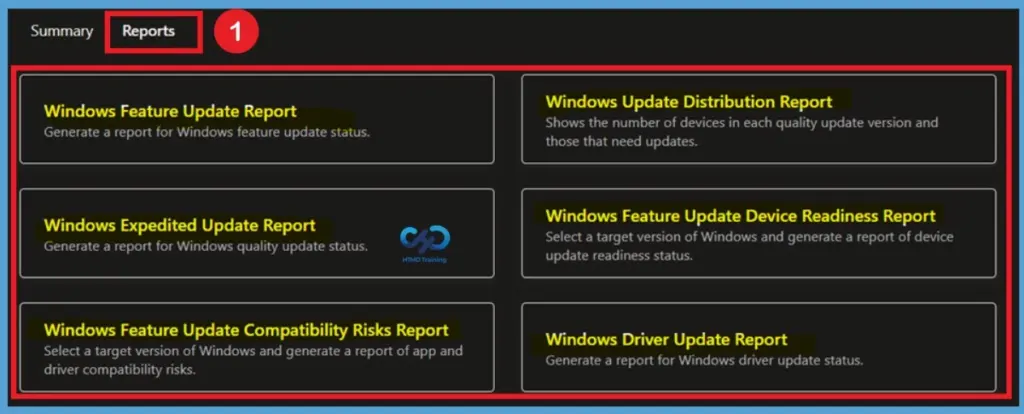
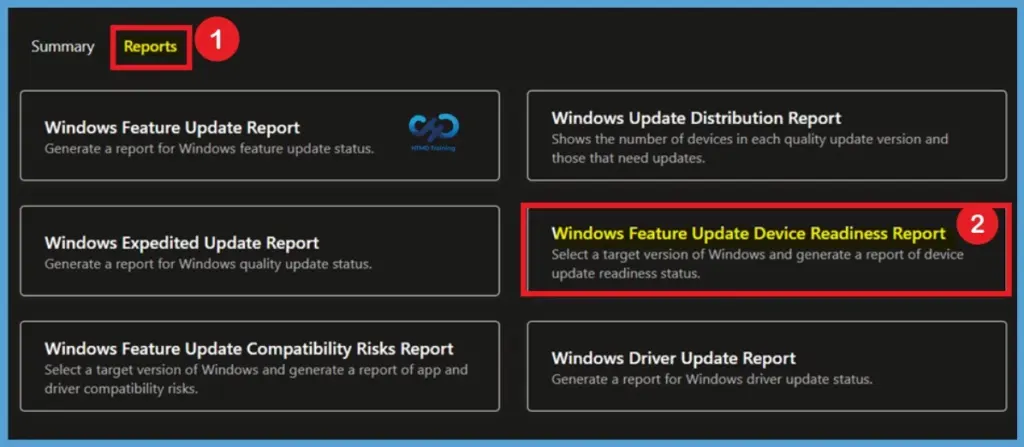
Select the Windows Feature Update Device Readiness Report
Select Windows Feature Update Device Readiness Report from the list of available reports. This report helps administrators evaluate whether managed Windows devices are ready for an upgrade to a selected Windows version by analyzing hardware requirements, application compatibility, driver readiness, and other upgrade-related factors.
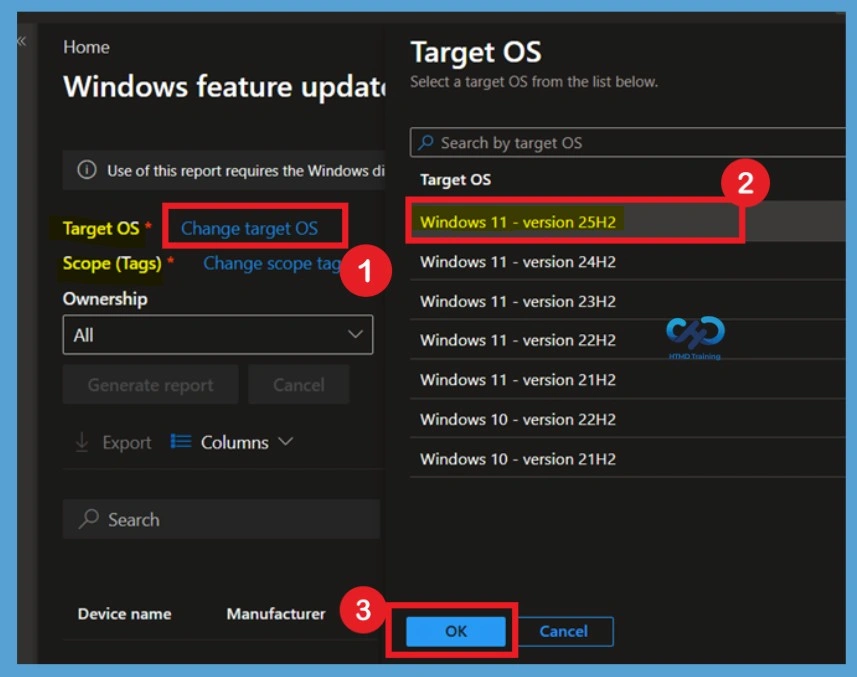
Select the Target Windows Version
Click Change Target OS to choose the Windows version that you intend to deploy. The available list includes supported Windows 10 and Windows 11 releases, allowing administrators to evaluate readiness against a specific target operating system version.
Once the desired version is selected, click Ok to apply the configuration. Intune uses the selected Windows release as the baseline for evaluating hardware requirements, application compatibility, and driver readiness across managed devices.
- Let’s Configure the following settings –
- Click on Select target OS and choose the version of Windows you plan to deploy.
- Click on the Select scope tag and choose which devices should be in scope for this report.
- Optionally select Ownership and Readiness status to refine the report.
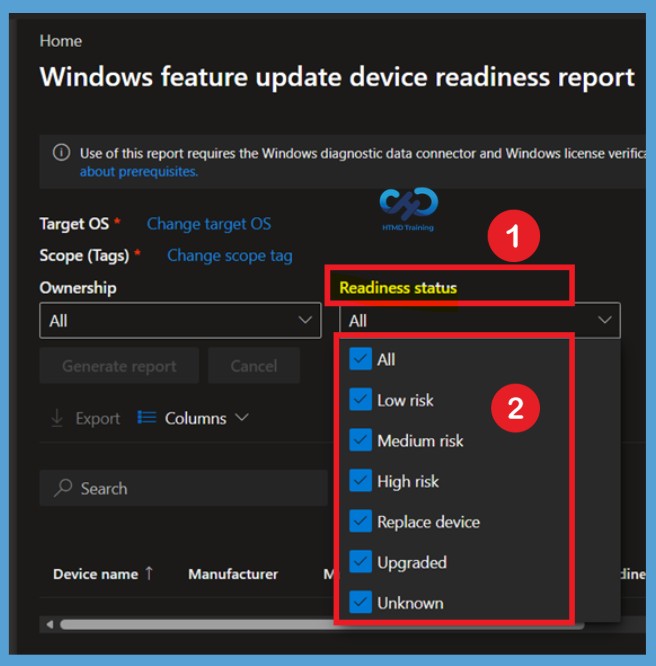
Configure Readiness Status Filters
Use the Readiness Status filter to the report results based on device upgrade readiness. This filter helps administrators focus on specific categories of devices, making it easier to identify systems that are ready for deployment and those that require remediation before upgrading to the selected Windows version.
The available readiness categories include Low Risk, Medium Risk, High Risk, Replace Device, Upgraded, and Unknown. Selecting one or more statuses allows you to quickly analyze affected devices and prioritize upgrade planning activities based on their readiness level.
- Low risk – There are no known compatibility risks associated with the device.
- Medium risk – There are only minor, or non-blocking, compatibility risks associated with this device, such as applications that will be automatically removed during upgrade.
- High risk – There are multiple or blocking compatibility risks associated with this device, such as applications that will block an upgrade.
- Replace device – The device isn’t capable of upgrading to the target OS version.
- Upgraded – The device is already running a version of Windows equal to or greater than the target OS version.
- Unknown – A readiness status couldn’t be determined. Ensure that the device is properly configured to send Windows diagnostic data
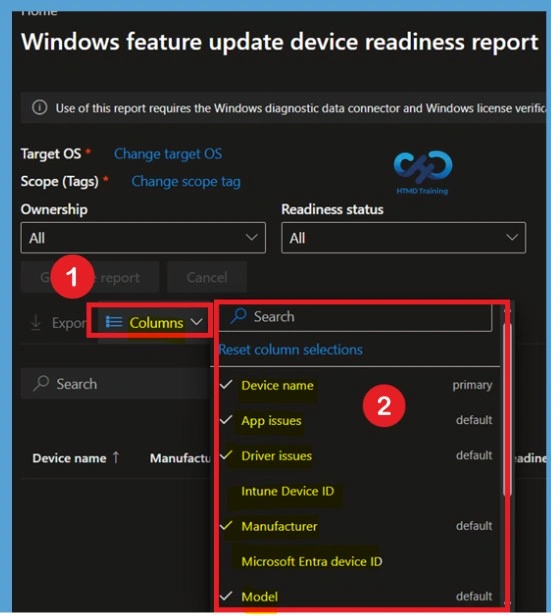
Customize Report Columns
Select Columns to customize the information displayed in the report. The columns menu allows administrators to add or remove fields based on the data they want to analyze, providing greater flexibility when reviewing device readiness results.
Available columns may include Device Name, Manufacturer, Model, App Issues, Driver Issues, Intune Device ID, and Microsoft Entra Device ID. Customizing the report view helps simplify analysis and ensures that only relevant information is displayed during readiness assessments.
Generate the Windows Feature Update Device Readiness Report
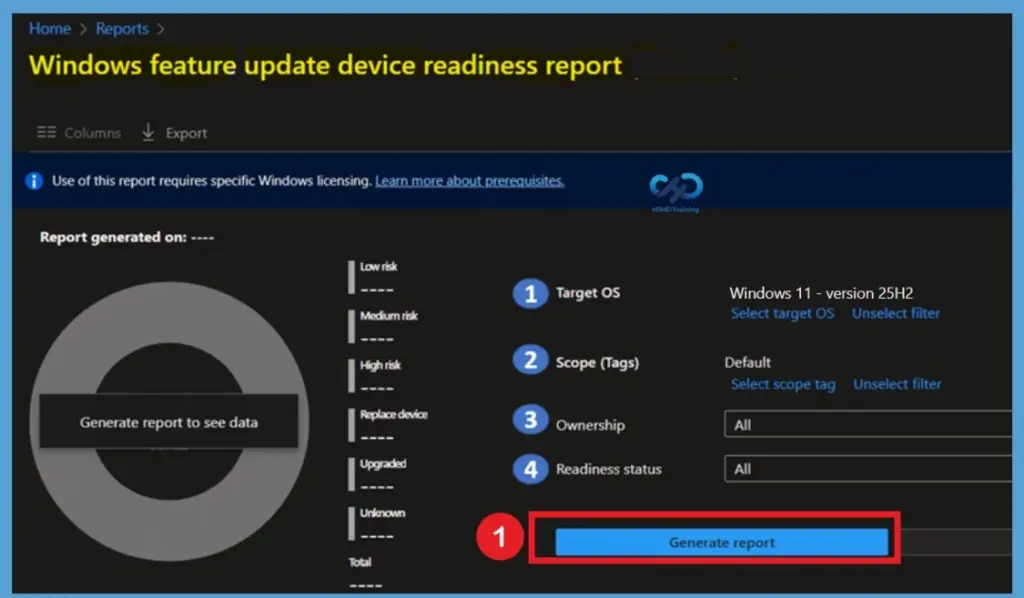
After selecting the Target OS, Scope Tags, and optional filters such as Ownership and Readiness Status, click Generate Report. Intune begins analyzing eligible devices and collects readiness information based on Windows diagnostic and compatibility data.
The generated report provides a view of upgrade readiness across the selected device scope. This information helps administrators understand which devices can be upgraded immediately, and which devices require further investigation before deployment.
- A notification will appear automatically in the top right-hand corner with the message Generating Windows feature update device readiness report.
- This process can take several minutes. You’ll be notified when report generation is complete.
Review the Generated Device Readiness Report
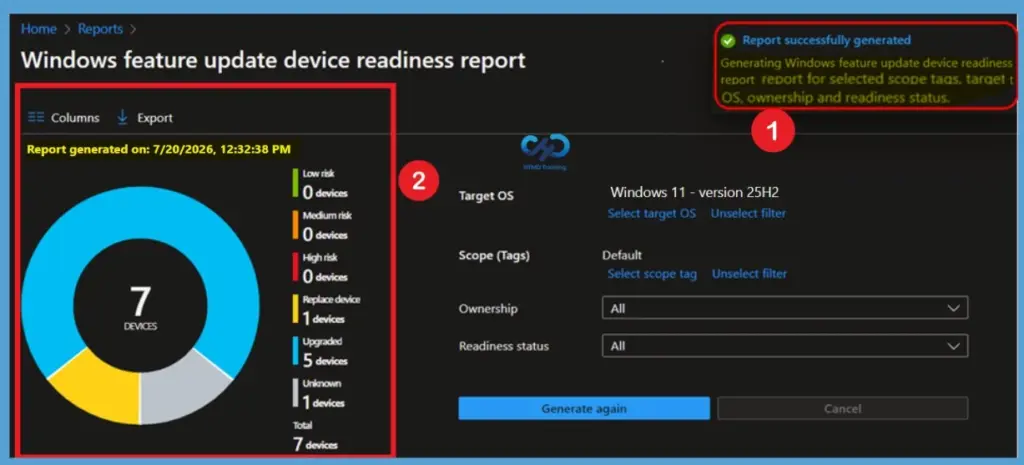
After clicking Generate Report, Intune processes the selected criteria and analyzes device readiness for the target Windows version. Once the report generation is complete, a notification appears in the upper-right corner confirming that the Windows Feature Update Device Readiness Report was successfully generated.
The report provides a visual summary of device readiness across the selected scope. Administrators can quickly identify how many devices are categorized as Low Risk, Medium Risk, High Risk, Replace Device, Upgraded, or Unknown. This readiness overview helps organizations assess upgrade preparedness and prioritize remediation activities before deploying Windows feature updates.
Export Windows Feature Update Compatibility Intune Report
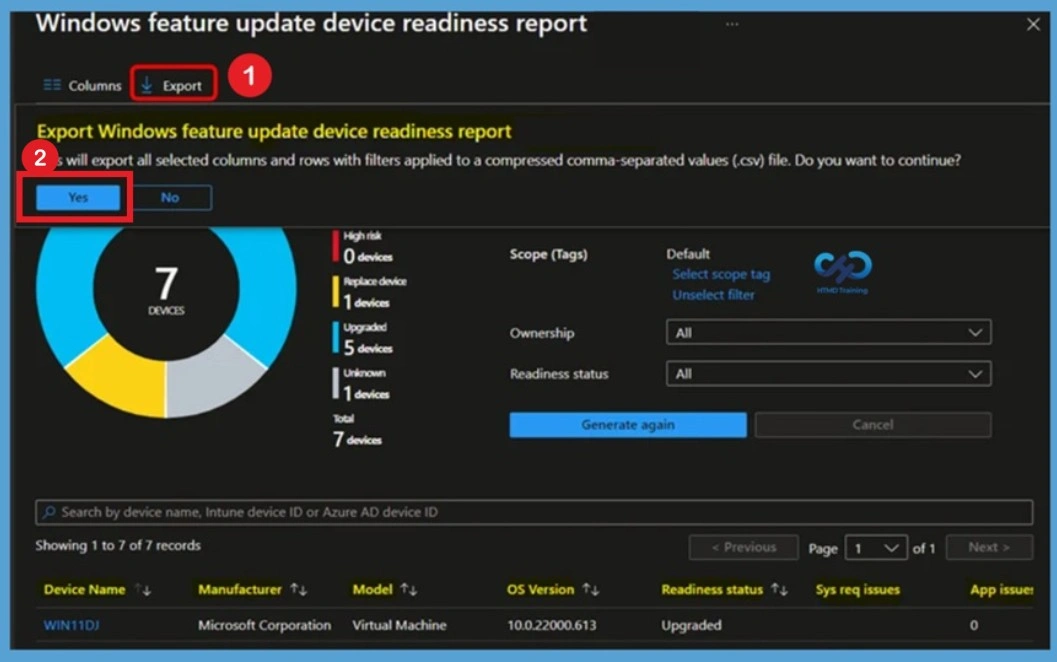
You can quickly export reporting data generated. Click on the Export. The popup will appear with the following message when exporting generated Windows feature update device readiness report, Click Yes. This will export data to a compressed comma-separated values (.csv) file.
Need Further Assistance or Have Technical Questions?
Join the LinkedIn Page and Telegram group to get the latest step-by-step guides and news updates. Join our Meetup Page to participate in User group meetings. Also, join the WhatsApp Community and the WhatsApp channel to get the latest news on Microsoft Technologies. We are there on Reddit as well
Author
About Author – Jitesh, Microsoft MVP, has over six years of working experience in the IT Industry. He writes and shares his experiences related to Microsoft device management technologies and IT Infrastructure management. His primary focus is Windows 10/11 Deployment solution with Configuration Manager, Microsoft Deployment Toolkit (MDT), and Microsoft Intune.
Hi Anoop, we have a few devices that are reporting :
Replace device
System drive size
Even though the device has plenty of disk space. Do you know where this data is collected from? We have run the Windows 11 PC Health Check to confirm the device is compatible, so something that has been reported back to intune is causing this device not to be able to receive the Windows 11 feature update. Any pointers will be appreciated. Thanks
Getting same issue with a few machines, in which lots of space but wants to replace device because of System Drive size.
Same. Any progress on this issue please?
I noticed that in the report when it indicates Replace Device\System drive size, it is not referring to C Drive\partition. I believe it is referring to the EFI partition, some devices only have 100mb in that partition and some vendors store apps\data there, we are testing expanding the partition to 500mb using gparted in a linux live USB.. not ideal in a remote scenario
Hello Anoop,
We are not getting all the devices under a scope tag and infact the no. of devices are getting decreased in counts it’s 388 yesterday and 373 today.
I have checked the registry for the telemetry and set it to automatic.
Still the same issue